







10 Google Outlook Sync Software Tools Compared for 2026
Compare 10 Google Outlook sync software options for 2026, with features, pricing, pros, cons and the best use case for each tool.
You’re in the middle of the classic calendar trap. A client meeting gets accepted in Outlook, a personal dentist appointment already lives in Google Calendar, and the clash only shows up after the invite goes out. That’s why google outlook sync software exists, but the right tool depends on the accounts you need to match, how much detail you’re willing to share, and whether the sync must run in the cloud or on a desktop machine.
Some tools are built for always-on cloud sync. Others are Windows add-ins that only work while your computer is running. A few are aimed at simple availability mirroring, while others try to copy full event data with privacy controls. The list below groups the tools by the problem they solve, so you can pick the one that fits your actual calendar setup instead of buying features you won’t use.
1. SyncThemCalendars
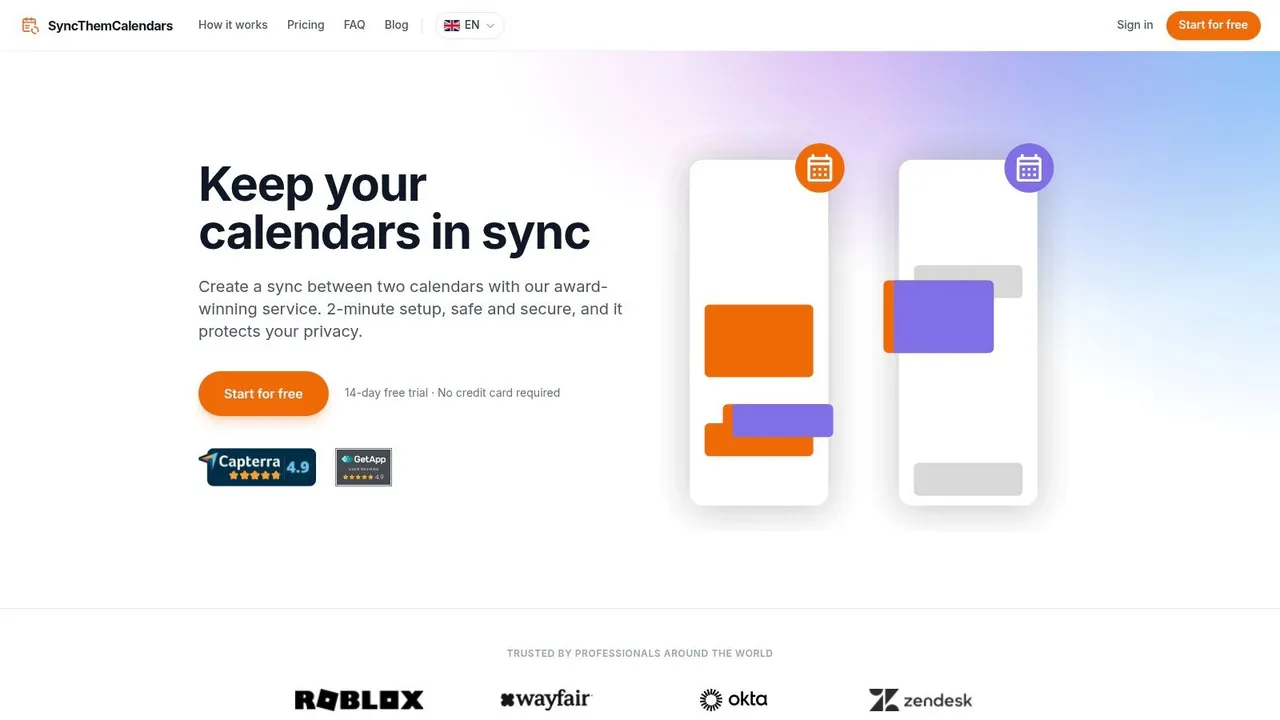
SyncThemCalendars fits the setup where Google, Outlook, and iCloud all need to stay in step without running a desktop app in the background. It is cloud-based, built for one-way, two-way, or multi-way sync, and aimed at the common failure point in mixed-calendar setups, events drifting apart after they were accepted or edited in different places. For readers comparing broader productivity tool recommendations, it belongs in the small group focused on calendar automation rather than scheduling extras. Visit the SyncThemCalendars website if you want a service built for that exact job.
Privacy and flexibility are the main reasons people choose it
Its strongest feature is field control. SyncThemCalendars can mask or transform titles, descriptions, and locations, so a personal appointment can block time on a work calendar as a plain busy slot. That is a better fit than copying every detail when the goal is to protect context while keeping availability accurate. iCloud support also matters here, since many sync tools still focus only on Google and Microsoft accounts.
The trade-off is structural. Plans are single-user, and active syncs are limited by plan, so it suits individuals and small operators more than centralized IT teams. The upside is clear pricing, a 14-day free trial without a credit card, and unlimited events on all plans. If you need a cross-platform bridge that keeps privacy intact, SyncThemCalendars is a practical option.
Practical rule: choose the tool that hides details cleanly if your main problem is double-booking across personal and work calendars.
2. Reclaim.ai
Reclaim.ai fits people who want calendar sync to live inside a larger scheduling system. It combines Google and Outlook mirroring with an AI planner, scheduling links, and task integrations, so the sync layer is part of a broader time-management workflow. That makes it useful when you want more than a passive bridge between two calendars.
Best when scheduling logic matters more than pure replication
Reclaim can mirror events one way or two ways and can show copied items as busy blocks or redacted placeholders. That’s the right approach for users who need privacy without giving up automated scheduling. If your calendar is also where tasks, focus time, and meeting links are managed, the product feels cohesive rather than bolted together.
The limitation is that this broader system takes more tuning. Users who only want clean calendar replication may find the planner features unnecessary, and some of the more advanced capabilities sit behind paid tiers. The website is Reclaim.ai, and it makes the most sense for people who want sync plus scheduling intelligence in one place.
Reclaim works best when you’re willing to shape the automation around your habits, instead of expecting a plain mirror of one calendar onto another.
3. CalendarBridge
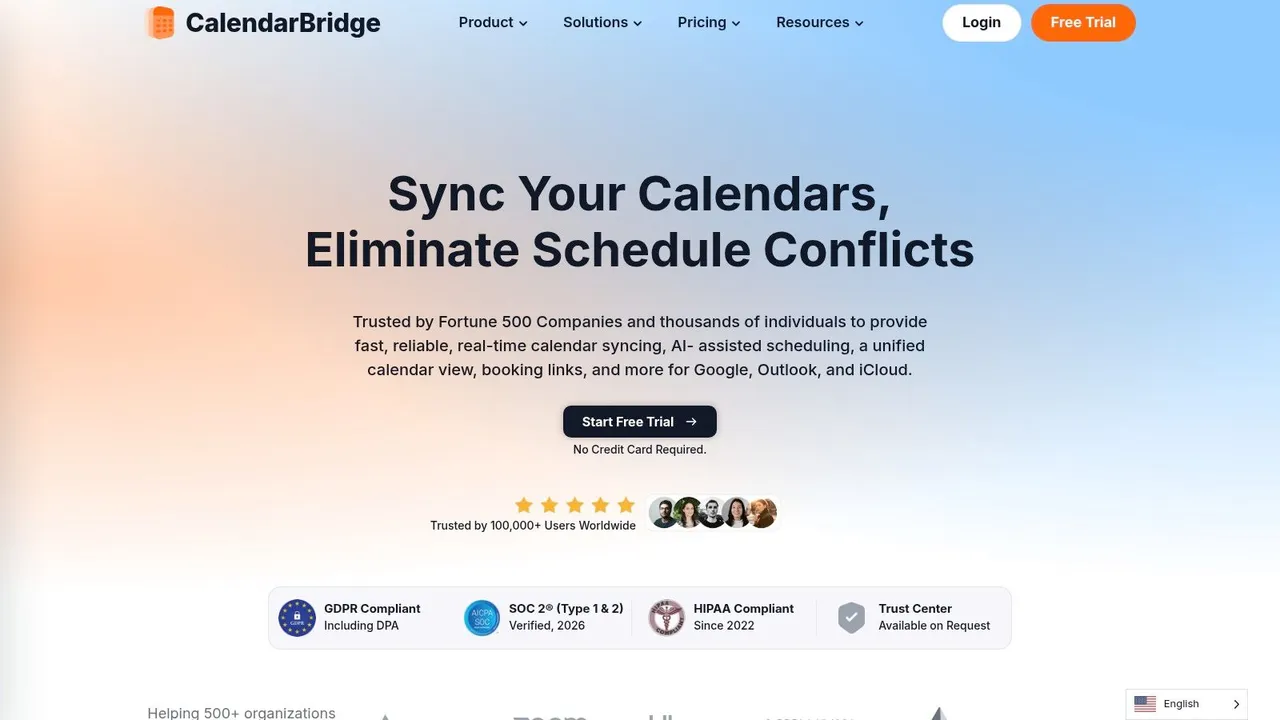
CalendarBridge is the availability-first option for people who care most about stopping double-bookings. It supports Google, Microsoft 365, Outlook, iCloud, and CalDAV, but its real value is the way it keeps free and busy status aligned across systems. If the scheduling question is, “can someone safely book me without seeing everything on my calendar?”, this tool points in the right direction.
Good for teams that care about visibility, not full duplication
CalendarBridge can run one-way or two-way sync, and it supports resource calendars and admin-managed setups for teams. That makes it useful in mixed environments where availability has to stay accurate across accounts but event details don’t always need to move everywhere. The CalendarBridge website is worth a look if your main concern is coordinated availability.
The catch is provider behavior. iCloud and ICS updates are not real time, because the limitation is tied to the provider side rather than the sync layer itself. That means CalendarBridge can be strong for Google and Outlook, while still being less responsive for Apple-related feeds. Its SyncThemCalendars alternative page is useful if you’re deciding between a privacy-first cloud sync and a more availability-focused bridge.
4. OneCal
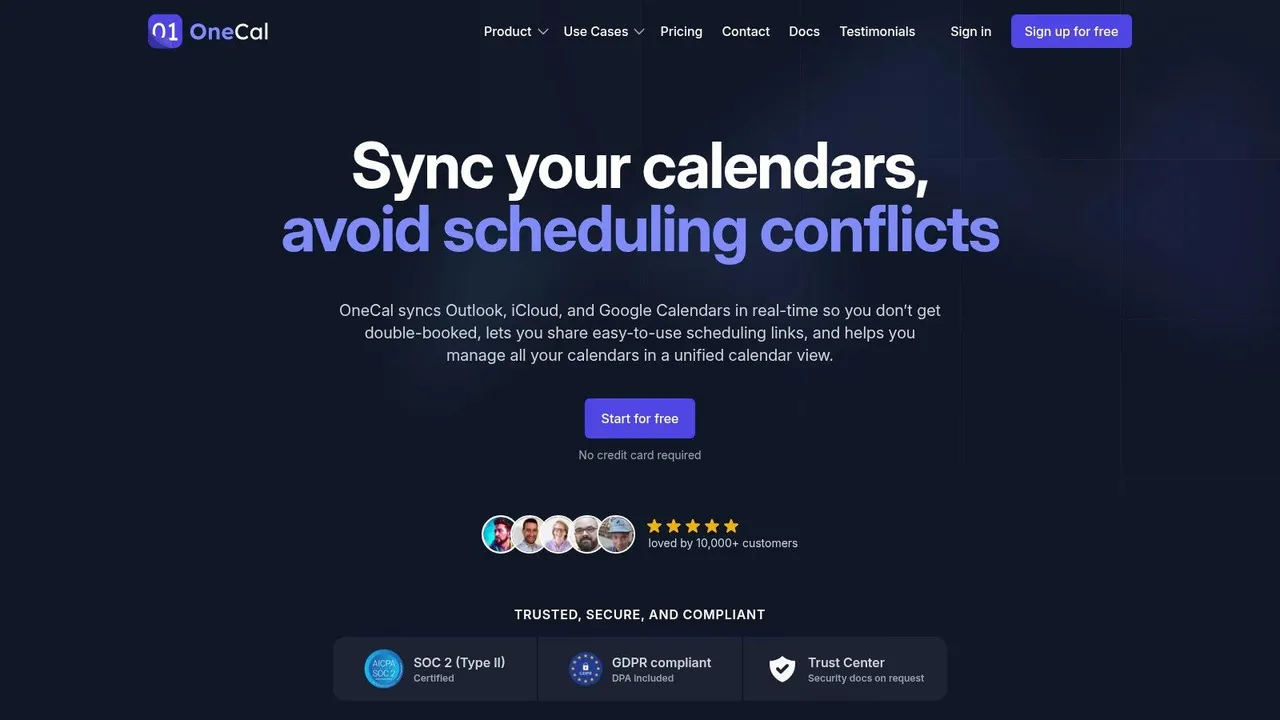
OneCal is a cloud sync and scheduling platform for people who want modern controls without giving up cross-platform coverage. It supports Google, Outlook, iCloud, and CalDAV, and it handles one-way and multi-way sync with detail-level controls over what gets copied. That puts it in the same conversation as other cloud tools, but with a slightly more enterprise-ready shape.
Strong fit for people who need a clear cloud workflow
OneCal’s appeal is that it does the basics cleanly. It gives you real-time sync between Google and Outlook, supports privacy-minded event copying, and adds enterprise options like SSO and SCIM on higher tiers. That makes it a reasonable choice for teams that want a cloud service but still need some admin structure.
The limitation is that provider-specific behavior still matters. Documented sync windows and longer-horizon edge cases can make it a weaker fit when you need unusual calendar cloning rules or long look-ahead periods. The OneCal website is the place to start if you want a polished cloud product, and this alternative comparison is useful if you’re weighing it against SyncThemCalendars.
5. Outlook Google Calendar Sync
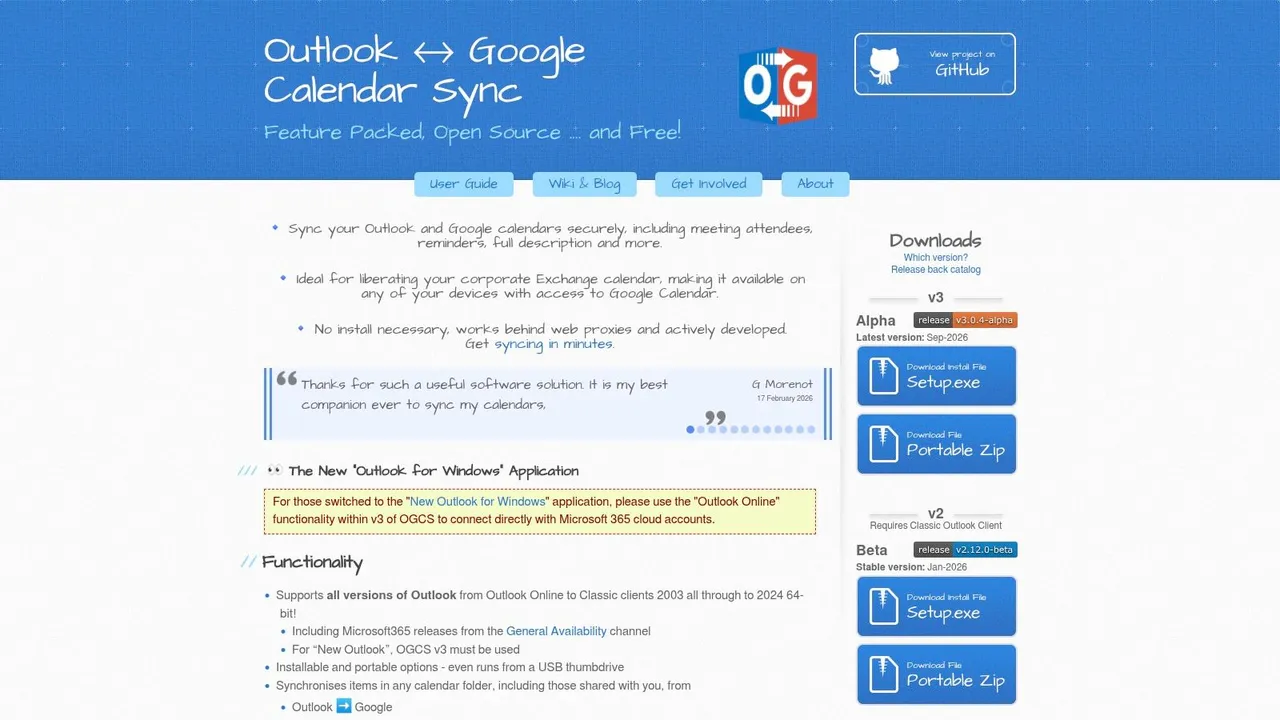
Outlook Google Calendar Sync, usually called OGCS, is the classic free option for people who want a local bridge between Outlook and Google Calendar. It’s open source, runs on Windows, and gives you a bidirectional sync without sending your calendar data through a hosted sync service. That alone makes it attractive for users who prefer a desktop-controlled setup.
Best for Windows users who want control without monthly fees
OGCS supports attendees, reminders, and categories, which gives it more depth than a basic export-import workflow. It also runs locally, so it fits users who want calendar data handled on their own machine rather than in a third-party cloud. For many practitioners, that’s the main reason to use it.
The trade-off is obvious. It depends on a Windows desktop, and it’s not the right answer if you need a browser-first service or broad iCloud coverage. The OGCS website is worth checking when cost and local control matter more than convenience, and the SyncThemCalendars alternative page for OGCS is useful if you want a cloud-based contrast.
6. gSyncit
gSyncit is the long-running Outlook add-in for users who want detailed mapping and multi-account control. It syncs calendars, contacts, tasks, and notes with Google, iCloud, and CalDAV/CardDAV services, so it appeals to people who treat Outlook as a workspace rather than just a calendar view. For some setups, that depth is exactly what’s needed.
A better fit for power users than for casual users
The tool’s strength is granularity. It supports multiple Outlook profiles, multiple Google accounts, and duplicate detection, which helps when one calendar bridge isn’t enough and you need precise rules to keep data from colliding. If your calendar life involves messy migrations or multiple identities, that control is useful.
The downside is the same thing that makes it powerful. It’s a desktop-only add-in, so it depends on a local machine and doesn’t behave like a hosted sync service. That means it’s better for individual control than for hands-off cloud automation. The gSyncit website is the right place to assess whether that level of mapping justifies the extra setup.
7. Sync2
Sync2 is aimed squarely at Outlook desktop users on Windows who want Google interoperability without changing their workflow. It supports calendar mapping, automation, and two-way sync, which makes it a practical bridge for people who already live in Outlook all day.
Strong for Outlook-centered workflows
Sync2 works well when the source of truth is already the desktop app. It’s useful for users who want a guided setup and a vendor-backed product rather than a community tool, and it fits multi-PC scenarios where the same Outlook data has to stay consistent across machines. In practical terms, it solves the “my work calendar is in Outlook, my personal calendar is in Google, and I need them to agree” problem.
The limitation is platform focus. It’s still a Windows desktop product, so a continuously running local app is part of the deal. That’s fine if Outlook is the center of your workflow, but it’s less attractive if you want a pure cloud bridge. Start with the Sync2 website if your calendar stack is firmly Outlook-first.
8. CompanionLink for Google
CompanionLink for Google is another desktop bridge, but it’s broader than a single calendar use case. It syncs Outlook data with Google in both directions and also handles time zones and invite status, which matters when you’re dealing with real scheduling instead of static event copies.
Useful when Outlook is older or more varied
This tool supports several Outlook data store types, including Exchange and PST-based setups, so it can be a good option if you’re not on a perfectly clean, modern Microsoft 365 stack. It also has both Windows and Mac variants, which gives it a wider footprint than many desktop-only competitors. The CompanionLink for Google website is the place to start if your Outlook environment is more complicated than average.
The drawback is that it still requires a desktop app to run. That makes it less appealing than a cloud service for people who move between devices all day or don’t want to maintain local sync software. If your organization blocks external calendar tools or your laptop isn’t always on, the convenience story weakens quickly.
9. SyncGene
SyncGene is the cloud option for people who want calendars, contacts, and tasks to stay in sync across Google, Outlook, and iCloud. It’s broader than a calendar-only bridge and works well for individuals or small teams who want a background service instead of a local utility.
Good when you want more than calendars
The appeal is obvious if you’re tired of separate tools for separate kinds of data. SyncGene keeps the sync process in the cloud, so there’s no desktop app to run, and it’s easier to use when different devices and ecosystems are involved. The SyncGene website is worth checking if your workflow spans more than just calendar events.
The limitation is its free tier. It’s very limited, so anyone evaluating it seriously will likely need to test a paid plan to understand whether the automation matches their needs. There’s also a sense that some use cases have been moving toward CiraHub, which tells you this category is still shifting.
10. CiraHub
CiraHub is the enterprise play. It’s built for multi-way sync across Microsoft 365, Exchange, and Google Workspace, with centralized admin control and a spoke-and-hub model that suits complex organizations. This is the one to evaluate when calendar sync is a governance problem, not just a personal productivity problem.
Best for organizations that need admin control
CiraHub is designed for cross-tenant, cross-platform, and multi-mailbox environments where a consumer tool would fall apart under policy requirements. It gives admins the ability to manage sync centrally, which is exactly what larger organizations need when privacy, permissions, and consistency all matter at once. The CiraHub website is the right starting point if you’re buying for a team rather than for yourself.
The trade-off is complexity. It’s built for enterprise needs, so the setup and sales process are heavier than with lightweight tools. Pricing is commonly handled through sales, which also means it’s not the quickest option to evaluate if you just want a personal calendar bridge.
Top 10 Google–Outlook Sync Tools Comparison
| Product | Core sync & platforms | ✨ Privacy / Unique features | ★ Ease & quality | 👥 Target audience | 💰 Price / plans |
|---|---|---|---|---|---|
| SyncThemCalendars 🏆 | Google, Outlook/Office365, iCloud; one-/two-/multi‑way real‑time; unlimited events | Granular field masking/transform; free/busy mirroring; clear policies ✨ | ★★★★★ (4.9/5), ~2 min setup | Entrepreneurs, freelancers, small teams, sales, students | 14‑day trial; Basic $3.99/mo (5 syncs), Premium $7.99, Pro $17.99; annual ~20% off |
| Reclaim.ai | Google ↔ Outlook sync; one-/two‑way; planner & scheduling links | Policy‑driven redaction (show Busy); AI planning integrations ✨ | ★★★★☆, powerful automation (small learning curve) | Individuals & teams wanting AI scheduling | Free tier + paid tiers for advanced/team features |
| CalendarBridge | Google, Microsoft 365/Outlook, iCloud, CalDAV; real‑time Google↔Outlook; periodic iCloud | Admin/resource calendar support; multi‑account sync ✨ | ★★★★☆, set‑and‑forget (provider limits) | Teams, admins, resource scheduling | Tiered plans with team/admin options |
| OneCal | Google, Outlook, iCloud, CalDAV; real‑time for Google/Outlook | Event detail selection; SSO/SCIM enterprise options ✨ | ★★★★☆, fast setup, documented limits | Enterprises, power users, teams | Clear tiering; enterprise pricing available |
| Outlook Google Calendar Sync (OGCS) | Outlook (desktop) ↔ Google; bidirectional local sync | Local-only sync (no cloud storage) ✨ | ★★★☆☆, robust but desktop‑dependent | Windows users preferring local/no‑cloud sync | Free, open‑source |
| gSyncit (Fieldston) | Outlook add‑in ↔ Google & CalDAV/iCloud; multiple profiles | Extensive mapping, duplicate detection; desktop control ✨ | ★★★☆☆, mature but requires add‑in setup | Power Outlook Windows users | One‑time license (paid) |
| Sync2 (4Team) | Outlook ↔ Google; multi‑PC mapping & automation | Guided setup; background runs; vendor support ✨ | ★★★☆☆, desktop app must run | Outlook desktop users with multi‑PC needs | Paid per workstation / license |
| CompanionLink for Google | Outlook ↔ Google two‑way; Windows & Mac variants | Handles PST/Exchange types; real‑time desktop updates ✨ | ★★★★☆, quick initial setup | Users with legacy Outlook/Exchange setups | Commercial license (paid) |
| SyncGene (4Team) | Cloud two‑way sync: Google, Outlook, iCloud | Cloud automation; no desktop app required ✨ | ★★★☆☆, simple but limited free plan | Individuals & small teams | Limited free tier; paid plans start above free |
| CiraHub | Enterprise multi‑way: Microsoft 365/Exchange ↔ Google; hub/spoke model | Central admin, policy controls, tenant/tenant use cases ✨ | ★★★☆☆, powerful but complex for enterprises | Large orgs, IT admins, tenant migrations | Sales‑quoted enterprise pricing |
Match Your Sync Tool to Your Calendar Setup
The best choice depends on the structure of your calendar problem. If you want a cloud tool that stays on all the time without a desktop app, choose SyncThemCalendars or OneCal. If you need a Windows desktop bridge and you’re fine with a computer that has to stay on, Outlook Google Calendar Sync or gSyncit makes more sense. If your organization needs centralized admin control, CiraHub is the enterprise option to evaluate.
Use the problem first, not the product first. If your pain is double-booking, prioritize tools with strong one-way or two-way sync and busy-block handling. If your pain is privacy, test how each tool masks titles, locations, and descriptions on a real event before you trust it with client or personal data. If your pain is compatibility, check whether the service covers Google, Outlook, and iCloud, because that’s where many “good enough” tools break down.
A free trial is the fastest way to separate marketing from reality. Add one live event, change it once, and see how quickly the update moves across the other calendar. Then verify the number of active syncs you need, because plan limits are where a cheap tool can become the wrong tool.
SyncThemCalendars is built for people who need Google, Outlook, and iCloud to stay aligned without exposing private event details. If your main problem is double-booking across accounts, this is the kind of cloud sync that solves it without desktop friction. Visit SyncThemCalendars and test it against your real calendar setup.
Ready to sync your calendars?
Keep your Google, Outlook and Apple iCloud calendars in sync automatically. 2-minute setup, no credit card required.
Get started freeKeep reading
More in Comparisons
iCloud Calendar vs Google Calendar: Real-World Comparison
iCloud Calendar vs Google Calendar compared on features, sharing, privacy, sync speed, and ecosystem fit, with a clear guide to bridging the two.
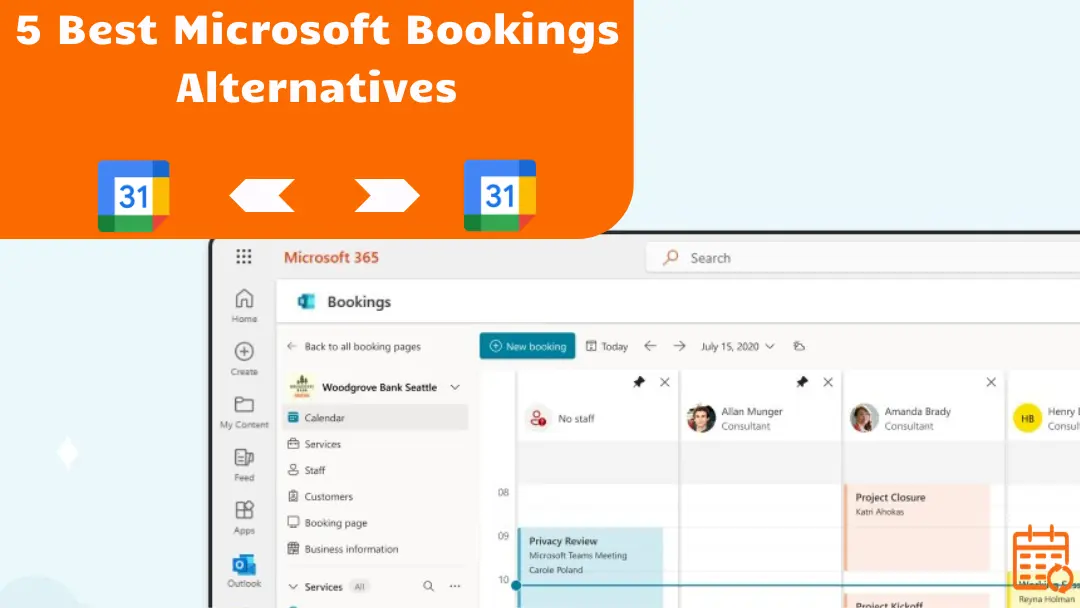
5 Best Microsoft Bookings Alternatives (2026 Comparison Guide)
Looking for a better alternative to Microsoft Bookings? Discover the top tools for 2026, compare features, pricing, and find the perfect fit.
Top 5 Calendar Synchronization Apps in 2026
Discover the 5 best calendar synchronization apps in 2026 to stay organized and avoid schedule conflicts.