







iCloud Calendar vs Google Calendar: Real-World Comparison
iCloud Calendar vs Google Calendar compared on features, sharing, privacy, sync speed, and ecosystem fit, with a clear guide to bridging the two.
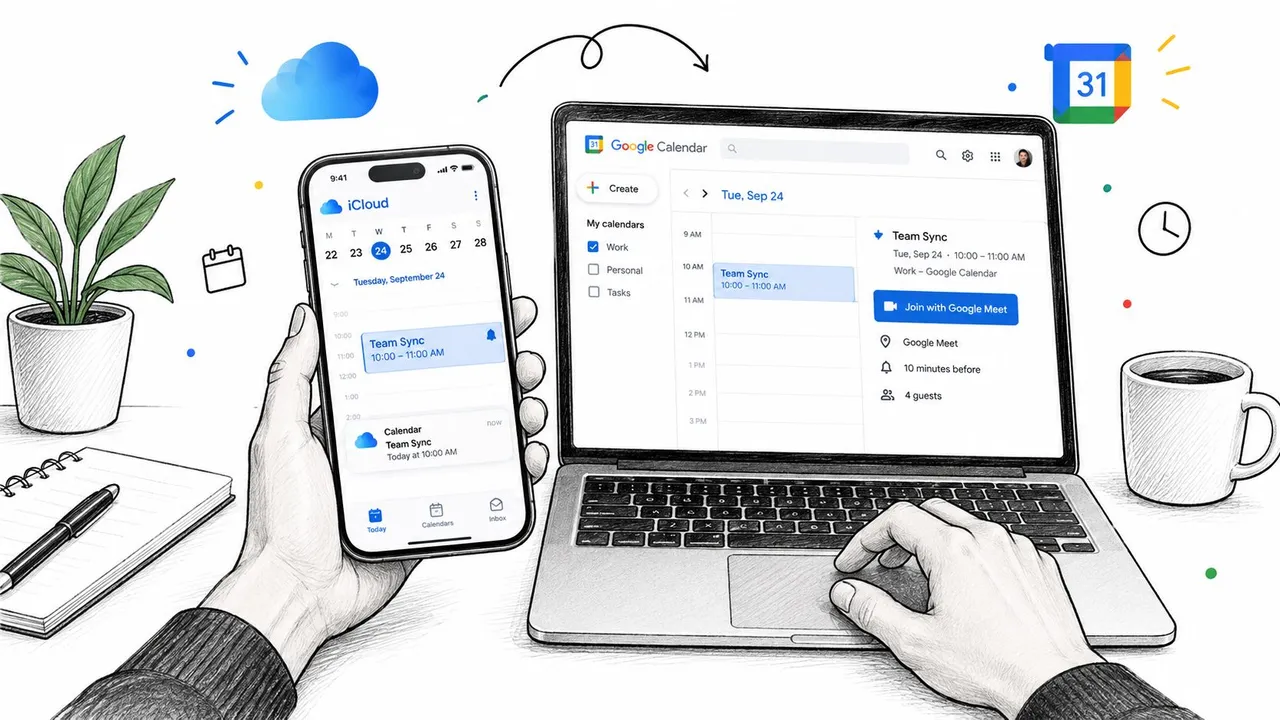
You’re checking a meeting time on your iPhone, editing the appointment on a MacBook, and replying to a Google Workspace invitation from your work account. The event appears in two places, but the availability around it doesn’t always agree. One calendar shows the latest location, another still displays an old time, and a personal commitment may remain invisible to the person booking your next call.
That’s the iCloud Calendar vs Google Calendar decision. It isn’t just about interface design, reminders, or which service has more features. It’s about sync fidelity, collaboration, privacy, and whether your personal and professional schedules can behave like one dependable source of truth.
Why the iCloud Calendar vs Google Calendar Question Matters in 2026
The calendar you use is often chosen for you. Your employer may require Google Workspace, your family may use iPhones, and a client may send invitations through another account entirely. You can still open both calendars, but opening two apps isn’t the same as maintaining accurate availability.
A freelancer might keep personal events in iCloud while using Google Calendar for clients. A parent may accept a school invitation through Google, then check the family schedule through Apple Calendar. A small business owner may use a Mac for planning, an Android phone while traveling, and a browser-based calendar at a coworking space. These setups are common because calendar identity follows the people and organizations around you.
Practical rule: Choose the system that should own your availability first. Choose the app you prefer to view it second.
The rough edges appear when one platform changes and the other hasn’t caught up. A read-only subscription can make an event visible without making it editable. A delayed refresh can leave a meeting slot looking open after someone has already booked it. A public calendar link can solve interoperability while creating a privacy problem.
That’s why the useful question isn’t “Which calendar has the better feature list?” It’s “What happens when I edit an event on one side and need the other side to reflect it accurately?”
Google Calendar generally wins when your work depends on browsers, Android, Gmail, Google Meet, and shared scheduling. iCloud Calendar is the smoother choice when your life is centered on Apple hardware and you want a clean, private, native experience. If you rely on both, neither platform’s built-in connection fully solves every two-way sync problem.
Origins, Scale, and Ecosystem Reach
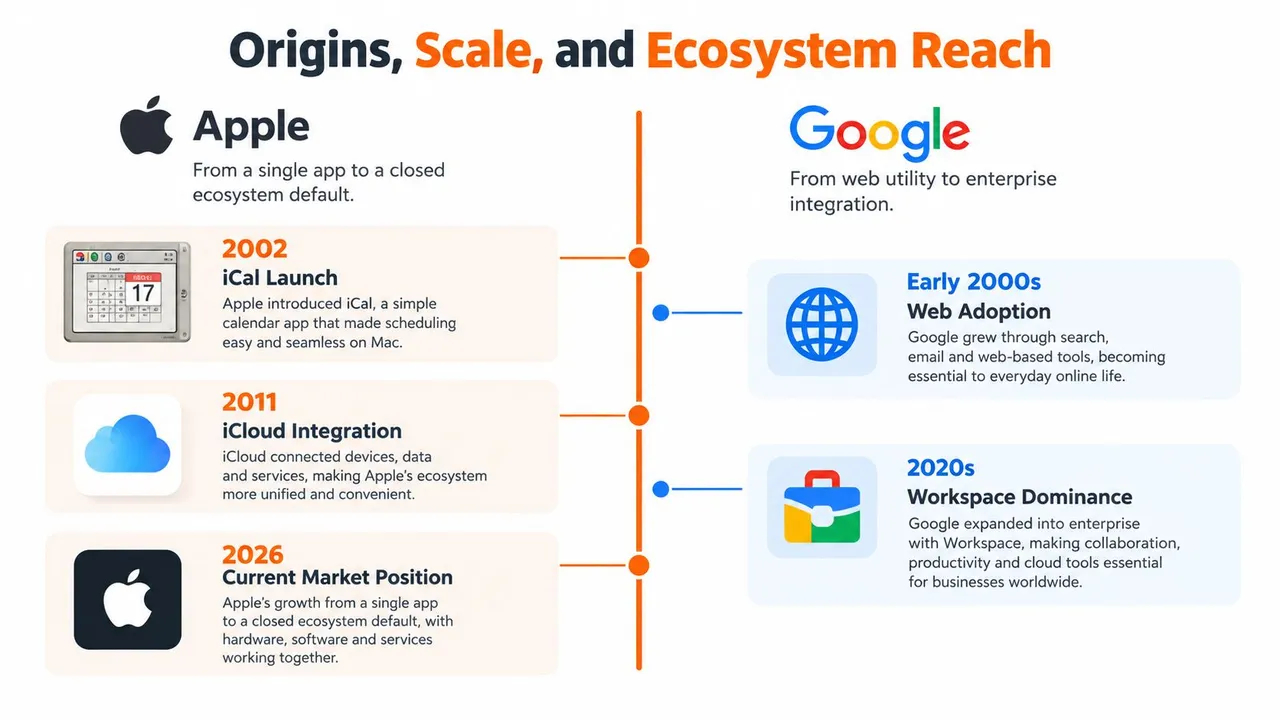
The two calendars were built for different jobs. Apple introduced its calendar as iCal in 2002 and renamed it Calendar with iOS 6 in 2012. Google Calendar launched in 2006. Those milestones are documented in this comparison of Google Calendar and Apple Calendar history.
Apple made Calendar part of its operating systems. iPhone, iPad, Mac, and Apple Watch users access the same service through Apple ID and iCloud, with the app designed to feel native on each device. Google built Calendar around an account that follows users across the web, Gmail, Android, Chrome, and Google Workspace.
That design choice still determines the rough edges. Apple prioritizes native continuity, so its calendar feels most reliable inside an Apple-only setup. Google prioritizes account reach and collaboration, which gives it an advantage when schedules cross browsers, organizations, and device types.
Google’s reach makes it a common scheduling layer for workplaces and third-party tools. A source cited in the original comparison reports more than 1.2 billion monthly visits in early 2024, while another estimate places Google Calendar above 500 million monthly active users. Those figures come from the comparison of Google Calendar and Apple Calendar history, so treat them as directional rather than a complete market measurement.
Where the usage split matters
The device divide is clearer in independent usage data. Apple Calendar represented 25.38% of mobile calendar users, compared with 25.11% for Google Calendar. On desktop, Google reached 15.44%, versus Apple’s 7.77%, according to eCal’s digital calendar market overview.
The practical conclusion is straightforward. Apple competes strongly on mobile because it is already installed across Apple devices. Google performs better on desktop because it works in browsers and connects naturally to workplace accounts.
That gap is not a simple popularity contest. It is a sync-fidelity problem. A calendar that dominates on one device type may still be the wrong system to own availability when invitations, edits, and access come from another ecosystem.
Apple is the better default for a closed Apple household. Google is the safer foundation for a mixed team or workplace. Once schedules cross that boundary, compatibility and update accuracy matter more than either product’s origin story.
Day-to-Day Features and Collaboration Compared
For personal scheduling, Apple Calendar feels cleaner. Event creation is straightforward, the interface follows iOS and macOS conventions, and integrations with Apple Mail, Maps, Messages, FaceTime, and Reminders keep the experience cohesive. Shared family calendars work especially well when everyone already uses Apple IDs.
Google Calendar puts more operational power on the screen. It offers a fuller browser experience, stronger Gmail and Google Meet integration, broader account switching, and tools for appointment scheduling, working hours, rooms, and shared resources. The interface can feel denser, particularly on mobile, but that density helps people managing several calendars and attendees.
| Criterion | iCloud Calendar | Google Calendar |
|---|---|---|
| Interface | Cleaner and more native on Apple devices | Denser, with more controls and views |
| Event creation | Simple entry with Apple ecosystem context | Strong search and Gmail-connected creation |
| Travel planning | Apple Maps travel-time alerts are a clear advantage | Strong location context, but a different alert model |
| Shared calendars | Excellent for Apple families and small groups | Better for cross-platform collaboration |
| Appointment slots | Limited compared with Google’s scheduling tools | Stronger booking and availability workflows |
| Rooms and resources | Not designed around workplace resource management | Better suited to rooms, teams, and Workspace administration |
| Web access | Functional, but less central to the experience | Full-featured browser experience |
| Integrations | Mail, Maps, Messages, Reminders, FaceTime | Gmail, Meet, Workspace, and many external tools |
| Best fit | Apple-first personal scheduling | Cross-platform and collaborative scheduling |
Google also has the advantage when your calendar is part of a wider work system. Invitations, meeting links, attendee responses, and scheduling pages sit closer to the same workflow. Apple’s strengths are more local and personal, especially when you want your devices to understand locations, reminders, and notifications without much configuration.
Calendar users who struggle with attention may also want their events and execution tasks to live together. A resource on ADHD-friendly task management offers useful context for separating appointment visibility from the actual work those appointments require.
Apple Calendar is better at making your own devices feel like one system. Google Calendar is better at making several people and platforms coordinate.
For a solo Apple user, iCloud is the more pleasant daily tool. For a team, client-facing operator, or mixed-device household, Google Calendar earns the primary position more often.
Sync Speed and Real-Time Update Behavior
The calendar grid looks similar on both platforms. The actual difference appears after someone creates, moves, or edits an event.
Google can use push events when changes move from Google into connected systems. An independent technical analysis reports that Google-originated updates can arrive in 1 to 5 seconds when those push events are available. The same analysis places iCloud change detection at about every 3 to 5 minutes during active hours, because Apple does not provide webhook-style push notifications for calendar changes. See the technical analysis of iCloud and Google Calendar sync behavior.
The result is a measurable direction gap. Google-to-iCloud can feel close to immediate, while iCloud-to-Google often waits for polling. An event changed on an iPhone may remain outdated in a Google-side availability view for several minutes. This polling asymmetry is exactly what a real-time sync setup is designed to remove. See our guide to real-time calendar sync.
| Client or direction | iCloud Calendar through CalDAV | Google Calendar through push events |
|---|---|---|
| Event created on Apple side | Often detected after a polling interval | Not applicable |
| Event created on Google side | Can receive updates quickly when the connection supports push | Typically near-immediate across Google surfaces |
| Cross-platform availability | Can show a temporary stale state | Usually updates faster when Google is the origin |
| Main failure mode | Delayed change detection | Connection or permission failure |
The delay matters when details affect availability. Add travel time to an iPhone event, change a meeting location, or move a personal appointment, and someone checking the Google-side calendar may still see the previous version while the polling cycle catches up.
A published iCloud calendar can introduce a longer delay. Recent guides describe Google subscriptions to public iCloud feeds as read-only, with updates taking up to 24 hours. That arrangement is a delayed publication channel, not an editable working copy. The guide to syncing iCloud and Google calendars explains why the distinction matters.
For viewing both calendars on one iPhone, adding a Google account to Apple Calendar may be enough. Editable, privacy-conscious, near-real-time mirroring requires a dedicated sync setup because native subscriptions do not provide it.
Privacy, Sharing, and What Each Platform Exposes
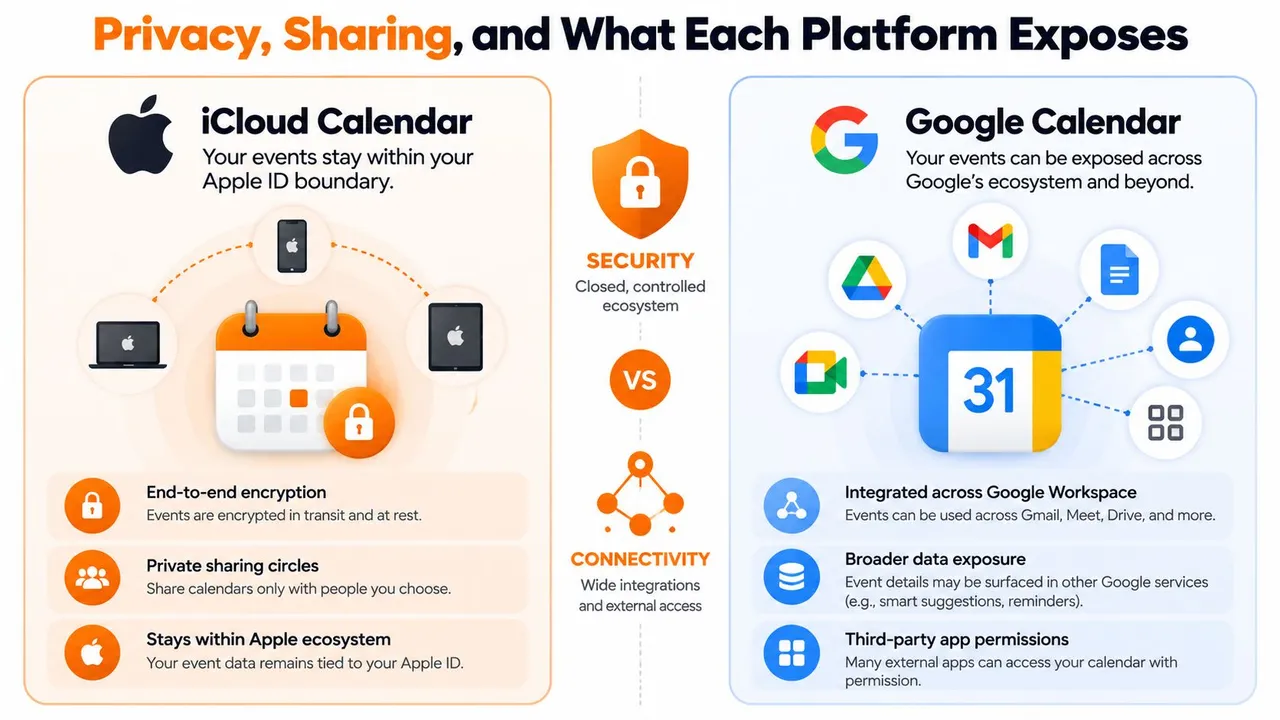
Privacy decisions become more complicated when you bridge calendars. Inside iCloud, events stay associated with the Apple ID account and can be shared through invite-only permissions or public calendar links. Google Calendar supports detailed sharing controls and free-busy visibility, but its value increases because it connects with Gmail, Meet, Workspace, Maps, Assistant, and external applications.
The key question is not whether either service has security controls. Both do. The question is how much event context must leave the original account to make the bridge work.
Before sharing or syncing, decide which of these details the other side needs:
- Availability only: The recipient sees busy or free status without the event title.
- Scheduling context: The recipient sees the title, time, and perhaps location.
- Full event access: The recipient can see notes, guests, attachments, and other metadata.
- Editing rights: The recipient or connected service can modify the calendar.
Google Workspace administrators may configure directory visibility and free-busy defaults for an organization. Apple users may share a calendar privately with selected people or expose it through a public subscription link. A public link can be convenient, but it turns access into possession of the URL rather than a carefully managed relationship.
What a bridge can read
A third-party synchronization service may need access to titles, descriptions, locations, guests, reminders, and attachments to copy events correctly. That means encryption in transit, retention limits, deletion behavior, and field-masking options deserve the same attention as sync speed.
Use calendar sharing permissions guidance before granting access. Start with the narrowest permission that supports the workflow, then test whether free-busy mirroring is enough.
Google’s collaboration surface is broader, but breadth creates more connected data paths. Apple’s closed ecosystem reduces some exposure, but public feeds and non-Apple access can weaken that boundary. Neither platform removes the need to inspect permissions.
Privacy rule: If a colleague only needs to know whether you’re available, don’t give them the event title, location, guest list, or notes.
For personal events, free-busy copying is usually the sensible compromise. For client work, mask private descriptions and attachments. For shared household planning, full details may be appropriate, but only for the people who genuinely need them.
Matching the Right Calendar to Real-World Users
The right choice changes with the schedule around you. A clean interface matters, but the devices and accounts involved matter more.
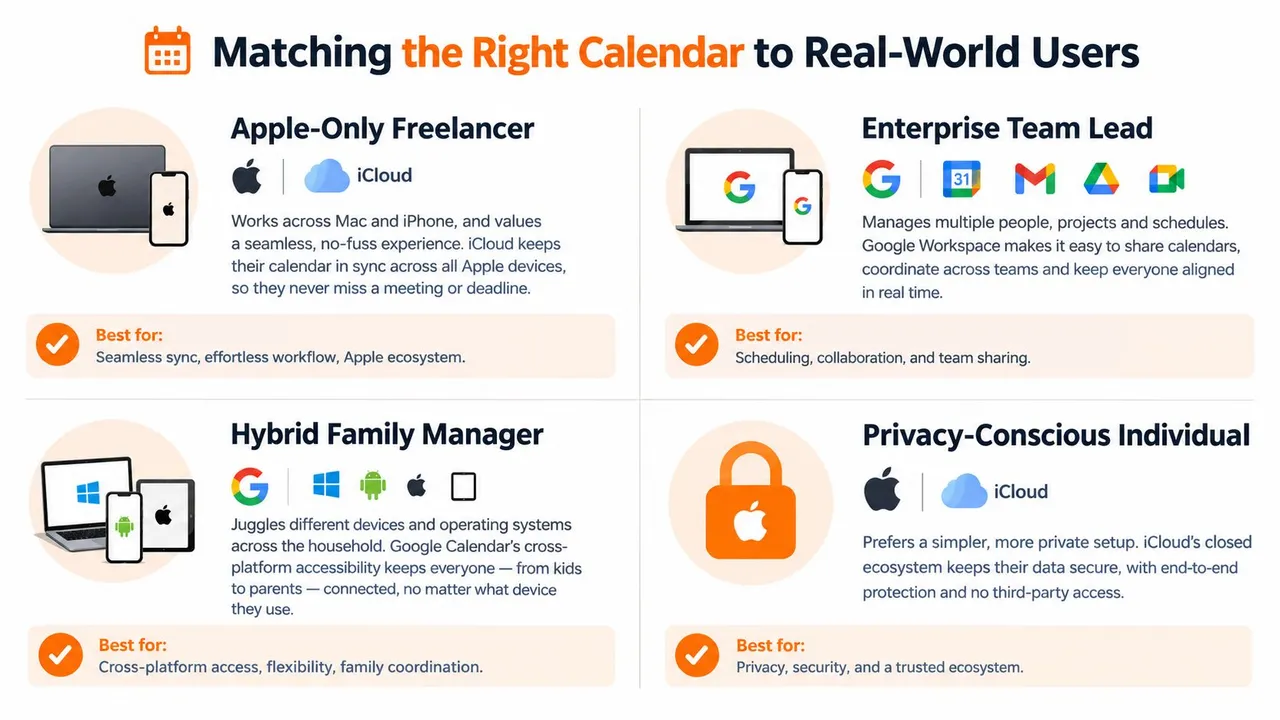
The Apple-only freelancer
A designer with an iPhone, Mac, and Apple Watch should use iCloud Calendar as the primary calendar. Event creation, notifications, Apple Maps context, and device handoff all work with less setup.
The trade-off appears when clients use Google or Outlook. Their invitations can still arrive, but shared availability and calendar-level collaboration won’t feel as natural outside Apple’s boundary. Keep Google Calendar connected for client work if necessary, but don’t split your personal source of truth unless you have a specific reason.
The Google Workspace professional
A team lead managing Gmail, Google Meet, rooms, working hours, and multiple colleagues should anchor on Google Calendar. Google’s browser access and collaboration controls fit this role better than iCloud’s primarily Apple-centered experience.
Apple Calendar can still display the work account on an iPhone or Mac. It shouldn’t replace Google Calendar as the authoritative workplace system, because the administrative and scheduling context lives in Google Workspace.
The student with mixed devices
A student using an iPad alongside a school Chromebook should prefer Google Calendar when the institution uses Google Workspace. Browser parity matters more than native polish when the school account must work on devices the student doesn’t control.
Apple Calendar remains useful as a personal view, but a read-only feed can hide changes or prevent edits. Students should avoid assuming that seeing an event means the two systems are fully synchronized.
The mixed-device household
A household with iPhones, Android phones, Windows laptops, and a shared family schedule needs one anchor. Google Calendar is usually the more practical primary system because it works across browsers and mobile platforms.
The compromise is that Apple-specific conveniences may not transfer cleanly. Travel-time alerts, reminders, and device-specific notifications can stay tied to the Apple side. If a schedule includes several accounts, use a controlled bridge rather than asking every family member to copy events manually.
The profile test produces a clear recommendation. Use iCloud when device continuity and privacy dominate. Use Google when collaboration and platform reach dominate. Use both only when the account structure requires both, not because two calendar apps feel safer.
Decision Guide and Bridging the Two Ecosystems
Pick a primary calendar based on who needs to trust your availability. If one account receives most invitations and controls most scheduling, that account should own the authoritative version of your working time.
| User profile | Primary calendar | Bridge needed? | SyncThemCalendars role |
|---|---|---|---|
| Apple-only household | iCloud Calendar | Usually no | Not necessary unless another account must mirror availability |
| Google Workspace professional | Google Calendar | Usually no | Useful only when personal or client calendars must be copied |
| Mixed-device family | Google Calendar | Often | Can mirror Apple events into the shared Google view |
| Apple-first freelancer with Google clients | iCloud or Google, based on client volume | Often | Supports one-way or two-way copying between selected calendars |
| Multi-account consultant | Co-primary calendars | Yes | Can synchronize chosen Apple, Google, or Outlook calendars |
| Privacy-sensitive user | The account holding the private events | Sometimes | Can be configured around free-busy or transformed event fields |
The built-in Google account connection inside Apple Calendar is useful for viewing and editing Google events from Apple devices. It doesn’t automatically make every iCloud calendar editable from Google. Public subscription feeds solve visibility, but they introduce read-only behavior, refresh delays, and potential exposure of event details.
For a real bridge, SyncThemCalendars supports one-way, two-way, or multi-way synchronization between selected Apple, Google, and Outlook calendars. Its documented controls include free-busy mirroring and field transformation, so a copied event can expose less information than the original.
How to configure the bridge responsibly
- Choose the source of truth. Decide whether the personal calendar, work calendar, or a deliberate combined view owns the original event.
- Select the direction. One-way copying is safer when only availability needs to travel. Two-way copying is appropriate when either side may receive edits.
- Limit the fields. Hide titles, descriptions, locations, or attachments when the destination only needs availability.
- Test with disposable events. Confirm creation, edits, cancellations, reminders, and time-zone behavior before relying on the connection.
- Review the refresh behavior. Near-real-time does not mean identical timing across providers, especially when iCloud changes are involved.
SyncThemCalendars describes setup as a short web-based process, but the important work is deciding permissions and event handling. A bridge can reduce manual copying, but it can’t fix a badly chosen source of truth.
If you have only one calendar identity, don’t add a synchronization service just because you own both an iPhone and a Google account. Configure the native account connection and sharing permissions first. Add a bridge when separate accounts must remain operationally aligned.
Quick Checklist and Common Questions
Use this checklist before choosing a primary calendar:
- Identity of record: Which account receives the invitations that matter most?
- Device mix: Will you work on Apple devices only, or also Android, Windows, and Chromebooks?
- Collaboration volume: Do you schedule rooms, clients, teams, or appointment slots?
- Privacy tolerance: Should other people see event details, or only free and busy status?
- Bridge budget: Is avoiding manual entry worth configuring and possibly paying for synchronization?
Does iCloud Calendar sync with Android?
Not natively in the same way it works across Apple devices. Android users generally need a compatible account connection, subscription feed, or third-party bridge, and read-only feeds don’t provide reliable two-way editing.
Does Google Calendar support Apple Reminders?
Google Calendar can display calendar events, but Apple Reminders remains a separate task category. A reminder may not transfer with the same task behavior or distinction when you move between ecosystems.
What does dual-platform scheduling cost?
The native calendar apps are available without a separate synchronization purchase, but reliable two-way bridging may require a paid service. Treat the cost as payment for avoiding manual re-entry and stale availability, not as payment for another calendar interface.
Which calendar loses fewer events when an invitation goes to an unsubscribed address?
Neither calendar can guarantee a complete workflow when the recipient’s account isn’t subscribed or properly connected. The safest approach is to use the account that receives the invitation as the source of truth, then verify that the event appears in the calendar view you use day to day.
The direct recommendation is simple. Choose iCloud Calendar for an Apple-centered personal life, choose Google Calendar for cross-platform work and collaboration, and bridge the two only when separate identities need shared availability.
SyncThemCalendars can synchronize selected Apple iCloud and Google calendars in one-way, two-way, or multi-way configurations, with options to mirror free-busy status or limit copied event details. If your schedule is split between personal, work, and client accounts, visit SyncThemCalendars and test the setup before stale availability creates another double booking.
Ready to sync your calendars?
Keep your Google, Outlook and Apple iCloud calendars in sync automatically. 2-minute setup, no credit card required.
Get started freeKeep reading
More in Comparisons
10 Google Outlook Sync Software Tools Compared for 2026
Compare 10 Google Outlook sync software options for 2026, with features, pricing, pros, cons and the best use case for each tool.
5 Best Microsoft Bookings Alternatives (2026 Comparison Guide)
Looking for a better alternative to Microsoft Bookings? Discover the top tools for 2026, compare features, pricing, and find the perfect fit.
Top 5 Calendar Synchronization Apps in 2026
Discover the 5 best calendar synchronization apps in 2026 to stay organized and avoid schedule conflicts.