







How to Add Google Calendar to Outlook Without Duplicates or Delays (2026)
Add Google Calendar to Outlook the right way in 2026. Avoid broken syncs, delays and duplicates. See what works, what doesn’t, and the simple fix.
If you’re reading this article, you’ve probably already noticed that Outlook does not sync Google Calendar in real time. And yes, the native options only let you import a calendar once or display it in read-only mode !
To add Hoogle calendar to Outlook, you have three options:
- import a .ics file (one-time copy),
- subscribe using an iCal link (read-only),
- use a synchronization tool to keep both calendars aligned automatically.
Only the third option allows true two-way updates. We’ll explain everything in a very simple way!
Comparison of Methods to Add Google Calendar to Outlook
| Feature | SyncThemCalendars | Import .ics | iCal Subscription (Google → Outlook) | iCal Publishing (Outlook → Google) |
|---|---|---|---|---|
| Purpose | Daily use ⭐ Best option | One-time migration | Viewing | Sharing |
| Data Direction | Google ↔ Outlook | Google → Outlook (copy) | Google → Outlook (read-only) | Outlook → Google (read-only) |
| Real-Time Updates | ✅ | ❌ | ❌ | ❌ |
| Create, Edit, Delete Events | ✅ | ❌ | ❌ | ❌ |
| Conflict & Duplicate Management | ✅ | ❌ | ❌ | ❌ |
| Ideal Use Case | Use both calendars daily | Leave Google | View Google in Outlook | Show Outlook in Google |
💡If you want to go further, learn how to sync Google Calendar and Outlook without duplicates or time delays.
Why Don’t Native Methods Allow True Two-Way Synchronization?
Because Microsoft and Google do NOT offer true native two-way sync. Real bidirectional synchronization must:
- manage conflicts.
- handle priorities.
- detect and handle errors.
- prevent data loss.
👉 Who is responsible if something breaks? Microsoft? Google? Answer: no one wants to be.
💡 Before syncing, it’s important to understand what synchronization between multiple calendars really means and what it doesn’t.
What Are the 3 “Native” Methods to Add a Google Calendar to Outlook?
There are three native methods, and they all work in a very similar way. They rely on the same basic mechanism: iCal, a viewing format, not a synchronization system.
And iCalendar:
- does not manage conflicts,
- does not support real-time updates,
- does not support bidirectional sync,
- has no concept of a “source of truth.”
⚠️ Warning: Classic Outlook and Google Accounts.
If you use classic Outlook for Windows with a Google account connected via IMAP (common with Microsoft 365 Family), Outlook may create local calendars that are not synchronized with Google Calendar or with any Microsoft online service.
In that case, the native methods below may seem not to work, when in reality they are simply acting on a different calendar than the one you are actually using.
💡 If you juggle multiple calendars, learning how to avoid conflicts and double bookings quickly becomes essential.
Native Method 1: Import an iCalendar File into Outlook
🎯 Goal of this method: Importing a .ics file is like taking a snapshot of your Google Calendar and pasting it into Outlook.
Step 1: Export Your Calendar from Google Calendar
- Go to Google Calendar (web version).
- Click the ⚙️ icon → Settings > Settings for my calendars.
- Select the calendar you want to export and click Export calendar. Google downloads a .zip file containing one or more .ics files (one per calendar).
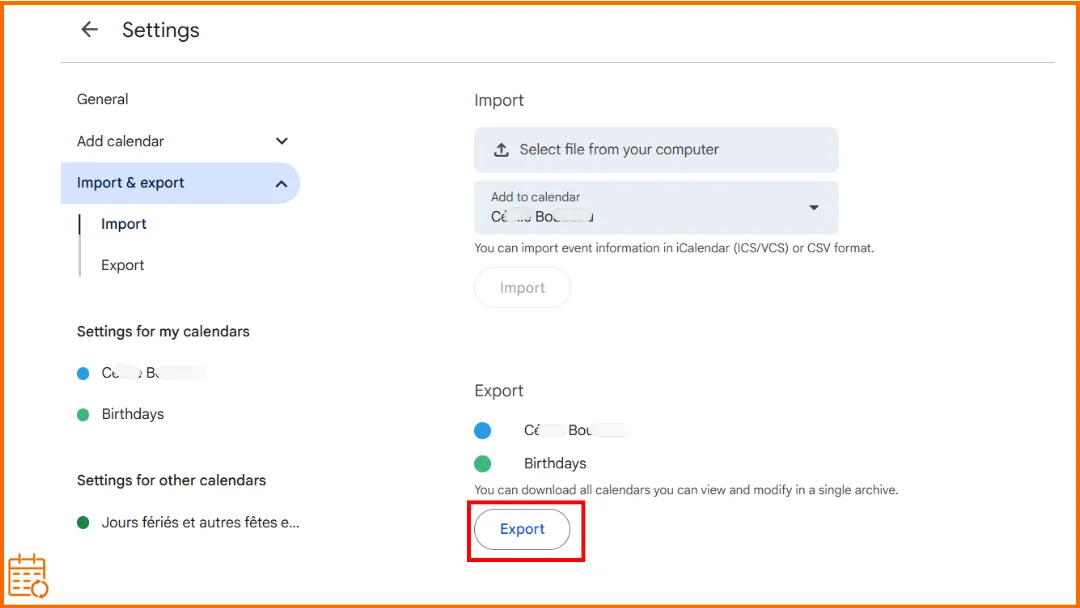
Step 2: Extract the .ics File
- Open the .zip file.
- Extract the .ics file.
- Save it to your computer.
💡 Before importing, you can open the file in our free ICS viewer & validator to check what’s inside — events, recurrence rules, and the format problems (like non-standard time zones) that make imports land at the wrong time.
Step 3: Import the .ics File into Outlook (Windows, Mac, or Web)
- Open the Calendar view.
- Choose Import a calendar from a file.
- Select the .ics file.
- Choose the destination calendar.
- Confirm the import.
📌 Depending on your version of Outlook, the option may be called Import, From File, or Import/Export.
Native Method 2: Subscribe to an Internet Calendar (iCal)
🎯 Goal of this method: Display your Google Calendar in Outlook without importing it, using an iCal subscription. Subscribing to an iCal calendar lets you view an external calendar, not edit it.
👉 Prefer an interactive walkthrough? Our free add one calendar to another tool covers this exact Google → Outlook subscription (and every other provider pair), with the limits clearly flagged.
Step 1: Get the iCal Link from Google Calendar
- Go to Google Calendar (web version).
- Click the ⚙️ icon → Settings > Settings for my calendars.
- Select the relevant calendar.
- Scroll down to the Integrate calendar section.
- Copy the iCal format URL.
⚠️ Anyone with this link will be able to view the events!
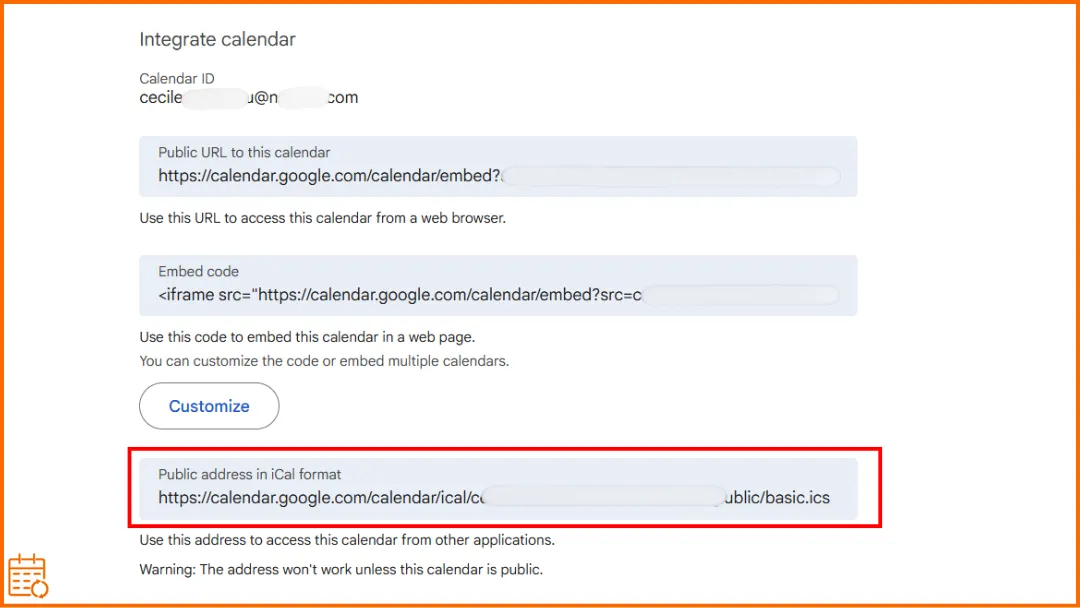
Step 2: Subscribe to the Calendar in Outlook (Windows, Mac, or Web)
- Open the Calendar view.
- Choose Add Calendar.
- Select From Internet or Subscribe from Web.
- Paste the iCal URL copied from Google Calendar.
- Name the calendar (if prompted) and confirm.
Outlook will then add the Google calendar in read-only mode.
💡 Working with multiple companies or clients often means managing multiple calendars. Here’s how to keep them aligned without mixing everything up.
Native Method 3: Publish Outlook → Google
🎯 Goal of this method: Display your Outlook calendar in Google Calendar by publishing an iCal link. This is the reverse of Method 2.
Step 1: Publish Your Calendar from Outlook (Desktop or Web)
- Open the Calendar view.
- Go to the calendar sharing or publishing settings.
- Choose the calendar to publish.
- Select the level of detail (availability only or full details).
- Copy the generated iCal URL.
📌 This URL provides read-only access to your Outlook calendar.
⚠️ Depending on your Outlook account type (Microsoft 365, Outlook.com, business account),
the publishing option may be unavailable or only accessible via Outlook Web.
Step 2: Add the Outlook Calendar to Google Calendar
- Go to Google Calendar (web version).
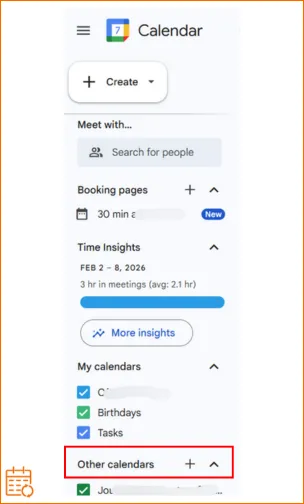
- In the left column, click + next to Other calendars.
- Select From URL.
- Paste the iCal URL provided by Outlook.
- Click Add calendar.
Google will then add a new calendar containing your Outlook events.
💡Google Calendar and Outlook do not work the same way — understanding their differences helps avoid unpleasant surprises.
Method 4: The Right Way with SyncThemCalendars
SyncThemCalendars creates true synchronization between Google Calendar and Outlook. Google Calendar and Outlook behave like a single calendar.
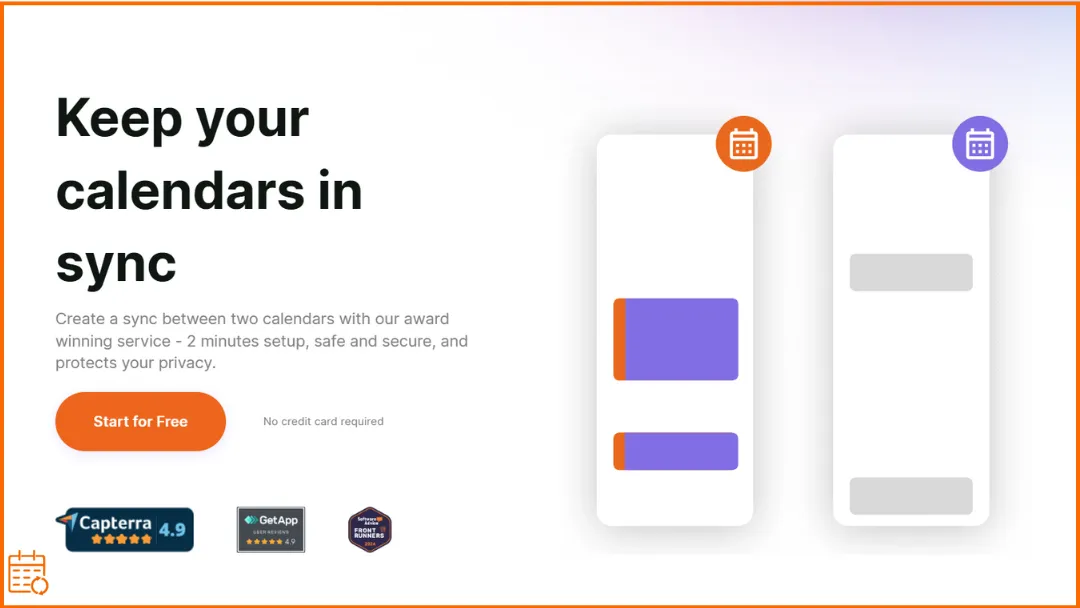
In practical terms:
- You connect your calendars (Google Calendar, Microsoft Outlook / Office 365, or iCloud).
- You choose the direction of synchronization: from one calendar to the other,or both ways.
- From that point on, everything updates automatically.
No importing.
No public calendars.
No manual actions after setup.
✅ Instead of a .ics import: events are copied continuously, not just once.
✅ Instead of an iCal subscription: you can create or edit an event in Google or Outlook, and it automatically appears in the other.
✅ Instead of iCal publishing: calendars remain private, and synchronization works in the direction you choose.
Is It Safe?
Yes! SyncThemCalendars complies with the Google API Services User Data Policy, including Limited Use requirements.
SyncThemCalendars does not use or transfer to any other application the data received through Google APIs.
Calendar events are not stored by SyncThemCalendars.
💡 Visibility and availability are not the same thing — here’s how to manage them properly when multiple calendars are involved.
Frequently Asked Questions About Add Google Calendar to Outlook
Can Outlook access a Gmail calendar?
Yes, but in a very limited way. Outlook can only:
- import a Google Calendar once (using a file),
- display a calendar in read-only mode using an iCal link.
To keep Google Calendar and Outlook truly aligned (with updates flowing both ways), a dedicated synchronization service like SyncThemCalendars is required.
Can Google sync with Outlook?
No, not natively.
Google Calendar and Outlook do not offer a built-in, two-way synchronization.
Native options only allow calendars to be imported or displayed in read-only mode, often with delays.
To keep Google Calendar and Outlook synchronized in real time, a dedicated synchronization service such as SyncThemCalendars is required.
How do I add a calendar to my Outlook?
You can add a calendar to Outlook in two main ways:
- Import a calendar file (.ics) to copy events once into Outlook.
- Subscribe to a calendar using an iCal link to display it in read-only mode.
Both methods allow you to see another calendar in Outlook, but they do not keep calendars synchronized.
If you need calendars to stay aligned automatically, a synchronization service like SyncThemCalendars is required.
Why can’t I sync my Outlook calendar with my Google Calendar?
Because Outlook and Google Calendar do not provide a native two-way synchronization.
The built-in options only allow calendars to be imported or displayed in read-only mode. They were designed for viewing or sharing calendars, not for keeping them fully aligned.
To synchronize Outlook and Google Calendar in real time, a dedicated synchronization service such as SyncThemCalendars is required.
Ready to Try SyncThemCalendars? Try SyncThemCalendars for free and keep all your calendars synchronized. Google, Apple, Microsoft, it supports them all!
Ready to sync your calendars?
Keep your Google, Outlook and Apple iCloud calendars in sync automatically. 2-minute setup, no credit card required.
Get started freeKeep reading
More in Tutorials
How to Add Gmail Calendar to Outlook Without Duplicates
See how to add Gmail Calendar to Outlook by subscribing for a live view or using two-way sync, then avoid privacy leaks and duplicate events.
Export Outlook Calendar to Google: A 2026 Step-by-Step Guide
Learn how to export Outlook calendar to Google with clear steps for ICS and CSV imports, recurring-event checks, and verification tips that work in 2026.
How to Synchronize Outlook Calendar Across Platforms
Learn how to synchronize Outlook calendar events with Google and Apple iCloud. Master two-way sync, privacy controls, and real-time availability mapping.