







Best Calendar Sync Software: Top Picks for 2026
Discover the best calendar sync software to merge Google, Outlook, and iCloud calendars. Our 2026 review covers top tools for every user.
You’re trying to keep a work calendar, a personal calendar, and maybe a client or team calendar from drifting apart. One meeting lands on your lunch break, another disappears into the wrong account, and a private appointment suddenly looks like open availability. That’s the mess calendar sync software is built to fix.
The best calendar sync software doesn’t just copy events around, it creates a single source of truth across Google, Microsoft, and in some cases Apple iCloud. The strongest tools also handle how calendar synchronization works through one-way, two-way, or multi-way sync, keep availability accurate in real time, and protect private details when you don’t want every calendar to see the full event description. This guide breaks down the top 10 options, from cloud services you can set and forget to desktop add-ins that give power users deeper control.
Best Calendar Sync Software at a Glance
The market is shaped by a few dominant ecosystems, so the strongest tools are the ones that connect them without creating new work. In one 2026 expert roundup, Google Workspace Calendar and Microsoft Outlook Calendar ranked as the top two calendar-syncing tools with scores of 9.5/10 and 9.2/10, followed by Zoho Calendar, Calendly, and Doodle. That ranking is a useful signal for anyone who works across Google, Microsoft, and Apple iCloud, because cross-platform compatibility matters more than any single app’s native calendar view. The same review also notes that modern products increasingly compete on real-time or near-real-time sync, with webhook-driven sync running at about 4 seconds versus older polling intervals of 15 to 60 minutes. See the comparison context in the 2026 roundup on calendar syncing software.
Privacy and setup are the other two filters that separate a usable tool from a frustrating one. In a 2026 comparison of calendar sync tools, SyncThemCalendars was listed with Google, Outlook, and iCloud support, one-way, two-way, and multi-way sync, field-masking controls, and setup measured in minutes. Another 2026 review gave it a 4.9/5 user rating and described about 2-minute onboarding. Its pricing was published as $48 to $216 per year, which helps explain why it tends to fit users who want control without enterprise overhead. Those details, from Hetk’s 2026 calendar sync comparison, point to a category where reliability, privacy, and low-friction setup matter more than raw calendar volume.
Here’s the practical framework I use when evaluating tools:
- Cross-platform coverage first. If you work across Google, Outlook, and iCloud, a tool that only covers two of them usually creates gaps somewhere else.
- Sync direction matters. One-way copying works for availability, while two-way Google Calendar sync or multi-way sync is a better fit when you manage several active schedules.
- Privacy controls are not optional. Field masking and busy-block mirroring keep private details hidden while still preventing double bookings.
- Speed changes behavior. Near real-time sync cuts down the need to check each calendar manually before every meeting.
- Setup friction predicts adoption. If a tool takes too much tinkering, it usually gets abandoned during busy weeks.
Practical rule: pick the tool that matches your worst scheduling problem, not the one with the longest feature list. If your pain is cross-platform availability, prioritize sync coverage and privacy controls over extras.
1. SyncThemCalendars
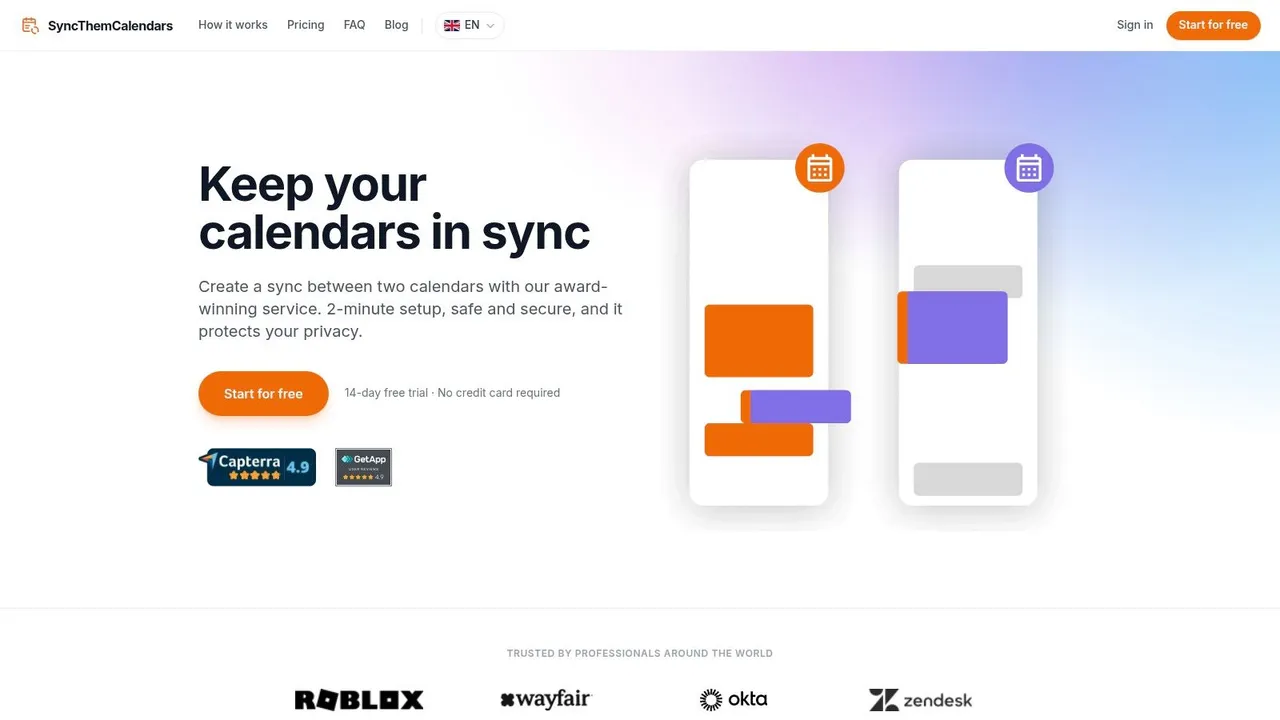
SyncThemCalendars is the cleanest fit for people who live across Google Calendar, Microsoft Outlook or Office 365, and Apple iCloud. It’s web-based, runs in the background, and is built for near real-time calendar syncing, which is exactly what busy entrepreneurs, freelancers, and salespeople need when availability changes all day long. The product’s own positioning and comparison coverage make the appeal obvious, it’s about synchronizing schedules without exposing more than you want to expose.
Its biggest strength is control. You can use one-way, two-way, or multi-way sync, then mask or transform fields like title, description, and location so recipients see the right level of detail. That matters when you need to block time on a work calendar using a personal appointment, or when you want a client-facing calendar to show occupancy without revealing sensitive context.
Where It Fits Best
The setup is intentionally lightweight, and the tool’s quick onboarding is one of the reasons it stands out. It’s also a strong value proposition for users who don’t want to pay enterprise software prices just to keep calendars aligned. Because the plans scale by the number of active syncs, it feels practical for single users who juggle multiple accounts rather than for admins managing an entire organization from one console.
Best for: entrepreneurs, freelancers, small businesses, sales pros, and students who need cross-platform availability with privacy protection.
The trade-off is simple. SyncThemCalendars is excellent at synchronization, but it’s not trying to be a giant workplace suite. If you need a dedicated calendar bridge with iCloud support and privacy masking, it’s one of the strongest options on the market. Visit the official SyncThemCalendars website if you want a service that focuses on exactly this problem.
2. OneCal
OneCal is a strong choice when you want a web-based sync tool that behaves predictably across Google Calendar, Microsoft Outlook or Office 365, and Apple iCloud. Its appeal is simplicity, real-time copying, and documentation that’s explicit about how syncing behaves, which helps when you’re the person on the hook for making sure meetings land in the right place.
Why It Works for Mixed Calendar Stacks
OneCal supports both one-way and multi-way sync configurations, so it can handle simple availability mirroring or more complex calendar relationships. It also includes privacy controls for synced data, which keeps it in the same category as the most useful cross-platform tools. I like that it doesn’t pretend iCloud behaves exactly like Google or Microsoft, because that honesty matters when propagation speed affects how confident you feel about your calendar state.
Trade-Offs Worth Watching
The main limitation is that iCloud propagation can be slower than Google or Microsoft by design, so users who expect every event to appear instantly across every device may notice differences. That doesn’t make it a weak product, but it does mean you should judge it by how well it handles your actual workflow, not by a generic promise of “instant sync.” On higher tiers, OneCal also offers admin features and SSO/SCIM, which gives larger organizations a path forward if they want more control.
If you want a direct comparison point, SyncThemCalendars has an alternative breakdown for users evaluating OneCal at this comparison page. Start with the OneCal website if your priority is a clean, cloud-based setup with broad calendar support.
3. CalendarBridge
CalendarBridge is built for a very specific scheduling pain, making sure people see the right free/busy picture across different ecosystems. That sounds narrow, but it’s the kind of narrow that saves you from double bookings when Outlook users, Google users, and iCloud users all need to coordinate on the same week.
Its practical strength is availability mirroring. The product focuses on making sure schedules line up cleanly in tools like Outlook Scheduling Assistant and Google’s “Find a time” view, which is where bad sync often becomes visible. If your calendar is technically copied but still doesn’t surface the right availability during scheduling, the whole point of syncing gets lost.
What It Does Well
CalendarBridge supports Google, Microsoft 365 or Outlook, and iCloud calendars, and it emphasizes privacy-friendly busy blocks rather than overcomplicated workflows. That makes it a good fit for consultants, client-facing professionals, and anyone whose main goal is reducing conflict, not managing a broader personal information system.
What It Doesn’t Try to Be
It’s not built as a multi-feature PIM suite, so don’t expect contacts, tasks, or side workflows to live here. That restraint is part of its value. Many tools get messy by trying to do too much, while CalendarBridge stays centered on calendar accuracy and availability mirroring.
If you’re weighing it against another focused sync tool, SyncThemCalendars has a dedicated CalendarBridge alternative comparison. For the product itself, start with the CalendarBridge website and judge it by how well it protects your schedule from collisions.
4. SyncGene
SyncGene is a broader synchronization tool for people who want more than calendars alone. It covers calendars, contacts, and tasks across Google, Outlook or Office 365, and iCloud, which makes it appealing if you’re tired of juggling separate systems for every kind of personal information.
Why the Extra Scope Matters
For solo professionals and small operators, keeping calendars, contacts, and tasks aligned in one cloud service can save a lot of cleanup time. If you move between devices and accounts constantly, it’s easier to have one service handle the sync rules than to maintain separate utilities for each data type. SyncGene also includes mobile apps and sharing features, which gives it a little more day-to-day convenience than a bare sync bridge.
The Real Trade-Off
The downside is scope. A tool that syncs more categories often feels less specialized than a single-purpose calendar bridge, and premium pricing can be harder to justify if you only care about schedule availability. That’s why SyncGene makes the most sense for people who need calendar plus contacts plus tasks rather than a lighter calendar-only workflow.
Use this when: you want a cloud-based personal information manager feel without stitching together multiple tools.
Its long-running presence and published tiers are useful signals, but the bigger question is fit. If your main pain is calendar overlap, a narrower product may be easier to live with. If your pain is fragmented personal data across devices, SyncGene is worth testing on the SyncGene website.
5. Sync2
Sync2 is for the person who basically lives inside Microsoft Outlook on Windows and wants that desktop workflow to talk to Google Calendar and iCloud. It’s a mature, Outlook-centric answer to the problem of keeping work and personal calendars aligned without forcing you into a web-first app.
The strongest argument for Sync2 is ecosystem fit. If you already use Outlook as your control center, a desktop utility that syncs directly from that environment often feels more natural than a separate browser service. It also supports contacts and tasks, which helps users who treat Outlook as the center of their daily operations.
Where It Wins
It’s especially useful for people who want a clear bridge between desktop Outlook and consumer or Apple calendars. The product feels aimed at users who are comfortable installing and managing software locally, and who value the stability of a desktop anchor over the convenience of a pure SaaS model.
Where It Falls Short
The trade-off is obvious. It’s Windows and Outlook focused, so it won’t suit teams that want a cross-platform web app or admins who need vendor-neutral access patterns. If your workflow lives on a laptop, desktop, and mobile mix, a cloud tool may be simpler to maintain.
For users whose calendar source of truth is Outlook desktop, that limitation won’t matter much. For everyone else, it’s a reminder to choose the architecture first and the feature list second. Start with the Sync2 website if your setup is firmly tied to Outlook on Windows.
6. gSyncit
gSyncit is the power-user’s Outlook add-in. It syncs Outlook calendars, contacts, tasks, and notes with Google, iCloud, and CalDAV or CardDAV services, and it is built for users who want detailed mapping and filtering instead of a one-click cloud service.
Why Advanced Users Like It
The main reason to use gSyncit is control. It gives you multiple profiles, fine-grained mapping, and detailed sync rules, which helps when you manage several accounts with different purposes. If one calendar needs to mirror availability while another stays private, that level of control keeps the setup workable over time.
It also suits people who already rely on Outlook as their main workspace. You can shape the sync behavior around your own rules instead of adapting your process to a hosted service, which matters if your calendar setup is unusually specific.
The Trade-Off
That flexibility has a cost. gSyncit has a learning curve, and it asks for more patience during setup, especially when you are mapping across different provider types or trying to get the sync behavior exactly right.
Practical insight: advanced sync tools are worth using only when your workflow is stable enough to justify maintaining the rules.
The upside is that a low one-time license cost can be attractive compared with recurring subscriptions, especially if you expect to use the tool for years. If you are an Outlook-heavy user who wants broad provider support and detailed control, the Fieldston Software website is the place to start. If you want an alternative to OGCS, SyncThemCalendars has a comparison breakdown for Outlook Google Calendar Sync alternatives.
7. Outlook Google Calendar Sync
Outlook Google Calendar Sync, often shortened to OGCS, is the obvious option if you want a free, open-source bridge between Outlook and Google Calendar. It’s a community-backed desktop utility, and that matters because it gives technically comfortable users a way to sync without paying for a cloud subscription.
Best Use Case
OGCS is strongest when the entire problem is Google ↔ Outlook. If that’s your world, it’s easy to appreciate the focus. It supports one-way or two-way sync, scheduled profiles, and a Microsoft 365 cloud connection mode for the newer Outlook environment, which keeps it relevant for users who’ve moved away from older desktop habits.
What to Expect
The price is hard to beat, but the trade-off is operational. A desktop utility means local installation, some tinkering, and more responsibility for handling duplicates or configuration details. That’s fine if you’re comfortable with settings and prefer control to polish. It’s not fine if you want a setup that disappears into the background and never needs attention.
OGCS has a loyal following because it solves a common problem without charging for access. For teams or solo users who only need Google and Outlook to stay aligned, it remains a practical option. If that sounds like your setup, visit the Outlook Google Calendar Sync website.
8. Outlook CalDAV Synchronizer
Outlook CalDAV Synchronizer is the standards-first option. It syncs Outlook with CalDAV/CardDAV services, including Google, iCloud, Nextcloud, and SOGo, which makes it especially useful for people who want interoperability beyond the big consumer ecosystems.
Why Standards Matter
This tool shines when you care about compatibility with self-hosted or nonstandard systems. If your organization uses a CalDAV server or you need a bridge to iCloud from Outlook, a standards-based add-in can be more durable than a vendor-specific workaround. It also supports calendars, tasks, and contacts, which gives it a practical amount of breadth.
The Trade-Off
The configuration depth can be overkill for casual users. Profiles, mappings, and categories give you a lot of control, but they also increase the chance that someone on the team misconfigures the sync and wonders why items aren’t showing up where expected. That’s the cost of flexibility.
For admins and technical users, though, this is exactly the kind of control that keeps workflows dependable. It’s free, actively maintained, and designed for people who’d rather own the sync logic than outsource it to a closed platform. Start with the Outlook CalDAV Synchronizer website if you want a standards-based bridge.
9. CiraSync
CiraSync is the enterprise answer to a different problem, getting shared calendars into users’ phones and Outlook mailboxes in Microsoft 365 environments. It’s not trying to sync Google and Microsoft together. It’s trying to make shared and public-folder calendars visible where employees check them.
Why Enterprises Use It
This is the tool for tenant-wide deployments. Admins can push shared calendars and contacts from Microsoft 365 or Exchange to users’ native iOS and Android calendar apps, which is useful when organizational visibility breaks down at the mobile layer. If your employees can see a shared schedule on desktop but miss it on their phone, the workflow still fails.
What It’s Not
CiraSync is not a cross-vendor sync tool, so it won’t solve Google-to-Microsoft bridging. It also leans into enterprise licensing and sales conversations, which makes it less attractive for individuals or small businesses that just want a simple sync layer.
That said, the product has a clear job, and it does that job in a way that admins understand. If your organization is mostly Microsoft and the pain point is shared-calendar distribution to phones, this is a serious contender. Visit the CiraSync website if that’s the operational gap you need to close.
10. AkrutoSync
AkrutoSync is the privacy-first option for people who want local synchronization instead of a cloud relay. It syncs Outlook on a Windows PC directly with iOS and Android devices over your own network, which means the data stays under your control rather than moving through a third-party cloud service.
Why Privacy-Focused Users Like It
This setup is attractive in regulated environments or for users who don’t want another cloud account in the middle of their calendar workflow. It supports calendar, contacts, tasks, and notes, and the one-time license model with unlimited devices makes it appealing for long-term use if you value ownership over subscription convenience.
The Catch
AkrutoSync is not a cross-account cloud sync service. It’s specifically about syncing Outlook on a PC with mobile devices, so it only makes sense if your desktop machine is the source of truth. You also need a Windows PC running Outlook, which immediately narrows the audience.
Good fit when: your top priority is keeping data local and your daily calendar already lives in Outlook desktop.
For many users, that’s a perfectly acceptable trade-off. For others, especially those who need Google, Microsoft, and iCloud all talking at once, it won’t be enough. If local control matters more than cloud convenience, the AkrutoSync website is worth a look.
Top 10 Calendar Sync Software Comparison
| Product | Core features ✨ | Quality / Reliability ★ | Privacy & Unique features ✨ | Price / Value 💰 | Target 👥 |
|---|---|---|---|---|---|
| 🏆 SyncThemCalendars | Real‑time Google / Outlook / iCloud; 1‑way, 2‑way, multi‑way; free/busy mirroring | ★★★★★ (4.9/5), near real‑time, set‑and‑forget | Mask/transform fields; granular data handling; multilingual site | 💰 Basic $3.99/mo, Premium $7.99/mo, Pro $17.99/mo; 14‑day free trial | 👥 Entrepreneurs, freelancers, small teams, sales, students |
| OneCal | Real‑time Google / Outlook / iCloud; 1‑way & multi‑way sync; docs | ★★★★, documented sync behavior (iCloud latency noted) | SSO/SCIM on higher tiers; clear latency docs | 💰 Tiered pricing (varies by plan) | 👥 Users needing clear docs and admin features |
| CalendarBridge | Google ↔ Outlook ↔ iCloud; focuses on availability mirroring | ★★★★, reliable free/busy alignment | Privacy‑friendly busy blocks to reduce double‑books | 💰 Paid tiers (varies) | 👥 Users focused on accurate availability mirroring |
| SyncGene | Two‑way calendars + contacts + tasks; mobile apps & sharing | ★★★★, PIM‑oriented sync across devices | Syncs contacts/tasks along with calendars; mobile support | 💰 Premium tiers (higher than niche tools) | 👥 Users wanting unified calendar+contacts+tasks sync |
| Sync2 (4Team) | Outlook desktop ↔ Google / iCloud; contacts & tasks options | ★★★, mature Outlook‑centric tool | Deep Windows/Outlook integration; companion helper app | 💰 One‑time or license pricing (vendor) | 👥 Outlook desktop–anchored users |
| gSyncit (Fieldston) | Outlook add‑in: Outlook ↔ Google/iCloud/CalDAV; profiles & mapping | ★★★★, long‑standing, highly configurable | Fine‑grained mapping/filters; low one‑time license | 💰 Low one‑time license; volume discounts | 👥 Power Outlook users who need detailed mappings |
| Outlook Google Calendar Sync (OGCS) | Two‑way Outlook ↔ Google sync; profiles & scheduled sync | ★★★★, free, community‑backed, actively maintained | Open‑source, no cost (donations optional) | 💰 Free | 👥 Users who only need Google↔Outlook and want free OSS |
| Outlook CalDAV Synchronizer | Outlook ↔ CalDAV/CardDAV (calendars, tasks, contacts) | ★★★★, standards‑based, actively maintained | Broad CalDAV/CardDAV support (iCloud, Nextcloud, self‑hosted) | 💰 Free (FOSS) | 👥 Self‑hosted / standards users and Outlook power users |
| CiraSync | Pushes shared M365/Exchange calendars to phones; admin dashboard | ★★★★, enterprise‑grade tenant deployments | AD/Azure targeting; role‑based controls; tenant scale | 💰 Enterprise pricing, contact sales | 👥 IT admins and large organizations |
| AkrutoSync | Direct encrypted Outlook → mobile sync over LAN; no cloud | ★★★, privacy‑first local sync, unlimited devices | Local sync (no cloud); one‑time license; good for regulated use | 💰 One‑time license | 👥 Privacy‑focused users and regulated environments |
Unify Your Schedule and End the Calendar Chaos
The biggest benefit of the best calendar sync software is simple, you stop treating your calendar like a set of competing opinions and start using it as a single source of truth. That means fewer double bookings, fewer last-minute corrections, and less time manually checking which account is telling the truth. For people juggling work, personal life, and client commitments, that reduction in mental overhead matters as much as the technical sync itself.
The right choice usually comes down to architecture. Cloud-based services are better when you want convenience, background sync, and easy setup across Google, Microsoft, and iCloud. Desktop add-ins win when you need deep configuration, local control, or a Windows Outlook workflow that doesn’t depend on another web service.
If you’re an entrepreneur or freelancer, prioritize quick onboarding and cross-platform support. If you’re in sales, look for availability mirroring and privacy controls so prospects see open slots without seeing sensitive details. If you manage shared calendars in a Microsoft-heavy organization, desktop or enterprise tools may fit better than a consumer-friendly web app. The key is to choose the tool that matches your actual scheduling friction, not the one with the flashiest homepage.
One good way to make the decision concrete is to start with a free trial and test how the sync behaves during a normal work week. That’s where reliability, privacy masking, and ease of setup stop being marketing claims and start becoming part of your daily routine. For a practical starting point, the Everhour Slack calendar automation angle is a useful reminder that calendar work gets better when the busywork disappears.
If you’re ready to stop checking three calendars before every meeting, try SyncThemCalendars and see how real-time cross-platform sync feels in practice. It’s built for Google, Outlook, and iCloud, with privacy controls that let you share availability without oversharing details. Start with the free trial and see whether automated calendar syncing finally makes your schedule feel calm again.
Ready to sync your calendars?
Keep your Google, Outlook and Apple iCloud calendars in sync automatically. 2-minute setup, no credit card required.
Get started freeKeep reading
More in Guides

SyncThemCalendars Quick Setup Walkthrough
Master the SyncThemCalendars quick setup in minutes. Connect Google, Outlook, or iCloud, configure privacy masking, and verify your first sync effortlessly.

Merging Google Calendars: The Complete Guide for 2026
Merging Google Calendars. Learn the best ways to merge Google Calendars. Compare import methods, sync tools, and automation strategies

Master Your Calendar on Outlook with Sync Solutions
Learn how to use calendar on Outlook effectively, sync with Google and iCloud, avoid double-bookings, and connect SyncThemCalendars for seamless scheduling.