







Synchronize Apple Calendar with Outlook: A 2026 Guide
Step-by-step guide: Synchronize Apple Calendar with Outlook on Windows, iPhone and Mac, with two-way options, privacy trade-offs and fixes.

A client sends an Outlook invitation for the same afternoon you’ve blocked out for a personal appointment on your iPhone. Both calendars look clear when you open them separately, but neither tells the other that you’re already booked.
To synchronize Apple Calendar with Outlook, first decide whether you need to see the same calendar in another app or keep separate calendars matched. Those are different jobs. The right connection also depends on your Outlook version and how much personal information you’re willing to share.
Choose the Right Sync Method for Your Setup
Sync routes compared by platform and direction
| Route | Works in | Direction | Extra software |
|---|---|---|---|
| Native iCloud for Windows | Classic Outlook on Windows | iCloud calendars shown in Outlook | iCloud for Windows |
| Outlook mobile iCloud account | Outlook on iPhone and iPad | iCloud calendar data accessed in Outlook | None beyond Outlook |
| Public iCloud calendar URL | Outlook on the web or Mac | Read-only subscription | None |
| Third-party sync service | Apple, Outlook/Office 365 and Google calendars | One-way, two-way or multi-way copies | Web service account |
The native Windows route suits someone who manages an iCloud calendar from a personal PC. The mobile connection suits someone who wants their iCloud account inside Outlook on their phone. A public subscription belongs with non-sensitive events, while a sync service suits separate accounts that need matching availability.
This isn’t an unusual combination: a Reclaim analysis reported that 30.7% of Outlook Calendar users also had an Apple Calendar. The practical problem isn’t necessarily missing events. It’s having events stored somewhere the person booking your time can’t see.
Choose visibility or event copying
Apple uses CalDAV, defined in RFC 4791, while Outlook primarily uses Microsoft Graph and Exchange; Google’s move toward its Calendar API after deprecating third-party CalDAV access in 2019 illustrates why there isn’t a universal connection, as explained in the Nylas calendar interoperability guide.
These systems handle event identifiers, recurrence, permissions and updates differently. Displaying iCloud data in Outlook doesn’t automatically create a matching appointment in your separate Microsoft calendar.
Practical rule: Use an account connection for visibility. Use a synchronization layer when separate calendars need controlled copies, privacy masks and defined deletion behavior.
For example, a tutor may need a calendar that handles recurring lessons from Tutorbase to organize teaching schedules, while calendar synchronization protects those lesson times across personal and work accounts. Copying availability doesn’t replace the lesson-management workflow.
Before choosing two-way calendar sync, establish where you’ll edit events and which account owns them. Confirm whether you use classic Outlook, new Outlook, Outlook for Mac or Outlook on the web. The iCloud for Windows integration described below is specifically for classic Outlook, not a universal desktop procedure.
Connect iCloud to Outlook on Windows and iPhone
Use an authenticated account connection before considering a published calendar. It gives Outlook access to iCloud calendar data without turning your schedule into a public subscription.
The setup paths are different on Windows and iPhone. Follow the route for the app you really use, not just the device where you first created your appointments.
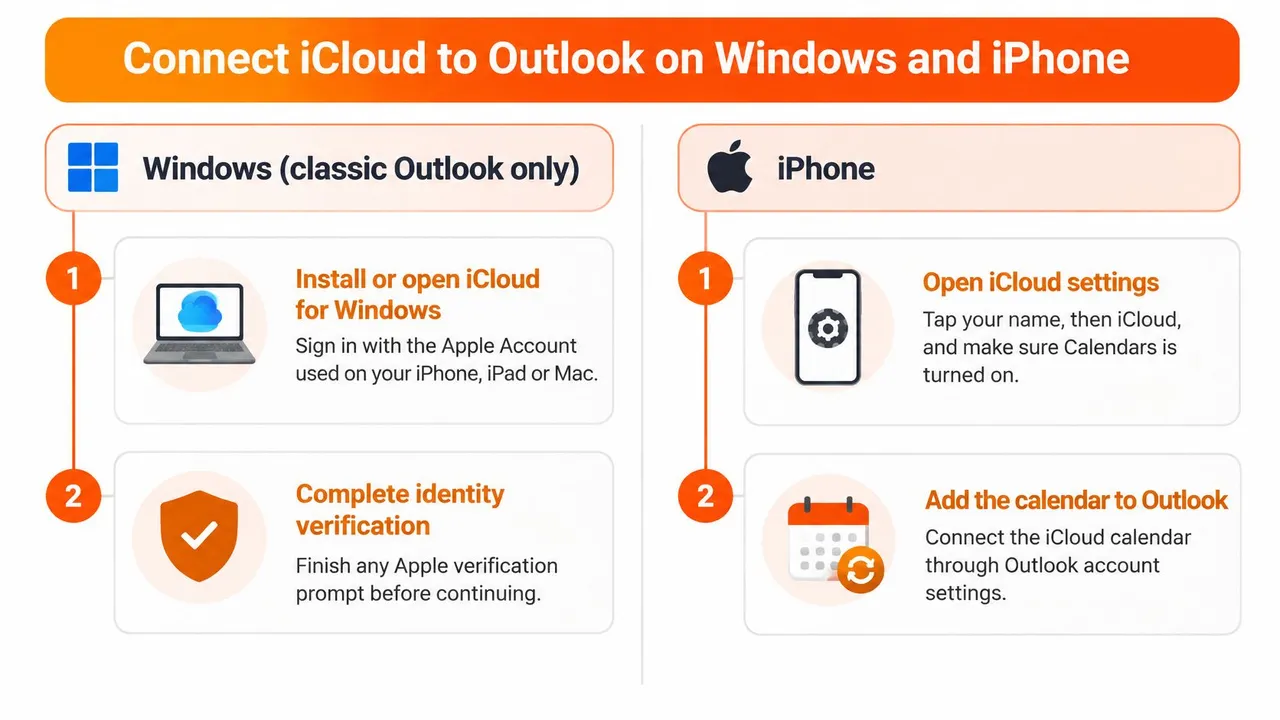
Windows with classic Outlook
Apple’s iCloud for Windows guide documents the account-level integration for classic Outlook. Have your Apple Account sign-in details available before starting.
- Install or open iCloud for Windows.
- Sign in with the Apple Account used on your iPhone, iPad or Mac.
- Complete identity verification if prompted. Finish this before trying to troubleshoot an empty calendar.
- Open Calendars and Contacts.
- Enable Automatically sync your iCloud calendars and contacts to Microsoft Outlook.
- Select Done.
- Complete Outlook’s onscreen setup.
Using the same Apple Account matters because a successful sign-in to a different account can still produce an empty or unfamiliar calendar list. Don’t start recreating appointments until you’ve checked the account identity.
This connection exposes iCloud calendars as synchronized calendar data rather than a read-only internet feed. Keep the calendar’s identity visible in Outlook so you can tell whether a new appointment belongs to iCloud or your Microsoft account.
iPhone and iPad with Outlook mobile
Add the iCloud account inside the Outlook app. Adding a Microsoft account to Apple’s Calendar app is a different operation and won’t connect an existing iCloud calendar to Outlook.
- Open Settings in Outlook.
- Choose Add Account.
- Select Email Account.
- Enter your iCloud address ending in @icloud.com, @me.com or @mac.com.
- Authenticate through Apple’s sign-in page.
- Grant the requested access to iCloud Mail, Calendar and Contacts.
Read the authorization screen before accepting it. This is an account connection, so the permission request is broader than access to a single calendar.
After connection, open Outlook’s calendar view and select the relevant iCloud calendar. A calendar that isn’t selected can look like a failed connection even when authentication succeeded.
Confirm the destination before relying on it
Create a harmless event in the iCloud calendar and confirm it appears in Outlook. Check its start time and calendar name, not just its title, so you know you’re looking at the intended account.
If it doesn’t appear in classic Outlook, use the Calendars and Contacts and add-in checks under Fix Sync That Stops, Duplicates or Lags before removing the account. Don’t apply the Windows procedure to new Outlook: it uses a different connection path, and the classic Outlook add-in isn’t the starting point there.
Who Can See Your Events in Each Route
Publishing an iCloud calendar lets anyone who obtains its subscription URL read the information exposed by that calendar.
The Microsoft community guidance on iCloud calendar subscriptions describes publishing a calendar and subscribing through Outlook on the web as a workaround for Mac. Treat that as a sharing decision, not merely a convenient connection method.
Visibility and access cut-off by route
| Route | What others can see | How to cut access | Best fit |
|---|---|---|---|
| Native iCloud for Windows | Anyone using that Outlook profile can access displayed iCloud event details | Turn off Calendars and Contacts sync in iCloud for Windows | Personal calendar on your own PC |
| Outlook mobile iCloud account | Anyone with access to the unlocked Outlook app may access connected iCloud mail, calendar and contacts | Remove the account in Outlook settings | Your own phone |
| Public iCloud calendar URL | Anyone holding the URL can read exposed titles, locations, descriptions, attendees and recurrence details | Stop publishing the calendar in iCloud | Non-sensitive public events |
| Free/busy mirror via sync service | Viewers of the destination calendar see busy blocks rather than copied personal details | Stop the sync and remove existing mirrored events as needed | Client, sales and team scheduling |
An authenticated desktop connection keeps access tied to your account and Outlook profile. It still deserves care on a shared computer: someone using your signed-in profile may be able to read the same appointments you can.
The mobile route also relies on device and account access controls. Its authorization can include mail and contacts, so it isn’t equivalent to sharing a limited availability calendar.
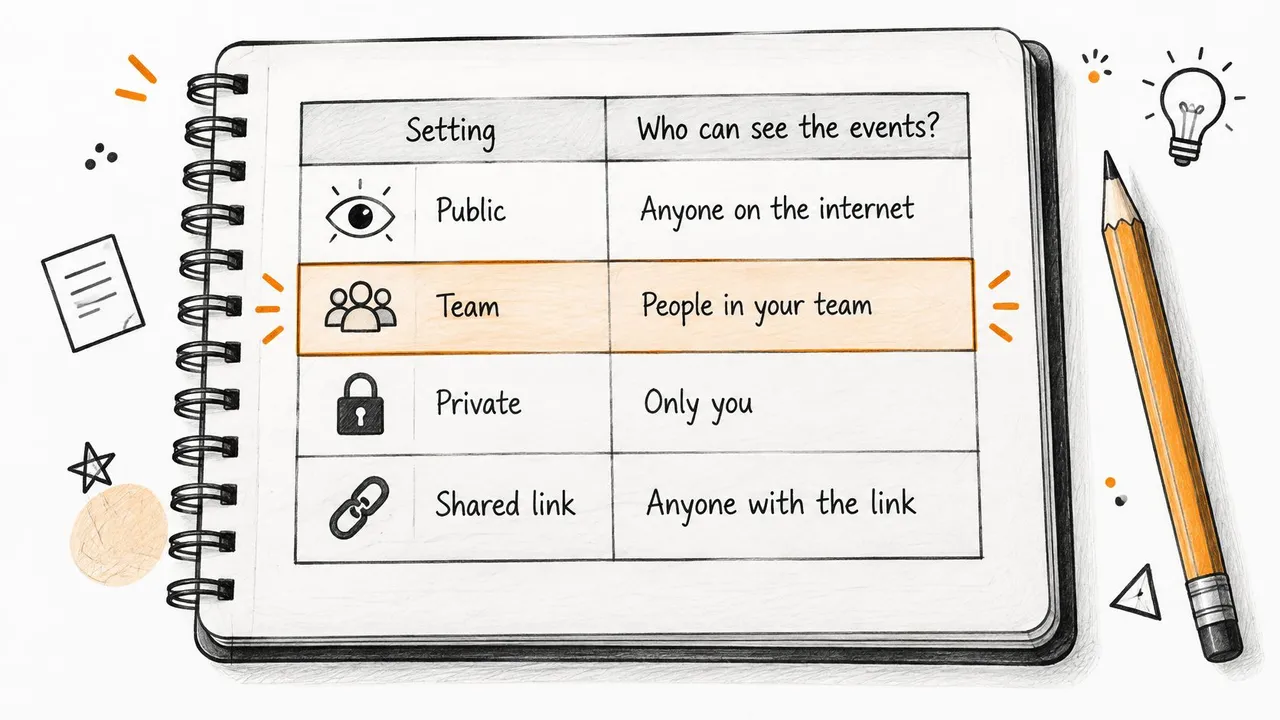
Share availability instead of the appointment
A public calendar URL can be forwarded or retained by its recipients. Read-only access prevents editing; it doesn’t make the contents private. Avoid this workaround for client schedules, medical appointments, travel plans and family calendars.
Say a freelancer needs a client’s scheduler to avoid personal commitments. The client needs a busy block, not an appointment title, clinic address or family member’s name. A free/busy mirror meets that requirement without copying unnecessary details.
Review calendar-sharing permissions on the destination as well as the source. Masking copied fields won’t help if another sharing route still exposes the original calendar.
Choose the least-privileged route that prevents double-booking, not the route with the fewest setup screens.
Stopping future synchronization doesn’t necessarily erase copies already created. When withdrawing access, check both the connection and the destination calendar.
Connect Outlook for Mac and New Outlook
Outlook for Mac and New Outlook may offer iCloud account sign-in in some updated versions. Check the account settings first. If an iCloud sign-in option is available, follow the prompts; if it is not, use a public calendar subscription only for a calendar whose contents are suitable for public access.
If Outlook falls back to an older password flow, update and restart the app, then check the account options again. Do not assume that a public link provides the same access as an account connection.
Use a subscription only for suitable calendars
For a calendar that is appropriate to share publicly and only needs to be viewed, add its subscription in Outlook on the web:
- Open the calendar’s sharing controls in iCloud Calendar.
- Enable public sharing for that calendar.
- Copy its subscription URL.
- Open the calendar view in Outlook on the web.
- Choose Add calendar, then Subscribe from web.
- Paste the subscription URL and save the subscription.
- Check whether the calendar appears in Outlook for Mac under the same Microsoft account.
Review the calendar before enabling public sharing. Event descriptions can reveal details that are not visible in the month view. A public URL is a privacy decision, not just a convenient connection method.
The subscription is read-only. Events created in a separate Outlook calendar do not travel back to iCloud through the feed. Updates to the subscribed calendar also should not be treated as a dependable way to communicate urgent availability changes.
Keep new Outlook separate from classic Outlook
The classic Outlook iCloud add-in is not a fix for New Outlook. First check for an iCloud account option in the client you use. If that option is absent, an existing web subscription may appear in Outlook for Mac when it is associated with the same Microsoft account.
Choose the route by what needs to be shared. A public subscription fits a suitable view-only calendar; matched copies in independent calendars require a sync service. For confidential schedules, use masked availability rather than publishing the source calendar.
Fix Sync That Stops, Duplicates or Lags
When classic Outlook stops showing iCloud changes, inspect the connection before touching appointments. Confirm that the missing event still exists in iCloud, then check whether the intended calendar is selected in Outlook.
A missing event, a disabled connection and a duplicate copy need different fixes. Deleting and rebuilding everything can hide the original cause and leave you with more overlapping routes.
Sync symptoms, causes and fixes
| Symptom | Likely cause | Fix |
|---|---|---|
| Classic Outlook stopped updating from iCloud | Calendars and Contacts sync is off, or the iCloud Outlook add-in is disabled | Disable and re-enable Calendars and Contacts in iCloud for Windows, then confirm the add-in is active |
| iCloud appears as Outlook’s default data file | Incompatible default data-file configuration | Set an appropriate non-iCloud data file as the default in Outlook |
| Outlook mobile asks for an app-specific password | Outdated app or older authentication flow | Update and restart Outlook, then retry Apple sign-in |
| Calendar on iPhone doesn’t match a separate calendar | The account connection doesn’t define a copy policy | Use a sync service when independent calendars need matched events |
| Duplicate events appear after adding another route | The same appointment is displayed or copied through overlapping connections | Remove the redundant route and assign each event type an owner calendar |
In classic Outlook, inspect the iCloud add-in under File > Options > Add-ins. Check whether it’s active before changing anything; if it’s disabled, use the appropriate add-in management controls to restore it.
For the default-data-file issue, inspect Account Settings > Data Files. Don’t delete the iCloud data file as a shortcut, and involve IT if the Outlook profile is managed.
Fix authentication before replacing credentials
Microsoft’s Outlook mobile connection instructions state that the current Apple sign-in flow doesn’t require a separate app-specific password. Update Outlook, restart it and retry authentication before generating legacy credentials.
Turning off Calendars and Contacts in iCloud for Windows leaves local Outlook information in place, but updates to iCloud and other devices stop until synchronization is restored. A calendar that remains visible therefore isn’t proof that it’s still updating.
Before deleting anything: Hide a suspected duplicate calendar and inspect the event’s account. You may be seeing the same appointment through different views rather than duplicate stored events.
Use the iCloud-to-Outlook troubleshooting guide to isolate the affected connection. I would run the cheapest checks first: calendar selection, account identity, app update, authentication, then connection repair. Rebuild an account only after those checks fail.
Set Up and Verify a Two-Way Copy With SyncThemCalendars
A web-based copying service is useful when your Microsoft calendar must contain an availability block for an event owned by iCloud, or the reverse. Native account access and subscriptions remain alternatives when you only need another view.
SyncThemCalendars is one option for copying upcoming events between iCloud, Outlook/Office 365 and Google Calendar, with configurable direction and privacy controls. Set the ownership rules before connecting your full schedule.
Run the pre-live checks
- Confirm your Outlook type: classic on Windows, new Outlook, Outlook for Mac or Outlook on the web.
- Stop if visibility alone meets your requirement. Keep the account connection rather than adding unnecessary copies.
- Assign an owner calendar to each event category. For example, keep personal commitments in iCloud and client meetings in the client’s Microsoft calendar.
- Choose full-detail copying or a free/busy mirror for each calendar relationship.
- Decide how deletions should behave before enabling synchronization.
Ownership is particularly important for invitations. Keep attendee responses and organizer changes attached to the original meeting rather than treating a mirrored busy block as a replacement invitation.
Also check your employer’s policy before authorizing a hosted service to access a work account. Permission to view your calendar in Outlook doesn’t automatically mean permission to connect another provider.
The setup view helps distinguish account connections from the calendar relationships you configure afterward.
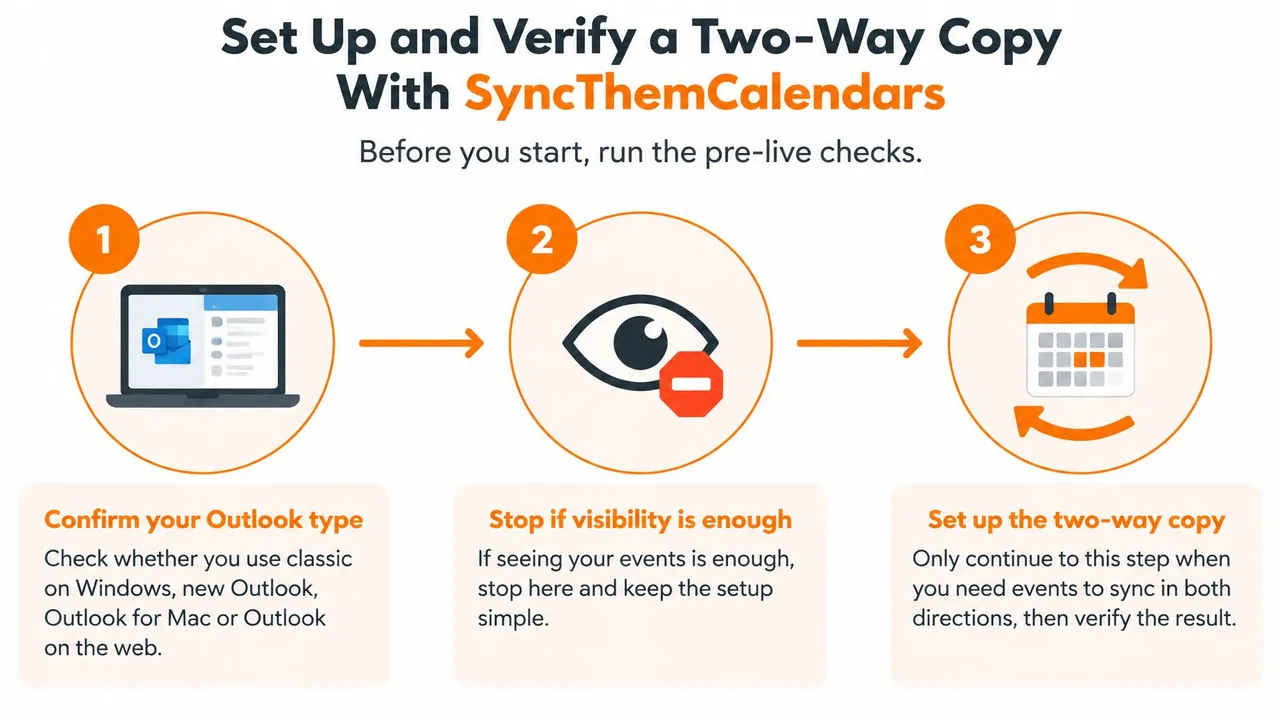
Configure the calendar relationships
- Open the web app and create your account. Review the current trial and subscription terms before proceeding.
- Connect the iCloud and Microsoft accounts involved. Add Google only if it belongs in this workflow.
- Select the required direction: one-way, two-way or multi-way.
- Choose the specific source and destination calendars. Check their account addresses because calendar names can be identical.
- Configure privacy controls for copied titles, descriptions and locations, or choose free/busy mirroring.
- Review how the service handles deletions, recurring events and existing copies.
- Start synchronization.
For a client-facing destination, choose busy blocks and exclude personal titles, descriptions and locations. For your own private consolidated calendar, fuller details may be appropriate, provided you’re authorized to copy them.
Count the calendar relationships you intend to run before choosing a subscription. Account connections, calendars and active sync relationships aren’t interchangeable, so check the current plan definition rather than counting email addresses.
Verify the intended result
Create a harmless test event in each direction and confirm that each reaches its intended destination. In the same test, check the time zone, copied fields, recurrence behavior and what happens when you edit or delete the source event.
That test should reflect the actual workflow. If the destination is meant to show availability only, success means seeing the correct busy period without private details, not an exact duplicate of the appointment.
The walkthrough below provides a visual companion to the setup.
Leave redundant copying routes disabled while the service runs in the background. If you later change the direction or privacy rules, review existing destination events too; changing future copying behavior may not remove information already shared.
SyncThemCalendars offers cross-provider event copying with direction controls, field masking and free/busy mirroring. If separate iCloud and Outlook calendars need matching availability, visit SyncThemCalendars and configure only the calendar relationships you need, keeping personal details out of shared busy blocks.
Ready to sync your calendars?
Keep your Google, Outlook and Apple iCloud calendars in sync automatically. 2-minute setup, no credit card required.
Get started freeKeep reading
More in Guides

SyncThemCalendars Quick Setup Walkthrough
Master the SyncThemCalendars quick setup in minutes. Connect Google, Outlook, or iCloud, configure privacy masking, and verify your first sync effortlessly.

Merging Google Calendars: The Complete Guide for 2026
Merging Google Calendars. Learn the best ways to merge Google Calendars. Compare import methods, sync tools, and automation strategies

Master Your Calendar on Outlook with Sync Solutions
Learn how to use calendar on Outlook effectively, sync with Google and iCloud, avoid double-bookings, and connect SyncThemCalendars for seamless scheduling.