


Why Is My Calendar Not Syncing? Causes and Fixes
Why is my calendar not syncing? Diagnose Google, Outlook and Apple Calendar sync problems by symptom, then apply the fix that matches your cause.
You’ve added a meeting to your work calendar, but your phone still shows that time as free. You refresh, reopen the app, and wonder whether the event disappeared or whether you’re about to get double-booked.
If you’re asking, “Why is my calendar not syncing?”, start by finding where the event stops. A hidden calendar, a broken connection between accounts, and a phone that hasn’t refreshed can look identical. They need different fixes, and removing accounts before you know which one you have creates unnecessary work.
Find the Layer That Broke
An event appears on your laptop but not your phone. That doesn’t automatically mean the calendar service has failed. Your laptop might be displaying the original event while your phone is looking at another account, a hidden calendar, or an outdated local copy.
There are three places to investigate: the source account and its permissions, the connection that transfers changes, and the device app that displays the result. I would locate the fault before changing passwords, clearing caches, or disconnecting anything.
Compare the source, destination, and device
Use an event you can identify by its title, date, and calendar name. Don’t rely on color alone, because different apps can assign different colors to the same calendar.
- Open the source calendar on the web. Confirm that the event exists and belongs to the calendar you intended to synchronize. An event saved to a personal calendar won’t transfer through a connection configured for your work calendar.
- Open the destination calendar on the web. Look for the copied event. If it’s missing there, investigate account access, sync direction, and the connection between the calendars.
- Compare the device app. If the destination website shows the event correctly but your phone doesn’t, leave the server connection alone. The remaining fault is in the device’s account settings, visibility, or local refresh.
For an integration that publishes bookings, make the same comparison at the scheduling source. For example, Samba’s resource to connect tour schedules to calendars is useful context when tracing whether a tour booking reached the calendar before investigating the phone.
Practical rule: A correct destination calendar on the web is your signal to troubleshoot the device, not rebuild the entire connection.
Understand what the connection remembers
Calendar synchronization isn’t necessarily a continuous transfer of every event. The service first retrieves calendar data, then keeps a bookmark so later requests can ask for changes rather than download everything again.
Microsoft Graph’s calendar delta documentation describes this initial synchronization followed by requests for added, changed, or deleted events, and requires clients to preserve the complete delta-link URL for subsequent requests. If the synchronizer loses that bookmark, changes request parameters incorrectly, or stops before retrieving every page of results, later updates may never reach the destination.
That’s why a missing copy isn’t proof of deletion. The source event may be safe while the synchronization service has an incomplete view of its current state. A refresh of the phone can’t repair a fault inside that service.
Use the symptom as a starting point, not a final diagnosis.
| Symptom | Likely cause | First fix |
|---|---|---|
| Event missing on phone, present on web | Device has not fetched or the account is switched off on the device | Force a refresh and confirm the account is turned on |
| One calendar missing while others sync | That calendar is hidden or not shared with the connected account | Make the calendar visible and confirm its access level |
| Changes arrive hours late | Push channel expired, quota reached or device set to a manual fetch | Stop refreshing, check the fetch setting, then rebuild the connection if still late |
| Event shows one hour early or late | Time zone mismatch or daylight-saving handling | Compare the time zone setting in both calendars |
| Only recurring events missing | Series broken or a single occurrence edited | Test a one-off event and a series separately |
| Sync stopped after a password change | Access revoked or token no longer valid | Sign in again and re-authorize the account |
| Sync stopped after a work policy change | Administrator restricted third-party calendar access | Ask the administrator to approve the connection |
| Sync stopped with no error message | Stored sync state is stale or expired | Remove the connection and rebuild a full sync |
| Destination calendar is read-only | Sharing permission set to view only | Raise the permission to allow changes |
A read-only destination needs special care. Change its permissions only if you own it or have approval, and the integration needs to create events there. Read access is sufficient for a source that the service only needs to inspect.
Fix Account Access and Rebuild the Connection
Start with the connected-account screen in your calendar app or synchronization service. Look for a sign-in request, revoked permission, or an account that no longer appears. Existing events can remain visible even after access stops working, so a normal-looking calendar isn’t evidence of a healthy connection.
Use this account-access checklist before removing anything.
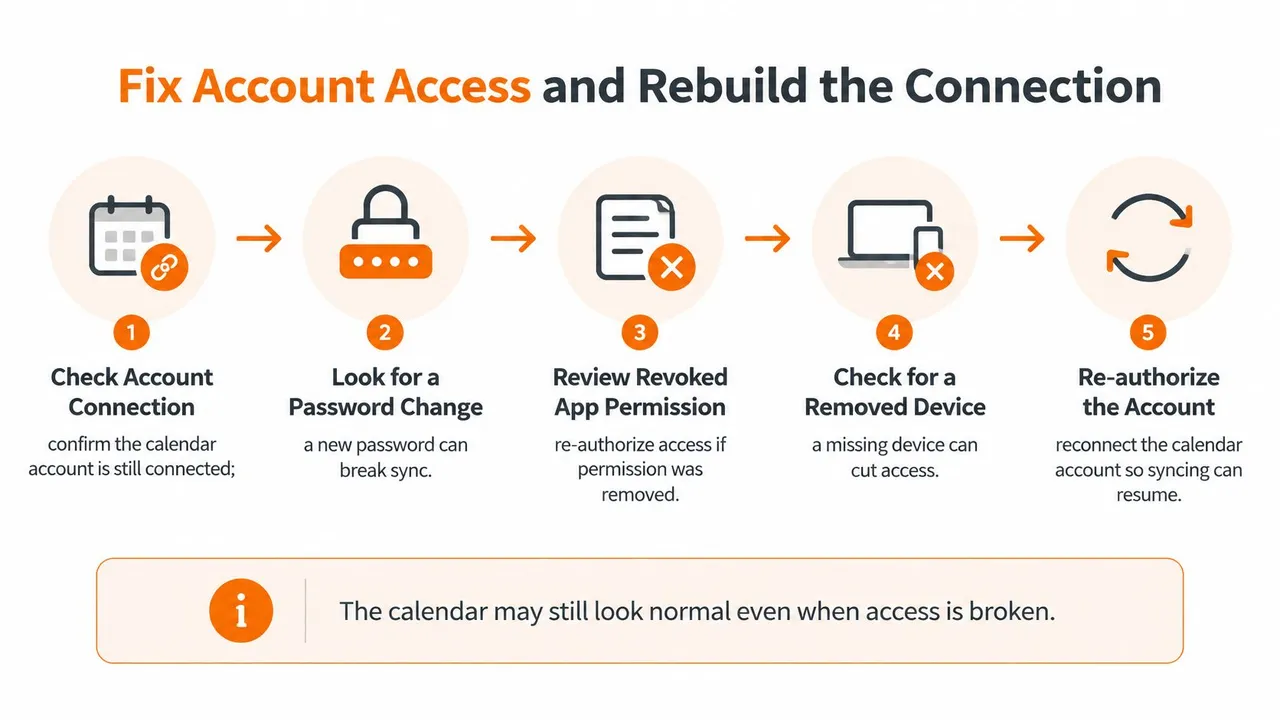
Sign in again if prompted, then verify the specific calendars the connection can access. The source must be readable; the destination must permit event creation. Reauthorizing the correct account won’t help if you accidentally select a similarly named calendar owned by someone else.
Separate personal access from administrator restrictions
For work and school accounts, ask whether an administrator changed third-party application consent, calendar sharing, or delegated access. A connected account can still lack permission for a particular calendar.
SyncThemCalendars’ guide to syncing with Google discusses permission and privacy considerations when connecting calendars. The useful principle is least-privilege access, not granting access to everything until the error disappears.
Give your administrator the affected account, calendar name, requested operation, and the time the failure began. Don’t send private event descriptions or access tokens.
Rebuild only after checking access
Google Calendar’s error guide identifies HTTP 410 Gone as a condition requiring a full resynchronization after the stored sync token becomes invalid. Repeating the same incremental request won’t fix that state.
For an end user, rebuilding the connection is the practical recovery route when the service doesn’t expose a full-resync control:
- Preserve your events. Export important calendars where supported, and record the source, destination, direction, and privacy settings. Screenshots help document settings but aren’t an event backup.
- Remove the sync connection. Read the confirmation carefully. Disconnecting access and deleting copied events are different operations.
- Reconnect each account. Complete the authorization prompts using the intended identity, especially if your browser holds several accounts.
- Select the source and target again. Confirm ownership and direction before enabling the transfer.
- Let the initial synchronization finish. Don’t create overlapping replacement connections or repeatedly restart the process.
- Create a fresh test event. Confirm it arrives on the destination website before checking your phone.
If you prefer a visual walkthrough, use the video alongside the checks rather than skipping the backup and permission decisions.
If a rebuild produces duplicates, pause the replacement connection before cleaning them up. Don’t bulk-delete events until you’ve distinguished originals from copies and checked whether deletions propagate.
Tell a Delay From a Real Failure
| Provider | How changes reach the calendar | Typical delay when healthy |
|---|---|---|
| Google Calendar | Push notifications renewed by the service | Usually within moments |
| Outlook and Microsoft 365 | Change notifications and delta requests | Usually within moments |
| Apple iCloud on iPhone with Push | Device receives updates as they happen | Usually within moments |
| Apple iCloud on iPhone with a fetch interval | Device checks on the schedule set in Settings | Set by the chosen interval |
| Repeated retries after a quota limit | Requests sent again in a burst | Several minutes after the burst, so stop refreshing |
Treat these as troubleshooting expectations, not delivery guarantees. The app, synchronization service, account configuration, and network all affect when you see the change. A subscribed calendar also shouldn’t be judged as though it were a direct account connection.
For a closer look at the difference between refresh mechanisms, use the guide to how often Google Calendar syncs.
Stop refreshing when the service is throttled
Google Calendar’s API quota guide publishes limits of 10,000 requests per minute per project and 600 requests per minute per user per project, with usage-limit failures returned as HTTP 403 or 429. Those limits apply to application requests, not the number of events you personally edit.
A synchronization service can generate repeated requests while recovering from a network problem or processing many calendars. Google recommends spaced retries with exponential backoff and randomized timing rather than bursts of repeated polling.
If logs show a quota error, stop forcing refreshes and allow the service’s retry process to run. A burst can affect the following quota window, so immediate recovery isn’t guaranteed once you stop clicking.
Repeated refreshes aren’t a useful test when the server is already asking the client to slow down.
Check notifications and connectivity
A connection can also lose its trigger to check for changes. Google Calendar’s push-notification documentation explains that notification channels expire and applications must create replacements because renewal isn’t automatic.
If you manage the integration, compare the channel’s expiration timestamp with the last received notification and check replacement-watch failures. Notifications announce a change; the service still needs to retrieve the updated calendar data.
On a phone, test on a stable connection and check whether power-saving or data-saving settings restrict background activity. If updates appear only when you open the app, investigate background fetching. If nothing reaches the destination website despite healthy connectivity, waiting longer isn’t a repair.
Test Event Types to Find the Real Problem
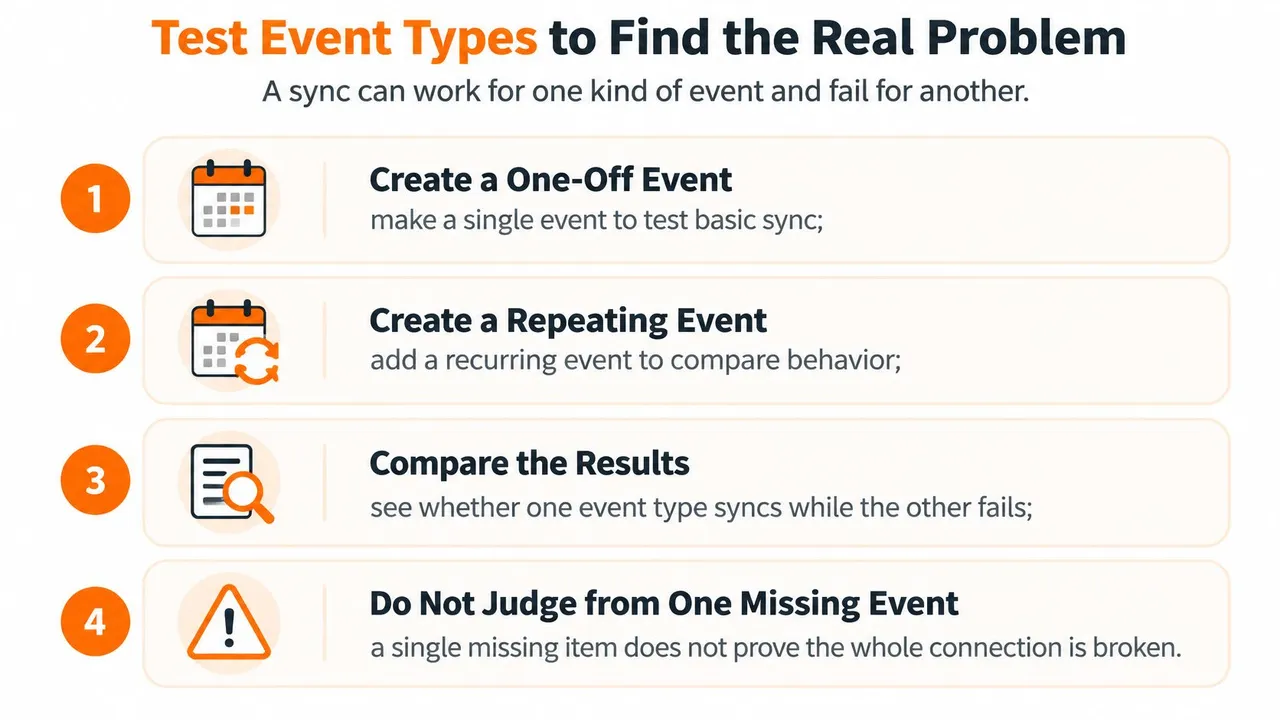
A working connection can still mishandle a particular event type. Before declaring the account broken, compare a simple event with recurrence, exceptions, all-day entries, and older items.
Google Calendar’s export and import troubleshooting guidance notes that recurring events can be imported as separate one-time events and recommends checking time zones when events appear at incorrect times. A successful transfer therefore doesn’t guarantee that the destination preserved the source’s behavior.
This checklist captures the basic comparison.
Run controlled event tests
Use neutral titles and keep every test on the same source calendar. Changing the calendar and the event type simultaneously makes the result harder to interpret.
- Create a one-off event. Give it a recognizable test title and a start and end time. Check the destination website rather than relying on a notification.
- Add a weekly recurring event. Inspect future occurrences, not just the first instance. Confirm the destination represents the intended series.
- Edit a single occurrence. Move that occurrence without changing the whole series. This isolates handling of recurrence exceptions.
- Create an all-day event. Check its date and whether it remains all-day instead of becoming a timed block.
- Inspect an event from last month. Compare it with a new event to identify a historical copy-window limitation.
- Compare time zones. Check the source event, both calendar settings, and occurrences near a daylight-saving transition.
Don’t move real meetings or invite colleagues to diagnostic events. Avoid attaching conferencing details, guests, or confidential descriptions that could trigger unnecessary messages.
Interpret differences rather than resetting everything
| Test result | Likely cause | Next step |
|---|---|---|
| One-off event missing in destination | Connection or sync link broken | Run the account and rebuild checks |
| Event one hour early or late | Time zone or daylight-saving mismatch | Align the time zone setting in both calendars |
| Series copies but edited occurrence does not update | Recurrence exception not carried over | Recreate the edit as a separate event, then retest |
| Only older events missing | Copy window does not reach back far enough | Check the sync range or copy window setting |
| Free/busy syncs but event details do not | Detail sharing is limited | Check the sharing permission for event details |
Treat a separate-event workaround cautiously. Remove or exclude the conflicting copied occurrence first, and don’t recreate an organizer’s meeting in a way that sends duplicate invitations.
For confidential calendars, run the same checks using free/busy availability and masked titles where supported. Confirm that the destination blocks the intended time without exposing details. If availability transfers correctly while descriptions remain hidden, the connection may be doing exactly what its privacy settings require.
Device and App Fixes for Google, Outlook and iCloud
Fix the local display before removing the account. When the destination website is correct, you already have a useful reference against which to test the phone or desktop app.
Work from visibility and refresh settings toward account removal. Before any last-resort action, verify that locally created events have reached the server and export anything that exists only on the device.
| Platform | First check | Second check | Last resort |
|---|---|---|---|
| Google Calendar | Calendar is checked in the app’s calendar list and the account is enabled | Sharing and time zone match between the calendars | Remove and re-add the account on the device |
| Outlook and Microsoft 365 | Account is enabled in the mail app and Calendar is switched on | Work Offline is off, then toggle the account off and on and refresh | Recreate the local profile or cache after backing up |
| Apple iCloud on iPhone | Settings, Calendar, Accounts, with Fetch New Data set to Push or a short interval | iCloud Calendars switched on for that account | Sign out of iCloud and sign back in after exporting events |
Google Calendar and Outlook
In Google Calendar, open the calendar list and select the missing calendar. Confirm the device account has calendar synchronization enabled, rather than assuming that a working Gmail inbox proves calendar access is on.
Open an affected event and inspect its calendar assignment. If new entries keep landing in another account, correct the default calendar for future entries and move existing events deliberately.
For Outlook and Microsoft 365, confirm you’re viewing the correct account and calendar folder. In desktop versions that offer Work Offline, make sure it’s disabled, then use the app’s refresh or send/receive control.
If needed, disable and re-enable calendar synchronization for the account. Recreating a desktop profile is a last resort because it can affect more than calendar data; preserve local-only items and follow your organization’s IT process.
iCloud on iPhone
On iPhone, look under Settings → Apps → Calendar → Calendar Accounts, or Settings → Calendar → Accounts on versions with the older layout. Open Fetch New Data and choose Push where supported or an appropriate fetch schedule instead of Manual.
Check Settings → your name → iCloud to confirm Calendars is enabled, then select the calendar inside the Calendar app. Review Low Power Mode and data-saving restrictions if foreground refresh works but background updates don’t.
Before signing out: Confirm what’s stored online and what exists only on the device. An account reset isn’t a substitute for a backup.
If the failure is specifically between Google and Apple’s app, follow the focused checks for Google Calendar not syncing with Apple Calendar. Don’t sign out of your entire Apple Account just because a Google calendar is hidden.
Decide Between a Native Fix and a Managed Sync
Keep the native connection if a targeted repair solves the problem. A visibility setting, an incorrect default calendar, or an isolated access issue doesn’t justify adding another service. Monitor the repaired connection using disposable test events before trusting it for availability.
A managed connection becomes worth evaluating when you need actual event copies across providers, repeatable privacy controls, or changes to travel in both directions. Displaying several accounts in the same app doesn’t make their calendars share availability.
Choose the connection you actually need
We offer SyncThemCalendars as a web-based option for Google, Outlook, and Apple iCloud, including two-way calendar synchronization. Setup takes 2 minutes; afterward, calendars synchronize automatically, and you can edit or pause any sync. A Google-to-Apple iCloud connection can keep a personal Apple calendar and a Google work calendar up to date on both sides without manual copying.
Adding a service also adds an authorization relationship and another subscription to review. If you already use Compass+ to manage my subscriptions, include any calendar-sync subscription in that review rather than leaving an unused connection authorized.
Validate before relying on availability
Whichever route you choose, keep the first test narrow:
- Isolate the calendars. Configure one source and destination, leaving unrelated connections untouched.
- Verify basic delivery. Create a disposable event and check the destination website within the connection’s expected update window.
- Test recurrence and direction. Confirm an edited occurrence transfers, and test a destination-side edit only if two-way behavior is intended.
- Check privacy and cleanup. Inspect what details were copied, then confirm how deleting the test affects each calendar.
A managed service can’t override an administrator’s access restriction. Approve the connection properly, validate the result, and only then use it to protect time across accounts.
SyncThemCalendars automatically copies events between Google, Outlook, and Apple iCloud calendars so your availability stays aligned without manual copying. Visit SyncThemCalendars to connect your chosen calendars, then verify the setup with a one-off event and a recurring-event test before relying on it for scheduling.
Ready to sync your calendars?
Keep your Google, Outlook and Apple iCloud calendars in sync automatically. 2-minute setup, no credit card required.
Get started freeKeep reading
More in Guides
Synchronize Apple Calendar with Outlook: A 2026 Guide
Step-by-step guide: Synchronize Apple Calendar with Outlook on Windows, iPhone and Mac, with two-way options, privacy trade-offs and fixes.
SyncThemCalendars Quick Setup Walkthrough
Master the SyncThemCalendars quick setup in minutes. Connect Google, Outlook, or iCloud, configure privacy masking, and verify your first sync effortlessly.
Merging Google Calendars: The Complete Guide for 2026
Merging Google Calendars. Learn the best ways to merge Google Calendars. Compare import methods, sync tools, and automation strategies