







Two Way Google Calendar Sync: Setup Guide and Best Practices
Master two way Google Calendar sync with step-by-step setup, privacy controls, and troubleshooting tips for entrepreneurs, freelancers, and teams.
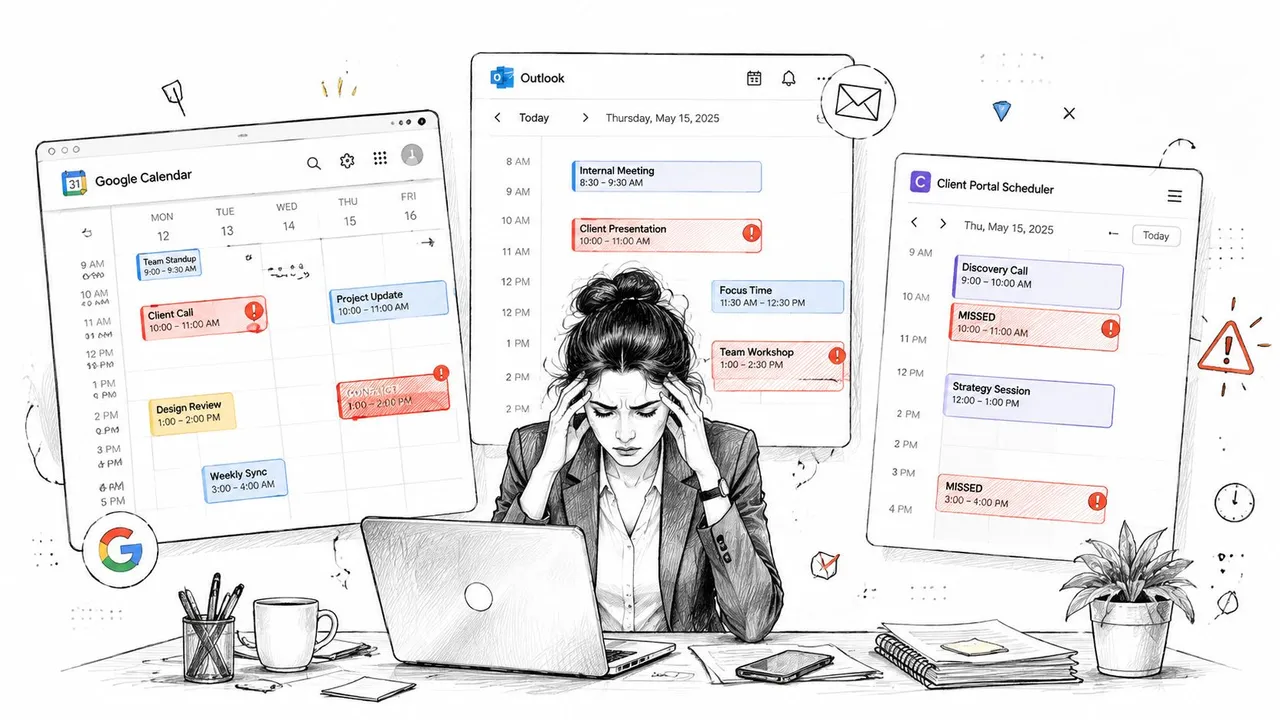
You arrive at a client call and discover it overlaps with a personal appointment you copied into the wrong calendar. Your work Outlook calendar shows one commitment, Google Calendar shows another, and a client scheduling tool still believes you’re available. By the time you reconcile the three, you’ve spent more effort managing calendars than managing your work.
Two-way Google Calendar sync is designed to keep those systems aligned when events are created, edited, moved, or deleted. The difficult part isn’t connecting two accounts. It’s deciding which events should travel, what other people are allowed to see, how conflicts should be resolved, and how the connection should recover when permissions or sync state changes.
Why Two Way Google Calendar Sync Matters for Modern Professionals
A calendar conflict becomes an operational problem when several systems can create or change the same appointment. Add a meeting in Outlook, and a booking page may continue offering that time if the update never reaches Google Calendar. Move the appointment in Google Calendar, and the original Outlook event can remain unchanged. Clients see stale availability, personal commitments stay exposed or overlooked, and someone must reconcile the records manually.
Why visibility and synchronization are different things
Calendar users commonly deal with three separate outcomes:
- Read-only visibility: You can see events from another calendar, but editing the copy does not update the original.
- One-way mirroring: Changes travel from a selected source to a destination, but not back.
- True two-way synchronization: A change made on either connected calendar is reconciled with the other side.
Google Calendar supports cross-application synchronization with programs such as Outlook and Apple Calendar. Google Workspace interoperability can also let people in different calendar environments share availability without exposing complete event details. The Google Calendar help documentation explains these interoperability and synchronization behaviors, including the mobile app’s limit of syncing past events up to one year.
The distinction matters for a freelancer using Google Calendar personally, Outlook for a client, and another scheduling system for prospect calls. Read-only access may handle availability checks. Editing from either side requires bidirectional change handling, including updates, cancellations, and rescheduled meetings.
Permissions can also change after setup. A revoked token, expired authorization, or altered sharing rule may stop updates while the calendars still appear connected. A workable process needs an error alert, a clear source of truth, and a way to reconcile missed changes. Conflict rules matter too, especially when a personal event and a client booking occupy the same time.
Practical rule: If more than one system can create or modify appointments, plan for bidirectional change handling rather than simple calendar visibility.
Choose the smallest useful scope
Full event replication often creates unnecessary exposure and duplicate records. A small team may need only free/busy sharing. An entrepreneur running separate ventures may copy selected events between business calendars. A consultant may need personal commitments to block client booking slots while masking titles, locations, and descriptions.
Ask which calendar needs to know what, which fields should be visible, and which account owns the authoritative event. Define those boundaries before enabling sync. The result is a controlled operational process that handles privacy, conflicts, and recovery instead of another source of calendar clutter.
Setting Up Two Way Sync with Native and Third Party Options
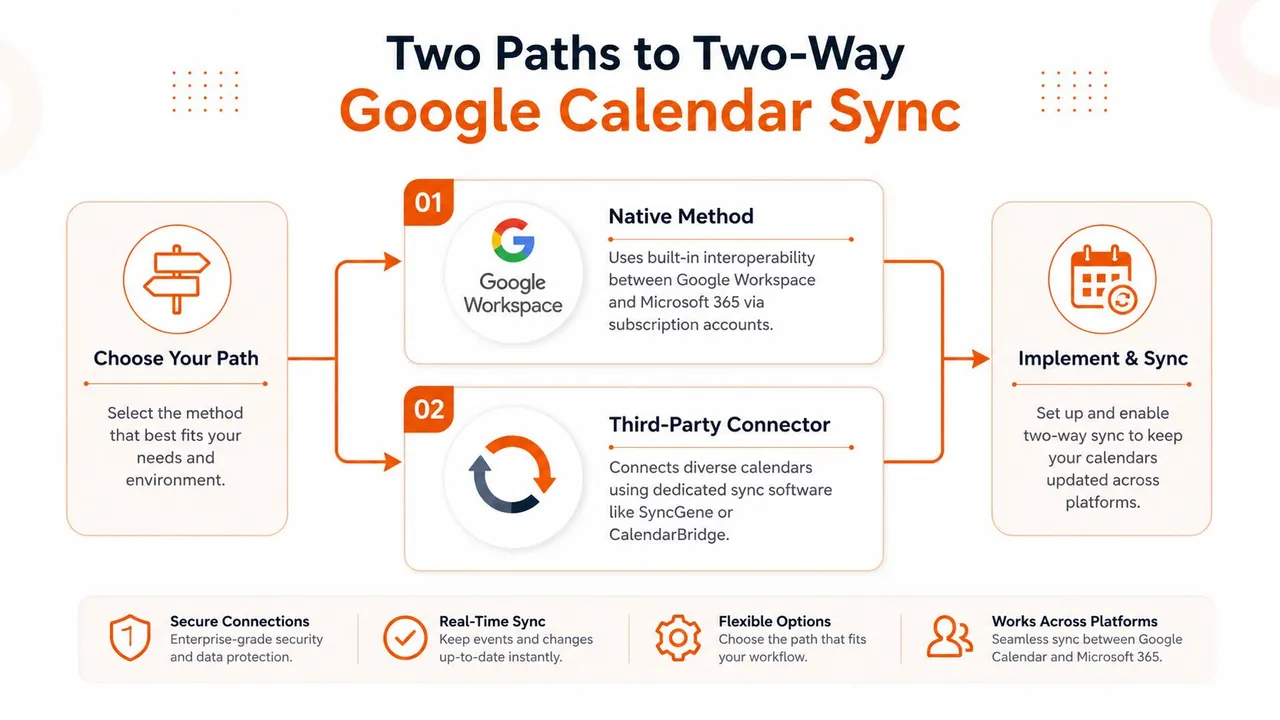
Start with the operating model, not the software. List every Google, Microsoft Outlook, Apple iCloud, client, CRM-connected, and institutional calendar. For each one, record whether it creates events, receives copies, or only needs to expose availability. Also note which account owns the authoritative event. This inventory shows whether native interoperability can handle the workflow or whether a connector is required.
Native Google options
Google Workspace and Microsoft environments can share availability across systems. That works well when both organizations use managed business accounts and the main requirement is finding open meeting time. Google Calendar’s API performs an initial full synchronization, then uses incremental synchronization to keep connected calendars current.
Native tools fit these situations:
- You only need availability visibility.
- Your organization controls both calendar environments.
- Apple iCloud and several unrelated accounts are outside the workflow.
- Users can accept limited editing or manual reconciliation.
A client-mandated calendar, separate personal and work accounts, or several calendars with selective two-way or multi-way rules can make native options less suitable. A subscription or availability connection may present the broad schedule while avoiding editable event copies on every destination. This reduces duplicate records, but it also limits where users can make changes.
Third-party connectors
A dedicated sync service connects authorized accounts and applies rules for direction, filtering, privacy, and conflict behavior. SyncThemCalendars supports connections among Google Calendar, Outlook or Office 365, and Apple Calendar, with one-way, two-way, and multi-way configurations. Its web setup is described by the publisher as taking approximately two minutes. Test with non-sensitive events before depending on the connection for live scheduling.
Use this setup sequence:
- Connect accounts separately. Authorize each provider and check that the requested permissions match the intended workflow. Record which accounts can create, edit, or delete events.
- Select specific calendars. Exclude archives, subscriptions, and calendars that should not create availability blocks. This matters when personal, client, and internal calendars share one account.
- Choose direction. Use one-way copying for controlled publishing. Use two-way sync when both sides require edits. Choose multi-way sync only after defining ownership and conflict handling.
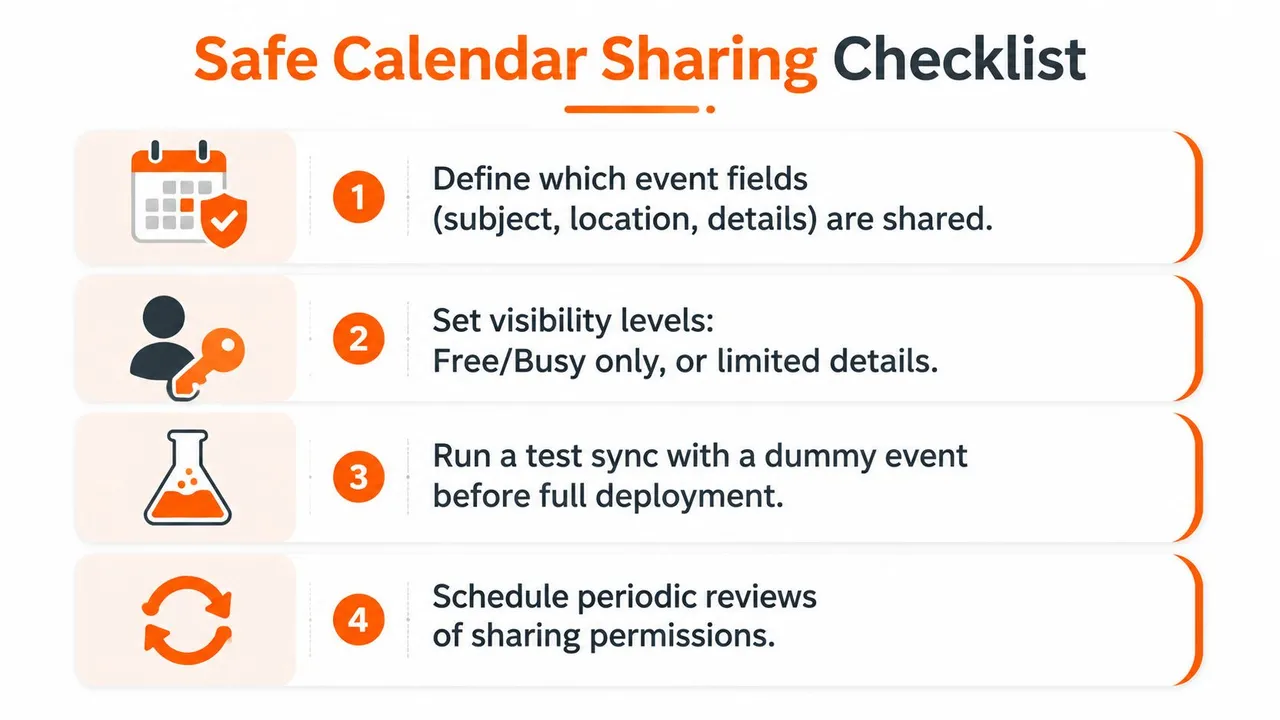
- Configure privacy rules. Decide which titles, descriptions, locations, attendees, and event statuses may transfer. Confirm how private events and masked fields appear at the destination.
- Run a controlled test. Create, edit, move, and delete a dummy event from each side. Check the audit or activity view, then test again after authorization is revoked and restored so token failures do not remain hidden.
For a visual walkthrough of the broader process, see this guide to syncing Google Calendar.
Use native interoperability for managed, availability-focused workflows. Choose a connector when the operation requires cross-provider coverage, editable mirrored events, privacy transformations, or several independent accounts. Document the owner, permitted fields, and recovery process before turning on live synchronization.
Privacy Controls and Field Mapping for Safe Calendar Sharing
A calendar event contains more than a time block. Its title can reveal a client, its location can identify a home or office, and its description may contain confidential notes. A sync rule that copies every field equally can solve double-booking while creating a privacy problem.
Define the information boundary
For each connection, decide whether the destination needs the event itself or only its occupied time. Free/busy mirroring is often sufficient for scheduling because it blocks the slot without exposing the reason. A colleague may need to know that you’re unavailable, not that you’re attending a medical appointment or discussing a sensitive client matter.
A useful field policy might look like this:
| Event field | Work to personal | Personal to work | Client-facing calendar |
|---|---|---|---|
| Time and duration | Share | Share as a block | Share |
| Title | Mask or generalize | Mask | Replace with a generic label |
| Description | Usually exclude | Exclude | Exclude |
| Location | Share only when operationally necessary | Usually exclude | Exclude |
| Attendees | Review case by case | Usually exclude | Share only when required |
Apply rules by scenario
A freelancer may copy client commitments into a personal calendar but replace “Acme contract review” with “Busy.” That protects the client relationship while still preventing a personal booking from colliding with paid work. The reverse direction can copy a personal event as a blocked period into the client-facing calendar without revealing its title or location.
An entrepreneur with separate ventures should avoid sending every event from one business into the other. Share only the time blocks that affect availability, and preserve detailed project information in the calendar where that work belongs. A small team can use free/busy sharing for general coordination, while keeping private one-to-one meetings and internal notes restricted.
Privacy is a configuration decision, not a side effect. Test what the recipient can actually see, rather than assuming that a hidden calendar automatically hides every copied field.
Run a dummy event with an intentionally sensitive-looking title, description, and location. Inspect the destination as the recipient would, then remove the test event and document the approved mapping. The calendar sync app guidance provides a useful reference point for evaluating tools that include field masking and availability-focused sharing.
Review permissions whenever a client relationship ends, an employee changes roles, or an account administrator modifies sharing policies. A sync connection can remain technically healthy while still exposing information to the wrong audience.
Common Sync Failures and How to Troubleshoot Them
A healthy calendar connection depends on credentials, permissions, provider limits, event identifiers, and stored change state. Restarting the app may hide a symptom temporarily, but it will not repair the underlying condition. Treat sync as ongoing operational maintenance, especially when work and personal accounts share availability.
Treat HTTP 410 as recovery work
Google’s incremental synchronization uses a stored syncToken to request changes after the initial full sync. When that token becomes invalid, Google can return HTTP 410, meaning the local delta state must be discarded and rebuilt through a full synchronization. Google’s documented recovery recommendation, summarized in this technical discussion of invalid sync tokens, is to preserve authentication separately, discard the invalid sync state, and restart from a complete event listing.
This is a normal maintenance path for a connector that manages change state per calendar. A weak implementation retries the same token and creates a permanent loop. A stronger one versions sync state, detects invalidation, performs a full rebuild, and resumes incremental updates only after the new state is established.
Diagnose the symptom before changing settings
Google Calendar integrations also handle rate limits, invalid credentials, and precondition failures. The Google Calendar API error-handling guide recommends exponential backoff with jitter for rate limiting, token refresh for expired credentials, and re-fetching before retrying when ETags conflict.
Use this checklist:
- Events don’t appear: Confirm the correct calendar was connected, verify visibility and permissions, then check whether a filter excluded the event.
- Updates arrive late: Review connector activity, provider throttling, polling behavior, and whether the account needs reauthorization.
- Events duplicate: Look for overlapping one-way rules, missing source-to-destination identifiers, or mirrored events being treated as new source events.
- Changes bounce between systems: Check ETags, source priority, update timestamps, and whether both calendars rewrite the same field.
- Only some events fail: Compare event types, recurring rules, organizer permissions, attendees, and time-zone settings.
Microsoft notes that Google accounts connected to Outlook can encounter a 20-calendar sharing limit, as described in Microsoft’s support discussion. The limit matters when work, personal, client, and project calendars accumulate. Reduce the connected set before assuming the provider or connector is broken.
For more on resolving common calendar sync errors, see our guide to Google calendars not syncing.
Recommended Sync Workflows for Different User Types
The right architecture depends on who creates events, who needs visibility, and which information must stay private. A single two-way rule across every account is rarely the cleanest design.
| User Type | Sync Direction | Privacy Level | Best Tool Approach |
|---|---|---|---|
| Entrepreneur with multiple ventures | Selective multi-way | Mask titles between ventures | Dedicated connector with per-calendar rules |
| Freelancer or consultant | Two-way for work, free/busy from personal | Generic titles, no descriptions or locations | Native availability sharing or a privacy-aware connector |
| Sales professional | Two-way between CRM-connected and primary work calendar | Preserve meeting time, limit sensitive notes | Connector with event identity and deduplication controls |
| Student or academic | Selective one-way or two-way by calendar | Share class blocks, hide personal details | Native tools when providers are compatible, connector for mixed systems |
| Small team | Free/busy by default, selective event sharing | Limited details for colleagues | Workspace interoperability with controlled sharing policies |
Entrepreneurs
Separate venture calendars should remain operationally distinct even when the owner needs one consolidated view. Copy availability blocks across businesses, but don’t replicate every project note or attendee list into unrelated accounts. Multi-way sync makes sense only when each direction has a defined purpose and a clear rule for which calendar owns the authoritative details.
Freelancers and consultants
Protect client confidentiality first. Let personal events block client booking availability, but transform the copied event into a generic busy block. For client meetings, preserve enough detail in the work calendar to support delivery, while keeping that detail out of personal or shared calendars.
Sales professionals
CRM-connected calendars often create events automatically. Before enabling two-way copying, identify which system owns the meeting record and ensure the connector can recognize an existing mirrored event. Otherwise, a CRM-created event and a manually created calendar event may represent the same meeting and appear twice.
Students, academics, and teams
Institutional calendars may be read-only or governed by administrators, so selective visibility can be more realistic than full replication. Small teams usually benefit from free/busy sharing first, then add limited details only for calendars where context helps coordination.
Your Two Way Sync Implementation Checklist
Use this audit before connecting accounts or changing an existing setup:
- Name the calendar owners. Record which system creates events and which systems only need visibility.
- Choose the direction. Select one-way, two-way, or multi-way sync for each relationship. Don’t create opposing one-way rules unless you’ve confirmed how duplicates are prevented.
- Connect only necessary calendars. Exclude archives, irrelevant subscriptions, and calendars that shouldn’t block availability.
- Set privacy mappings. Decide what happens to titles, descriptions, locations, attendees, and free/busy status.
- Define conflict behavior. Establish source priority, update rules, deletion handling, and duplicate prevention before production use.
- Test every operation. Create, edit, move, and delete a dummy event from each relevant side.
- Check failure recovery. Confirm that the connector can refresh credentials, back off during rate limits, handle ETag conflicts, and rebuild after an invalid sync token.
- Monitor account limits. Review permissions, connected-calendar counts, time zones, and recent activity when events disappear or arrive late.
- Review regularly. Remove revoked accounts and update sharing rules when clients, roles, or projects change.
Native tools are enough when you need simple availability visibility inside compatible ecosystems. A dedicated service becomes appropriate when you need cross-platform coverage, field masking, multi-way rules, and recovery behavior that you don’t want to maintain yourself.
SyncThemCalendars connects Google Calendar, Outlook or Office 365, and Apple Calendar for one-way, two-way, or multi-way event synchronization, with free/busy mirroring and controls for masking shared details. Visit SyncThemCalendars to test whether its calendar rules fit your work and personal account setup.
Ready to sync your calendars?
Keep your Google, Outlook and Apple iCloud calendars in sync automatically. 2-minute setup, no credit card required.
Get started freeKeep reading
More in Tips
Sync Google Calendar with Office 365 Made Simple
Learn how to sync Google Calendar with Office 365 reliably. Compare native, subscription and real-time sync options with setup steps and privacy tips.
Prevent Double Booking Calendar: Essential Tips for 2026
Learn how to prevent double booking calendar conflicts with smart scheduling tools and best practices for a seamless workflow in 2026.
Calendar Color Coding: Practical Frameworks for 2026
Master calendar color coding with accessible palettes and setup tips for Google, Outlook, and Apple Calendar.