







Real Time Calendar Sync: A Complete Guide for 2026
Discover how real time calendar sync keeps Google, Outlook, and iCloud aligned, and learn the best way to set it up in 2026.
You finish a client call in Google Calendar, switch to Outlook for your corporate schedule, and then notice that iCloud still shows the afternoon as open. A personal appointment, a customer meeting, and a team invitation now exist in separate systems, each offering a different version of your availability. You refresh, compare, and manually move events while someone else tries to book the same time.
That situation is why real-time calendar sync matters. Digital calendars have become the main scheduling tool for many adults, with 70% of surveyed respondents relying most on a digital calendar for managing life, according to independent calendar usage data. Yet synchronizing calendars isn’t only about making updates travel faster. The more difficult question is what information crosses from Google Calendar to Microsoft 365 or iCloud, and whether the receiving calendar needs the full event or only an availability block.
What Real-Time Calendar Sync Actually Means
Real-time calendar sync is a continuous exchange between separate calendar accounts. When you create, edit, or delete an event in one connected calendar, the sync service detects the change and applies it to another calendar without requiring you to export a file or press a refresh button.
For a consultant using Google Calendar for clients, Outlook for a corporate role, and iCloud for personal commitments, the intended experience is simple. Add a personal appointment to iCloud, and the corresponding blocked time appears in the work calendar. Reschedule a customer call in Outlook, and the change reaches the Google view used by a booking tool. The calendars don’t become one account, but they can reflect a shared set of scheduling rules.
That differs from two familiar approaches:
- Manual import and export: You copy events from one system to another. The copied version doesn’t continue to receive changes.
- Calendar subscriptions: One calendar reads an ICS feed published by another. This can be useful for visibility, but update timing depends on the provider and subscription behavior.
- Background polling: A service checks for changes at intervals. It can work reliably, but the destination calendar may remain stale between checks.
A near-real-time system usually combines change notifications with provider APIs. It doesn’t merely wait for the next refresh. However, “real time” still needs a practical definition. Public guidance notes that native ICS subscriptions may update only every 1 to 24 hours, while API-based tools commonly update in near real time or within 1 to 5 minutes, depending on the integration method, as described in Google Workspace calendar interoperability guidance.
Practical rule: Ask whether “real time” describes change detection, event writing, or the complete journey from one calendar to the other.
The latency is what you notice when you’re waiting for an appointment to appear. The policy is what determines whether the destination receives a private title, a video link, an attendee list, or only a neutral busy block.
How Real-Time Calendar Sync Works Under the Hood
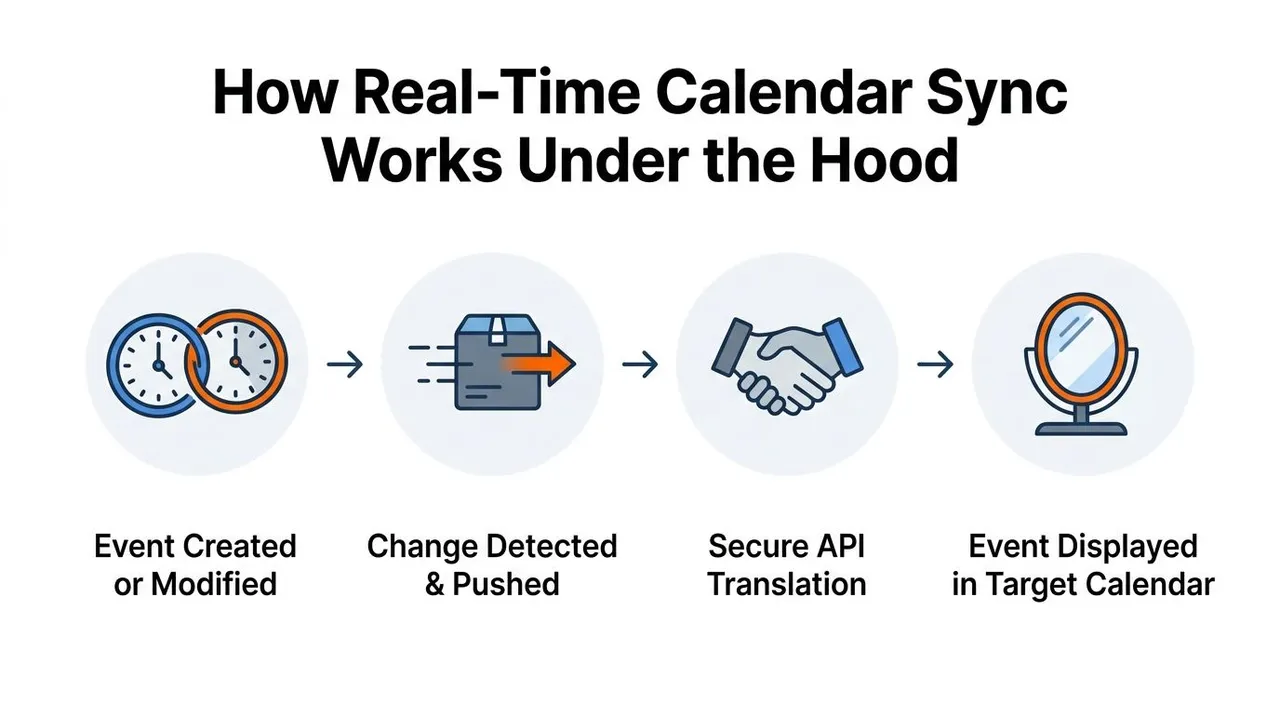
Think of synchronization as a shared whiteboard managed by two assistants. One assistant watches for a change, tells the other what changed, and the second assistant writes the translated version on the destination board. If a message fails, the system keeps it in a queue and tries again rather than losing the appointment.
A typical flow looks like this:
- A calendar change occurs. You create an event in Google Calendar, move an Outlook meeting, or edit an iCloud entry.
- A notification signals the change. Google, Microsoft 365, or the relevant iCloud connection tells the sync service that a calendar resource needs attention. The notification may identify a changed resource without carrying the complete event.
- The service retrieves current data. It calls the provider API to fetch the latest event. A notification can say that something changed, but the service still needs the authoritative record.
- The service maps fields. Providers use different names and structures for event properties. A Google start value and an Outlook start value may represent the same idea through different schemas, so the sync layer translates them into a common model.
- A write is sent to the destination. The service applies the permitted fields to the target calendar, such as the start time, end time, or a masked title.
- Failures enter a retry queue. Temporary permission errors, rate limits, network failures, or provider delays shouldn’t create a missing event. A system with retries reconciles the result.
Why translation matters
A calendar event contains more than a start and end time. It can include recurrence rules, time zones, descriptions, attendees, locations, conferencing details, reminders, and privacy settings. If a service treats every provider as identical, a recurring event or private appointment can behave differently after copying.
The system also needs an identity map. If an event already exists in the destination, the service must update that copy instead of creating a duplicate. Good integrations retain a relationship between the source event and its mirrored counterpart, then use timestamps and other properties to determine whether a later change is an update, a deletion, or a conflict.
For a clearer explanation of synchronization concepts, see how calendar synchronization works. The important point is that real-time behavior depends on several linked operations, not one magical “sync” switch.
Why Near-Instant Updates Change Daily Scheduling
The practical value appears in the short interval between someone booking a time and every connected calendar learning about it. Suppose a partner books a 3 p.m. slot through a Google-based scheduling page while your Outlook calendar still shows that period as free. A fast update closes that stale window before another person selects it.
That helps more than the person who owns the calendars. Assistants can check availability without asking for manual confirmation. Booking pages can use a more complete view of blocked time. Colleagues working in different organizations can schedule around commitments that live in separate ecosystems.
The same principle applies in ordinary settings:
- Families: A personal appointment can block time on a shared household calendar without exposing its private details.
- Sales teams: A representative can accept a customer invitation from Google while the internal team continues using Microsoft 365.
- Mobile workers: A road-based salesperson can update a meeting from a phone and reduce the chance that a desktop calendar displays outdated availability.
- Distributed teams: A change made by one person can reach the calendars used by assistants, booking tools, and collaborators.
A 2025 productivity report illustrates why manual coordination becomes burdensome. Outlook Calendar users in that report operated across an average of 3.04 calendars and spent an average of 4.2 hours per week managing calendars; 63.9% also used Google Calendar, 30.7% also used Apple Calendar, and 21.1% used all three, according to the Microsoft Outlook productivity report.
A calendar can display the right event and still provide the wrong availability if another system hasn’t received the latest change.
Near-instant propagation should therefore be treated as the baseline expectation for a modern sync tool, but not as the whole definition of quality. A destination calendar can update quickly and still reveal too much. It can also copy an event in a way that creates duplicates or allows conflicting edits to overwrite one another.
Sync Directions and Free or Busy Mirroring Explained
Sync direction determines who is allowed to change what. It isn’t just a technical setting. It expresses which calendar you trust as the source of truth and how much control each account should have.
One-way sync for controlled sharing
One-way sync sends changes in one direction. A consultant might mirror a personal calendar into a work calendar so client-facing scheduling sees blocked time, while personal event details remain hidden. A small business might send a central operations calendar to a booking calendar that nobody edits directly.
This approach is easier to reason about because one calendar remains authoritative. If the destination is only a display or availability surface, one-way copying can prevent accidental edits from flowing back into the source.
Two-way sync for shared schedules
Two-way sync lets changes travel in both directions. It suits a Google and Microsoft 365 hybrid where you want both calendars to behave like connected views of the same schedule. Move the event in Outlook, and Google receives the adjustment. Edit it in Google, and Outlook follows.
The trade-off is conflict handling. If two people change the same event before the updates meet, the service needs a defined rule for deciding which version wins, merging fields, or flagging the collision. Without that policy, two-way sync can produce confusing duplicates or repeated updates.
Multi-way sync for several ecosystems
Multi-way sync connects three or more calendars, such as Google, Outlook, and iCloud. It fits professionals who work across client, corporate, and personal environments, but each additional path introduces another opportunity for a collision. A clear source hierarchy and stable event identity become essential.
Free/busy mirroring for minimum disclosure
Free/busy mirroring copies the time block without copying the event’s meaningful content. The receiving calendar sees that you’re occupied, but not necessarily the title, description, attendees, location, or conferencing link. Google interoperability documentation emphasizes that availability views may show only busy blocks and that private event details remain hidden across systems, which supports selective calendar interoperability.
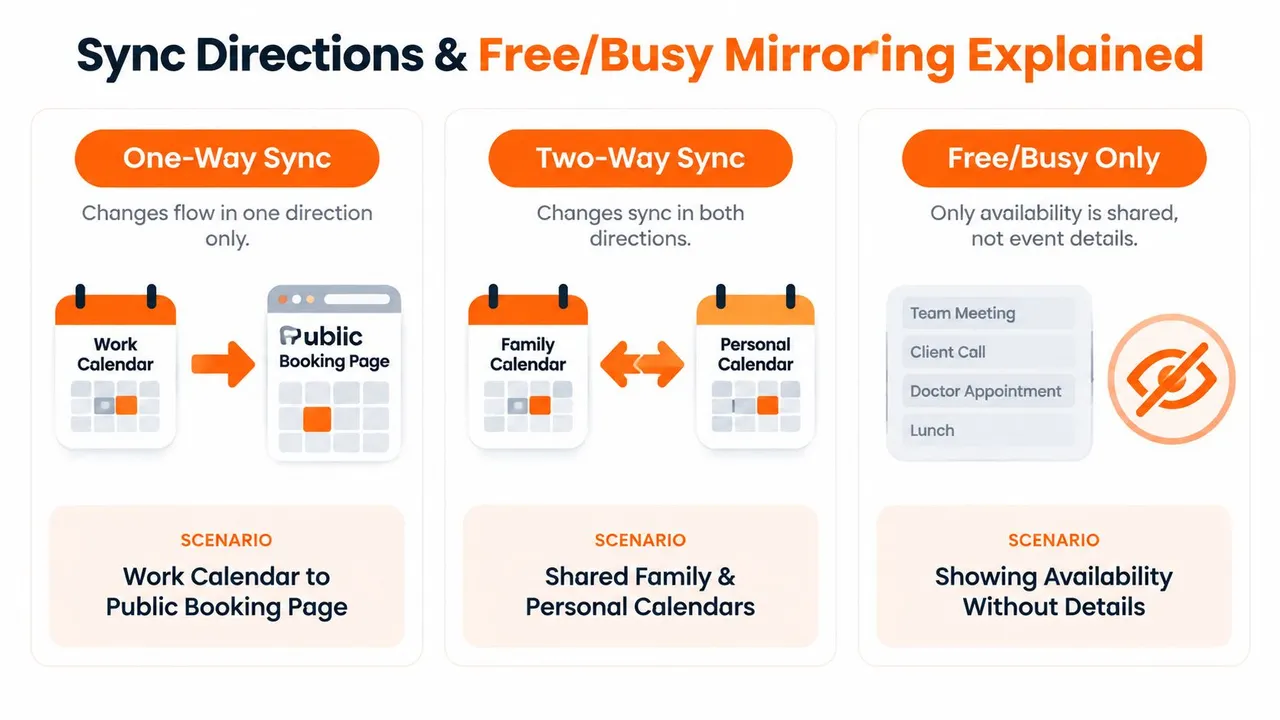
The right choice depends on trust. Decide which calendar is authoritative, which accounts may write changes, and whether another person needs event details or only an unavailable time.
The Privacy Trade-offs Most Sync Tools Gloss Over
The most important difference between sync tools often isn’t whether an update arrives quickly. It’s whether the service copies only the information required for scheduling.
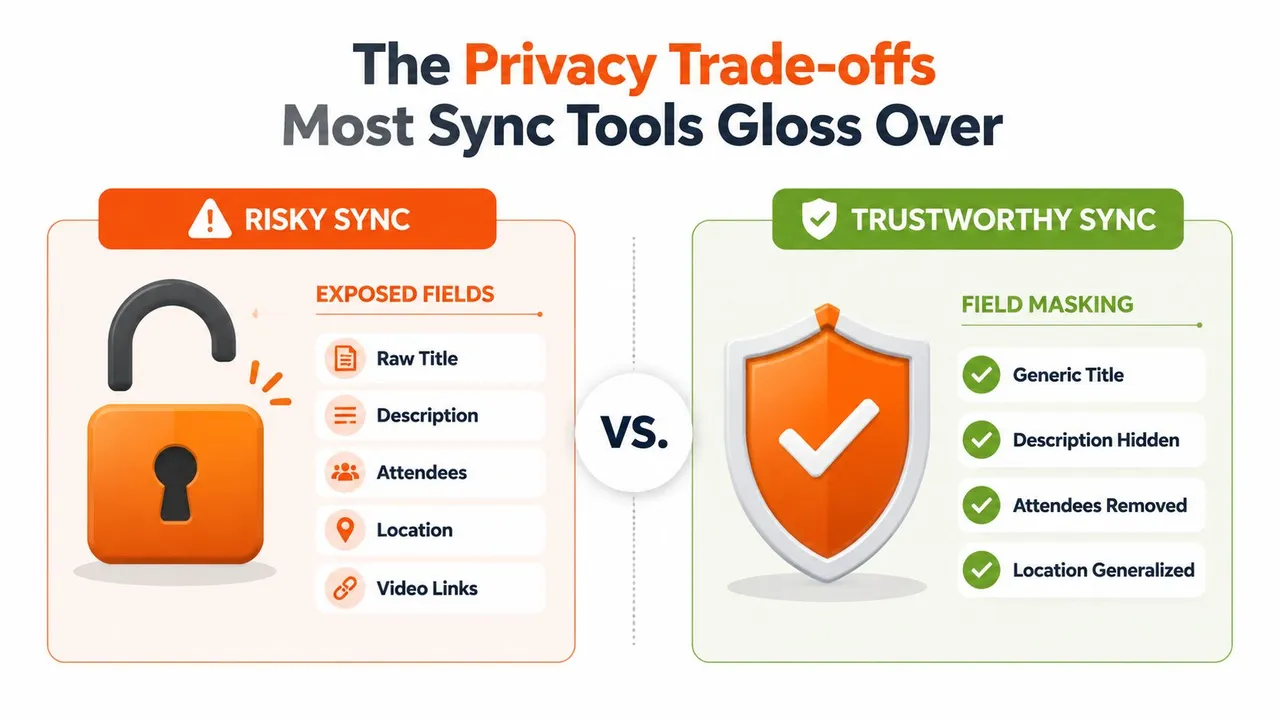
A raw event may contain a title such as a client name, a description with sensitive notes, an attendee list, a physical location, a video-conference link, recurrence instructions, and privacy metadata. Copying all of those fields from a work calendar into a personal account can expose information to people or systems that never needed to see it.
Consider a client meeting in Outlook. A full mirror might place the client name, meeting description, attendees, office address, and video link into iCloud. A privacy-aware mirror could copy only the occupied interval and replace the title with a neutral label such as “Busy.” Both calendars would block the same time, but the second destination would reveal far less.
Field-level controls
Useful privacy controls operate at the field level:
- Title masking: Replace a sensitive title with a generic label.
- Description removal: Leave notes behind in the source calendar.
- Attendee filtering: Prevent names and email addresses from crossing accounts.
- Location generalization: Copy a broad availability marker instead of an address.
- Link removal: Keep Google Meet, Microsoft Teams, or other conference links out of personal calendars.
- Source allowlists: Permit only selected calendars to synchronize.
Free/busy mode is the strictest version because it turns an event into an availability block. Selective copying is more flexible when the recipient needs a limited detail, such as a broad label or a location category.
A service should also explain what permissions it receives, where calendar data is processed, how long connection data remains available, and what happens when you disconnect. Calendar sync app guidance is useful as a starting point, but every provider and tool needs its own permission review.
Latency is table stakes. Policy is the product. A fast tool that copies confidential details everywhere can create more risk than a slower tool that exposes only the blocks people need to schedule around.
Real-World Use Cases Across Google, Outlook, and iCloud
An entrepreneur may use Google Calendar for a storefront, Outlook for vendor communication, and another calendar for operational commitments. A two-way connection can keep the schedules aligned, but the entrepreneur still needs conflict rules. If a confirmed supplier call changes in Outlook, the Google schedule should receive the new time rather than retaining an older copy that looks available.
A freelancer often has a different requirement. Personal commitments live in iCloud, while client bookings arrive through Google Calendar. One-way mirroring can send blocked time from the personal calendar to the client-facing calendar while masking the event title and notes. Clients can choose a free slot without learning whether the freelancer has a medical appointment, family commitment, or private errand.
A sales representative might work inside Microsoft 365 while customers send invitations from Google. Multi-way synchronization can connect the internal and external views, but free/busy mirroring is usually the safer policy for colleagues or booking contacts. The team needs to know that the representative is unavailable, not the name of the deal or the contents of the customer conversation.
Students and academics face the same structural problem at a smaller scale. Class schedules may sit in iCloud while group-project meetings appear in Google Calendar. When a room or meeting time changes, near-real-time propagation helps the updated block reach the other view before classmates rely on outdated information.
These situations don’t all need the same configuration. Calendar syncing for iCloud should be evaluated by the actual iCloud connection method, the required direction, and the privacy policy for the destination.
The common pattern is straightforward: first decide what the other person needs to know, then choose the sync direction that delivers that information without turning every calendar into a complete copy of every other calendar.
How SyncThemCalendars Delivers Real-Time Calendar Sync
SyncThemCalendars approaches synchronization as a set of rules rather than a blanket copy between accounts. You connect selected Google, Microsoft 365, or iCloud calendars, choose the source and destination calendars, and decide whether updates should travel one way, two ways, or across multiple accounts.
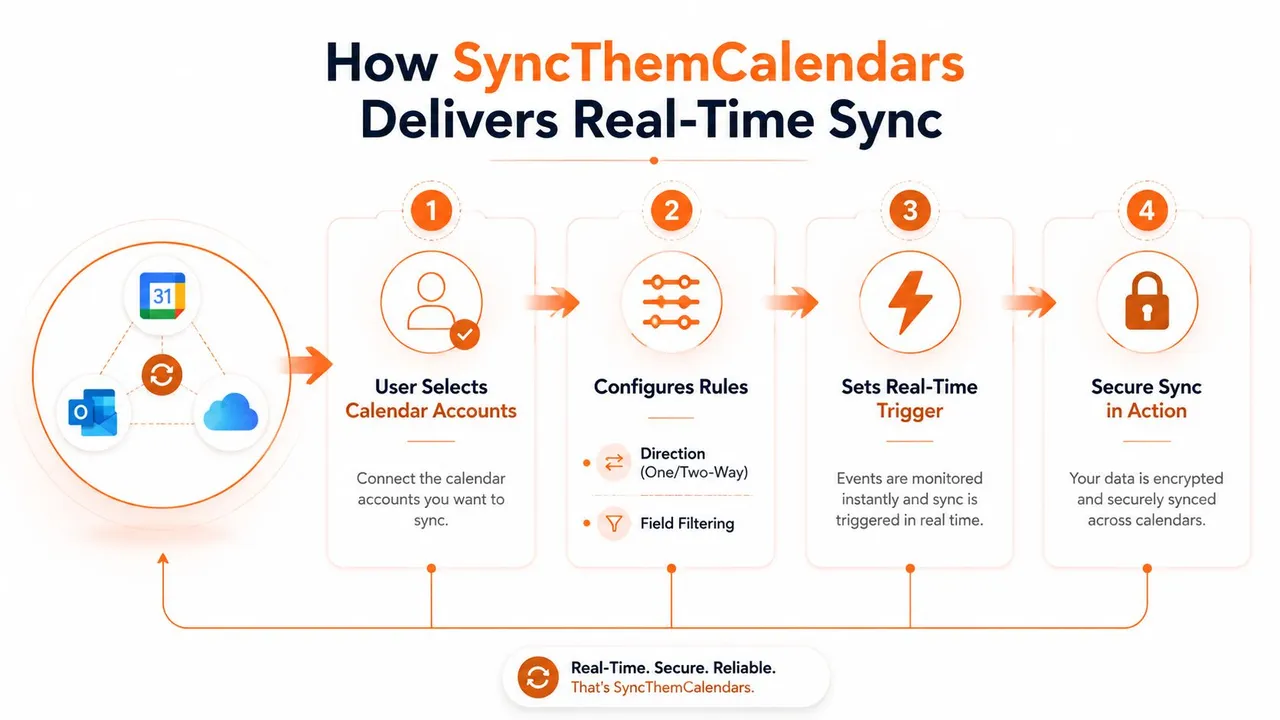
A practical setup follows this sequence:
- Connect the accounts. Select the Google, Outlook, or iCloud calendars that should participate.
- Choose the direction. Use one-way rules when one schedule controls another, two-way rules for shared editing, or multi-way rules for several ecosystems.
- Set the visibility policy. Enable free/busy mirroring or choose which event fields may cross the connection.
- Let the background process run. The service monitors supported calendar connections and applies permitted changes without requiring repeated manual imports.
Depending on provider limits and system load, updates are intended to appear on the other calendar within seconds to a few minutes. That wording matters. A provider can delay a notification, reject a write, or impose a temporary limit, so a responsible service needs retry and reconciliation behavior rather than promising that every update will be instantaneous.
Rules for conflicts and sensitive fields
Two-way rules don’t mean every calendar is permanently authoritative. When the same event changes in multiple locations, a sync service can compare properties such as the start time, title, timestamp, and last-modified value to reduce unnecessary conflicts. One-way rules remain preferable when a central schedule must control secondary calendars.
Field masking applies the same selective-copy principle to privacy. Users can mirror availability while excluding titles, notes, locations, and attendees, or replace sensitive details with neutral labels before the event reaches another account. The stated setup takes roughly two minutes, so the important work is deciding the rule, not repeatedly maintaining copied files.
The result is a configurable arrangement: speed for current availability, direction controls for authority, and field controls for disclosure.
Choosing a Calendar Sync Tool Without Regrets
Start with authority, not the phrase “real time.” Ask whether one calendar should control the others, whether both sides need to accept edits, or whether Google, Outlook, and iCloud must remain aligned as equal participants.
Then test the complete behavior with ordinary actions:
- Create an event and observe when it appears.
- Move the start time and check whether the original copy changes.
- Edit a private description and verify which fields travel.
- Delete the event and confirm whether the destination removes or marks its copy.
- Change the same event in two places and inspect the conflict result.
Before granting access, ask three direct questions:
- What data is copied? Can the service hide titles, descriptions, attendees, locations, and conference links?
- Where can that data appear? Can you restrict source and destination calendars and use free/busy-only mirroring?
- What happens when sources disagree? Does the tool explain conflict rules, retries, duplicate prevention, and recovery?
Also review permissions, storage, encryption, retention, deletion, error reporting, provider limits, and the ability to pause or remove a connection. A trustworthy calendar sync tool should make failure visible instead of leaving you to discover a missing appointment after someone books over it.
Fast propagation is useful, but privacy policy, field-level control, and transparent recovery determine whether you should trust the connection with work and personal schedules.
SyncThemCalendars offers one-way, two-way, and multi-way synchronization across Google Calendar, Microsoft Outlook or Office 365, and Apple Calendar, with free/busy mirroring and controls for masking copied event details. Visit SyncThemCalendars to review the available setup and decide which calendars, directions, and fields fit your privacy policy.
Ready to sync your calendars?
Keep your Google, Outlook and Apple iCloud calendars in sync automatically. 2-minute setup, no credit card required.
Get started freeKeep reading
More in Guides

SyncThemCalendars Quick Setup Walkthrough
Master the SyncThemCalendars quick setup in minutes. Connect Google, Outlook, or iCloud, configure privacy masking, and verify your first sync effortlessly.

Merging Google Calendars: The Complete Guide for 2026
Merging Google Calendars. Learn the best ways to merge Google Calendars. Compare import methods, sync tools, and automation strategies

Master Your Calendar on Outlook with Sync Solutions
Learn how to use calendar on Outlook effectively, sync with Google and iCloud, avoid double-bookings, and connect SyncThemCalendars for seamless scheduling.