







Calendar Sync App Guide: Keep Every Schedule Aligned
Discover how a calendar sync app keeps Google, Outlook, and Apple schedules aligned in real time. Learn sync types, privacy controls, and setup tips.
You’re in the middle of a packed day, and your calendars are already working against you. A client call lives in Outlook, your team schedule sits in Google Calendar, and personal plans hide in iCloud. One forgotten sync, and the 3 p.m. slot that looked open on one calendar is suddenly a double-booking on another.
That’s where a calendar sync app earns its keep. It connects calendars that don’t naturally stay in step, then keeps availability aligned without forcing you to hand-copy events all day. The tricky part is that good synchronization isn’t just about speed, it’s also about what gets shared, what gets hidden, and what should stay private.
Why Your Calendars Keep Falling Out of Sync
A lot of scheduling pain starts with a simple reality, your calendars live in separate ecosystems. Google Calendar, Outlook, and iCloud all do their own thing, and the boundaries between them are where mistakes usually start. A meeting added in one place may never show up where you expect it, or it may arrive with details you never meant to expose.
That is why people keep running into the same pattern of frustration. Work events sit in one account, family events in another, and client meetings in a third. The result is more than inconvenience. It creates a blind spot where a calendar looks open, then turns out to be booked.
Fragmentation is the core problem
Native tools work well inside their own systems, but they are not built to keep separate accounts aligned across providers. The marketplace ecosystem around Google Calendar shows why third-party tools exist, since tools like SyncThemCalendars are designed to bridge Google Calendar, Microsoft Outlook, and Apple iCloud with real-time synchronization and one-way or two-way control. That cross-provider bridge is the practical answer to a problem the native apps do not solve cleanly on their own.
Practical rule: if you need two calendars to stay aligned without manual copy-and-paste, you need a sync layer, not just another calendar app.
The category exists because modern schedules are split across work, personal, and client systems. A calendar sync app sits in the middle and decides what should move, where it should move, and how much detail should travel with it. For busy professionals, that middle layer turns separate calendars into one usable scheduling picture. It also matters for privacy, because availability can be shared without handing over every title, note, or reminder attached to an event.
Understanding Sync Direction
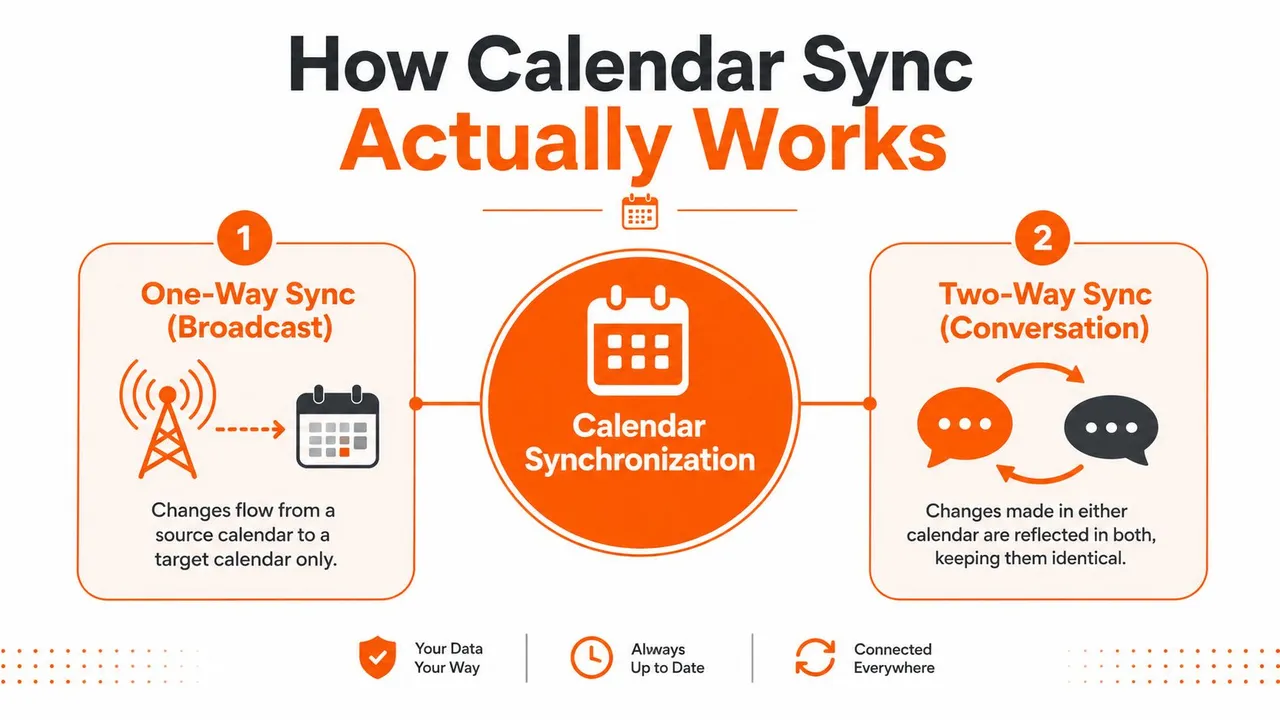
A sync setup starts with a simple decision, which calendar is allowed to send changes and which one receives them. One-way sync works like a broadcast, one calendar pushes updates outward, and the other calendar reflects them without sending anything back. That approach fits cases where one schedule should stay central, such as a work calendar feeding a personal view.
Two-way sync behaves more like a conversation. Changes in either calendar update the other, so both stay aligned as long as the tool can resolve conflicts cleanly. That sounds convenient, and it is, but it also raises the risk of sharing more detail than you intended if the settings are too open.
A multi-way sync works closer to a group chat. More than two calendars can stay in step, which helps people who split time across roles, teams, or accounts and need one reliable view of availability. The trade-off is control, because every added connection increases the chance that private event details travel farther than they should.
Free busy mirroring protects privacy
Many users do not need full event copies. They need other calendars to see that a block of time is unavailable, while keeping the title, description, location, and reminders hidden. That is free/busy mirroring, and it is often the safer choice for client meetings, medical appointments, side projects, and personal commitments you would rather keep private.
The practical difference is easy to miss. Full-detail sync makes every event visible wherever it is copied, while free/busy mirroring shows only availability. A calendar sync app that can mask titles, hide descriptions, or limit which fields travel gives you room to share access without handing over sensitive context. SyncThemCalendars’ comparison of calendar sync methods shows this field-level control in a practical format, and its marketplace listing shows the same idea across Google Calendar, Microsoft Outlook, and Apple iCloud in real time.
Real time can mean different things
A tool may look instant from the outside and still work on different update cycles behind the scenes. Some systems react to webhook-style notifications, while others check for changes on polling intervals. That is why one setup can refresh in a few seconds and another may wait much longer before the next update appears.
The difference matters because provider behavior shapes the user experience. A 2026 comparison notes webhook-driven sync can update in about 4 seconds, while polling-based tools may refresh on 15 to 60 minute intervals, and CalendarBridge says Google and Microsoft propagation can happen within a minute or two, while iCloud and .ics sources may take 5 to 10 minutes SyncDate’s comparison of calendar sync methods.
For a busy professional, the useful question is not whether a tool says “real time.” The better question is which calendars are involved, how the sync direction is set, and how much detail is allowed to move. A work calendar, a personal calendar, and a client calendar can all stay useful together, but only if the privacy settings keep availability visible without leaking information you did not mean to share.
Key Features to Evaluate Before Choosing a Sync Tool
A good calendar sync app should solve three problems at once, connectivity, privacy, and reliability. If it only handles one of those, you’ll still end up with scheduling gaps. A lot of buyer confusion comes from tools that sound similar on the surface but behave very differently once you connect real accounts.
Start with platform coverage and privacy controls
The first filter is obvious, does it connect the calendars you use? If your life runs across Google, Microsoft 365, and Apple iCloud, the tool has to handle all three, or you’ll end up maintaining a partial system. Then look at how it handles fields, because privacy control is the difference between “my team can see I’m busy” and “my team can read the names of every personal appointment,” a distinction that becomes clearer in this comparison of the best calendar sync software.
A useful way to compare options is to look at the actual evaluation criteria instead of marketing language. For a broader compatibility mindset, Model Diplomat’s guide to cross-platform learning is a helpful parallel, since the same principle applies here, the value comes from how well different systems cooperate.
| Feature | Why It Matters | What to Look For |
|---|---|---|
| Platform coverage | Prevents gaps between work, personal, and client calendars | Google, Outlook, and Apple iCloud support |
| Privacy controls | Stops sensitive event details from leaking | Title masking, description hiding, field transformation |
| Sync direction | Shapes who can change what | One-way, two-way, and multi-way options |
| Sync speed | Affects whether availability stays trustworthy | Real-time updates, webhook support, provider-specific latency |
| Setup experience | Determines whether people actually finish setup | Simple onboarding, clear account selection, clean activity logs |
Then judge the architecture, not just the feature list
The engine under the hood matters because sync has to stay stable when calendars change quickly. Modern systems often rely on an initial full sync, then incremental sync with a persisted token, which reduces repeated scans and keeps the provider’s server state as the source of truth Google Calendar sync guide. That design is a strong sign the app is built to scale without hammering APIs or missing changes.
Decision shortcut: if a tool can’t explain how it handles conflicts, retries, and field masking, it probably isn’t ready for serious scheduling use.
Also check whether the product makes setup easy enough for a non-technical user. Some tools demand too many manual choices up front, and that’s where people quit. The best fit is often the one that lets you define the important rules once, then keep working in the background.
Use the product page and setup flow as clues
The setup experience tells you a lot about how hard the tool will be to live with. A polished onboarding path usually means fewer surprises later, and a clean help center should answer the basic questions before you need support. If you want a concrete example of that kind of flow, the best calendar sync app guide shows how a feature set can be described without hiding the trade-offs.
When you compare vendors, don’t stop at “does it sync.” Ask what it shares, how fast it updates, and whether it preserves the privacy boundaries you need. That’s the part most buyers miss, and it’s the part that decides whether the tool becomes part of your routine or another abandoned subscription.
Real World Use Cases for Calendar Sync Apps
Different people need sync for different reasons, and the right setup depends on what you’re protecting. One person wants fewer double-bookings. Another wants to keep client calendars visible without exposing private details. A third just needs a clean way to manage multiple roles without constantly checking three apps.
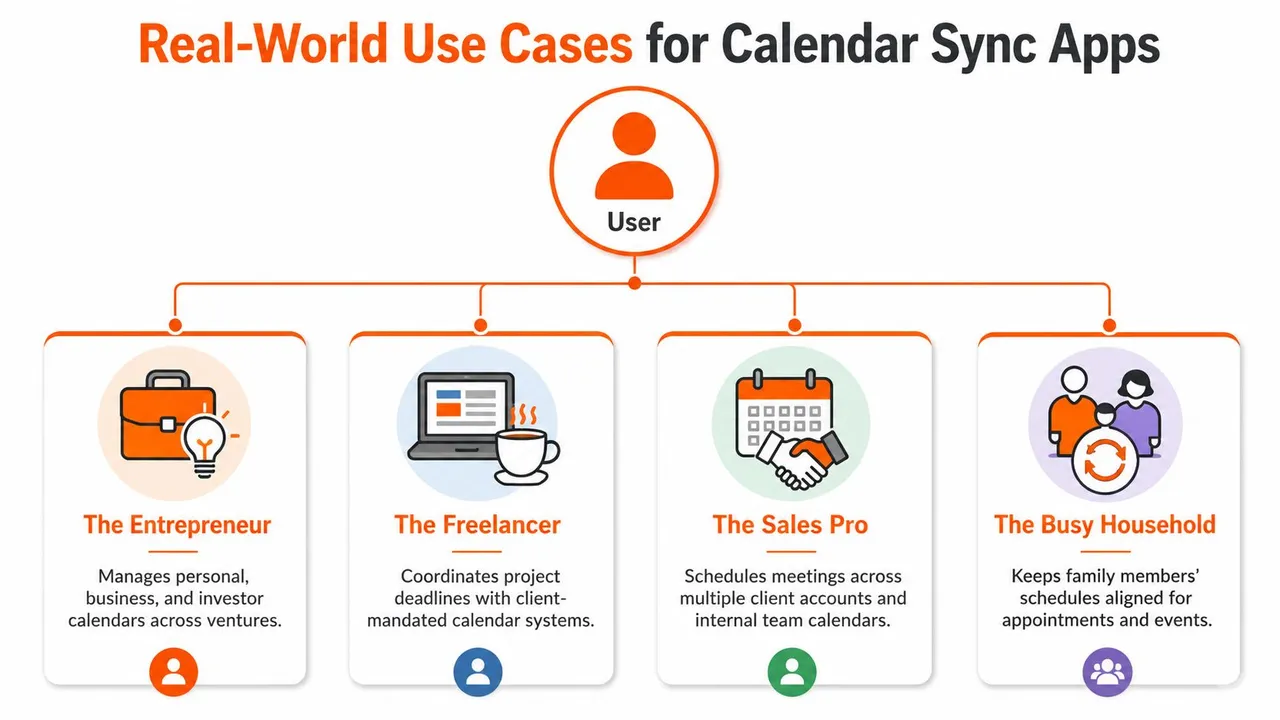
Entrepreneurs and freelancers need boundary control
An entrepreneur may run several ventures at once, so a single meeting can touch more than one calendar. In that case, one-way or multi-way sync helps keep availability aligned while still separating the actual event details by context. The practical win is simple, fewer overlaps and less time spent reconciling which calendar owns what.
Freelancers usually care even more about field masking. A client-facing calendar can show that the afternoon is blocked, while the title or description stays hidden, so a personal appointment doesn’t become public inside a work system. That preserves professionalism without forcing the freelancer to maintain a fake calendar just to protect privacy, which is why many rely on the best calendar apps for freelancers to balance visibility and control.
Sales professionals and students need clean availability
Sales teams often move between account calendars, internal calendars, and scheduling tools. A two-way sync setup can prevent a rep from being double-booked when meetings are spread across several systems. The goal is not to duplicate every note, it’s to make sure the time slot is free before anyone sends an invite.
Students and academics live with a different kind of sprawl, institutional calendars on one side and personal obligations on the other. A sync app can keep class blocks, office hours, and personal commitments visible in one place without requiring every event detail to be exposed across all accounts. For this group, privacy often matters as much as convenience.
Good sync design keeps time visible and context hidden.
A single tool can serve all four of these users, but the setup won’t look the same. One person needs free/busy mirroring, another needs two-way event copies, and someone else needs to hide titles while leaving availability open. That’s why use case first, features second is the right order of thinking.
Setting Up Your First Calendar Sync and Troubleshooting Common Issues
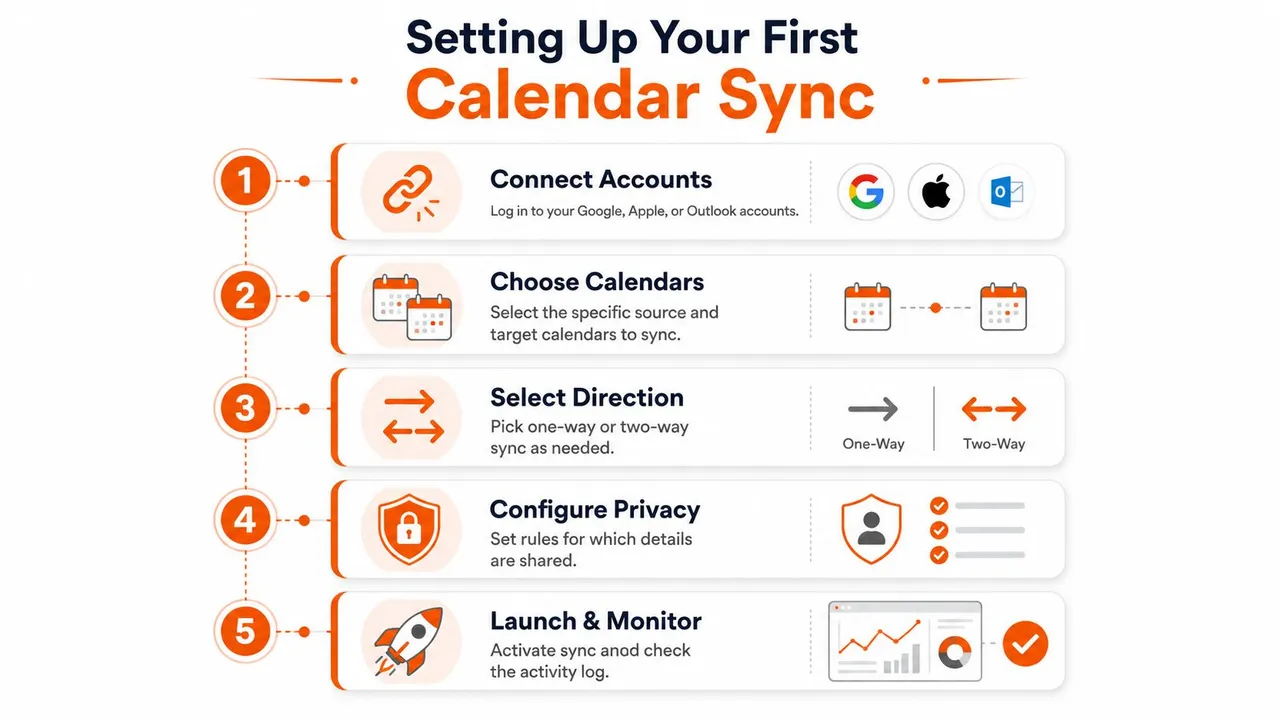
The cleanest setup usually starts with one account pair, not all of them at once. Connect the accounts, choose the source and target calendars, pick one-way or two-way sync, then set privacy rules before launching the first sync. A careful first run is easier to fix than a messy global rollout.
The setup sequence should stay simple
A practical setup usually follows five steps. Connect your accounts, choose the exact calendars you want linked, decide whether the flow is one-way or two-way, configure which fields stay private, then launch and monitor the first pass. That sequence keeps you from accidentally syncing the wrong calendar or exposing event details you meant to keep local.
If Google Calendar is acting oddly after integration, the Google Calendar syncing troubleshooting guide is the kind of resource you want open while you test permissions and refresh behavior. Permission errors are common in enterprise environments, especially when admins restrict third-party access or when users connect the wrong account.
Troubleshooting usually comes down to timing and duplication
Slow updates often trace back to polling intervals, not a broken setup. If a system refreshes less frequently, new events won’t appear right away, even though the sync is working normally. Duplicate events usually point to a misconfigured two-way setup, where both calendars keep reacting to the same change.
The engineering principle that matters here is sequencing. Sync jobs should be processed sequentially per user-provider pair so retries and conflicts don’t race each other, which helps prevent duplicate writes and makes recovery more predictable after temporary network failures Truto’s architecture guidance. That’s why mature sync systems keep durable metadata like event IDs, source attribution, and last-modified timestamps.
Practical rule: if the same event appears twice, stop adding more calendars and check the sync direction first.
Enterprise permissions are another common snag. If a work calendar won’t connect, the problem may be policy rather than software, so the fastest fix is often to confirm whether the organization allows calendar delegation or third-party access. Once the connection is clean, the rest of the setup usually becomes much easier to reason about.
How SyncThemCalendars Stands Out From Other Sync Tools
A calendar sync app only becomes useful when it can keep different systems aligned without forcing you to expose more than you want. SyncThemCalendars is built around that problem. It supports Google Calendar, Microsoft Outlook/Office 365, and Apple iCloud, and it can run as one-way or two-way sync so you can match schedules across platforms without turning every calendar into a mirror of the others. That matters when work, personal, and client scheduling each live in a different place.
Privacy control is the other reason it stands apart. The service can hide or modify event fields during sync, which lets you share availability while keeping event titles, notes, or reminders out of view on another calendar. The publisher also presents it as a web-based service with an estimated two-minute setup, unlimited events on all plans, and plan limits based on the number of active syncs rather than event volume.
What the plan structure looks like
The subscription tiers are straightforward. Basic supports up to 5 syncs, Premium up to 16, and Professional up to 36, with a 14-day free trial that doesn’t require a credit card. The site also says the product has been in use since 2019 and shows a 4.9/5 user rating, which helps buyers gauge both maturity and customer response.
For readers who want a closer look at the product itself, the main site is SyncThemCalendars. That is the place to review current plan details and see how the setup flow is presented before you decide on a trial.
Why the positioning is different
Many sync tools talk about speed. Fewer explain what stays private after calendars are connected across ecosystems. That difference matters because fast syncing that exposes event details can create a bigger problem than a slower setup.
If your main problem is keeping multiple calendars usable without revealing sensitive details, that mix of platform coverage and field-level masking is the part worth paying attention to. It does not try to be a full scheduling suite. It focuses on keeping calendars aligned while preserving the boundaries you set.
Your Next Steps to a Fully Synced Schedule
Start with the calendar gap that causes the most damage, not the one that looks easiest. If privacy is the problem, test field masking first. If double-bookings are the problem, start with one-way or two-way sync between your most important calendars and check whether availability stays accurate.
A good rollout is small and deliberate. Use a free trial, connect one pair of calendars, create a dummy event, and confirm that only the details you want visible are shared. Then expand to additional accounts once you trust the behavior.
The insight is simple. Effective calendar sync is as much about what you hide as what you share. If you get that right, the rest of your schedule gets a lot easier to trust.
If you’re ready to stop juggling separate calendars and start controlling how availability moves between them, SyncThemCalendars gives you a practical way to do it. It supports cross-platform syncing, privacy controls, and one-way or two-way setups, so you can share time blocks without oversharing event details. Visit SyncThemCalendars to see how it fits your workflow and test it with a first sync pair.
Ready to sync your calendars?
Keep your Google, Outlook and Apple iCloud calendars in sync automatically. 2-minute setup, no credit card required.
Get started freeKeep reading
More in Guides

Synchronize Apple Calendar with Outlook: A 2026 Guide
Step-by-step guide: Synchronize Apple Calendar with Outlook on Windows, iPhone and Mac, with two-way options, privacy trade-offs and fixes.

SyncThemCalendars Quick Setup Walkthrough
Master the SyncThemCalendars quick setup in minutes. Connect Google, Outlook, or iCloud, configure privacy masking, and verify your first sync effortlessly.

Merging Google Calendars: The Complete Guide for 2026
Merging Google Calendars. Learn the best ways to merge Google Calendars. Compare import methods, sync tools, and automation strategies