







Cross Platform Calendar: Real-Time Multi-Account Sync Guide
Discover the best cross platform calendar for real-time multi-account sync. Simplify scheduling across all your devices in 2026.
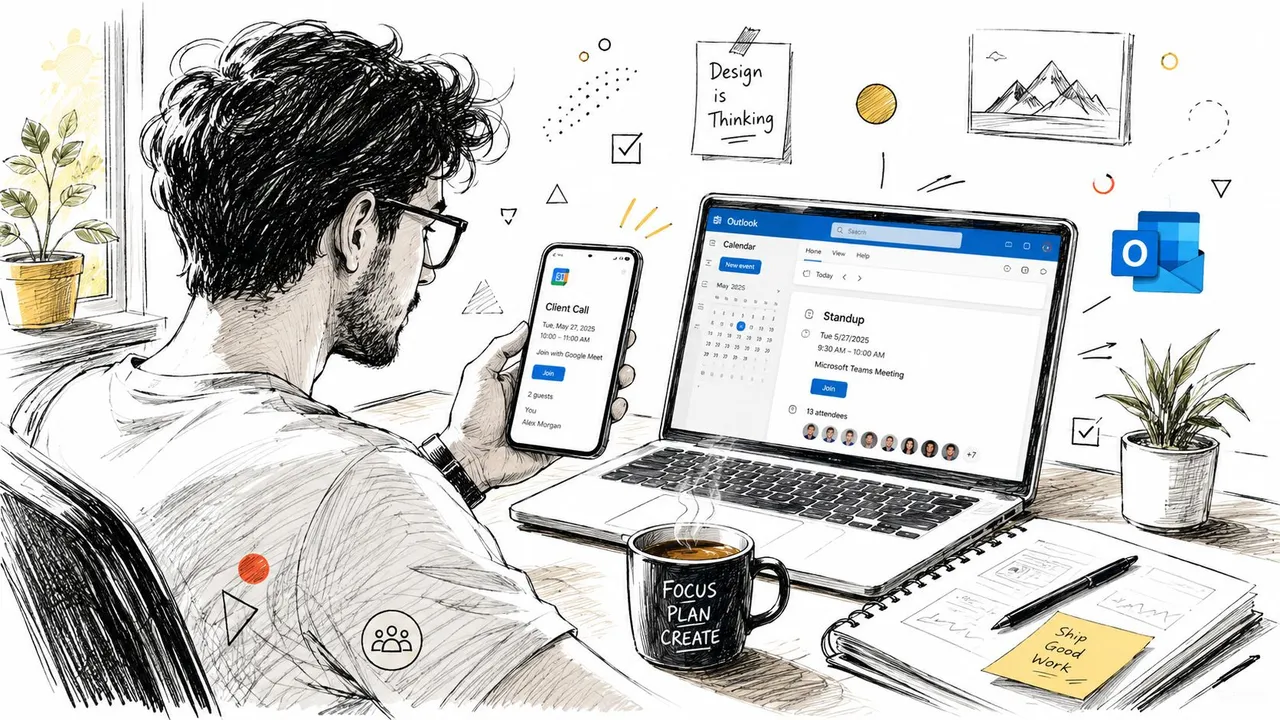
You wake up and check Google Calendar on your Android phone before a client call. On your work laptop, Outlook shows a team standup that isn’t visible on your phone. Later, you open iCloud Calendar on an iPad to confirm a personal yoga class. Nothing is wrong with any individual calendar, but together they create an unreliable picture of your day.
A cross platform calendar brings those separate schedules into a coordinated view across Google, Microsoft, and Apple ecosystems. The important question isn’t whether an event can be copied. It’s whether the right people can see your availability, whether changes arrive reliably, and whether private details remain private.
Digital calendars already play a central role in daily planning. An ECAL survey of 1,000 people found that 70% of adults relied most on a digital calendar to manage life, with mobile and desktop calendars both represented in the results (ECAL usage data). That makes interoperability a practical productivity issue, not a niche technical concern.
What a Cross Platform Calendar Actually Means in Daily Life
The freelancer in the opening example doesn’t merely need the same screen on three devices. If all three devices use one Google account, ordinary account synchronization already handles much of the work. That situation is device mirroring, where one calendar account appears in multiple places.
A true cross-platform setup is different. It connects separate accounts or providers, such as a personal Google Calendar, a Microsoft 365 work calendar, and an iCloud calendar used for family commitments. Each platform may have different permissions, connection methods, event rules, and expectations about how updates should travel.
The practical test
Ask whether you can answer these questions without opening every account separately:
- What time is already occupied?
- Which calendar owns the original event?
- Can another person see enough information to schedule you safely?
- Will an edit, cancellation, or time change reach the other calendars?
If the answer changes depending on which screen you check, you don’t yet have one coherent schedule. You have several partial views.
The technology has a long history. The interoperability path began with vCalendar in 1996, created by the Versit Consortium, and continued through the IETF’s iCalendar standard, RFC 2445, in 1998. The major revision, RFC 5545, arrived in September 2009 and remains the current iCalendar standard, supporting interchange of events and free/busy information across devices and services (CalConnect’s iCalendar history).
That history explains why calendars from different companies can exchange common event structures at all. It also explains why a copied event isn’t always a perfect clone. Standards provide shared rules, while providers still differ in permissions, invitations, recurring events, reminders, and account behavior.
A useful cross-platform calendar therefore answers three operational questions: what gets copied, how often changes move, and who controls the data. Those questions matter more than whether a service advertises a long feature list.
The Core Concepts Behind Calendar Synchronization
Start with direction. It defines where changes may travel and which calendar remains the original record.
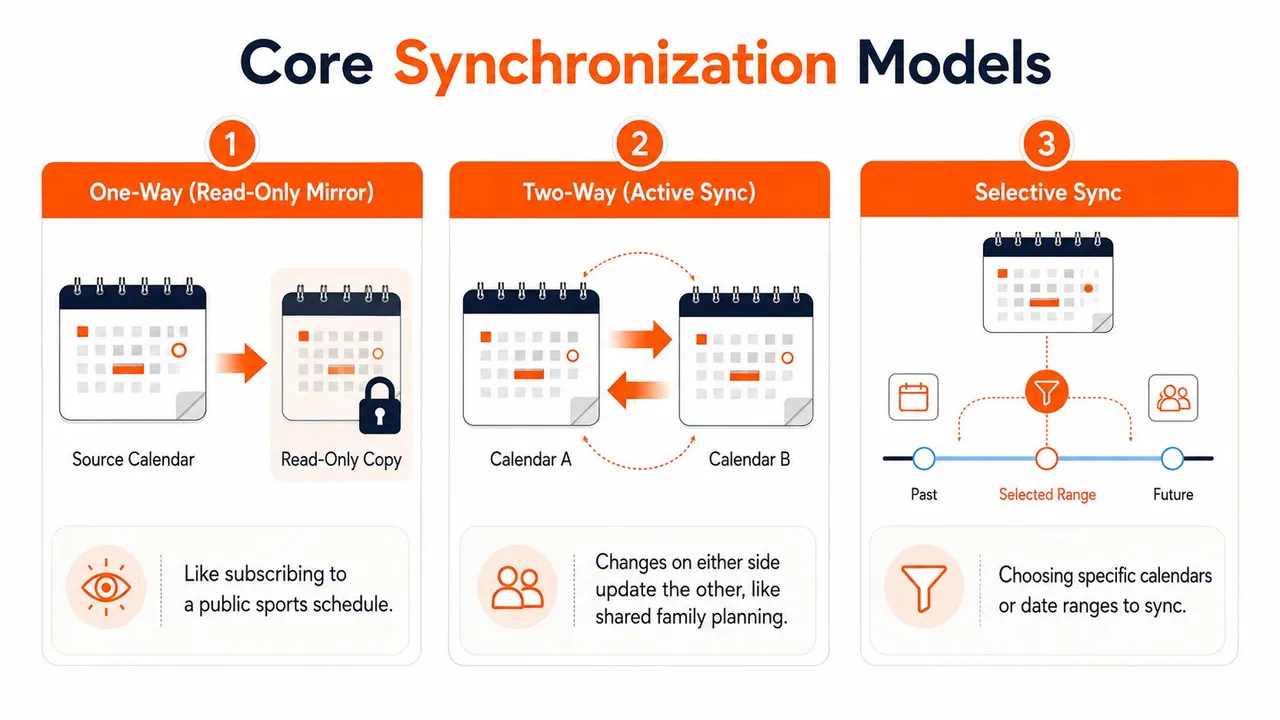
One-way sync
A one-way connection copies events from a source calendar to a target calendar. The target provides a view rather than becoming a second owner. A subscribed sports schedule works this way. You can see fixtures in your personal calendar, but edits must happen in the original schedule.
This model suits situations where availability matters more than shared editing. A work calendar can publish blocked time to a personal calendar, or a school timetable can appear in a phone app without granting an editing relationship. For Google, Outlook, and iCloud users, one-way sharing can also reduce privacy exposure because the receiving calendar does not need every event detail.
Two-way sync
Two-way synchronization lets changes made on either connected calendar travel to the other. It resembles a shared planning document: people working in different places can update the same information.
The convenience comes with operational risk. If both calendars change one event, the system needs a conflict rule. Check which edit wins, how cancellations move, and whether a changed event is updated or duplicated. Full two-way cloning may create a unified view, but selective field masking often provides a safer balance. The event time can remain visible while its title, notes, or location stays private.
Multi-way sync
Multi-way synchronization connects three or more calendars. A founder may combine personal, company, and board schedules, while a consultant may coordinate calendars for several clients. This arrangement can show one availability picture, but every added calendar creates more permissions, update paths, and possible conflicts.
The real-time calendar sync guide offers a product-oriented reference for comparing these directions.
Timing and privacy layers
Timing is a separate choice. Push systems notify recipients immediately when changes arrive; polling systems check periodically for updates. Both can work, but polling may leave a short gap between an edit and the copy appearing elsewhere. That gap matters when someone books time using an older availability view.
Free/busy mirroring works like a hallway status indicator. Green means open, red means occupied, without revealing what happens inside the room. It addresses the availability problem while limiting the content shared across Google, Outlook, or iCloud.
Field masking provides finer control. You can copy the event time, hide the title and description, retain a generic label, or remove the location. Masking can accompany one-way, two-way, or multi-way synchronization. Direction controls movement, timing controls freshness, and masking controls visibility. For many people, selective masking is more practical than copying every field in both directions.
Comparing the Main Approaches to Calendar Interoperability
Google, Outlook, and iCloud can cooperate through several architectures, but each one makes a different compromise.
Manual subscription usually starts with an exported calendar address or an ICS feed. You paste that address into another calendar and receive a read-only view. Setup is relatively light, and it can be suitable for public schedules or information that doesn’t need edits. The weaknesses are limited direction, inconsistent refresh behavior, and dependence on a connection that can expire or stop updating.
Native interoperability uses bridges built by the providers. Microsoft documents ways to use iCloud for Windows with Outlook, while Microsoft guidance also covers calendar access involving Google accounts (Microsoft’s iCloud and Outlook guidance). These routes can be convenient when your exact account combination is supported. They become less helpful when you need multiple providers, selective masking, or a carefully controlled sync direction.
Dedicated sync services act as translation hubs. They connect separate provider accounts, normalize event information, and apply rules before copying it onward. This architecture can offer richer multi-way behavior and privacy filtering, but you must trust the service with the permissions and event data required to perform synchronization.
| Architecture | Setup Effort | Latency | Data Control | Failure Modes |
|---|---|---|---|---|
| Manual subscription | Low to moderate | Depends on the provider’s refresh behavior | Basic, usually read-only | Expired feeds, stale views, limited editing |
| Native interoperability | Moderate | Often convenient within supported pairings | Controlled by provider capabilities | Unsupported account combinations, incomplete metadata mapping |
| Dedicated sync service | Moderate | Designed for ongoing background updates | More granular rules and masking | Authorization expiry, duplicate paths, conflicts between connectors |
The choice isn’t about finding one universal winner. It depends on whether you need simple visibility, provider-supported convenience, or controlled synchronization across several ecosystems. The calendar sync app comparison can help frame that decision, but your privacy requirements should come before brand selection.
Common Scheduling Problems and Their Sync-Based Solutions
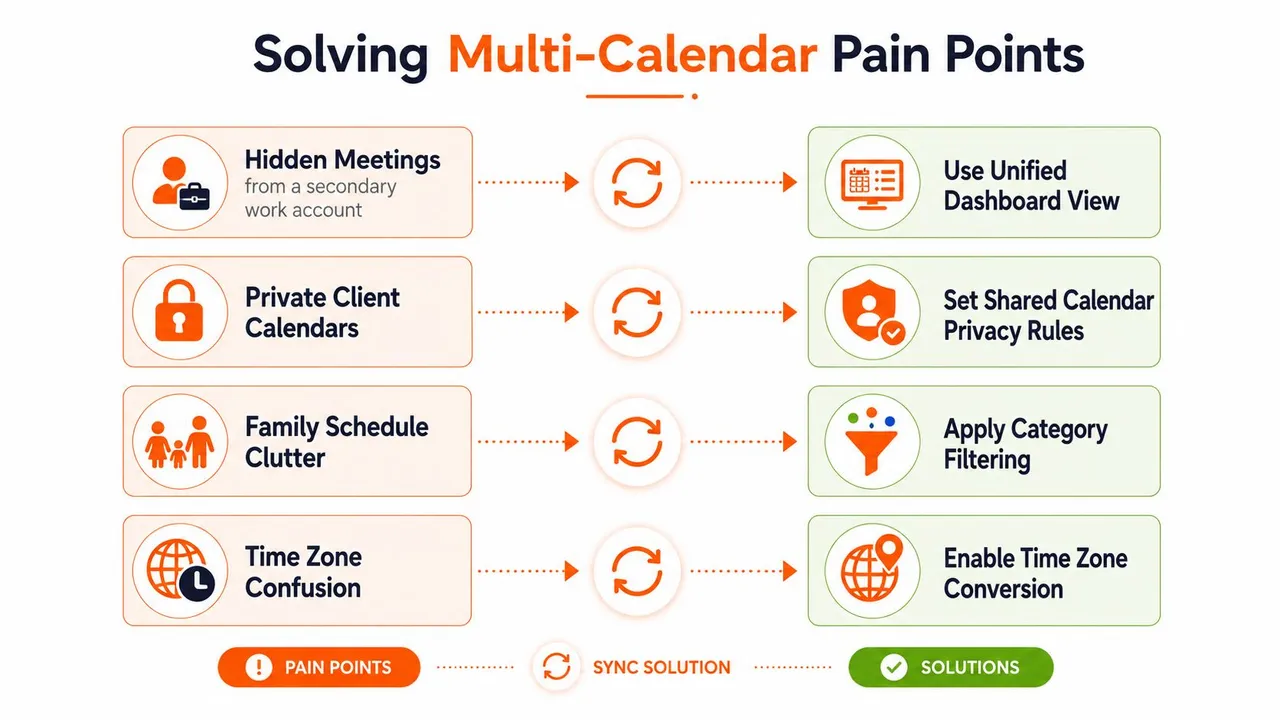
A hidden meeting is often a visibility failure, not a scheduling failure. You check your personal Google Calendar, see an open afternoon, and accept an appointment while an Outlook work meeting occupies the same time. A unified dashboard view or a controlled one-way copy can expose the blocked period before you commit.
Privacy creates the opposite problem. A freelancer may need clients to know when they’re unavailable without revealing the names of other clients. Free/busy mirroring solves that by transmitting occupied time while withholding sensitive event content. Field masking can provide a slightly richer view, such as a generic “Busy” label without the original title or location.
Match the problem to the pattern
- Double-booking: Use two-way synchronization when both sides legitimately need to update the same planning record. The connection should also have a clear conflict policy, because two calendars editing one event can create competing versions.
- Work-life separation: Use one-way replication from the calendar that needs to show blocked time. Keep personal descriptions and locations out of the work-facing copy.
- Private client commitments: Use free/busy mirroring or mask titles, notes, attendees, and locations. The recipient needs availability, not your client list.
- Fragmented team visibility: Use a shared team calendar with carefully defined directions. Team members may need a common booking view while personal calendars remain protected.
- Family schedule clutter: Apply category or calendar selection rather than copying every event. Selective synchronization keeps the receiving calendar useful instead of turning it into a duplicate archive.
The standards behind these patterns support more than basic event titles. iCalendar defines the event format, while CalDAV provides a standard way to create, read, and modify calendar resources. CalDAV scheduling adds standardized invitation and response workflows, which helps explain why attendees and recurring events need special attention (CalConnect’s calendar standards guide).
Watch the following visual explanation alongside the examples above.
Implementation Considerations and Best Practices
Start by choosing a source of truth, the account where an event is created and edited. If the same appointment can be changed in several calendars without a conflict rule, synchronization may preserve competing versions. For privacy, decide first what the receiving calendar must reveal. Availability may be enough, while titles, notes, locations, and attendees remain masked. Selective field sharing often serves daily scheduling better than cloning every detail across Google, Outlook, and iCloud.
Authentication affects who can enter the system. OAuth grants scoped access without handing a sync service a reusable account password. An app password may suit some account configurations, but it remains a separate credential that may require revocation and replacement.
A representative web-based service usually follows this sequence:
- Connect the source calendar: Select the account that owns the original events and authorize the required access.
- Authorize the target: Choose where the copied availability or event record should appear.
- Set the direction: Pick one-way, two-way, or multi-way behavior according to editing rights.
- Apply field filters: Hide titles, descriptions, locations, or attendee details when the receiving audience does not need them.
- Run a test event: Create a harmless appointment, change its time, and cancel it to check the full lifecycle.
- Inspect both ends: Review recurrence, time zone, reminders, invitations, and deletion behavior, not just the first copy.
The standards layer explains why incremental change tracking matters. RFC 6578 defines collection synchronization for WebDAV, helping services detect inserts, updates, and deletions without repeatedly retrieving every event. CalConnect also documents RFC 7809, which supports exchanging iCalendar data without sending full time-zone definitions. That can reduce payload size and limit time-zone drift (Oracle’s calendar server standards list).
Maintenance rule: Do not connect calendars that already feed one another through a separate connector. A loop can create duplicates and make ownership difficult to trace.
Audit permissions periodically, remove retired accounts, keep time-zone defaults consistent, and review recurring events after the first synchronization. A healthy setup should become easier to operate, with fewer manual repairs.
Real Use Cases for Entrepreneurs, Freelancers, Teams, Sales, and Students
An entrepreneur may manage a founder calendar, a board calendar, and a personal schedule. A one-way copy can place personal blocked time on the founder calendar without exposing investor meetings or board notes. The privacy posture is selective visibility, not total transparency.
A freelancer working across several client systems faces a different risk. Each client may need accurate availability, but no client should see the identity or content of another engagement. Free/busy mirroring, combined with field masking, keeps the time boundary visible while protecting the work behind it.
A small team might maintain a shared company calendar that members can edit together. That shared calendar can then flow one way into personal apps, giving each person a practical view without granting every personal account permission to modify the company record. Teams looking for more coordination principles can also review this guide to a shared team calendar.
Salespeople often need prospect meetings beside personal commitments. A one-way mirror from a CRM booking calendar into a personal phone can show when a meeting exists without exporting contact details or making the personal calendar the system of record. If scheduling volume becomes difficult to manage, an Appointment Setter can support the human coordination around those bookings, while synchronization keeps the underlying availability consistent.
Students usually need less complexity. Class schedules, assignment deadlines, and part-time work shifts can appear across a phone, laptop, and tablet through simple subscriptions or one-way copies. The right privacy posture is restraint. Don’t introduce two-way or multi-way permissions when a read-only view already solves the problem.
Choosing the Right Setup and Key Takeaways
Use this decision path:
- Need visibility only? Choose a subscription, one-way copy, or free/busy mirror.
- Need controlled edits across accounts? Consider two-way synchronization with field masking and explicit conflict rules.
- Does your provider combination already work natively? Use the native route if it covers your accounts and privacy needs without extra connectors.
Five principles should guide the final choice:
- Privacy comes first: Decide what another person needs to know before copying event content.
- Selective masking beats full cloning: Busy time often solves the scheduling problem without revealing titles, notes, locations, or attendees.
- Latency and conflicts matter: A feature list is less useful than knowing when changes arrive and how competing edits are handled.
- Native connections have a natural advantage: When the provider pair aligns with your needs, a built-in bridge may be simpler to maintain.
- Discipline keeps the system small: A clear source of truth, limited permissions, and regular audits reduce unnecessary complexity.
Open standards such as iCalendar and CalDAV provide the shared foundation, while scoped authorization and event transparency move synchronization toward more granular user control. The practical future of a cross-platform calendar isn’t a perfect duplicate everywhere. It’s a schedule that shares exactly what each person needs.
SyncThemCalendars connects Google Calendar, Microsoft Outlook or Office 365, and Apple iCloud with one-way, two-way, or multi-way synchronization, including free/busy sharing and field masking for privacy-focused setups. Review the available options and start organizing your accounts through SyncThemCalendars.
Ready to sync your calendars?
Keep your Google, Outlook and Apple iCloud calendars in sync automatically. 2-minute setup, no credit card required.
Get started freeKeep reading
More in Guides

Synchronize Apple Calendar with Outlook: A 2026 Guide
Step-by-step guide: Synchronize Apple Calendar with Outlook on Windows, iPhone and Mac, with two-way options, privacy trade-offs and fixes.

SyncThemCalendars Quick Setup Walkthrough
Master the SyncThemCalendars quick setup in minutes. Connect Google, Outlook, or iCloud, configure privacy masking, and verify your first sync effortlessly.

Merging Google Calendars: The Complete Guide for 2026
Merging Google Calendars. Learn the best ways to merge Google Calendars. Compare import methods, sync tools, and automation strategies