







Shared Team Calendar Guide for Cross-Platform Teams
Learn what a shared team calendar is, how to set one up across Google, Outlook, and Apple, and best practices to avoid double-booking and protect privacy.
Monday morning starts with a familiar kind of confusion. One person books a client call in Outlook, another blocks focus time in Apple Calendar, and a third checks Google Calendar on a phone. By the time someone notices the overlap, the invite is already out, the room is taken, and three people are asking the same question, who was supposed to know?
A shared team calendar is the practical answer, but it is more than one shared screen with colored events. In real teams, calendar coordination is a moving target across Google, Microsoft, and Apple systems, because availability has to stay aligned while private details stay protected and permissions stay clear. Microsoft’s Teams guidance shows how calendar sharing has grown into Channel Calendar visibility, permission-based access, and delegate actions on behalf of others, which is why modern scheduling is really a coordination system, not just event storage. Microsoft Teams calendar guidance
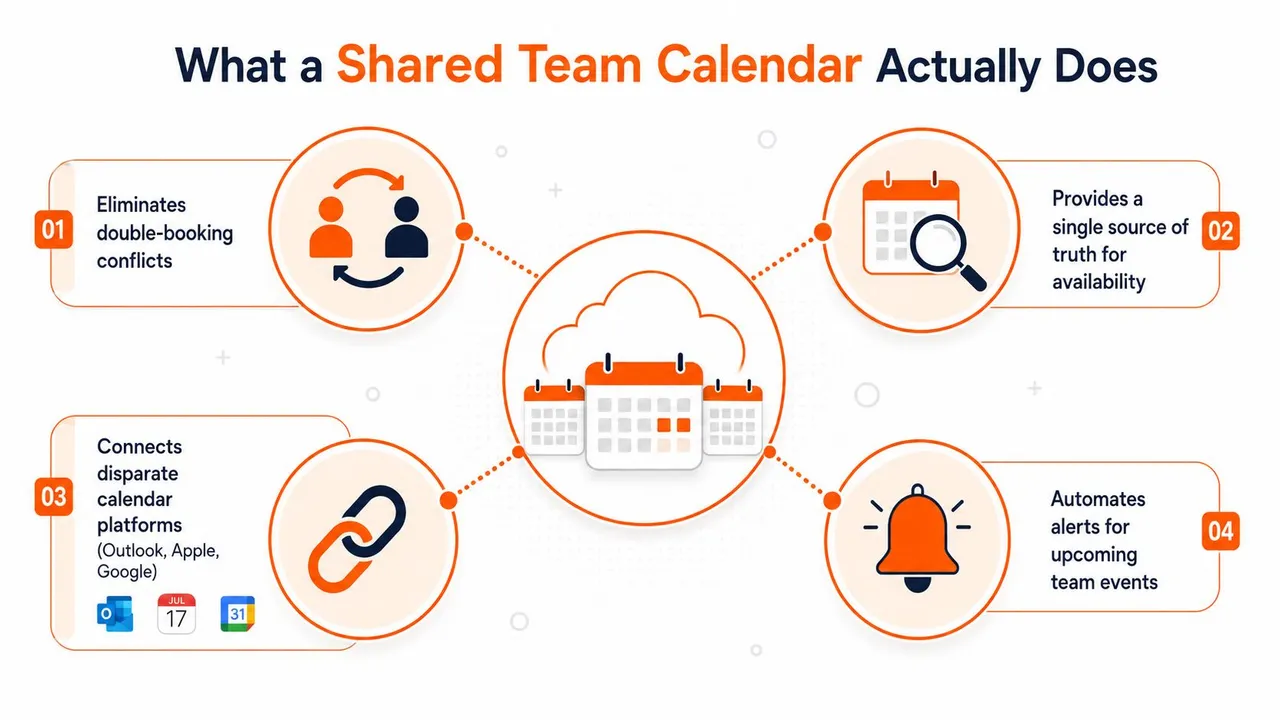
What a Shared Team Calendar Does
A sales lead sees a free slot in Outlook, a freelancer sees a private hold in Apple Calendar, and the rest of the team sees nothing at all. That is where calendar confusion starts, because each person is looking at a different slice of the truth. A shared team calendar solves that by making part of the schedule visible to the right people, with the right permissions, at the right time.
Shared does not always mean fully open
Sharing does not have to expose everything. One person can be allowed to view when I’m busy, while another can view all details, so the same calendar can reveal only availability or the full event metadata depending on the relationship and role. That difference matters because a team usually does not need everyone to see every title, attendee list, or note. It needs a reliable way to keep people from stepping on one another. Microsoft Teams calendar sharing options
A useful way to understand it is simple. A shared team calendar is a calendar object that multiple people can read, edit, or mirror against their own calendars, while permissions decide how much each viewer sees. In Microsoft Teams, a Channel Calendar is visible to everyone in the channel once it is added, which creates a one-to-many coordination surface instead of a private personal diary. Microsoft Teams calendar guidance
Practical rule: if a team member cannot tell who is available without asking in chat, the calendar is not shared enough.
The older model was simple. One assistant controlled one paper diary, and everyone else asked for an opening. Modern teams need something stronger, because work now happens across devices, regions, and apps. That is why a good shared calendar is treated like live operations infrastructure, not a personal convenience.
If your team is comparing tools across Google, Microsoft, and Apple, a neutral reference such as this guide to the best shared calendar app for small business can help frame the trade-offs before anyone commits to a setup.
The Four Building Blocks Behind Every Shared Calendar
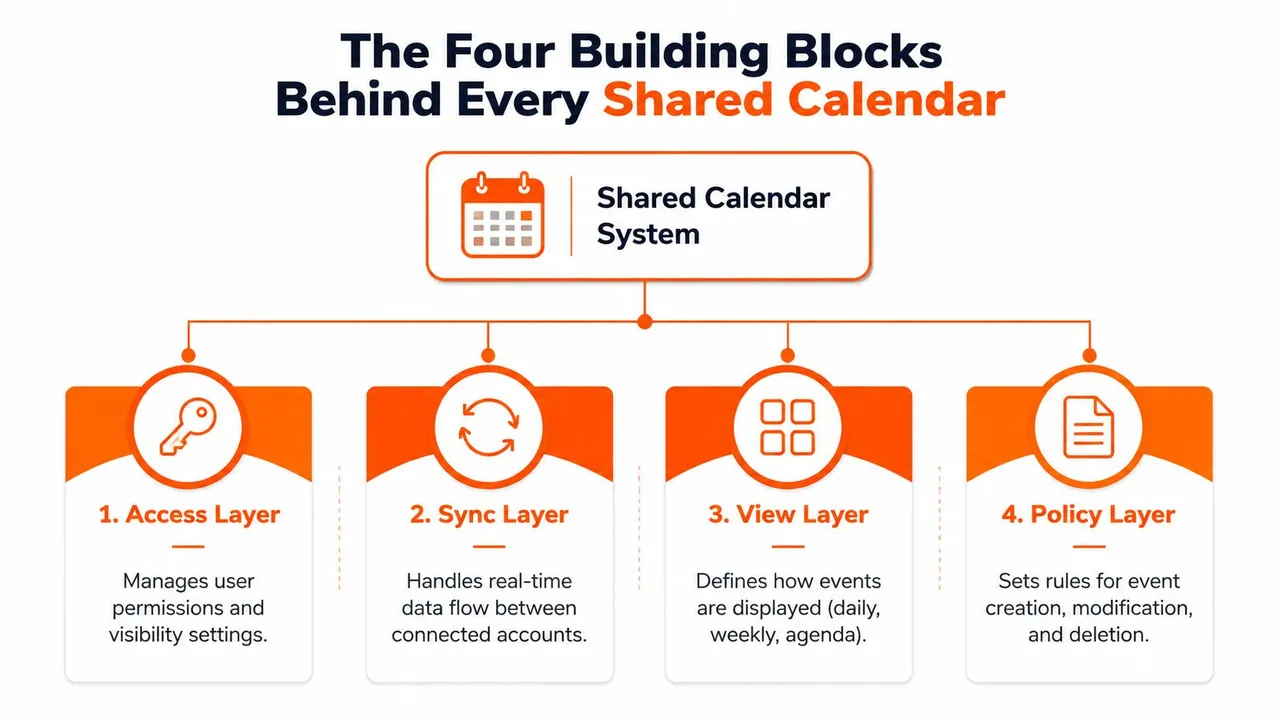
A team usually runs into trouble right after setup starts, because people begin configuring a calendar before they agree on what the system is supposed to do. A strong shared calendar system rests on four building blocks. If one of them is weak, the schedule starts to leak, usually through permissions, sync delays, or unclear ownership.
Access layer and visibility layer
The access layer decides who gets invited and who can make changes. In Microsoft’s sharing model, access is set at the individual level before an invitation goes out, so the first question is always who should be allowed in, and at what level. That matters because the wrong edit rights create problems that convenience cannot fix later.
The visibility layer sits on top of that. Busy-only access works when someone needs to know whether a slot is open without seeing the meeting details. Full-detail access works for people who need context, not just an empty or occupied block. Teams often mix those two up, then discover that private client calls or internal reviews are visible to more people than intended.
Event data and sync layer
The event data layer includes titles, times, attendees, locations, descriptions, and attachments. That is the part people most often expose by accident when they give broader access than they meant to. A calendar can be shared correctly and still reveal too much if the visible fields are too broad.
The sync layer keeps copies aligned across systems. For cross-platform coordination, the integration layer should use OAuth 2.0, CalDAV, iCalendar (ICS), plus provider APIs like the Google Calendar API and Microsoft Graph API. Google, Microsoft 365, and Apple do not speak the same calendar language, so a sync service has to translate between them without changing the source of truth. For teams comparing how those systems connect, how to connect Google Calendar to Apple Calendar is a useful example of the translation problem in practice.
Keep the layers separate in your head. Access decides who can enter, visibility decides what they can see, data decides what is inside, and sync decides whether other calendars stay aligned.
The newer REST-based sharing model in Microsoft 365 was designed to reduce stale, out-of-sync behavior by processing changes centrally. That matters in shared calendars with multiple editors, because the more people touch the same schedule, the more a weak sync layer turns into drift and conflict. Microsoft 365 calendar sharing model
Shared vs Synced vs Mirrored Calendars Explained
People use these terms interchangeably, and that’s where planning goes sideways. A shared calendar, a synced calendar, and a mirrored calendar solve different problems. If a team chooses the wrong model, they usually blame the tool instead of the structure.
The distinction that matters
A shared calendar has one underlying object. Multiple people read or edit the same calendar, so there isn’t a separate copy for each person. That works well when a small core team needs to manage meetings together and everyone is comfortable operating in one place.
A synced calendar copies events between calendars so each person keeps their own local view. That’s the better fit when Google, Outlook, and Apple all need to stay aligned without forcing everyone into one platform. A mirrored calendar is narrower. It usually sends only availability, often free/busy, so people can avoid clashes without seeing private event content.
| Model | Direction | Privacy Level | Best For |
|---|---|---|---|
| Shared | One calendar object, many users | Low to medium, depending on permissions | Small core teams editing together |
| Synced | Two-way or multi-way copies | Medium, with field controls | Cross-ecosystem teams using Google, Outlook, and Apple |
| Mirrored | Often one-way availability only | High, because event details stay hidden | Privacy-sensitive scheduling and free/busy checks |
The choice depends on the coordination problem. If your team is all-in on one platform, shared access can be enough. If people split across ecosystems, syncing is usually the need. If privacy matters more than details, mirrored availability is the safer default.
One practical example helps. A consultant might keep a personal Apple Calendar, a work Outlook calendar, and a client-facing booking calendar in Google. A synced model keeps those aligned, while a mirrored model lets the client see open slots without exposing internal titles or personal commitments. For a deeper hands-on version of that bridge between ecosystems, see how to connect Google Calendar to Apple Calendar.
How Google Outlook and Apple Handle Sharing Differently
A shared team calendar sounds simple until three people open the same invitation in three different systems. Google, Microsoft, and Apple all use the word “share,” but each one is solving a slightly different scheduling problem. If you do not account for that, the calendar may look connected while the actual availability picture stays uneven.
Google and Microsoft do not use the same permission logic
Google Calendar centers on sharing with specific people or groups, then assigning the right permission level to each one. That works well in Google Workspace, especially for teams that already organize around groups and Gmail-based workflows. Outside that environment, the rules are harder to translate cleanly, since a permission setup in one system does not always map neatly to another provider’s model.
Microsoft 365 uses a more explicit permission structure. In Teams, sharing options include “Can view when I’m busy” and “Can view all details,” so teams can choose between availability-only access and fuller event visibility. Microsoft also supports delegates who can create meeting requests and respond on someone else’s behalf, which is useful for assistants and operations staff who manage schedules for other people. Microsoft Teams calendar sharing options Microsoft Teams calendar guidance
Apple behaves differently again
Apple Calendar uses iCloud sharing through CalDAV, and the experience changes across iPhone, Mac, and web access. It can work well for Apple-first teams that only need view access or shared editing, but it does not behave like an Outlook shared mailbox, and it does not follow Microsoft’s delegate model in the same way. That difference matters when one person expects assistant-style scheduling support and another only wants a visibility layer.
The practical issue is not whether Apple sharing works. It does. The issue is that it solves a narrower coordination problem, so teams with mixed devices often need to think about how Apple Calendar fits into a larger availability sync process. For example, a person may keep a work calendar in Outlook, a personal calendar in Apple, and a client-facing calendar in Google. For a detailed bridge between those ecosystems, see how to connect Google Calendar to Apple Calendar. If your team also needs to compare policy boundaries while handling Google accounts, the dreach Google Data Use policy is worth reviewing before you decide what should be shared and what should stay local.
The mistake teams make is assuming every shared calendar exposes the same controls. It does not, and that assumption can create privacy leaks on one side and coordination gaps on the other.
The question is not which platform is better. It is which one fits the way your team works, how much event detail people should see, and how many devices and accounts sit inside the same scheduling flow. If everyone stays inside one ecosystem, native sharing may be enough. If the team spans Google, Outlook, and Apple, the differences become an operations issue that has to be designed around, not ignored.
Platform-Agnostic Setup Decisions to Make First
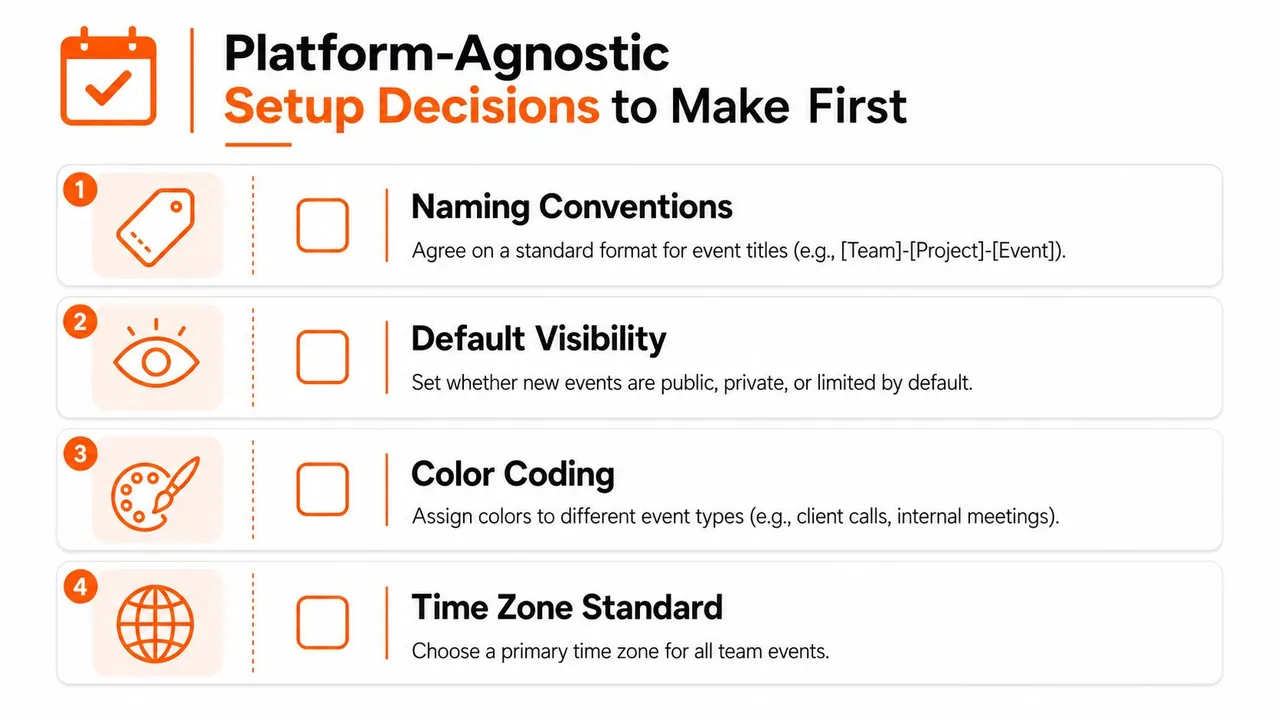
Before anyone connects accounts, make the decisions that keep the calendar usable six months later. These choices don’t depend on whether the team starts in Google, Outlook, or Apple. They’re about naming, ownership, visibility, and how much event detail crosses between systems.
Agree on names, owners, and time zones
Start with naming. A calendar called “Work,” another called “Client,” and a third called “Personal” mean little if people don’t know which one is the source of truth. Use labels that match the team’s actual operating model, then document who owns each calendar and who takes over if that person leaves.
Time zones need the same discipline. Distributed teams should pick a primary working zone and make it clear in invitations and shared calendars. If one person travels and the calendar shifts, the team thinks the meeting moved when really the display changed.
Decide what crosses platforms and what stays masked
The next decision is visibility. Some teams only need busy/free markers on copied events. Others need titles and locations to move across systems too. Field masking gives you a middle path, because a calendar copy can keep availability accurate while hiding the parts you don’t want mirrored.
A four-person consulting team is a good example. Two people work in Google, one in Outlook, and one in Apple. They can still share a usable rhythm if they agree that work calendars show availability, client meetings use a standard naming format, and private events stay private even when the free/busy state syncs outward. That’s a governance choice, not a technical afterthought.
Keep the policy simple enough to enforce
If the policy is hard to explain, it’ll be hard to follow. Teams do better when the rule is plain, like “work calendars mirror busy time, client calendars show titles only when needed, personal calendars stay private.” That gives people a default and leaves fewer judgment calls during a hectic week.
A good policy also answers one more question. Who is allowed to create a new shared calendar, and who is allowed to delete one? If nobody owns that answer, you’ll eventually end up with duplicate calendars and nobody knows which one schedulers should trust.
Permissions Privacy and How to Prevent Double Booking
A shared team calendar only works if three things stay aligned, permissions, privacy, and availability. If edit access is too broad, details can leak. If availability is out of date, people book over one another. The job is to treat the calendar as an operating system for scheduling, not a convenience layer.
Match role to permission
Different roles need different levels of access. Core coordinators usually need edit rights so they can move meetings, adjust holds, and keep the schedule clean. Broader team members often only need visibility, while external partners usually need busy-only access or tightly scoped event details.
The useful part of the permission model is the range it gives you. A calendar can show only busy time, or it can reveal more context when a team needs it. That spectrum is why the Microsoft Teams calendar sharing options guide is a helpful reference for teams that want to match access to role instead of giving everyone the same view.
Treat privacy as a scheduling tool
Private events are part of normal calendar hygiene. They protect client work, personal commitments, and meetings that should stay visible only to the people who need them. Microsoft 365 also describes how group and channel calendars can still support private marking when details should stay hidden, which is why visibility and privacy need to be planned together rather than handled as separate settings. Microsoft 365 calendar sharing model
The privacy question is also a governance question. A team that shares availability but keeps event details limited is making a deliberate choice about what counts as scheduling data and what stays private. The dreach Google Data Use policy is a useful policy reference here because it shows how access and processing can be handled carefully when calendars carry both operational and personal information.
Practical rule: busy-only mirroring is often the safer default for client-facing or cross-person scheduling, because it stops double-booking without exposing details that should not travel across systems.
Double-booking prevention depends on shared availability
A meeting only gets double-booked when someone schedules against stale information. If one person’s busy block lives in a personal app while another person schedules from a different platform, the second calendar can still place a meeting on top of that time. The fix is accurate availability synchronization, not more manual reminders.
For teams deciding how much detail to share, this free/busy calendar guide gives a clear way to separate availability from event content. That distinction matters because free/busy data can prevent overlap while still keeping titles, notes, and locations restricted when they should remain private.
For teams that need a working synchronization layer rather than manual copying, SyncThemCalendars is one option that copies events across Google Calendar, Microsoft Outlook, and Apple Calendar while allowing one-way, two-way, or multi-way sync and field masking for titles, descriptions, and locations.
Troubleshooting Drift Ghost Events and Looped Syncs
Most calendar problems show up in a recognizable way, even if the cause is hidden. One person sees an event that another person doesn’t. A meeting keeps reappearing after deletion. A recurring series lands in the wrong time slot after someone travels. Those are usually sync problems, not user mistakes.
Name the symptom before you guess the fix
If an event appears on one calendar but not another, you’re dealing with drift. That usually means the sync connection isn’t pushing changes cleanly, or one side lost permission. The first thing to check is the OAuth connection and the sync logs, not the meeting time itself.
If events duplicate or keep bouncing back after deletion, suspect a loop. Two calendars may be feeding each other in both directions without a clear source of truth. Breaking the affected pair into one-way sync is often the cleanest way to stop the loop.
Time zones, attachments, and recurrence can fail separately
Time zone shifts often happen when a traveler’s device or calendar app interprets the event in local time instead of the event’s original zone. Recurring events are trickier, because a change to the series can break one copy while leaving another untouched. In those cases, recreating the recurring event is sometimes simpler than patching the broken pattern.
Lost attachments usually point to a platform or permission mismatch, not a scheduling error. The event may have copied, but the file link didn’t travel with the rest of the metadata. That’s why cross-platform calendars need testing across real event types, not just empty placeholders.
If the same calendar keeps creating copies of its own events, stop the loop first. Don’t keep editing around it, because that usually multiplies the damage.
The faster teams learn these failure patterns, the less they rely on IT to interpret every glitch. Drift means the calendars aren’t aligned. Ghost events usually mean a sync loop. Time-zone jumps mean the display logic changed. Once you can label the symptom, the fix gets much simpler.
A Recommended Workflow for Teams With Multiple Accounts
The cleanest workflow is simple enough for everyone to follow. Pick one canonical calendar per role, mirror availability outward to the places people use, and mask fields wherever privacy crosses an ecosystem boundary. If a calendar object doesn’t have a clear owner, don’t treat it as authoritative.
A day-one workflow that holds up
- Choose one source of truth: make the work calendar the master for meetings and availability.
- Mirror busy time outward: let other calendars reflect open and blocked slots without exposing everything.
- Mask sensitive fields: hide titles, descriptions, or locations when a copy moves between ecosystems.
- Assign ownership: every shared calendar needs one person or one role responsible for cleanup.
- Audit regularly: review permissions, duplicates, and stale calendars on a repeating schedule.
That workflow works whether the team uses Google, Microsoft, Apple, or a mix of all three. It also keeps the calendar from turning into a pile of disconnected copies that nobody trusts. Once people stop asking “which calendar is right,” they can get back to doing the work.
If you want a system that keeps Google Calendar, Microsoft Outlook, and Apple Calendar aligned in the background, SyncThemCalendars is built for that job. It supports real-time sync, one-way or two-way copies, and busy/free mirroring so teams can reduce double-booking without exposing more detail than they need. Visit SyncThemCalendars to see how cross-platform calendar coordination can work without adding another manual process to maintain.
Ready to sync your calendars?
Keep your Google, Outlook and Apple iCloud calendars in sync automatically. 2-minute setup, no credit card required.
Get started freeKeep reading
More in Guides

Synchronize Apple Calendar with Outlook: A 2026 Guide
Step-by-step guide: Synchronize Apple Calendar with Outlook on Windows, iPhone and Mac, with two-way options, privacy trade-offs and fixes.

SyncThemCalendars Quick Setup Walkthrough
Master the SyncThemCalendars quick setup in minutes. Connect Google, Outlook, or iCloud, configure privacy masking, and verify your first sync effortlessly.

Merging Google Calendars: The Complete Guide for 2026
Merging Google Calendars. Learn the best ways to merge Google Calendars. Compare import methods, sync tools, and automation strategies