







The 10 Best Calendar Sync Apps for 2026
Tired of double bookings? Find the best calendar sync app for your needs. We review 10 top tools for syncing Google, Outlook, and iCloud calendars in 2026.
You check Outlook before replying to a client. Then you open Google Calendar to make sure a personal appointment is not in the way. Then an iCloud event shows up on your phone that never made it into either view. That is how double bookings happen. Not because people are careless, but because their schedule lives in three systems that do not stay aligned on their own.
A calendar sync app solves a specific problem. It keeps availability consistent across calendars without forcing every event into one account and without exposing details that should stay private. In real use, that usually means syncing busy time, selectively copying titles or locations, and deciding whether changes should flow one way or both ways.
The useful way to evaluate these tools is by category, not by feature list alone. One group is true cloud-based sync services built for people who live across Google, Microsoft 365, Outlook, and iCloud on multiple devices. Another group is desktop-based software, usually strongest for Outlook on Windows, where you want local control and do not mind keeping a machine running. A third group is free or open-source utilities that can work well if you are comfortable with manual setup, troubleshooting, and the limits that come with community-supported tools.
That distinction matters more than a long checklist.
A freelancer juggling client calendars usually needs a cloud tool that keeps running in the background, and the best calendar app for freelancers often starts with reliable background syncing. An office manager in an Outlook-heavy company may get better results from a Windows utility that works directly inside that environment. A technical user with simple needs and a tight budget may be fine with an open-source option. If you understand how calendar synchronization works across different systems, the trade-offs become much easier to judge.
The apps in this guide are organized with that decision in mind. Some prioritize broad multi-platform coverage. Some are built around Outlook-first workflows. Some trade polish for flexibility and cost. If you want a wider roundup that also covers desktop utilities, see this guide to the best calendar sync software. SyncThemCalendars appears early because it fits the first group well, but the right choice still depends on your calendar stack, privacy needs, and tolerance for setup.
By the way: if you just need a one-off utility rather than a full sync service, we also publish a set of free calendar tools - a calendar-to-calendar connection helper, a free/busy link builder, an ICS validator and more. No signup, everything runs in your browser.
1. SyncThemCalendars
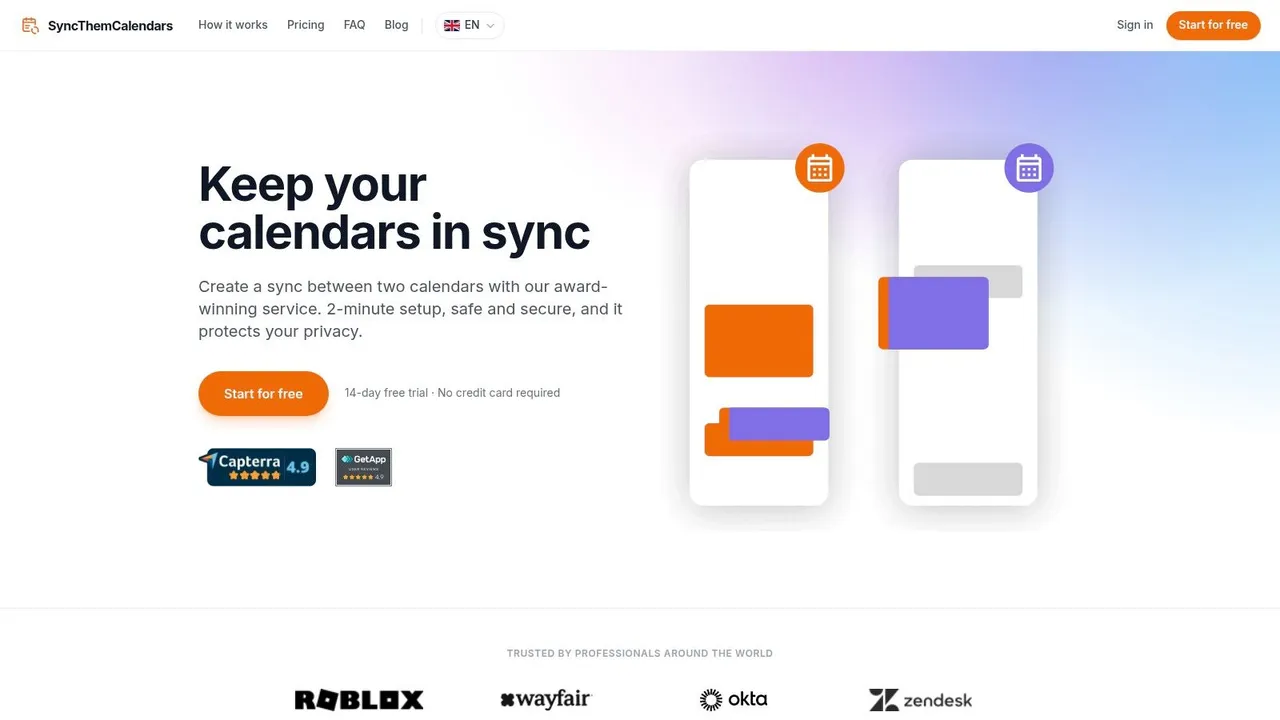
Monday starts with three calendars open. A client call lands in Google Calendar, a sales meeting sits in Microsoft 365, and a personal appointment is parked in iCloud. If those systems do not stay aligned, double-bookings happen fast.
SyncThemCalendars is built for that exact use case. It sits in the true cloud-based multi-platform group, not the Outlook-on-Windows utility group and not the free open-source tinkering group. That matters because the buying decision here is less about flashy extras and more about whether the tool keeps working across Google, Microsoft, and Apple without depending on one desktop machine.
The product handles one-way, two-way, and multi-way syncs, and it gives unusually practical control over what gets copied. You can pass through full event details, copy only free/busy blocks, or rewrite fields such as title, description, and location. For consultants, recruiters, founders, and anyone separating client-facing and private calendars, that is the feature set that prevents awkward oversharing.
Why it works in real use
I recommend it most often to independent professionals who live across more than one calendar ecosystem. A freelancer can block client time on a personal calendar without exposing the meeting name. A manager can keep an availability calendar accurate while hiding internal details. A student with work and school commitments can stop managing conflicts by hand.
Setup is also lighter than many older sync tools. The service follows the set-it-once model people expect from cloud sync apps, so you are not maintaining rules on a PC that has to stay awake. If you want a clearer explanation of copied-event logic versus shared calendar overlays, read their guide on how calendar synchronization works across different systems before configuring your first sync.
Practical rule: If the goal is conflict prevention, copy events or copy free/busy status. A side-by-side calendar view is useful for checking schedules, but it does not solve missed overlaps on its own.
Best reasons to choose it
- Strong platform coverage: It supports Google Calendar, Microsoft Outlook or Office 365, and Apple iCloud. That combination is still harder to get right than many vendors admit.
- Flexible sync direction: You can set one calendar as the source of truth or keep several calendars in sync both ways.
- Useful privacy controls: Event details can be hidden, renamed, or transformed so availability stays accurate without exposing sensitive information.
- Volume-friendly plans: Limits are based on active syncs, not raw event count, which is the better pricing model for busy calendars.
- Low maintenance: Because it is cloud-based, it keeps running without asking you to babysit a Windows machine.
There are real trade-offs. SyncThemCalendars is a better fit for one person managing multiple calendars than for a larger company that needs centralized billing, admin controls, and role-based access. It also rewards clean planning. If you build too many overlapping sync paths, you need to map them carefully so you do not create loops or duplicate logic.
For a freelancer, solo consultant, or small operator who wants cloud-based sync across major calendar systems, it is one of the clearest fits in this guide. It solves the core problem directly and does not force an Outlook-centric workflow on people who do not live in Outlook all day.
2. OneCal
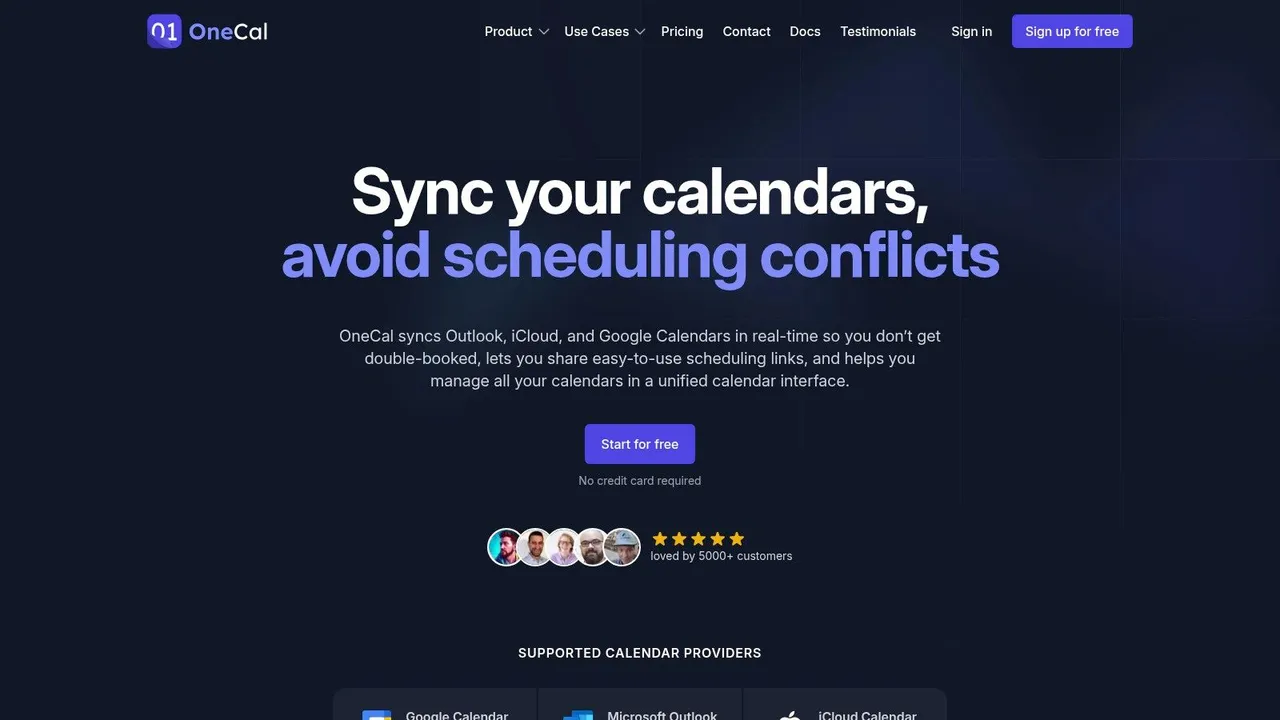
A common client scenario looks like this: one Google Calendar for personal life, one Microsoft 365 calendar for work, maybe an iCloud calendar tied to an iPhone, and a strong preference not to expose private event titles everywhere. OneCal is built for that job.
It sits in the true cloud-based sync group in this guide, not the Outlook-on-Windows camp and not the free open-source utility camp. That distinction matters. If you want syncing to keep running without depending on a specific desktop machine, OneCal makes more sense than Outlook-bound tools.
Its best feature is control over what gets copied. You can sync calendars one way, two ways, or across several calendars, then decide whether the destination should receive full event details, limited information, or simple blocked time. For consultants, recruiters, therapists, and anyone else who shares availability across contexts, that is often the deciding factor.
The scheduling links and unified calendar view help, but they are secondary. Its primary value is keeping multiple calendars aligned while protecting sensitive context.
Where OneCal fits best
OneCal works best for solo professionals and small teams that want cloud sync without a technical setup project. The interface is easier to configure than many utilities in this category, and that lowers the odds of creating sync mistakes you only notice after a missed meeting.
Privacy settings are also where dedicated sync apps often pull ahead of basic calendar sharing. In practice, many buyers want accurate availability, not full transparency.
If clients only need to know that 3:00 PM is unavailable, copying the event title usually creates more risk than value.
Trade-offs to know
- Best for privacy-first syncing: It is a good fit if you need calendars to reflect availability without duplicating sensitive details.
- Covers the major ecosystems: Google Calendar, Microsoft 365 or Outlook, and iCloud support make it practical for mixed personal and work setups.
- Cloud-based convenience: It keeps syncing without relying on a local Outlook install or a Windows PC left running.
- Less appealing for budget shoppers: If you only need a basic Outlook-to-Google sync on one computer, a desktop utility may cost less.
- iCloud timing can still vary: That limitation comes with the platform and affects many tools, not just OneCal.
- Team costs rise faster: As needs expand to shared administration, centralized billing, and broader deployment, pricing matters more.
I usually recommend OneCal to people who know their primary problem: keep calendars in sync, keep private details private, and avoid an Outlook-centric setup. If that sounds like your use case, it deserves a close look on the OneCal website.
3. CalendarBridge
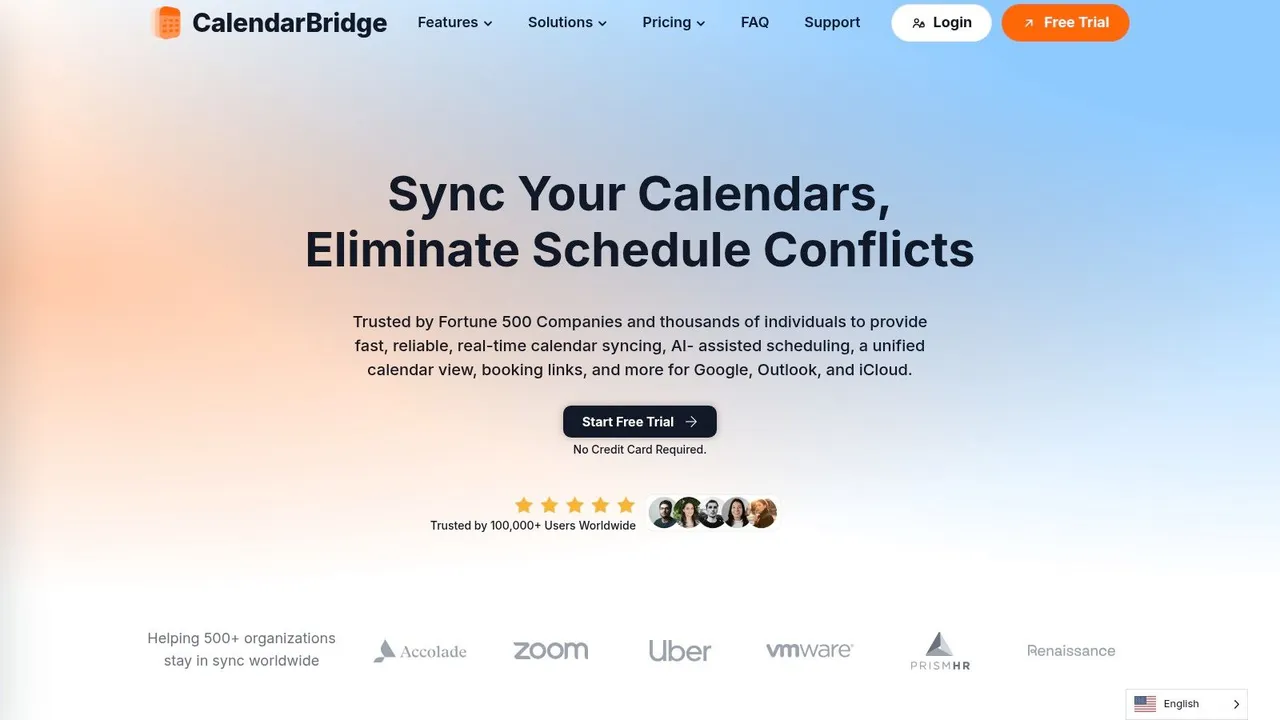
A consultant keeps a client calendar in Google, an internal team calendar in Microsoft 365, and a family calendar in iCloud. One delayed update is enough to create a double booking. CalendarBridge is built for that exact use case.
It sits in the cloud, not on a desktop, and it is better understood as an availability sync and scheduling product than a full Outlook utility. That distinction matters. If you are comparing categories in this guide, CalendarBridge belongs with the true multi-platform cloud tools, not the Outlook-first desktop apps that show up later.
What sets it apart is candor. Calendar sync vendors often blur the difference between fast sync and real-time sync. CalendarBridge is clearer about where updates are immediate, where they are periodic, and what that means if you rely on iCloud or ICS feeds.
Where CalendarBridge fits
CalendarBridge makes the most sense for people who need calendars to reflect busy time across ecosystems without building their workflow around Outlook on one computer. Freelancers, consultants, recruiters, and client-facing operators usually fall into this bucket. They need conflicts prevented first. Event detail parity is often a secondary concern.
That makes it different from a tool aimed at heavy Outlook users who want a local app, deeper desktop control, or lower-cost one-machine sync. If that is your situation, the Outlook-centric options later in this guide are usually a better fit.
The real trade-offs
- Strong fit for Google plus Microsoft users: That is where its sync behavior is most convincing and easiest to trust in day-to-day scheduling.
- Good for availability-first workflows: If your goal is to block time and prevent collisions, it does the job well.
- Less attractive for iCloud-heavy setups: Apple calendar sync still tends to involve more timing variability, so test before you rely on it for high-volume booking.
- More polished than bare-bones sync utilities: Scheduling pages, mobile access, and unified viewing add convenience, but they also make this a broader product, not just a lightweight sync engine.
- Not the cheapest path for simple desktop needs: If you only need Outlook-to-Google sync on one PC, a desktop utility may be enough.
One practical warning. If you run a booking workflow where meetings are scheduled back-to-back, even short sync delays can create stale availability and conflict bookings. In that scenario, the product category matters as much as the feature list. Cloud tools like CalendarBridge are easier to run across accounts and devices, but they still inherit timing limits from the calendar systems they connect to.
I recommend CalendarBridge for users who want a cloud-based service, understand that cross-platform sync has real limits, and prefer a vendor that documents those limits instead of hiding them. You can explore it on the CalendarBridge website.
4. SyncGene by 4Team and CiraHub
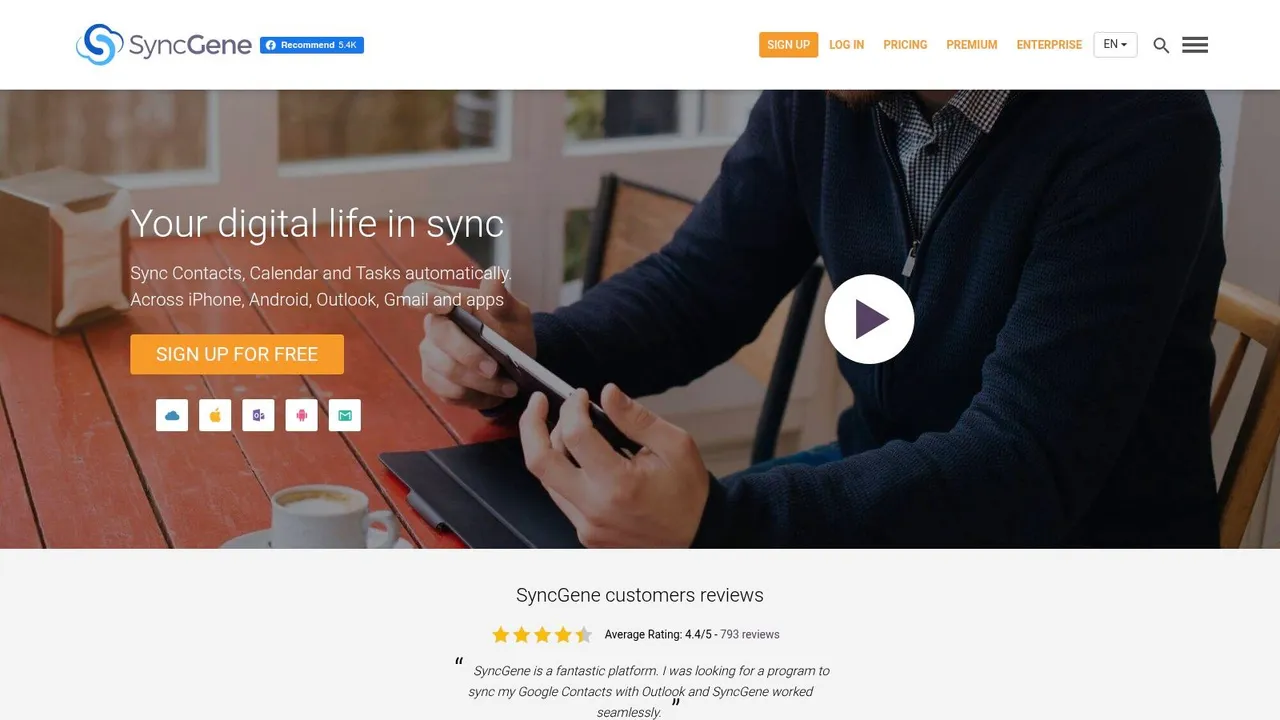
SyncGene has been around long enough to feel familiar to a lot of Outlook and Google users, and that history still matters. It offers web-based syncing for calendars, contacts, and tasks across Google, Microsoft 365 or Outlook, and iCloud, which makes it broader than a sync tool that handles calendar alone.
If you want one product family that can touch several types of personal information, SyncGene is worth considering. If you only care about calendar sync, the extra breadth may or may not matter to you.
The practical appeal
The biggest advantage is coverage across the three mainstream ecosystems without requiring you to run a local client on your machine. That’s still the simplest path for many users who want ongoing sync in the background instead of Outlook add-ins and desktop services.
It also gives you room to grow into a more managed environment through the broader CiraHub product family. That can help if your needs start as personal sync and later turn into business-level account management.
Tools that only show a combined view aren’t enough for most people. If another person can still book over your personal commitment because the event never copied, the problem isn’t solved.
Before you pick it
- Good all-around compatibility: Google, Outlook, and iCloud support cover the most common combinations.
- More than calendar: Contacts and tasks are part of the package for users who want one sync layer.
- Transition factor: The product’s relationship to CiraHub means plans and positioning can evolve, so check current details before subscribing.
- Less straightforward than a single-purpose app: Some people will prefer a narrower, cleaner sync product.
I usually recommend SyncGene to users who already know they want more than calendar and don’t mind checking the latest plan structure before committing. The current product pages are on the SyncGene website.
5. Sync2 Cloud
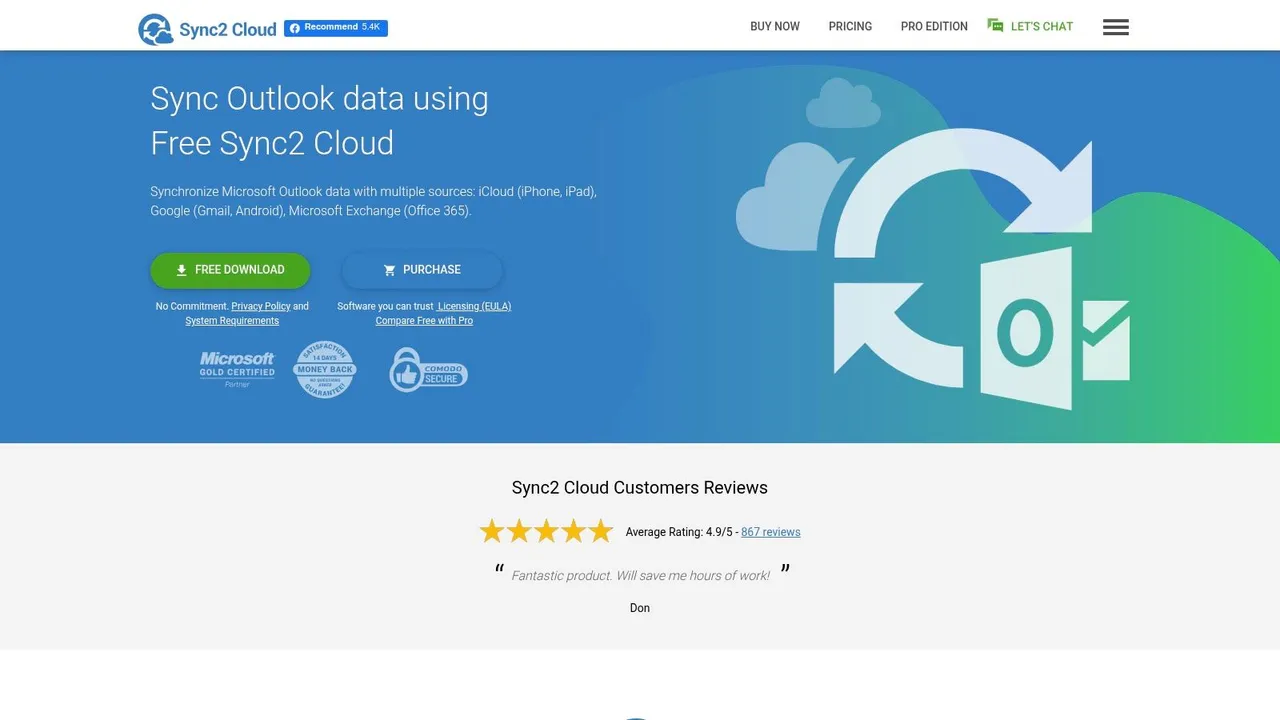
Sync2 Cloud is where this list starts to split into a different category. It isn’t trying to be a modern all-web productivity layer. It’s a Windows-oriented tool built for people who mainly live in desktop Outlook and want Outlook to keep talking to Google or iCloud.
That distinction is important. If you’re an Outlook-on-Windows power user, this can be exactly right. If you’re a freelancer moving between browser tabs on different devices, it may feel dated fast.
Best for Outlook-first workflows
Some businesses still rely heavily on desktop Outlook because of internal processes, Exchange habits, or older administrative workflows. In those cases, Sync2 Cloud makes sense because it syncs Outlook desktop with Google and iCloud without asking users to rebuild how they work.
The option for a perpetual license also appeals to buyers who dislike subscriptions. That’s not the dominant software model anymore, but there are still plenty of firms and solo operators who prefer a one-time purchase.
What to expect
- Strong Outlook focus: This is its strength, and also its limitation.
- Useful for Windows shops: Especially if Outlook desktop is essential.
- Deployment options exist: That makes it more realistic for IT-managed environments.
- Less elegant than cloud-native tools: The interface and licensing approach feel closer to older enterprise software.
I don’t usually recommend Sync2 Cloud to someone starting from scratch. I recommend it to people who say, “We already use Outlook desktop, and that’s not changing.” In that scenario, it’s one of the more sensible choices. You can review it on the Sync2 Cloud website.
6. gSyncit
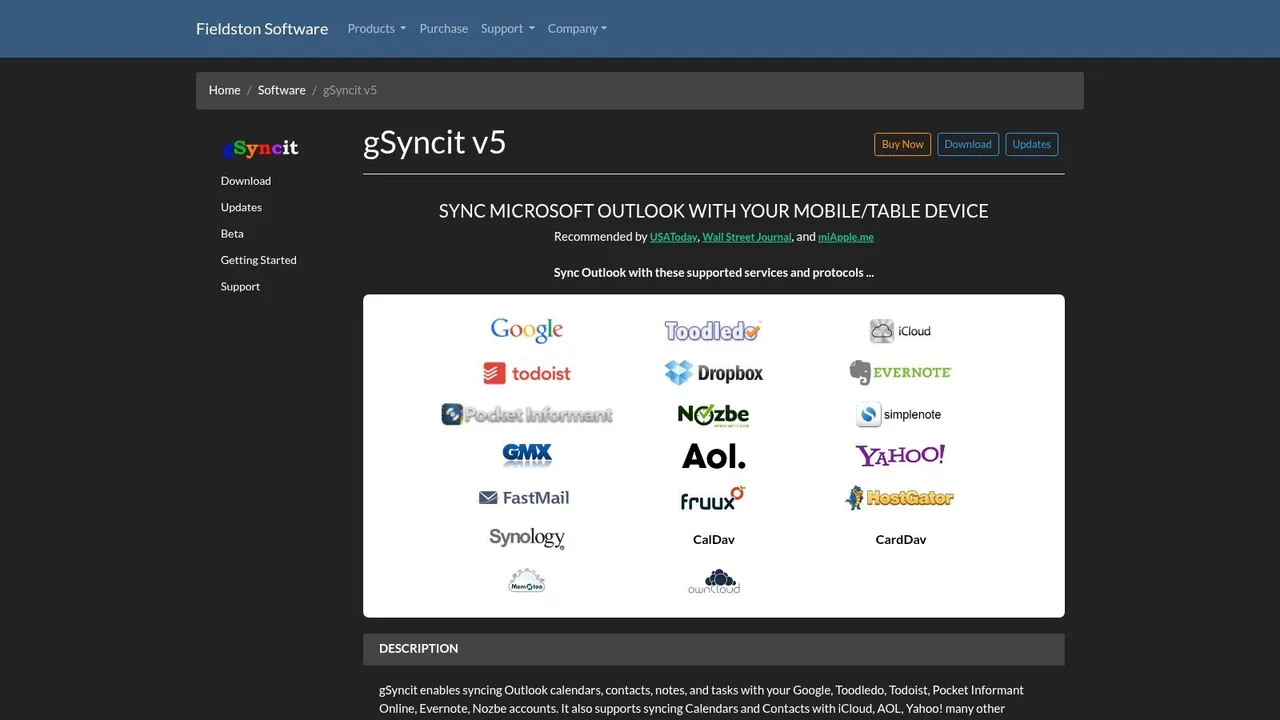
gSyncit is for the person who wants knobs, switches, profiles, and filters. It’s a Windows Outlook add-in that syncs Outlook calendars, contacts, tasks, and notes with Google and CalDAV or CardDAV services, including iCloud-compatible setups.
This is not the tool I’d hand to someone who wants a quick fix and never wants to think about it again. It is the tool I’d hand to the office manager, IT-savvy consultant, or Outlook power user who keeps asking for finer control.
Why power users like it
The filtering options are the draw. Category mapping, color handling, duplicate removal, multiple profiles, and account-specific rules make it capable in situations where simpler apps become frustrating.
That makes gSyncit especially useful in messy Outlook environments. If you have several accounts, mixed categories, recurring events with quirks, and edge cases you need to tame, the extra configuration can be worth the effort.
The downside is the setup
- Very configurable: Great for complex Outlook setups.
- Budget-friendly licensing per computer: Helpful for users who dislike recurring SaaS charges.
- Windows and Outlook only: That’s a hard boundary.
- Easy to create duplicate messes if configured poorly: You need to understand your sync direction before turning everything on.
The best way to think about gSyncit is as a toolkit rather than a turnkey service. If that sounds appealing instead of exhausting, it’s a strong option. You can find it on the gSyncit website.
7. CompanionLink for Google
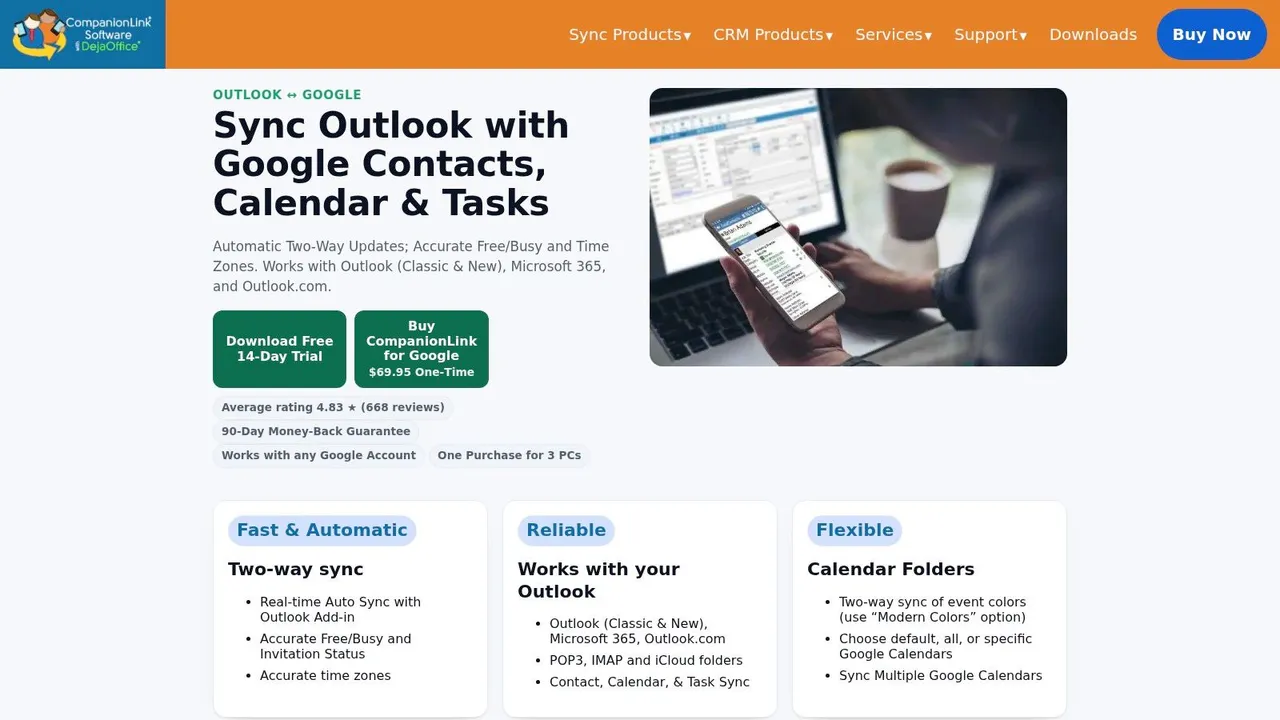
CompanionLink for Google has a narrower mission than the cloud sync tools at the top of this list. It focuses on Outlook-to-Google synchronization, and for the right person, that narrow focus is a benefit rather than a weakness.
If you don’t need iCloud and you mainly want your Outlook calendar to stay aligned with Google Calendar, this can be simpler than buying a broader service you’ll never fully use.
Who should consider it
This is a practical fit for small offices, solo professionals, and long-time Outlook users who are gradually working more in Google’s ecosystem. It also appeals to people who still value setup guides and phone support over slick dashboards.
CompanionLink emphasizes handling details like time zones, attendees, and multiple calendars accurately. That’s not glamorous, but it’s where sync tools earn trust.
A related point: if your main challenge is specifically keeping Google visible alongside Outlook, it helps to understand the basic options first. Their broader category is easier to evaluate once you’ve seen a plain-language breakdown of how Google Calendar sync works.
Strengths and limitations
- Straightforward Outlook and Google focus: Good if that’s your exact workflow.
- One-time license option: Useful for buyers who don’t want another subscription.
- Support matters: Some users still want a vendor they can call.
- Not a true three-way cloud sync tool: If iCloud matters, look elsewhere.
- PC client dependence: It fits desktop habits better than device-agnostic workflows.
I wouldn’t call CompanionLink the best calendar sync app for most readers, but for Outlook-to-Google specialists, it’s still relevant. The current details are on the CompanionLink for Google website.
8. DejaFlow
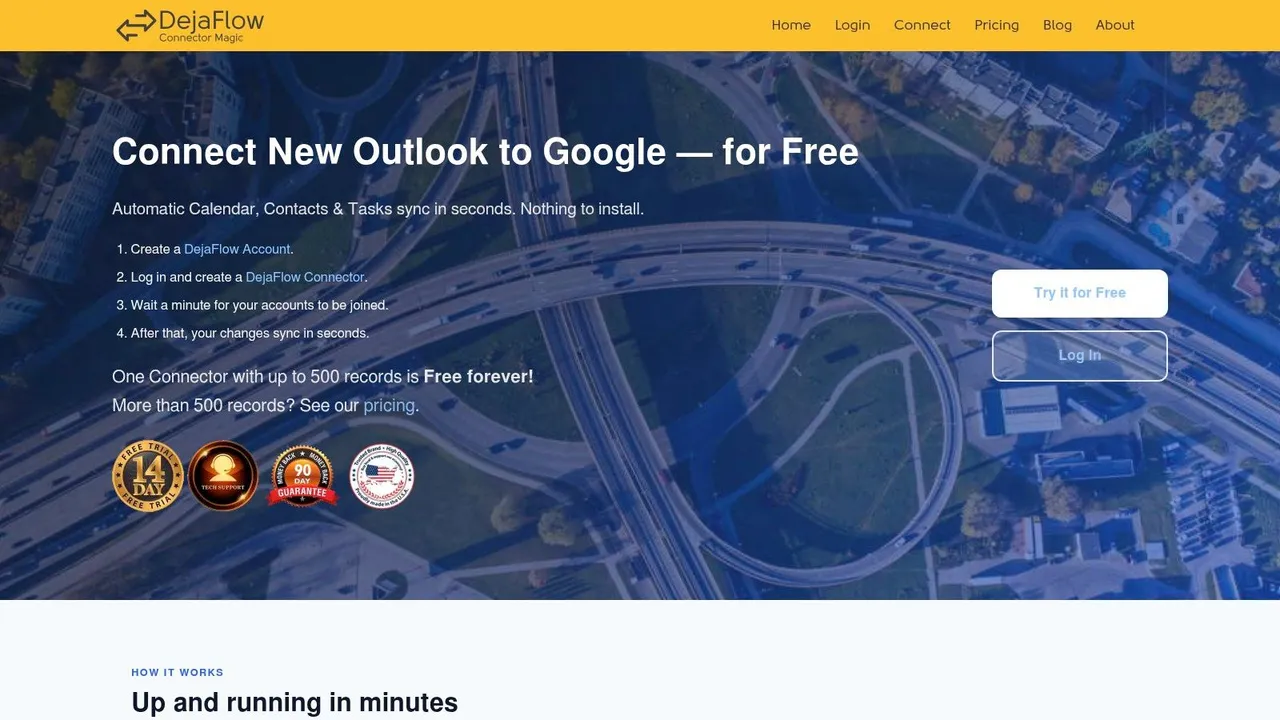
DejaFlow takes a cleaner approach than traditional desktop sync software. It’s a cloud-to-cloud connector for Outlook 365 or New Outlook and Google, so you don’t need to keep a local client installed just to keep calendars aligned.
That alone makes it appealing if you like the Outlook-to-Google use case but hate the old model of “leave this PC running and hope the sync engine behaves.”
Why it stands out
The connector model is simple. You connect the accounts, define the relationship, and let the service keep working in the background. For users who don’t need iCloud and don’t want a heavier enterprise tool, that’s a comfortable middle ground.
Its free tier also lowers the barrier to testing. I like tools that let people validate sync behavior with their own calendars before committing to a larger setup.
Where it falls short
- Great for Outlook 365 and Google only: That’s the main lane.
- No direct iCloud support: This rules it out for mixed Apple workflows.
- No local client required: Better than older desktop-bound options.
- Limits on free usage: Fine for testing and smaller datasets, less so for larger ongoing needs.
DejaFlow is one of the better niche choices if your world is specifically Outlook plus Google and you want a lightweight cloud connector. You can check the current plans and setup on the DejaFlow website.
9. Outlook Google Calendar Sync
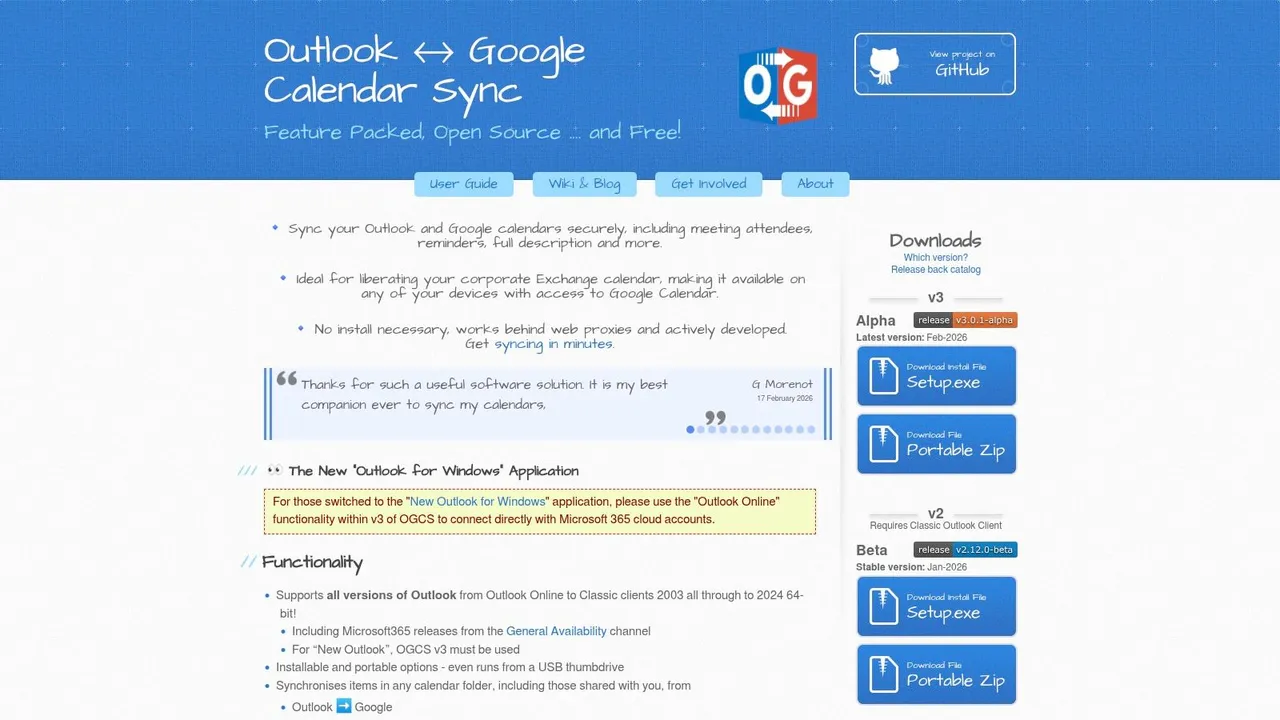
Outlook Google Calendar Sync, usually called OGCS, is the best-known free open-source option in this category. It syncs Outlook and Google Calendar in one or two directions, supports shared calendars, and gives you a surprising amount of control over which event details come across.
If you’re technical enough to configure sync software without getting nervous, OGCS is one of the strongest no-cost options available.
Why people still use OGCS
The answer is simple. It works, it’s configurable, and it doesn’t force a subscription. You can sync subjects, descriptions, locations, attendees, reminders, privacy settings, and categories, which is more control than many people expect from a free tool.
It also has an active enough community reputation to make it feel alive rather than abandoned. That’s especially important for open-source utilities in a category where APIs and provider behavior keep changing.
Free is only a bargain if you can recover from a bad configuration. Before enabling two-way sync, test with a low-stakes calendar first.
Who should skip it
- Skip it if you dislike technical setup: This is not a guided consumer app.
- Skip it if you need iCloud: Its lane is Outlook and Google.
- Choose it if budget is the deciding factor: Few tools offer this level of control at no cost.
- Choose it if portability matters: It can fit users who want a more self-managed setup.
For Windows users who are comfortable taking responsibility for their own sync logic, OGCS remains a very credible option. The project site is the Outlook Google Calendar Sync website.
10. Outlook CalDav Synchronizer
Outlook CalDav Synchronizer is the free open-source pick for people who want broad CalDAV and CardDAV compatibility. It syncs Outlook with providers such as iCloud, Google through CalDAV, Nextcloud, SOGo, and other CalDAV-capable services.
This is the most technical recommendation on the list, but it fills an important niche. If you care about self-hosted infrastructure or standards-based compatibility, very few consumer-oriented apps serve you as well.
Best for technical users and privacy-minded setups
Predefined provider profiles help, but this still assumes you understand what CalDAV endpoints are and how your provider exposes them. That makes it a strong fit for IT administrators, advanced users, and organizations with privacy policies that favor self-hosted or standards-compliant systems.
It also helps if your world is bigger than Google and Microsoft. Many teams using Nextcloud or similar environments don’t want to be pushed into a mainstream SaaS sync layer just to keep Outlook usable.
If your main pain point is Outlook specifically, it also helps to review the broader category of Outlook calendar sync approaches before deciding whether an add-in or a cloud service fits better.
The real trade-off
- Excellent provider compatibility: Especially for CalDAV and CardDAV services.
- Free and open-source: Strong value if you can handle setup.
- Detailed logging and profile management: Useful for troubleshooting.
- Not turnkey: It demands more patience than cloud-based sync tools.
- Windows and Outlook only: This is still an Outlook add-in, not a universal web service.
I recommend Outlook CalDav Synchronizer when someone says they want control, standards, and zero subscription cost, and they don’t mind earning that result through a more technical setup. The project lives on the Outlook CalDav Synchronizer website.
Top 10 Calendar Sync Apps: Feature & Compatibility Comparison
| Product | Core sync & unique features (✨) | UX & reliability (★) | Pricing & value (💰) | Target audience (👥) |
|---|---|---|---|---|
| SyncThemCalendars 🏆 | ✨ Google ↔ Outlook ↔ iCloud; one/two/multi‑way; field‑masking; free/busy mirroring; near‑real‑time | ★ 4.9/5; ~2‑min setup; set‑and‑forget background sync | 💰 Basic $3.99/mo; Premium $7.99/mo; Pro $17.99/mo; 14‑day trial; unlimited events | 👥 Freelancers, entrepreneurs, sales pros, students, small biz (privacy‑focused) |
| OneCal | ✨ Google/Outlook/iCloud; per‑calendar controls; unified view; scheduling links | ★ Fast setup; near‑real‑time (iCloud may ~10min) | 💰 Tiered plans; team features on higher tiers | 👥 Individuals wanting privacy controls & unified view |
| CalendarBridge | ✨ Real‑time Google↔Microsoft; periodic iCloud/ICS (5–10min); mobile apps | ★ Strong free/busy mirroring; clear docs; iCloud delay noted | 💰 Subscription tiers; higher cost for many users/calendars | 👥 Teams and pros needing robust Google↔MS sync |
| SyncGene (4Team/CiraHub) | ✨ Two‑way calendar/contacts/tasks; multi‑source sync; enterprise path | ★ Broad coverage; transition to CiraHub in progress | 💰 Subscription; enterprise add‑ons available | 👥 Users needing multi‑source sync; orgs eyeing enterprise features |
| Sync2 Cloud (4Team) | ✨ Outlook desktop ↔ Google/iCloud; Windows/Outlook focus; deployable | ★ Mature, enterprise‑ready; PC/desktop workflow | 💰 One‑time license option; enterprise deployment pricing | 👥 Outlook‑on‑Windows users & IT admins |
| gSyncit (Fieldston) | ✨ Outlook ↔ Google/CalDAV; category/color mapping; de‑duplication | ★ Very configurable; powerful but technical | 💰 Budget per‑computer license | 👥 Power Outlook users managing complex setups |
| CompanionLink for Google | ✨ Two‑way Outlook ↔ Google; timezone & attendee handling; color sync | ★ Long‑standing vendor; US phone support; requires PC client | 💰 One‑time license; paid support/assisted setup | 👥 Users needing reliable Outlook↔Google with support |
| DejaFlow (CompanionLink) | ✨ Cloud‑to‑cloud Outlook365 ↔ Google; no local client; free tier | ★ Simple connector; continuous cloud sync | 💰 Free forever tier for small datasets; low‑cost paid plans | 👥 Cloud‑only users wanting low‑cost Outlook↔Google sync |
| Outlook Google Calendar Sync (OGCS) | ✨ Open‑source Outlook ↔ Google; many configurable event attributes | ★ Free; actively maintained; community support | 💰 Free (donations welcome) | 👥 Tech‑savvy Windows users & DIYers |
| Outlook CalDav Synchronizer | ✨ Outlook ↔ CalDAV/CardDAV (iCloud, Nextcloud); detailed logging | ★ Free/open‑source; powerful but more technical | 💰 Free | 👥 Self‑hosted/Nextcloud users and privacy‑minded admins |
Our Recommendation The Best Calendar Sync App for Most People
A typical calendar mess looks like this: client calls land in Google Calendar, internal meetings sit in Microsoft 365, and personal commitments live in iCloud. The problem is not seeing all three on one screen. The problem is keeping availability accurate across all three without constant checking, duplicate events, or oversharing private details.
That is why SyncThemCalendars is the strongest default pick in this guide. It fits the broadest mixed-platform setup with the least ongoing work. For freelancers, consultants, and small business operators who split time across Google, Outlook, and iPhone calendars, that matters more than having the longest settings menu.
Its advantage is coverage across the calendar systems people use day to day. It supports Google, Microsoft, and iCloud, and it handles one-way, two-way, and multi-way sync. It also lets you decide whether another calendar should receive full event details or only busy blocks. That distinction matters if you need to prevent double bookings without exposing client names, meeting notes, or locations.
I put extra weight on privacy controls because shared availability is not the same thing as shared context. An independent consultant may need a work calendar blocked on a personal device, a family calendar reflected on a business account, and a partner’s schedule visible only as unavailable time. SyncThemCalendars handles that setup cleanly, without pushing users into all-or-nothing sharing.
Setup is another deciding factor.
In this category, the tools that win long term are the ones people trust after week one. If sync requires frequent checks, manual reruns, or a lot of exception handling, it stops being infrastructure and turns into another task. SyncThemCalendars avoids that trap better than many alternatives because it is built around ongoing background sync, not occasional cleanup.
The broader recommendation in this article depends on use case, not just rank. If you want a true cloud-based, multi-platform service for a mixed calendar life, start with SyncThemCalendars, OneCal, or CalendarBridge. If your world revolves around Outlook on Windows and you want tighter desktop control, Sync2 Cloud, gSyncit, and CompanionLink belong on the shortlist. If low cost, self-hosting, or open-source matters more than polished onboarding, OGCS and Outlook CalDav Synchronizer make more sense.
That framework is more useful than asking for a single winner.
OneCal is a smart choice for users who care a lot about privacy settings and prefer a polished web app. CalendarBridge suits teams that need dependable free/busy mirroring across accounts. SyncGene and CiraHub are worth considering when calendar sync is only part of the job and contacts or tasks also need to move. DejaFlow is a narrower fit, but a practical one for cloud-only Outlook-to-Google syncing.
If I were advising a solo consultant or small firm with a mixed Google, Microsoft, and Apple setup, I would start with SyncThemCalendars. It covers the three ecosystems that create the most scheduling friction, gives granular control over what gets copied, and does not demand much technical comfort to keep it running. That combination is what makes it the safest recommendation for a wide range of real-world users.
Ready to sync your calendars?
Keep your Google, Outlook and Apple iCloud calendars in sync automatically. 2-minute setup, no credit card required.
Get started freeKeep reading
More in Guides

SyncThemCalendars Quick Setup Walkthrough
Master the SyncThemCalendars quick setup in minutes. Connect Google, Outlook, or iCloud, configure privacy masking, and verify your first sync effortlessly.

Merging Google Calendars: The Complete Guide for 2026
Merging Google Calendars. Learn the best ways to merge Google Calendars. Compare import methods, sync tools, and automation strategies

Master Your Calendar on Outlook with Sync Solutions
Learn how to use calendar on Outlook effectively, sync with Google and iCloud, avoid double-bookings, and connect SyncThemCalendars for seamless scheduling.