







Scheduling Across Time Zones: A Practical Workflow
Master scheduling across time zones with actionable workflows, daylight saving tips, and privacy-preserving calendar sync strategies for global teams.
You send the invite for 9:00 a.m. Your calendar shows the right time, the client’s calendar appears to agree, and everyone accepts. Then a participant joins an hour late because a daylight-saving change altered the recurring series, while another person is already working on the next calendar date after crossing the International Date Line. Nobody made an obvious mistake, yet the meeting still failed.
That’s the reality of scheduling across time zones. The hard part isn’t converting one clock to another. It’s maintaining accurate, fair coordination as locations, calendar systems, seasonal clock changes, and work patterns shift.
Why Time Zone Scheduling Breaks More Often Than You Think
A one-off meeting can survive manual checking. A recurring meeting usually exposes the weakness in the process. Calendars may store an event with a time-zone identifier, display it in each attendee’s local time, and then recalculate it when daylight-saving rules change. If one account uses a fixed offset, another uses a regional time zone, and a third relies on an ambiguous abbreviation, the same meeting can appear correct in one place and wrong in another.
The International Date Line creates a different class of failure. The modern time-zone framework was formalized at the 1884 International Meridian Conference, which established Greenwich as the prime meridian and divided the world into 24 standard time zones of roughly 15 degrees of longitude each. The same framework placed the 180° meridian at the basis of the International Date Line. Crossing it westward adds a calendar day, while crossing it eastward subtracts one, as documented in the NIST circular on time and frequency standards.
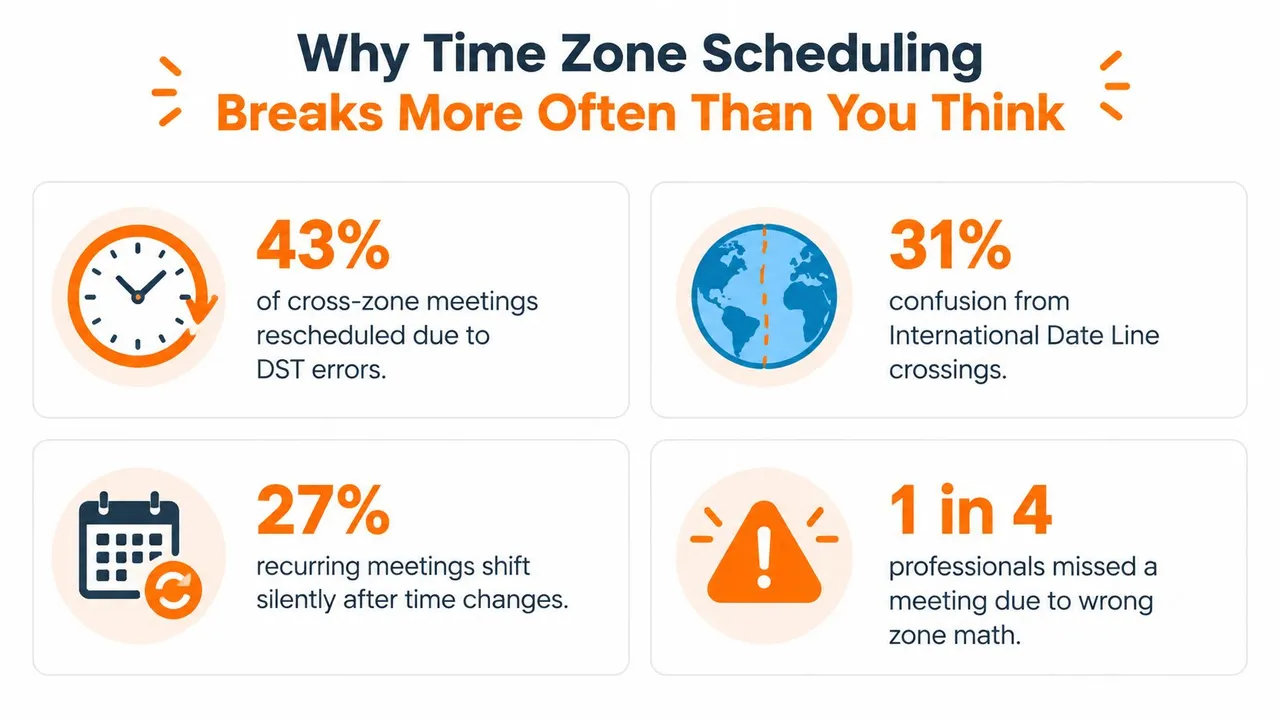
The date line isn’t a perfectly fixed geographic boundary, either. Countries have adjusted it to align commerce and governance with neighboring markets. That administrative flexibility matters operationally, because a meeting involving locations near the date line can shift by a full day even when the local clock difference changes by only a small amount.
The business cost sits inside the calendar
Time-zone alignment affects when teams can speak with customers, suppliers, and partners. Nearly half of daily global spending occurs in Eastern Standard Time, Central European Time, and China Standard Time, which together represent about $31 trillion annually, or almost 50% of projected global consumption in 2025, according to the World Economic Forum’s analysis of global time zones and spending rhythms. Adding Central Standard Time, Pacific Standard Time, and Japan/Korea Standard Time brings coverage to roughly 72% of global consumption, according to the same source.
That concentration means a scheduling error can delay a commercial decision during the narrow period when a market is active. It can also create a quieter cost, resentment. If the same region repeatedly accepts early mornings or late evenings, people stop treating the burden as incidental and start treating it as a sign that their working reality matters less.
Teams building a durable operating model can pair calendar rules with broader remote-work practices, such as those outlined in this playbook for teams at Madeira Remote. The key lesson is simple: awareness helps people avoid obvious mistakes, but a repeatable scheduling system prevents recurring ones.
Setting Up Time Zone Aware Calendars
Before comparing availability, make the calendar itself trustworthy. A scheduling workflow can’t compensate for an account configured to the wrong region or an invite that uses an ambiguous abbreviation.
Configure the calendar layer first
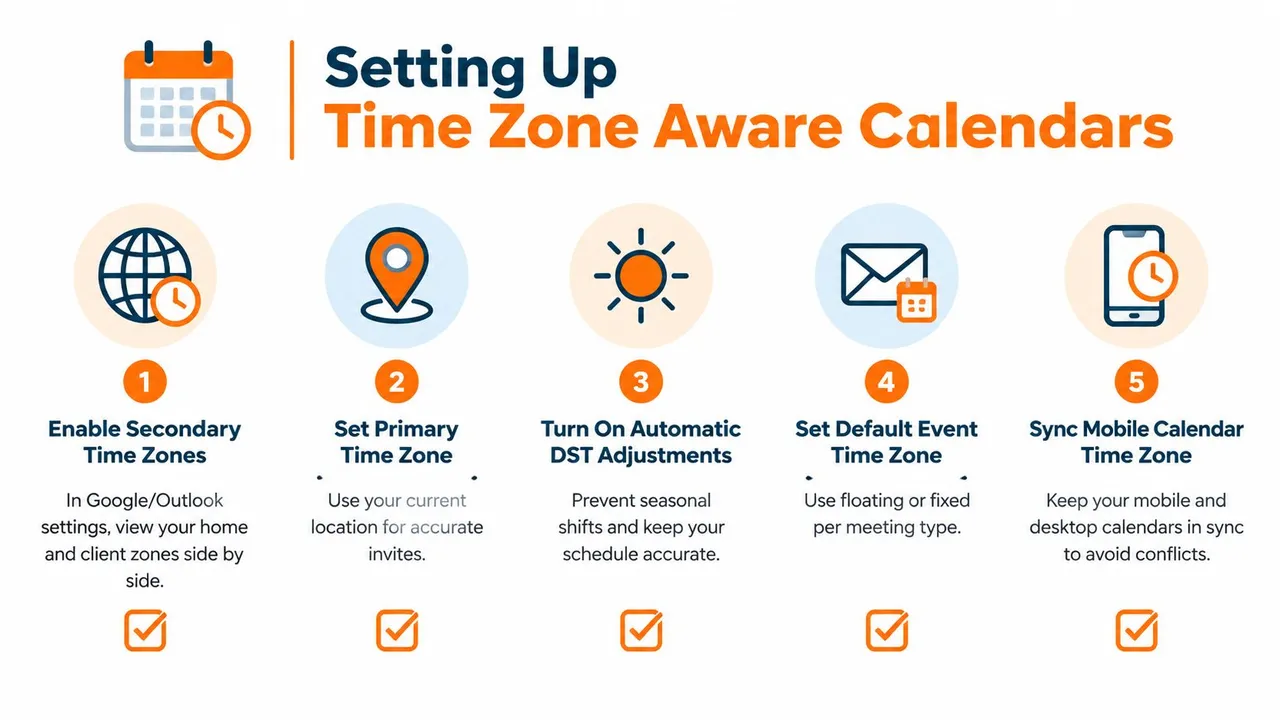
Start with the primary time zone in every calendar account. Set it to the user’s current working location, not the company headquarters and not a former residence. Then enable secondary time-zone displays where the platform supports them. Google Calendar and Outlook can show additional zones beside the primary one, which makes it easier to inspect a proposed time without mental arithmetic.
Use IANA time-zone names, such as America/New_York or Europe/London, when a system exposes that choice. Avoid relying on labels such as EST, CST, or IST. Those abbreviations can be ambiguous, and they don’t always communicate whether the event should follow seasonal clock changes.
The Microsoft specification for time-zone data reinforces why date-specific verification matters, particularly for recurring events and daylight-saving transitions.
Apply the same checks across Google, Outlook, and Apple
In Google Calendar, review the calendar’s time zone under settings, turn on a secondary zone if useful, and inspect the event’s time-zone field while creating or editing it. In Outlook, check both the account or app time zone and the meeting’s displayed zone. Outlook users should also verify the event after it has been sent, because the organizer’s settings determine how the invitation is represented for attendees.
Apple Calendar depends heavily on the time-zone settings of the device and connected account. Check the Mac or iPhone time-zone configuration, confirm that automatic date and time settings are enabled where appropriate, and inspect the event after synchronization. A desktop calendar and a phone can show different results if one device has stale settings or a different regional configuration.
A practical setup sequence looks like this:
- Set the current location: Make the primary zone match where the person is working.
- Add reference zones: Display the zones used by major clients, teammates, or offices.
- Use regional identifiers: Select a named location that carries daylight-saving rules instead of a bare offset.
- Test a seasonal date: Create a sample event before and after a known clock change.
- Check the sent invite: Review the final invitation in the calendar system recipients will use.
For detailed Google Calendar connection guidance, use this Google Calendar synchronization guide. The final test should always happen in the platform that sends the invite, not only in the organizer’s preferred calendar view.
Finding and Protecting Overlap Windows
The first question isn’t “What time works?” It’s “Which work needs real-time interaction, and how much overlap can we protect for it?”
That distinction matters because multi-zone meetings are already structurally more difficult. One large-scale study found that about 33% of meetings span multiple time zones, those meetings have 36% more attendees on average, and they’re 2.6 times more likely to be scheduled at odd hours than single-time-zone meetings with the same number of attendees, according to the study on meeting scheduling across time zones.
Map the useful window, not every possible slot
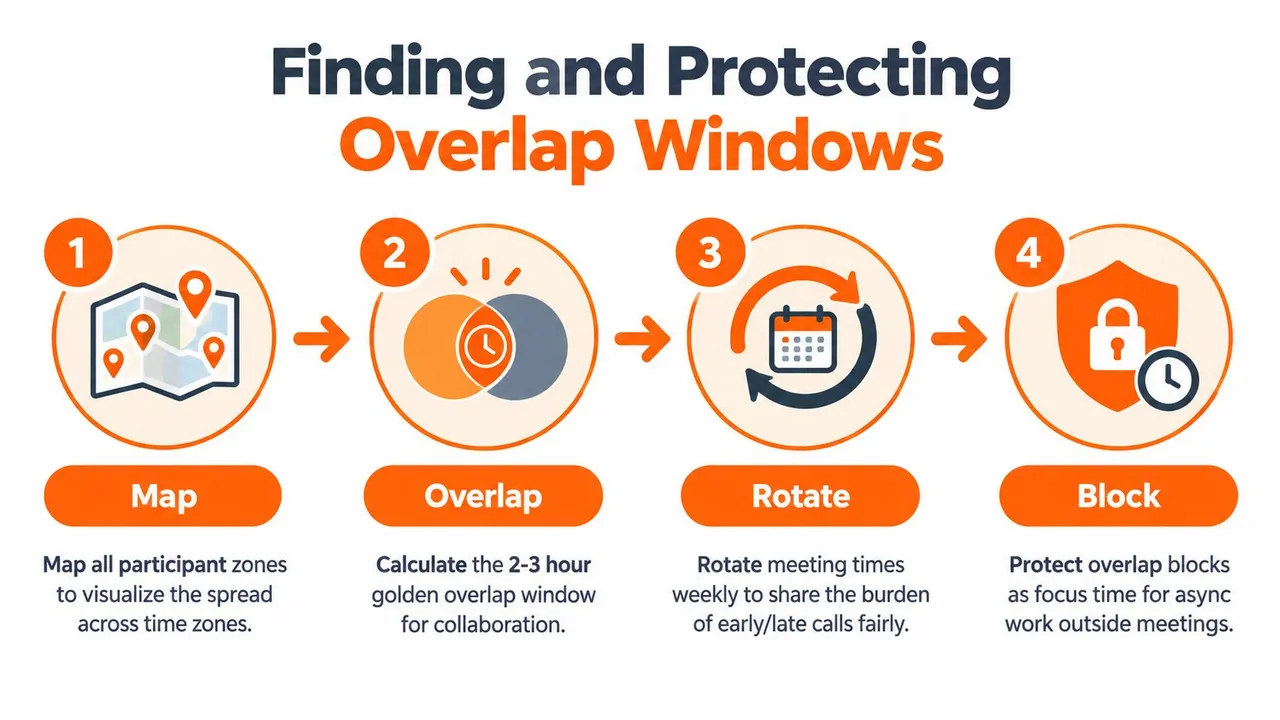
List each participant’s working interval in their local zone, then convert those intervals to a shared reference such as UTC. For two zones, identify the intersection. For three or more, keep only the hours that appear in every required participant’s working range. Treat optional attendees separately, or the meeting will expand around people who don’t need to be there.
A simple operating rule is to protect a 2 to 4 hour overlap window, consistent with distributed-work guidance from Hubstaff’s global work report. Don’t fill that entire window with calls. Reserve part of it for quick clarification, approvals, and work that would otherwise stall.
When overlap is limited, prioritize synchronous time for:
- Decisions with dependencies: Bring people together when a choice affects work that can’t proceed independently.
- Fast clarification: Use live discussion when written questions would create repeated back-and-forth.
- Sensitive alignment: Resolve disagreement or ambiguity before it becomes a handoff problem.
Use async updates for status reporting, routine reviews, and information that doesn’t require immediate response. A written brief, recorded explanation, or documented handoff lets people contribute during their own working hours.
Treat low overlap as a coordination warning
A global team study found that less than three hours of working overlap was associated with a 44% reduction in cohesion and a 52% increase in coordination costs. The same source reported that asynchronous communication was associated with 2.6 times more misunderstandings than synchronous communication, while rotating meeting times increased perceptions of fairness and equity by 32%. These figures come from the global team study on overlap, coordination, and communication.
Those findings don’t mean every discussion needs a video call. They mean teams should classify the work before choosing the channel. If a task requires rapid clarification, scarce overlap has a real cost. If it’s informational, forcing attendance at an inconvenient hour adds burden without solving the underlying problem.
A useful availability workflow can also help teams separate genuine availability from calendar noise. This Google Calendar availability organization guide is relevant when participants need a cleaner view before selecting the shared window.
Syncing Calendars Across Platforms Without Exposing Private Details
Many scheduling failures start before anyone opens a scheduling link. A consultant may keep personal commitments in Google Calendar, use Outlook for a client, and rely on Apple Calendar for another account. If those calendars don’t share accurate free/busy information, every external scheduler sees an incomplete picture.
The practical answer is to synchronize availability without copying private content everywhere. The objective isn’t to create one giant calendar. It’s to make each relevant scheduling surface aware of blocked time while preserving control over titles, descriptions, and locations.
Build the sync deliberately
A privacy-conscious setup usually follows this order:
- List the source calendars: Separate personal, internal, client, and travel calendars.
- Choose the direction: Use one-way sync when one calendar should publish availability, two-way sync when both need updates, or multi-way sync when several accounts must stay aligned.
- Limit the fields: Mirror free/busy status or mask event titles, descriptions, and locations.
- Check the destination: Confirm that copied events appear in the correct time zone and don’t create duplicate blocks.
- Test a real event: Add a temporary appointment, change it, and cancel it to verify the whole path.
SyncThemCalendars is one implementation that synchronizes Google Calendar, Microsoft Outlook or Office 365, and Apple Calendar through configurable one-way, two-way, or multi-way copies. It also supports free/busy mirroring and privacy controls that can mask or transform copied event fields. The service describes a setup of about two minutes, continuous background operation, unlimited events, and plans whose limits apply to active syncs rather than event counts.
Use free/busy as the default boundary
Most colleagues and clients don’t need to know that a blocked period is a medical appointment, a family commitment, or another customer call. They need to know that the time isn’t available. A free-busy link for calendar availability can support that narrower disclosure model when the scheduling audience only needs open and blocked periods.
Review privacy behavior account by account. A copied event should retain the time block needed to prevent double-booking, but its visible metadata should match the recipient’s need to know. Also check whether an event is copied as a new item or represented as a subscription, because cancellation and update behavior can differ.
The sync should be treated as operational infrastructure. When someone changes their location, primary calendar, or working hours, update the source and destination settings, then test a future event across platforms. Near-real-time synchronization reduces stale availability, but it doesn’t remove the need for an occasional audit.
Distributing the Burden of Odd Hour Meetings Fairly
A fixed recurring time is convenient for the organizer and often unfair to everyone else. It assigns the same people the early call, the late call, or the meeting that lands outside their normal day.
Rotation is the better default when no humane window exists for every region. The global team evidence cited earlier found that rotating meeting times increased perceptions of fairness and equity by 32%, so fairness should be designed into the series rather than handled through informal apologies.
Create a visible rotation
Start by identifying the overlap windows, then assign each window to a rotation period. The schedule doesn’t need to make every meeting equally convenient. It needs to prevent one location from carrying the inconvenience indefinitely.
Publish the rotation with the invite series and include each region’s local time. Keep a record of who has absorbed early or late attendance, especially when the same meeting includes optional participants who may otherwise be overlooked.
A rotation policy should specify:
- Who must attend: Keep the burden limited to decision owners and essential contributors.
- Which windows rotate: Alternate between the available early, middle, and late options.
- How exceptions work: Allow people to decline an odd-hour meeting when the agenda doesn’t require live participation.
- What replaces attendance: Provide notes, recordings, decisions, and explicit action owners.
Fairness rule: If the meeting serves several regions, convenience shouldn’t permanently belong to the region that owns the calendar.
Recheck every recurring series after clock changes
Daylight-saving transitions are where recurring invites expose hidden configuration problems. A series that was correct when created can shift for one region while appearing stable for another. Independent Microsoft guidance recommends using named IANA-style zones, verifying the first meeting after a clock change, and checking the recurring invite in the system that will send the final invitation.
Use a small audit protocol:
- Identify the next seasonal clock change affecting any participant.
- Open the first occurrence after that date in the organizer’s calendar.
- Compare the displayed local time for every required attendee.
- Check the same occurrence in the sending platform and at least one recipient platform.
- Reissue or split the series if the intended local time doesn’t survive the transition.
Don’t assume the calendar will warn you. Put the audit on the team’s recurring operational checklist, just like reviewing access permissions or agenda ownership.
Reusable Templates and Checklists for Global Scheduling
A reliable process should be easy to repeat when a new client joins, someone relocates, or a recurring series crosses a seasonal clock change. Keep the artifacts short enough to use, but specific enough to catch the mistakes that mental conversion misses.
Pre-invite checklist
Before sending a meeting request, confirm:
- Participant zones: Each required attendee has a current regional time zone, not only an abbreviation.
- Date interpretation: The date is correct for every location, especially for participants near the International Date Line.
- Seasonal rules: The proposed date has been checked for daylight-saving effects.
- Overlap purpose: The meeting needs live interaction and has a defined decision or clarification objective.
- Attendance burden: Any early or late placement is recorded for rotation.
- Calendar freshness: Connected calendars show current free/busy information.
- Invite display: The final sending platform shows the intended local time for each attendee.
Invitation template
Use a consistent format:
Meeting: [Decision or outcome]
Date: [Day, date]
Reference time: [Time] UTC
Local times: [Region A], [time]. [Region B], [time]. [Region C], [time]
Purpose: [One sentence]
Preparation: [Document or question to review]
Attendance: [Required participants]
If unavailable: [Where to find the recording, notes, and decision log]
Including UTC gives everyone a common reference point, but it shouldn’t replace local times. Recipients should be able to understand the invite without performing their own conversion.
Choose the channel by task
| Task type | Preferred format | Required follow-up |
|---|---|---|
| Decision with active disagreement | Synchronous meeting | Decision log and named owner |
| Routine project status | Async written update | Questions collected in one thread |
| Complex explanation | Recorded video or live session | Transcript, summary, and next steps |
| Cross-region handoff | Documented async handoff | Acceptance or clarification deadline |
| Recurring leadership alignment | Rotating synchronous meeting | Attendance and burden review |
Recurring-series audit
Review each global recurring meeting after a daylight-saving transition, a calendar-platform change, a participant relocation, or a change in working hours. Compare the next occurrence across the organizer’s calendar, the sending platform, and the attendee view. If the time moved, don’t patch one occurrence without updating all views. Document the intended local-time rule and recreate the series when necessary.
The best scheduling systems don’t chase a perfect meeting time. They make trade-offs visible, protect scarce overlap, preserve private commitments, and distribute inconvenience before it becomes a morale problem.
SyncThemCalendars can keep availability aligned across Google, Outlook, and Apple calendars while supporting directional sync, free/busy visibility, and privacy controls for copied event details. Visit SyncThemCalendars to connect the calendars that shape your working day and make scheduling across time zones more dependable.
Ready to sync your calendars?
Keep your Google, Outlook and Apple iCloud calendars in sync automatically. 2-minute setup, no credit card required.
Get started freeKeep reading
More in Guides
Why Is My Calendar Not Syncing? Causes and Fixes
Why is my calendar not syncing? Diagnose Google, Outlook and Apple Calendar sync problems by symptom, then apply the fix that matches your cause.

Synchronize Apple Calendar with Outlook: A 2026 Guide
Step-by-step guide: Synchronize Apple Calendar with Outlook on Windows, iPhone and Mac, with two-way options, privacy trade-offs and fixes.

SyncThemCalendars Quick Setup Walkthrough
Master the SyncThemCalendars quick setup in minutes. Connect Google, Outlook, or iCloud, configure privacy masking, and verify your first sync effortlessly.