







How to Sync Google Calendar Across All Your Accounts
Tired of double-bookings? Learn how to sync Google Calendar with Outlook, Apple iCloud, and mobile. This guide covers one-way, two-way, and private sync.
You open your laptop to schedule one meeting, and three calendars start fighting for attention. Your work life sits in Outlook. Your personal appointments live in Google Calendar. A client wants to book time through a separate account. By noon, you’re checking each app manually, second-guessing what’s current, and hoping you didn’t just promise the same hour to two different people.
That’s why people try to sync Google Calendar. It’s not about tidiness. It’s about protecting time, avoiding double-bookings, and stopping calendar admin from leaking into the rest of the day.
The frustrating part is that “sync” can mean very different things. Sometimes you only need visibility. Sometimes you need your work calendar to show that you’re unavailable without exposing personal details. Sometimes you need events copied across platforms so every account stays aligned automatically. Those are different goals, and they need different methods.
Most calendar problems don’t come from a lack of features. They come from choosing the wrong sync model for the job. A read-only subscription might be enough for a family calendar. It falls apart when sales calls, client meetings, or travel changes need to appear quickly and consistently across systems.
The End of Calendar Chaos Starts Here
A common setup looks harmless at first. One Google Calendar for personal life. One Outlook calendar from an employer. Maybe a second Google account for freelance work or a side business. Each one makes sense on its own. Together, they create blind spots.
You accept a meeting in Outlook because the slot looks open. An hour later, you remember there’s already a dentist appointment on your personal calendar. Then a client reschedules, but the change doesn’t appear where you expected it. You start compensating by checking everything manually, which defeats the whole point of digital calendars.
That pattern wears people down because calendars aren’t just records. They’re decision tools. If the information is delayed, partial, or trapped in the wrong platform, every planning decision becomes slower and riskier.
Practical rule: The right way to sync Google Calendar depends on the outcome you need, not the app you prefer.
For some people, a single unified view is enough. They want to see all commitments in one place and don’t care if the copy is read-only. Others need a privacy layer so personal events block work availability without exposing titles, notes, or locations. Professionals working across client systems usually need something stricter: accurate event replication, minimal delay, and support for more than one calendar provider.
That’s where the confusion usually starts. Google offers sharing options. Outlook supports subscriptions. Apple Calendar can subscribe too. All of that sounds workable until timing, editing rights, and privacy enter the picture. Then the trade-offs become obvious.
The good news is that calendar chaos is fixable. You don’t need a complicated setup. You need a sync approach that matches how you work.
Choosing Your Calendar Sync Strategy
Before you pick a tool, decide what success looks like. Efforts to sync Google Calendar commonly fall into one of three categories.
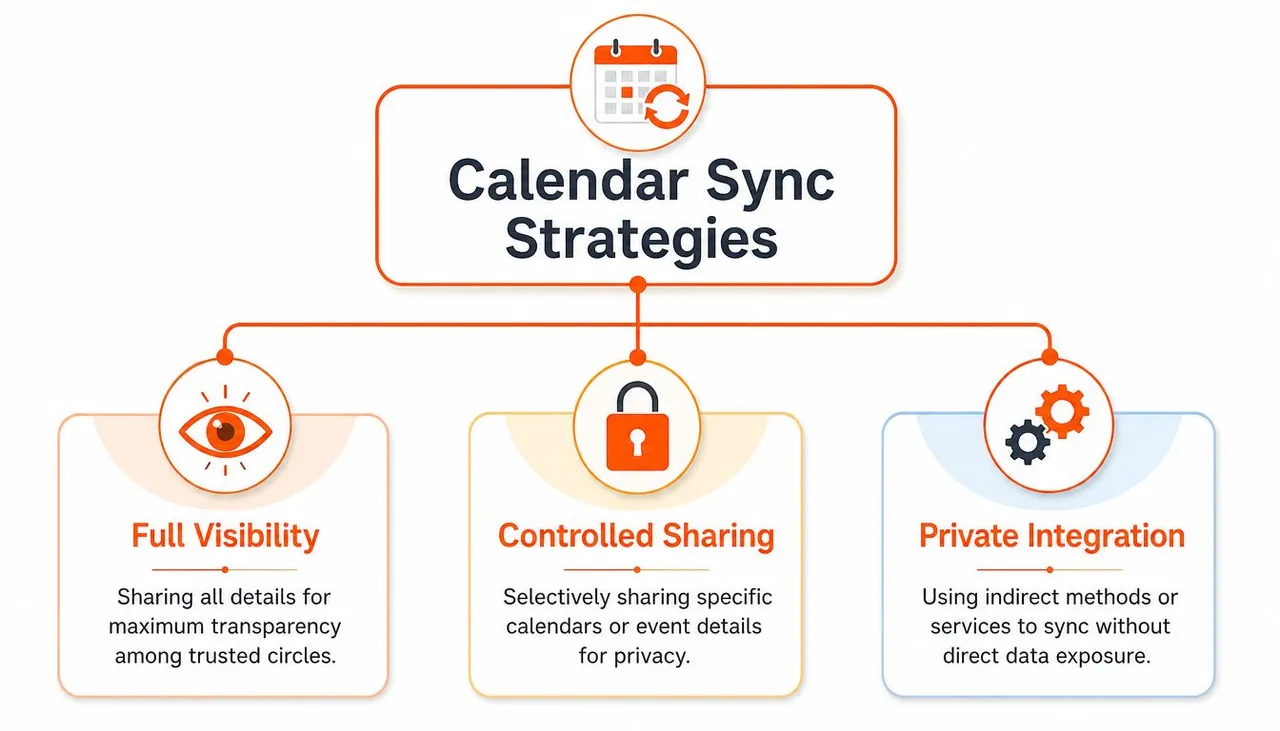
Visibility only
This is the lightest form of sync. You want to see another calendar inside your preferred app so you can plan around it.
That works well for low-stakes scenarios. A shared household calendar. A school calendar. A team events calendar that helps you stay informed. If the copy updates a bit later and you can’t edit from the destination app, that may be fine.
Visibility-only setups are often enough when the calendar is informational rather than operational.
Free busy mirroring
This is the most underrated approach. You don’t want another account to see the details of your private life, but you do want it to respect your availability.
A simple example makes the difference clear. Suppose you have a personal doctor’s appointment on your Google Calendar. Your employer’s Outlook calendar doesn’t need to display the event title, location, and notes. It only needs to show that you’re unavailable during that time. In that case, free/busy mirroring is the right outcome.
Many native methods feel clumsy. They tend to lean toward either sharing too much or doing too little.
When privacy matters, “I can see the event” and “I should see the event details” are not the same thing.
Full event replication
Some workflows need a real copy of events across systems. The title, time, updates, cancellations, and changes all need to stay aligned. This matters when you manage meetings across client accounts, book through multiple schedulers, or operate across Google, Outlook, and iCloud at the same time.
If you’re trying to create seamless scheduling with Google Calendar, this distinction matters because your booking flow only works when your calendars reflect reality.
A quick way to decide:
- Choose visibility-only if you just need awareness.
- Choose free/busy mirroring if privacy matters more than detail.
- Choose full replication if mistakes create real scheduling problems.
If you’re comparing options, this roundup of calendar synchronization apps is a useful starting point because it frames tools by actual use case instead of generic features.
Native Sync Methods and Their Hidden Limits
Native options appeal for one reason. They’re already there. Google Calendar lets you share calendars. Outlook and Apple Calendar can subscribe to feeds. If all you need is basic visibility, that can work. The problem is that most tutorials stop there and ignore how syncing with Google works behind the scenes and how these methods behave in real scheduling situations.
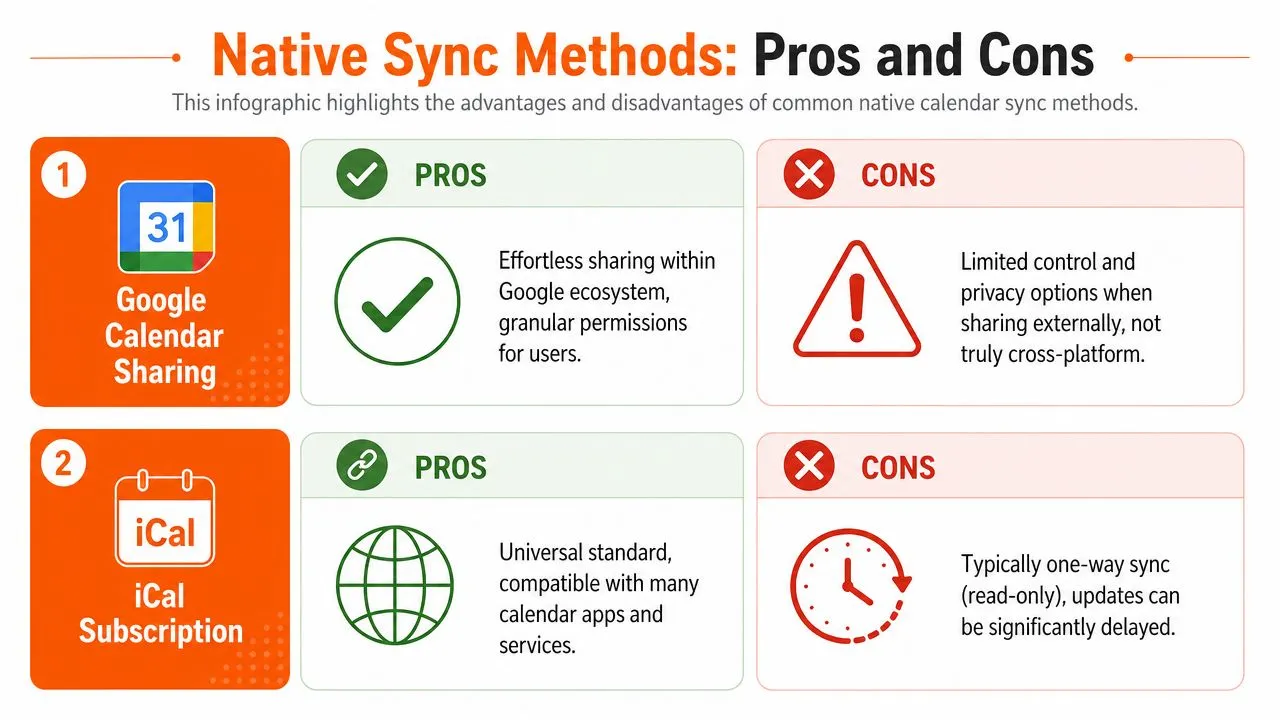
Sharing inside Google works best inside Google
If both calendars live in the Google ecosystem, sharing is straightforward. You can grant someone access, choose a permission level, and let them view events in their own Google Calendar interface. For households, internal team visibility, or secondary Google accounts, this is often the least painful free option.
But it doesn’t solve cross-platform coordination very well. The moment one side depends on Outlook or Apple Calendar as the working calendar, the simplicity starts to disappear. You may be able to view a calendar, but not interact with it the way you need. You also start running into inconsistent behavior around what’s visible and when updates appear.
iCal subscriptions are broad but weak
The public or private iCal subscription route is the classic workaround. You publish one calendar and subscribe to it somewhere else. It sounds universal because many calendar apps support it.
It is also usually one-way and read-only. You’re looking at a copy, not working with a connected system. That distinction matters if you expect edits, cancellations, or last-minute updates to behave predictably.
According to this analysis of delayed calendar sync behavior, Google’s own GWSMO tool can sync with Outlook every 10 minutes, while the more common public iCal subscription method can experience delays of 12+ hours. That’s the kind of gap that turns a “sync” into a stale reference point.
A read-only subscription is fine for context. It’s risky for active scheduling.
The timing issue most people discover too late
In the Google Workspace environment, Google Workspace Sync for Microsoft Outlook syncs calendar data every 10 minutes or immediately after a user creates or receives a meeting invitation. That’s a defined behavior, and it’s useful to know because many people assume all native sync is instant. It isn’t.
Even a 10-minute refresh window can be acceptable for some office setups. It’s a very different experience from an iCal subscription that may lag far longer. If your workflow involves frequent reschedules, schedulers, or multiple booking links, those delays stack up quickly.
Here’s the practical breakdown:
- Google calendar sharing works best for people staying inside Google.
- GWSMO is more structured for Outlook users in the Google Workspace environment.
- iCal subscriptions are broad in compatibility but weak in freshness and control.
If you manage support or operations and need a process-oriented view of consolidating calendars, this guide for support operations managers adds useful context around where manual merging starts to strain.
For anyone specifically juggling Google and Microsoft platforms, this walkthrough on how to sync Google Calendar with Outlook helps clarify which path matches the level of reliability you need.
👉 Our free add one calendar to another tool turns these native methods into an interactive walkthrough for any pair of Google, Outlook and Apple calendars.
Protecting Your Privacy with Advanced Syncing
A lot of calendar advice assumes your only goal is convenience. In practice, privacy is often the bigger issue.
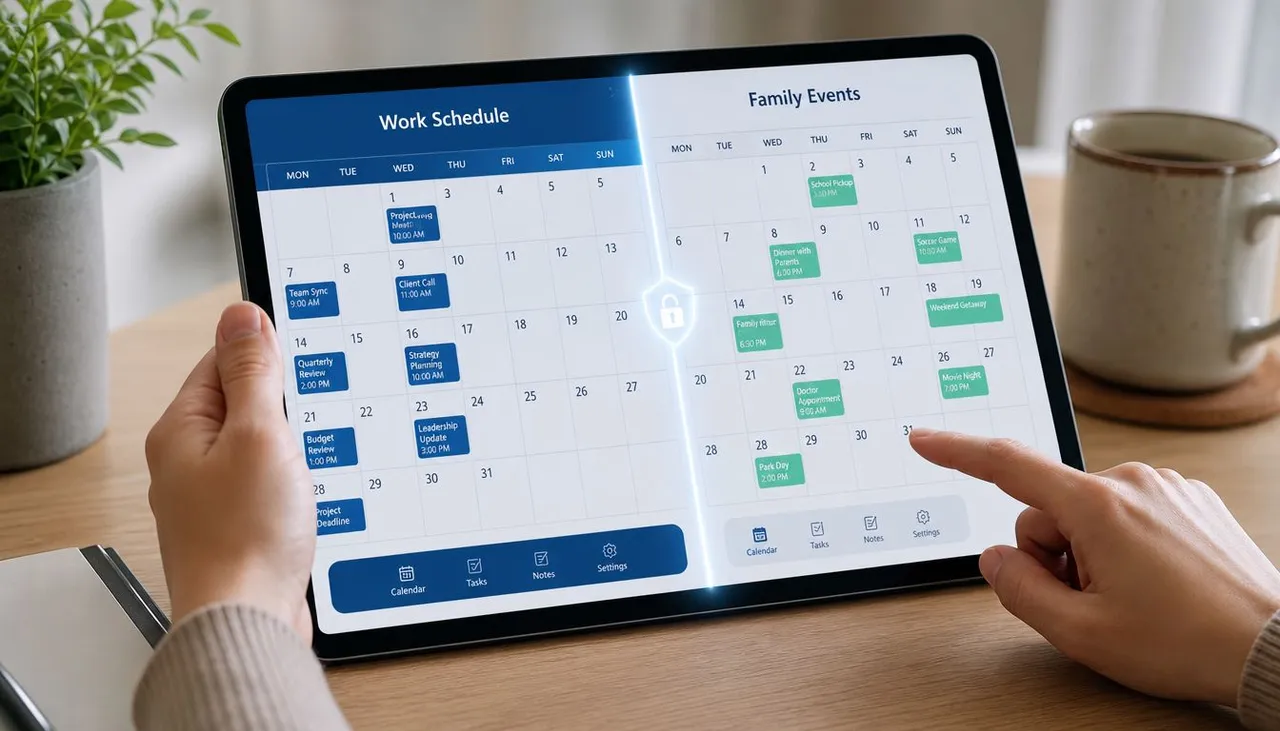
If you freelance, consult, manage multiple roles, or want boundaries between work and personal life, full calendar sharing becomes a bad trade. A client may need to know you’re unavailable on Thursday afternoon. They do not need to see “Kid’s school play,” “therapy session,” or “annual checkup” on the calendar that controls your booking availability.
Why simple sharing falls short
Native sharing usually forces an uncomfortable choice. Either share details, or don’t share enough to make the sync useful. That’s manageable inside a trusted family setup. It becomes a problem when work calendars, client calendars, and personal calendars intersect.
A work account may need to block your availability based on personal commitments. A client-facing calendar may need to stay open only when your primary calendar is clear. Those are privacy-sensitive workflows, and generic subscriptions don’t handle them gracefully.
What field masking solves
The practical answer is field masking or data transformation during sync. Instead of copying an event exactly, the sync copies only what the target calendar needs.
For example:
- Title masking turns “Couples therapy” into “Busy.”
- Description filtering strips private notes before the event is copied.
- Location hiding prevents a destination calendar from exposing where you’ll be.
- Selective rules copy only certain calendars or event types.
That’s how you preserve boundaries without sacrificing availability accuracy.
Private scheduling works when the receiving calendar gets enough information to respect your time, and no more than that.
A better standard for mixed-role professionals
People with one employer and one calendar can sometimes live with broad sharing. Everyone else usually needs more control. Consultants working across client systems, founders balancing investor meetings with family obligations, and sales professionals managing multiple booking surfaces all need a method that supports both coordination and discretion.
The important shift is to stop thinking of sync as simple duplication. In many real workflows, duplication is the wrong outcome. Transformation is the right one. You want one calendar to influence another without exposing the source in full.
If that’s the challenge you’re trying to solve, this guide on filtering events when syncing calendars is worth reading because it focuses on what gets copied, what stays hidden, and how to avoid oversharing by default.
💡 To share availability without exposing event details, build a busy-only link with our free free/busy link builder.
Using a Dedicated Service for Flawless Automation
Once you move beyond casual visibility, native methods start showing their limits. You hit delays. You discover the setup is read-only. You realize privacy controls are too blunt. That’s where a dedicated sync service makes sense, especially if your day depends on calendar accuracy.
What dedicated connectors do differently
Dedicated calendar connectors are built for cross-platform synchronization rather than passive sharing. According to this comparison of Google Calendar sync options, dedicated third-party connectors reduce double-booking incidents by 45% compared to manual ICS exports or native syncing. The same source describes them as real-time, two-way bridges with more granular control than native options.
That difference comes from architecture. Instead of relying on slow subscription refresh cycles, dedicated tools monitor for changes continuously and push those changes across connected calendars in the background. That’s what closes the gap between “I updated an event” and “every calendar now reflects that change.”
What setup should look like
A good dedicated tool shouldn’t require a technical project. The cleanest setups usually follow a simple pattern:
- Connect your accounts. Link Google Calendar, Outlook or Office 365, and iCloud if needed.
- Choose source and destination calendars. Decide which calendars should copy to which others.
- Set direction rules. One-way, two-way, or multi-way depends on your workflow.
- Apply privacy settings. Keep full details, copy limited details, or mirror only busy time.
- Let it run in the background. The system handles future changes automatically.
One practical example
A consultant might keep personal commitments in Google Calendar, receive corporate meetings in Outlook, and coordinate family logistics through iCloud. Native sharing can show pieces of that picture, but it won’t reliably keep all three aligned with the right privacy controls.
A dedicated tool can copy work events into a personal calendar for visibility, block personal events on the work calendar as “Busy,” and keep changes flowing automatically after setup. That’s a very different outcome from maintaining a bundle of subscriptions and hoping they refresh in time.
Here’s a short product walkthrough for that style of setup:
Calendar Sync Method Comparison
| Feature | Native Sync (iCal Subscription) | SyncThemCalendars |
|---|---|---|
| Update model | Polling-based, read-only subscription | Real-time background synchronization |
| Direction | Usually one-way | One-way, two-way, or multi-way |
| Cross-platform use | Broad compatibility, limited behavior | Google Calendar, Outlook/Office 365, and Apple Calendar |
| Editing from destination | No | Depends on sync design, with copied events kept aligned automatically |
| Privacy control | Minimal | Field masking and free/busy mirroring |
| Fit for active scheduling | Weak | Stronger for multi-account coordination |
The key point isn’t that every person needs a dedicated service. Many don’t. But if you rely on your calendar as a live control system for availability, bookings, and commitments across providers, the trade-off changes. At that point, you’re not looking for a way to display another calendar. You’re looking for dependable automation.
Troubleshooting Common Calendar Sync Issues
Calendar sync failures usually look random when you first spot them. A meeting vanishes on one device, shows twice on another, or lands an hour off. The fastest fix is to diagnose the symptom first, then trace it back to the sync method behind it.
Events not appearing
Start with scope, not settings. Check whether the missing event was meant to be visible only, copied over fully, or shown as blocked time for privacy. That distinction matters because different sync setups handle those outcomes differently.
Then check the practical failure points: the destination calendar may be hidden, the source calendar may no longer be shared, or the sync may still be waiting on a refresh cycle. Subscription-based methods are especially prone to delay, so an event can exist correctly at the source and still appear missing for a while.
If you are working with an API-based setup, sync state matters. Google’s incremental synchronization guide explains that clients need an initial full sync and then ongoing incremental syncs based on stored sync tokens. Missed pagination, expired tokens, or poor token storage often lead to gaps that look like random event loss.
Duplicate events
Duplicates almost always come from overlapping rules. I see this when someone subscribes to a calendar for visibility, then also copies that same calendar through another tool, then adds direct sharing on top of both.
Pick one source of truth for each calendar relationship.
If Calendar A should only display on Calendar B, use one visibility method. If Calendar A should replicate into Calendar B as native events, use one replication method. Mixing both creates clutter fast, and cleanup is tedious because edits made in one copy do not always map cleanly back to the original event.
Time zone errors
A meeting shifted by an hour usually points to configuration, not a broken connection. Check the time zone on each account, each device, and each sync rule. Google Calendar, Outlook, Apple Calendar, and third-party sync tools can all interpret time differently if one layer is set incorrectly.
Recurring events deserve extra attention here. A calendar may look correct until daylight saving time changes, then every copied instance starts drifting. Google documents the platform’s event time handling in its Calendar API events resource reference, which is useful if you are troubleshooting a custom or API-driven workflow.
If these problems keep returning, the issue is often the method, not the setup. Native subscriptions are fine for basic visibility, but they are weak for active scheduling across Google, Outlook, and iCloud. SyncThemCalendars gives you tighter control over direction, privacy, and event copying, which reduces the class of errors caused by patchwork syncing.
Ready to sync your calendars?
Keep your Google, Outlook and Apple iCloud calendars in sync automatically. 2-minute setup, no credit card required.
Get started freeKeep reading
More in Tutorials
How to Sync Google and Apple Calendar: Step-by-Step Setup
Sync Google and Apple Calendar with native accounts or a managed tool. Compare one-way and two-way options, follow the steps, and fix common problems.

How to Add Gmail Calendar to Outlook Without Duplicates
See how to add Gmail Calendar to Outlook by subscribing for a live view or using two-way sync, then avoid privacy leaks and duplicate events.

Export Outlook Calendar to Google: A 2026 Step-by-Step Guide
Learn how to export Outlook calendar to Google with clear steps for ICS and CSV imports, recurring-event checks, and verification tips that work in 2026.