







What Is Real Time Sync: Simple Explanation and Key Use Cases
What Is Real Time Sync. Discover what real time sync is, how it works with webhooks and polling, and why it matters for calendars. Clear guide
Real-time sync is the automatic, near-instantaneous transfer of data updates across systems so they stay consistent without manual intervention. In practice, calendar synchronization may range from sub-second or a few seconds to sub-minute delivery, depending on how the systems communicate and process changes.
You create a client meeting in your work calendar, close the app, and assume the time is blocked everywhere. Later, you accept a personal appointment in another calendar, only to discover that both events occupy the same slot. The problem isn’t that either calendar failed to save your event. The problem is that the calendars didn’t share the update quickly or reliably enough.
That distinction explains what real-time sync means. It isn’t just a connection between two accounts. It’s a system that detects a change, transfers the relevant data, applies it in another system, and confirms or records the result with enough speed and accuracy to keep both views trustworthy.
The Double-Booking Nightmare
You add a two-hour project call to your work calendar between client sessions. Your personal calendar still shows the afternoon as open, so you agree to meet a friend at the same time. When the work invitation arrives, you have a conflict that could have been avoided if both calendars had reflected the same availability.
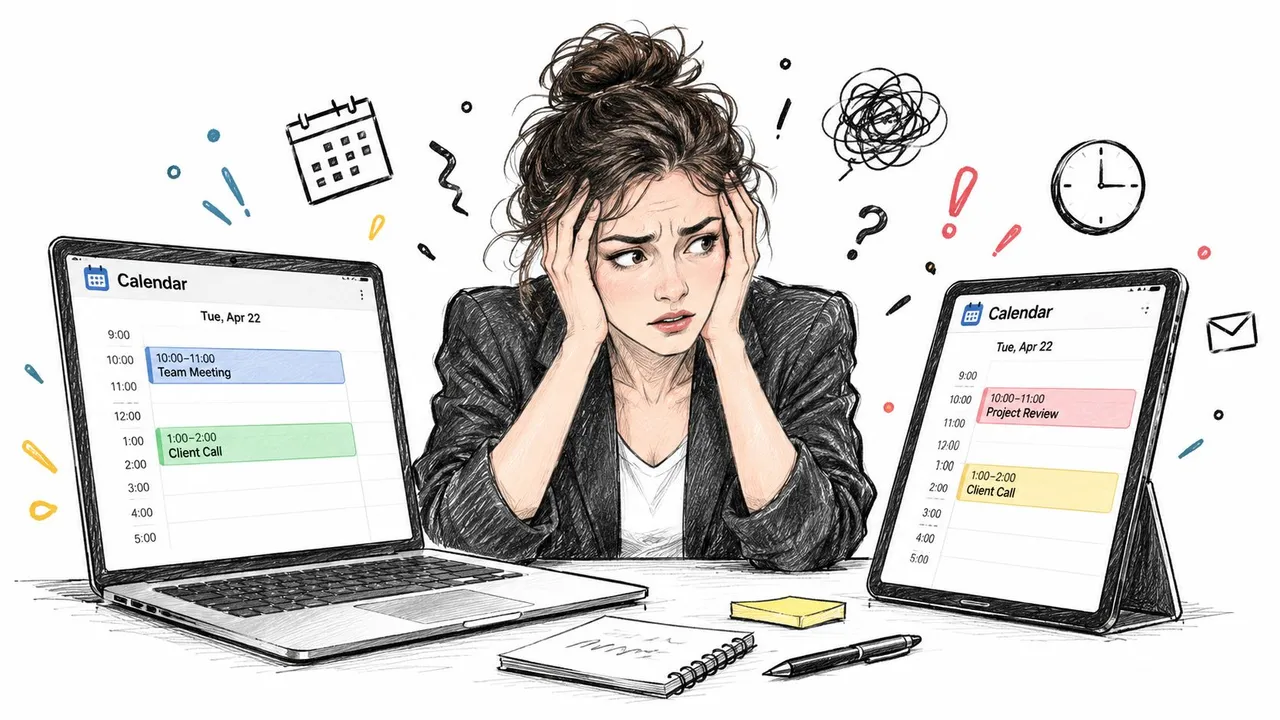
Manual copying creates this risk because every update depends on memory and discipline. You might remember to duplicate a new appointment, but forget when an event moves, gets canceled, or changes from available to busy. A separate device can make the problem worse, especially when work, personal, school, and client calendars belong to different providers.
The simple definition
Real-time synchronization keeps calendars aligned as changes happen. When you create, edit, or delete an event in one connected calendar, the sync service sends that change to the other calendar instead of waiting for you to repeat the action manually.
For a tutor, that might mean a lesson booked through a scheduling tool also blocks time in a personal calendar. Services such as Tutorbase scheduling illustrate why booking workflows and calendar availability need to work together. For a freelancer, a personal appointment can appear as unavailable in a client-facing calendar without exposing its private title or notes.
Calendar sync can be one-way, where one calendar publishes changes to another, or two-way, where edits flow in both directions. A multi-calendar setup can use multiple connected paths, but every added path increases the need for clear ownership and conflict rules.
Practical rule: A calendar is useful only when its availability reflects the commitments that matter, not just the events stored inside that one account.
The benefit isn’t speed for its own sake. It’s fewer scheduling decisions based on stale information. A practical guide to preventing double-booking across calendars can help you map which calendars should block time, which should receive full details, and which should show only free or busy status.
How Real-Time Synchronization Works Under the Hood
A calendar update follows a chain of events. The source system notices a change, an integration receives or requests it, the sync service transforms it to fit the destination, and the destination writes the new event. A delay at any point can make a supposedly connected calendar display old information.
Push uses event notifications
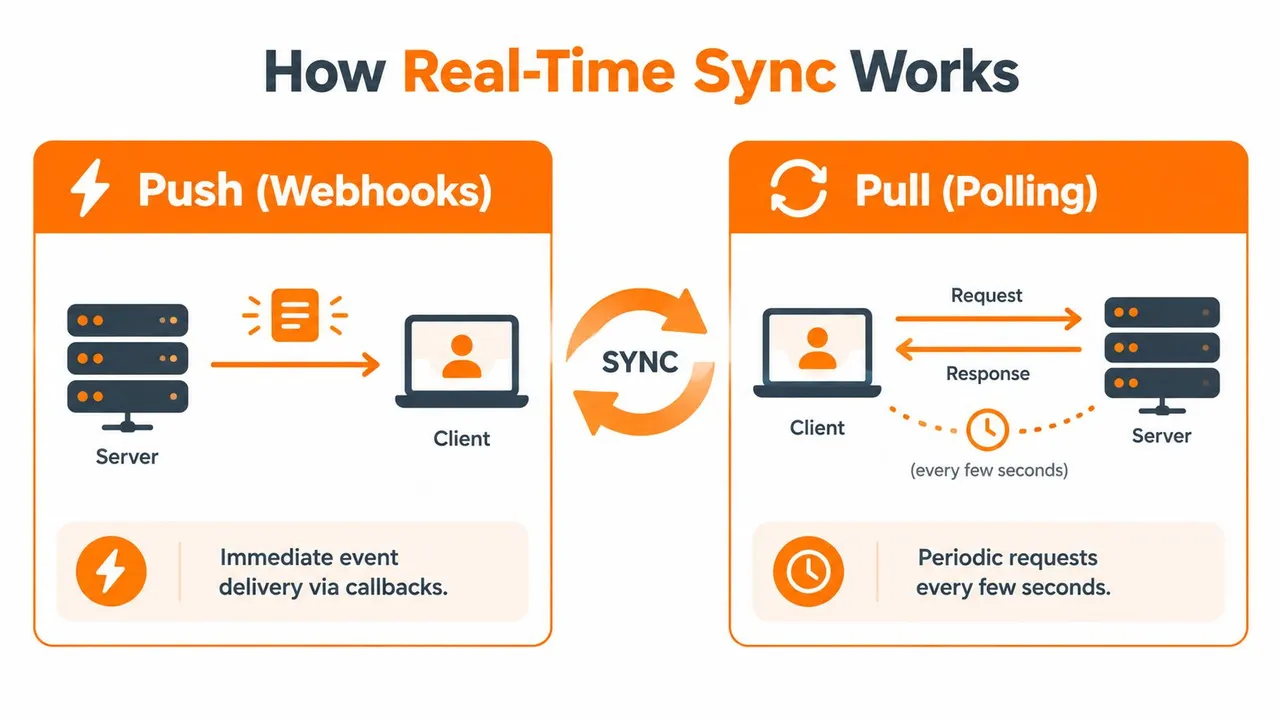
With push synchronization, the source system notifies the sync service when something changes. This often uses a webhook, which is a callback sent to a registered destination. The pattern resembles a phone call: the calendar doesn’t wait for the sync service to ask whether anything happened. It sends a message when an event is created, edited, or removed.
That message may contain the event itself, an event identifier, or a signal telling the sync service to retrieve the latest version. The service then checks permissions, converts fields such as time zone and attendee data, applies privacy rules, and writes the result to the target calendar.
Push usually feels immediate because the transfer starts after the event occurs. It still isn’t magic. Network travel, authentication, serialization, encryption, application processing, and shared-resource contention all contribute to end-to-end latency. As technical guidance on distributed synchronization latency explains, those components accumulate, and cross-region transport can add roughly 30–80 ms round-trip time before application processing begins.
Polling asks repeatedly
With pull synchronization, the sync service checks the source calendar at intervals. Think of sending a text message every few minutes asking, “Anything new?” If the answer is no, the service waits and asks again. If an event changes just after a check, the update won’t be found until the next request.
Polling is simpler when a provider doesn’t offer suitable notifications, and it can provide a useful fallback after a webhook expires or fails. Its weakness is the built-in waiting window. Calendar guidance distinguishes sub-minute sync, 1–5 minute fast sync, and 5–15 minute standard polling, while ICS subscriptions may refresh only every 1–24 hours. These ranges are documented in calendar synchronization guidance on notification and polling methods.
A reliable service often combines both methods. Push handles normal updates, polling verifies state or recovers missed notifications, and logs help operators find failed deliveries. A monitoring implementation described by this engineering overview of a synchronization monitoring API exposes current status, performance metrics, historical logs, row counts, batch statistics, and change-stream status. The principle applies to calendars too: a system should show what synced, when it synced, and whether an error needs attention.
For a practical example of calendar workflows involving shared schedules, see the Vanta Sports sync team schedule guide.
Push vs Polling Choosing Your Sync Strategy
Push and polling solve the same coordination problem differently. Push prioritizes immediacy, while polling prioritizes compatibility and predictable requests. The right choice depends on how quickly a stale calendar becomes harmful, whether the calendar provider supports notifications, and how much operational complexity you can manage.
| Sync Strategy | Latency | Complexity | Best For |
|---|---|---|---|
| Push with webhooks | Near-instant to near-real-time, subject to processing and network delays | Higher, because notifications, retries, authentication, and monitoring must work together | Double-booking prevention, live availability, booking workflows |
| Polling | Depends on the interval, from fast checks to longer refresh windows | Simpler to understand and deploy, but requires repeated requests and recovery logic | Providers without dependable webhooks, verification, and fallback checks |
| Hybrid push and polling | Push for normal updates, polling for verification or recovery | Moderate to high, because both paths need coordination | Services that need fast updates and resilience when notifications fail |
Match the method to the consequence
A calendar used to prevent bookings should favor a push-capable or hybrid design. If an appointment can be accepted while another system still shows free time, even a short delay may matter. A calendar used for occasional reference may tolerate polling, particularly when users don’t make decisions from it immediately.
Event frequency matters too. A busy booking system can generate frequent changes, so an integration must handle duplicate notifications, updates arriving out of order, and temporary provider errors. A lightly used personal calendar may place less pressure on the infrastructure, but it still needs correct deletion and edit handling.
Ask what “real time” means for you
People often use “real time” to mean anything from tens or hundreds of milliseconds to a few seconds, but the acceptable window varies by product and context, as this explanation of real-time synchronization expectations notes. For calendar users, the useful question is not whether a vendor uses the label. Ask whether a newly created event reaches the target before another person relies on that target’s availability.
You should also inspect the failure behavior. Does the service retry a rejected update? Does it preserve an error log? Can it reconcile after a device loses connectivity? Fast delivery without recovery can leave two calendars looking consistent until one misses a change without notice.
For provider-specific behavior, review how often each calendar checks for updates in this guide to Google Calendar synchronization frequency. The answer should shape your expectations before you choose a workflow.
Privacy and Security in Synchronized Calendars
Synchronization copies information, but it doesn’t have to copy every detail. A work calendar may need to know that you’re unavailable during a personal appointment, while your colleagues don’t need to see the appointment title, location, or description.
That makes data transformation a central part of secure calendar sync. The service can convert a detailed event into a generic busy block, mask the title, remove notes, or leave out the location. The target calendar then protects availability without becoming a second copy of private content.
Separate availability from event content
Consider a medical appointment in a personal calendar. A professional calendar may need to block the time so clients can’t book over it. It doesn’t need the diagnosis, provider name, or appointment notes. A privacy-aware rule would send only the minimum information required to reserve the time.
The same principle works in the other direction. A client meeting can appear in a personal calendar with a useful label, while sensitive project details remain visible only in the work system. You can define different rules for each direction instead of treating every calendar as equally trusted.
Before granting access, check the permission scope. A sync service may need to read events, create copies, update copies, and remove copies. Those permissions should match the workflow. A one-way availability mirror shouldn’t automatically receive more authority than necessary.
Security includes correctness
Privacy isn’t the only concern. A sync service must also protect against silent data loss and incorrect conflict resolution. If two calendars edit the same event at nearly the same time, the system needs a rule for deciding which fields to keep, whether to merge changes, and how to surface an unresolved conflict.
Some implementations rely on last-write-wins, which can overwrite an earlier change that still mattered. A recent discussion of conflict handling in real-time data synchronization highlights why speed alone isn’t enough. Users trust a synchronized calendar only when it handles simultaneous edits, outages, and recovery visibly.
Use calendar sharing permissions to review who can see event details and who can only see availability. Then test an event with a private title, a changed location, and a cancellation. A secure setup should preserve the intended privacy boundary through each action, not just during initial creation.
Security check: Ask which fields cross the boundary, which permissions make that possible, and what the service does when two sources change the same event.
Real-World Use Cases Across Professions
A founder managing several ventures may keep a separate calendar for each company, plus a personal account. A one-way flow from each business calendar into a private availability view can prevent personal commitments from colliding with investor calls without merging every business detail into one place.
A two-way setup can make sense when the founder edits meetings from more than one account. The important decision is ownership. If the same event can be changed everywhere, the system needs stable identifiers and clear handling for edits, cancellations, and duplicate copies.
Client work creates overlapping obligations
A freelance designer may receive invitations through one client’s Microsoft Outlook calendar, manage projects in Google Calendar, and reserve personal time in Apple Calendar. A free/busy mirror can block client-facing availability when the designer has a private commitment, while field masking keeps personal information out of the client view.
A consultant with recurring appointments faces a different risk. Moving an event in one calendar should move the corresponding copy, rather than create a second event at the new time. The sync design should preserve the relationship between source and target copies, so later edits continue to affect the correct event.
Sales teams need current availability
A sales representative may schedule across territory calendars, account-specific calendars, and a team booking page. One-way synchronization can publish busy periods from private sources into a shared availability calendar. Two-way synchronization may be appropriate when coordinators reschedule meetings on behalf of representatives.
The workflow should distinguish between visibility and control. A colleague may need to know that a salesperson is unavailable, but not be allowed to edit the underlying personal appointment. Separating those permissions reduces accidental changes while still giving the team usable scheduling information.
Students balance fixed and flexible time
A student can combine an institutional calendar, a study schedule, and personal commitments. A one-way academic feed into a planning calendar can reserve lecture and exam times. A reverse flow may be unnecessary if the institutional calendar is the authoritative source.
The same pattern helps researchers, tutors, and part-time workers. Sync isn’t a single setting that works for everyone. It depends on whether a calendar is the source of truth, a destination for visibility, or a shared workspace where multiple people can make changes.
The strongest setup mirrors the minimum information needed for a decision, not every piece of information stored in the source calendar.
Selecting and Configuring Your Sync Solution
Start with the calendars you actually use, not the features listed on a product page. Write down each provider, the account owner, the calendar’s purpose, and whether it should send changes, receive changes, or do both.
Then work through the configuration in a deliberate order.
-
Confirm compatibility. Check that the service supports the providers and account types in your workflow. SyncThemCalendars supports Google Calendar, Microsoft Outlook or Office 365, and Apple Calendar through iCloud, with one-way, two-way, and multi-way event copying.
-
Choose the direction. Mark each connection as source-to-target, target-to-source, or bidirectional. If a calendar only publishes availability, one-way sync may reduce conflicts. If several people reschedule the same meetings, two-way sync may fit better, but it demands stronger conflict handling.
-
Define the privacy transformation. Decide whether the target should receive full event details, a shortened title, a masked description, or only free/busy status. Don’t grant broad visibility just because the integration can copy more fields.
-
Test lifecycle changes. Create a test event, edit its time, change its title, move its location, and delete it. Verify each result in the destination. Test from every direction you plan to enable, because a connection that handles creation correctly may still mishandle cancellation or edits.
-
Inspect monitoring and recovery. Look for sync status, error messages, retry behavior, and a record of recent changes. A service should give you a way to distinguish “nothing changed” from “the update failed.”
-
Review access and retention. Read the permission request and privacy policy. Check how the service processes event data, which details it stores, and how you can disconnect accounts or remove synchronized copies.
Make expectations explicit
A solution can advertise real-time operation while still depending on provider notifications, background processing, and network availability. Ask how quickly changes normally appear, what happens when a notification is missed, and whether the service performs reconciliation later.
Also consider the human workflow. A technically powerful system becomes difficult to trust if users can’t tell which calendar owns an event or why a copy appeared. Use consistent naming, clear source labels, and a small test group before connecting every calendar.
Finally, record the intended configuration. Note which calendars are authoritative, which fields are masked, and which directions are enabled. That simple reference prevents someone from “fixing” a perceived problem by adding a second sync path that creates duplicates.
SyncThemCalendars synchronizes events across Google Calendar, Microsoft Outlook or Office 365, and Apple Calendar through iCloud, with one-way, two-way, or multi-way configurations and privacy controls such as free/busy mirroring and field masking. Visit SyncThemCalendars to review the available calendar connections and set up a workflow designed to keep availability aligned without exposing unnecessary event details.
Ready to sync your calendars?
Keep your Google, Outlook and Apple iCloud calendars in sync automatically. 2-minute setup, no credit card required.
Get started freeKeep reading
More in Guides
Why Is My Calendar Not Syncing? Causes and Fixes
Why is my calendar not syncing? Diagnose Google, Outlook and Apple Calendar sync problems by symptom, then apply the fix that matches your cause.

Synchronize Apple Calendar with Outlook: A 2026 Guide
Step-by-step guide: Synchronize Apple Calendar with Outlook on Windows, iPhone and Mac, with two-way options, privacy trade-offs and fixes.

SyncThemCalendars Quick Setup Walkthrough
Master the SyncThemCalendars quick setup in minutes. Connect Google, Outlook, or iCloud, configure privacy masking, and verify your first sync effortlessly.