







How Often Does Google Calendar Sync in 2026
How Often Does Google Calendar Sync. Learn how often Google Calendar syncs in 2026, what affects push vs. feed-based sync speed, and tips
At 8:47 a.m., a project manager sees a message saying the daily stand-up moved. A teammate made the change two minutes ago, but the event still isn’t visible on the manager’s phone. Refreshing the app doesn’t help, and the obvious question follows: how often does Google Calendar sync?
The answer depends on which calendar is changing, where that change is going, and which connection carries it. Google Calendar doesn’t use one universal timer. Native Google events can move through a near-immediate push channel, while an external calendar subscription may wait for a scheduled refresh. A third-party bridge follows a different process again.
That distinction matters. A missing event on your phone after editing Google Calendar is a different problem from a shared iCloud or .ics calendar that hasn’t updated. The sections below separate the four practical sync paths, so you can identify the one behind your setup and set a realistic expectation.
Why Your Calendar Sometimes Feels Stuck
The project manager’s phone isn’t necessarily broken. If the teammate edited a native Google Calendar event, Google’s servers may already have the new version, while the phone is waiting for its notification channel to wake up. If the event belongs to an imported calendar feed, the phone may be displaying exactly what Google last received, even though the original calendar has changed.
That is why two people can ask the same question and need completely different answers. “I changed an event on my laptop and my phone doesn’t show it” usually points to a device, account, app, or background-sync issue. “Someone shared a new calendar with me and nothing arrived” may involve permissions, an invitation, or a feed that refreshes on a schedule.
Google Calendar acts as both an application and a calendar data hub. In the first role, it stores events and distributes changes across Google clients. In the second, it may receive information from Outlook, iCloud, an Exchange environment, an .ics URL, or an integration service. Those systems don’t all send updates in the same way.
Practical rule: Before troubleshooting the app, identify the calendar that owns the event. The owner determines the sync path.
A useful way to diagnose the delay is to trace the event in one direction:
- Created in Google Calendar, then missing on another Google device: The native Google path or the device’s background connection may be delayed.
- Created in Outlook or iCloud, then missing in Google Calendar: Google may be waiting for an external feed refresh.
- Created in a scheduling platform, then visible in Google Calendar: The source platform and Google’s subscription process both affect timing.
- Copied between separate accounts by an integration: The bridge has its own delivery and processing cycle.
The practical guidance from CalendarBridge’s explanation of calendar synchronization is that Google Calendar and Outlook sources can use push notifications, with changes typically propagating within about a minute, while iCloud and .ics URL sources generally refresh every 5 to 10 minutes. The same reference also describes older Google feed behavior that could take from several hours to as much as 8 or 12 hours for some subscriptions.
So the short answer is simple but conditional: Google Calendar can sync almost immediately for native events, but external subscriptions may update only at intervals measured in minutes or hours. The first task isn’t forcing a refresh. It’s finding the pipeline.
The Three Hidden Sync Paths Inside Google Calendar
Think of calendar synchronization as different delivery systems. A push channel works like an instant message. The server notices a change and sends a small notification to the connected app. A scheduled check resembles a postal route, where the app wakes at an interval and asks whether anything changed. A subscription feed is more like a magazine subscription, where Google periodically fetches the latest issue from a web address.
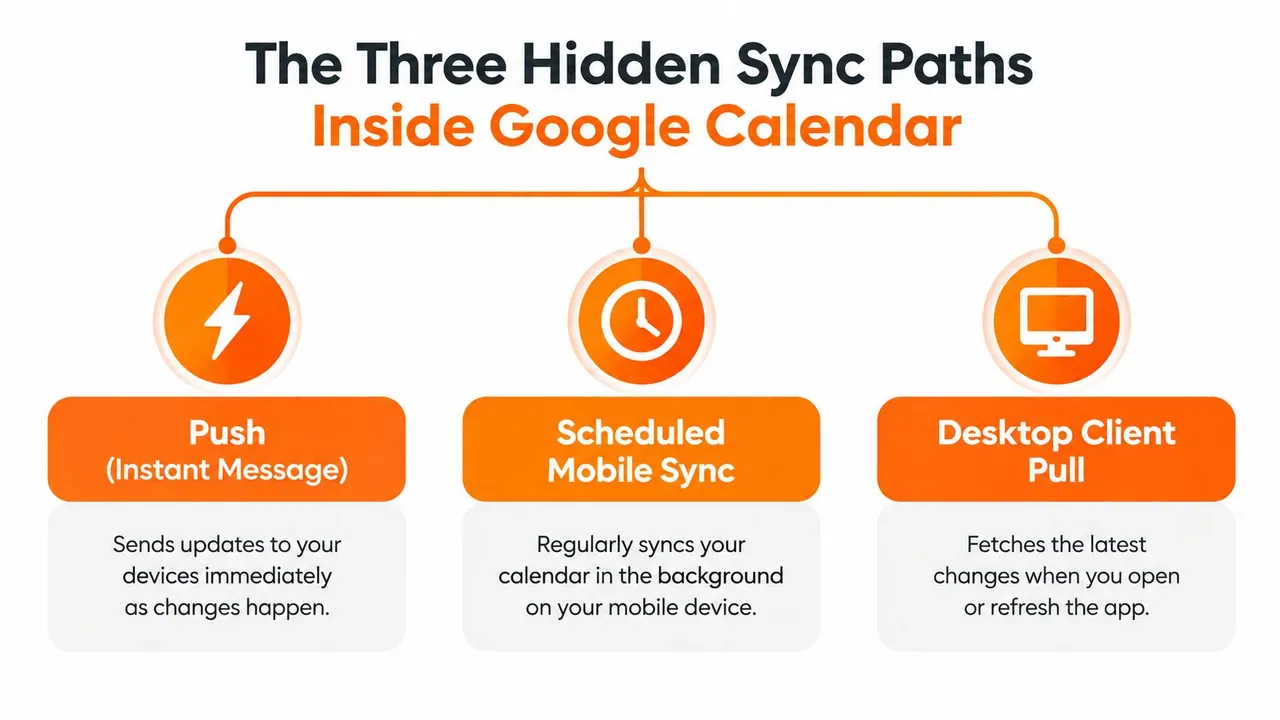
Push delivery
Native push is the fast path. You create or edit an event in Google Calendar, Google’s service records the change, and a connected mobile app receives a notification that tells it to fetch the updated data. The notification isn’t the whole event. It acts more like a doorbell, prompting the app to collect the current version.
This path is common when Google Calendar is the source and the receiving app has permission to run background notifications. It can feel immediate because the device doesn’t need to repeatedly inspect the entire calendar.
Scheduled checking
A client using scheduled synchronization checks periodically instead of maintaining a continuously active delivery path. Desktop software, older clients, and certain account connections may wait for the next scheduled check before displaying a new event. The interval can vary by application and administrator settings, so users shouldn’t assume every client checks at the same pace.
Google Workspace documentation describes some official Google-to-Outlook workflows as synchronizing every 10 minutes, or immediately after a meeting invitation is created or received, as summarized by AddEvent’s documentation on subscription calendar update frequency. That is much faster than older feed-based behavior, but it still isn’t identical to an always-on push channel.
Subscription polling
A subscribed external calendar works differently. Google stores the subscription address and fetches its contents when Google’s polling system decides to check. Until that fetch occurs, Google may continue showing the previous version.
This path commonly affects iCloud calendars, .ics URLs, and one-way feeds. The source calendar can be completely up to date while Google remains behind because Google hasn’t requested the latest file yet. Workspace administrators may control some synchronization settings, but they can’t turn every external feed into a native push connection.
When Google Is the Source Versus the Destination
Direction changes the answer more than the word “sync” suggests. When Google Calendar is the source, Google already knows about the edit. A change made on the Google Calendar website can be distributed to signed-in Google clients through native services, subject to device and notification settings.
When Google Calendar is the destination, Google has to wait for another system to provide the change. An Outlook, iCloud, Exchange, or corporate calendar may publish an external feed, or a bridge may monitor that system and copy the event. Google can’t display an update it hasn’t received.
That explains why a user may see a new event instantly in Outlook but wait much longer for it to appear in a Google subscription. The delay isn’t necessarily caused by the Google Calendar app. It may be caused by the destination’s polling design.
| Sync direction | Typical behavior | Mechanism |
|---|---|---|
| Google Calendar to connected Google clients | Near-immediate for native changes | Push notification and server update |
| Google or Outlook source through a supported workflow | Scheduled or event-triggered | Workspace synchronization process |
| External feed into Google Calendar | Interval-based and potentially slow | Subscription polling |
| Separate calendars connected by a bridge | Depends on the bridge and source permissions | Third-party monitoring and event copying |
For external subscriptions, SyncDate’s Google Calendar sync guide describes refresh windows of about 12 to 24 hours for some ICS subscriptions, while older guidance has described intervals ranging from every few hours to 8 or 12 hours. That variation is why a feed can look healthy during one test and unusably slow during another.
The same directional issue appears when people connect a Gmail account to another scheduling environment. A calendar synchronization guide for Gmail can help explain the account relationship, but the essential diagnostic question remains: which system owns the event, and which system is waiting to retrieve it?
Sync Behavior by Device and Client
Your device changes the last leg of the journey. Even when Google’s servers have the newest event, the receiving client may wait for a background notification, a scheduled check, or the operating system’s permission to run.
| Client | Sync path | Typical refresh window |
|---|---|---|
| Google Calendar on the web | Server-backed update and browser refresh | Usually near immediate when the page is active |
| Android Google Calendar | Push notification with background app access | Near immediate when background activity is allowed |
| Google Calendar on iOS | Push notification plus iOS background behavior | Can vary with system settings and background access |
| Outlook or Apple Calendar connected to Google | Client-specific account synchronization | Depends on the client and account connection |
| Desktop CalDAV or Thunderbird | Scheduled client polling | Often slower than native Google clients |
External .ics subscription | Google or client polling the feed | Usually interval-based rather than continuous |
The web version is easiest to misread. If you’re watching a browser tab where the calendar is already open, a server update may appear quickly. If the page has been inactive, the browser may need to refresh its view before it shows the event.
Android generally provides a direct experience with Google Calendar because the app and Google account operate within the same ecosystem. However, background restrictions can delay the notification. iOS adds Apple’s own notification and background-management rules, so the Google Calendar app may not refresh at the same moment as an Android device.
Desktop applications introduce another layer. A CalDAV-based client or an Outlook plug-in may check its account on a schedule rather than wait for every native Google notification. If the client is configured to poll infrequently, repeatedly refreshing the Google Calendar website won’t change the desktop program’s own behavior.
The screen you’re looking at may be current, while the account connection behind another screen is still waiting for its next check.
For a clean test, compare the same event in three places: Google Calendar on the web, the native mobile app, and the external client. If the web version is current but the mobile app isn’t, focus on the device. If the web version is also stale, inspect the event’s source calendar and subscription type before changing phone settings.
What Actually Slows Sync Down
Two identical phones can show different calendar behavior because their operating systems aren’t managing them identically. One may permit background activity, while the other may restrict it to protect battery life. A managed work profile can add another policy layer that the user doesn’t see.
Device and connection limits
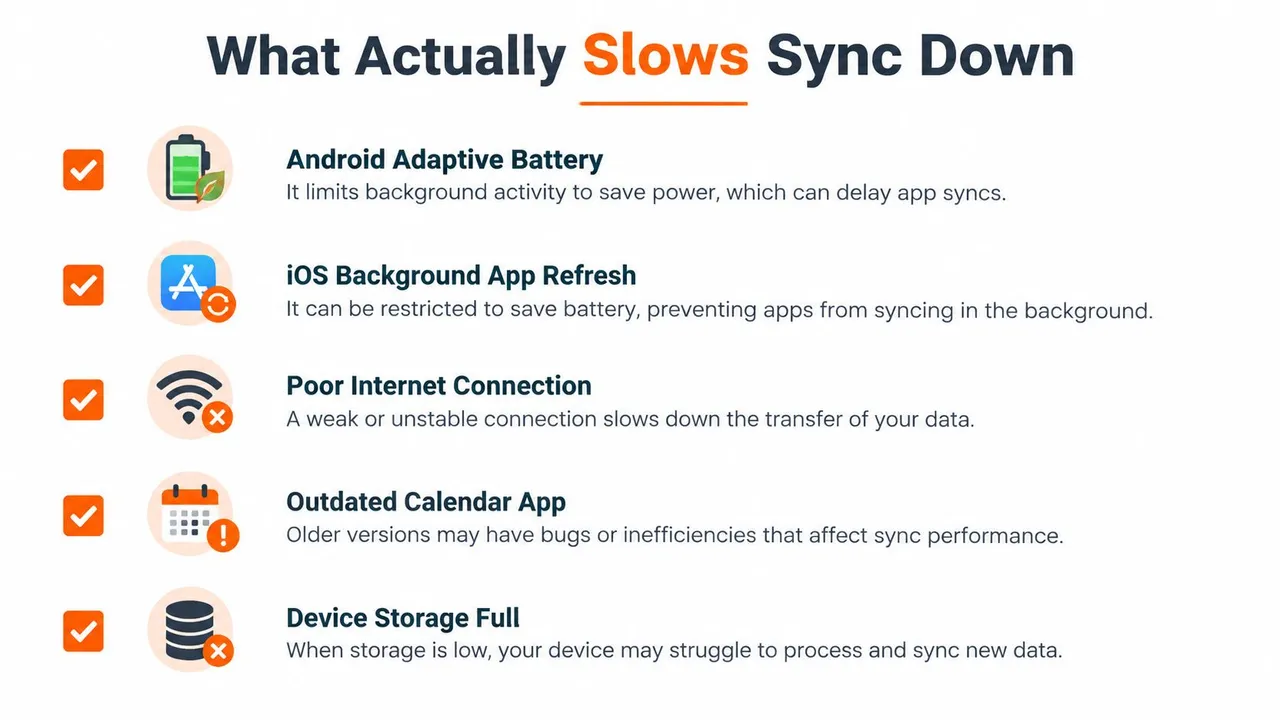
Battery-saving features can pause or delay background work. Android battery optimization, manufacturer-specific power controls, iOS Low Power Mode, restricted background data, and metered connections can all reduce how often an app checks for changes. Poor connectivity creates a similar effect, especially when the device receives a notification but can’t complete the follow-up request.
The checklist below helps separate a local delay from a calendar-source delay:
- Battery controls: Review power-saving settings that limit Google Calendar’s background activity.
- Background access: Confirm that Calendar can use background data and notifications.
- Network path: Test the device on a reliable connection rather than assuming every refresh failure is an account problem.
- Application state: An outdated or stalled app can fail to process a notification even when the server is current.
- Device capacity: Very limited available storage or aggressive system cleanup can interfere with normal app behavior.
Calendar and organization complexity
A large calendar with many recurring events or multiple subscribed feeds can require more work during scheduled updates. That doesn’t automatically mean it will fail, but it can make delayed paths feel less predictable because the client has more data to compare.
Company-managed devices add constraints that personal phones don’t have. Administrators may block background synchronization, require traffic to pass through a proxy, or apply certificates and account policies. If colleagues on personal devices see updates while everyone on a managed device does not, involve the organization’s IT administrator.
Outages and partial service incidents can also affect synchronization. Check whether the problem affects one event, one account, one client, or every calendar view. For troubleshooting methods that focus on account connections and client behavior, this guide to calendar sync issues is a useful reference.
How to Force a Faster Refresh
Start with the least disruptive action and test after each step. If the event appears, stop. Changing several settings at once makes it harder to know what fixed the problem.
-
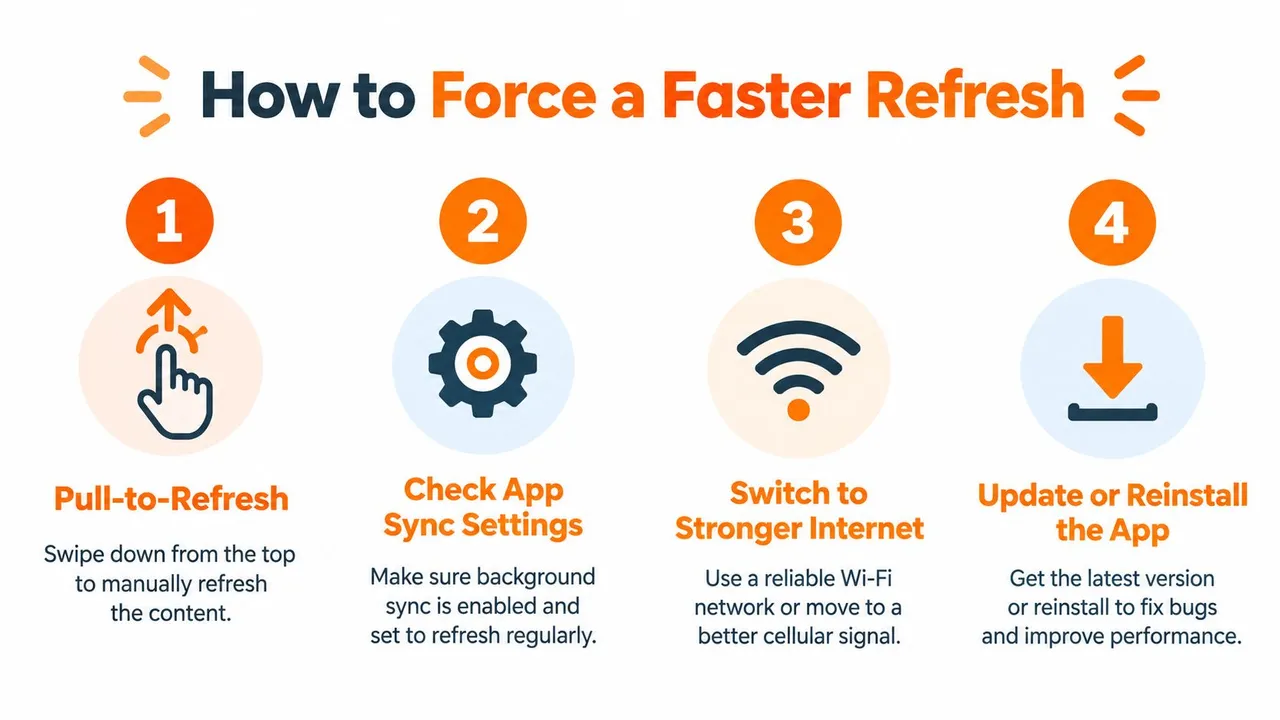
Refresh the current view. On mobile, use pull-to-refresh if the app supports it. In a browser, reload the Google Calendar page. This forces the visible client to request current data, but it won’t make an external source publish a new feed sooner.
-
Check the account and calendar selection. Confirm that the device is signed into the expected Google account and that the relevant calendar is visible. A hidden calendar can look exactly like a missing sync.
-
Allow background activity. On Android, review battery optimization for Google Calendar and permit background use where the device offers that control. On iOS, check Calendar notifications, background app access, mobile data permissions, and Low Power Mode.
-
Reopen the application. Force-close and reopen Google Calendar. This can make the app establish its notification and account connection again, which helps when the local client has become stuck.
-
Try a stronger connection. Move from a weak mobile signal to dependable Wi-Fi, or test mobile data if the current Wi-Fi network is filtering background traffic. Corporate networks can behave differently from home networks.
-
Reset a desktop account connection. For a CalDAV client, remove and add the account again if you can safely do so. This makes the client obtain a fresh account configuration and restart its polling cycle.
-
Treat subscriptions separately. If the calendar is an
.icsor webcal subscription, changing phone settings won’t eliminate Google’s feed refresh window. Re-subscribing may help when the subscription itself is stale, but it can’t guarantee native push behavior. -
Use account reset as a last resort. Sign out and back in only after confirming that events are stored on the server. On Android, clearing an app cache may help, but avoid deleting local data before checking that important events have synchronized elsewhere.
This short video provides a visual walkthrough of common refresh checks:
If a native Google event appears on the web but not on the phone, continue with device permissions. If the event is missing on the web too and comes from an external feed, wait-time expectations belong to the subscription path, not the mobile app.
When a Dedicated Sync Service Makes Sense
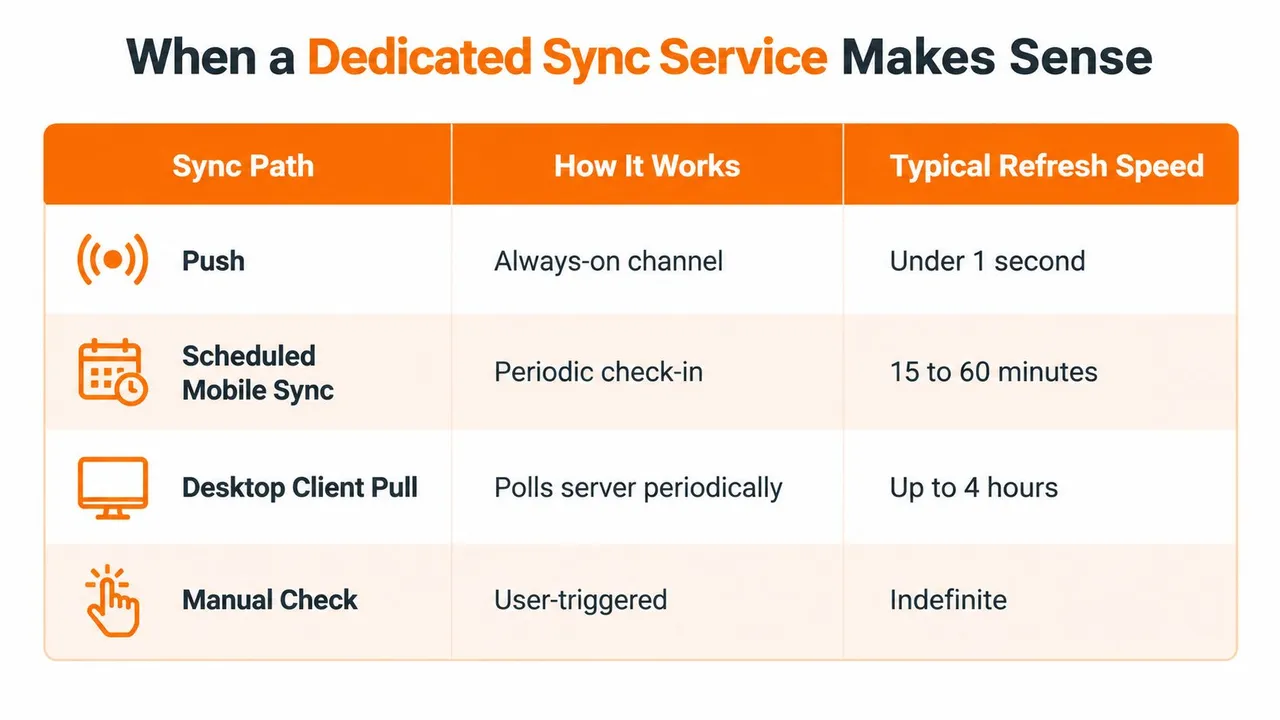
The four paths create different limits. Native push is designed for rapid propagation. Scheduled clients wait for their next check. Subscription polling depends on the source file being fetched. A third-party bridge sits between calendars and can monitor external systems instead of asking Google to repeatedly poll a feed.
That last distinction is important. If the problem is a slow Google-to-phone connection, a service designed to copy calendars won’t necessarily help. If the problem is that Google receives an external subscription only after a long polling interval, refreshing the phone more aggressively won’t solve the source-to-Google delay either.
Use built-in sharing when the requirement is simple
Google’s native sharing tools are often sufficient for a read-only public calendar, a personal one-way feed, or a situation where occasional delays don’t affect decisions. They also make sense when one calendar is clearly the source of truth and nobody needs to edit copied events from another platform.
A dedicated service becomes more relevant when the calendars belong to different ecosystems and availability needs to move in more than one direction. SyncThemCalendars describes support for Google Calendar, Microsoft Outlook or Office 365, and Apple Calendar through one-way, two-way, or multi-way event synchronization. It also offers free/busy mirroring and privacy controls that can mask or transform copied event details, according to the publisher information provided for this article.
Match the tool to the bottleneck
Ask these questions before adding another service:
- Is the source external? If the event starts in Outlook, iCloud, or another scheduling system, native Google push may not apply.
- Do people need edits in both directions? A read-only feed won’t meet a requirement for cross-platform changes.
- Does availability need to stay aligned quickly? If delayed updates create booking conflicts, interval-based polling may be the wrong architecture.
- Is privacy important? Free/busy mirroring or field masking can be preferable to copying full event descriptions.
For a broader explanation of the difference between native updates and cross-platform bridges, see this guide to real-time calendar synchronization. The decision rule is straightforward: use built-in sharing for simple visibility, troubleshoot the device for native Google delays, and consider a dedicated bridge when an external source, two-way editing, or timely availability is the actual constraint.
If your Google, Outlook, and Apple calendars need coordinated availability instead of slow feed polling, SyncThemCalendars offers one-way, two-way, and multi-way event synchronization with background operation and privacy controls. Visit the service to compare its cross-platform sync options with your current calendar setup and choose the connection that matches the delay you can accept.
Ready to sync your calendars?
Keep your Google, Outlook and Apple iCloud calendars in sync automatically. 2-minute setup, no credit card required.
Get started freeKeep reading
More in Guides

SyncThemCalendars Quick Setup Walkthrough
Master the SyncThemCalendars quick setup in minutes. Connect Google, Outlook, or iCloud, configure privacy masking, and verify your first sync effortlessly.

Merging Google Calendars: The Complete Guide for 2026
Merging Google Calendars. Learn the best ways to merge Google Calendars. Compare import methods, sync tools, and automation strategies

Master Your Calendar on Outlook with Sync Solutions
Learn how to use calendar on Outlook effectively, sync with Google and iCloud, avoid double-bookings, and connect SyncThemCalendars for seamless scheduling.