







Prevent Double Booking Calendar: Essential Tips for 2026
Learn how to prevent double booking calendar conflicts with smart scheduling tools and best practices for a seamless workflow in 2026.
You accept a client call from your phone, add a personal appointment later, and trust your booking page to keep everything aligned. Then two notifications arrive for the same slot. The problem usually isn’t carelessness. It’s that Google Calendar, Microsoft Outlook, Apple iCloud, an assistant, and a scheduling tool each hold a slightly different version of your availability.
A reliable prevent double booking calendar setup needs more than an enabled sync toggle. It needs one availability model, clearly defined write permissions, deliberate booking routes, privacy controls, and a test that proves an occupied slot gets blocked before another person can claim it.
Why Double Bookings Keep Happening
A client books through Outlook while a freelancer’s personal appointment remains visible only in Google Calendar. Both accounts look accurate on their own, yet the scheduling tool sees an open slot and confirms a second meeting. The conflict appears at the handoff between calendars, not in either calendar’s individual view.
Fragmented workflows create this exposure. Employees average 17.1 meetings per week and spend 3.0 hours managing meetings, according to the IETF summary of the Smart Meetings Trends Report. The same report says 37% of meetings are affected by cancellations or rescheduling, while 82.5% of respondents had missed or moved a meeting because another meeting overlapped on the calendar. These figures describe an operating failure, not a minor display problem.
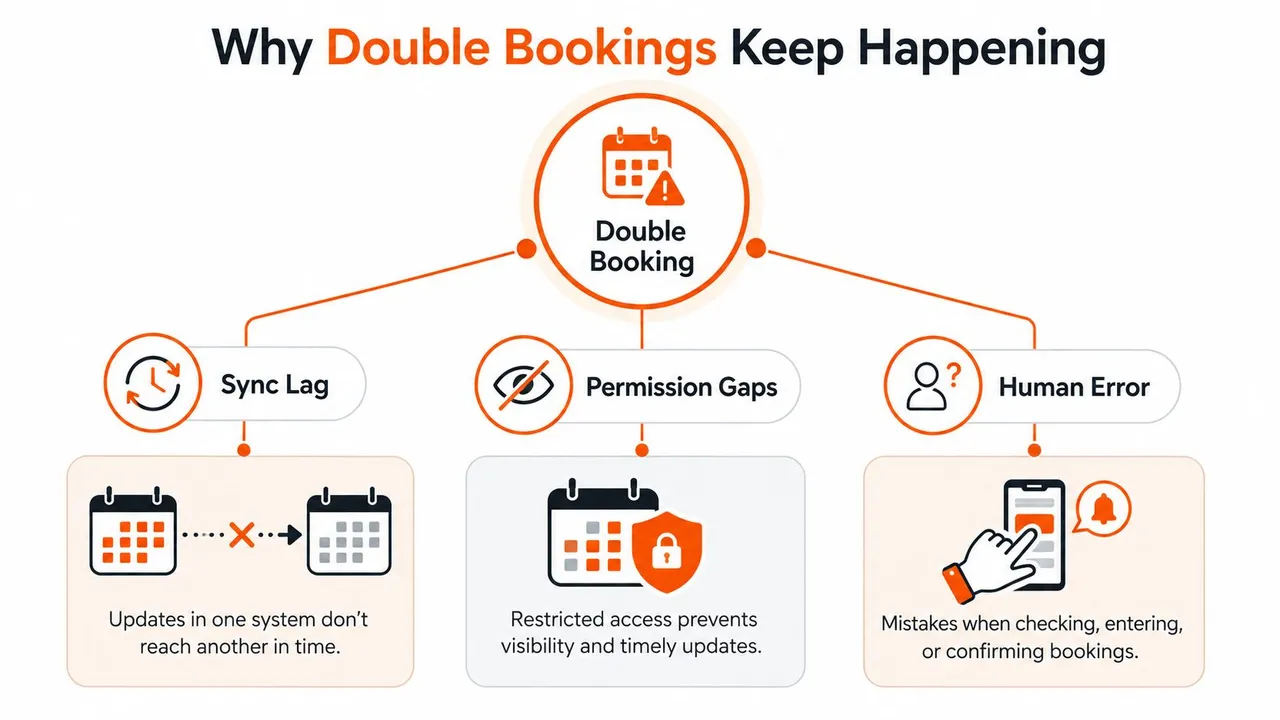
The three failure layers
Calendar fragmentation leaves each account with only part of the schedule. Google Calendar may contain personal appointments, Outlook may hold client work, and iCloud may store events added from an iPhone.
Sync latency opens a second gap. A new event can remain invisible to another calendar while a scheduler checks availability, accepts a request, and writes the booking through separate systems. The delay may be brief, but that is enough for an overlapping reservation.
Permission gaps complete the failure. A connected account might expose limited free/busy data, omit a sub-calendar, or let an application write events without reading every calendar that should block the time. A “connected” label does not prove that the conflict-check path is complete.
Hard overlap prevention depends on sync rules, invite routing, and a mock-booking test. Buffers, focus blocks, and permission reviews support that control, but they do not replace it. Use calendar synchronization guidance to verify how each system handles updates and delays.
Practical rule: Treat every active calendar as one availability surface. Sync provides transport. Routing, permissions, buffers, and verification determine whether the system prevents a collision.
Interview panels face the same problem when several participants and calendars must align. A practical recruiter guide to interview prep can support coordination, while the calendar configuration must still block occupied times. Sensitive event details can remain hidden while accurate free/busy status travels across Google, Outlook, and Apple iCloud, provided sharing permissions expose availability without publishing titles or notes.
Build a Single Source of Availability Across Calendars
Start by choosing a master availability calendar. This is the account every booking workflow consults before offering a time, and the account that receives or mirrors commitments from secondary calendars. Google Calendar or Outlook usually works well because both support established free/busy and calendar integration workflows.
Don’t choose a master based only on where you personally spend the most time. Choose the account that your scheduling tool, assistant, CRM, and team process can all read consistently. If an assistant books in Outlook but your scheduling page checks Google, decide which one owns availability and route the other system into that model.
Configure the calendar roles
-
List every active calendar. Include work, personal, client-specific, shared, room, and mobile-created calendars. Remove duplicate connections that copy the same event back into the same account.
-
Set the master account. Use Google or Outlook as the authoritative availability layer. Keep the role explicit in your documentation so a new team member doesn’t create a competing source of truth.
-
Mirror secondary calendars into the master. Use two-way sync where bookings can originate in either system. Use one-way inbound copying when a secondary calendar should inform availability but must not receive edits back.
-
Connect iCloud through CalDAV or a sync bridge. Apple iCloud doesn’t natively push calendar changes directly into Google Calendar, so a bridge or subscription is needed for dependable cross-platform visibility.
-
Set a polling interval and inspect duplicate handling. A 15-minute polling minimum is a practical configuration reference from the supplied operational guidance, but your own latency test should determine whether that interval is safe for your booking volume. Disable duplicate write loops, which can create ghost events and make the master calendar appear busier than it is.
A sports organization faces the same coordination issue when members, facilities, and staff use different schedules. A Sports Club App may organize participation workflows, but it still needs a clearly defined availability source before anyone relies on its booking information.
| Calendar Role | Platform | Sync Direction | Polling Interval | Conflict Behavior |
|---|---|---|---|---|
| Master availability | Google Calendar | Receives relevant events and publishes availability | Set by the sync layer, then verify with testing | Booking must consult this calendar before confirming |
| Work secondary | Microsoft Outlook | Two-way when staff can book from either platform | Match the master workflow | Route invitations back to the master |
| Personal secondary | Apple iCloud | One-way mirror into the master, often read-only outward | Use a bridge or CalDAV workflow, then test propagation | Personal busy time blocks work availability |
| Shared resource | Outlook room calendar | Invite-based requests to the resource | Governed by server processing | Conflicting requests should be declined automatically |
Microsoft Exchange room calendars can be configured to automatically decline conflicting requests through calendar processing, turning a manual review into a server-side rule. The important distinction is that visibility tells you a room is occupied, while a rejection rule prevents a conflicting request from being accepted.
Mask Sensitive Details While Sharing Free and Busy
Accurate availability doesn’t require exposing client names, project titles, meeting locations, or video links. A consultant can publish a busy block to a personal or client-facing calendar while keeping the original event intact on the master account.
The cleanest approach is to transform the outbound copy, not the source event. The master calendar retains the title, description, location, and invite information. The mirrored calendar receives only the fields needed to establish unavailability.
Use three levels of masking
Keyword-based renaming works when you want limited context. A rule can replace a client name or internal project term with a neutral label such as “External Call” or “Internal Meeting.” This preserves a useful distinction without exposing the original identifier.
Full title masking is safer for sensitive schedules. Replace every copied title with “Busy,” and remove the description entirely. This gives viewers the minimum information required to avoid the slot.
Location stripping prevents meeting URLs, office addresses, and room details from leaking into shared views. Keep those fields on the master event, while the outbound copy contains no location or conferencing data.
Google’s public availability settings and Outlook’s Free/Busy permission controls can limit what viewers see, but they aren’t the same as field-level transformation. They govern visibility from the calendar provider. A sync intermediary is needed when you want the copied event itself to contain different title, description, or location data.
For a broader explanation of availability-only sharing, review this guide to a free/busy calendar.
Audit the masked copy
- Check external viewers: Open the outbound calendar using a separate account and confirm that sensitive fields aren’t visible.
- Check conflict behavior: Create a test booking against the masked block and verify that the system treats it as busy.
- Check internal access: Confirm that authorized colleagues still see full details on the master calendar.
- Check invitations: Make sure masking doesn’t rewrite or remove the information required by actual invitees.
- Check mobile views: Inspect Google Calendar, Outlook, and Apple Calendar on the devices your team uses.
Privacy masking reduces exposure, but it doesn’t repair incomplete synchronization. If the event never reaches the calendar used for booking, a perfectly masked copy still leaves the slot open.
Choose Sync Directions and Buffers That Block Conflicts
Start with the calendar where bookings are created. Many setups fail because events are copied in a direction that looks logical but doesn’t match the booking workflow.
An invite-based workflow is usually the easiest to control. An assistant or scheduling application sends a meeting request to the master calendar, which then mirrors the confirmed commitment to secondary calendars. Two-way sync fits workflows where users create bookings in both connected systems, but it needs clear conflict rules on each side. A two-way Google Calendar sync can support that model when both calendars must stay current.
Direct-write workflows require tighter control. Some tools create events directly in whichever calendar they access. Outbound mirroring from one master is safer than allowing several calendars to write independently, because separate writes can reach the systems before either account sees the other event.
CRM-driven booking follows a different route. When a sales platform creates a meeting after a deal reaches a stage, a webhook or scheduled pull should update the authoritative availability layer. A basic calendar poll may find the event only after the CRM has confirmed the appointment.
| Sync Setup | Invite-Based Booking | Direct-Write Booking | CRM-Driven Booking |
|---|---|---|---|
| Master with two-way secondary sync | Strong fit, invitations land in the master and propagate outward | Risky if several tools write independently | Works only when CRM events enter the master promptly |
| Master with one-way outbound copies | Secondary calendars may not inform availability | Safer when the master is the only booking source | Useful after the CRM writes to the master |
| Independent writes across all calendars | Hard to audit and easy to race | Highest conflict risk | Poor fit without event-driven updates |
| API or server-side conflict check | Can reject an unavailable request | Can block a direct write before confirmation | Can prevent confirmation if the CRM checks first |
Buffers solve scheduling pressure, not every overlap. A pre-event or post-event buffer creates preparation and recovery time. When configured as a booking restriction, it can stop back-to-back meetings, but a five-to-fifteen-minute buffer alone cannot ensure that two systems reject the same slot.
A buffer protects the edges of a meeting. A conflict check protects the appointment itself.
For Google Calendar, Outlook, and Apple iCloud, configure buffers where the booking request is evaluated, not only where the event is displayed. Then run a Tuesday morning collision test. Create a master event, attempt a booking through the scheduler, send an invite from the assistant account, and try a direct entry on the mirrored calendar. The correct setup rejects or hides the slot before confirmation.
The control is hard overlap prevention. Buffers, focus blocks, and permission audits support that control, but they do not replace sync rules or invite routing. Verify that sensitive event details remain masked while each booking surface receives accurate free and busy status.
For implementation detail in a Google-centered workflow, review the linked guide above. Google write access can bypass expected conflict checks, while invite-based event flows provide a more reliable review path. Microsoft 365 room resources can also reduce collisions through automatic conflict decline.
Run a Mock Booking and Latency Test Before Going Live
A setup isn’t ready because every calendar displays a green “connected” status. Test it with the same routes your clients, assistants, team members, and CRM use.
The verification sequence
- Create a clearly occupied block on the master calendar.
- Open the scheduling page from a different account and attempt to select that exact time.
- Send an assistant-style invitation to the same slot.
- Add the event manually to a mirrored calendar if that route exists in your workflow.
- Record when each channel hides the slot, rejects the request, or creates a conflict.
- Try a near-miss booking two minutes beside the occupied period to test buffer behavior.
- Repeat the check from mobile, including the iOS or Android calendar app used by the person who manages bookings.
Use a simple log with the channel, event creation time, first visible block, booking result, and device. The supplied operational guidance identifies under 90 seconds end-to-end as a healthy threshold for this kind of test. A longer delay indicates that your workflow can still expose a stale slot during active booking.
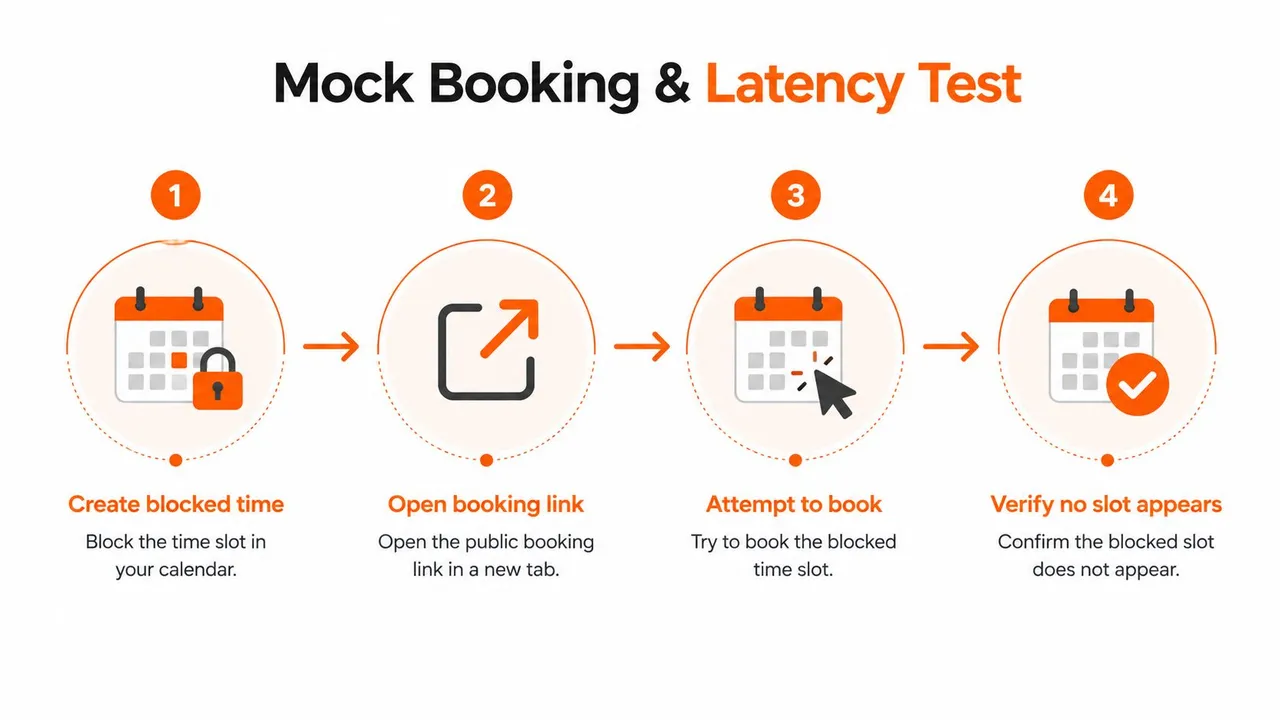
If the slot remains bookable, first check whether the scheduler reads the master calendar, then inspect account permissions and duplicate sync rules. If the delay is excessive, reduce polling where the tool permits it, move booking writes into the master account, or replace a display-only integration with an invite or API conflict check.
The following video can supplement the hands-on test, especially for teams documenting their booking procedure:
Troubleshoot the Gaps Most Sync Setups Miss
A calendar may display the same events across accounts while the booking tool still misses a conflict. The visible event must enter the scheduler’s conflict-check path, with its status and source calendar recognized correctly.
Permission gaps
Open sharing settings for every connected calendar and inspect the permission assigned to the scheduler or assistant. A “see only busy” view may work for a person while leaving the tool unable to read tentative events, private events, or a sub-calendar. Grant the minimum access that exposes every relevant busy state, then verify the fix by testing from the tool itself.
Pending invitations
An unanswered invitation can remain tentative in one account while the sync engine ignores it. Search the calendar’s pending or invitation view and confirm that the integration includes tentative status. If it does not, route booking requests through the master calendar, or require a response workflow that creates a recognized event before another invitation can be accepted.
Private events outside the path
Private events may live on a personal account, hidden sub-calendar, or device-only calendar that never reaches the master. Review the calendar list in Google Calendar, Outlook, and Apple Calendar, then compare it with the accounts connected to the scheduler. Add any missing calendar to the sync path. Apply masking to the outbound copy so the booking system receives accurate free and busy information without exposing titles, descriptions, or locations.
Back-to-back stacking
A 30-minute call at 10:00 and another at 10:30 do not overlap, so a hard conflict check will allow both. The schedule can still produce rushed handoffs, late starts, and lost preparation time. Add a booking buffer or focus block where the appointment is created. This is soft scheduling hygiene, while sync rules, invite routing, and conflict checks handle hard overlap prevention.
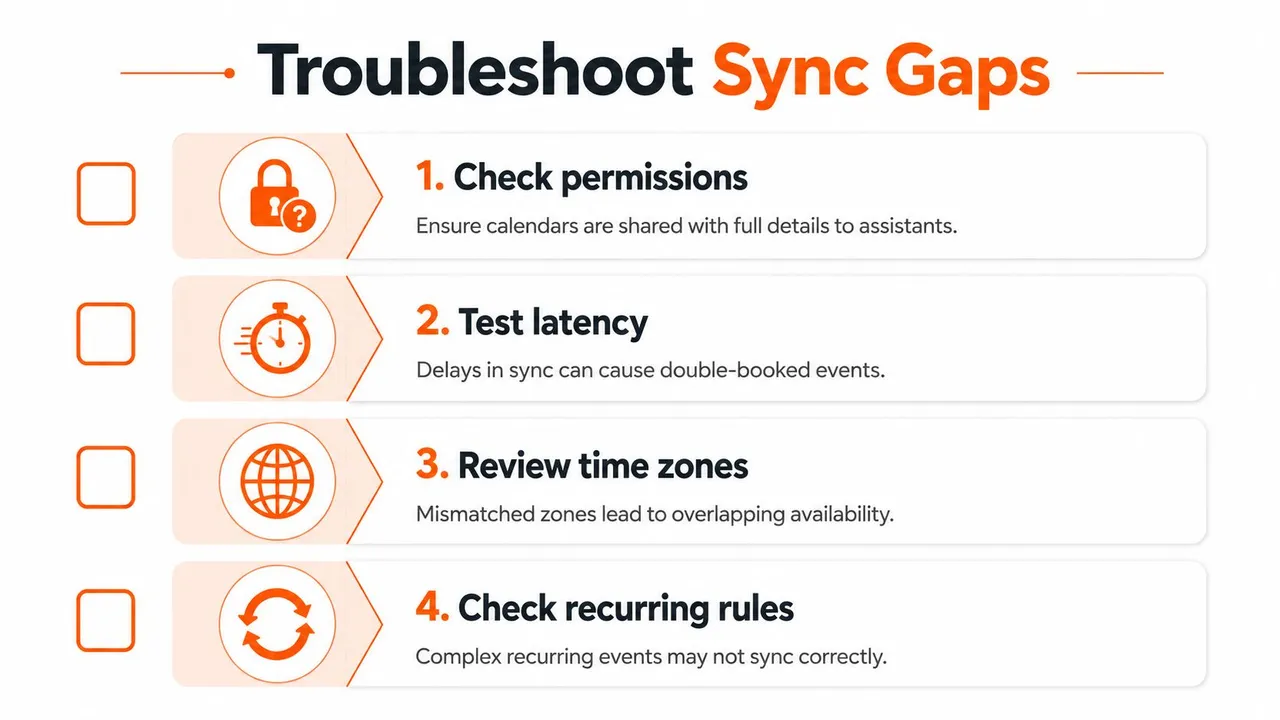
Free/busy visibility and full event access serve different operational purposes. Privacy masking and conflict-path auditing are separate tasks. Run each one independently and log the results. Confirm that sensitive details stay hidden while every unavailable state still reaches the booking decision.
Your 30 Day Double Booking Prevention Plan
A controlled rollout is easier to maintain than a rushed rebuild. Spread the work across four weeks and end each week with a proof that the configuration behaves as intended.
- Week one, audit: List Google, Outlook, iCloud, shared, personal, room, and tool-managed calendars. Remove duplicates and designate one master availability account.
- Week two, protect details: Enable free/busy mirroring and mask titles, descriptions, and locations on outbound copies. Verify that external viewers see availability without sensitive content.
- Week three, control writes: Choose one-way or two-way rules based on the booking source. Route invitations through the master, configure buffers for soft hygiene, and confirm that direct writes can’t bypass the conflict path.
- Week four, verify and train: Run mock bookings through every real channel, log propagation delays, test mobile behavior, and give assistants or teammates a short rule for where bookings must be created.
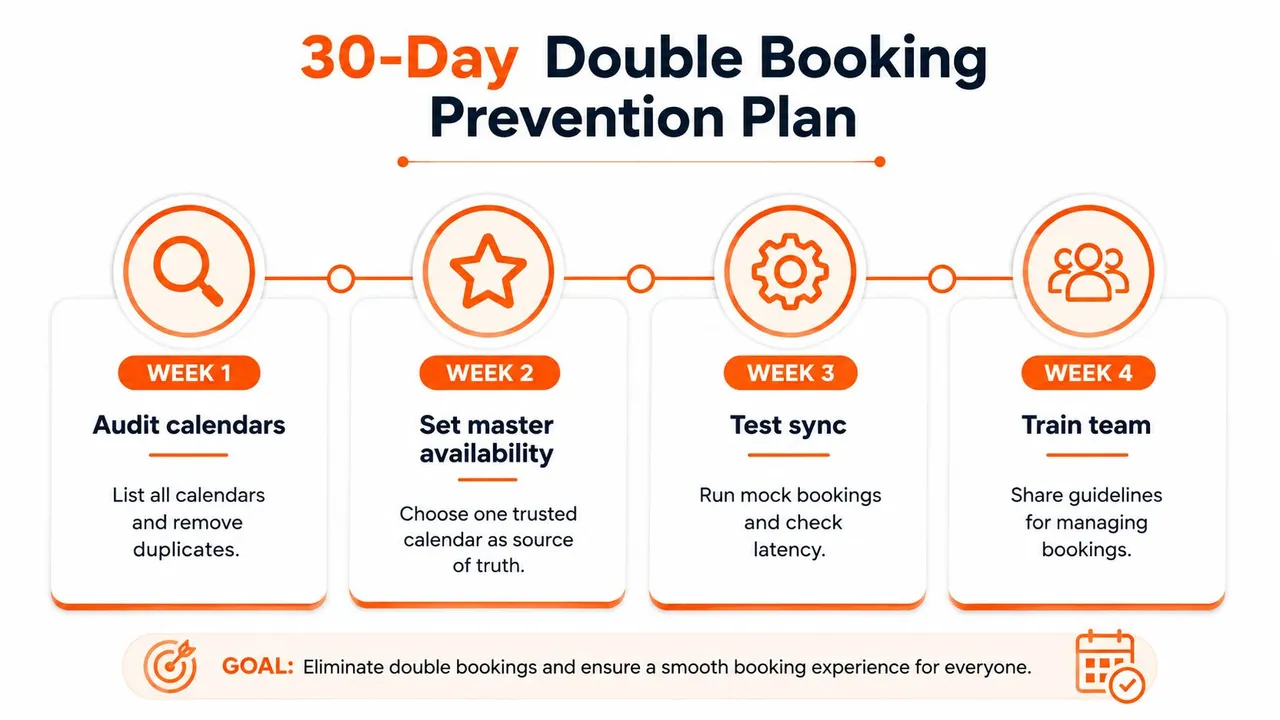
Set one recurring monthly reminder to repeat the full test whenever you add a calendar, scheduling tool, CRM integration, or team member. That maintenance habit catches permission drift, abandoned accounts, changed sync directions, and new booking routes before they reopen the gap.
SyncThemCalendars provides one-way, two-way, and multi-way synchronization across Google Calendar, Microsoft Outlook or Office 365, and Apple Calendar, with free/busy mirroring and controls for masking copied titles, descriptions, and locations. Visit SyncThemCalendars to connect your calendars, define the availability flow, and test whether your real booking channels block conflicts before they reach your clients.
Ready to sync your calendars?
Keep your Google, Outlook and Apple iCloud calendars in sync automatically. 2-minute setup, no credit card required.
Get started freeKeep reading
More in Tips
Sync Google Calendar with Office 365 Made Simple
Learn how to sync Google Calendar with Office 365 reliably. Compare native, subscription and real-time sync options with setup steps and privacy tips.
Two Way Google Calendar Sync: Setup Guide and Best Practices
Master two way Google Calendar sync with step-by-step setup, privacy controls, and troubleshooting tips for entrepreneurs, freelancers, and teams.
Calendar Color Coding: Practical Frameworks for 2026
Master calendar color coding with accessible palettes and setup tips for Google, Outlook, and Apple Calendar.