







Calendar Sharing Permissions Explained Across Platforms
Learn how calendar sharing permissions work in Google, Outlook, and iCloud. Compare free/busy, view-only, edit, and delegate access plus privacy tips.
Priya’s calendar looked open to her clients, but it wasn’t. A visibility setting showed only fragments of her schedule, so two client calls landed at 3 PM. One client left with a poor impression, and Priya lost the contract. The problem wasn’t that she needed a better scheduling habit. She needed the right calendar sharing permissions.
Permissions form the invisible control layer beneath every shared calendar. They decide whether another person can see only an occupied time slot, read an event title and location, inspect the full meeting, edit appointments, or act on the owner’s behalf. Google Calendar uses an ACL model in which each recipient receives a role, while Microsoft Exchange and Outlook provide tiered sharing policies that distinguish availability, limited details, full details, editing, and delegation (Google Calendar sharing concepts, Microsoft sharing policies).
That control layer affects ordinary work. Team members need enough context to coordinate without exposing confidential meeting names. Assistants may need to rearrange appointments, while clients should usually see only whether time is available. When permissions are broader than necessary, the result can be an exposed agenda, an unwanted edit, or hours spent repairing a misbooked appointment. A practical guide to preventing double bookings starts with deciding what each person needs to see and do.
The sections below use a five-tier mental model, then map it to Google Calendar, Outlook, and iCloud. They also examine the part many guides overlook, how syncing tools, field masking, and free/busy mirroring interact with the access granted on the original calendar.
Why Calendar Sharing Permissions Matter in Daily Scheduling
A freelancer opens the calendar before confirming a client call. One person needs only an open time slot, another needs the event title and location, and an assistant may need to move the appointment. Giving all three the same access would expose too much to some people or leave others unable to do their work.
A calendar can reveal clients, travel patterns, internal projects, health-related commitments, hiring plans, and negotiating schedules. The assigned permission controls how much of that context a viewer sees and whether they can change the calendar used as the source of truth.
Three daily problems expose weak permission choices:
- Team coordination suffers when colleagues cannot see enough availability to find a workable meeting time.
- Confidential information leaks when titles, locations, notes, or guest lists reach people who needed only an open-slot signal.
- Recovery work grows when several editors create conflicting changes, duplicate events, or appointments without a clear owner.
Practical rule: Give each collaborator the lightest permission that still lets them complete the scheduling task.
Google’s roles show how access labels produce different results. freeBusyReader reveals whether time is free or busy, without event details. writerWithoutPrivateAccess allows edits to non-private events, while private events remain visible only as busy blocks (Google Calendar ACL roles). An assistant arranging a call therefore has a different operating boundary from a colleague checking availability.
The same distinction matters after a calendar connects to a syncing tool. A mirrored free/busy view may show that time is occupied without exposing the original title, while field masking can hide selected details during synchronization. The destination calendar may therefore look different from the source, even when the sharing permission began with the source calendar. Teams working to prevent double bookings across calendars should check both layers: who can access the original and what the sync process carries forward.
Permissions are operating instructions, not a single sharing switch. Choose them according to the recipient’s job, event sensitivity, and required action: observe availability, coordinate, edit, or represent the owner. The five tiers below provide a shared vocabulary before Google Calendar, Outlook, and iCloud apply their own labels.
Understanding the Five Tiers of Calendar Access
Start with the outcome, not the product label. Ask what the recipient can see and what they can change. The same broad pattern appears across calendar systems, even though Google, Outlook, and Apple use different names.
Tier one is free and busy
Free/busy access is like a lit window. Someone outside the room can tell that activity is happening, but they can’t read the conversation inside. The recipient sees an occupied time block and can avoid proposing that period, but they won’t see the meeting title, location, description, or guest list.
This is the safest useful default for many external contacts. It supports scheduling without turning your calendar into a personal itinerary. Google’s freeBusyReader role follows this model by exposing availability status rather than event details (Google’s role documentation).
Tier two reveals limited event context
“See only events” is a window with a label. The viewer may need the title, location, or basic timing to coordinate a shared project, but full notes and participant details remain restricted. Outlook separates “Can view when I’m busy” from “Can view titles and locations,” demonstrating how limited detail can be a distinct access level (Outlook calendar permission levels).
This tier helps when a team member needs to recognize “Design review” or “Client meeting” without reading the agenda.
Tier three opens the event details
Full viewing access opens the curtains. The recipient can inspect descriptions, attendees, locations, and other information included in the event, but they still can’t modify the calendar. It’s appropriate for someone who needs transparency, not operational control.
The risk expands because every visible field can reveal context. A title that looks harmless may disclose a client relationship, and a location may reveal where the owner will be.
Tier four permits changes
“Make changes” is an open permission, not ownership. The recipient can create, edit, or delete events within the permitted scope. This is useful for a coordinator who actively maintains a project calendar or an assistant who handles routine scheduling.
Editing access requires a clear operating agreement. Decide who resolves conflicts, whether private events remain protected, and how the team distinguishes an intentional change from an accidental one.
Tier five grants full control or delegation
Full control adds authority to act as the owner. Depending on the platform, a delegate may create invitations, respond to meeting requests, or manage scheduling on the owner’s behalf. That’s appropriate for executive assistance and mature coordination workflows, not casual visibility.
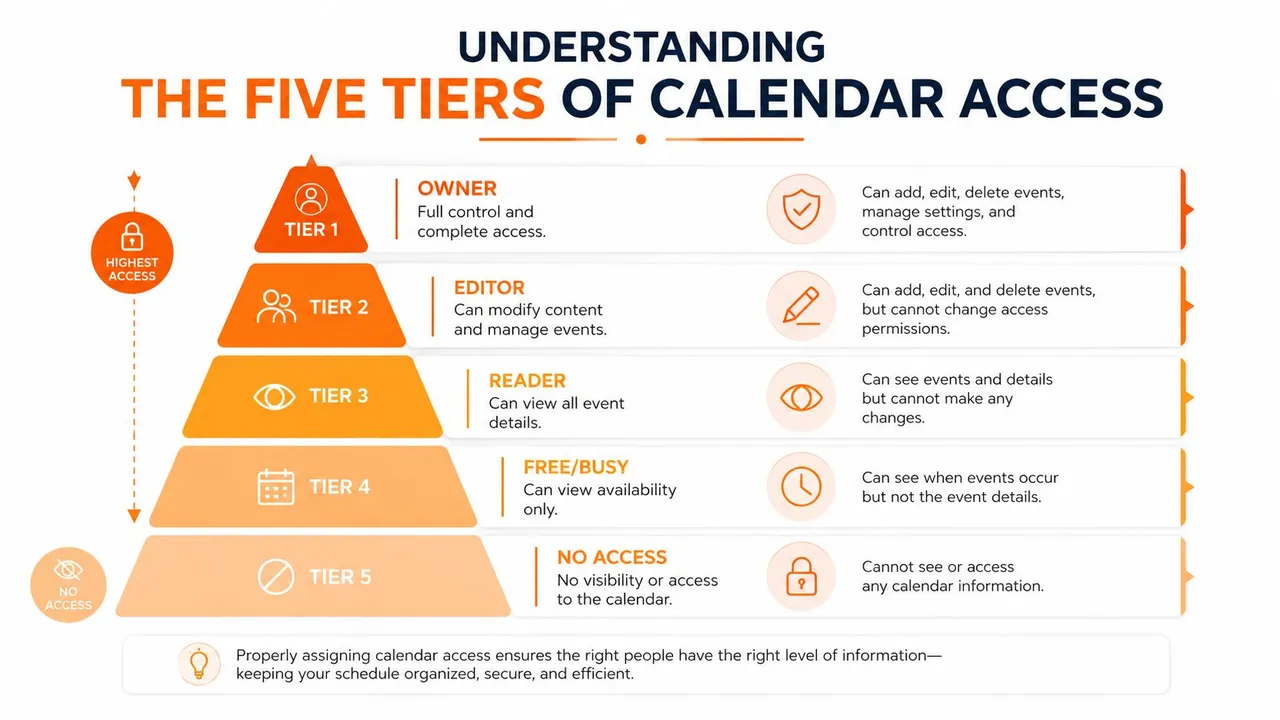
Permissions stack like rings on a tree trunk. Each higher ring increases usefulness, but it also increases the blast radius of a mistake. More viewers can infer more about your routine, and more editors create more work when changes collide. Use the lowest ring that solves the scheduling problem.
How Google Outlook and iCloud Implement These Tiers
A coordinator checks whether an executive is free, then needs to place a meeting without exposing private details. The correct setting depends on both the platform and the action required. Similar labels can produce different scheduling outcomes.
Google Calendar uses ACL roles with names such as freeBusyReader, reader, writerWithoutPrivateAccess, writer, and owner. Its sharing model also includes no access, while a primary calendar keeps its owner access by default. Use the Google Calendar sharing settings to confirm the role assigned to each person.
Outlook groups access into availability-only viewing, titles and locations, full details, editing, and delegate access. Exchange Online sharing policies can limit how calendar information leaves the organization and which details recipients receive. Administrators can review these controls in the Exchange Online sharing policies.
Apple iCloud offers fewer steps: no access, view-only access, or permission to view and edit. That simpler model is easier to explain, but it gives administrators fewer ways to separate free/busy visibility from event details. A connection to another service may therefore carry editing ability rather than merely showing open time.
| Tier | Google Calendar | Outlook / Office 365 | Apple iCloud |
|---|---|---|---|
| No access | None | No permission | Not shared |
| Free/busy | freeBusyReader | Can view when I’m busy | Usually requires a restricted sharing or mirroring arrangement |
| Limited details | Reader settings that expose event information without editing | Can view titles and locations | Limited detail controls are less granular |
| Full details | Reader access to event details | Can view all details | See only, depending on the shared calendar configuration |
| Make changes | Writer or writerWithoutPrivateAccess | Can edit | See and edit |
| Delegation or ownership | Owner, or broader management rights | Delegate and owner-style authority | No direct equivalent to enterprise-style delegation |
The same tier does not mean the same capability. Google’s writerWithoutPrivateAccess permits editing while protecting private-event details. Outlook delegate access may also allow someone to respond to meeting requests for the owner. Google roles can include sharing management, so an editor may have administrative influence beyond changing event fields.
iCloud becomes less predictable after a CalDAV connection or another synchronization path is added. The connected service may read only permitted fields, or it may inherit the broader edit scope of the account. A mirrored calendar is therefore not automatically a free/busy feed. Check the account connection and the fields it can read or change.
Sharing visibility also needs clear feedback. Google’s documentation describes a way to show who an event is shared with in shared calendars, helping users inspect effective access rather than relying only on the label they selected (Google Calendar sharing update). Use that check before connecting a sync tool, because the tool’s result follows the permission path it receives.
Viewing Access Versus Delegation and the Override Trap
Viewing and delegation solve different problems. A viewer receives information. A delegate receives authority. Treating both as “calendar access” makes it easy to give an assistant or colleague more power than the task requires.
A viewer might check whether Tuesday afternoon is occupied. A delegate may create a meeting, modify an existing appointment, send or respond to invitations, and manage the calendar according to the platform’s rules. Outlook explicitly distinguishes ordinary viewing and editing from delegate access, while Google’s role system separates event editing from ownership and sharing management (Outlook calendar sharing guidance).
Why the broader role wins
The override trap appears when the same person receives permissions through more than one path. For example, an organization-wide rule may provide limited visibility, while a direct assignment grants editing or delegation. The recipient doesn’t experience the narrow setting and the broad setting as two separate layers. The effective result is the broader access.
Google’s ACL model assigns roles to individual grantees, and Google notes that broader permissions can override narrower ones when both apply (Google Calendar ACL guidance). That means an audit should examine every route to access, not just the direct sharing row.
Treat delegation as an override switch. Assign it only when the recipient must act on your behalf, not merely because they need to find an open time.
The 2025 Google visibility update made shared-calendar access easier to inspect by showing who an event is shared with. That change matters operationally because permission confusion often comes from inheritance, secondary calendars, and overlapping grants rather than from one obvious setting. A clearer interface helps, but it doesn’t replace an access review.
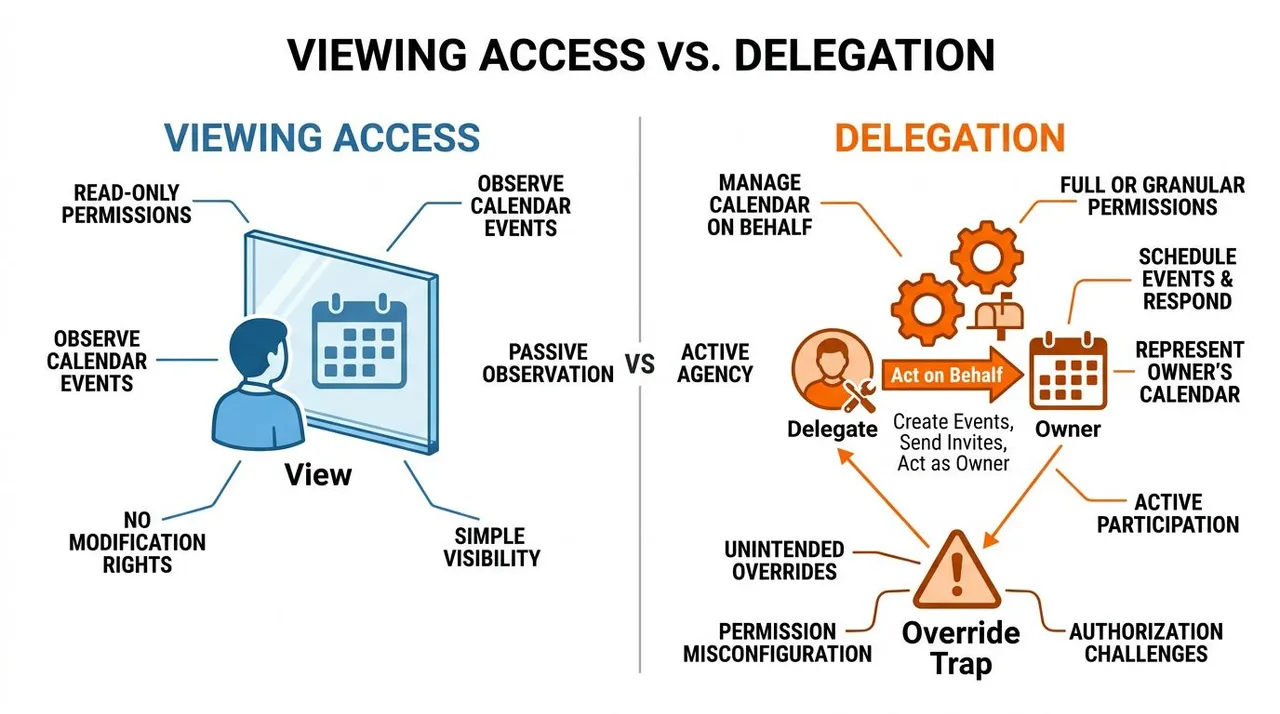
Before assigning delegation, ask one direct question: Should this person be able to represent me in scheduling conversations? If the answer is no, choose viewing or editing access instead. When reducing access, remove the broader delegate or editor assignment first, then apply the narrower view role.
For step-by-step Outlook access management, use this guide to give someone access to an Outlook calendar.
Sync Tools Field Masking and Free Busy Mirroring
A synced calendar isn’t automatically a private calendar. The receiving account can show only availability, or it can receive event details, depending on the permission granted to the connection and the transformation rules applied by the sync service.
Free/busy mirroring projects occupied time blocks onto another account without copying titles, attendees, notes, or locations. Field masking goes one step further by removing or transforming selected fields while preserving the time block. For example, a personal appointment might appear on a work calendar as “Busy” rather than exposing its subject.
That setup lets one person use different access layers for different audiences. An executive may grant a personal assistant internal editing or delegate access, while an external mirror receives availability-only blocks. The assistant can manage the source calendar, but an outside scheduler sees only when a meeting can fit.
A permission-aware sync path
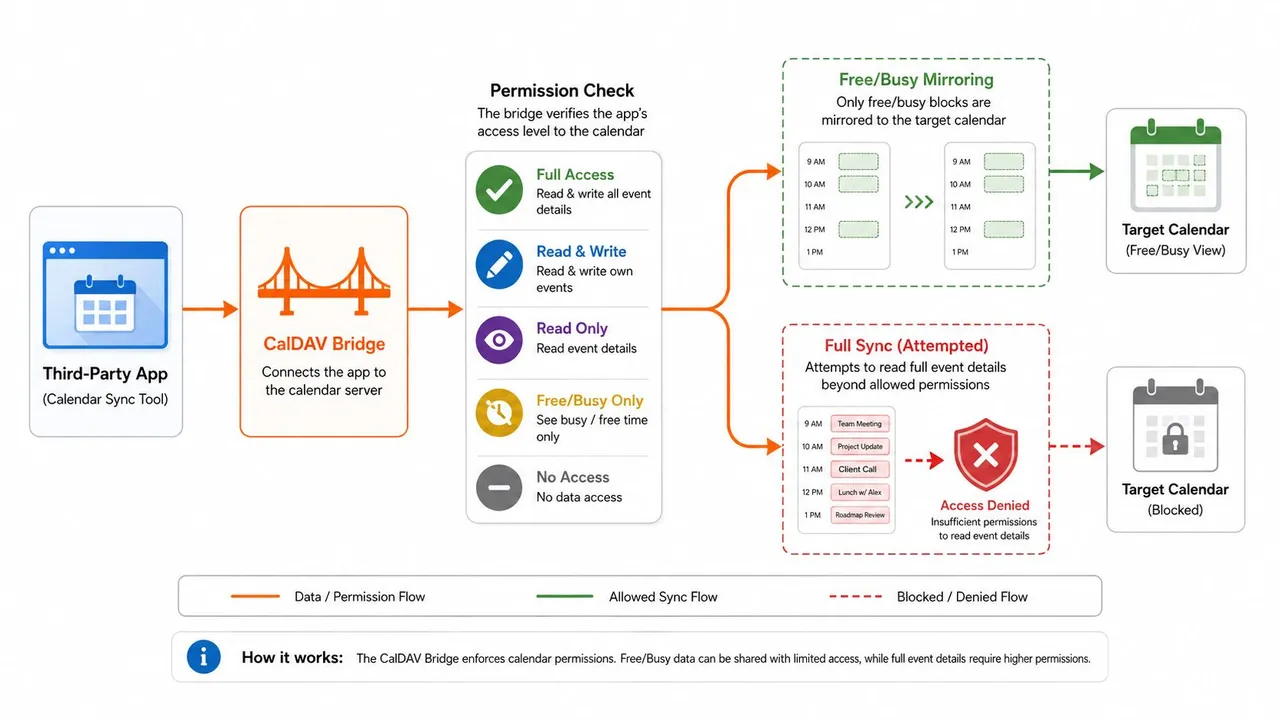
A CalDAV bridge or synchronization tool should check permissions before copying anything. A free/busy path can create blocked slots on the target calendar. A full-sync path needs access to event fields, and restricted permissions should prevent it from copying information it can’t read.
The practical consequences are clear:
- Double-booking prevention: Mirrored busy blocks help schedulers avoid time already committed in another account.
- Public booking pages: A booking workflow can use availability while keeping private event names out of the public view.
- Cross-platform coordination: Google, Outlook, and iCloud calendars can remain aligned without forcing every participant into the same ecosystem.
- Privacy preservation: Masked titles, descriptions, and locations reduce what a target account reveals if someone opens the copied event.
Sync introduces its own failure modes. A two-way connection can create duplicate events, a loop can copy an event back to its original calendar, and an over-broad authorization can expose fields that the owner expected to remain private. Before enabling a bridge, verify the source permission, target permission, sync direction, field rules, treatment of private events, and whether the tool writes changes back.
For a focused explanation of availability-only sharing, see this guide to a free/busy calendar. The key question isn’t “is this calendar connected?” It’s “what information can cross the connection, and can the receiving system edit the source?”
Recommended Defaults by User Type
The right default depends on the person’s scheduling relationships. A solo consultant who works with clients needs a different setup from an executive with an assistant or a student balancing institutional and personal calendars.
| User Type | Default External Setting | Default Internal Setting | Key Reason |
|---|---|---|---|
| Entrepreneur | Free/busy | Limited details for selected teammates | Protects strategic and personal context while supporting coordination |
| Freelancer | Free/busy | Delegate or editing access for a trusted assistant | Clients can book around availability without seeing private work |
| Small team | Free/busy for outside contacts | Limited details or editing for defined owners | Keeps team scheduling useful without making every calendar fully open |
| Sales representative | Free/busy for prospects | View-only team calendars | Preserves prospect privacy and helps coordinate internal coverage |
| Student | Free/busy for external contacts | View-only or limited details for study groups | Separates personal commitments from collaborative academic planning |
An entrepreneur should also review secondary calendars. A public events calendar may be safe to publish, while a calendar containing investor meetings or personal travel should use a narrower audience. Before travel, remove temporary collaborators and check mobile calendar visibility, since a phone can display details that the person forgot were shared.
A freelancer can keep client-facing availability simple and reserve stronger access for one assistant. That assistant may need to move non-private events, but there’s no reason to expose every private appointment. A small team can designate calendar owners for projects rather than giving editing rights to the whole group.
Sales reps benefit from a split setup. Prospects need open slots, teammates may need enough detail to coordinate account coverage, and sales managers may need a broader view without edit authority. Students can use separate accounts or calendars so study sessions remain shareable while personal commitments stay private.
Defaults are starting points, not permanent policies. Review permissions after role changes, new projects, travel, and account migrations.
A quarterly audit is a practical rhythm for removing stale access. The review should include direct shares, group-based access, secondary calendars, external links, mobile accounts, and connected sync services. If the calendar behaves unexpectedly afterward, troubleshoot the effective permissions rather than changing random sharing switches.
Setup Pitfalls and Quick Troubleshooting
Calendar-sharing failures usually come from a gap between the intended tier and the access the platform applies. Diagnose the recipient’s effective access first. The owner’s recollection of changing a setting is not enough, especially when permissions can come through groups, delegates, inherited rules, or connected accounts.
| Pitfall | Google Fix | Outlook Fix | iCloud Fix |
|---|---|---|---|
| An organization-wide rule exposes more than intended | Review inherited ACLs and external-sharing controls in Google Workspace Admin | Check Exchange sharing policies and organization-level defaults | Remove broad sharing and review the Apple account connected to the calendar |
| A delegate still has editing power after a downgrade | Remove the broader role before assigning a narrower viewer role | Remove delegate or editor rights, then apply view-only access | Revoke edit-capable sharing and reconnect only with the required scope |
| A public or link-based setting exposes the calendar | Recheck public and external sharing settings after interface changes | Review published-calendar and tenant sharing controls | Stop public sharing and create a restricted share for named people |
| A personal calendar appears in a work view | Separate accounts or remove the unwanted calendar connection | Remove the personal account from the Outlook profile | Use a separate Apple ID or isolate personal calendars from the work view |
Permission paths can conflict. For example, an owner may assign view-only access while a group or delegate assignment still grants editing. The broader applicable Google Calendar role determines the effective result, so removing the narrower share will not fix the issue while the broader assignment remains. Review the platform’s Google Calendar sharing roles when checking which role applies.
Run the same verification sequence after each change:
- Test with a separate account: Send or view a test event as the recipient.
- Inspect visible fields: Check the title, location, description, attendees, and private status.
- Test editing separately: Confirm whether the recipient can create, move, delete, or respond to an invitation.
- Check the source and target: If a sync tool or free/busy mirror is involved, verify which fields arrive on the destination calendar and whether the connection permits changes to flow back.
- Revoke and retest: Remove access and confirm that the previous view or edit capability disappears.
A mirrored calendar can make a permission problem look like a sync problem. If a field appears on the target, identify whether it was copied by the sync rule or exposed by the target calendar’s sharing role. If changes return to the source, inspect the connection’s direction and edit scope before changing the calendar’s main permissions.
Apple ID confusion can also resemble a platform defect. Identify which Apple account owns the calendar and which account the device displays. In Google and Outlook environments, check secondary calendars and administrative inheritance before rebuilding the calendar itself.
Choosing the Right Setup for Your Situation
Use the lightest permission tier that solves the scheduling problem.
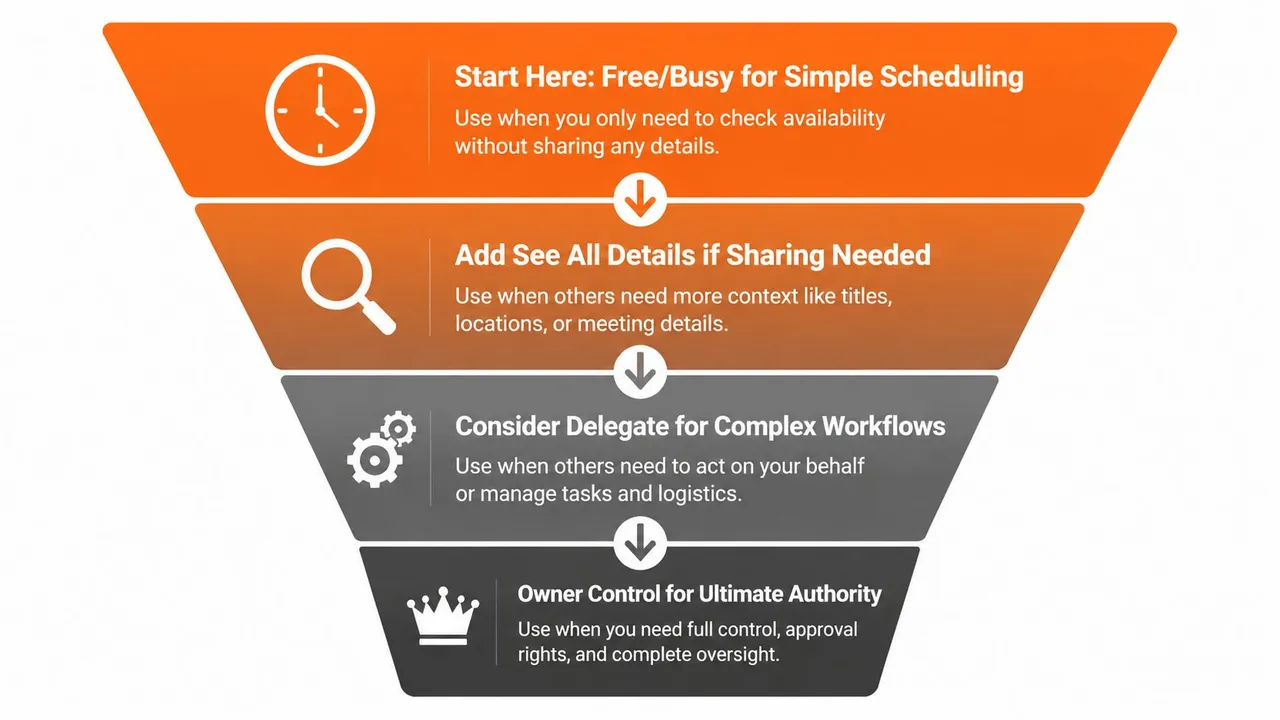
Start with free/busy when someone only needs to propose a time. Add limited or full details when context affects coordination. Grant editing access when the recipient actively maintains the calendar. Use delegation only when that person must schedule, modify, or respond on the owner’s behalf. Reserve ownership for the person responsible for the calendar’s rules and sharing.
Structured synchronization becomes useful when separate ecosystems must exchange availability, when a work calendar needs to block time around personal commitments, or when copied events require field masking. A one-way mirror may be enough for privacy. Two-way or multi-way synchronization requires stronger controls because changes can travel between systems and create duplicate or conflicting records.
A permission audit should begin immediately if meeting titles appear where they shouldn’t, invitations are declined unexpectedly, or double bookings return after you’ve corrected the visible calendar. Those symptoms indicate that an inherited role, delegate assignment, secondary calendar, or sync connection may still be active.
SyncThemCalendars offers one-way, two-way, and multi-way synchronization across Google Calendar, Microsoft Outlook, and Apple Calendar, with free/busy mirroring and controls for masking copied titles, descriptions, and locations. Visit SyncThemCalendars to compare your current sharing setup with a privacy-conscious cross-platform sync workflow and start organizing availability without exposing more event detail than necessary.
Ready to sync your calendars?
Keep your Google, Outlook and Apple iCloud calendars in sync automatically. 2-minute setup, no credit card required.
Get started freeKeep reading
More in Guides

Synchronize Apple Calendar with Outlook: A 2026 Guide
Step-by-step guide: Synchronize Apple Calendar with Outlook on Windows, iPhone and Mac, with two-way options, privacy trade-offs and fixes.

SyncThemCalendars Quick Setup Walkthrough
Master the SyncThemCalendars quick setup in minutes. Connect Google, Outlook, or iCloud, configure privacy masking, and verify your first sync effortlessly.

Merging Google Calendars: The Complete Guide for 2026
Merging Google Calendars. Learn the best ways to merge Google Calendars. Compare import methods, sync tools, and automation strategies