







Best Shared Calendar App for Small Business: 10 Top Picks
Discover the 10 best shared calendar app for small business with real-time sync, privacy controls, pricing tiers, and team & freelancer use cases.

What should a small business buy, a calendar app, or a way to keep Google, Outlook, and iCloud from drifting apart? That’s the gap most “best shared calendar app” roundups miss. In real small teams, the problem usually isn’t finding a pretty calendar, it’s keeping availability aligned across mixed accounts without exposing private event details.
The best shared calendar app for small business depends on who needs to see what, and which ecosystem your team already lives in. Some tools are built for true cross-platform sync, others are better for internal team visibility, and a few are really scheduling layers rather than shared calendars in the classic sense. The market itself now reflects that reality, with Microsoft reporting over 400 million Outlook active users in 2023 and Google Workspace crossing 3 billion paid user seats in 2024, which tells you small businesses often operate across both stacks, not just one. That makes real-time sync, free/busy mirroring, and privacy controls more than nice extras, they’re the core job. Microsoft Outlook user scale and Google Workspace seat growth
1. SyncThemCalendars
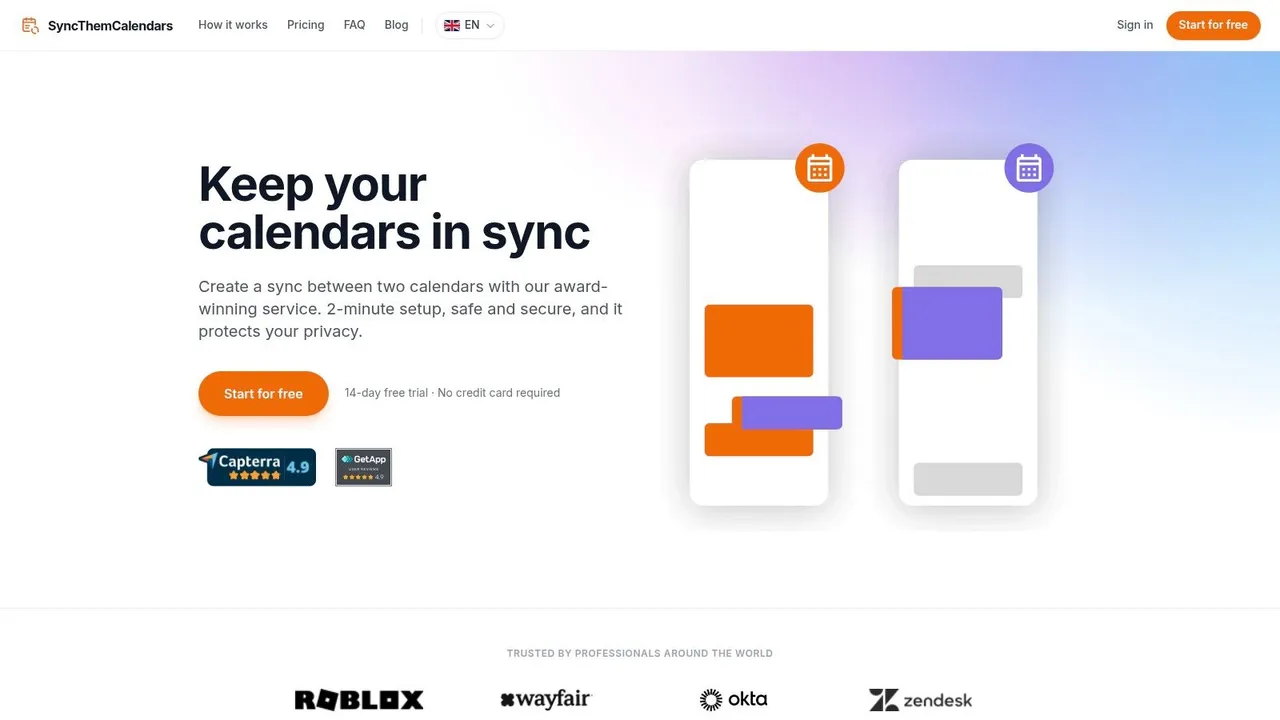
SyncThemCalendars fits small businesses that need Google Calendar, Outlook, and Apple iCloud to stay aligned without pushing everyone onto one platform. It supports one-way, two-way, and multi-way sync, so it can handle simple visibility needs or mirrored availability across several calendars. That matters for founders, consultants, sales reps, and part-time staff who keep separate work and personal calendars but still need one accurate view of the day.
Privacy controls are a major reason to consider it. The tool can mirror free/busy and transform fields such as the title, description, or location, so coworkers or clients see open time without seeing sensitive event details. That separation of availability from information is useful for executives, client-facing staff, and field teams that do not want full event transparency. For teams that want to connect Google Calendar cleanly, the setup guide on how to sync Google Calendar with other calendars shows the basic approach in practical terms.
Practical rule: if your scheduling pain comes from mixed ecosystems, not from booking links, start here before you buy a heavier team calendar suite.
The setup is positioned as a 2-minute onboarding flow, and the service runs continuously in the background with unlimited events on every plan. Pricing is straightforward, with Basic at $3.99/month, Premium at $7.99/month, and Professional at $17.99/month, plus a 14-day free trial with no credit card required. The company also says event data is used only to perform syncs, which matters for privacy-conscious teams. For businesses that also care about mail flow and calendar coordination, an optimal Google SMTP configuration can help keep the surrounding Google setup consistent.
Who should choose it
- Freelancers and consultants: Keep client calendars, personal time, and travel blocks aligned without manual copying.
- Sales teams: Mirror availability across accounts so booking is not blocked by hidden conflicts.
- Small teams with Apple users: Include iCloud instead of treating it like an afterthought when setting up a shared team calendar.
- Privacy-sensitive roles: Hide event details while still sharing availability.
The trade-off is clear. It is a single-user sync service, not a broad team workspace, so larger organizations that want native multi-user administration may outgrow it. For a small business that needs reliable cross-platform synchronization first, it is a practical choice.
2. Google Calendar
Google Calendar fits small businesses that already run on Google Workspace and want a shared calendar that feels native from the start. Google’s calendar tools support team and group calendars, resource booking, booking pages, and admin controls, so internal coordination stays straightforward for companies that keep people, rooms, and project timelines inside Google. It works well when you want shared visibility without adding another login or training layer. Google Calendar for business
The main advantage is adoption. Staff already know how to create events, invite coworkers, and check availability, so the learning curve is low. Gmail and Meet integration also reduces scheduling back-and-forth for internal calls and client meetings, which matters if your office lives inside Google day to day.
For teams that split scheduling, email, and permissions across systems, setup can get more complicated. A business that uses Google for calendars but still handles mail or routing outside the same stack may also need support from an optimal Google SMTP configuration to keep the broader setup aligned. If your shared calendar problem includes cross-platform sync and privacy controls, learn how to sync Google Calendar before assuming native sharing will cover every case.
Where it works and where it doesn’t
Google Calendar works well as an internal hub, but mixed ecosystems expose its limits. Shared online calendar features depend on the plan, and calendars sync automatically within Google’s own products, which is helpful if everyone uses Google and less helpful when Outlook or Apple calendars are part of the daily workflow. Google Workspace Calendar boundaries
A small office with one scheduling system, one mail system, and one admin team will usually find Google Calendar easy to manage. A consultant, agency, or service business that needs to share availability across Google, Microsoft, and Apple users has to think harder about privacy and duplication. In that kind of setup, the key question is not whether Google Calendar works, but whether it can stay accurate once calendars start living in different places.
If your staff are already on Google Workspace, start with Google Calendar before adding anything else. If your team is split across Google and Microsoft, don’t assume it solves the whole problem.
For small businesses, the trade-off is clear. Google Calendar is dependable, familiar, and strong for internal coordination, but it performs best when the business is already standardized on Google services. If your scheduling problem is cross-platform rather than purely internal, you will likely need an extra layer for sync and privacy.
3. Microsoft Outlook Calendar
Microsoft Outlook Calendar is the right pick for small businesses already built around Microsoft 365, especially if they care about governance, compliance, and delegated scheduling. It fits naturally into environments where Outlook, Teams, and Exchange are already the daily operating system. That makes it a practical choice for admin-heavy offices, service businesses, and firms where assistants manage executive calendars.
Its strength is control. Shared and delegated calendars, room booking, and admin-configurable external sharing policies give you the structure needed to manage schedules without losing oversight. For teams that need cross-organization sharing with formal permissions, Outlook tends to feel more like an enterprise tool than a lightweight calendar app. Microsoft 365 business plans and pricing
The trade-off is complexity. Microsoft setups can feel heavy the first time a small business configures them, especially if the organization hasn’t fully standardized on Microsoft 365. Once the stack is in place, though, the calendar becomes part of a broader workflow that includes Teams meetings and the rest of the Microsoft suite.
Best fit scenarios
- Office-centric teams: Everyone already uses Outlook and Teams.
- Executive support: Assistants need delegated access without workaround tools.
- Governance-first businesses: Admin rules and sharing policies matter more than lightweight usability.
- Mixed scheduling groups: Room booking and shared calendars are central to operations.
Microsoft’s scale also matters in the broader market. As noted earlier, Outlook’s user base is massive, which helps explain why so many small businesses still end up here even when they started with something simpler. The question isn’t whether Outlook is capable. It’s whether your team is willing to live in its ecosystem long enough to benefit from that capability.
4. Zoho Calendar
Zoho Calendar makes sense for cost-conscious teams that want a shared calendar inside a broader business suite, not as a standalone novelty. It sits naturally alongside Zoho Mail, CRM, Projects, and Bookings, which is valuable if your team wants scheduling tied to everyday operational tools. That suite approach can keep small businesses from stitching together too many separate apps.
It also supports CalDAV and iCal syncing, which gives it enough flexibility to play with other calendar clients when needed. That’s useful for teams that want a low-friction calendar without paying for the larger Google or Microsoft ecosystems. If your business already uses Zoho products, the calendar becomes part of a coherent workflow rather than another disconnected tool. Zoho Calendar
Where Zoho fits well
Zoho is strongest when the business wants a complete suite without enterprise pricing pressure. The calendar can handle group views, reminders, and external syncing, and it avoids the admin overhead that often comes with larger platforms. For small teams that need “good enough plus integrated,” that’s a strong balance.
What it doesn’t have is the same depth of third-party add-ons or the polish power users often expect from Google or Microsoft. If your team runs advanced scheduling workflows, or if you rely heavily on niche calendar automation, Zoho may feel solid but not exceptional. It’s a smart operational buy, not a flashy one.
5. Teamup Calendar
Teamup is a very good fit when a small business needs structure around many calendars, not just one shared office calendar. Its sub-calendar model is built for operations teams, resource scheduling, field work, and client-facing visibility. You can organize people, equipment, and projects into color-coded layers, then control who sees what through shareable links and selective permissions. Teamup Calendar
That link-based access is the main reason many businesses like it. People don’t always need full accounts just to view schedules, and Teamup keeps that process simple. For contractors, vendors, seasonal staff, or clients who only need a window into availability, that’s a major advantage.
Operational strengths
Teamup works best when you map your calendar structure before rollout. If you create too many sub-calendars too fast, the system can get messy.
It’s also strong for external sharing. You can embed calendars, send agenda emails, and use multiple views to keep different groups aligned. The downside is that it’s not trying to be a full office suite, so you won’t get the native productivity stack that comes with Google or Microsoft. That’s fine if your real need is shared scheduling control rather than document collaboration.
For small businesses with moving parts, Teamup is a clean middle ground. It’s less about personal productivity and more about organizing operational visibility in a way that won’t overwhelm casual users.
6. Notion Calendar
Notion Calendar is the best fit for teams already organizing work in Notion and wanting scheduling to sit closer to project context. It overlays teammate schedules and connects calendar dates to Notion database items, which is useful when event timing matters alongside tasks, content, launches, or client work. That makes it more contextual than a plain shared calendar. Notion Calendar
The UI is a big reason people like it. It’s clean, modern, and especially helpful for time-zone coordination or quick availability sharing. If you need to propose a few slots, share open time, or see what else is already in motion around a date, it handles that elegantly.
Where it’s strongest
- Notion-native workflows: Scheduling tied to databases and project context.
- Quick availability sharing: Good for ad hoc planning without admin overhead.
- Remote coordination: Helpful when teammates are in different time zones.
- Simple calendar overlay: Easy to scan without a cluttered interface.
The limitation is ecosystem fit. Team workflows work best when Google Workspace is already part of the setup, and Outlook support is more indirect. So while Notion Calendar is appealing for context-rich teams, it’s not the safest pick for businesses that need deep cross-platform coverage across Google, Microsoft, and Apple all at once.
7. Fantastical for Teams
Fantastical for Teams is the premium Apple-first option for small businesses that care about a polished scheduling experience. It aggregates Google, Microsoft 365, and iCloud calendars, which makes it valuable for Apple-heavy teams that still need to keep work and personal schedules in one place. That combination is useful for leaders, consultants, and boutique teams that want refined UX without giving up cross-account coverage. Fantastical pricing
The appeal here is usability. Natural-language event creation, openings booking pages, and pooled team availability give it a high-end feel that many calendar apps never quite reach. If your team spends a lot of time inside Mac and iPhone workflows, the experience can feel smoother than browser-first alternatives.
Practical limitation
Fantastical’s team capabilities cost extra, and Windows or Linux users won’t get the same integrated functionality as Apple users. That means it’s a strong fit for Apple-centered small businesses, not a universal answer for mixed-device offices.
Choose Fantastical when the team values a polished interface enough to pay for it. Choose something else if you need the broadest possible platform neutrality.
8. Reclaim.ai
Reclaim.ai is less of a classic shared calendar and more of a scheduling automation layer that sits on top of Google or Microsoft calendars. That makes it useful for small teams that already have a calendar stack but want better time blocking, task scheduling, and conflict management. It’s a good fit when the pain is fragmented days, not missing calendar access. Reclaim pricing
The tool helps teams protect routines, meetings, and task time without manually rearranging every week. That’s especially helpful for founders, managers, and lean teams that keep saying they need to focus, then lose the morning to scheduling drift. Reclaim adds a layer of automation without asking you to move away from the calendars you already use.
Trade-off to understand
It works best when everyone connects their primary calendars. If half the team is still using disconnected accounts or different provider stacks, the value drops quickly. Reclaim is a smart add-on for scheduling discipline, but it isn’t a cross-platform unifier on the same level as a true sync service.
9. Calendly
Calendly is the scheduling tool many small businesses use when the main problem is external booking, not internal team visibility. It pulls free/busy data from Google and Microsoft calendars, then turns that into clean booking pages, pooled availability, and round-robin routing. That makes it ideal for sales teams, consultants, recruiters, and customer-facing staff who spend too much time on email back-and-forth. Calendly pricing
It’s fast to implement and easy for external contacts to understand. That’s a big reason it spreads so quickly inside small businesses. You can place booking pages on websites, route meetings across teammates, and connect it to tools like Zoom, Teams, Slack, and Salesforce.
Where it falls short
Calendly is primarily an external booking platform, not a full internal shared calendar. If your team needs a persistent, always-on view of internal schedules, it won’t replace a true calendar layer by itself. The better way to think about it is as a front door for meetings, not the whole house.
For businesses that already use Microsoft Bookings or are comparing booking tools, the internal link on alternatives can help frame the decision: alternative to Microsoft Bookings
10. Cal.com
Cal.com is a strong option for startups and privacy-sensitive SMBs that want modern booking features with more control than a typical scheduling app. It supports team and organization scheduling, round-robin logic, routing forms, branded subdomains, APIs, payments, and higher-tier SAML or SCIM features. It also offers a self-host option, which is a major advantage for teams that care about ownership and configuration flexibility. Cal.com pricing
The open-core model matters because it gives businesses a path to adapt the tool to their own workflow. That can be valuable if you’re building a scheduling experience around a product, a client portal, or a custom internal process. For a small business with technical capacity, that flexibility can be more important than a polished preset workflow.
Best fit and trade-offs
Cal.com’s free tier has no usage limits, which is attractive, but the configuration burden is real if your workflow is complex. Teams that want a simple plug-and-play experience may prefer something more opinionated. Teams that want control, extensibility, and privacy will likely see the trade-off differently.
If your business is comparing booking tools rather than pure calendar sync tools, an internal workflow guide can also help, getting started with Calendly
Top 10 Shared Calendar Apps: Features & Pricing
| Product | Core features | UX & quality ★ | Price & value 💰 | Target audience 👥 | Unique selling points ✨ |
|---|---|---|---|---|---|
| 🏆 SyncThemCalendars | Real-time one/two/multi-way sync (Google/Outlook/iCloud); free/busy mirroring; field masking | ★4.9/5 · ~2‑min setup; set-and-forget | 💰 Basic $3.99/mo · Premium $7.99 · Pro $17.99 · 14‑day trial · unlimited events | 👥 Entrepreneurs, freelancers, sales pros, students, small teams | ✨ True iCloud+Google+Microsoft sync; granular privacy/data transforms; unlimited events |
| Google Calendar (Workspace) | Org/group calendars; resource booking; Meet/Gmail integration | ★ · familiar, scalable | 💰 Included in Workspace paid plans; advanced features behind paid tiers | 👥 Organizations using Google Workspace | ✨ Deep Gmail/Meet automation; admin policies |
| Microsoft Outlook Calendar (Microsoft 365) | Exchange/Outlook sharing; room finder; Teams integration | ★ · enterprise-grade, governed | 💰 Part of Microsoft 365 subscriptions | 👥 Windows/Office-centric SMBs & enterprises | ✨ Compliance & governance; tight Teams/Exchange integration |
| Zoho Calendar (Zoho Workplace) | Group calendars; CalDAV/iCal; Zoho suite integrations | ★ · cost-effective SMB UX | 💰 Competitive suite pricing; affordable tiers | 👥 Cost-conscious teams using Zoho apps | ✨ Integrated with Zoho CRM/Bookings; strong value |
| Teamup Calendar | Color-coded sub-calendars; shareable links; per-link permissions | ★ · fast rollout; simple sharing | 💰 Free/paid tiers; many viewers need no account | 👥 Ops, field teams, resource scheduling, external collaborators | ✨ Link-based access with fine-grained visibility |
| Notion Calendar | Calendar tied to Notion databases; overlays of teammates | ★ · modern, contextual UI | 💰 Included in Notion plans; good value for Notion users | 👥 Teams invested in Notion workflows | ✨ Calendar + contextual content in one workspace |
| Fantastical for Teams (Flexibits) | Aggregates Google/M365/iCloud; team Openings; booking pages | ★ · best-in-class Apple UX | 💰 Premium pricing; Teams add-on costs extra | 👥 Apple-heavy small businesses | ✨ Polished Apple-native UI; natural-language entry |
| Reclaim.ai | Smart time blocking; auto-scheduling routines; team analytics | ★ · automation-focused productivity | 💰 Paid tiers; ROI from time reclaimed | 👥 Teams seeking intelligent time blocking | ✨ Auto-schedules tasks/habits; analytics-driven planning |
| Calendly (Teams) | External booking; round-robin/pooled scheduling; many integrations | ★ · widely used, polished | 💰 Per-seat pricing; free limited tier | 👥 Sales, customer-facing & scheduling-heavy teams | ✨ Broad ecosystem (Zoom, Teams, Slack, Salesforce); embeddable pages |
| Cal.com | Open-core booking; routing forms; self-host & APIs; payments | ★ · developer-friendly & flexible | 💰 Competitive; free tier + self-host option | 👥 Startups, privacy-sensitive SMBs, dev teams | ✨ Open-source/self-hostable; no-usage-limit free tier |
Choosing the Right Calendar Sync Tool
The right choice depends on the problem you’re trying to solve. If your team is split across Google, Outlook, and iCloud, a true sync layer matters more than another front-end calendar. If your staff already works inside one ecosystem, a native calendar like Google Calendar or Outlook Calendar may be enough. If the pain is client booking, Calendly or Cal.com can be the better layer, even if they aren’t full internal calendars.
Privacy should stay high on the checklist. Many small businesses don’t need everyone to see titles, locations, and descriptions, they need coworkers and clients to see free time, nothing more. That’s why field masking, hidden busy blocks, and free/busy mirroring are so important. They protect sensitive context while still making scheduling accurate and fast.
Match the tool to the role, not just the company. A founder juggling multiple ventures needs different controls than a sales rep booking discovery calls or an office manager coordinating rooms and assistants. A consultant may care most about cross-platform sync and privacy. An operations lead may care more about shared visibility and resource calendars. The best shared calendar app for small business is the one that fits the way people already work, instead of forcing them into a new habit they won’t keep.
Start with one workflow and test it in real conditions. Use a free trial where it’s offered, connect the actual calendars your team uses, and check whether the tool prevents double-booking without leaking details. If your team still spends too much time reconciling schedules, the app isn’t doing enough.
For small businesses that want real-time cross-platform sync with privacy-first controls, try SyncThemCalendars first, then compare it against the native stack you already use. If you need a scheduling layer for clients, pair your calendar choice with the booking tool that fits your outbound process. AI support team integration guide
A CTA for SyncThemCalendars.
Ready to sync your calendars?
Keep your Google, Outlook and Apple iCloud calendars in sync automatically. 2-minute setup, no credit card required.
Get started freeKeep reading
More in Guides

Synchronize Apple Calendar with Outlook: A 2026 Guide
Step-by-step guide: Synchronize Apple Calendar with Outlook on Windows, iPhone and Mac, with two-way options, privacy trade-offs and fixes.

SyncThemCalendars Quick Setup Walkthrough
Master the SyncThemCalendars quick setup in minutes. Connect Google, Outlook, or iCloud, configure privacy masking, and verify your first sync effortlessly.

Merging Google Calendars: The Complete Guide for 2026
Merging Google Calendars. Learn the best ways to merge Google Calendars. Compare import methods, sync tools, and automation strategies