







How to Sync Google Calendar with Outlook & iCloud
Tired of double-bookings? Learn how to sync Google Calendar with Outlook and iCloud in real time. This guide covers setup, privacy, and troubleshooting.
You open Outlook for work, Google Calendar for personal life, and Apple Calendar because one client insists on iCloud. Then someone sends a meeting invite, you accept it in one place, and an hour later you realize another calendar never updated. That’s how double bookings happen. Not because you’re disorganized, but because your calendars aren’t talking to each other fast enough.
The scope of that problem is often underestimated. Google Calendar alone has over 475,843 active implementations tracked in North America according to BuiltWith’s Google Calendar trends data. A huge share of those users, especially people syncing the calendar attached to your Gmail account, aren’t living inside one ecosystem. They’re bouncing between Google, Microsoft, Apple, booking tools, and client-specific systems.
If your week includes client calls, internal meetings, travel holds, school pickups, or content deadlines, calendar fragmentation stops being a small annoyance. It turns into missed calls, awkward apologies, and too much manual checking. People who also use calendars to organize your social content feel this even more, because a shared planning calendar gets noisy fast when every platform has a slightly different version of the truth.
The fix isn’t “be more careful.” It’s using a sync method that updates correctly and quickly across the calendars you use.
The End of Double Bookings and Calendar Chaos
A common failure pattern looks like this. Your work meeting lives in Outlook. Your dentist appointment lives in Google Calendar. Your family calendar sits in iCloud because that’s what your household uses. You check one calendar, assume you’re free, and accept something you shouldn’t have.
That’s not a user discipline problem. It’s a system design problem.
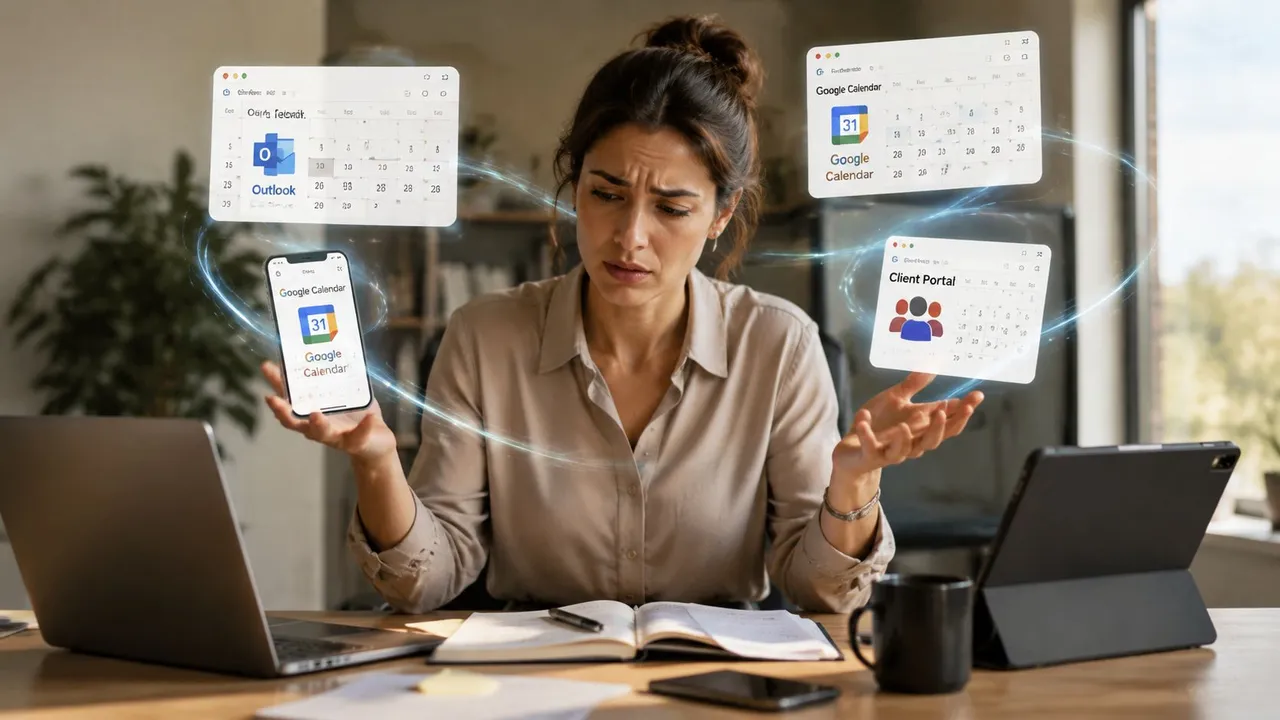
What calendar chaos actually looks like
For freelancers, it’s usually multiple client calendars plus one personal calendar.
For entrepreneurs, it’s work, personal, assistant-managed, and booking calendars colliding.
For teams, it’s shared availability that doesn’t reflect private holds or external appointments.
A messy setup creates the same behaviors every time:
- Constant app switching: You check Google, then Outlook, then your phone, then back again.
- Manual blocking: You recreate the same event in multiple places just to stay safe.
- False confidence: You see an empty slot in one calendar, but another system hasn’t caught up yet.
- Calendar fatigue: People stop trusting the shared view, so they start asking in Slack or email instead.
Practical rule: If a calendar can’t be trusted as your availability source, you’ll stop using it for decisions.
That’s why a lot of “shared calendar” advice falls short. It gives you visibility, but not dependable synchronization. If you want the mechanics behind that, this guide on calendar synchronization to share your calendars and avoid double bookings is useful background.
The actual shift happens when your calendars stop behaving like separate islands. When updates flow automatically between Google Calendar, Outlook 365, and iCloud, you stop spending mental energy on availability management. You trust the block, accept meetings faster, and stop creating backup systems for your backup systems.
Why Free Calendar Syncs Are So Unreliable
Individuals often start with the free method. They paste an ICS link into another calendar app and expect it to behave like live sync. It doesn’t.
The reason is simple. ICS is based on polling, not push.
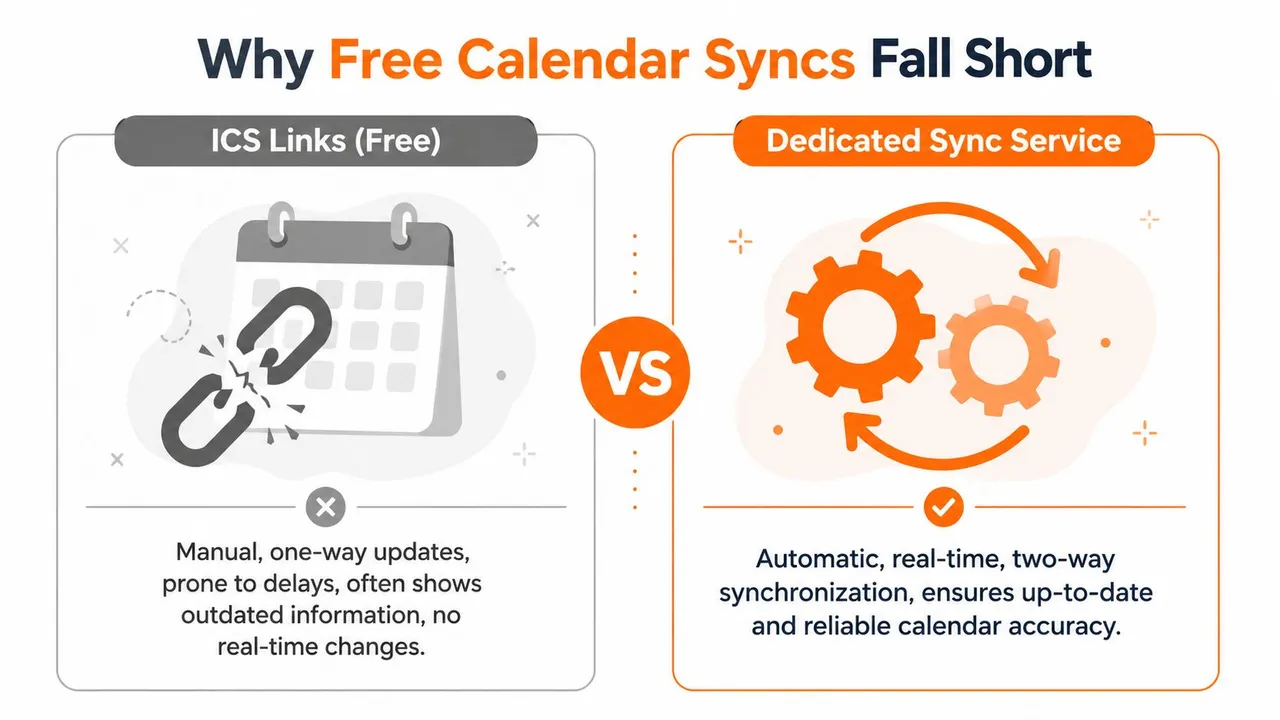
Polling versus push
Think of polling like checking your mailbox on a schedule. If a letter arrives right after you looked, you won’t see it until the next check.
Push works differently. The system tells the other side that something changed.
That’s the core reason free syncs fail in real life. Native Google Calendar synchronization through ICS or ICS URLs has a refresh delay ranging from 12 to 24 hours because Google controls the polling schedule, and users can’t change that according to this breakdown of delayed calendar sync behavior.
Why the lag gets worse
The native delay is only part of the problem. Many third-party tools built on the same old approach add their own waiting period on top. That’s why a calendar event can appear “eventually” but still miss the moment when you needed it to block availability.
Here’s what that means in practice:
- One-way visibility isn’t enough: You may see an event later, but not soon enough to prevent a booking.
- Manual refresh won’t save you: Removing and re-adding feeds usually doesn’t change the server-controlled schedule.
- Time-sensitive events suffer most: Same-day changes, cancellations, and moved meetings are exactly where lag hurts.
Free calendar subscriptions are good for awareness. They’re bad for live availability.
What actually works
If you’re searching for how to sync Google Calendar and expecting near-instant updates, you need an API-driven sync that uses webhooks, not an iCal feed pretending to be real-time. The same source notes that tools using Google’s official push notifications can deliver updates in approximately 4 seconds.
That distinction matters more than any feature checklist. A calendar sync that updates hours later isn’t sync in the operational sense. It’s delayed replication. Fine for a public events calendar. Unacceptable for your actual schedule.
How to Sync Google Calendar with Outlook 365
A common failure pattern looks like this. A client meeting is added in Google Calendar, your Outlook 365 calendar does not reflect it fast enough, and someone books over the same hour at work. The problem is rarely the event itself. It is usually the sync method.
For Google and Outlook 365, the setup that holds up under daily use is an account-level sync that connects both calendars through their APIs. That gives you control over direction, privacy, and update behavior. It also avoids the delayed feed behavior covered earlier, which is why this pairing deserves a careful setup instead of a quick subscription link.
The clean setup path
Set it up in this order:
- Connect Google first: Sign in to the Google account that contains the calendar you want to sync.
- Authorize Microsoft 365: Connect the Outlook account where events should be copied or updated.
- Choose the exact calendars: Select the calendar inside each account, not just the account itself.
- Pick the sync direction: Use one-way if one calendar should stay authoritative. Use two-way only if you want edits on both sides to write back.
- Set privacy rules: Decide whether Outlook should receive full event details or only blocked time.
- Run a live test: Create, edit, and delete a test event before trusting the setup.
That sequence prevents the mistakes I see most often. People connect the accounts, skip direction and privacy choices, then discover they copied private appointment titles into a work calendar or let Outlook push changes back into the wrong Google calendar.
Choose your source of truth first
Google and Outlook can sync cleanly, but only if you decide which calendar leads.
Use one-way sync if Google Calendar is your planning calendar and Outlook only needs to show availability. This is the safer setup for consultants, freelancers, and anyone who keeps personal scheduling in Google but needs coworkers to see blocked time in Microsoft 365.
Use two-way sync if both calendars are active working calendars and edits can originate from either side. This kind of two-way Google Calendar sync works, but it carries more risk. A wrong edit, accidental deletion, or category mismatch can travel both directions.
SyncThemCalendars is one option for this setup. It supports one-way, two-way, and multi-way syncing between Google Calendar, Outlook 365, and iCloud, with controls for which event fields get copied.
If you want the click-by-click version, follow this guide on how to sync Google Calendar with Outlook.
If coworkers only need to know you are unavailable, copy personal events into Outlook as busy blocks and hide the title, notes, guests, and location.
What to test before you trust it
A successful connection is only the start. The key question is how the sync behaves after changes.
Check these cases:
- New event: Add an event in Google Calendar and confirm it appears in the correct Outlook calendar.
- Time change: Move the event and verify Outlook updates the existing item instead of creating a duplicate.
- Deletion: Remove the event and confirm the copied Outlook entry disappears.
- Recurring events: Edit one instance and then the full series. Recurrence rules expose weak sync setups quickly.
- Private details: Make sure titles, notes, and locations are either visible or hidden exactly as intended.
If any of those tests fail, stop there and fix the rule set before you rely on it for work. A sync that only handles new events is not enough.
If you want to see the flow before doing it yourself, this video walks through the process:
One practical rule matters more than it gets credit for. Keep the sync at the cloud account level, not tied to a single desktop app or local calendar folder. That reduces conflicts, keeps Outlook Web and desktop behavior aligned, and makes troubleshooting much simpler when something looks off.
👉 Want these steps interactive? Our free add one calendar to another tool walks you through this exact setup, with the read-only and refresh-delay limits clearly flagged.
Connecting Google Calendar to Apple iCloud
Google-to-iCloud is where many people get stuck. Outlook usually gets the attention because of work setups, but Apple Calendar is the quiet source of a lot of scheduling confusion. Family calendars, personal appointments, travel plans, and shared household events often live there.
The tricky part isn’t the calendar logic. It’s usually Apple account authentication and choosing the right sync direction from the start.
The iCloud hurdle most people hit
Apple commonly requires an app-specific password when a third-party service connects to iCloud calendar data. If you skip that step and try your normal Apple password, the connection may fail or behave inconsistently.
That’s why Google Calendar to iCloud often feels harder than it should. The sync tool isn’t always the problem. Authentication is.
The setup recipe that works
Follow this sequence:
- Log into your Apple account settings: Generate an app-specific password for calendar access.
- Connect your Google account: Pick the calendar you want to use as the source or one side of a two-way sync.
- Add your iCloud calendar account: Use the app-specific password instead of your normal Apple login password.
- Choose the target iCloud calendar carefully: Many users have multiple iCloud calendars, including family or shared calendars.
- Pick one-way or two-way logic: Often, one-way from iCloud to Google or Google to iCloud is cleaner than full two-way sync.
- Test with a private event and a recurring event: Those two tests reveal whether privacy mapping and series handling are working correctly.
Which direction makes sense
Use cases matter more here than with Outlook.
| Scenario | Better direction | Why |
|---|---|---|
| Personal appointments should block work scheduling | iCloud to Google | Keeps your work-facing availability accurate |
| You live mostly in Google Calendar but want Apple devices to reflect it | Google to iCloud | Lets Apple Calendar act as a clean mirror |
| Shared family planning needs to affect your work schedule | iCloud to Google as busy only | Protects details while preserving availability |
A lot of tools handle Google and Outlook well enough, then treat iCloud as an afterthought. That’s why it helps to use a setup built specifically for this cross-platform case. This guide on syncing iCloud Calendar with Google Calendar covers the flow in more detail.
Keep your household calendar private, but let it block your availability everywhere else.
One more caution. If you edit events inside a third-party mobile calendar app, fields can go missing or map differently across systems. When you’re diagnosing a problem, create the test event in the main web interface first. That removes a lot of noise from the troubleshooting process.
👉 The same free tool covers the Google → Apple pair too.
Mastering Privacy and Sync Direction
A sync setup becomes useful when it protects your time. It becomes professional when it also protects your information.
That means deciding two things before you turn everything on. First, should events move in one direction or both? Second, what should the receiving calendar see?
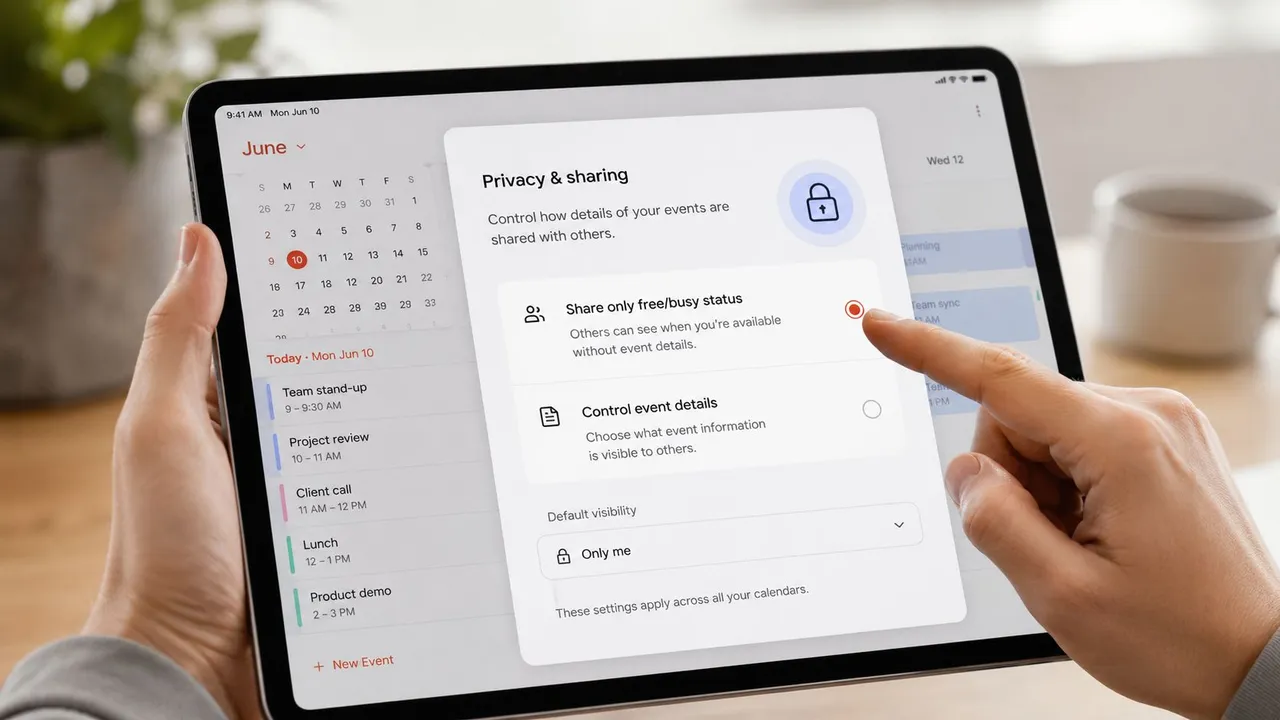
One-way versus two-way
One-way sync is the safer default. It’s ideal when one calendar exists to inform another, not to become a second editing surface.
Examples:
- Personal to work: Copy appointments as busy blocks so coworkers can’t book over your private commitments.
- Client calendar to master calendar: See their schedule alongside yours without pushing your edits back.
- Booking calendar to personal calendar: Keep visibility centralized while preserving the source system.
Two-way sync works when both calendars are legitimate places to create and update events. Shared project work is the classic case. If you edit in Google or Outlook, both need to stay aligned.
Privacy controls that matter
You don’t need to expose titles, locations, or notes to make a calendar useful. In many setups, free/busy is enough.
That’s more than just a preference. According to this discussion of advanced calendar mirroring approaches, API-driven automation can mirror free/busy status while masking sensitive fields like title and location, and free/busy mirroring has been associated with reducing double-booking by 75 to 80 percent.
Here’s how to use that intelligently:
- Mask titles: Replace “Therapy” or “Investor Call” with “Busy.”
- Hide locations: Useful when travel, home addresses, or client sites shouldn’t be exposed.
- Drop descriptions: Prevent notes, links, or meeting context from leaking across boundaries.
Privacy isn’t a bonus feature. It’s what makes cross-calendar syncing usable for real people.
A practical decision rule
Use this rule when you’re unsure.
| If the target calendar is used for | Then copy | Best mode |
|---|---|---|
| Availability only | Busy status | One-way |
| Team coordination | Title and timing | Two-way |
| Family or household planning | Limited details | One-way |
| Personal reference | Full event data | One-way or two-way |
The goal isn’t to make every calendar identical. It’s to make each calendar useful for the audience that sees it.
Pro Setups for Freelancers Entrepreneurs and Teams
Most calendar advice is too generic to apply on Monday morning. The better approach is to match the sync design to the job you do.
If you also automate surrounding workflows, Refact’s guide to AI automation is a helpful companion read because it shows how calendar actions fit into broader operational systems instead of living alone.
Recommended Sync Setups by Role
| Role | Use Case | Recommended Sync Direction | Privacy Setting |
|---|---|---|---|
| Freelancer | Multiple client calendars plus one personal master view | One-way from each client-facing calendar into a master calendar | Keep client details visible only where needed |
| Entrepreneur | Personal commitments should block team scheduling | One-way from personal into work | Show busy only |
| Team Lead | Team members need availability without seeing private details | One-way from personal/work into shared team availability calendar | Mask title, location, and notes |
| Consultant | Outlook work calendar and Google personal calendar both need live alignment | Two-way between primary calendars | Visible titles only if both sides are private |
| Student or academic | Institution calendar should appear with personal planning | One-way from school calendar into personal calendar | Keep academic event details intact, mask personal events elsewhere |
What I’d use in each case
For a freelancer, I’d avoid two-way sync unless there’s a strong reason. Different clients often have different norms, and you don’t want edits bouncing back into a calendar you don’t fully control. Pull those calendars into one master view instead.
For an entrepreneur, the cleanest move is usually personal-to-work as busy-only. That blocks time without broadcasting private details to assistants, staff, or shared office calendars.
For a team lead, I’d separate coordination from disclosure. The team needs to know when you’re unavailable. They usually don’t need the event title.
One operating rule that prevents clutter
A calendar should show what someone needs in order to act. Nothing more.
The guidance in the verified data puts this well in practical terms: if a stakeholder doesn’t need to act on a specific task or post, they shouldn’t see it in their daily calendar view. That same rule works for meetings, private appointments, and cross-account blocks. It keeps synced calendars readable and stops them from turning into noisy archives.
Troubleshooting and Final Thoughts
A broken sync usually has a boring cause. The event was created on the wrong source calendar, the sync direction does not allow the edit you expected, or an old subscription feed is still running in the background.
That pattern matters because it explains why free calendar syncs feel unpredictable. Many of them rely on ICS subscriptions, and ICS is built for periodic refresh, not live event exchange. So the calendar is not always broken. It may just be stale. That is the root cause behind the classic problem where Google looks updated, Outlook still shows the old time, and iCloud catches up later or not at all.
If an event is missing
Check the setup in this order:
- Confirm the source calendar. Test with a new event created in the calendar that is connected.
- Check sync direction. One-way sync imports changes in one direction only. Edits made on the destination side may never come back.
- Check whether you used ICS or an API-based tool. ICS feeds can lag, especially with Outlook subscriptions and some Apple calendar setups.
- Test a single event before testing recurring series. Recurring events add exceptions, overrides, and timezone quirks that make diagnosis slower.
- For iCloud, verify the correct Apple calendar is selected. A lot of failures come from syncing the wrong iCloud calendar, not from Apple itself.
If you’re seeing duplicates
Duplicates usually mean two systems are writing the same event.
Common examples include an Outlook subscription plus a sync app, Zapier plus a dedicated calendar sync tool, or an old iCloud calendar share that was never removed after a newer connection was added. I see this often when someone tests three methods in one week and leaves all three active.
Use one path per calendar pair. If Google and Outlook need two-way sync, let one tool handle it. If iCloud only needs visibility, keep that connection one-way and separate from your working calendar.
Calendar problems usually come from overlapping rules, delayed feeds, or the wrong sync direction.
If privacy looks wrong
Treat this as a mapping problem.
Create one fresh test event with a clear title, location, and notes. Then check what appears on the other side. If the destination should show busy-only, full details should not come through. If the destination is meant to mirror titles but hide notes, verify that too. Apple iCloud deserves extra attention here because people often assume a shared Apple calendar will preserve the same privacy behavior as Google or Outlook. It often does not.
The long-term fix is simple. Pick a sync method that updates in real time or close to it, keep the direction rules clear, and decide what each calendar is allowed to reveal. Once those three settings are right, double bookings stop and the calendar becomes trustworthy again.
If you want a set-and-forget way to keep Google Calendar, Outlook 365, and Apple iCloud aligned, take a look at SyncThemCalendars. It supports one-way and two-way setups and lets you mirror availability without exposing private event details.
Ready to sync your calendars?
Keep your Google, Outlook and Apple iCloud calendars in sync automatically. 2-minute setup, no credit card required.
Get started freeKeep reading
More in Tutorials
How to Add Gmail Calendar to Outlook Without Duplicates
See how to add Gmail Calendar to Outlook by subscribing for a live view or using two-way sync, then avoid privacy leaks and duplicate events.
Export Outlook Calendar to Google: A 2026 Step-by-Step Guide
Learn how to export Outlook calendar to Google with clear steps for ICS and CSV imports, recurring-event checks, and verification tips that work in 2026.
How to Synchronize Outlook Calendar Across Platforms
Learn how to synchronize Outlook calendar events with Google and Apple iCloud. Master two-way sync, privacy controls, and real-time availability mapping.