







What Is an ICS File Type? a Complete 2026 Guide
Learn everything about the ICS file type. This guide explains what it is, how to open and create ICS files, and when to use real-time sync instead.
You’ve probably opened your inbox, seen a calendar invite attachment ending in .ics, and wondered whether it’s something you need to treat carefully or just click and move on. Maybe it came from a flight booking, a doctor’s office, a webinar platform, or a colleague who wants to save you a few minutes of typing. The good news is that an ICS file type is usually much less mysterious than it looks, and once you understand it, you can use it with confidence across Google Calendar, Apple Calendar, and Microsoft Outlook.
Think of it as a digital postcard for an event. It carries the key facts, what’s happening, when it starts, where it’s taking place, and a few extra details, then hands that information to your calendar app in a format it understands. The catch is that an ICS file is a snapshot, not a living link, and that difference matters more than most guides admit.
Why You Keep Seeing ICS Files in Your Inbox
An ICS file is typically first noticed when it’s attached to an email received unexpectedly. A travel confirmation arrives, a meeting invitation lands in Outlook, or a webinar sign-up email includes a tiny file that looks technical but behaves like a simple add-to-calendar button. That’s normal. An ICS file is the standard plain-text container for iCalendar data, and it exists so different calendar apps can understand the same event details without you retyping anything manually. The iCalendar format’s history and standardization explain why this simple attachment became such a common bridge between systems.
The easiest way to read the file
You don’t need to be a developer to use one. If a service sends you an ICS attachment, your calendar app can usually open it, import it, or offer to add the event right away. The file is acting like a universal delivery envelope, not a complicated app in its own right. That’s why a calendar invite from one ecosystem can still show up in another, even when the sending and receiving platforms don’t match.
Practical rule: If the email is only meant to add one event, the ICS attachment is probably the right thing to click. If the sender expects the event to keep changing, you should check whether they’re giving you a live calendar link instead.
For a simple walkthrough on creating one, this ICS file creation guide is a helpful companion if you’re sending events yourself. The rest of this guide focuses on what the file is, why it works, how different platforms handle it, and where its limits start to matter.
What Is an ICS File Anyway
An ICS file type is a standardized way to describe calendar information in plain text. You can treat it like a digital postcard for an event. It carries the important details, then arrives in another calendar app that knows how to read the message. The format exists for interoperability, which means one calendar system can pass an event to another without either side guessing what the fields mean. The modern standard grew out of work started in 1998 by the IETF Calendaring and Scheduling Working Group, with the original standard published as RFC 2445 and later replaced by RFC 5545 in September 2009. That standard history explains why ICS became a common bridge between systems instead of a format locked to one app.
The digital postcard analogy
A postcard gives someone the essentials. It says where you are going, when you expect to arrive, and maybe includes a short note, but it does not keep changing after you send it. An ICS file works the same way. It packages event details into a format that calendar apps can read, then stops there. That is why it feels straightforward when a Google Calendar user sends an event to someone using Outlook or Apple Calendar.
The format is plain text, so it can be stored, emailed, downloaded, and parsed by many tools. It is identified by the MIME type text/calendar, and it is widely supported by Google Calendar, Apple Calendar, and Microsoft Outlook. That broad support is what makes ICS useful for sharing events across different products and vendors. It is also why the file type became the common language for invitations, availability files, and copied events, especially when you need a simple export path like the one in this guide to creating an ICS file.
Why the standard mattered
Before this level of compatibility existed, calendar information was often trapped inside one platform. If someone used a different app, the event details had to be copied over by hand. That was slow, error-prone, and frustrating for teams, clients, and anyone juggling several calendars. With ICS, the sender can export an event once, and the receiver can import it into their own calendar app without translating the information manually.
An important limit shows up here. An ICS file is a snapshot, not a living calendar. It captures the event as it existed at the moment the file was created or shared. If the time, location, or description changes later, the file does not update itself. Ongoing schedule management depends on real-time syncing, where the calendar connection stays active and reflects changes as they happen. That difference matters when you are choosing between sending a one-time event and maintaining an always-current schedule.

A Look Inside the ICS File Structure
If an ICS attachment lands in your inbox, the file may look plain at first glance, but that plainness is the point. It is a text file, so you can open it in Notepad, TextEdit, or any simple editor and see labeled values instead of a locked package. That structure is what tells calendar apps where the calendar begins, where each event block starts, and where everything ends.
The format works a bit like a digital postcard for an event. It carries the key details in a compact, readable form, then leaves the calendar app to place those details into your schedule.
The parts that matter most
At the top level, the wrapper is usually VCALENDAR. Inside it, each individual event lives inside VEVENT. The main fields are straightforward:
- SUMMARY is the event title.
- DTSTART is the start date and time.
- DTEND is the end date and time.
- LOCATION is where the event happens.
- DESCRIPTION holds extra notes.
A simplified example looks like this:
BEGIN:VCALENDAR
VERSION:2.0
PRODID:-//Example Organization//Calendar Tool//EN
BEGIN:VEVENT
SUMMARY:Client Call
DTSTART:20260810T150000Z
DTEND:20260810T153000Z
LOCATION:Zoom
DESCRIPTION:Monthly project check-in
END:VEVENT
END:VCALENDAR
That example is intentionally small, but the pattern is clear. The labels let a compliant calendar app identify the title, timing, and location without guessing. Each line acts like a small instruction, which is why the file can move between calendar systems without needing manual translation.
Why recurring events and time zones get tricky
More advanced ICS files can also describe recurring schedules and time zones. Recurrence is usually expressed with rules such as RRULE, while time zone handling may use fields such as TZID. Those details help calendar apps place the same event correctly across regions and repeat patterns, but they also make the file more sensitive to formatting errors. A small mistake in a time field can shift how the event appears after import.
An ICS file is a static snapshot, not a living schedule. It captures the event exactly as it existed when the file was created or shared. If the time, location, or description changes later, the file stays the same. That is why real-time syncing matters for ongoing schedule management, since a synced calendar keeps updating as changes happen instead of leaving you with an outdated copy. For a practical example of how this file format behaves in one major calendar app, see this Google Calendar ICS guide.
Use this mental model: the file doesn’t hold your calendar, it holds instructions for one calendar app to recreate an event locally.
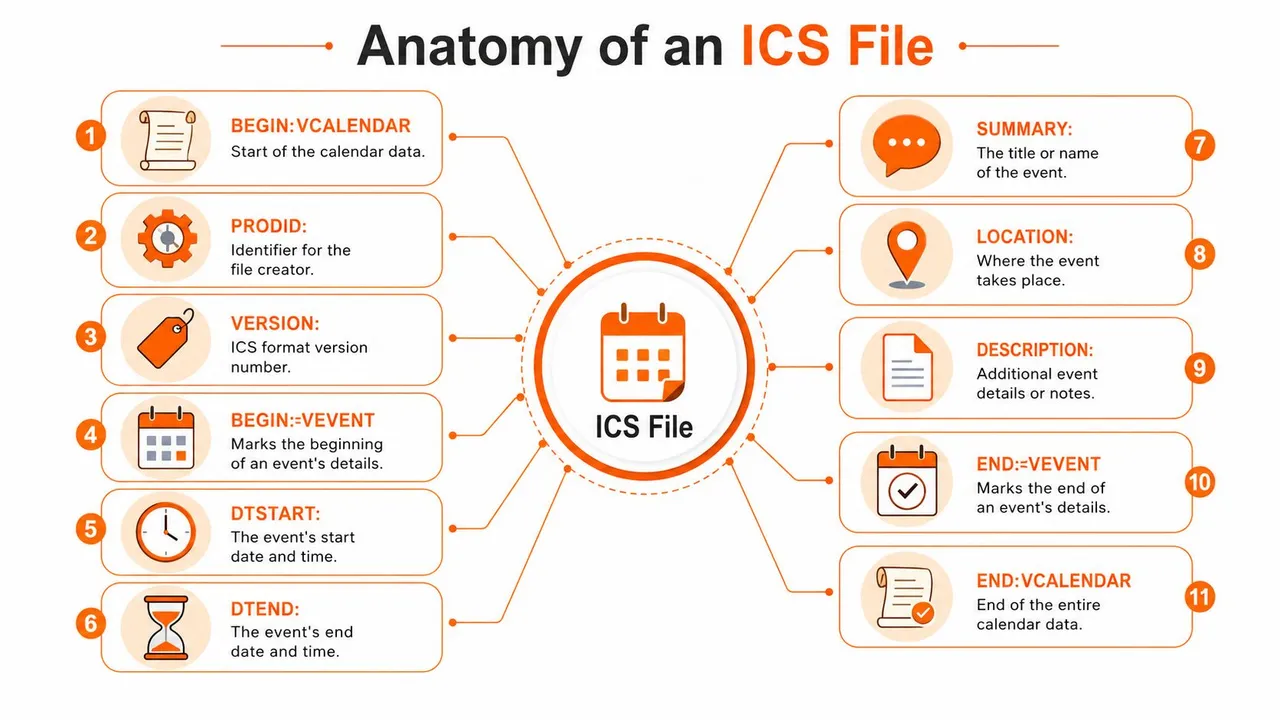
A short video below walks through the same structure visually and shows how the main fields fit together in a real ICS file.
The important takeaway is simple. An ICS file is a structured text snapshot, and that structure is what lets calendars import it reliably.
How to Use ICS Files on Major Platforms
The exact menu labels differ a little between apps, but the workflow is similar everywhere. You either import an ICS file someone sent you, or you export one from your own calendar to share with someone else. The file does the translation work, while the calendar app handles placement in your schedule.
Google Calendar
If someone emails you an ICS attachment, the easiest route is usually to download it and open it through Google Calendar’s import flow. Once the event is imported, it appears in your selected calendar, where you can review the title, time, and details before relying on it. If you’re sending one out, create the event in Google Calendar, then use the calendar’s export or sharing features depending on whether you need a single event file or a broader calendar feed. For platform-specific notes, this Google Calendar ICS guide is a useful reference.
Microsoft Outlook
In Outlook, imported ICS files are typically treated as calendar items you can add to your schedule. If the invite arrives by email, Outlook often recognizes it immediately and lets you accept it without extra steps. To export, open the event, look for the save or copy options tied to calendar items, then share the resulting ICS file with the person who needs it. The key idea is the same as in Google Calendar, the file is a transport format, not the event source of truth.
Apple Calendar
Apple Calendar also understands ICS files well, which is one reason the format remains so practical for people who move between devices. If you receive a file, open it and confirm the calendar the event should be added to. If you’re creating one, use the event’s sharing or export options to generate the file and send it on. Apple users often rely on this path for travel plans, appointments, and one-off reminders.
Quick check before importing: confirm the time zone, the calendar you’re adding to, and whether the sender wanted a one-time event or an updateable schedule.
If your goal is simple event transfer, these apps handle ICS files cleanly. If your goal is ongoing schedule alignment, the file itself won’t keep pace.
Security and Privacy Considerations
An ICS file is convenient because it’s easy to share, but that same convenience can expose more than people expect. The metadata inside a file can include the event title, description, location, and timing patterns, and those details can reveal routines, client relationships, or personal commitments. Zoho’s toolkit page points to that privacy gap directly, and it matters because calendar sharing is now part of everyday work across Google, Microsoft, and Apple ecosystems.

What to check before you open the file
An ICS file can look harmless while still carrying information you didn’t mean to share. A meeting title can be enough to reveal a client relationship. A location can reveal an office, a home office pattern, or a regular meeting spot. A string of recurring times can make someone’s weekly routine easy to infer.
That’s why it helps to treat imported calendar files with the same care you’d use for any shared document. Review the sender, inspect the event details, and think about whether the file contains more than the recipient needs. If you only want to share availability, a full event file may be too revealing.
Why misuse can happen
Calendar invites are also a useful delivery method for phishing because they arrive in a place people trust, their schedule. Security researchers have warned that attackers can hide links in event details or use invites to seed suspicious meetings directly into calendars. Plain-text calendar files can look routine while still carrying risky content, which is exactly why they deserve a second look before you accept or forward them.
Don’t assume a calendar attachment is low risk just because it isn’t an executable file.
If you’re sharing events with clients, teams, or personal contacts, keep the file lean. Only include the details the recipient requires.
Common ICS Issues and How to Fix Them
Most ICS headaches come from the same few places, and they’re usually fixable once you know what went wrong. The file may be correct but interpreted in the wrong time zone. It may import once and never update again because it’s only a snapshot. Or it may fail because the file was damaged, incomplete, or built with formatting your calendar app doesn’t like.
Wrong time or date
If an event shows up at the wrong time, start by checking the time zone embedded in the file and the time zone set in your calendar app. A mismatch between the two can shift the meeting from the intended slot. Fix it by confirming the event’s source time zone first, then reimporting it after the calendar app is set correctly.
Imported event doesn’t update
This is the part that confuses a lot of people. Once an ICS file is imported, it usually behaves like a static copy. If the original event changes later, the imported file won’t automatically refresh unless you’re subscribed to a live calendar feed rather than holding a one-time file. That’s the biggest practical limit of the format.
File won’t open cleanly
If the file won’t import, the cause is often formatting. A missing field, broken line ending, or malformed timestamp can prevent the calendar app from parsing it. Re-saving the file from the original source, or re-exporting it from the calendar that created it, usually fixes the problem. If you created the file yourself, validate the structure before sharing it again.
The simplest troubleshooting rule is this. If the event is wrong, check time zones first. If it won’t update, remember that the file is a snapshot, not a live link. If it won’t open, suspect the file structure.
When to Use Real-Time Sync Instead of ICS Files
ICS files work well for one-time sharing, but they’re the wrong tool when schedules need to stay aligned. A file can tell another calendar app what an event looked like at the moment it was exported. It can’t keep tracking future edits unless you move to a live feed or sync system. That’s why the difference between a snapshot and a living schedule matters so much.
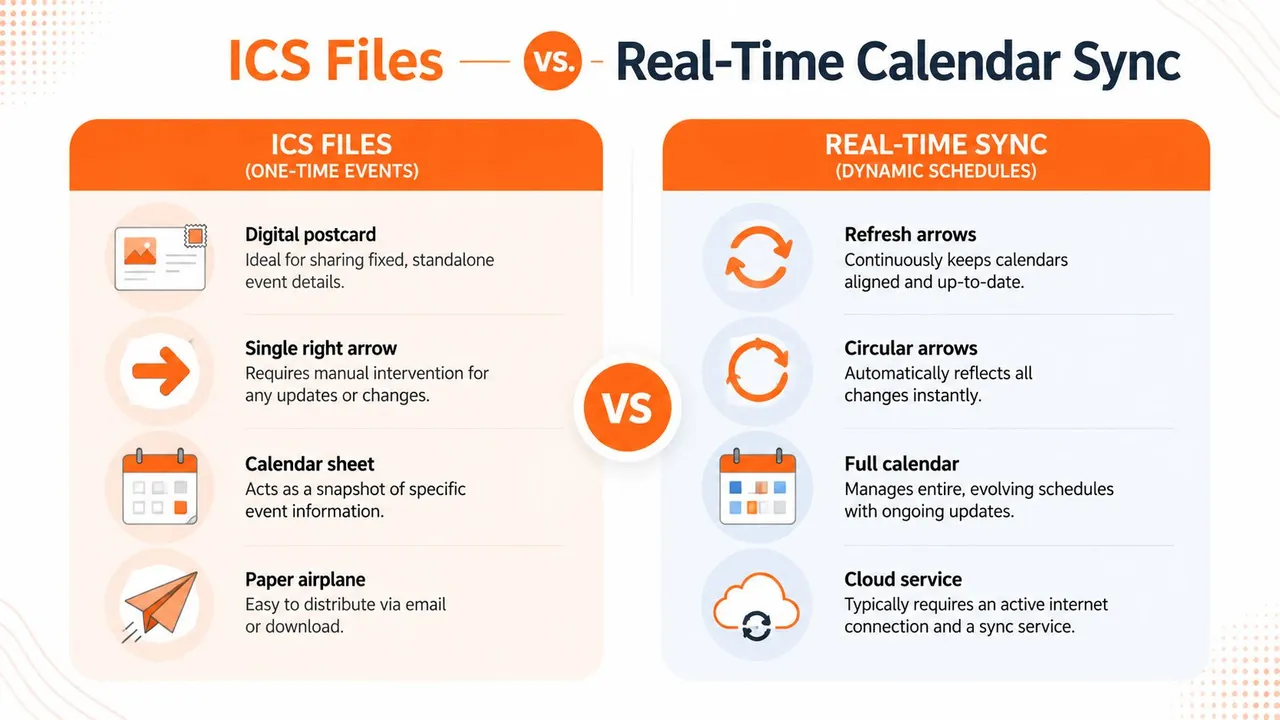
| Feature | ICS File | Real-Time Sync (e.g., SyncThemCalendars) |
|---|---|---|
| Update behavior | Static snapshot | Keeps calendars aligned as changes happen |
| Best use case | One-time event sharing | Ongoing schedule management |
| Privacy control | Depends on what gets embedded in the file | Can mirror availability without exposing every detail |
| Automation | Manual re-sharing is often needed for changes | Continuous background sync reduces manual work |
When the file is enough
Use an ICS file for travel itineraries, appointments, webinar registrations, and any event that won’t need ongoing updates. It’s also the right choice when the recipient just needs a clean copy of the details and doesn’t need a live connection to your calendar. In those cases, the simplicity is a strength.
When sync is the better fit
If you manage work and personal calendars, coordinate with clients, or need multiple schedules to stay aligned, live syncing is a better match. A service like SyncThemCalendars is built for real-time synchronization across Google Calendar, Microsoft Outlook, and Apple Calendar, with options for one-way, two-way, or multi-way copies of events. It also supports privacy controls that can mask or transform copied fields, which matters when you want availability shared without every detail.
For a broader look at that workflow, this calendar sync overview helps show how real-time syncing differs from a static file transfer.
Simple decision rule
- Choose ICS files when the event is fixed.
- Choose real-time sync when the schedule keeps changing.
- Choose privacy-aware sync when you need availability alignment without exposing full event content.
Once you see the difference, the choice gets easier. ICS is a postcard. Real-time sync is a living calendar relationship.
If you’re trying to share events cleanly across Google Calendar, Outlook, and Apple Calendar, SyncThemCalendars can help you move beyond one-time files and into ongoing calendar coordination. Visit SyncThemCalendars to see how real-time sync and privacy controls can fit the way you manage your schedule.
Ready to sync your calendars?
Keep your Google, Outlook and Apple iCloud calendars in sync automatically. 2-minute setup, no credit card required.
Get started freeKeep reading
More in Guides

Synchronize Apple Calendar with Outlook: A 2026 Guide
Step-by-step guide: Synchronize Apple Calendar with Outlook on Windows, iPhone and Mac, with two-way options, privacy trade-offs and fixes.

SyncThemCalendars Quick Setup Walkthrough
Master the SyncThemCalendars quick setup in minutes. Connect Google, Outlook, or iCloud, configure privacy masking, and verify your first sync effortlessly.

Merging Google Calendars: The Complete Guide for 2026
Merging Google Calendars. Learn the best ways to merge Google Calendars. Compare import methods, sync tools, and automation strategies