







How to Create an ICS File for Any Calendar App
Learn how to create an ICS file step by step, from manual editing to programmatic generation. Export from Google, Outlook, and Apple Calendar fast.
You’ve got the invite drafted, but it still lives in one calendar app and someone on the other end needs it to open cleanly in another. Maybe you’re sending a booking confirmation from a SaaS tool, maybe you’re moving an important meeting out of a provider you don’t trust, or maybe you just want a file that works in Outlook, Google Calendar, and Apple Calendar without hand-holding.
An ICS file solves that problem because it’s the plain-text interchange format defined by iCalendar (RFC 5545), which is why the same event can move across major calendar systems without conversion. It’s also the format most teams reach for when they need a meeting file that can be shared, attached, or imported later, and it sits naturally alongside using software for live results when you want event data to stay current without rebuilding it every time the schedule changes.
The practical question isn’t whether ICS works, it’s which creation method fits your job. A one-off invite can be hand-written or exported from your calendar app. A transactional email or booking system usually needs programmatic generation. A backup or migration job often starts with an export from Google, Outlook, or Apple Calendar, then ends with an import test.
What an ICS File Is and When You Actually Need One
An ICS file is a plain-text calendar file that packages event data in a format other apps can read. If you want a deeper explanation of what an ICS file actually is, the standard behind it is iCalendar (RFC 5545), and the point of the format is portability, not decoration. That’s why a small file can move a meeting between Google Calendar, Outlook, and Apple Calendar without asking the recipient to manually rebuild the event.
The three jobs an ICS file usually solves
A good way to think about ICS is by job, not by syntax. First, it shares a one-off event with someone who doesn’t live in your calendar system. Second, it supports automated delivery, which is what transactional emails and booking tools need when they attach a meeting directly to a confirmation. Third, it works as a backup or migration format, which matters when you want to move events out of one provider or preserve them outside a single account.
The format is machine-readable, but it’s also editable as text. That combination matters because it means you can generate it from structured data, or create it manually in a plain-text editor and save it with the .ics extension. In practice, the creation workflow is usually simple, add event details, set recurrence if needed, preview or validate, then download the file.
Practical rule: choose the creation method based on scale. If you’re sending one meeting, a calendar export is often enough. If you’re building a product, generate the file from code so you control the fields.
That’s the split. Manual text editing works when you want to understand or debug the format. GUI export works when the event already exists in Google, Outlook, or Apple Calendar. Programmatic generation works when the event is dynamic, private, repeated, or created at scale. If you treat those as three separate paths, the rest of the process gets much easier to reason about.
Why the format keeps showing up in real workflows
ICS remains useful because it avoids platform lock-in. A freelancer can send one booking invite to any client. A SaaS team can attach an event to an email without asking the customer which calendar they use. A person moving between providers can save events first and sort synchronization later. That’s the core value, a calendar event that still behaves like a file.
Building an ICS File From Scratch in a Text Editor
If you want to understand why an ICS file works, hand-write one first. Not because it’s the easiest path for every job, but because it forces the structure into view, and that structure is what calendar apps parse. A plain-text editor like Notepad, VS Code, or TextEdit is enough for a minimal event.
The smallest valid skeleton
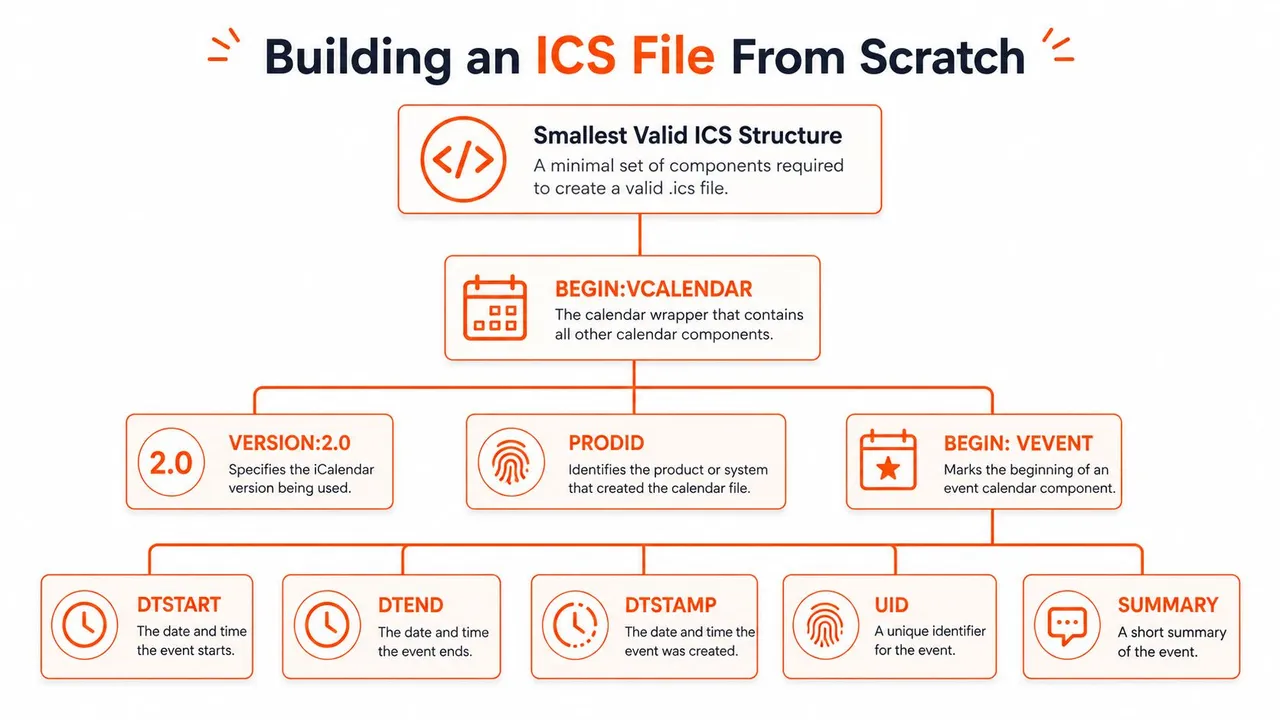
A basic ICS file wraps one event inside a calendar container. The outer wrapper is BEGIN:VCALENDAR and END:VCALENDAR. Inside that sits BEGIN:VEVENT and END:VEVENT, plus the event fields the parser needs.
A minimal file usually includes these required properties: UID, DTSTAMP, DTSTART, DTEND, and SUMMARY. A practical generator also includes VERSION:2.0 and PRODID, because those help identify the calendar format and the producer. For a quick test, this structure is enough to import a single meeting.
BEGIN:VCALENDAR VERSION:2.0 PRODID:-//Example Corp//Calendar 1.0//EN BEGIN:VEVENT UID:meeting-123@example.com DTSTAMP:20240720T120000Z DTSTART:20240720T140000Z DTEND:20240720T150000Z SUMMARY:Client Review END:VEVENT END:VCALENDAR
That example is intentionally small. It’s not trying to solve recurrence, attendees, or reminders. It’s just enough to prove the file is structurally valid and that the calendar app can read it.
The syntax details people forget
The mechanical rules matter. Lines should end with CRLF line endings, long lines should fold at 75 octets, and the file should be saved as UTF-8 plain text with the exact .ics extension. Small typographical mistakes can make the file unusable, especially if you misspell a property name or save it as a double extension like .ics.txt.
Special characters need escaping in text fields. If you put commas or semicolons in SUMMARY or DESCRIPTION, the parser may treat them as separators unless they’re escaped correctly. That’s one reason a file can look perfect in the editor but fail the moment you import it.
Open the file in a calendar app before you send it. If the event appears there, you’ve validated the structure in the only environment that matters.
The fastest sanity check is simple, save the file, open it in a calendar client, and confirm the event renders with the right title and time. If it imports cleanly, you’ve got a real ICS file, not just text that resembles one.
Exporting ICS Files From Google, Outlook, and Apple Calendar
If the event already exists in a calendar app, exporting is usually cleaner than retyping fields by hand. You’re letting the source app write the file, which reduces formatting mistakes and preserves details like recurrence or locations more reliably than manual editing. The exact click path varies, but the result is the same, a real .ics file you can share or test.
Google Calendar, Outlook, and Apple Calendar each export differently
In Google Calendar, go to Settings and sharing for the calendar, then use Settings → Import & export → Export. Google downloads a ZIP file that contains ICS files for calendars, which is different from exporting a single event. If you only need one event, dragging that event can produce a single file. For a more detailed walkthrough of Google’s import and export behavior, see the guide on ICS format in Google Calendar.
In Outlook, the most direct route is File → Save As → iCalendar (*.ics) for a single event. If you’re working with Microsoft 365 publishing features, Outlook can also produce a subscription-style link for ongoing calendar access, which is useful when the goal is continuing sync rather than a one-time file. That distinction matters because a downloaded ICS is static, while a published calendar is a feed.
In Apple Calendar on macOS, dragging an event to the desktop creates an ICS file. If you’re working in iCloud.com, sharing options can expose a public ICS link for the event. That’s handy when the recipient needs a link instead of an attachment, especially if they’ll import it later on another device.
Testing the import matters as much as exporting
An exported file isn’t useful until you know it imports. Outlook’s File → Import flow is a quick validation path if you want to test the file in the same ecosystem that wrote it. Google Calendar’s Settings → Import and export option does the same job on the other side.
If the file imports cleanly once, you’ve answered the core question, not just “Did I export a file?”, but “Will another calendar system accept it?” That’s the check that keeps a missed meeting from turning into a support problem later.
Generating ICS Files Programmatically in Python and Node
Manual export is fine for a human-created event. The moment the event comes from a form, booking page, CRM, or transactional email, code is the right place to generate the file. That gives you control over the event ID, timestamps, recurrence, and what details should be included or hidden.
Python example for a single UTC event
Python can write a valid ICS file with the standard library alone. This example creates a simple event in UTC and saves it as plain text.
from datetime import datetime, timezone
start = datetime(2024, 7, 20, 14, 0, 0, tzinfo=timezone.utc) end = datetime(2024, 7, 20, 15, 0, 0, tzinfo=timezone.utc) dtstamp = datetime.now(timezone.utc)
ics = f"""BEGIN:VCALENDAR VERSION:2.0 PRODID:-//Example Corp//Calendar 1.0//EN BEGIN:VEVENT UID:meeting-123@example.com DTSTAMP:{dtstamp.strftime(‘%Y%m%dT%H%M%SZ’)} DTSTART:{start.strftime(‘%Y%m%dT%H%M%SZ’)} DTEND:{end.strftime(‘%Y%m%dT%H%M%SZ’)} SUMMARY:Client Review END:VEVENT END:VCALENDAR """
with open(“client-review.ics”, “w”, encoding=“utf-8”, newline="") as f: f.write(ics)
The key part is the timestamp format, YYYYMMDDTHHMMSSZ, which matches the UTC style recommended for avoiding time-zone ambiguity. That’s the safest path for portable single events.
Node example for generated events with recurrence
In Node.js, many teams use a library such as ics to reduce the amount of hand-built text. That’s especially useful when the file needs recurrence rules or timezone-aware event creation.
import { writeFileSync } from “fs”; import { createEvent } from “ics”;
const event = { start: [2024, 7, 20, 14, 0], duration: { hours: 1 }, title: “Client Review”, uid: “meeting-123@example.com”, startOutputType: “utc”, recurrence: { freq: “WEEKLY”, interval: 1, byDay: [“tu”] }, status: “CONFIRMED” };
createEvent(event, (error, value) => { if (error) { console.error(error); return; } writeFileSync(“client-review.ics”, value); });
Programmatic generation changes the shape of the problem. You can create the file after a user books a slot, attach it to an email, or trigger a browser download without sending event data to a third party. That’s also where privacy controls start to matter, because you can omit fields, mask titles, or reduce the payload to free/busy-style information when the use case calls for it.
Handling Timezones, Recurrence, and DST Correctly
The hardest ICS bugs usually aren’t syntax bugs. They’re time bugs. A file can import successfully and still land at the wrong hour if the timezone model doesn’t match the meeting’s real-world behavior. That’s why it helps to think in three buckets, UTC, floating local time, and TZID-based local time.
UTC and floating time are not the same thing
A UTC timestamp ends in Z, for example 20240720T140000Z. That says the event is pinned to one absolute moment in time, which is ideal for portable single events. A floating local time has no Z, for example 20240720T140000, and it means the client interprets the time in the viewer’s local context.
The distinction matters because the imported meeting won’t behave the same way in every client if you guess wrong. If the meeting is meant to happen at the same wall-clock time in one region every week, a TZID with a VTIMEZONE block is usually the safer model.
Recurrence rules need a test, not a hope
A simple weekly rule often looks like RRULE:FREQ=WEEKLY. A more specific monthly rule might target the second Tuesday with something like RRULE:FREQ=MONTHLY;BYDAY=TU;BYSETPOS=2. The syntax is compact, but the behavior can get messy fast if the recurrence and timezone don’t align.
The practical difference is easy to miss. A meeting anchored only to UTC can appear to shift by an hour when daylight saving time changes, because the clock time is being interpreted as an absolute instant. A meeting anchored to TZID tracks the local rule more naturally.
Test recurring events on a phone in a different timezone than your laptop. If the wall-clock time still makes sense, the file is probably set up correctly.
The internal RRULE generator at this recurrence tool is useful for checking whether the rule you intend is the rule the file contains. That’s especially helpful when a series is more complicated than a plain weekly repeat.
Common Pitfalls That Break an ICS File
Most broken ICS files fail for boring reasons. The editor looks fine, the event data looks sensible, and then the import rejects the file because one small detail doesn’t match what the parser expects. If you know the failure mode, you can usually fix it without rebuilding everything.
The mistakes that show up most often
A file with the wrong line endings may look normal in an editor but fail on import, because ICS parsing depends on CRLF conventions. A file that’s missing VERSION:2.0 or PRODID can also create trouble, especially in stricter clients that expect the full calendar wrapper. If the UID is malformed, updates can turn into duplicates instead of replacing the original event.
Unescaped punctuation is another classic failure point. Commas and semicolons inside SUMMARY or DESCRIPTION can get interpreted as structure instead of text, which leaves you with garbled titles or truncated descriptions. The same thing happens when someone accidentally saves the file as .ics.txt, because the calendar app never sees a true ICS file at all.
A quick checklist before you send it
- Check the extension: make sure the filename ends in .ics, not
.ics.txt. - Check the wrapper: confirm BEGIN:VCALENDAR and BEGIN:VEVENT are present, along with their closing tags.
- Check the timestamps: use the right date format and make sure UTC values end in Z.
- Check the text fields: escape commas and semicolons in titles and descriptions.
- Check the import: open the file in a calendar viewer before sending it to anyone else.
If you need a fast inspection pass, the viewer at this ICS viewer tool is useful for spotting structure problems before a recipient sees them. That’s especially helpful when the file was generated by code and you want to confirm what the parser will likely read.
Privacy is its own pitfall. A correctly built ICS file can still expose more detail than you want once it lands in a shared calendar, so some teams mask fields during sync instead of trusting the payload alone.
The fix isn’t always to make the file more complete. Sometimes the right move is to make it less revealing.
Choosing the Right Creation Method for Your Use Case
A one-off meeting for a non-technical client and a recurring booking flow inside a SaaS app are not the same problem. They both end in an ICS file, but the best way to get there changes based on who controls the source data, who needs to receive it, and how private the event details are.
Match the method to the job
For a single event already sitting in Google Calendar, Outlook, or Apple Calendar, export from the app and send the file. That path keeps the details faithful and avoids writing parser-sensitive text by hand. It’s also the easiest option when the recipient just needs something they can import once.
For a booking flow or automated reminder, generate the file programmatically. That’s the right fit when the event is created after a form submission, payment, or scheduling action, because code can create the file at the moment the event exists. It’s also the cleanest way to hide fields, strip descriptions, or limit what’s exposed in the attachment.
For multi-account coordination, an ICS file is only part of the picture. If someone needs availability mirrored across personal and work calendars, a real-time sync service is often a better fit than repeated exports, because the calendar has to stay current after the first file is created. SyncThemCalendars is one option in that category, since it synchronizes events across Google Calendar, Microsoft Outlook/Office 365, and Apple Calendar, while supporting field masking and free/busy mirroring.
A simple decision checklist
- One event or many? One-off sharing leans toward export. Many generated events lean toward code.
- Manual or automated? If a human clicks through the calendar UI, export is fine. If software creates the meeting, generate the file in code.
- Shareable link or attached file? A link works well for ongoing access. An attachment works well for a static invite.
- Privacy-sensitive or not? If details matter, mask fields or reduce what the event exposes.
That’s where the market has clearly moved. Teams still hand-edit ICS files when they need to debug, but the more useful pattern is browser-based or server-side generation, because the event can be created automatically and handed off immediately without a manual export step.
If you need calendars to stay aligned after the file is created, SyncThemCalendars handles real-time syncing between Google, Outlook, and Apple Calendar with field masking and free/busy mirroring. Visit SyncThemCalendars to see how it fits the same sharing and privacy problems covered here, especially when a one-time ICS file isn’t enough.
Ready to sync your calendars?
Keep your Google, Outlook and Apple iCloud calendars in sync automatically. 2-minute setup, no credit card required.
Get started freeKeep reading
More in Tutorials

How to Add Gmail Calendar to Outlook Without Duplicates
See how to add Gmail Calendar to Outlook by subscribing for a live view or using two-way sync, then avoid privacy leaks and duplicate events.

Export Outlook Calendar to Google: A 2026 Step-by-Step Guide
Learn how to export Outlook calendar to Google with clear steps for ICS and CSV imports, recurring-event checks, and verification tips that work in 2026.

How to Synchronize Outlook Calendar Across Platforms
Learn how to synchronize Outlook calendar events with Google and Apple iCloud. Master two-way sync, privacy controls, and real-time availability mapping.