







ICS Format Google Calendar: Sync & Import Guide 2026
Learn how the ICS format google calendar works. Step-by-step import, export, subscription, and sync tips for Outlook and Apple Calendar.
If you’ve ever opened Google Calendar and found half your week in Outlook, a few family events on iPhone, and a client schedule living somewhere else entirely, you already know the problem. The issue usually isn’t that you’re disorganized, it’s that your calendar lives in fragments. The ics format exists to move those fragments into a common language Google Calendar can understand.
That common language has been around for a long time. The .ics format is the iCalendar standard, first defined in RFC 2445 (1998) and later updated by RFC 5545 (2009), which is why it’s still one of the most durable calendar exchange formats in use today, including in Google’s own import path Google Calendar help documentation. For anyone trying to keep work, personal, and shared schedules aligned, that longevity matters. It means the same file structure can travel across major calendar ecosystems without you having to rebuild every event by hand.
The Calendar Chaos That ICS Was Built to Solve
A freelancer finishes a client call in Outlook, checks a personal Gmail calendar for tonight’s dinner plan, then looks at an iPhone shared with family to confirm school pickup. Each calendar is accurate on its own, but none shows the full picture. That is how double-bookings happen. The problem is usually scattered information across systems, not a lack of attention.
The ics format was built for that kind of fragmentation. It gives calendars a shared container for events, recurring entries, and free/busy data, so one system can hand information to another without forcing a proprietary translation first. The text-based standard has lasted for decades, which is why it still appears in Google Calendar, Microsoft Outlook, and Apple Calendar.
For someone juggling work, personal, and client schedules, the value is practical. A single file works like a universal envelope, carrying event data from one calendar app to another while keeping the structure recognizable even when the apps differ. That matters most when you need to move an event list without rebuilding each item by hand.
A quick test helps separate the three common workflows. If the calendar data should live in the new place on its own, use import. If it should keep pointing back to the source, use subscription or sync. A simple way to inspect an ICS file before you decide is an ICS file viewer, which helps you see the structure before you try to load it into Google Calendar.
Google’s help documentation says imported calendar files must use the .ics extension, begin with BEGIN:VCALENDAR, and can be imported into a chosen calendar. It also notes that zipped exports can contain separate .ics files for each calendar. That is the handoff point. The file is not magic, it is a durable agreement about how calendars exchange event data.
What an ICS File Actually Looks Like
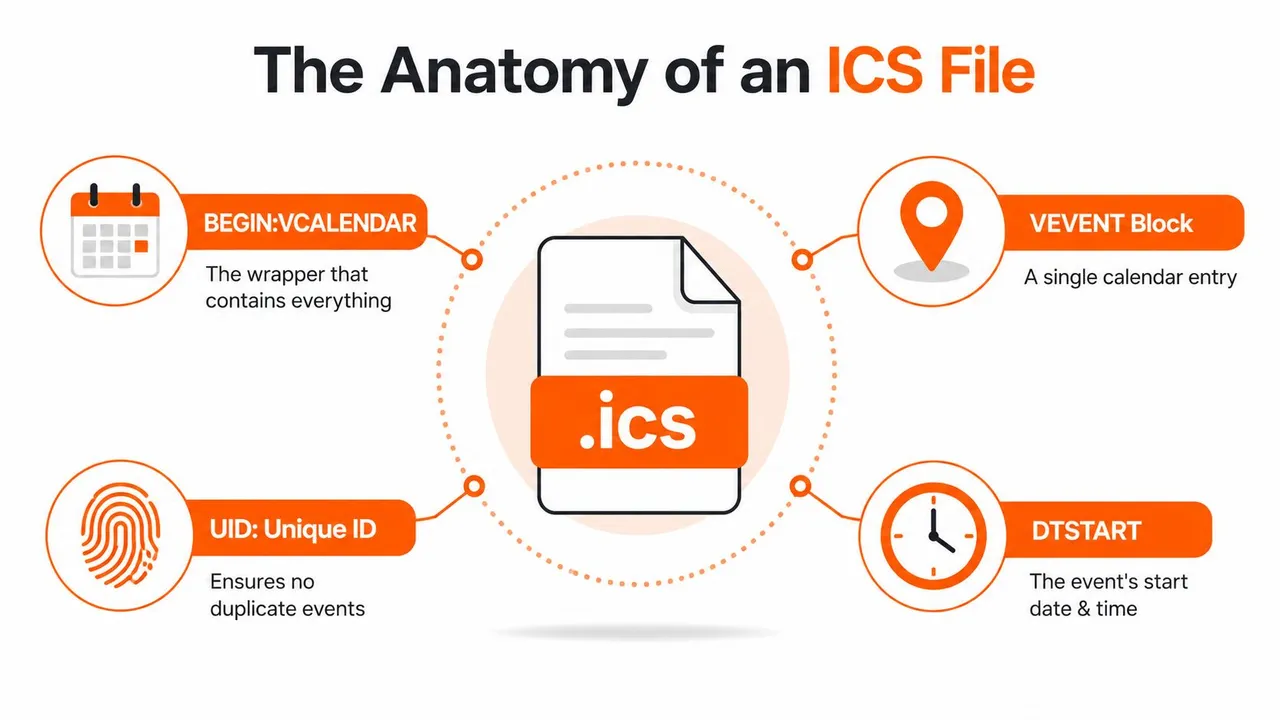
An ICS file is plain text. That sounds too simple until you realize that Google Calendar is reading the text like a structured form, not like a note to itself. The top line opens the envelope, the middle lines describe the event, and the last line seals it back up, which is why the ICS file type explained can be useful if you want a deeper breakdown of the format.
A simplified file might look like this:
BEGIN:VCALENDAR
BEGIN:VEVENT
UID:12345@example.com
DTSTART:20260801T150000Z
SUMMARY:Client review call
END:VEVENT
END:VCALENDAR
The important part is the structure. Google requires the file to begin with BEGIN:VCALENDAR and end with END:VCALENDAR, and each event must sit inside BEGIN:VEVENT and END:VEVENT blocks. Required fields such as DTSTART and a globally unique UID must be present for a valid import ICS format guide. If the wrapper is wrong, Google may reject the file without much explanation.
Why the required fields matter
Think of UID as the event’s fingerprint. If you import or sync the same logical event again, a stable UID helps systems recognize it as the same event instead of creating a duplicate. DTSTART tells the calendar when the event begins. Without it, the event has no anchor in time.
Date-time values can be encoded in a few ways, including UTC with a Z suffix, timezone-bound values using TZID=…, or all-day values as plain dates. That flexibility is useful, but it also creates room for mistakes when a file is edited manually. A missing line break, a broken header, or a malformed footer can make the whole import fail.
If an ICS file looks “almost right” but won’t import, the problem is often not the content of the events. It’s the grammar around them.
That’s why a viewer can be useful before you try the upload. A tool like ICS Viewer helps you inspect the file structure without guessing which line went wrong.
Importing an ICS File into Google Calendar
Open Google Calendar on a desktop browser first. Mobile apps usually do not expose the same import path, so the practical route is Settings and sharing, then Import & Export, then selecting the .ics file and choosing the calendar that should receive it. Google’s help documentation describes that desktop flow and shows that imported events are placed into the calendar you pick during the import process.
The easiest way to understand an import is to treat it like copying a finished stack of index cards into a new drawer. Google reads the file once, adds those events to the target calendar, and then stops listening to the file. If the source calendar changes later, the imported copy does not change with it unless you move to a subscription or a sync workflow, which is why a separate tool can make sense for ongoing calendar alignment, as described in this guide to syncing Google Calendar.
That distinction matters most with recurring events. If the source file includes a repeating meeting, trip, or class series, the export needs to carry that recurrence data cleanly before you upload it. A broken series can look fine at first glance and still create confusing results after import, especially if the file was edited by hand.
Common failure points to check first
- Wrong extension: The file needs to be saved as .ics. A renamed text file does not behave like a real calendar export.
- Broken headers or footers: If the file does not wrap events correctly, Google can reject it.
- Unsupported edits: Manual changes to exported files often introduce formatting problems that were not present in the original export.
- Wrong target calendar: Imported events may be present, just sitting in a different calendar than the one you expected.
It helps to verify the file before you upload it. Open the export in a plain-text editor if you want to inspect the wrapper lines, or use a file viewer first if you are not sure the export is clean. Google Calendar exports can also produce separate .ics files for different calendars inside a ZIP bundle, so if you downloaded one archive, unzip it and import the file that matches the calendar you want.
Importing vs Subscribing vs Syncing
These three workflows sound similar until you live with them for a week. Importing copies events once. Subscribing reads another calendar feed on a schedule. Syncing keeps calendars aligned continuously, usually in one or more directions.
| Method | Refresh | Direction | Best For |
|---|---|---|---|
| Import | No refresh after upload | One-time copy | Moving a schedule, archive, or event set |
| Subscribe | Periodic feed updates | One-way read-only | Public or shared calendars that change over time |
| Sync | Continuous updates | One-way, two-way, or multi-way | Ongoing alignment across work and personal calendars |
A one-time import fits a conference agenda, a trip itinerary, or a clean transfer from one account to another. You don’t expect the file to keep changing, and you want the data in your calendar now. That’s where the ics format is enough on its own.
Subscribing works better for external feeds that change, like a team holiday calendar or a public event feed. Google can refresh subscribed ICS calendars on a schedule, and an independent guide reports a refresh window of roughly 12 to 24 hours for subscribed feeds in Google Calendar Google Calendar ICS guide. That delay is fine for visibility, but it’s not the same as live coordination.
Syncing is different again. You use it when two calendars both matter and both need to stay current, such as a work Outlook calendar and a personal Google Calendar. For a deeper breakdown of how that works in practice, see Google Calendar sync options.
Useful shortcut: if you need edits to flow back and forth, a file import isn’t enough.
Exporting from Google Calendar and Using ICS Elsewhere
A Google Calendar export is meant to move data cleanly from one place to another. When you export, Google can package calendars into a ZIP file, and each calendar appears as its own .ics file inside that bundle. If you only need one calendar, that structure is helpful because you can pull out the single file you want instead of carrying the whole account history with you.
That file format is the reason ics format keeps showing up across calendar tools. The ICS compatibility guide notes broad support across major apps, including Google Calendar, Apple Calendar, and Microsoft Outlook. In practical terms, that means an export from one system often opens in another without a conversion step, the way a standard document opens in different office apps as long as they all understand the same file type.
Where it usually goes next
A Google export usually lands in an import workflow first. If you are moving from Google to Outlook, the .ics file is typically imported into the desktop app or the web version of Outlook. If you are moving to Apple Calendar on a Mac, the app can open or import the file directly. The question to ask before you click anything is simple, does the destination want a file, or does it want a feed URL for ongoing updates?
That distinction matters because the two workflows solve different problems. Apple Calendar can work well with subscription-based feeds when a calendar should stay current, while a manual file import is better when you want a fixed copy and do not expect updates. Outlook can also import calendar files, but event details and reminders do not always display exactly the same way after the move, so it is smart to check the result before you rely on it. If you are switching organizations, re-importing an old calendar into a new Google account can work as a fresh archive copy, but it should be treated as a snapshot, not a live connection.
The file itself does not decide the workflow, the destination app does. A file import gives you a one-time copy. A subscription keeps reading a feed for future changes. A sync tool sits in a different category, because it is built for calendars that both need to stay aligned over time, such as a work calendar and a personal calendar.
Privacy and Security Considerations With ICS Files
An ICS file can reveal more than the event title. Depending on what the source calendar includes, it may also expose descriptions, locations, attendee lists, and notes. That’s fine for a private migration, but it becomes a problem the moment a file or feed is shared more widely than intended.
The biggest risk is a public subscription link. Standard ICS feeds usually don’t rely on authentication, so anyone with the URL can often read the calendar data that the feed exposes. That makes a shared link closer to a public bulletin board than a private inbox. If the calendar contains client meetings, medical appointments, or personal time blocks, you need to treat the feed itself as sensitive.
Safer ways to share calendar data
- Strip sensitive fields first: Remove descriptions or locations that don’t need to travel with the event.
- Mask details before sync: Show free/busy or generic titles instead of full event text when privacy matters.
- Limit feed access carefully: Only hand subscription links to specific trusted people.
A good rule is to decide privacy at the workflow level, not after the fact. If you’re exporting a calendar for migration, send the full file only to the destination you trust. If you’re publishing a feed for ongoing visibility, assume the URL itself is the secret. The file can be useful and still deserve the same caution you’d give a shared document.
When a Dedicated Sync Service Beats Manual ICS Workflows
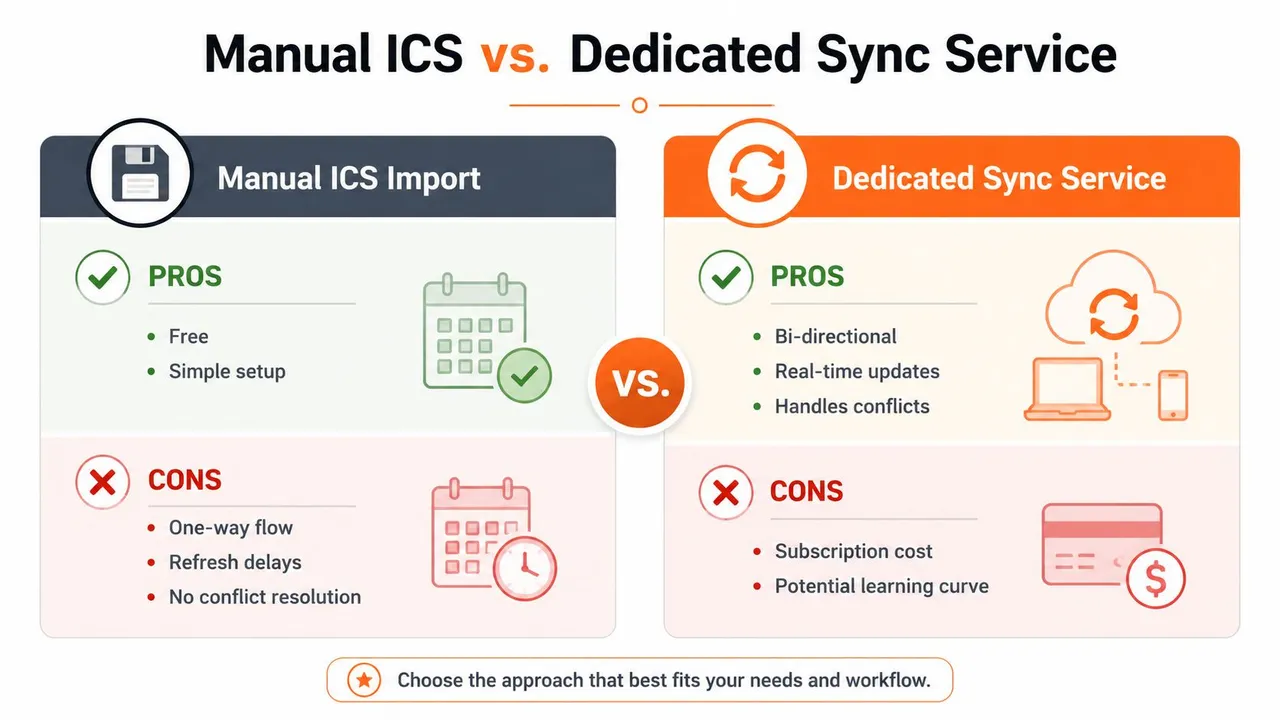
A manual ICS workflow works well for a one-time transfer. If you are moving a finished event set, sharing a fixed schedule, or publishing a feed that does not need changes pushed back later, the file format does its job. The problem begins when the same events need to stay aligned across several calendars or several providers.
At that point, a dedicated sync service is easier to maintain than repeated imports or subscriptions. SyncThemCalendars is one example of a web-based service that connects Google Calendar, Microsoft Outlook, and Apple Calendar, and can run one-way, two-way, or multi-way copies with field-masking controls and free/busy mirroring. It is built for people who need calendars to stay aligned in the background instead of being uploaded again every time something changes.
Manual imports never resolve conflicts for you, and subscriptions can lag behind the source. A sync tool closes that gap by keeping connected calendars updated continuously, which matters when a meeting changed in one place no longer matches your real availability somewhere else. For a broader comparison of tools in this category, see best calendar sync apps, and if you are wiring calendar actions into other app triggers, the Zapier integration overview shows the automation side of that setup.
Use a file when you are moving data. Use sync when you are managing a relationship between calendars.
SyncThemCalendars also publishes plan limits of Basic up to 5 syncs, Premium up to 16, and Professional up to 36, with a 14-day free trial and unlimited events on each plan. That makes it a fit for people who have outgrown one-time imports but do not want to rebuild their calendar system from scratch.
Choosing the Right Method for Your Workflow
An entrepreneur managing several ventures usually needs ongoing alignment, so sync is the cleanest match. A freelancer who receives schedules from clients may only need subscription for external feeds and import for one-time handoffs. A student balancing institutional and personal calendars can often start with subscription or manual import, then move up to sync if two systems must stay current together.
Corporate employees should check policy first, because company rules often decide whether a feed, import, or dedicated sync tool is allowed. Personal users with a single trip itinerary or a one-time event batch can keep it simple and use an ICS import without overengineering the process. The right choice isn’t about sophistication, it’s about how often the source changes and who needs to see the result.
A quick checklist helps:
- Need a one-time move? Import the .ics file.
- Need recurring updates from one source? Subscribe to the feed.
- Need calendars to stay aligned across apps? Use a dedicated sync service.
- Need privacy controls or field masking? Favor a sync tool with those options.
If you’re still deciding how to keep Google Calendar aligned with Outlook or Apple Calendar without constant manual imports, try SyncThemCalendars. It connects major calendar platforms, keeps events updated in the background, and gives you a structured way to choose between one-way, two-way, and multi-way sync instead of starting over with every file.
Ready to sync your calendars?
Keep your Google, Outlook and Apple iCloud calendars in sync automatically. 2-minute setup, no credit card required.
Get started freeKeep reading
More in Guides

SyncThemCalendars Quick Setup Walkthrough
Master the SyncThemCalendars quick setup in minutes. Connect Google, Outlook, or iCloud, configure privacy masking, and verify your first sync effortlessly.

Merging Google Calendars: The Complete Guide for 2026
Merging Google Calendars. Learn the best ways to merge Google Calendars. Compare import methods, sync tools, and automation strategies

Master Your Calendar on Outlook with Sync Solutions
Learn how to use calendar on Outlook effectively, sync with Google and iCloud, avoid double-bookings, and connect SyncThemCalendars for seamless scheduling.