







Two Way Calendar Sync: How It Works and Why It Matters
Learn how two way calendar sync keeps Google, Outlook, and Apple calendars aligned, the privacy tradeoffs, and how to set it up without surprises.
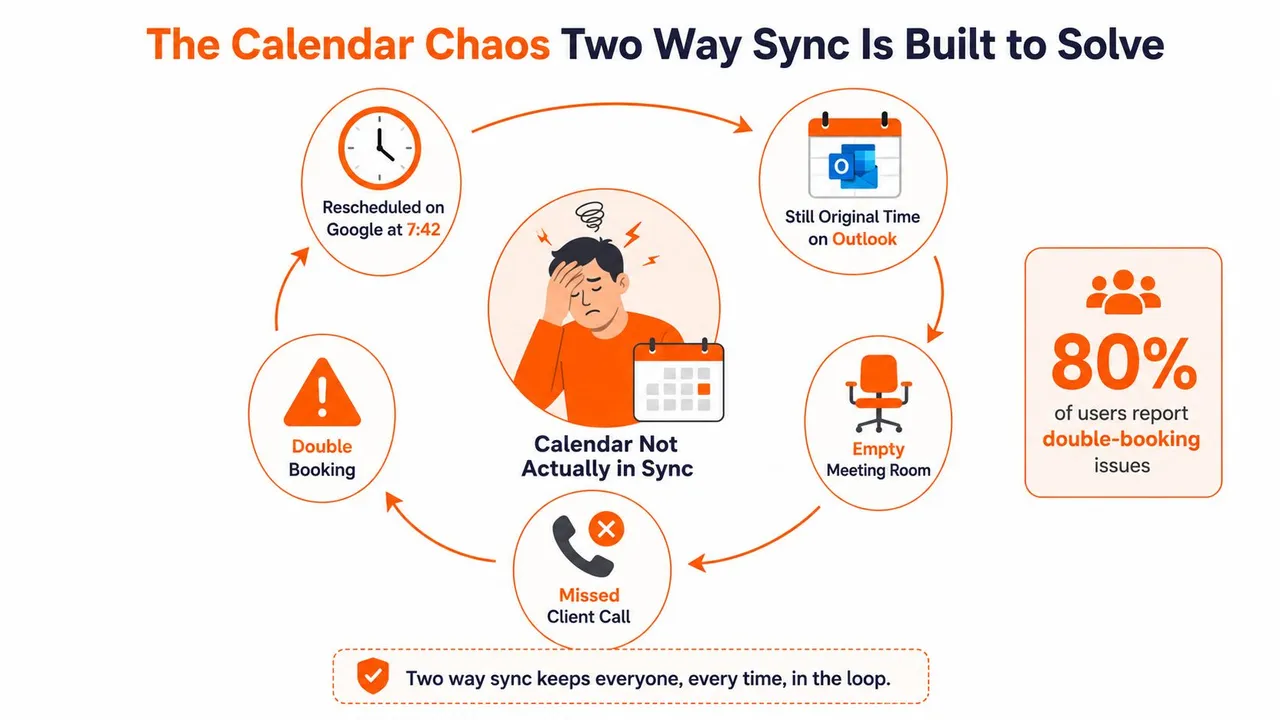
At 7:42 a.m., a prospect moves a sales call on Google Calendar. You accept the new time, close your laptop, and start the day. Later, Outlook still shows the original slot, a meeting room sits empty, and you join the wrong call from a second device. The problem isn’t that you forgot to update a calendar. The problem is that your calendars don’t share the same version of reality.
That situation affects people who move between Google Calendar, Microsoft Outlook, Apple Calendar, and services such as Fastmail. Entrepreneurs manage personal and company schedules, freelancers work inside client calendars, sales teams switch between CRM and office accounts, and students balance institutional Outlook calendars with personal Google accounts. Two way calendar sync is designed to keep those systems aligned when events are created, changed, moved, or removed.
The Calendar Chaos Two Way Sync Is Built to Solve
Calendar fragmentation creates more than an untidy interface. A consultant may check Google Calendar before accepting a client call, while the client’s invitation arrives in Outlook. A founder may reserve time in an iCloud calendar, but a colleague looking at the company calendar sees that period as open. A sales representative may update a follow-up in a CRM-connected calendar and assume the same change reached a personal account.
The practical failure is always similar: one calendar contains the latest decision, while another still contains an older copy. Manual re-entry appears manageable until a meeting changes during a busy morning, an invite is accepted from a phone, or a recurring appointment is edited from a different account.
The difference a connected schedule makes
A two-way connection lets a change travel in both directions. If you move an event in Google Calendar, the paired event in Outlook can receive that update. If you later change the Outlook copy, the sync service can send the change back to Google. The point isn’t just to display two calendars in one screen. It’s to maintain linked records across separate systems.
That distinction matters for anyone with more than one account. The modern foundation for interoperable calendar exchange goes back to RFC 2445, published by the Internet Engineering Task Force in 1998, which established the iCalendar format for exchanging event data and invitations. Microsoft Outlook, launched in 1997, adopted calendar invitations early, while Google Calendar began its beta launch on April 13, 2006, and reached general release in July 2009. These milestones helped create the cross-platform environment that two-way synchronization depends on. The history of calendar invites and interoperability provides that background.
Practical rule: If you routinely make changes in more than one calendar, a read-only subscription probably won’t solve the real problem.
The market reflects the continuing demand for connected calendar tools. One 2026 industry estimate values the global calendar market at USD 14.26 billion and projects USD 20.99 billion by 2035, with a projected 4.5% CAGR. The same estimate says nearly 64% of users prefer cloud-based synchronization, while 52% adoption of AI-enabled reminders is improving scheduling efficiency. A separate estimate places the calendar software market at USD 4.2 billion in 2025 and forecasts USD 8.1 billion by 2034. These are industry estimates, not guarantees for any individual product, but they show why calendar synchronization has become a central scheduling concern. Calendar market estimates and projections
What Two Way Sync Actually Does
Two-way calendar sync creates a paired relationship between two calendars. A new event, time change, cancellation, title edit, attendee update, or RSVP made on Calendar A can be sent to Calendar B. The reverse path must also exist, so a change on Calendar B can return to Calendar A.
That makes it different from a basic calendar subscription. A one-way feed may let Outlook display events from Google, but changes made in Outlook won’t necessarily update the Google source. A two-way setup maintains separate write paths, one from A to B and another from B to A. Each path needs its own permissions and rules.
Follow the event, not just the display
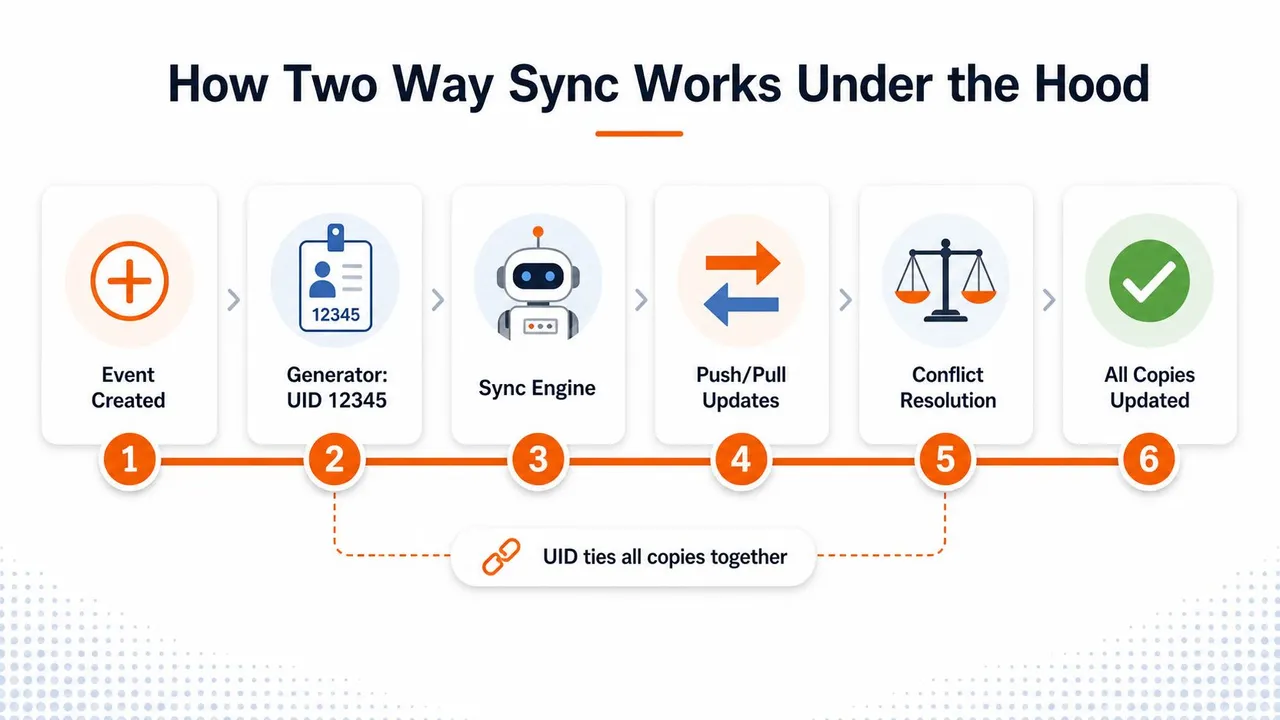
When a sync service copies an event, it usually creates a corresponding event on the destination calendar. It also stores a hidden relationship, such as an external ID, UID, or metadata token. Later, when the source event changes, the service uses that relationship to find the correct destination event instead of creating another copy.
For example:
- You create “Client discovery call” in Google Calendar.
- The sync engine creates a paired event in Outlook.
- Both records receive or retain identifiers that connect them.
- You move the Outlook copy.
- The engine uses the mapping to update the Google event.
A reliable implementation needs to distinguish a user’s edit from its own previously copied update. Without that check, the service can respond to its own change and create duplicates or trigger an endless update loop. The Nylas guide to two-way calendar synchronization describes this model, including separate directed links, stored mappings, and protection against duplicate event creation.
You’ll also encounter scope choices. A connection might cover every event in a calendar, selected calendars only, or specific categories. A personal calendar behaves differently from a shared team calendar because shared calendars bring additional editors, attendees, and permission boundaries.
| Sync Type | Direction of Changes | Typical Use |
|---|---|---|
| One-way | Calendar A sends changes to Calendar B | Read-only visibility or an auxiliary feed |
| Two-way | Calendar A and Calendar B both send changes | Keeping two working calendars aligned |
| Multi-way | Three or more calendars exchange changes | Coordinating several work, personal, or client accounts |
If your work also depends on documents, approvals, or lists connected to Outlook, calendar synchronization may be only one part of the workflow. A practical next step is to review how teams automate workflows with Outlook SharePoint so scheduling changes don’t remain isolated from the work those meetings create.
How Two Way Sync Works Under the Hood
A meeting moves from a work calendar to a personal calendar, then someone changes its time on a phone. For the update to reach the original event, the sync engine must identify the matching record, apply the change, and avoid treating its own copied update as a new edit. That process depends on an external ID, UID, or metadata token stored with the event. The token connects the source record with its destination counterpart.
Detection and update flow
A service can detect changes through webhooks, which send a notification when an event changes, or through polling, which checks calendars at intervals. The incoming information may contain the event ID, modification time, status, recurrence details, attendees, and changed fields. The engine compares those details with its stored mapping before deciding whether to create, update, delete, or ignore a record.
The mapping also helps separate a person’s edit from an update the service previously copied. If that distinction fails, reconnecting a calendar can produce a second copy because the service no longer recognizes the relationship between the original and its duplicate.
Conflict handling adds another decision. A sync service may use:
- Last-write-wins, where the most recent modification replaces the other version.
- Source-of-truth rules, where one calendar controls selected fields.
- Manual resolution, where a person chooses which version to keep.
Each rule changes the outcome. Someone may change a meeting time on a phone while another person edits its location in Outlook. A simplistic rule can overwrite one change with the other. A deletion that arrives after a stale update can also remove a copy that someone expected to retain.
Recurrence and time zones
Recurring events create extra cases because an edit can target one occurrence or the entire series. Moving one instance of a weekly meeting differs from changing the rule for every future meeting. Google Calendar, Outlook, and Apple Calendar can represent recurrence exceptions differently, so the destination might show a shifted instance, a broken series, or a new standalone event.
Time zones can shift an event even when no one intended to change it. One platform may store the meeting in UTC, while another interprets it as local or floating time. A daylight-saving transition or an account time-zone change can then place the meeting at the wrong hour or on a different date.
The real-time calendar sync explanation provides a technical walkthrough of how changes travel between calendars. For a visual demonstration, watch the video below.
A connection can work during setup and still fail later when it runs unattended. Discussion of Google and Microsoft interoperability includes reports of missed updates and the need for a full resync when changes stop propagating. Bidirectional synchronization must also keep running in the background, or deletions and copied items can cascade unexpectedly. The Microsoft community discussion of bidirectional calendar synchronization shows why background monitoring and recovery behavior matter as much as the initial connection.
Privacy and Security in Two Way Calendar Sync
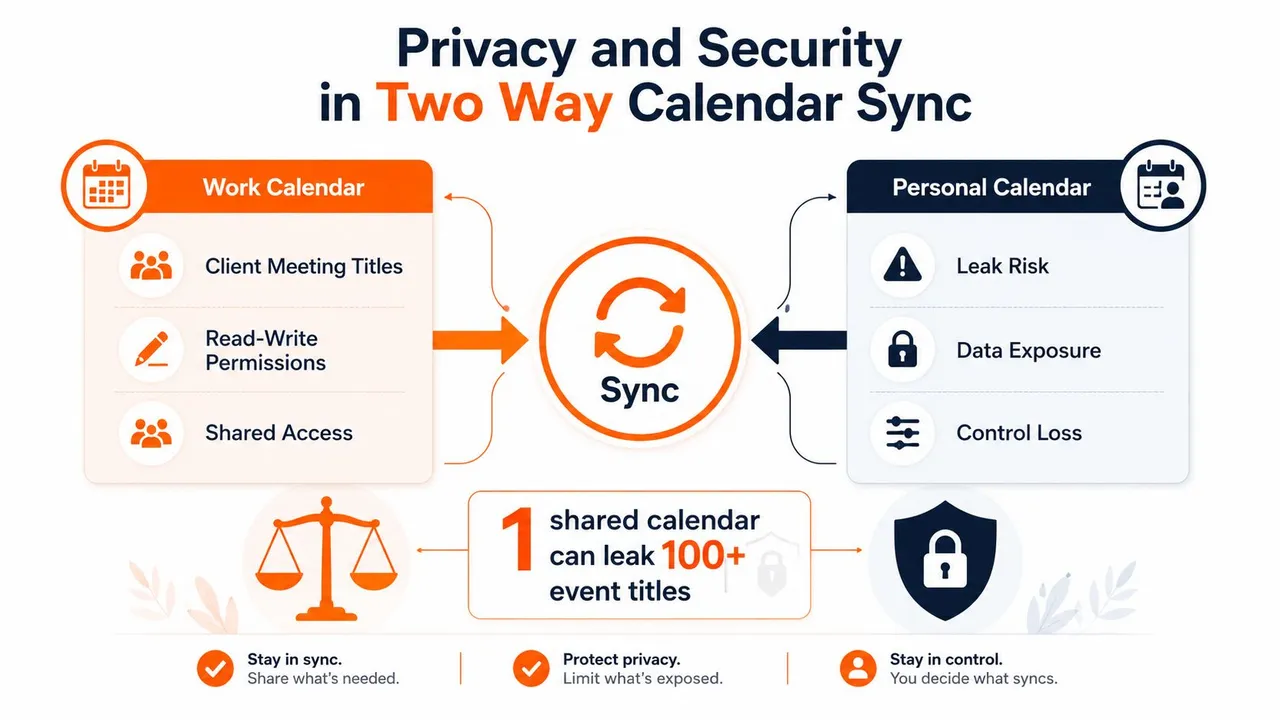
A two-way connection often needs permission to read and write events in both calendars. That access is useful, but it can expose more information than your scheduling problem requires. If a personal calendar receives full copies from a shared work calendar, event titles, locations, descriptions, attendees, and attachments may become visible to people who can access the destination.
Consider an entrepreneur who uses a shared CRM calendar for deal meetings. Teammates need to know when the entrepreneur is unavailable, but they don’t need to see a deal value in an event description or the names of every external participant. Full replication solves availability, but it also moves sensitive context.
Full details versus availability
A privacy-preserving setup can copy only the time block and replace the event content with a neutral label such as “Busy.” That approach preserves scheduling information while reducing disclosure. Google Calendar Interop for Exchange uses an availability-focused pattern, allowing users across Google Calendar and Microsoft Exchange to view one another’s availability status rather than replicating every event detail. Google’s Calendar Interop guidance explains this lower-exposure model.
| Data approach | What travels | Suitable when |
|---|---|---|
| Full event replication | Title, time, location, description, attendees, and supported event details | You need to work from either calendar |
| Masked replication | Time block plus a neutral title | Others need availability without context |
| Free/busy exchange | Availability status only | Preventing conflicts is the primary goal |
Permissions deserve deliberate review
Start at the provider permission screen, not the sync dashboard. Look for read-write access limited to the calendars you selected. Avoid granting access to an entire account when the connection only needs one work calendar. After setup, review whether the service offers scope reduction, granular revocation, audit history, and controls for removing a connection.
The calendar sync app overview can help you compare the kinds of controls a calendar connection may expose. The guiding principle is straightforward:
Move the narrowest set of data that solves the scheduling problem.
Privacy isn’t a final checkbox. It’s a design decision about who needs to see what, which fields can be masked, and whether a free/busy block is enough.
Real World Use Cases Across Professions
The right setup depends on the person using it. A multi-way connection can help an entrepreneur, but it may be unnecessary and over-permissioned for a student. The safest configuration starts with the calendars that need to exchange changes.
Four practical configurations
The entrepreneur manages investor meetings in one account, board sessions in another, and a shared company calendar for team visibility. A multi-way arrangement may keep those working calendars aligned, while a personal phone receives masked availability rather than full event details. That gives the entrepreneur one usable view without exposing confidential meeting context.
The freelancer often needs a focused Google Calendar and Apple Calendar pairing. Client deliverables can sync between the two, while personal categories remain excluded or masked. The freelancer can edit from either device without allowing every private appointment to travel into a client-facing calendar.
The salesperson needs a bridge between a CRM-connected calendar and Google or Microsoft 365. The important controls are attendee handling, title transformation, and deletion behavior. A demo may need to appear on both calendars, but internal notes or customer details shouldn’t automatically spread to every connected account.
The student may need only one two-way pair between a school Outlook calendar and a personal Google Calendar. An auxiliary institutional feed can remain one-way, while social or personal accounts stay outside the academic connection. That arrangement reduces unnecessary data movement and makes it clear which calendar can edit the shared schedule.
| Role | Primary Pairing | Sync Direction | Fields to Mask |
|---|---|---|---|
| Entrepreneur | Company, investor, and personal calendars | Multi-way for work, masked toward personal | Descriptions, locations, attendees |
| Freelancer | Google and Apple Calendar | Two-way, selected calendars | Client notes and private titles |
| Salesperson | CRM calendar and Google or Outlook | Two-way | Internal notes, sensitive attendee details |
| Student | School Outlook and personal Google | Two-way pair plus one-way auxiliary feed | Academic details toward social calendars |
Each topology reflects a different privacy posture. A person who edits in several places needs more write paths, while a person who only needs visibility may be better served by one-way or availability-only exchange. Users discussing multi-calendar synchronization often focus on this same tension between avoiding double-bookings and limiting disclosure, rather than treating synchronization as simple transport. User discussion of challenges with two-way calendar synchronization
Setting Up Two Way Sync Without Surprises
A reliable setup begins before you connect the first account. Treat the permission screen and configuration choices as a small technical design review, not a formality.
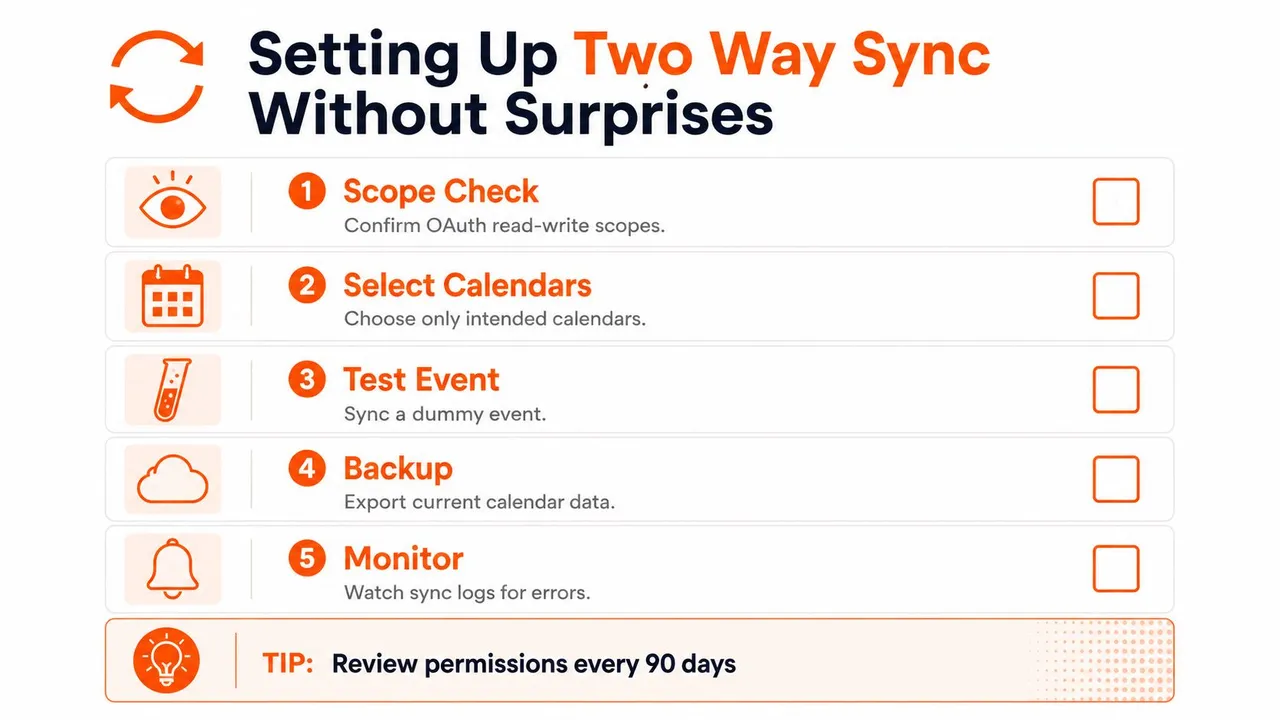
Run the pre-flight checks
-
Review OAuth scopes. Confirm that read-write access applies only to the calendars intended for synchronization. If the provider offers access to all calendars, check whether you can narrow the selection.
-
Choose the calendar pair. Name the exact source and destination calendars. Don’t connect an entire account when one personal or work calendar is enough.
-
Decide which fields travel. Select whether titles, locations, descriptions, attendee lists, reminders, and attachments should copy. If the destination only needs availability, mask the fields and use a neutral event label.
-
Set conflict behavior. Decide which calendar controls overlapping edits. Also decide whether a deletion on one side should delete the paired event on the other, or whether the service should retain a protected copy.
-
Create a test event. Use a duplicate or test calendar first. Create an event, edit it on both sides, move one occurrence of a recurring series, and delete the test record. These actions reveal more than a successful initial connection.
The test should cover time zones and recurrence rules because those features often behave differently across providers. It should also confirm that webhook notifications or background polling continue after you close the browser or sign out of the dashboard.
Verify before going unattended
Open both calendar platforms and confirm that a test event travels in both directions. Change the title, time, location, and recurrence behavior separately so you can identify which field causes trouble. Check that the destination preserves the intended privacy treatment rather than restoring the original details during a later update.
Keep a short configuration record with the connected accounts, selected calendars, sync direction, field rules, conflict policy, and date of the last permission review. The two-way Google Calendar sync guide is a useful reference when you’re checking a Google-based pairing.
Before you trust the connection with a live schedule, export or otherwise preserve the existing calendar data according to your provider’s available tools. After the pilot, remove unused connections and revoke scopes that no longer serve a purpose. A documented setup is easier to repair than a connection nobody remembers configuring.
Troubleshooting Common Two Way Sync Problems
Most failures leave clues in the event itself. Start with one example rather than resyncing every calendar immediately. Compare the event on both sides, inspect its external ID or UID if the service exposes it, and check the last-modified time.
Match the symptom to the check
| Symptom | Likely check |
|---|---|
| Event exists on A but not B | Calendar selection, field masking, permissions, and active webhook |
| Event exists on both but has the wrong time | Originating time zone, daylight-saving treatment, and recurrence exception |
| Copies keep multiplying | Repeated reconnects, lost identifiers, or overlapping sync pairs |
| Old event remains after a rename or move | Source mapping, calendar ID, and orphaned destination record |
| One occurrence drifts from a series | Whether the edit targeted one instance or the full recurrence rule |
An event that appears on one side but not the other may be filtered rather than lost. Check whether the sync excludes a category, private event, attendee type, or field combination. If the event appears on both sides but at the wrong time, inspect the originating calendar’s time zone before changing the destination manually. A manual correction can become another conflicting update.
Duplicates often follow a reconnect cycle. The service may create new destination events because it can no longer match them to the original records. Look for overlapping A-to-B and B-to-A connections, then check whether more than one sync agent is watching the same pair. Remove orphaned pairs before reconnecting.
Escalate with evidence
If the basic checks don’t resolve the issue, collect the event identifier, timestamps, affected calendars, and exact action that triggered the failure. Review webhook subscriptions, background process status, and OAuth token state. A token may have expired, been revoked, or lost access after an administrator changed account permissions.
Keep the failed example intact: Logs and identifiers are more useful before you delete the evidence and start over.
Your escalation checklist should include server or service logs, token reauthorization, webhook renewal, recurrence details, and a review of deletion rules. If a full resync is necessary, back up the calendars first and decide whether the process will create, update, or remove destination copies. A resync is a repair procedure, not a substitute for finding the configuration that caused the drift.
How SyncThemCalendars Handles Two Way Sync
SyncThemCalendars maps its configuration around the mechanics described above. It supports synchronization across Google Calendar, Microsoft Outlook or Office 365, and Apple Calendar through one-way, two-way, or multi-way connections. That lets a user choose whether a calendar should only send changes, receive changes, or participate in both directions.
The setup starts with authentication. You connect the relevant accounts, select the source and destination calendars, choose the direction, and then decide which event details can travel. For a two-way relationship, the service needs to maintain both write paths, identify paired events consistently, and apply the selected treatment when an event changes or disappears.
Match the plan to the topology
The practical limit is the number of active syncs, not the number of events. SyncThemCalendars lists Basic with up to 5 syncs, Premium with up to 16 syncs, and Professional with up to 36 syncs. The plans include unlimited events and single-user access, while the account can include unlimited Google, Outlook, and Apple calendars. SyncThemCalendars’s plan information provides the current product details.
A freelancer with one Google and one iCloud pairing may need only a small number of active connections. An entrepreneur with work, personal, investor, and company calendars may need several directed links to support a multi-way arrangement. A sales operation should count each CRM, Google, and Outlook relationship separately, then allow for masked personal views.
Field-level controls address the privacy problem. You can configure copied information so a destination receives the title, location, or description only when that exposure is appropriate. Free/busy mirroring is better suited to a colleague or personal account that needs availability but shouldn’t receive client context.
The service is web-based and designed to run in the background after setup. Before activating a live schedule, still apply the same discipline described earlier: test creation, edits, deletions, recurrence, time zones, and permission boundaries. A product can provide the controls, but your calendar topology and field choices determine whether the connection behaves safely.
SyncThemCalendars provides one-way, two-way, and multi-way synchronization across Google, Outlook, and iCloud, with free/busy mirroring and controls for masking event details. Visit SyncThemCalendars to review the available sync limits and start a configuration that matches your calendars, privacy needs, and editing habits.
Ready to sync your calendars?
Keep your Google, Outlook and Apple iCloud calendars in sync automatically. 2-minute setup, no credit card required.
Get started freeKeep reading
More in Guides

Synchronize Apple Calendar with Outlook: A 2026 Guide
Step-by-step guide: Synchronize Apple Calendar with Outlook on Windows, iPhone and Mac, with two-way options, privacy trade-offs and fixes.

SyncThemCalendars Quick Setup Walkthrough
Master the SyncThemCalendars quick setup in minutes. Connect Google, Outlook, or iCloud, configure privacy masking, and verify your first sync effortlessly.

Merging Google Calendars: The Complete Guide for 2026
Merging Google Calendars. Learn the best ways to merge Google Calendars. Compare import methods, sync tools, and automation strategies