







Calendar Organization Tips: 8 Ways to Master 2026
Struggling with multiple calendars? Discover 8 calendar organization tips for 2026 to sync accounts, prevent double-bookings, and master your schedule.
You’re likely staring at three different calendars right now, trying to remember which one has the client call, which one has the school pickup, and which one hid the dentist appointment you meant to move. That fragmentation is the problem for freelancers, entrepreneurs, sales teams, and small businesses, because it turns a schedule into a guessing game. The fix isn’t more calendar apps, it’s a system that lets you see everything clearly, protect private details, and keep availability aligned across Google Calendar, Outlook, and Apple Calendar.
The best calendar organization tips are practical, not decorative. A good calendar should help you decide what gets attention, what stays private, and what needs a buffer before it breaks your day. That’s why the strongest systems combine visual structure, time protection, recurring patterns, and cross-platform sync, so your calendar works like an operating system instead of a static list.
1. Color-Coding and Calendar Categories
Color-coding works because your brain can sort information faster when it sees a pattern at a glance. In mixed environments, it’s especially useful to separate work, personal, client, and project events across Google Calendar, Outlook, and Apple Calendar without opening every item. If you use SyncThemCalendars, you can preserve that visual structure while masking sensitive details, so the calendar still tells the truth about availability without exposing everything inside the event.
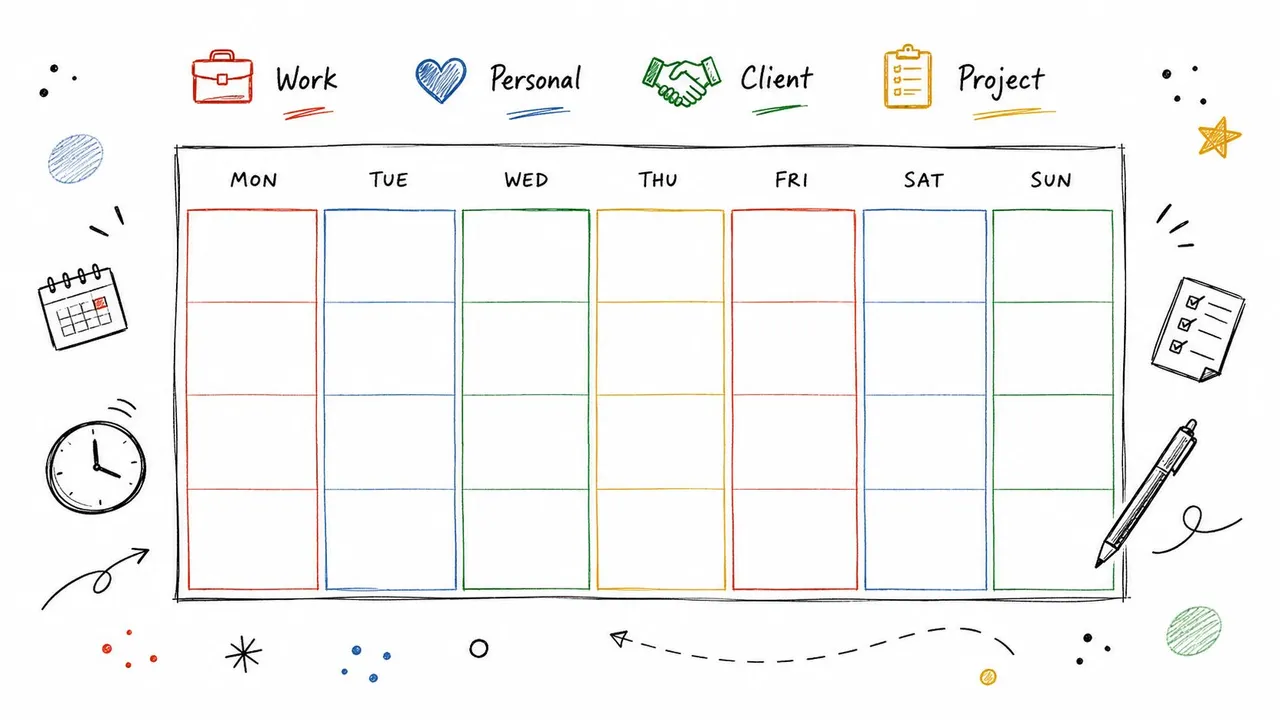
A standard scheme beats a clever one. If one calendar uses red for deadlines and another uses red for personal items, the whole system loses meaning. Teams that share access need a simple legend, because consistency matters more than personal preference once multiple people are reading the same schedule.
Make the palette functional, not pretty
Use warm tones for pressure points, cool tones for routine work, and a neutral color for low-priority administrative tasks. Freelancers often separate client deadlines, billable work, and personal commitments this way, while sales professionals may split prospect meetings, internal check-ins, and follow-up blocks into different colors. The point isn’t to make the calendar look busy, it’s to make the next decision obvious.
Practical rule: if a color doesn’t help you act faster, it’s decoration, not organization.
One useful internal reference for Google users is this guide on Google Calendar color organization. It fits especially well when you’re standardizing color rules across accounts and devices.
2. Time Blocking and Schedule Segmentation
A calendar that only shows meetings leaves out the work that makes those meetings useful. A proposal review without a drafting block, or a client call without prep time, usually gets crowded out by inbox noise and follow-up requests. Time blocking solves that failure mode by giving focused work its own appointment.
A practical setup starts with restraint. Reserve a few repeatable blocks for deep work, meetings, admin, and personal time, then adjust the layout after you see how it holds up across a normal week. That approach keeps the calendar readable across multiple platforms, even when one account is your main workspace and another is the view shared with clients, family, or collaborators.
Keep transitions inside the calendar
Build 15-minute buffers before meetings so you can review the agenda, open the right files, and avoid carrying the previous task into the next conversation. Independent productivity guidance also recommends 15 to 30 minutes between calls to absorb overruns and protect the rest of the day. For professionals juggling fragmented calendars, those buffers matter because they reduce the chance that one delayed meeting throws off the entire schedule, especially when paired with schedule optimization techniques. If you also use AI meeting notes for Mac users, the handoff after a call becomes easier, since action items are captured without forcing you to stay mentally tied to the meeting while you move on.
A few real-world patterns work well:
- Entrepreneurs: strategic planning early, client meetings later, deep work in a protected afternoon block.
- Freelance consultants: client calls on set days, project work in the middle of the week, admin on a consistent closing block.
- Sales professionals: prospecting, calls, and documentation separated so one activity does not swallow the others.
- Students: lectures, study sessions, and work shifts kept in repeatable slots.
The trade-off is simple. Tight blocks create clarity, but they leave less room for surprise requests. Loose blocks feel flexible, but they usually invite drift. With SyncThemCalendars, time blocks can appear across calendars through two-way sync, so availability stays visible even when the underlying event details need privacy. That keeps a blocked hour from disappearing just because it lives in a different account.
3. Priority and Deadline Management Through Calendar Hierarchy
A crowded calendar gets easier to use when the events have a hierarchy. Not every item deserves the same level of urgency, and if you label everything as important, nothing stands out when pressure hits. Critical, important, and routine categories help, because they force you to decide what would hurt if it slipped.
The clearest criteria are the simplest ones. Critical means revenue-impacting, client-mandated, or externally fixed. Important means valuable but moveable. Routine means necessary, but not usually urgent. That distinction helps freelancers protect deliverables, sales teams track signature deadlines, and supports better time management for entrepreneurs who want to avoid treating every internal meeting like a fire drill.
Use reminders to match the stakes
A calendar hierarchy only works if the reminder cadence matches the event level. The verified guidance here points to daily review, next-day planning the night before, and 10-minute end-of-day reviews, plus 10 to 15 minute pre-meeting reminders to reduce missed tasks and improve follow-through, as noted in the calendar-management guidance from this structured review approach. That’s a strong model for anyone whose calendar spans multiple accounts, because the calendar becomes a decision tool, not just a record.
Don’t bury the deadline inside a generic event title. Name it so the consequence is visible when you scan the week.
A practical setup might look like this:
- Critical: client deadlines, contract signatures, board presentations.
- Important: team meetings, personal appointments, milestone reviews.
- Routine: admin tasks, email blocks, internal housekeeping.
If you keep one source of truth for program data and project it into multiple calendar views, as described in the planning architecture guidance from this calendar-optimization perspective, you reduce duplicated updates and stale entries. That matters most when several people depend on the same deadline set but don’t need the same level of detail.
4. Multi-Calendar Consolidation and Unified Views
Most calendar chaos starts with good intentions. One calendar for work, another for personal life, a third for a client account, and a fourth for side projects sounds organized until you need to answer a basic question, like whether Friday afternoon is free. Professionals managing Google Calendar, Outlook, and Apple Calendar need one unified view, even if they keep separate calendars behind the scenes.
The best setup doesn’t erase boundaries. It keeps the separation that protects privacy, while giving you a consolidated picture during planning. That’s why a unified view is so useful for entrepreneurs with multiple ventures, consultants juggling client-specific calendars, and academics balancing teaching, research, and personal commitments.
Consolidate the view, not the data blindly
A single master calendar or unified view reduces double-booking and context switching, but it works best when you keep a naming convention that makes each source obvious. Use labels like Business, Project, or Personal instead of vague calendar names that force you to click around. Archive or hide outdated calendars instead of deleting them, because historical context can still matter during audits and planning reviews.
For broader planning, read how to manage multiple calendars. It pairs well with a multi-calendar workflow where your source calendars stay distinct but your working view stays clean.
A good unified setup also benefits from free/busy mirroring. Colleagues and clients see that you’re unavailable without seeing the details of every event. That keeps scheduling easy without creating unnecessary exposure. The related LeaveWizard Outlook calendar guide is another practical reference if Outlook sits at the center of your stack.
Later, you may want to keep a visual dashboard open while you plan. The goal is simple, know what’s committed, what’s open, and what’s already been promised somewhere else. That’s the only way multi-platform scheduling stays sane.
Here’s a useful rule for shared visibility:
If someone only needs to know whether you’re free, don’t give them the whole event.
5. Privacy Controls and Field Masking for Shared Calendars
Sharing availability isn’t the same as sharing your life. A lot of calendar advice stops at “make it visible,” but real professionals often need a narrower setup, where coworkers can book time without seeing client names, personal appointments, or sensitive internal meetings. That’s where privacy controls and field masking matter.
Field masking lets you rename or hide details like titles, descriptions, and locations during sync or sharing. For example, a consultant can show “Busy Block” instead of a competitor project name, or an HR lead can expose availability without broadcasting a salary review. Therapists, lawyers, and medical professionals have even more reason to keep event content opaque while still making open slots schedulable.
Share availability, not unnecessary context
The strongest privacy policy is the one you define before sharing starts. Decide which categories can show full details, which should show limited labels, and which should never expose the original title at all. That prevents confusion later, especially when your calendar spans work and personal accounts or when you need different visibility for clients, teammates, and family.
SyncThemCalendars’ calendar sync for iCloud is relevant here because cross-platform sharing gets messy fast when Apple Calendar is part of the mix. A consistent masking rule helps you preserve the same privacy posture across Google, Outlook, and iCloud rather than patching each platform separately.
A simple masking system might use these labels:
- Busy Block: for time that should stay private.
- Client Activity: for shared work blocks that don’t need detail.
- Personal Time: for non-work commitments visible only as occupied time.
Test the rules on every device you use. A mask that works in one calendar view can break in another, and the whole point is to prevent accidental disclosure. The best privacy setup feels boring to everyone else, which is exactly what you want.
6. Recurring Event Templates and Automation Patterns
A calendar that forces you to rebuild the same meeting every week wastes attention before the work even starts. Repeating events fix that problem by turning routine items into templates, so the calendar handles the setup while you focus on the appointment itself. That is especially useful for stand-ups, check-ins, class blocks, planning sessions, and other commitments that follow a clear rhythm.
Cross-platform calendars make this more complicated. A recurring pattern created in one system can drift when it is copied across Google, Outlook, and iCloud, and the result is often a set of nearly identical events that no longer match. Using SyncThemCalendars to create the pattern first and then mirror it outward keeps the structure aligned, which matters when one calendar is private, another is client-facing, and a third supports team coordination.
Build the patterns that repeat without much change
Start with the events that recur with the least variation. Weekly team stand-ups, monthly client reviews, daily planning blocks, and regular personal appointments are the clearest candidates because they already have a stable cadence. Give each one a name that explains the purpose and the rhythm, so the title still makes sense when it appears on a different calendar.
A few recurring formats usually hold up well:
- Strategic blocks: the same Monday morning planning session each week.
- Client rhythms: repeat check-ins at a fixed day and time.
- Team cadence: internal meetings that do not need manual recreation.
- Personal anchors: appointments and routines that should stay consistent.
The main trade-off is flexibility. A recurring template saves time, but it also assumes the event stays mostly the same from week to week. If the time, purpose, or attendees change often, forcing it into a rigid pattern creates more cleanup later. In those cases, a looser reminder or a one-off event may fit better than a strict repeat.
Automation also helps when your schedule includes content or social tasks that must happen on a rhythm. A recurring block can reserve the work time, while a separate tool handles the posting itself, and a resource like Best Twitter Scheduling Tools can support that kind of workflow. The point is not to automate everything, it is to reduce the number of repetitive actions you have to remember manually.
The less time you spend recreating routine events, the more attention you can give to the work inside them.
Recurring patterns are useful only when they match real behavior. If a meeting keeps shifting day, time, or goal, the template should be adjusted or dropped. A calendar looks orderly only for a moment if it hides the fact that the underlying routine no longer exists.
7. Advance Planning and Buffer Time Management
A calendar without buffer time usually tells a flattering story. It makes the day look open when it is already crowded, so people end up rushing from one call to the next, skipping preparation, and starting work in a reactive state. Practical scheduling leaves margin on purpose, especially when you are moving between client work, internal meetings, and personal obligations across different platforms.
Buffer time is not wasted space. It gives you room to prepare, transition, and recover without turning every appointment into a scramble. That might mean a short reset between calls, time to review notes before a presentation, or a longer block before a deadline so you can check the work with a clear head.
Build the margin around the task, not just the meeting
The calendar-management guidance from this structured review approach points to 10 to 15 minute reminders and end-of-day reviews, and that same logic applies to buffer scheduling. The calendar should show the meeting and the work needed to make it useful. If you are preparing a client deck, the prep block should sit in the calendar with the same weight as the presentation itself.
A few practical uses of buffer time deserve protection:
- Before client meetings: review notes, pull files, and check deliverables.
- Between calls: write notes and reset focus before the next conversation.
- Before launches or deadlines: leave review time so quality does not depend on adrenaline.
- After intense work blocks: create recovery time before the next obligation.
When those buffers sync across calendars, your availability becomes more realistic. That helps the people booking you, but it also helps you, because it reduces the false sense of openness that spreads across work and personal schedules. Tools like SyncThemCalendars can support that kind of cross-platform setup when you are trying to keep multiple calendars aligned without giving up control of what is visible where.
Name the buffer so it is harder to ignore. “Focused Work Time” usually travels better than a label that sounds optional. If someone sees a blank-looking slot, they will try to take it. If they see a committed block, they are more likely to respect it.
8. Regular Calendar Audits and Optimization Reviews
A calendar system drifts if no one checks it. Color rules get ignored, recurring events pile up, old calendars stay visible, and time blocks stop matching how you work. Regular audits matter even more when you are syncing across several platforms and using those calendars to signal availability.
Monthly or quarterly reviews work because they are frequent enough to catch problems before they settle in. Look for duplicate events, outdated recurring meetings, overbooked days, and calendars that no longer belong in your working view. If you manage a business, check whether your schedule still reflects the priorities you say matter. If you are a freelancer, compare your real client load with the capacity you planned for.
Audit the system, not just the week
A useful audit starts with a few direct questions. Is sync still working across every account? Are color codes still meaningful, or have they become visual noise? Are buffer blocks being respected, or are they getting overridden by back-to-back bookings? Are there calendars cluttering the view without giving you any useful signal?
The point is to inspect how the whole system behaves, not just whether next week looks tidy.
A few habits make these reviews easier to maintain:
- Schedule the review: put it on the calendar as a recurring event so it does not get pushed aside.
- Check the sync: confirm that events still appear where they should across each platform.
- Spot redundancy: remove duplicated entries and calendars that no longer serve a purpose.
- Adjust slowly: fix the biggest problems first instead of rebuilding the entire setup in one pass.
If you use a unified view in SyncThemCalendars, the review gets simpler because you can inspect several calendars together instead of jumping between accounts. That makes it easier to see whether your organization method still holds up in daily use, especially when work, personal, and client calendars all carry different rules.
A calendar that never gets reviewed will drift toward whoever shouted last.
Treat the audit as maintenance, not as a sign that the system failed. Good calendar systems stay useful because someone keeps correcting the drift, clearing out stale settings, and tightening the parts that no longer match reality.
8-Point Calendar Organization Comparison
| Technique | Implementation Complexity 🔄 | Resource Requirements ⚡ | Expected Outcomes 📊 | Ideal Use Cases 💡 | Key Advantages ⭐ |
|---|---|---|---|---|---|
| Color-Coding and Calendar Categories | Low, set color conventions; cross-platform mapping needed | Low, minimal tools; time to configure and test | ⭐⭐⭐⭐, Faster scanning; fewer double-bookings | Visual differentiation for multi-account users, entrepreneurs, admins | Quick recognition across calendars; reduces cognitive load |
| Time Blocking and Schedule Segmentation | Moderate, requires upfront planning and discipline | Low–Medium, time investment to maintain blocks | ⭐⭐⭐⭐⭐, Strong focus gains; reduced context switching | Knowledge workers, freelancers, sales pros needing deep work | Protects focus, predictable availability, fewer interruptions |
| Priority & Deadline Management (Calendar Hierarchy) | Moderate–High, requires criteria and tagging consistency | Medium, time to classify and maintain priorities | ⭐⭐⭐⭐, Clear visibility of critical deadlines and escalation | Project managers, entrepreneurs, teams with competing deadlines | Ensures critical items surface; improves deadline tracking |
| Multi-Calendar Consolidation & Unified Views | Moderate, connect accounts and enforce naming/color rules | Medium, may need sync service and some performance overhead | ⭐⭐⭐⭐⭐, Eliminates missed meetings; reduces conflicts | Professionals with multiple accounts, sales teams, entrepreneurs | Unified situational awareness; overlay conflict detection |
| Privacy Controls & Field Masking for Shared Calendars | Moderate–High, granular rules per recipient and testing | Medium, policy design, testing across platforms | ⭐⭐⭐⭐, Maintains privacy while enabling scheduling coordination | Consultants, therapists, lawyers, sales managing sensitive deals | Protects confidential details; supports compliance and trust |
| Recurring Event Templates & Automation Patterns | Low–Moderate, create templates and handle exceptions | Low, one-time setup; uses built-in recurrence features | ⭐⭐⭐⭐, Lowers admin overhead; consistent scheduling | Teams with regular meetings, freelancers with routine check‑ins | Saves time; predictable recurring patterns; timezone-aware |
| Advance Planning & Buffer Time Management | Moderate, requires estimation and discipline to honor blocks | Low–Medium, planning time; sync buffers across calendars | ⭐⭐⭐⭐, Better preparation; less scrambling and fatigue | Sales presentations, launches, heavy meeting days | Improves meeting quality; prevents back‑to‑back overload |
| Regular Calendar Audits & Optimization Reviews | Moderate, scheduled reviews and honest data analysis | Medium, 1–2 hours/month or quarter; analytics tools helpful | ⭐⭐⭐⭐, Detects inefficiencies; keeps calendars aligned to goals | Growing businesses, shifting priorities, SyncThemCalendars users | Continuous improvement; prevents sync drift and duplication |
Your Unified Calendar Awaits
Organizing your calendar isn’t just about looking neat. It’s about protecting your attention, reducing avoidable mistakes, and making sure your availability matches the commitments you’ve already made. When you combine visual cues, time blocks, privacy controls, recurring templates, and regular reviews, your calendar becomes a reliable planning tool instead of a source of noise.
The cross-platform challenge is what makes this harder for modern professionals. You aren’t managing one perfect calendar, you’re managing work accounts, personal devices, client visibility, and family logistics at the same time. That’s where structured sync matters, because it lets you keep the right separation while still seeing one coherent schedule across Google Calendar, Outlook, and Apple Calendar.
If you’ve been relying on memory, scattered reminders, or manual copying between accounts, start smaller than you think. Pick one or two changes, like color rules and buffer time, then add unified views and privacy masking once the basics feel stable. A calendar system only works when you’ll keep using it, and that usually means making it simpler, clearer, and more honest about how you work.
SyncThemCalendars fits naturally into that approach because it helps keep events aligned across calendars while preserving control over what others can see. If you want a cleaner cross-platform setup, visit SyncThemCalendars and see how synced availability, masking, and multi-calendar organization can support the way you already work.
SyncThemCalendars helps you sync events across Google Calendar, Microsoft Outlook, and Apple Calendar while keeping control over availability and privacy. If fragmented calendars are causing double-bookings or confusion, visit SyncThemCalendars and set up a cleaner cross-platform system that matches the way you schedule.
Ready to sync your calendars?
Keep your Google, Outlook and Apple iCloud calendars in sync automatically. 2-minute setup, no credit card required.
Get started freeKeep reading
More in Tips
Sync Google Calendar with Office 365 Made Simple
Learn how to sync Google Calendar with Office 365 reliably. Compare native, subscription and real-time sync options with setup steps and privacy tips.

Prevent Double Booking Calendar: Essential Tips for 2026
Learn how to prevent double booking calendar conflicts with smart scheduling tools and best practices for a seamless workflow in 2026.

Two Way Google Calendar Sync: Setup Guide and Best Practices
Master two way Google Calendar sync with step-by-step setup, privacy controls, and troubleshooting tips for entrepreneurs, freelancers, and teams.