







Sync Google Calendar with Office 365 Made Simple
Learn how to sync Google Calendar with Office 365 reliably. Compare native, subscription and real-time sync options with setup steps and privacy tips.
You’ve probably got one calendar that belongs to your employer and another that belongs to your actual life. A client sends a meeting invite to Microsoft 365. Your partner adds a doctor appointment in Google Calendar. A recruiter grabs a slot from the wrong booking page. By the time you notice the overlap, you’re already apologizing to someone.
That’s why people try to sync Google Calendar with Office 365 in the first place. Not because they love tidy software setups, but because double-bookings are expensive in ways that don’t show up on an invoice. They create missed calls, awkward reschedules, and a constant low-grade feeling that your day is split across systems that don’t speak the same language.
The mistake I see most often is aiming for “full sync” before deciding what needs to move. In a lot of real workflows, you don’t need every title, attendee, note, and location copied everywhere. You need availability to stay aligned, while sensitive details stay private.
Why Syncing Google Calendar and Office 365 Still Feels Complicated
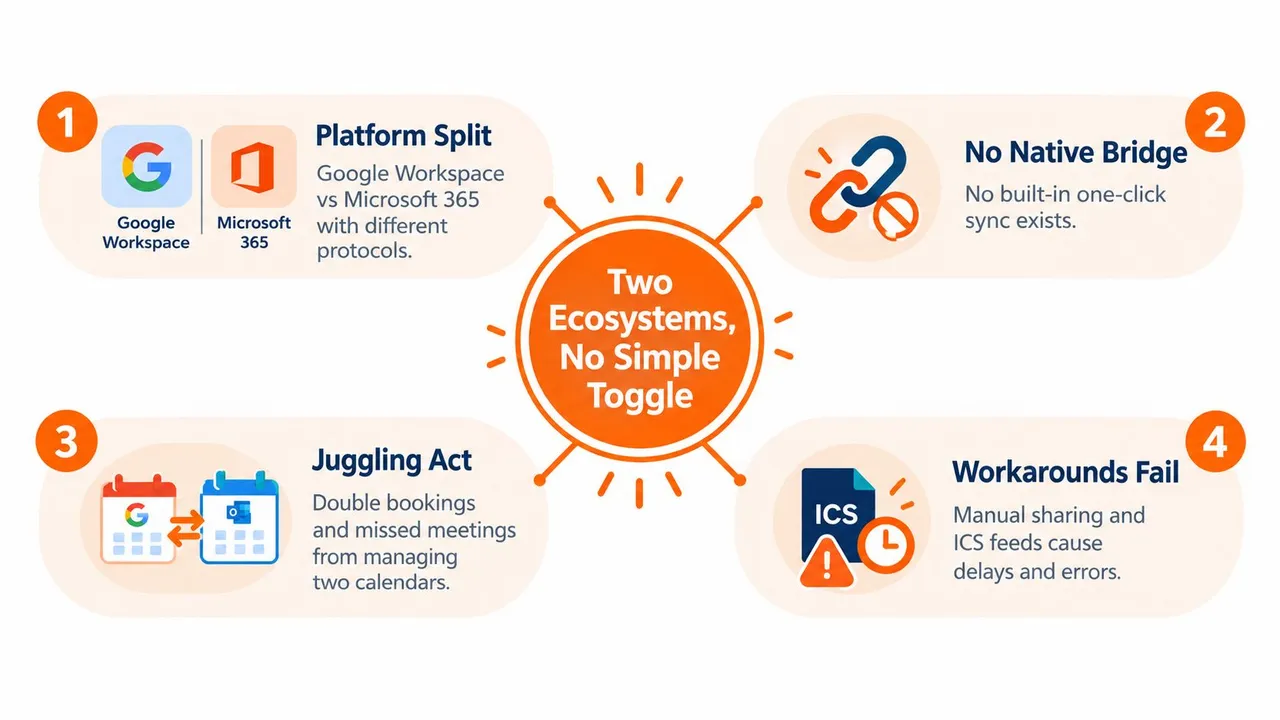
The reason this still feels harder than it should is simple. Google Calendar and Microsoft 365 sit on different infrastructure.
Google exposes calendar access through its documented CalDAV endpoint and API patterns, while Microsoft 365 relies on Microsoft Graph rather than native CalDAV for calendar access. Google’s CalDAV guide is a good reference point if you want to understand the split at the protocol level, and it also reflects the broader reality that cross-platform sync usually needs a bridge instead of a built-in toggle (Google Workspace CalDAV guide).
Two calendars, two rulebooks
If you’ve ever thought, “Why can’t Outlook just talk to Google Calendar directly?” that’s the core issue. It’s not one calendar system with a hidden setting. It’s two ecosystems with different APIs, different auth models, and different ideas about sharing.
Microsoft’s current world also changed after Basic Auth for Exchange Online was deprecated in October 2022, which pushed modern integrations toward Microsoft Graph rather than older connection methods. In practice, that means older advice about lightweight Exchange tricks often doesn’t age well.
Practical rule: Before picking a tool, decide whether you need viewing, one-way copying, or actual two-way sync. Those are not the same thing.
Viewing is not syncing
A lot of “how to sync” tutorials are really tutorials for subscribing to one calendar from another. That can be useful, but it’s not the same as synchronization.
The distinction matters:
- Viewing another calendar: You see events from one system inside the other. Edits usually don’t flow back.
- One-way sync: Events copy from Calendar A into Calendar B.
- Two-way sync: Changes made in either calendar propagate to the other.
- Availability mirroring: Busy time appears across systems, while event details stay hidden or transformed.
That last one is the underrated option.
If you’re an employee with a corporate Office 365 calendar and a personal Google Calendar, copying every event detail in both directions may be the wrong goal. Work doesn’t need your personal appointment names. Your personal account doesn’t need client meeting notes. What both calendars need is a clean signal that a time block is unavailable.
The real decision you’re making
Many users aren’t choosing between “sync” and “no sync.” They’re choosing between these two outcomes:
| Need | Better fit |
|---|---|
| See another calendar occasionally | Read-only subscription |
| Prevent double-bookings without sharing details | Free/busy mirroring |
| Work equally from both platforms | Two-way sync |
| Keep separate calendars but unified availability | One-way or two-way masked sync |
That’s why syncing feels complicated. The setup question isn’t technical first. It’s operational. You need to know whether you’re merging calendars or just protecting your time.
Comparing Your Options to Sync Google Calendar with Office 365
There are three common paths people try first. They look similar from a distance, but they behave very differently once real meetings start moving around.
Native Outlook connection
Microsoft does let you connect a Google account to Outlook and the new Outlook, but it’s important to understand what that means. Microsoft’s support notes say the integration stores a copy of Google calendar data in Microsoft data centers and synchronizes between Google and Microsoft. The same support material also notes a 20 shared-calendar limit in that sync path, and that subscription-style flows can remain read-only with updates taking up to 24 hours in some scenarios (Microsoft support discussion of Google sync issues).
That native route can be convenient for simple personal setups. It gets shakier when you have lots of shared calendars, mixed permissions, or you expect instant corrections after moving meetings around.
iCal subscriptions
This is the classic “just subscribe to the other calendar” approach. It works when your goal is visibility, not coordination.
The upside is low effort. The downside is that read-only visibility is not the same as calendar alignment. If someone updates the source event and the destination system refreshes slowly, you can still make a scheduling mistake because you trusted a stale view.
Subscriptions are fine for watching a calendar. They’re weak for protecting availability across work and personal systems.
Dedicated sync services
This is the category that exists because the first two options don’t fully solve the problem. A dedicated service sits between Google and Microsoft, handles auth on both sides, and copies changes continuously according to rules you set.
That matters if you need things like:
- Direction control: one-way, two-way, or multi-way
- Privacy rules: copy only busy blocks, mask titles, strip descriptions
- Ongoing maintenance: reauth, deleted events, duplicate prevention
- Cross-provider reliability: something built for Google plus Microsoft, not one side pretending the other is native
If you want a broader overview of what this kind of setup looks like in practice, LeaveWizard has a useful primer on unified calendar sync with LeaveWizard that frames the problem as keeping calendars aligned rather than imported.
Which Sync Method Fits Your Needs
| Method | Sync Direction | Update Speed | Privacy Control |
|---|---|---|---|
| Native Outlook Google account connection | Limited sync path within Microsoft’s model | Variable, and some subscription scenarios can take up to 24 hours for updates | Limited |
| iCal subscription | One-way, read-only | Delayed refresh behavior | Low |
| Dedicated sync service | One-way, two-way, or multi-way | Continuous background syncing | High |
A practical example helps. If you’re a freelancer who only needs your Office 365 clients to stop booking over your Google Calendar commitments, a full event copy is overkill. A privacy-aware one-way sync is usually enough. If you live in both Outlook and Google every day, and you create meetings from either side, you’ll need a tool that can reconcile changes rather than just display them.
Choosing Sync Direction and Privacy Settings That Actually Fit Your Workflow
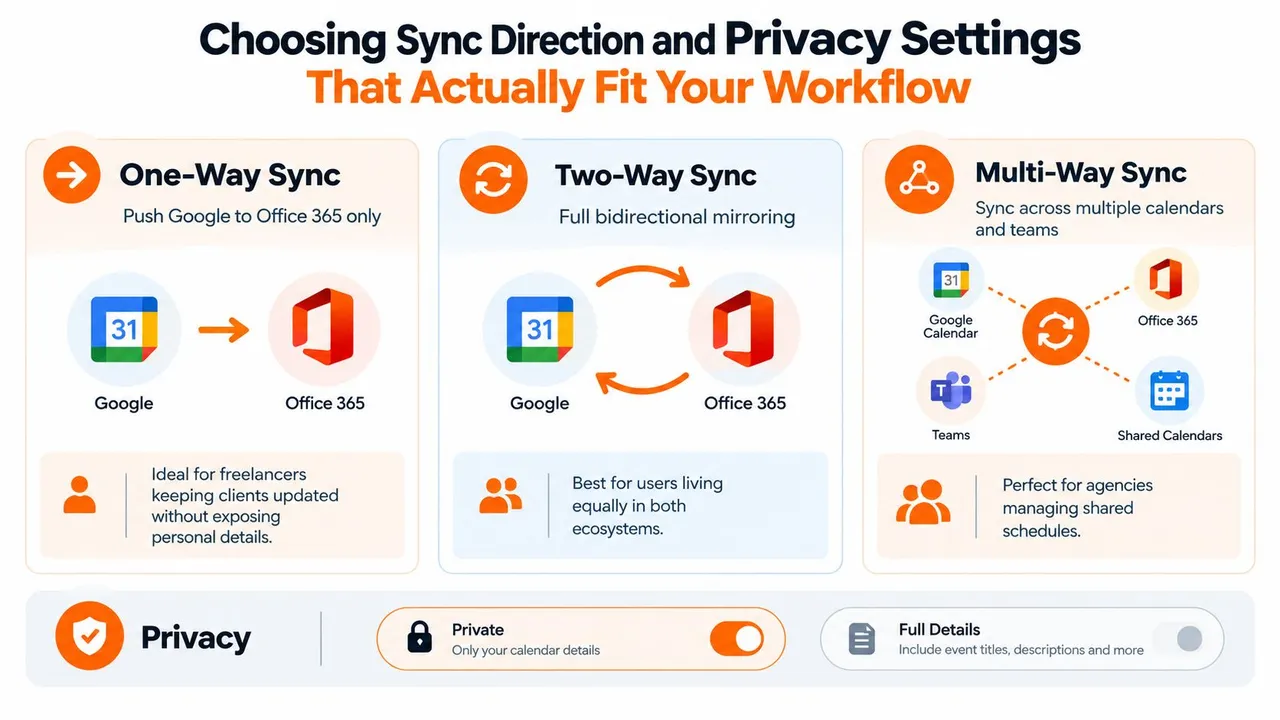
The sync direction matters more than most setup guides admit. If you get it wrong, the system works technically and still fails operationally.
One-way is often the smartest choice
A one-way sync works well when one calendar is the source of truth and the other just needs to reflect availability.
Examples:
- Freelancer: Personal Google Calendar blocks time on a client-mandated Office 365 calendar.
- Employee: Office 365 meetings block personal Google Calendar so evening plans don’t collide with work.
- Consultant: A booking calendar pushes into a master work calendar, but not the other way around.
This is also where privacy gets easier. You can copy the existence of an event without copying the title or notes. That gives schedulers the only information they usually need: that the slot is taken.
Two-way sync is for people who actually operate in both systems
Two-way sync makes sense if you create and edit events from both sides. That usually means entrepreneurs with multiple brands, people switching between company and personal devices, or anyone whose contacts invite them into both ecosystems all day.
But two-way sync needs rules. Without them, you can turn a clean schedule into a mess of duplicated context.
A good configuration starts with these questions:
- Should private appointments appear as Busy only?
- Should event titles be copied, renamed, or hidden?
- Should descriptions and locations sync at all?
- Should all-day events behave differently from timed meetings?
- Should deletions replicate, or should they require review?
If you’re evaluating whether a true bidirectional setup is worth the complexity, this guide on two-way calendar sync is a useful reference point for the decision itself.
The privacy model that works in real life
Most users don’t need full-fidelity event replication. They need controlled availability mirroring.
“Busy” is often enough. It prevents the conflict without leaking the context.
Here’s how I’d map common scenarios:
| Scenario | Direction | Title | Description | Location |
|---|---|---|---|---|
| Personal to work | One-way | Replace with Busy | Hide | Hide |
| Work to personal | One-way | Keep short title or mark Busy | Hide | Optional |
| Two active calendars | Two-way | Keep or rename selectively | Limited | Limited |
| Shared team coordination | Multi-way | Keep operational labels only | Hide sensitive notes | Optional |
What to copy and what to mask
Some fields carry scheduling value. Others just carry risk.
Use this as a practical filter:
- Keep useful structure: date, time, free/busy state, all-day status
- Be selective with labels: “Client Call” may be fine, “Performance Review with Alex” may not
- Hide rich details by default: descriptions, meeting links, private notes
- Think twice about locations: they can reveal more than you intend, especially for personal appointments
Sync becomes less about software and more about boundaries. You’re not just moving events. You’re deciding what each calendar should know about the other.
How to Set Up Reliable Real Time Sync Without the Hassle
If your goal is to stop babysitting two calendars, skip manual exports and read-only feeds. Use a setup that keeps running in the background after the initial authorization.
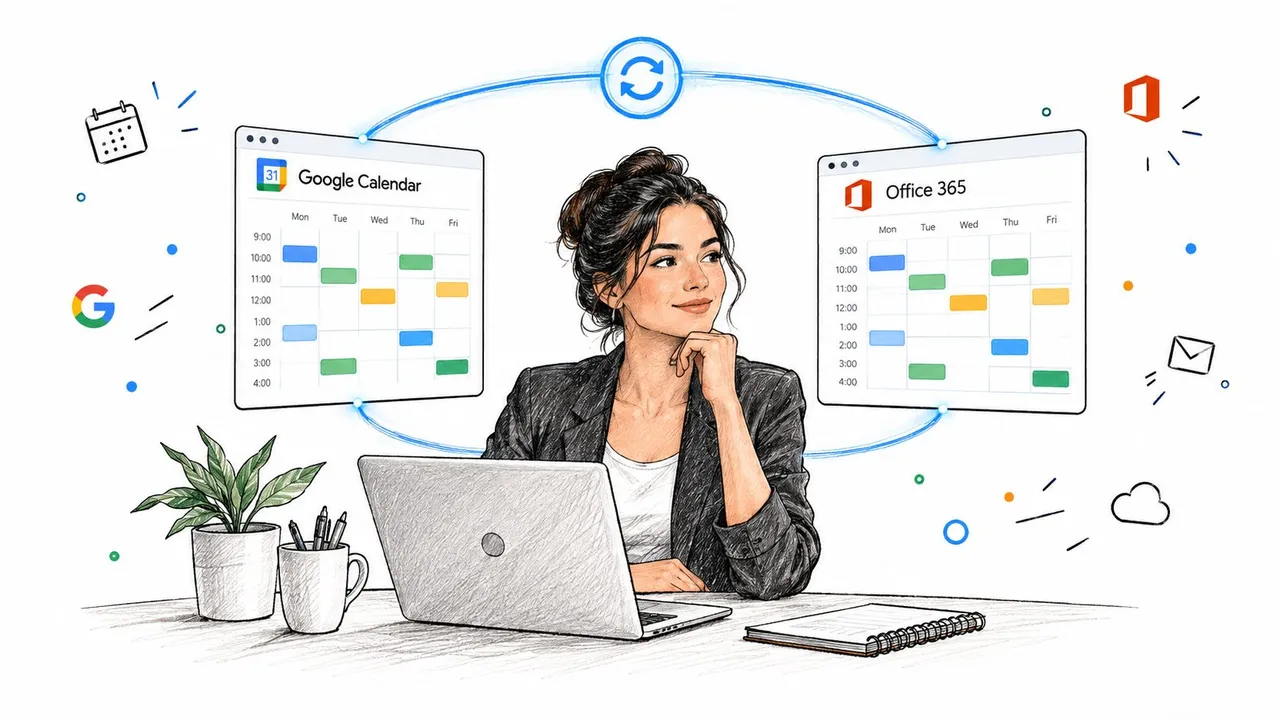
Independent documentation from a cross-provider sync service reports near-real-time propagation between Google Calendar and Microsoft 365, including examples of 1 to 2 seconds from Google or Microsoft into a CalDAV-connected calendar and about 7 to 8 seconds on average in the reverse direction. The same documentation says the first sync starts automatically after authorization and calendar pairing, which is exactly how a modern set-and-forget sync should behave (calendar sync timing example).
Start with the source and target calendars
Before you connect anything, decide which exact calendars should participate.
This sounds obvious, but it’s where many messy setups begin. People connect an entire account, then realize later they only wanted one shared client calendar mirrored into one personal calendar. The cleaner your pairing, the easier it is to trust the results.
A solid setup usually means:
- One source, one target for the first test
- A clear purpose for each sync, such as “block work time on personal calendar”
- No overlapping legacy feeds that might create duplicates
- A naming convention you’ll recognize later if you manage several syncs
Configure direction before field rules
Pick the direction first. Then decide what should be copied.
If you’re using a dedicated service, this is also the moment to choose whether the target should receive full event details or only a privacy-safe placeholder. One example in this category is SyncThemCalendars, which supports one-way, two-way, and multi-way copies between Google Calendar and Office 365 with free/busy mirroring and field masking. That combination is useful when your real goal is aligned availability rather than a perfect duplicate of every event.
Validate with live test events
After authorization and pairing, don’t assume it’s done. Add a real test event and inspect the result in the other calendar.
Look for:
- Timing: does the copied event appear quickly enough for your workflow?
- Title handling: did the event stay private, rename correctly, or expose too much?
- Time zone behavior: does the block land at the right time?
- Edit behavior: if you move or delete the source event, does the target react properly?
A short video walkthrough helps if you want to see what a real-time setup should feel like once it’s running:
For a deeper look at what continuous background propagation is supposed to look like, this article on real-time calendar sync is worth reading before you expand beyond your first calendar pair.
Keep the setup small until it earns your trust
Don’t wire every calendar you own on day one.
Start with the highest-friction conflict. Usually that’s one work calendar and one personal calendar. Once you’ve watched a few creates, edits, and deletions propagate correctly, then add additional calendars or move from one-way to two-way.
Field test: If the first copied event makes immediate sense to you without explanation, the sync is configured well. If you have to mentally decode what happened, simplify it.
The best sync is the one you forget exists because it prevents conflicts in the background.
Troubleshooting Common Sync Issues and Keeping Events Aligned
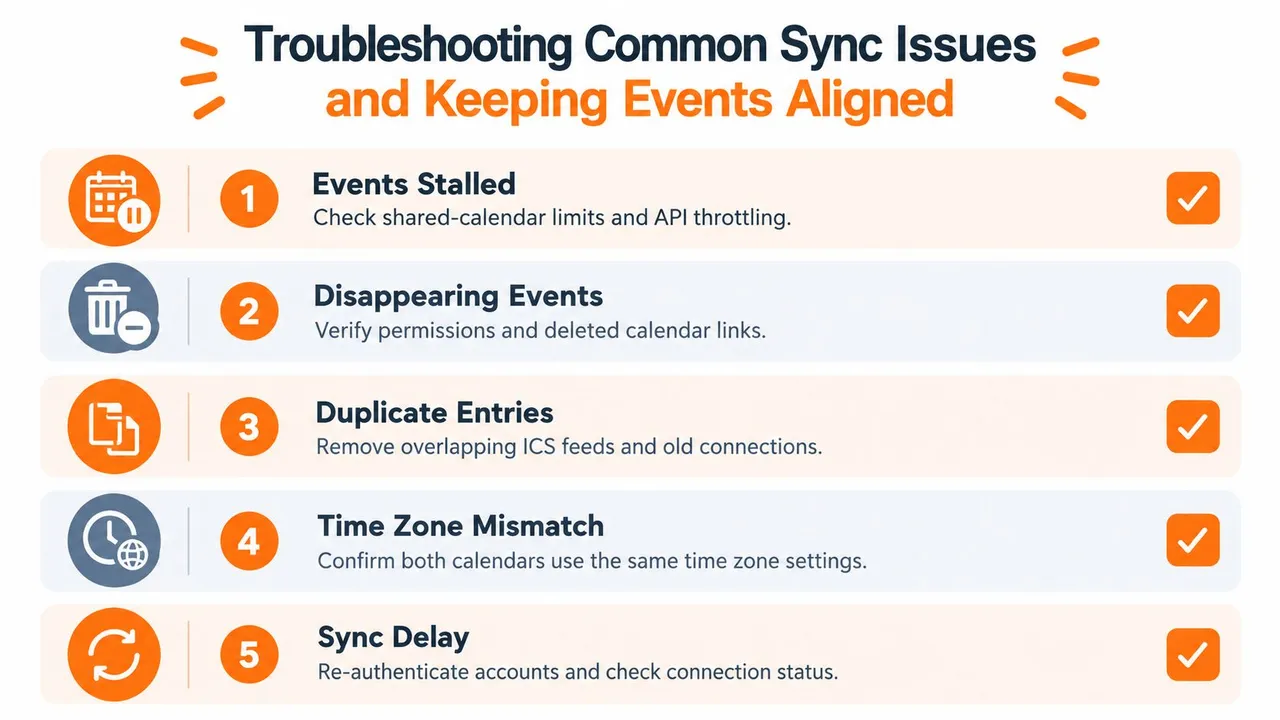
Most sync failures aren’t dramatic. They’re subtle. An event stops updating. A calendar looks current until one meeting moves. A deleted appointment lingers in the other system and blocks a time slot you need.
When Microsoft-side limits cause odd behavior
If you’re using Microsoft’s Google integration path, one common failure point is scale and shared-calendar behavior. Microsoft’s own support notes flag the 20 shared-calendar limit, and they also indicate that exceeding it can stall or omit items. The same notes point out that some Outlook subscription flows remain read-only and can take up to 24 hours for updates, which makes them a poor fit for conflict prevention.
When users tell me “it worked, then it got weird,” this is one of the first things I check:
- Count shared calendars: if you’re over the documented limit, reduce them.
- Confirm invitation handling in Google: Microsoft specifically points to invitation response behavior.
- Allow for Microsoft cloud reindexing: validate again after the system catches up.
When API state goes stale
The less visible problem sits on the Google API side. Reliable sync should use incremental synchronization. Google’s guidance is clear: do one initial full sync, store the returned sync token, then poll with that token for deltas and store the new token each time (Google Calendar API incremental sync guidance).
If that token becomes invalid or stale, the sync can miss changes until the service performs a full resync.
What that looks like in practice:
- an event edit doesn’t propagate
- deletions stop reflecting correctly
- one calendar drifts slowly out of alignment
- reconnecting temporarily “fixes” the issue because it forces a fresh state
If a sync starts missing only some changes, don’t just add another connection. Check whether the existing state is stale and needs a clean resync.
Common fixes that are actually worth trying
These checks solve most real-world drift:
| Issue | What to check | Likely fix |
|---|---|---|
| Events stalled | Shared-calendar count, connection status | Reduce shared calendars, reconnect if needed |
| Missing edits | Token/state drift | Force a resync or reauthorize |
| Duplicates | Old iCal feed plus active sync service | Remove the overlapping feed |
| Wrong times | Calendar time zone settings | Standardize time zones on both sides |
| No updates after old setup changes | Legacy auth assumptions | Reconnect using current Microsoft authorization flow |
If you want a practical checklist for diagnosing recurring failures, this guide on calendar sync issues covers the patterns users run into after the first setup.
Best Practices for Long Term Reliability and Privacy
The long-term goal isn’t “perfect integration.” It’s trustworthy availability.
That changes how you maintain your setup. Instead of asking whether every field copies exactly, ask whether your calendars prevent the wrong bookings while exposing only the details that belong in each system.
Keep your sync map intentional
Most calendar clutter comes from forgotten connections. A past client calendar still mirrors into your main account. An old iCal subscription overlaps with a newer two-way sync. A test connection never got deleted.
Audit your setup regularly:
- List active syncs: know which calendars feed which others
- Remove overlap: one purpose, one connection
- Review direction: some old two-way syncs should become one-way
- Check plan limits: if your tool limits active syncs, keep only the ones that serve a current purpose
Default to privacy, then open up only if needed
For cross-organization visibility, free/busy mirroring should usually be the default.
That approach is the safest fit for employees separating work and personal schedules, consultants juggling client environments, and founders splitting time across multiple ventures. Titles, descriptions, and locations should be copied only when someone on the receiving side needs them.
Good boundary: Share enough information to protect the time block, not enough to expose the context.
Reliability comes from boring habits
The durable setups are usually the least flashy.
Use background sync instead of manual imports. Keep field rules simple. Test a change after any reauthorization or account migration. If you add a new calendar, verify it with one live event before trusting it with your week.
When people say they want to sync Google Calendar with Office 365, they usually mean one thing: “I want my real availability to be accurate everywhere.” That’s the right goal. Once you frame it that way, the right solution becomes much easier to choose.
If you want a setup built around that exact goal, SyncThemCalendars lets you sync Google Calendar with Office 365 using one-way, two-way, or multi-way copies, with options for free/busy mirroring and masking event details. It’s a practical fit when you need calendars to stay aligned in the background without turning work and personal scheduling into one fully exposed calendar.
Ready to sync your calendars?
Keep your Google, Outlook and Apple iCloud calendars in sync automatically. 2-minute setup, no credit card required.
Get started freeKeep reading
More in Tips
Prevent Double Booking Calendar: Essential Tips for 2026
Learn how to prevent double booking calendar conflicts with smart scheduling tools and best practices for a seamless workflow in 2026.
Two Way Google Calendar Sync: Setup Guide and Best Practices
Master two way Google Calendar sync with step-by-step setup, privacy controls, and troubleshooting tips for entrepreneurs, freelancers, and teams.
Calendar Color Coding: Practical Frameworks for 2026
Master calendar color coding with accessible palettes and setup tips for Google, Outlook, and Apple Calendar.