







Choose Which Google Calendars to Sync: A Practical Guide
Learn how to choose which Google calendars to sync in SyncThemCalendars, decide sharing levels, mask private details and avoid common sync mistakes.
You have a client call in twenty minutes, a school pickup on your personal calendar, and a standup that lives on an employer account. Sync every Google Calendar you own and all three block the same hours. The client also sees the pickup title and the street. When you choose which Google Calendars to sync, start with who will look at the copy, not with how many calendars sit under the account.
A calendar can be useful to you and still be the wrong one to copy. A client, a partner, and an employer each need a different slice of the day. Set the sharing level and the direction before you tick a box, then prove the fields with a short test.
Which Calendars to Share and at What Level
Choose each calendar by who will see its data, then assign a sharing level before you open any setup screen. The Google Calendar sharing guide supports a free/busy-only permission that hides event names and details, and it recommends separate work and personal calendars so your own view stays complete. Those steps don’t give you a policy for a client, a partner, and an employer account on the same afternoon.
Selecting a calendar doesn’t decide what leaves the account. Private events can remain visible only as busy blocks under certain sharing permissions. Field settings decide whether a title, a description, or a location travels with the copy. That field choice is the privacy control. Including or excluding the whole calendar is only the first cut.
Match the level to the audience
| Calendar type | Recommended sharing level | Why |
|---|---|---|
| Client-facing work calendar | Free/busy only | Clients need open slots, not meeting titles |
| Personal calendar shared with a partner | Masked titles | The other person sees busy blocks without private wording |
| Two accounts you control | Full details | Same person on both ends, so no third party sees the data |
| Employer-managed work calendar | Free/busy only | Employer rules often limit what event content can leave the account |
| Shared team or subscribed calendar | Exclude | Adds duplicate events and events you do not own |
| Holiday feed | Exclude | Creates noise and copies of events that are not yours |
A freelancer’s client-facing calendar should show open and blocked times without meeting titles. A personal calendar shared with a partner works better when the block appears and the wording stays hidden. Full details only make sense between two accounts you control, such as a personal account and a second Google account you own.
Practical rule: Write the audience beside each calendar name before you grant access. If you can’t name the person, don’t sync that calendar.
Sync everything cuts double-booking and raises confidentiality risk when employer accounts, personal accounts, and client systems sit side by side. SyncThemCalendars offers free/busy mirroring and masking of title, description, and location, so the level is set on fields rather than by copying a whole calendar.
Say a consultant keeps a client calendar, a family calendar, and a holiday feed. The client calendar gets free/busy only, the family calendar gets masked titles, and the holiday feed stays out. Those dates aren’t yours, and they clutter every target they touch.
Finish with a short list: calendar name, audience, and level. That list is what you tick later.
One-Way, Two-Way or Free/Busy Sync Compared
Pick the direction before you select any calendar. Direction decides who can edit what, and it changes every later step. Overlays, imports, and sharing are not the same thing as a sync that keeps copies aligned.
Google’s help discussion on adding one event to multiple calendars states that a single event can’t currently appear on multiple calendars while remaining synchronized. The suggested workaround is a shared calendar, with editability set by permissions. That still leaves freelancers and small teams to decide what happens when a source event is moved, cancelled, made recurring, or switched from busy to free.
| Direction | What copies | Typical failure | Best fit |
|---|---|---|---|
| One-way mirror | Source events to the target only | Edits on the target are overwritten or ignored | Client availability and public-facing calendars |
| Two-way sync | Changes flow in both directions | Duplicates or conflicting edits when the same event changes on both sides | Accounts you personally control |
| Free/busy publication | Busy blocks only | Recipients see no context and cannot edit | Employers, clients and external schedulers |
Failure modes that show up in a real week
Three breaks show up once people edit on both sides.
Duplicate meetings: The same appointment is changed on the source and the target. Two-way sync then keeps both versions, or the later save wins and the earlier note disappears.
A moved event in two places: You drag a call from Tuesday to Wednesday on the target. A one-way mirror treats the target as a copy, so the next source update puts the call back on Tuesday or leaves a stale Wednesday block.
A changed instance in a series: You move one occurrence of a weekly standup. If the sync treats that instance as a new event, the series and the exception both land on the target.
Name the authoritative calendar before you turn on two-way sync. If ownership is unclear, as with an employer-managed account used for client work, publish one way or free/busy only. A freelancer whose client books inside the client’s own system should publish free/busy one way. A client-side edit must not overwrite the freelancer’s day. Households that also keep games and practices in Outlook can follow a similar split when they set up iCal and Outlook syncing.
Real-time two-way sync isn’t automatically the better choice. One-way, filtered mirroring is safer when ownership or compliance is unclear.
Rollback is simple. Pause the sync, remove the mirrored copies from the target, then reconnect only the calendars you still need. Start one way, run it for a week, and add two-way only for accounts you control.
Google Access Roles to Check Before You Select
A calendar can appear in your list without showing every detail you need. The Google Calendar API calendar list reference describes entries for calendars visible in your interface. What you can see or change depends on the sharing permission assigned to you, such as free/busy access, read access, or edit access. Check the permission before choosing the calendar, and use Google Calendar sharing permissions to match access to the people who need the data.
| Access level | What it generally provides | Use it when |
|---|---|---|
| Free/busy | Availability without event details | The recipient needs open slots, not event content |
| Read | View access to calendar information | The sync needs to copy event details to the target |
| Edit | Permission to make changes | The sync needs to carry edits back to the source |
Choose the narrowest access that fits the purpose. Free/busy keeps event content out of view; read access suits a one-way copy that needs details; edit access is relevant when changes must flow back. Wider access can make more event information or actions available, so consider who will see the target calendar before selecting a source.
Leave these out by default unless the sync has a clear purpose:
- Shared team calendars: A copied event may duplicate information people can already see.
- Subscribed calendars: They contain someone else’s feed, so copying them can add events you do not manage.
- Holiday feeds: They add dates that may not be appointments.
- Secondary calendars you barely use: Extra selections increase the chance of copying details unintentionally.
Run the three-event test
Create one ordinary event, one private event, and one recurring event on the source. Check the target to see which events and fields appear.
Private events need particular attention. Depending on the sharing permission and sync settings, the target may show only a busy block or may include more detail. If a private title appears, or a recurring event arrives without its expected pattern, adjust the access or privacy settings and check the target again. Choose calendars based on who will see the copied data, then confirm the result before relying on the sync.
How to Link Google Accounts and Pick Calendars
Before anyone clicks Allow, write down which Google account owns each calendar. If several people manage the setup, the Ever Outbound documentation can serve as a reference for recording ownership before a handoff. Choose the people who will see each copy before selecting calendars; the account list alone does not determine what event details they can access.
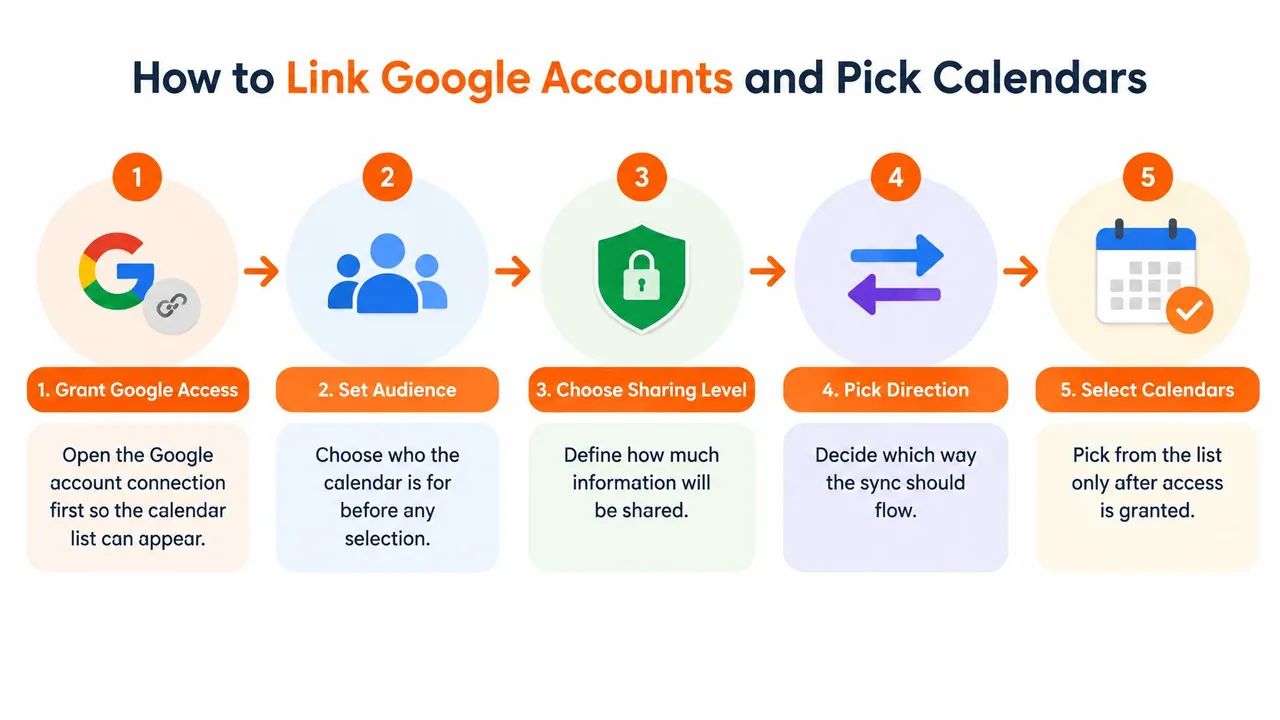
- Sign in at syncthemcalendars.com and start a new sync.
- Select Google Calendar as the source.
- Approve access in the Google sign-in window. Check that you’re signed into the account that owns the calendars you need. Mail and contacts don’t need to be part of this grant.
- Wait for the calendar list to load. It shows calendars visible in that Google account’s Calendar interface, so a hidden calendar won’t appear.
- Select only the calendar this sync needs. Check who can access its events and whether the copy should show details or availability only.
- Choose the target platform and account, either Outlook or Apple Calendar.
- Set the sync direction and sharing level for the people who will see the copy.
- Save, then confirm the first copy appears on the target.
Set up one sync per calendar pair. Each active sync counts toward your plan limit, and separate pairs are easier to identify if you later need to change a selection. A short walkthrough of the connection screen is available below.
What a successful first copy looks like
Add an event on the source and check the target. It should appear within a short window with only the fields you intended to share. If the title is visible when it should be hidden, or an unselected calendar appears, stop before adding another pair and correct the setup.
Masking Fields Before the Sync Goes Live
Set field masking after the calendars are chosen, and apply it to every calendar that will reach another person. A label that says “personal” doesn’t hide anything once the event is copied. The Google Calendar privacy settings walk through what Google itself exposes. Masking on the sync is the extra step when a copy has to exist at all.
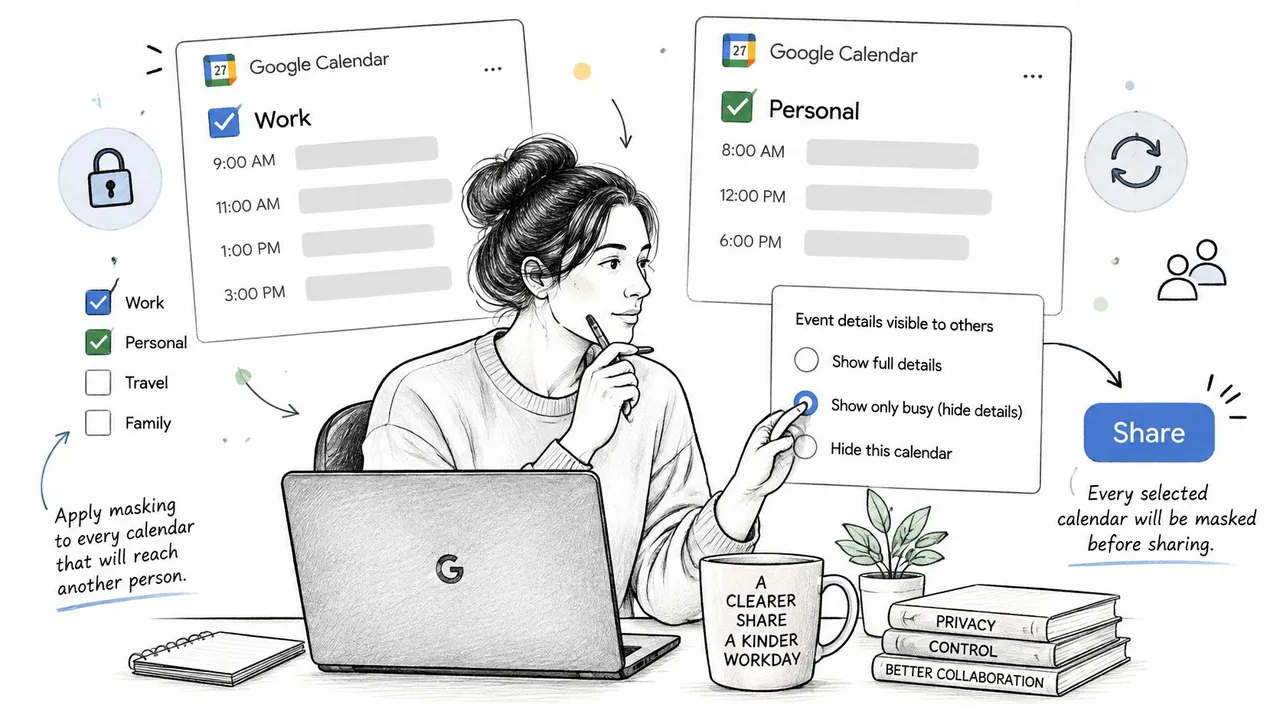
- Open the field or privacy settings for that sync.
- Mask the title with a neutral label such as Busy when the other person needs time blocks only.
- Clear the description so notes, agendas, and attendee lists don’t cross.
- Hide the location if it reveals a home address or a client site.
- Save, then send the private event and the ordinary event from your test through the sync.
- Confirm the target shows the masked version, not the original wording, and that the recurring event still arrives as a series.
Three checks keep this honest. Look again after one week, because a field you forgot can surface on a later event. If a field can’t be masked reliably, switch that calendar to free/busy only. Don’t treat a calendar as private just because you named it personal.
Fix Missing Calendars and Change Your Selection Later
Use this when a calendar is missing, a sync misbehaves, or the selection has to change. Start by checking which Google account owns the calendar and what access that account has.
- If a calendar doesn’t appear, check that it’s visible in the Google Calendar sidebar. Then confirm you’re signed in to the account that owns it.
- If you connected the wrong Google account, disconnect it, sign in with the owning account, and reopen the calendar list.
- If a shared calendar’s events are missing, check that your access role allows you to read them. Free/busy access shows busy blocks, not event details.
- If a deleted event remains on the target, delete a test event and check whether it disappears there. If copies keep drifting, follow the steps for Google Calendars not syncing.
- To add a calendar later, create a separate sync for that calendar pair. This keeps its direction and audience distinct from existing copies.
- To remove a calendar, pause its sync and clear the mirrored copies from the target before reconnecting anything else.
Keep a one-line note of why each calendar was added or removed. That makes it easier to choose the right calendars when you revisit the setup, whether you are organizing lesson materials and standards or separating client and personal schedules.
Go Live With One Calendar Pair
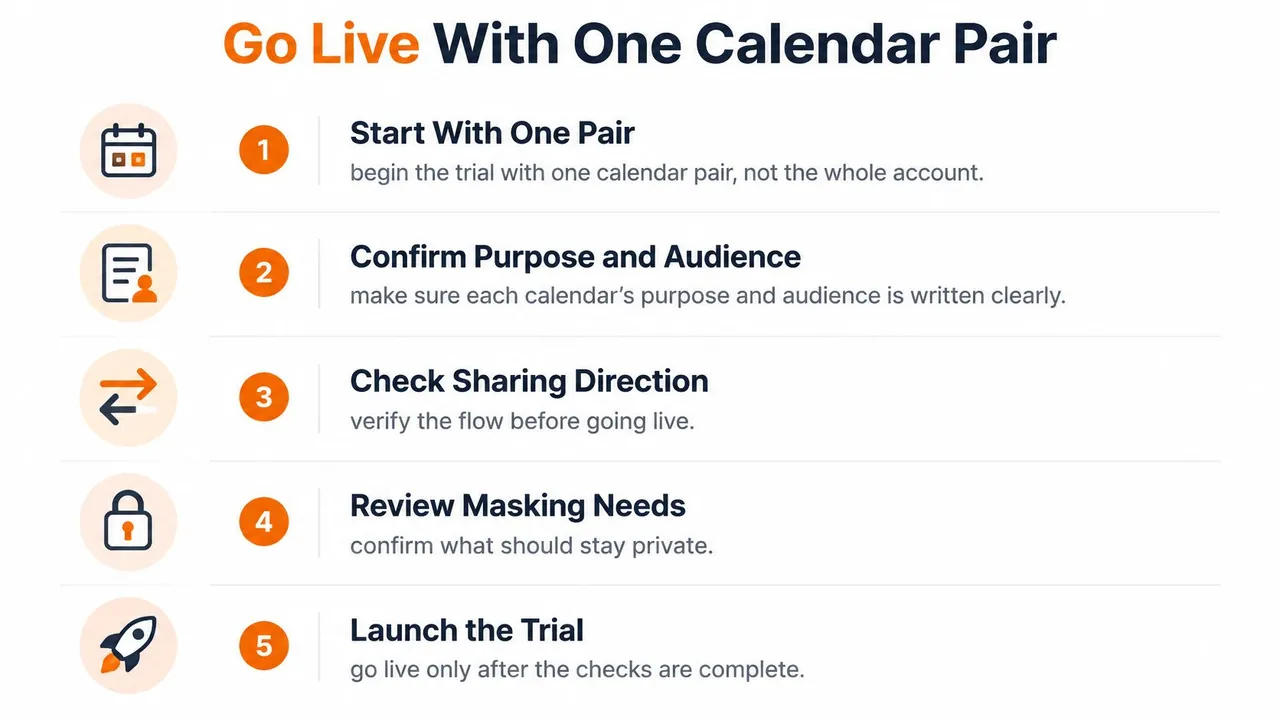
Start with one calendar pair, not the whole account. Before you go live, confirm three things the setup screens won’t check for you. Each calendar’s purpose and audience is written down. The three-event test passed. The masking result was reviewed, including what should stay private and which way the copy flows.
Then count syncs against the plan. Basic supports up to 5 active syncs, Premium up to 16, and Professional up to 36. Each plan includes unlimited events and single-user access. There’s a 14-day free trial with no credit card, and monthly or annual billing after that.
Run the first pair for a week. If the results stay clean, add the next pair and repeat the test for that calendar alone. Start the trial, connect the one pair, and send the test events through it.
SyncThemCalendars syncs chosen Google Calendars with Outlook and Apple Calendar in one direction, both directions, or as free/busy blocks, and it can mask title, description, and location on the way across. That is the control you need when you choose which Google Calendars to sync for a client, a partner, or a second account you own. Visit SyncThemCalendars and connect a single calendar pair on the trial before you add anything else.
Ready to sync your calendars?
Keep your Google, Outlook and Apple iCloud calendars in sync automatically. 2-minute setup, no credit card required.
Get started freeKeep reading
More in Tips
Sync Google Calendar with Office 365 Made Simple
Learn how to sync Google Calendar with Office 365 reliably. Compare native, subscription and real-time sync options with setup steps and privacy tips.
Prevent Double Booking Calendar: Essential Tips for 2026
Learn how to prevent double booking calendar conflicts with smart scheduling tools and best practices for a seamless workflow in 2026.
Two Way Google Calendar Sync: Setup Guide and Best Practices
Master two way Google Calendar sync with step-by-step setup, privacy controls, and troubleshooting tips for entrepreneurs, freelancers, and teams.