







Google Calendars Not Syncing: Solve It Fast in 2026
Is your Google Calendars not syncing? Find quick fixes & advanced steps for web, Android, & iOS. Get events back on track with our 2026 guide!
You open your phone to check a meeting time, then sit down at your laptop and see a different version of the day. A client moved a call. A recurring event vanished on one device but not another. You accept a booking that should have been blocked, and now you’re explaining a double-booking that wasn’t your fault.
That’s the moment users search for Google Calendars not syncing. Usually in a hurry, usually after the damage is already done.
The good news is that this problem is rarely mysterious. From 2019 to 2025, 98.7% of “Google Calendar not syncing” complaints came from user-side configuration errors, not global server incidents, and a 2023 survey found 67% of freelancers and entrepreneurs experienced at least one double-booking annually due to fragmented calendar views across Google, Outlook, and iCloud (survey and breakdown). In other words, the fix is usually local, practical, and under your control.
Why Your Google Calendar Sync Is Failing
A common pattern looks like this. The event exists on the web version, but not on the phone. Or it shows on Android, but not on the iPhone. Or one Google account updates while the secondary account stops pulling changes. People assume Google’s servers are down. In practice, the issue is usually much smaller and much more fixable.
What breaks sync most often is not one dramatic failure. It’s a stack of small local conditions: a disabled sync toggle, stale app data, battery restrictions, background refresh settings, or an old third-party connection that still has calendar access but no longer authenticates cleanly.
Practical rule: Treat calendar sync like a chain. If one local permission or device setting is wrong, the whole chain looks broken.
That’s also why generic advice can waste time. A lot of articles throw ten fixes at you in random order. That approach is frustrating when you’re already late. A better method is to start with the fast checks that solve the most common failures, then move toward the less common causes that take more effort.
If you’re also juggling Apple devices, it helps to understand the broader differences in how each ecosystem handles background updates and account settings. This comparison on choosing between Google and Apple Calendar is useful context, especially if your issue appears only on one platform.
The underlying principle is simple. Sync problems usually come from local controls, not a remote outage. If you want a deeper technical explanation of how these moving parts interact, this overview of calendar synchronization basics gives the right mental model before you start changing settings.
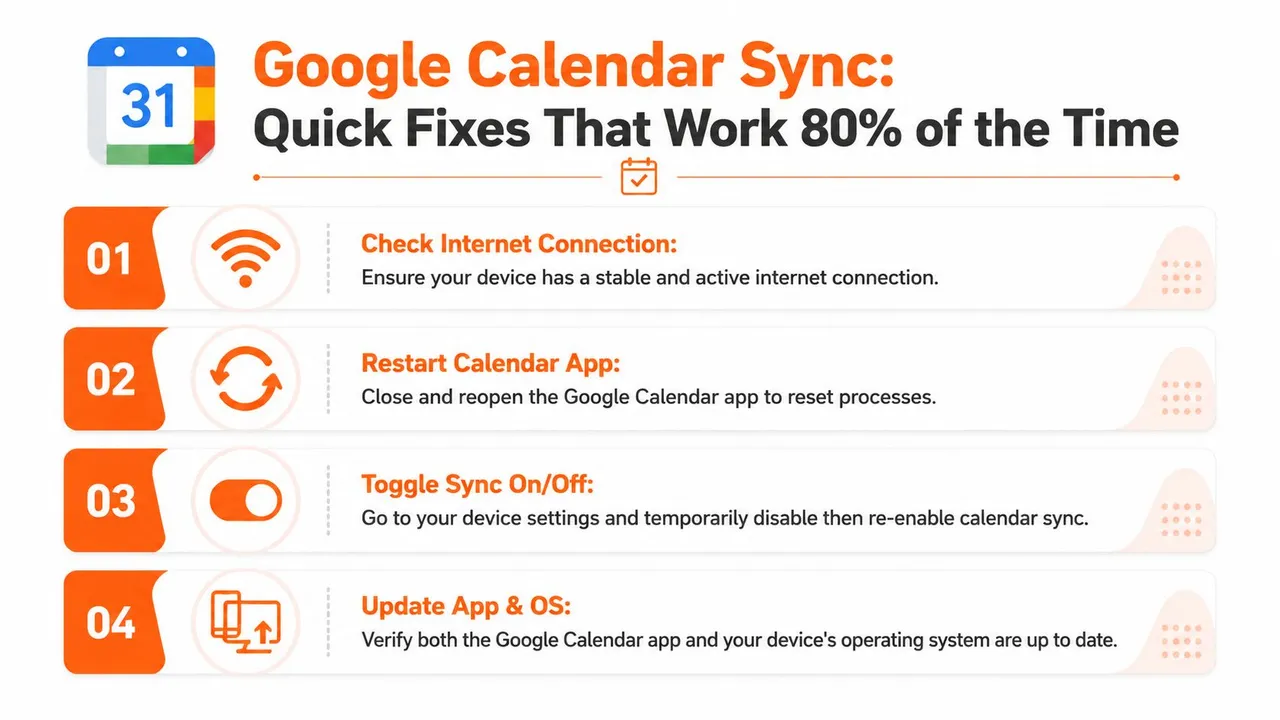
The Quick Fixes That Work 80% of the Time
Start with the checks that take seconds, not the ones that send you deep into settings menus. When Google Calendar stops updating, the best first response is short and mechanical.
Check whether sync is actually enabled
This sounds obvious, but it’s the first thing I verify because it causes a surprising amount of wasted troubleshooting. Google’s own documentation says that if the main Sync toggle is off, the app will not pull events regardless of internet connectivity, and the same support guidance ties failed syncing to local overrides rather than server failure (Google support steps).
Look in the Google Calendar app and confirm the correct account is selected. Then open the calendar list and make sure the calendars you expect to see are enabled. Users often turn off one calendar view, think sync failed, and spend twenty minutes fixing the wrong problem.
Force a refresh on the web first
Before changing anything on your phone, open Google Calendar in a browser and do a manual refresh with Ctrl+Shift+R on Windows or Cmd+Shift+R on Mac. That hard refresh helps separate a local app issue from a broader account display issue.
If the browser version is correct and the phone is wrong, focus on the mobile device. If the browser is also missing the event, the issue may be with the calendar selection, the event itself, or the account you’re signed into.
Restart the app, then the device
This is basic, but it clears temporary app states that keep background sync jobs stuck. Fully close Google Calendar, reopen it, and give it a moment to pull updates. If nothing changes, restart the phone.
I put this before cache clearing because it’s low-risk and fast. A lot of sync hiccups are just a suspended app process that never resumed properly after an OS update, low battery mode, or a network switch between Wi-Fi and cellular. If you end up needing to remove and re-add an account later, it helps to cleanly stop syncing a calendar first.
Confirm the obvious platform dependencies
Use this checklist as your first pass:
- Internet access: Make sure the device has a stable connection and can load other Google services.
- Correct account: Verify you’re looking at the same Google account on every device.
- Calendar visibility: Confirm the specific calendar is checked and not just the app itself.
- App and OS updates: Install pending updates for Google Calendar and the device operating system.
If you manage several calendars and want a cleaner explanation of where native sync gets messy, this guide to syncing Google Calendar across devices and services is a good companion reference.
One trade-off matters here. Native Google Calendar sync depends on several device-specific switches. Third-party sync services feel faster to set up partly because they avoid those local checks. Google’s documented native behavior still requires you to validate those switches manually.
Platform-Specific Sync Settings to Verify
If the quick checks didn’t fix it, stop guessing and inspect the platform you’re using. Web, Android, and iPhone fail in different ways, and mixing advice between them causes more confusion than progress.
On the web
The browser version is your cleanest reference point because it avoids a lot of mobile-specific interference.
Check these in order:
-
Signed-in account
Many sync complaints are really account mix-ups. People have a personal Gmail open in one tab and a work Google account in another. -
Calendar selection
In the left sidebar, make sure the missing calendar is checked. If it isn’t selected, the events won’t display even if sync is healthy. -
Recent changes
Create a quick test event on the web. If the event saves correctly there, your account itself is usually fine and the issue is downstream on a device.
A useful habit is to treat the web calendar as the source of truth during troubleshooting. It gives you a stable point of comparison while you test the phone or tablet.
On Android
Android is where I see the most silent failures because the OS tries hard to save battery and background data. That’s helpful for battery life, but bad for anything that needs continuous background sync.
One of the biggest failure points is battery optimization, especially Doze mode. Field diagnostics cited in this troubleshooting reference found that verifying Background data is unrestricted for Google Calendar resolves approximately 68% of client-side sync failures (Android battery optimization fix).
Use this Android checklist:
- Battery settings: Open Settings, then Apps, then Google Calendar, then Battery. Make sure background activity isn’t restricted.
- Background data: Confirm the app can use data in the background.
- App permissions: Check that the app still has the permissions it needs after OS updates or security changes.
- Account sync settings: In Android account settings, make sure Calendar sync is enabled for the correct Google account.
Android often doesn’t “break” sync outright. It quietly delays or suspends it until the app opens again.
That quiet failure is why people think events are syncing sometimes but not always. In reality, Android may be pausing the app between manual launches.
On iPhone and iPad
iOS has its own version of the same problem. The app looks fine, the account is present, but the system won’t refresh in the background often enough to feel reliable.
For iPhone and iPad, verify these settings carefully:
| Setting | What to confirm |
|---|---|
| Background App Refresh | It must be enabled for Google Calendar |
| Google account calendar access | Under Settings > Calendar > Accounts > Google, Calendars should be on |
| Fetch behavior | Set fetch frequency to the shortest available option if you want near real-time updates |
| Default account confusion | Make sure new events are being created in the Google account you expect |
iOS users also get tripped up by the difference between Apple’s Calendar app and Google Calendar’s app. If you use both, test one at a time. Otherwise, you can end up troubleshooting display differences between apps instead of actual sync behavior.
What usually doesn’t work
People often jump straight to deleting and reinstalling the app. That can help, but it’s not the best second step. If battery rules, account sync permissions, or iOS background refresh are still wrong, the fresh install just recreates the same failure with a cleaner app.
A more reliable sequence is this:
- Verify account and calendar selection first
- Inspect platform settings second
- Reset app data only after those checks fail
That order saves time and avoids unnecessary disruption.
Clearing Corrupted Data and Cache
When the right account is selected and platform settings look correct, the next suspect is local app data. Frequently, sync issues become stubborn at this stage. The calendar exists, the permissions are fine, but the app is working from bad local state.
Clearing cache is not the same as clearing storage
These two actions get mixed up constantly.
Clearing cache removes temporary files. It’s the safer first move when the app opens but doesn’t update correctly.
Clearing storage or clearing data is more aggressive. It resets the app locally and forces it to rebuild its data from your Google account. That sounds scary, but your actual calendar events live in your account, not inside the app itself.
Use this rule of thumb:
- Try cache first when events are delayed, duplicated visually, or the app feels inconsistent
- Use storage reset when sync seems completely stuck or the app keeps showing old data after every other setting checks out
Android reset sequence
Google’s official support guidance for Android includes clearing storage and then restarting the device as part of the documented fix path. If you’re at this stage, follow the steps carefully in the order shown on your phone rather than improvising.
A practical sequence is:
- Open Settings
- Go to Apps
- Select Google Calendar
- Open Storage & cache
- Clear cache first
- If needed, clear storage
- Restart the device and let Calendar re-sync
After the reboot, give the app a moment to repopulate. Don’t assume failure if events don’t appear instantly.
Reset rule: After clearing storage, wait for the re-download. A blank calendar for a short period doesn’t mean your events are gone.
This walkthrough can help if you want to see the process visually before doing it on your own device.
iPhone and iPad cleanup
iOS doesn’t expose cache controls the same way Android does. In practice, your cleanup options are narrower.
Usually the safe path is:
- Close and reopen the app
- Toggle account calendar access off and back on
- Remove and re-add the Google account if sync remains stuck
- Reinstall the Google Calendar app only after confirming iOS background refresh and account settings are right
On iPhone, account re-adding does the job that cache clearing often handles on Android. It rebuilds the local connection without giving you a direct “clear cache” button.
When this fix is worth doing
This step makes sense when the symptoms are weird rather than total. Examples include events appearing on one day and disappearing on refresh, old versions of recurring meetings lingering after edits, or one device refusing to update while the web version is clearly correct.
If your issue is simple and reproducible, like one sync toggle being off, resetting storage is overkill. But if the app’s behavior is inconsistent, clearing local data is often the clean break it needs.
Advanced Troubleshooting for Third-Party Conflicts
When native settings are correct and local data has been reset, the next layer is the one most guides barely mention. Connected apps. Scheduling tools, CRM integrations, calendar bridges, booking links, automation platforms, and custom mobile apps can all hold calendar permissions long after you stopped actively thinking about them.
That’s where sync gets slippery. Google Calendar may be fine on its own, but one stale integration can keep reintroducing bad state or failing unobserved in the background.
Audit app access in your Google account
Open your Google security settings and review Your connections to third-party apps & services. Look for anything that still has calendar access but no longer belongs in your workflow.
Stale OAuth tokens are a real failure point here. Guidance focused on this issue notes that auditing connected apps and re-authenticating the needed service restores sync continuity in 92% of cases where API restrictions or token expiration are the root cause (OAuth token troubleshooting reference).
Start with a simple decision table:
| App status | What to do |
|---|---|
| You still use it | Disconnect it, then reconnect cleanly |
| You don’t recognize it | Remove access |
| You stopped using it months ago | Remove access |
| It’s business-critical | Re-authenticate and test with one calendar first |
Watch for permission drift
Permission drift happens when an app was authorized correctly at one point, then later lost needed access after a password change, policy change, scope update, or account switch. The app may still appear connected, but the token behind that connection isn’t healthy anymore.
This shows up as strange partial failures:
- New events sync, but edits don’t
- Primary calendar works, shared calendar doesn’t
- Sync works for a few weeks, then stops
- One account in a multi-account setup keeps failing while the main account looks normal
If you build or maintain apps that connect to device calendars, it also helps to understand how plugins handle permissions and native calendar access. For developers troubleshooting that layer, the CapacitorJS calendar plugin documentation is useful background because it shows how app-level calendar access can add another failure point outside Google’s own app.
Multi-account token decay is easy to miss
This is one of the nastier edge cases. Standard advice says “sign out and sign back in,” which may fix the issue briefly. But users with multiple Google accounts often see intermittent failures come back because secondary account tokens don’t always refresh cleanly in the background.
The practical sign is recurrence. You fix sync, it works, then a few weeks later one account quietly stops updating again. If that pattern sounds familiar, stop treating it like random bad luck. Re-authenticate each affected account and remove any unneeded third-party connections tied to those calendars.
If one Google account syncs reliably and the second one fails off and on, suspect token health before you blame the app.
The Automated Solution When Native Sync Fails
Manual troubleshooting works. It also exposes the bigger problem. Native calendar sync is fragile because it depends on local device behavior, app state, account permissions, background execution, and token freshness all staying healthy at the same time.
That fragility hits hardest when you use more than one account or more than one calendar system. In multi-account environments, users experience a 3.2x higher recurrence rate of sync errors because background authentication tokens for secondary accounts expire more often, a problem highlighted in this analysis of multi-account Google Calendar sync failures.
For a busy professional, that’s the trade-off. You can keep fixing the same class of issue manually, or you can move to a setup that doesn’t rely on every phone, tablet, and laptop behaving perfectly.
An automated sync service makes the most sense when any of these are true:
- You use Google plus Outlook or iCloud
- You manage work and personal calendars separately
- You can’t risk double-bookings
- You’re tired of rechecking device settings after every update
- You need free/busy visibility without exposing private event details
The strongest argument for automation isn’t convenience alone. It’s consistency. Server-side syncing avoids many of the device-level weaknesses that break native sync. If you’re comparing tools in that category, this roundup of the best calendar sync apps is a practical place to evaluate what fits your setup.
It’s also smart to survey alternatives broadly before choosing one. If you want another directory-style reference point, you can check Mivo Sync on SubmitMySaas and compare how products position their use cases, especially around multi-calendar workflows.
The right end state is simple. You should not have to babysit sync.
If you’re done fighting recurring sync failures, SyncThemCalendars is the practical next step. It synchronizes Google Calendar with Outlook and Apple Calendar in real time, supports one-way or two-way setups, and gives you privacy controls for what gets copied. It’s built for the exact situation that causes the most frustration: multiple calendars, multiple accounts, and no room for missed meetings.
Ready to sync your calendars?
Keep your Google, Outlook and Apple iCloud calendars in sync automatically. 2-minute setup, no credit card required.
Get started freeKeep reading
More in Guides

Synchronize Apple Calendar with Outlook: A 2026 Guide
Step-by-step guide: Synchronize Apple Calendar with Outlook on Windows, iPhone and Mac, with two-way options, privacy trade-offs and fixes.

SyncThemCalendars Quick Setup Walkthrough
Master the SyncThemCalendars quick setup in minutes. Connect Google, Outlook, or iCloud, configure privacy masking, and verify your first sync effortlessly.

Merging Google Calendars: The Complete Guide for 2026
Merging Google Calendars. Learn the best ways to merge Google Calendars. Compare import methods, sync tools, and automation strategies