







Calendrier libre/occupé en 2026 : Comment partager ses disponibilités entre Google, Outlook et Microsoft 365
Comment gérer les paramètres de calendrier 'Occupé' ou 'Libre' ?
Oui, vous pouvez partager vos disponibilités libre/occupé avec Google Calendar, Outlook et Microsoft 365.
Non, vous n’êtes pas la seule personne confuse par la différence entre le partage de calendrier et le partage d’état libre/occupé.
En bref, la plupart des plateformes de calendrier prennent en charge la planification libre/occupé, mais le processus de configuration, les autorisations et les paramètres de visibilité peuvent varier d’un système à l’autre.
👉 Nous avons également comparé Google Calendar vs Outlook Calendar en détail.
Comment utiliser un calendrier libre/occupé avec SyncThemCalendars
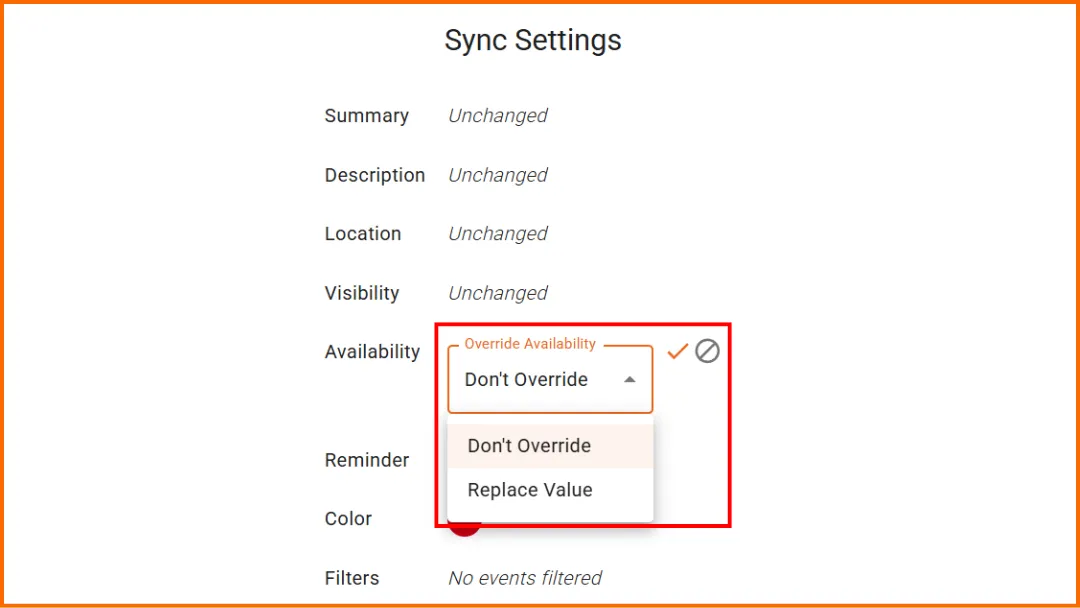
Avec SyncThemCalendars, vous pouvez contrôler si les événements synchronisés doivent bloquer votre disponibilité dans le calendrier cible ou non, grâce à deux fonctionnalités complémentaires :
- le paramètre de Disponibilité,
- le nouveau système de filtrage des événements « occupé ».
Le paramètre « Disponibilité »
Le paramètre de Disponibilité vous permet de définir comment un événement provenant du calendrier source apparaît dans le calendrier cible du point de vue de la disponibilité.
Il existe deux statuts possibles :
- Occupé : un événement marqué comme occupé bloque le créneau horaire et empêche la planification de rendez-vous. Cela indique que vous n’êtes pas disponible.
- Libre : un événement marqué comme libre reste visible dans le calendrier, tout en gardant le créneau horaire disponible pour planifier des réunions ou des rendez-vous.
Exemple
Vous synchronisez votre calendrier personnel avec votre calendrier professionnel. Vous pouvez choisir d’afficher tous les événements synchronisés comme libres.
➡️ De cette façon, vos collègues peuvent voir que vous avez déjà quelque chose de prévu, tout en étant capables de réserver une réunion sur ce créneau horaire si nécessaire.
💡 Nos articles complets dédiés au paramètre de Disponibilité, disponibles ici et ici, peuvent vous aider à mieux comprendre son fonctionnement. Vous pourriez également être intéressé par notre article sur « Comment filtrer les événements lors de la synchronisation des calendriers ».
Le filtre « Occupé »
Cette nouvelle fonctionnalité vous permet d’exclure certains événements de la synchronisation en fonction d’un mot-clé trouvé dans leur titre. Elle est particulièrement utile pour créer des créneaux occupés.
Pourquoi l’avons-nous créée ? Parce que certains utilisateurs (Salut Gabriel 👋) voulaient :
- continuer à bloquer des créneaux horaires dans un calendrier spécifique,
- sans que ces créneaux horaires n’apparaissent dans d’autres calendriers.
Exemple :
Votre calendrier Freelance contient à la fois des réunions clients et des créneaux personnels « occupés ».
Vos calendriers Travail et Personnel doivent recevoir les réunions freelance, MAIS PAS les créneaux « occupés ».
Comment cela fonctionne-t-il ?
Étape 1 : dans votre calendrier source, ajoutez vos événements comme d’habitude.
Par exemple : Réunion client, Revue de design, occupé, Occupé.
Les événements occupés représentent les créneaux horaires que vous souhaitez conserver uniquement dans ce calendrier.
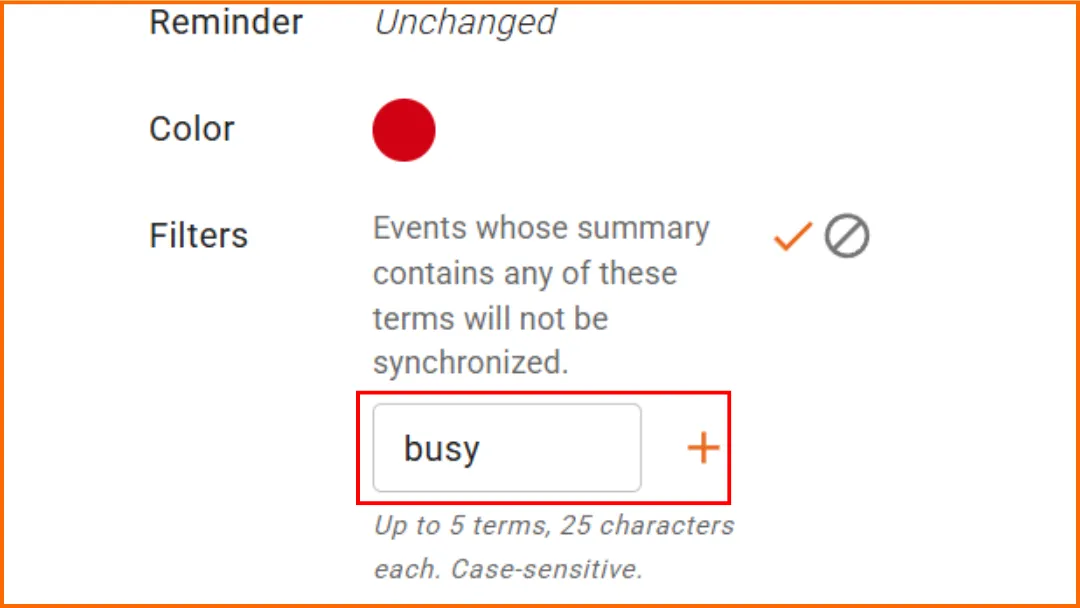
Étape 2 : Allez dans les paramètres de la synchronisation concernée, puis cherchez la section Filtres.
Étape 3 : Ajoutez le mot-clé à exclure.
Dans Filtres, ajoutez le mot-clé « occupé ». Tous les événements dont le titre contient ce mot-clé ne seront pas synchronisés vers le calendrier cible.
Étape 4 : vérifiez le Résultat. Après la synchronisation :
✅ Les événements comme Réunion client ou Revue de design seront synchronisés.
❌ Les événements contenant occupé dans leur titre seront ignorés.
💡 Important : les filtres sont sensibles à la casse. Les filtres font la distinction entre :
- occupé,
- Occupé,
- OCCUPÉ.
Ce sont trois valeurs différentes. Selon la façon dont vous nommez vos événements, vous devrez peut-être ajouter plusieurs variantes.
Comment utiliser le statut libre/occupé dans Google Calendar
En 2026, avec Google Calendar, le système « libre/occupé » fonctionne toujours sur le même principe de base. Vous pouvez partager :
- soit uniquement vos disponibilités (« Libre » / « Occupé ») ;
- soit plus d’informations sur vos événements, comme leurs titres, horaires ou détails spécifiques, selon le niveau d’autorisation accordé.
Comment faire ?
Étape 1 : Ouvrez Google Calendar.
Allez sur https://calendar.google.com
Connectez-vous à votre compte Google.
Étape 2 : Ouvrez les paramètres du calendrier. Dans la barre latérale gauche :
- trouvez votre calendrier,
- cliquez sur les trois points,
- sélectionnez « Paramètres et partage ».
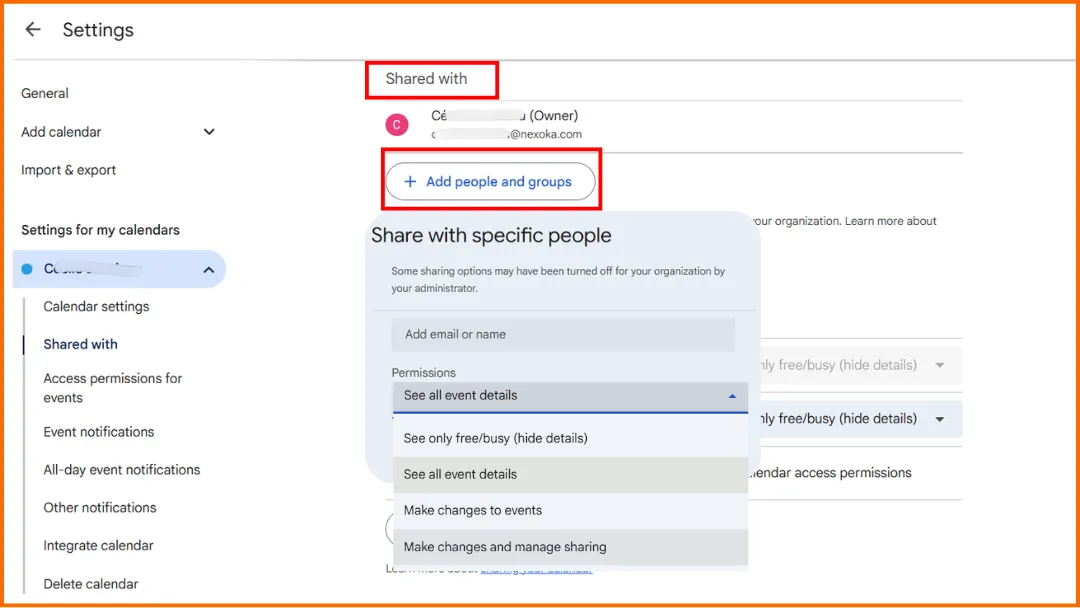
Étape 3 : Faites défiler jusqu’à : « Partager avec des personnes ou des groupes spécifiques ».
Cliquez sur « Ajouter des personnes et des groupes ».
Entrez une adresse Gmail.
Étape 4 : Choisissez le niveau d’autorisation correct.
Sélectionnez « Voir uniquement les informations libre/occupé » (masquer les détails). Cela permet aux gens de :
- vérifier votre disponibilité,
- planifier des réunions,
- éviter les conflits,
sans accéder à vos informations privées.
💡 Bon à savoir : Dans Google Workspace, un administrateur peut empêcher le partage externe, certains niveaux de visibilité et l’accès aux informations libre/occupé en dehors de l’organisation.
Vous souhaitez un lien libre/occupé partageable au lieu d’un partage par personne, une page de planification, un code d’intégration pour un site web ou un flux ICS ? Notre générateur de lien libre/occupé gratuit génère les trois à partir de votre identifiant de calendrier.
Comment utiliser le statut libre/occupé dans Outlook et Microsoft 365
En principe, c’est très similaire à Google Calendar. Cependant, il existe aussi des différences significatives, car Microsoft 365 / Outlook / Exchange a toujours été plus orienté vers les entreprises, et est donc plus fortement géré et plus complexe.
Version rapide
Avec Outlook / Microsoft 365 :
- Ouvrez votre calendrier.
- Allez dans les paramètres de partage.
- Ajoutez une personne.
- Sélectionnez Peut voir quand je suis occupé.
- Ils pourront voir votre disponibilité, mais pas les détails de l’événement.
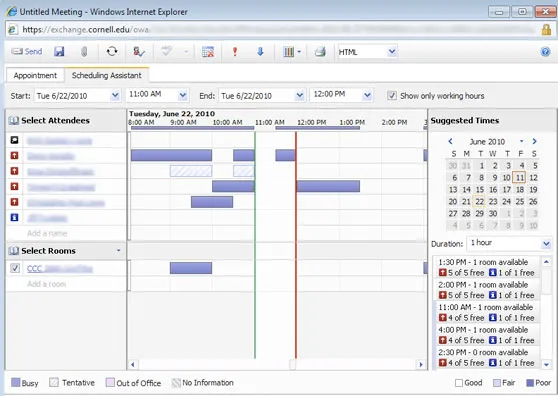
- L’Assistant Planification utilise ensuite ces informations pour trouver un créneau horaire adapté à tout le monde.
Version complète
Étape 1 : Ouvrez Outlook Calendar, puis accédez à votre calendrier. Vous pouvez le faire depuis :
- Outlook sur le web,
- le nouvel Outlook,
- Outlook bureau.
Étape 2 : Dans la vue calendrier, cherchez « Partager le calendrier » ou « Partage et autorisations ».
Étape 3 : Ajoutez la personne avec qui vous voulez partager :
- Entrez son adresse e-mail ou son nom,
- Sélectionnez le contact correct dans la liste.
Étape 4 : Choisissez le niveau de détail que la personne peut voir :
- Peut voir quand je suis occupé → disponibilité uniquement.
- Peut voir les titres et les lieux → détails limités.
- Peut voir tous les détails → visibilité complète.
Étape 5 : Utilisez l’Assistant Planification pour trouver une heure de réunion.
- Créez une nouvelle réunion.
- Ajoutez des participants.
- Ouvrez l’Assistant Planification.
- Outlook vérifie la disponibilité de chacun.
- Vous choisissez un créneau horaire où les gens sont libres.
Étape 6 : Vérifiez le statut de l’événement : Libre ou Occupé.
Chaque événement de calendrier peut affecter votre disponibilité.
- Si un événement est marqué comme Occupé, il bloque votre calendrier.
- S’il est marqué comme Libre, les gens peuvent toujours vous voir comme disponible.
Donc, pour les réunions importantes, les rendez-vous, le temps de concentration ou le temps de trajet, assurez-vous que l’événement est marqué comme Occupé.
Pour partager votre disponibilité Outlook avec des personnes extérieures à votre organisation, publiez plutôt un lien libre/occupé uniquement, les étapes exactes se trouvent dans notre générateur de lien libre/occupé gratuit, accompagné d’un générateur de lien pour Google Calendar.
FAQ
Que dois-je saisir dans les champs Temps minimum et Temps maximum ?
Les champs Temps minimum et Temps maximum définissent la plage horaire dans laquelle le système recherche des créneaux de réunion disponibles. Ces paramètres aident à :
- éviter de planifier des réunions trop tôt ou trop tard,
- correspondre aux heures de travail,
- réduire les conflits de planification inutiles.
Les résultats de disponibilité exacts peuvent varier légèrement entre Google Calendar et Microsoft 365 car chaque plateforme gère les statuts et les autorisations de calendrier différemment.
Créer un calendrier public « Occupé » est-il une bonne idée ?
Techniquement, oui, certains utilisateurs créent un calendrier public « Occupé » séparé qui reflète automatiquement les disponibilités de leurs calendriers privés.
Cependant, cette approche peut rapidement devenir difficile à maintenir. L’utilisation de scripts ou d’automatisations personnalisées peut introduire :
- des délais de synchronisation,
- des problèmes d’autorisation,
- des événements en double,
- des incohérences de fuseau horaire,
- et un travail de maintenance supplémentaire.
Dans la plupart des cas, l’utilisation d’un outil de gestion des disponibilités dédié comme SyncThemCalendars est nettement plus simple. Au lieu de maintenir manuellement un calendrier public « Occupé » séparé, SyncThemCalendars peut synchroniser automatiquement les disponibilités sur plusieurs calendriers tout en gardant les détails des événements privés masqués.
Qu’est-ce que occupé et libre dans Google Calendar ?
Dans Google Calendar, chaque événement peut être marqué comme Occupé ou Libre. Ce paramètre contrôle si l’événement bloque votre disponibilité pour la planification de réunions.
Quel est le meilleur calendrier gratuit à utiliser ?
Le meilleur calendrier gratuit dépend de vos besoins.
Google Calendar est généralement la meilleure option pour un usage personnel et une collaboration simple.
Outlook / Microsoft 365 est meilleur pour la planification professionnelle et en entreprise.
Apple Calendar fonctionne bien au sein de l’écosystème Apple.
Comment afficher le statut libre/occupé dans le calendrier Outlook ?
Ouvrez votre calendrier Outlook, allez dans Partage et autorisations, puis sélectionnez « Peut voir quand je suis occupé ». Cela partage votre disponibilité sans exposer les détails privés des événements. Consultez le tutoriel détaillé ci-dessus pour le processus de configuration complet.
Que signifie « afficher comme occupé ou libre » sur un calendrier iPhone ?
Sur le calendrier iPhone, le paramètre « Afficher comme » contrôle si un événement bloque votre disponibilité.
- Occupé signifie que d’autres personnes peuvent vous voir comme indisponible pendant cette période.
- Libre signifie que l’événement reste sur votre calendrier, mais que vous apparaissez toujours comme disponible pour la planification.
Quelle est la différence entre le partage de calendrier et le partage libre/occupé ?
Le partage de calendrier et le partage libre/occupé ne sont pas la même chose.
Le partage libre/occupé : montre seulement si vous êtes :
- disponible,
- occupé,
- ou indisponible.
Les gens peuvent voir votre disponibilité, mais pas les détails de vos événements privés.
Le partage de calendrier peut donner accès à :
- des titres d’événements,
- des détails de réunion,
- des lieux,
- des notes,
- des participants,
- ou même des autorisations de modification.
La visibilité exacte dépend du niveau d’autorisation que vous choisissez.
En résumé :
- Partage libre/occupé = disponibilité uniquement.
- Partage de calendrier = accès au contenu du calendrier.
Prêt à synchroniser vos calendriers ?
Synchronisez automatiquement vos calendriers Google, Outlook et Apple iCloud. Configuration en 2 minutes, aucune carte bancaire requise.
Commencer gratuitementContinuer la lecture
Plus dans Guides
Guide de configuration rapide de SyncThemCalendars
Maîtrisez la configuration rapide de SyncThemCalendars en quelques minutes. Connectez Google, Outlook ou iCloud, configurez le masquage de confidentialité et vérifiez votre première synchronisation sans effort.
Fusionner des agendas Google : Le guide complet pour 2026
Fusionner des agendas Google. Découvrez les meilleures méthodes pour fusionner vos agendas Google. Comparez les méthodes d'importation, les outils de synchronisation et les stratégies d'automatisation.

Maîtrisez votre calendrier sur Outlook avec des solutions de synchronisation
Apprenez à utiliser efficacement votre calendrier sur Outlook, à le synchroniser avec Google et iCloud, à éviter les doubles réservations et à connecter SyncThemCalendars pour une planification fluide.