







Master Your Calendar on Outlook with Sync Solutions
Learn how to use calendar on Outlook effectively, sync with Google and iCloud, avoid double-bookings, and connect SyncThemCalendars for seamless scheduling.

You open Outlook to check your first meeting, then remember that your dentist appointment lives in Apple Calendar. A client asks when you’re free, but the Google Calendar you shared doesn’t include your internal planning session. Before the day has properly started, you’re switching between Outlook, Gmail, Apple Calendar, and perhaps a separate booking tool just to answer one simple question.
This is the practical problem behind managing a calendar on Outlook today. The issue isn’t that Outlook lacks useful calendar features. The issue is that work, personal, client, and family commitments often sit in different ecosystems, and each system sees only part of the picture. A reliable sync strategy has to make availability visible without making private event details public.
The Daily Calendar Chaos
The conflict usually starts with a normal workday. Your team books meetings through Microsoft 365, your clients send Google Calendar invitations, and your personal commitments arrive through Apple Calendar. Outlook accurately shows the appointments created inside its own environment, but it can’t automatically account for every event stored elsewhere.
That creates a dangerous habit: manually checking several apps before accepting a meeting. You may remember to block a personal appointment in Outlook, but forget to update it when the time changes. You may share your work availability with a client while overlooking the private event that makes that availability inaccurate. The calendar becomes a collection of partial truths.
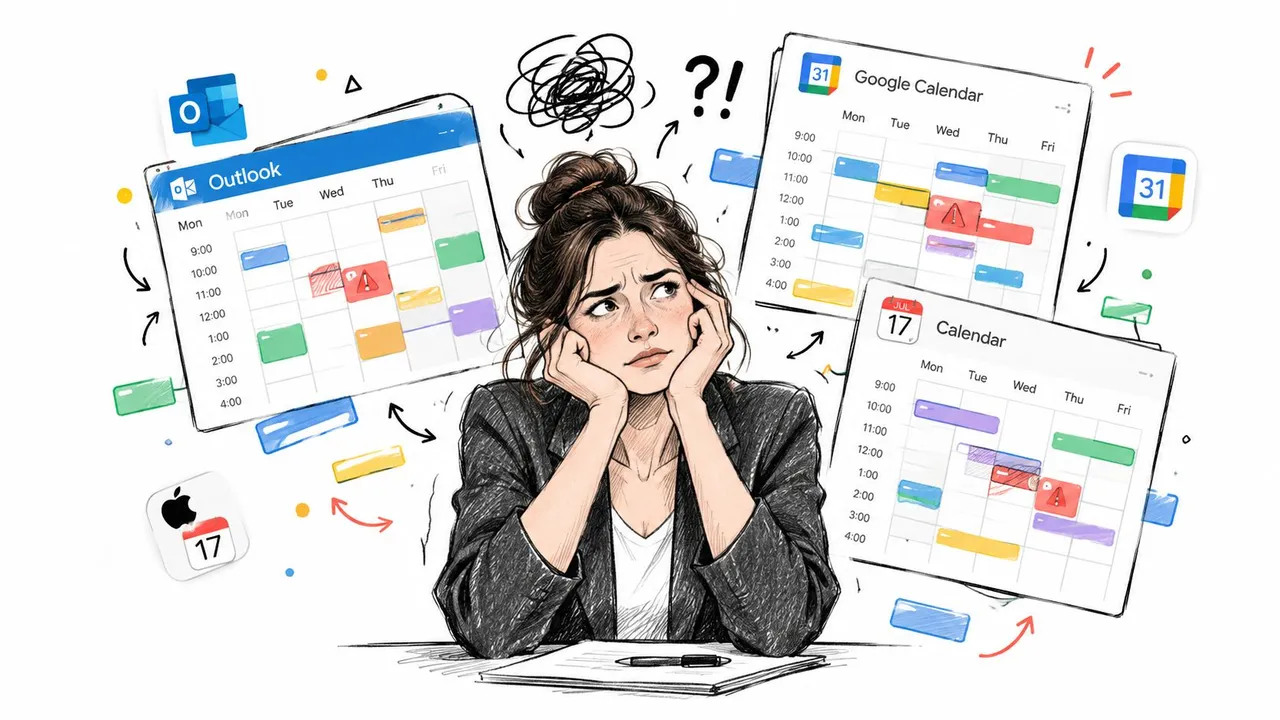
The fragmentation is widespread. A 2025 report on Outlook productivity and calendar use found that 63.9% of Outlook Calendar users also used Google Calendar, 30.7% also used Apple Calendar, and 21.1% used all three. The same Outlook Calendar usage report said people averaged 3.04 calendars across work and life and spent 4.2 hours per week managing them.
Those figures explain why simple “add a calendar” instructions often fail in practice. A freelancer might need Outlook for one client, Google for another, and Apple Calendar for personal obligations. A fitness instructor or studio manager faces a similar coordination challenge when classes, instructor availability, and customer bookings live in separate systems. A practical buyer’s guide from Fitness GM is useful when scheduling involves recurring classes and multiple staff calendars, not just individual appointments.
The cost of partial visibility
A missed event isn’t the only risk. You can also disclose too much by copying every personal event into a shared work calendar with its original title, description, and location. “Private medical appointment” may become visible to colleagues, or a family event may appear in a client-facing availability feed.
The most useful calendar strategy separates availability from event content. Other people need to know that you’re unavailable. They often don’t need to know why.
Practical rule: Treat every calendar connection as a data-sharing decision, not merely a convenience feature.
Understanding Outlook Calendar Privacy and Sharing
Outlook gives administrators and users several ways to control calendar visibility. The important distinction is between showing that you’re busy and exposing the information attached to the event.
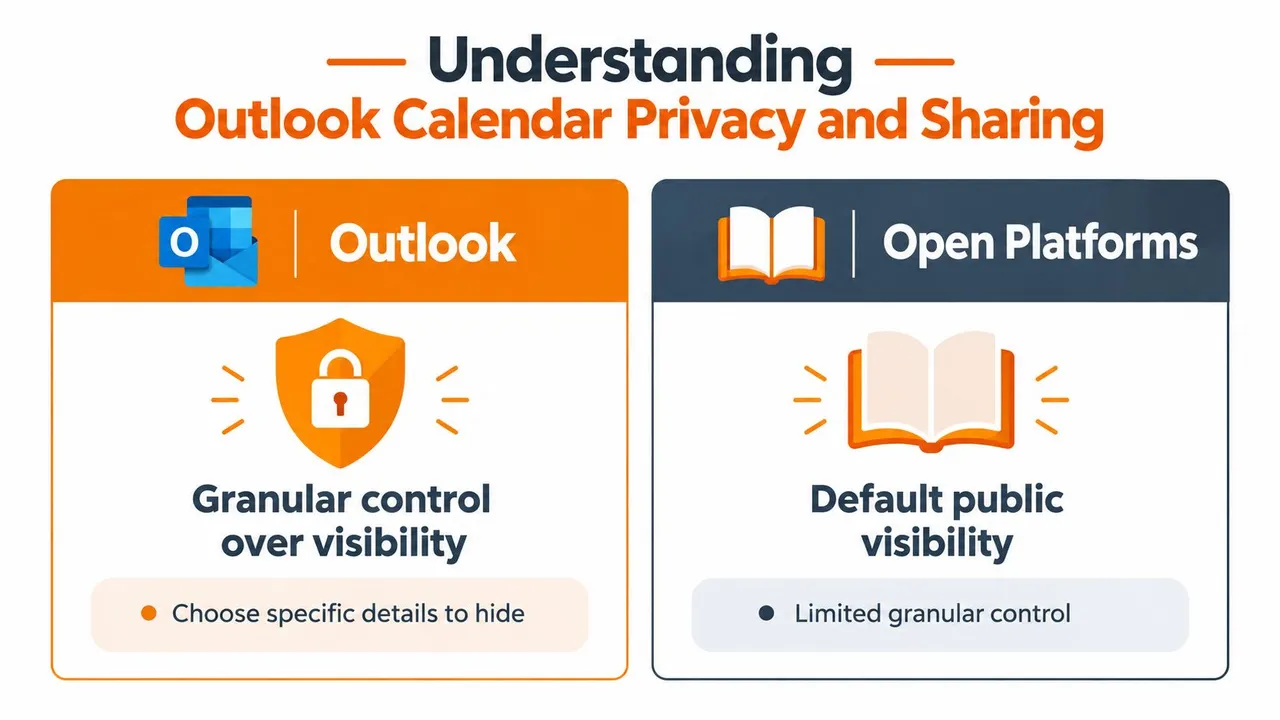
The most restrictive practical option is Can view when I’m busy. It reveals free and busy blocks, allowing someone to find an open appointment window without seeing the meeting title, notes, attendees, or location. Exchange environments can also use AvailabilityOnly, which provides availability information, or LimitedDetails, which adds the subject and location. Microsoft’s explanation of sharing an Outlook calendar as view-only documents these permission choices.
Choosing the right visibility level
Use availability-only access when the recipient needs to schedule with you but has no operational reason to inspect your events. This is normally suitable for clients, external partners, and colleagues outside your immediate team.
Limited details can make sense for a close internal team that needs context before proposing a meeting. Even then, check whether subject lines contain confidential project names or sensitive customer information. Calendar titles are often treated casually, but they can reveal more than intended.
| Sharing level | What the recipient can use | Suitable use |
|---|---|---|
| Busy-only visibility | Open and blocked time | External scheduling and privacy-sensitive sharing |
| AvailabilityOnly | Free and busy information | Cross-team coordination |
| LimitedDetails | Availability, subject, and location | Trusted internal collaborators |
A sync process inherits the limits of the source calendar. If Outlook exposes only busy blocks, a connected calendar can’t reconstruct the original title or location from that feed. That limitation is a benefit when privacy matters, but it also means the target calendar won’t contain full event context.
Permissions are part of the architecture
Avoid granting broad access just because a connector asks for it. Review which calendar is being shared, who can access it, and whether the permission applies to one calendar or an entire account. For delegated calendars, confirm that the person authorizing the connection has the right to read and write events.
A privacy-first setup usually mirrors blocked time into another calendar and masks the event fields that aren’t required. This lets a personal appointment protect your work availability without turning private information into a shared record. For a more detailed review of the settings, see this guide to Outlook calendar privacy settings.
Syncing Outlook with Google and iCloud
Start by deciding what the connected calendar must accomplish. A one-way feed may be enough if Outlook is the source of truth and Google or iCloud only needs to display your work commitments. A two-way relationship is more appropriate when you create and edit events in both systems. Multi-way arrangements require more discipline because the same event can pass through several calendars and create duplicates if the connection isn’t designed carefully.
Connect Outlook and Google Calendar
Use Outlook’s sharing or subscription options when you only need a straightforward display of one calendar in the other system. The general workflow is:
- Identify the source calendar. Decide whether Outlook or Google owns the original event. Don’t start by connecting every calendar you have.
- Choose the visibility scope. Share free and busy information if the destination only needs to prevent conflicts. Share fuller details only with trusted users.
- Add the calendar on the destination side. In Google Calendar, use the option for adding a calendar from a URL when Outlook provides a subscription address, or use an approved account connection where your organization supports it.
- Test one event. Create a test appointment, change its time, and cancel it. Confirm that the destination behaves as expected before adding more calendars.
- Check direction. A display subscription isn’t the same as a two-way sync. If you need edits to travel back to Outlook, use a connector that explicitly supports that relationship.
Native subscriptions are attractive because they involve fewer moving parts. They also tend to be limited, especially when you need edits, privacy transformation, or reliable synchronization between several accounts.
Connect Outlook and iCloud
Apple Calendar and iCloud introduce a different permission model, so begin with the Apple account that owns the calendar. Decide whether Outlook needs to display personal availability or whether both systems need to create and update the same events.
For a simple display arrangement, publish or share only the calendar intended for that purpose, then subscribe to it from the supported calendar application or web interface. For a working two-way setup, use a dedicated service that can authenticate the relevant Outlook and iCloud accounts and map events between selected calendars.
Keep the first connection narrow. Select one Outlook calendar and one iCloud calendar, then verify:
- Event ownership: Know which system creates the original appointment.
- Privacy behavior: Confirm whether titles, descriptions, and locations are copied or masked.
- Update handling: Change an event in the source calendar and verify the target receives the change.
- Deletion behavior: Cancel a test event so you know whether the target removes it or leaves a stale copy.
- Duplicate prevention: Don’t subscribe to the same feed through multiple routes.
For a more structured setup across Microsoft, Google, and Apple accounts, review the available Outlook calendar sync features. The right approach depends less on the brand of calendar and more on whether you need one-way visibility, editable copies, or coordinated multi-way scheduling.
Why Native Syncing Often Falls Short
Native calendar sharing works well when everyone uses the same Microsoft environment and the permission model is simple. It becomes less dependable when a professional must coordinate several tenants, consumer accounts, delegated calendars, and different client applications.
The first limitation is direction. A subscribed calendar may show events without allowing changes to flow back. That can be acceptable for reference, but it doesn’t solve the underlying problem if you regularly create appointments outside Outlook. A second limitation is privacy transformation. Native sharing can control access levels, but it may not give you a flexible way to copy an event while replacing its title with a neutral label such as “Busy.”
Where the Microsoft environment complicates coordination
Exchange accounts continuously synchronize with the Exchange server, and Microsoft says shared calendars can show changes immediately when instant syncing is enabled. However, Microsoft also explains that free and busy visibility across organizations isn’t guaranteed by default and may require organization-to-organization sharing or administrator configuration. The Microsoft guidance on calendar sharing in Microsoft 365 also notes situations where attendee availability may fail to appear, including some non-Exchange meeting requests and large distribution lists.
That distinction matters. A calendar can be fully synchronized inside one tenant while remaining only partially visible to an external client. The connector, account type, tenant policy, and permission scope all influence whether availability is current and machine-readable.
A calendar that displays events isn’t automatically a calendar that can coordinate availability.
The New Outlook transition adds another operational concern. Microsoft’s support documentation describes calendar issues involving classic Outlook, New Outlook, and Outlook on the web, including intermittent event retrieval failures and problems carrying shared or automapped calendars from classic Outlook into New Outlook. The same documentation also identifies a broader calendar-sharing platform upgrade in 2026, so administrators should expect behavior to change as Microsoft updates the service. These details are tracked in Microsoft’s known issues for Outlook calendars.
Manual work creates fragile safeguards
A common workaround is to place a blocking event on every calendar manually. It works until the appointment changes, one copy is forgotten, or a colleague books the original free slot before the block is added. Another workaround is to keep one calendar as the “master” and check all others before accepting invitations. That preserves control, but it turns every scheduling decision into administrative work.
Dedicated automation is more suitable when calendars have different owners, providers, or privacy requirements. The trade-off is that you must review permissions and test the sync carefully. Automation removes repetitive copying, but it doesn’t remove the need for a clear source-of-truth policy.
Streamlining Schedules with SyncThemCalendars
A web-based service such as calendar synchronization for Outlook, Google, and Apple can connect selected calendars without forcing every event into one shared view. The useful design choice is the direction of the relationship. You can mirror Outlook into Google, send personal availability into Outlook, or coordinate several calendars when your work requires it.
For a freelancer, the practical configuration might be Outlook as the work calendar and Google as a client-facing scheduling surface. Personal Apple Calendar events can create blocked time in Outlook while their titles and locations remain hidden. A sales professional might maintain separate calendars for different accounts but expose only availability to the scheduling system used by prospects.
Build the connection around privacy
Choose the calendars first, then choose the fields that should cross the boundary. A useful sync doesn’t need to copy every detail. It can preserve the fact that you’re unavailable while masking the title, description, and location. That protects personal information and reduces the chance that a client sees an internal project name.
The service supports one-way, two-way, and multi-way event copies, with background synchronization across Google Calendar, Outlook or Office 365, and Apple Calendar through iCloud. It also provides privacy controls for transforming copied event fields. Those features make it a better fit for mixed-account scheduling than a basic subscription feed, particularly when the same person works across client and personal ecosystems.
Connect one relationship first. Authorize the accounts, select the source and target calendars, choose the direction, and create a test appointment. Check the result from each calendar before expanding the setup. If you need several connections, document which calendar owns each event so a change doesn’t circulate unpredictably.
A short setup is valuable, but the tangible benefit comes from leaving the system with fewer manual steps. You still need to review permissions after account changes and confirm that shared calendars remain visible after Outlook client updates.
See the workflow in action before configuring your own connections:
Actionable Steps for Seamless Scheduling
Start with an inventory. List every calendar that can contain a real commitment, then mark the account that should own each type of event. Remove abandoned subscriptions and duplicate feeds before connecting anything new.
Next, define the minimum visibility each audience needs. Clients usually need availability, while close teammates may need limited context. Test one Outlook connection with one Google or iCloud calendar, then create, edit, and cancel an event to verify the full lifecycle.
Finally, automate only the relationships that cause recurring manual work. Review permissions after account or client changes, and check shared calendars after Outlook updates. These habits support a more reliable schedule and can also boost daily workflow efficiency beyond calendar management.
If your Outlook, Google, and iCloud calendars keep creating conflicts, SyncThemCalendars can synchronize selected events with one-way, two-way, or multi-way controls while masking private details. Visit SyncThemCalendars to connect your calendars and replace manual availability updates with a controlled scheduling workflow.
Ready to sync your calendars?
Keep your Google, Outlook and Apple iCloud calendars in sync automatically. 2-minute setup, no credit card required.
Get started freeKeep reading
More in Guides

SyncThemCalendars Quick Setup Walkthrough
Master the SyncThemCalendars quick setup in minutes. Connect Google, Outlook, or iCloud, configure privacy masking, and verify your first sync effortlessly.

Merging Google Calendars: The Complete Guide for 2026
Merging Google Calendars. Learn the best ways to merge Google Calendars. Compare import methods, sync tools, and automation strategies
Does Apple Calendar Sync with Google Calendar? Real Answers
Does Apple Calendar sync with Google Calendar? Learn the limits of native integration, common workarounds, privacy risks, and the best setup for your workflow.