







Outlook Calendar Privacy Settings How to Lock Down Sharing
Master Outlook calendar privacy settings to hide details, control sharing and sync securely. Step-by-step guide for private events, permissions and fixes.
You’ve marked a sensitive meeting Private, shared your calendar with an assistant, and assumed the details are hidden. Later, the assistant opens the appointment and sees the title, location, and notes. Or a mirrored calendar copies the same information into another account where a different group can read it.
That outcome usually isn’t caused by a broken Outlook feature. It comes from treating privacy as a toggle instead of a hierarchy. Per-event settings, calendar permissions, delegate rights, organization policies, and sync behavior all affect what another person can see.
Why Outlook Calendar Privacy Is Not Just One Switch
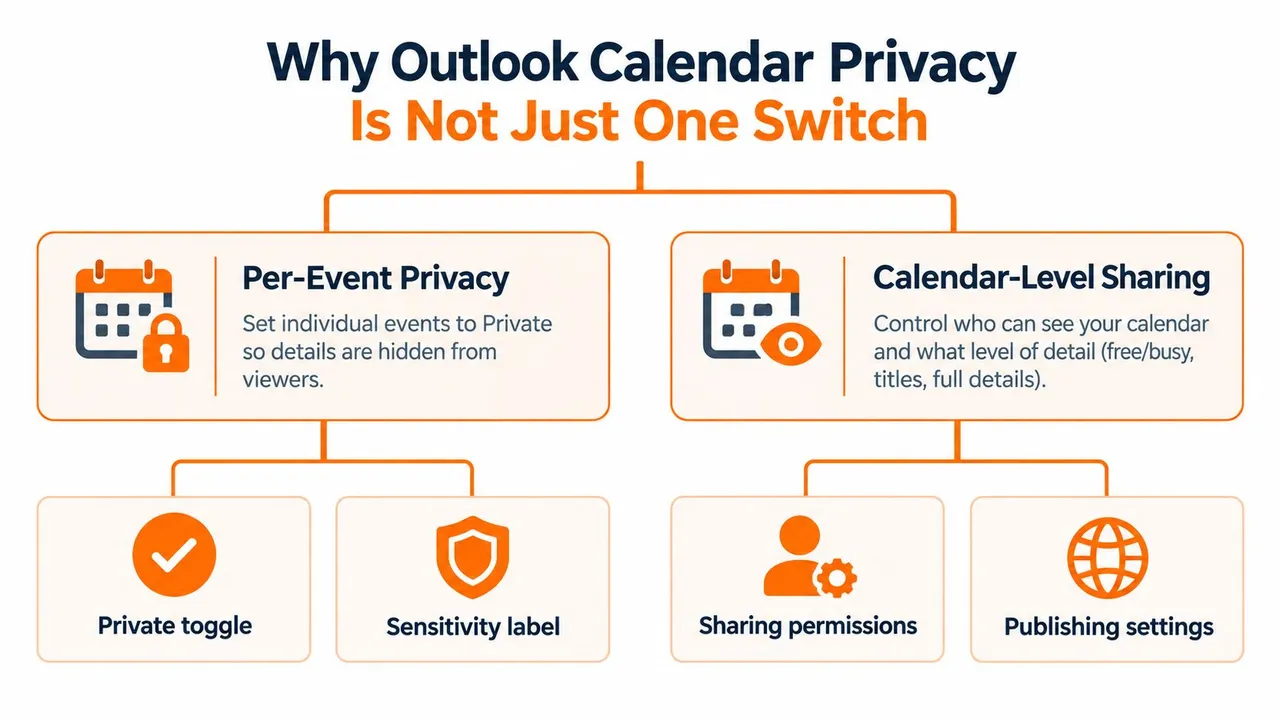
Outlook uses two separate privacy layers. The first applies to an individual appointment or meeting. The second applies to the calendar as a whole and determines what people can access by default.
When you mark an event Private, Outlook hides its details from people with ordinary Read access. That protection has an important exception. A delegate granted Delegate with access to view private items can still see the appointment details, as Microsoft explains in its documentation on making an Outlook appointment or meeting private. Microsoft also notes that private-event details remain visible to the organizer and meeting attendees.
That’s why an executive assistant can see more than a colleague, even when both people appear to have access to the same calendar. The calendar may be shared, but the effective visibility depends on the permission assigned to each person.
The three practical visibility states
In Microsoft 365 and Exchange environments, calendar access generally falls into three useful operating states:
- Full details: The recipient can see information such as event titles, locations, and other permitted appointment content.
- Availability only: The recipient sees when you’re busy or free, without the event title or location.
- No access: The recipient can’t view the calendar at all.
These states are controlled at the calendar-sharing layer. A private appointment can provide an additional shield, but it doesn’t replace calendar permissions. Conversely, setting the calendar to availability-only can prevent ordinary viewers from seeing details without requiring you to mark every event individually.
The common failure happens when someone relies on only one layer. A user marks a personal appointment Private but gives a delegate access to private items. Another user sets a restrictive Default permission but shares a separate calendar containing copied event details. A third user changes an individual event while the organization’s external-sharing policy still exposes more information than expected.
Practical rule: Ask who can access the calendar, what level they have, whether they’re a delegate, and whether another calendar contains a synchronized copy.
Privacy also includes the information around an appointment. Titles can reveal a client, location can reveal a sensitive visit, and notes can contain details that were never meant for a broad audience. People reviewing privacy terms for savings agents will recognize the same principle: permissions should match the sensitivity of the information, not merely the relationship between the people involved.
For a broader operational view of the settings, use this Outlook calendar visibility guide. The useful mindset is simple: Private protects an event, permissions protect a calendar, delegate rights can expand access, and synchronization can create another copy to secure.
How to Make Events Private and Control Default Permissions
Start with the individual event when only one appointment needs protection. Open the appointment or meeting in Outlook, find the Private control, usually represented by a padlock, select it, and save the item. For a meeting invitation, apply the setting before saving or sending when the option is available in your Outlook interface.
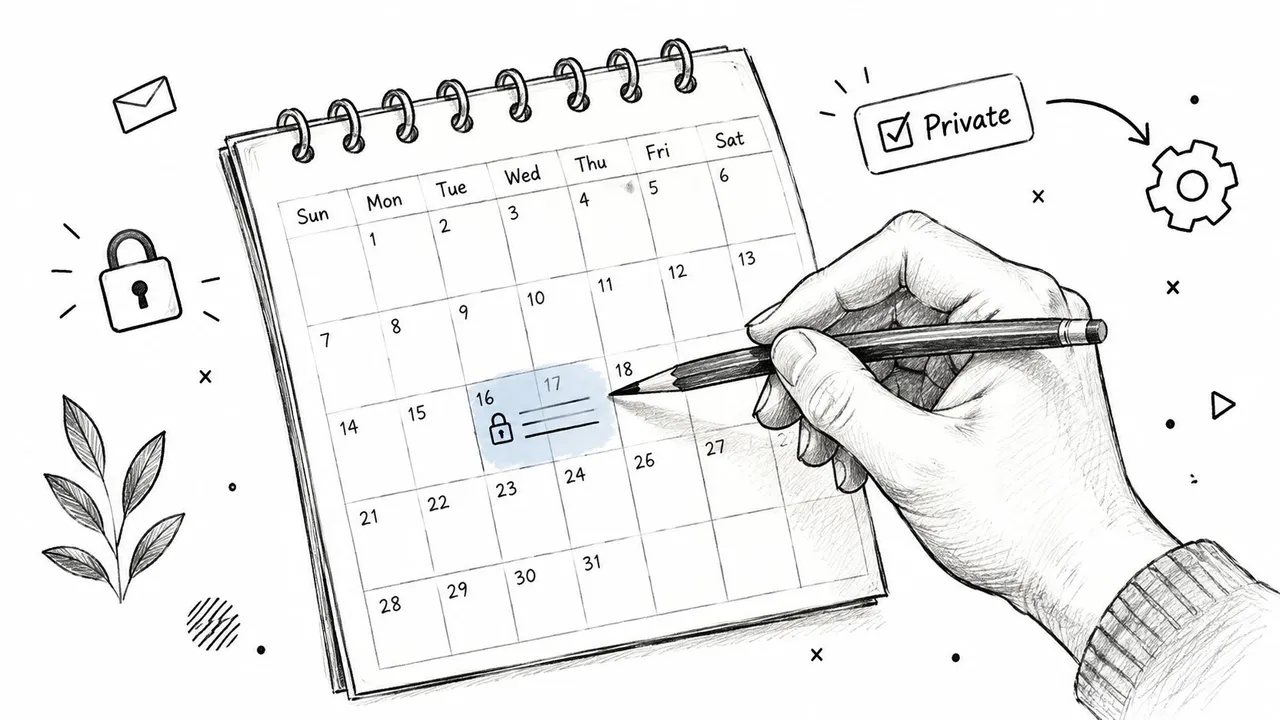
The exact layout varies between Outlook on the web, desktop, and mobile, but the principle stays the same. You’re changing the event’s privacy state, not changing who can access the calendar. Verify the result from the perspective of an ordinary viewer if the appointment is sensitive.
Marking one event Private
Use this sequence as a practical check:
- Open the event: Select the appointment or meeting in Calendar.
- Find the privacy control: Choose Private or the padlock icon in the event window or ribbon.
- Save the change: Use Save, Save & Close, or the equivalent command.
- Check the audience: Confirm that the people who need only scheduling information don’t have delegate access to private items.
On Outlook for Android and iOS, broader account privacy controls are under Settings > General > Privacy Settings, as Microsoft documents in its Outlook privacy settings guidance. That path is relevant when you’re checking mobile behavior, but it doesn’t eliminate the need to review the event’s own Private setting.
Setting the calendar default
Calendar-level settings control people who aren’t listed individually. Open your calendar’s sharing or permissions area, select the Default user, and choose the lowest level that supports your scheduling workflow.
- Select None when the calendar should be hidden from the default audience.
- Select Can view when I’m busy or Free/Busy time when colleagues need to find an open slot but shouldn’t see titles or locations.
- Use a more detailed level only when the recipient has a clear operational need.
This default doesn’t automatically mark new appointments Private. Outlook doesn’t provide a built-in default that flags every appointment as Private, so users who want event-level protection must apply it to each relevant event. That manual responsibility is one reason calendar-level availability-only sharing is often more reliable for broad audiences.
Don’t confuse a restrictive default with a complete audit. A person listed individually can have stronger access than Default, and a delegate may have an explicit right to view private items. After changing the Default permission, review the named users and delegates separately.
Sharing Your Calendar Without Oversharing Details
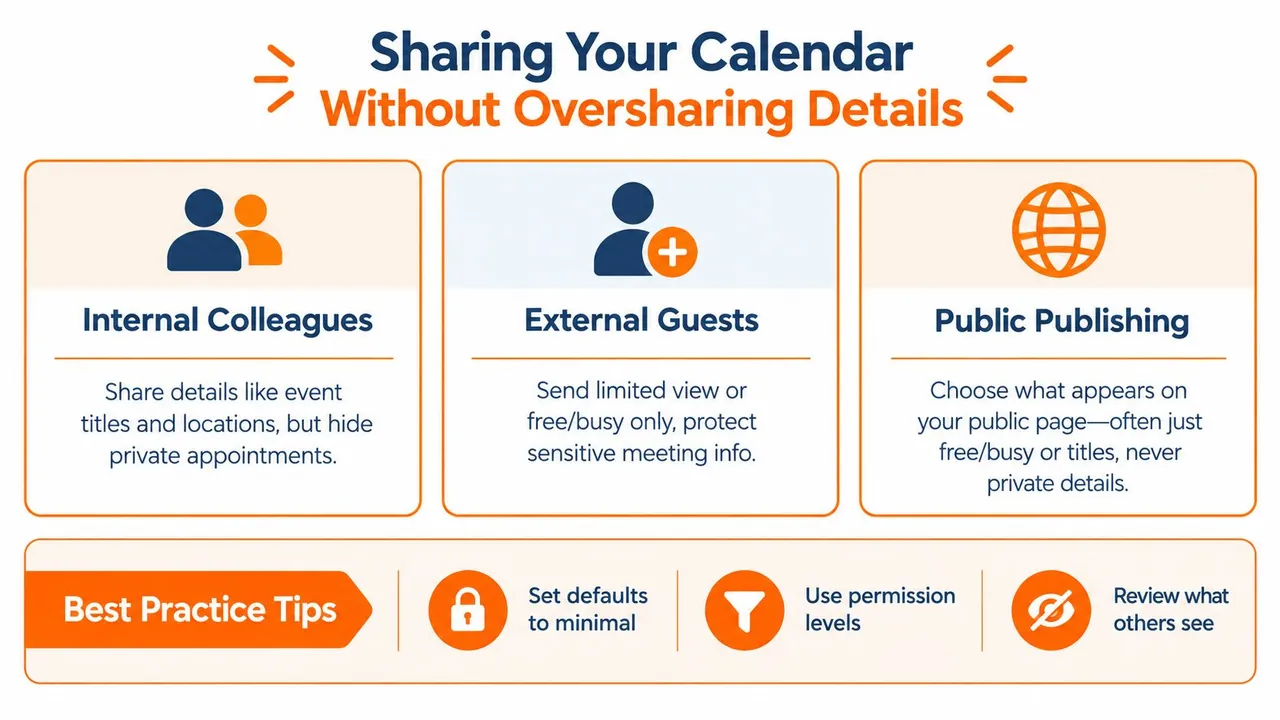
A calendar leak often starts with a reasonable request. A teammate needs enough information to coordinate a meeting, while a client may need only availability. The right setting depends on the audience, and privacy works as a hierarchy: event-level Private status, calendar permissions, delegate rights, and any copied or synchronized calendar each affect what others can see.
Microsoft’s sharing options include Can view when I’m busy, Can view titles and locations, and more detailed access levels. Administrators can also restrict external sharing to free/busy, time plus subject plus location, or all appointment information. In hybrid or cross-organization environments, Exchange organization relationships and their FreeBusyAccessLevel settings may further limit the details external users receive.
Choosing the right permission
| Permission Level | What Recipient Sees | Best For |
|---|---|---|
| Can view when I’m busy | Availability without event titles or locations | Colleagues coordinating meetings |
| Can view titles and locations | Subject and location, while Private items remain protected from ordinary viewers | Trusted internal collaborators |
| Admin-limited external sharing | Free/busy, time plus subject plus location, or all appointment information, depending on policy | External organizations and hybrid environments |
| Delegate access | Access depends on the delegate’s assigned rights, including whether private items are visible | Assistants who actively manage the calendar |
Set the default or organization-level boundary first, then add named recipients at the lowest permission they need. A permissive default can expose information broadly while you configure one person’s access.
For internal sharing, availability-only access usually supports meeting coordination. An assistant who must move, create, or manage appointments may need operational access, not simple read-only sharing. Grant that access deliberately, then inspect whether the delegate can view private items. A delegate’s trusted role does not automatically justify access to every appointment detail. For a practical reference, see this guide to calendar sharing permissions.
External guests generally should not receive full appointment information unless the business purpose requires it. Administrator-controlled external settings may restrict the available choices, so a user-level change may not produce the result expected.
Public publishing carries a separate exposure risk. Choose the least detailed publishing option, open the resulting page, and confirm exactly what it reveals. A public view is different from permission granted to a named recipient. This team calendar setup guide covers collaboration setup, while Microsoft’s view-only calendar sharing instructions explain the available permission choices.
Keeping Synced and Imported Events Private by Default
A calendar can be configured correctly and still leak details through a second copy. This happens when an event moves from email into Outlook, when a personal calendar is mirrored into a work account, or when a synchronization service copies fields such as title, description, and location.
Outlook on the web includes a setting to Mark events as private so only I can see them for events added from email. That setting is useful for travel confirmations, bookings, and other automatically created appointments. It addresses a different workflow from manually marking an event Private after creation.
Review automatic event creation
Open Outlook on the web settings and look for the calendar controls related to events added from email. If the private-by-default option is available for your account, enable it for email-created events that may contain sensitive details.
Don’t assume the same behavior applies consistently across every platform or account. Mobile privacy controls are located under Settings > General > Privacy Settings in Outlook for Android and iOS, but mobile controls and organization policies can affect how privacy behaves in practice.
The next question is where the event goes after Outlook creates it. If a booking is mirrored into another calendar, the destination calendar has its own permissions and viewers. Marking the original event Private won’t automatically remove a copied title from the destination.
Mask fields during synchronization
A privacy-preserving sync should copy availability without copying unnecessary content. Field masking can transform a detailed source event into a simple Busy block on the target calendar, hiding the title, description, and location.
That approach works well when another account only needs to prevent double-booking. It’s less suitable when the destination user must know the meeting subject or location to perform their role. Choose the output based on the recipient’s job, not on the source event’s level of detail.
SyncThemCalendars is one option that supports one-way, two-way, or multi-way calendar synchronization between Google Calendar, Microsoft Outlook or Office 365, and Apple Calendar. Its documented capabilities include free/busy mirroring and controls to mask or transform copied fields, which can keep a mirrored event useful for availability without reproducing sensitive text. You can review the workflow in this Outlook calendar sync guide.
Finally, audit delegates separately. A delegate with permission to view private items can see the original details, while a sync destination may expose copied details to a different audience. Privacy requires both access review and data minimization.
Troubleshooting When Private Details Still Show Up
When a private appointment remains visible, identify which layer is responsible instead of changing settings at random. The symptom usually points to the permission path.
| Symptom | Likely Cause | Correction |
|---|---|---|
| A delegate sees the private title and notes | The delegate has Delegate with access to view private items | Remove that right or reduce the delegate’s access, then test again |
| A normal colleague sees only a busy block | The event is Private or the calendar is shared at availability-only level | This is expected behavior, not a leak |
| Someone sees the whole calendar | The Default user or a named recipient has broader calendar permission | Review calendar-level sharing and reduce the effective permission |
| Old free/busy information still appears | Previously published availability remains in the legacy publishing system | Set publish duration and frequency to 0 months, then clear previously published data with the /cleanfreebusy Outlook switch, following your administrator’s process |
| A copied calendar shows the original title | The sync copied event fields without masking | Change the sync behavior to hide or transform title, description, and location |
| Changing Private hides less than expected | You’re trying to protect the calendar with an event-level flag | Set the calendar’s Default permission to None or availability-only, depending on the scheduling need |
The legacy free/busy case deserves special attention. Exchange-style publishing was designed to share availability rather than complete event content, but published information can require manual cleanup after a permission change. The Microsoft-adjacent guidance on suppressing published free/busy information describes setting publish duration and frequency to 0 months and clearing existing data with /cleanfreebusy.
Verify effective permissions
Check the exact recipient, not only the Default entry. A named user may have a stronger permission than the general audience, and a delegate may have rights that override ordinary Private protection. In managed Microsoft 365 environments, external sharing rules can also cap or shape the visibility available outside the organization.
Keep the two questions separate:
- Do I want to hide one event? Use the event-level Private flag.
- Do I want to hide the calendar or its details from an audience? Change calendar-level permissions.
If the destination is a synced calendar, inspect the copied event itself. Outlook’s permissions won’t govern a separate calendar that has already received the title, location, or description.
A Privacy First Routine for Outlook Calendars
Privacy works best as a repeatable operating routine rather than a one-time cleanup. Set the broad audience to the least detailed view that still supports scheduling, then give specific people more access only when their work requires it.
Use this checklist during onboarding, role changes, and calendar audits:
- Set the baseline: Use None when the calendar should be hidden, or Can view when I’m busy when colleagues only need availability.
- Protect sensitive exceptions: Mark personal, confidential, and high-risk appointments Private.
- Review delegates: Confirm who can manage the calendar and whether anyone can view private items.
- Minimize sync data: Mirror free/busy when details aren’t needed, and mask titles, descriptions, and locations on copied events.
- Check automated events: Review the Outlook on the web setting that can mark events added from email as private.
- Recheck after changes: Audit access when an assistant changes roles, a project ends, or an external relationship is updated.
A useful test is to view the calendar as each audience sees it. Check an ordinary colleague, a delegate, an external recipient, and any destination calendar used for synchronization. If one view exposes more than the recipient needs, reduce that specific permission or mask the copied fields.
The target isn’t to make every calendar invisible. It’s to keep availability accurate while limiting unnecessary context. A teammate can schedule around a busy block without knowing why it exists, and an assistant can manage logistics without automatically receiving access to every private appointment.
SyncThemCalendars can mirror Outlook, Google, and Apple calendar availability through one-way, two-way, or multi-way sync while masking copied titles, descriptions, and locations. Visit SyncThemCalendars to set up a privacy-conscious calendar workflow that keeps schedules aligned without exposing more event detail than each audience needs.
Ready to sync your calendars?
Keep your Google, Outlook and Apple iCloud calendars in sync automatically. 2-minute setup, no credit card required.
Get started freeKeep reading
More in Tutorials

How to Add Gmail Calendar to Outlook Without Duplicates
See how to add Gmail Calendar to Outlook by subscribing for a live view or using two-way sync, then avoid privacy leaks and duplicate events.

Export Outlook Calendar to Google: A 2026 Step-by-Step Guide
Learn how to export Outlook calendar to Google with clear steps for ICS and CSV imports, recurring-event checks, and verification tips that work in 2026.

How to Synchronize Outlook Calendar Across Platforms
Learn how to synchronize Outlook calendar events with Google and Apple iCloud. Master two-way sync, privacy controls, and real-time availability mapping.