







How to Connect Google Calendar to Apple Calendar Guide
Learn how to connect Google Calendar to Apple Calendar effortlessly. Sync your schedules seamlessly in 2026 with our step-by-step guide. Get started now!
If you’re trying to keep work in Google Calendar and your personal life in Apple Calendar, you’re probably already living the problem. A meeting gets moved in Google. Your iPhone still shows the old time in Apple Calendar. You leave for the wrong appointment, or worse, you tell someone you’re free when you aren’t.
That’s why so many people search for how to connect Google Calendar to Apple Calendar. They don’t want a theory lesson. They want one reliable view of the day.
The good news is that Apple’s built-in tools can get you part of the way there. The bad news is that most guides stop at “add your Google account” and never explain the trade-offs. For casual use, native sync may be good enough. For client work, sales calls, shared calendars, or anything where a delay creates real consequences, you need to understand where the default setup breaks.
Why Syncing Google and Apple Calendars is So Frustrating
You check Apple Calendar on your iPhone before heading out. It says your afternoon meeting is still on. Then you open Gmail and see the meeting was rescheduled in Google Calendar. Now you’re late, confused, and wondering which calendar you can trust.
That’s a central issue. Many individuals aren’t dealing with one neat calendar system anymore. They have a work Google account, a personal iCloud calendar, maybe a shared family calendar, and sometimes a client calendar they didn’t choose. The promise is simple: connect everything and see one clean schedule. However, updates are often delayed, calendars can be hidden, and events get saved to the wrong account.
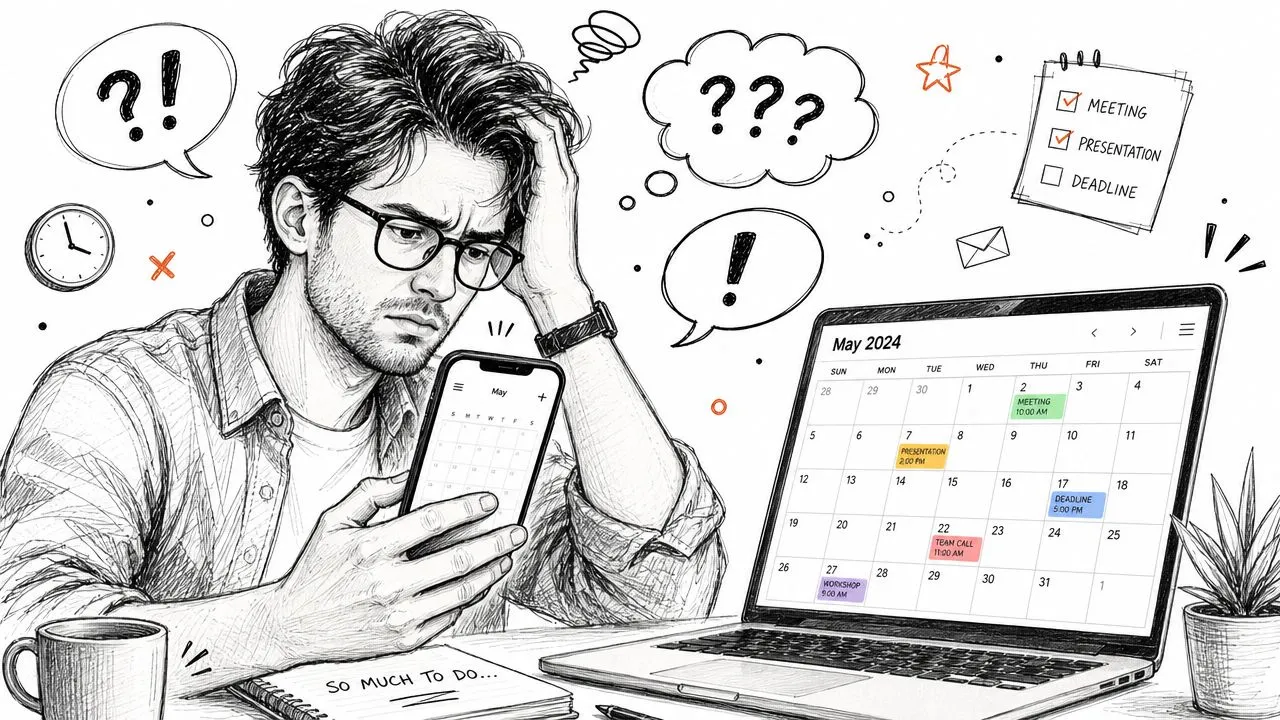
A lot of the confusion comes from how people think sync works. They assume every device gets every change instantly. In practice, Apple and Google don’t always behave like a single system. One side may fetch updates on a schedule. Another may display a calendar but not save new events back where you expected. If you haven’t looked closely at how calendar synchronization actually works, it’s easy to mistake delay for failure.
What professionals usually need
For someone with a light calendar, a delayed update is annoying.
For a consultant, recruiter, therapist, freelancer, or sales rep, it can cost trust. If one device shows “free” while another still hasn’t picked up a booking, you can create a conflict without realizing it.
Practical rule: If two people can book time with you, your calendar setup needs to be predictable, not just convenient.
The frustration isn’t that connecting Google Calendar to Apple Calendar is impossible. It’s that the basic setup sounds simpler than it behaves in real life.
Connecting Calendars Natively on Your Apple Devices
Start with the native setup if your goal is simple visibility across Apple devices. It is free, built into iPhone, iPad, and Mac, and for many personal calendars it is good enough.
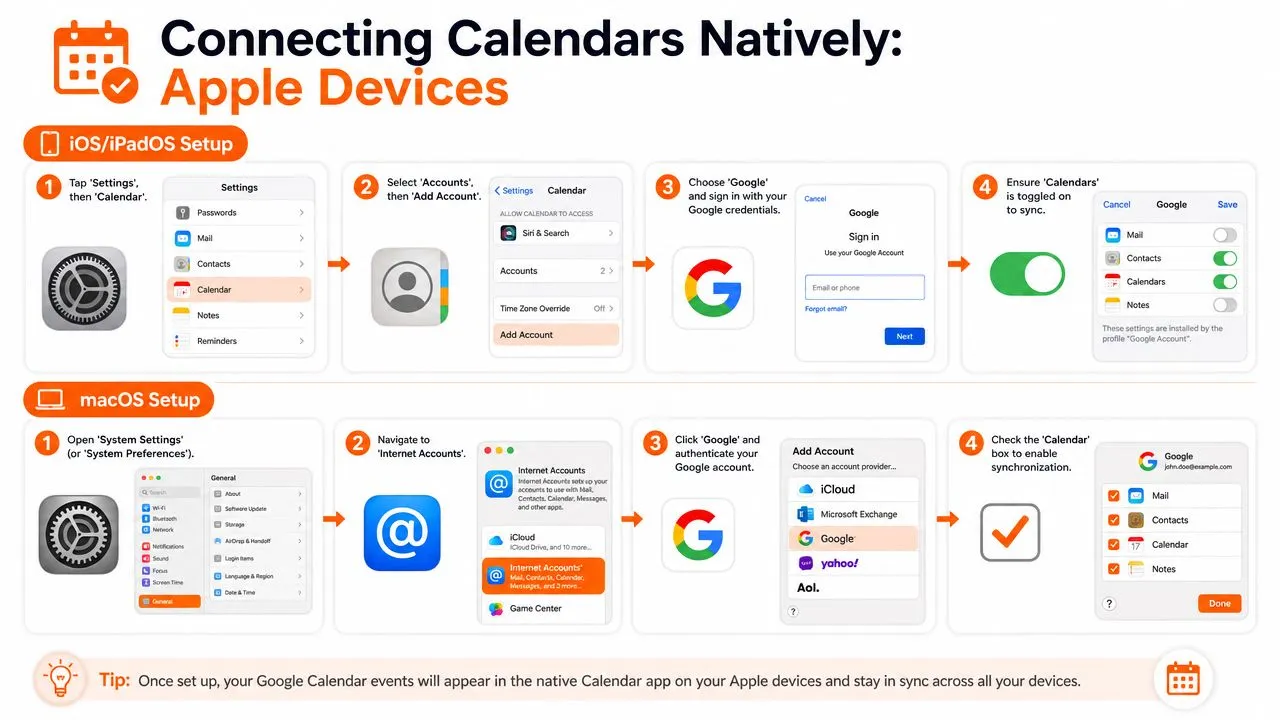
On iPhone or iPad, open Settings, go to Apps, choose Calendar, then open Calendar Accounts and tap Add Account. Select Google, sign in, and make sure Calendars is turned on when iOS asks what to sync.
That last toggle causes more problems than people expect. I see this with clients all the time. They signed in successfully, assume the job is done, then wonder why nothing appears in Apple Calendar when they are trying to sync Google Calendar with your iPhone.
What to check on iPhone and iPad
After the account is added, open the Apple Calendar app and tap Calendars at the bottom. Confirm the Google calendars you want are checked. A connected account does not guarantee every calendar under that account is visible.
Use this checklist:
- Account connected: Your Google account appears under Calendar Accounts.
- Calendars enabled: The Calendars switch is still on.
- Calendar visible: The specific Google calendar is selected inside the Apple Calendar app.
- Default destination reviewed: New events save to the calendar you intend, not to iCloud or another default Apple picked automatically.
If you also manage family or team visibility from your phone, this guide on how to share a calendar on iPhone helps with the separate sharing settings that often get confused with sync settings.
Permissions can also get in the way. If the account looks connected but shared calendars still do not appear correctly, review Apple’s calendar permissions and the Google account settings on the device.
How to connect Google Calendar on Mac
On macOS, open Calendar, then go to Calendar > Settings (or Preferences on older versions), open the Accounts tab, and add your Google account. You can also add it through System Settings > Internet Accounts and turn on Calendar there.
The setup is simple. The behavior after setup is where professionals get tripped up.
A common miss on Mac is the refresh interval. Apple Calendar does not keep polling Google continuously unless you tell it to check more often.
The Mac setting that makes or breaks sync
Open Apple Calendar on Mac and review Refresh Calendars. As 2sync’s explanation of Google and Apple Calendar syncing on Mac points out, Apple’s Google integration depends heavily on fetch frequency on the Mac side. If that interval is too slow, your calendar can look unreliable even when the account connection is fine.
If your Mac calendar feels inconsistent, check refresh settings first.
Here is the practical summary:
| Device | Core setup | Most common miss |
|---|---|---|
| iPhone or iPad | Add Google account and enable Calendars | The Calendars toggle is off |
| Mac | Add Google account in Calendar or Internet Accounts | Refresh Calendars is set too slowly |
For a basic combined view, the native Apple method works well enough. The trade-off is that you have to verify the right calendars are visible, the right account receives new events, and the Mac refresh setting is not slowing updates behind the scenes.
Understanding the Limitations of Native Syncing
A consultant accepts a client meeting from an iPhone, assuming the Google calendar on a Mac has already updated. Ten minutes later, the same time slot gets booked again through a Google-based scheduling flow. Both calendars looked fine. The conflict was real.
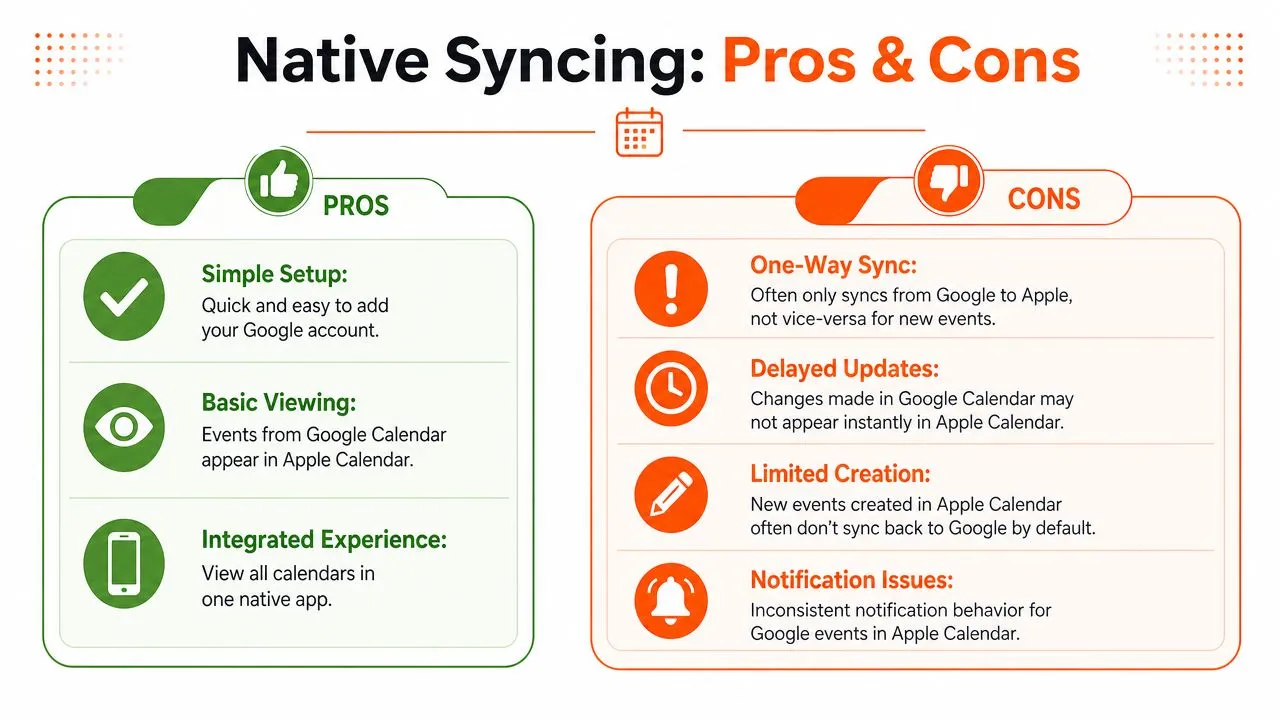
That is the gap many basic tutorials miss. Adding a Google account to Apple Calendar gives you visibility. It does not always give you fast, dependable coordination across devices and calendar systems.
Apple users have documented sync delays and inconsistent behavior in this Apple Discussions thread on calendar sync limitations. For casual personal use, that may be acceptable. For recruiters, sales reps, therapists, founders, and freelancers, delayed updates turn into missed calls, double-bookings, and availability that cannot be trusted.
Where the native method usually breaks down
Native syncing is usually good enough for checking what is on your schedule. It is weaker at handling active scheduling decisions.
The common failure points are practical:
- Updates arrive late: An event changed in Google may take time to appear in Apple Calendar.
- New events save to the wrong calendar: Apple Calendar may default to iCloud unless you check the target calendar every time.
- Availability becomes misleading: One device looks open while another calendar has already claimed the slot.
- Behavior varies by device: A Mac, iPhone, and iPad may not refresh on the same cadence.
That distinction matters. Seeing two calendars in one app is not the same as keeping two systems synchronized well enough to run a business. If you want a closer look at the tools built for that job, this guide to the best calendar sync apps for Google, Apple, and Outlook is a useful reference.
Native sync works best as a convenience layer, not as a reliability layer.
The privacy trade-off most guides skip
Professionals often need two things at the same time. They need blocked availability to flow across calendars, and they need event details to stay private.
Native setup does not give much control here. You can usually show or hide an entire calendar. You usually cannot convert sensitive event names like “Therapy,” “Investor Call,” or “School Meeting” into a neutral “Busy” while still syncing the time block across systems.
That leaves a real trade-off:
| Need | Native sync handles it well | Native sync handles it poorly |
|---|---|---|
| See multiple calendars in one place | Yes | |
| Basic personal convenience | Yes | |
| Prevent conflicts quickly enough for active scheduling | Yes | |
| Hide event details while still blocking time | Yes |
For a simple combined view, Apple’s built-in connection is often enough. For professionals who need true two-way syncing, faster updates, and control over what details get exposed, the native method reaches its limit quickly.
👉 Prefer an interactive walkthrough? Our free add one calendar to another tool covers this exact Google → Apple setup - and every other provider pair - with the limits of each method clearly flagged.
Achieving True Two-Way Sync with SyncThemCalendars
Monday starts with a client rescheduling in Google Calendar. Ten minutes later, your Apple Calendar still shows the old time. You glance at both calendars, try a manual refresh, and hope nothing else books into that gap. That routine is manageable for casual use. It breaks down fast when missed updates turn into double bookings, privacy leaks, or time spent checking whether two systems agree.
A dedicated sync service solves a different problem than Apple’s built-in account connection. The native setup gives you a usable combined view. A tool like SyncThemCalendars is built to keep separate calendar systems aligned as those calendars change through the day.
That difference matters in real schedules. I see it with recruiters who need interview holds reflected everywhere, consultants who keep personal events private while blocking work availability, and founders juggling iCloud, Google, and shared team calendars. In those cases, “good enough” visibility is not enough. The calendar has to update reliably, and it has to protect sensitive details.
What a professional sync layer solves
SyncThemCalendars covers the gaps that matter most in day-to-day use:
- Choose the sync direction: Set up one-way, two-way, or multi-way syncing based on which calendar should send updates and which should receive them.
- Keep calendars current in the background: Changes continue to flow without relying on Apple’s slower refresh behavior.
- Protect event privacy: Block time across calendars while masking titles, descriptions, or locations.
- Cut down on drift between systems: Separate accounts stay aligned as working calendars, not just as occasional references.
Privacy control is often the deciding factor. A therapist, executive, or parent may need an event to copy over only as Busy. The time block needs to transfer. The event name does not. Native setup usually forces an all-or-nothing choice, which is why many professionals outgrow it.
A better setup for client-facing work
Here is a common example. Your personal calendar lives in Apple. Your booking links and client meetings live in Google.
With SyncThemCalendars, a dentist appointment on your Apple calendar can block the same slot on Google without exposing the appointment title. If a client meeting moves in Google, the updated time can flow back to Apple too. That is actual two-way synchronization, not just viewing both calendars in one app and waiting for refresh cycles to catch up.
Setup is straightforward because the service runs on the web and focuses on the sync rules that native connections skip. You decide which calendars should talk to each other, what details should be copied, and what should be hidden. If you want to compare options before choosing one, this roundup of the best calendar sync apps for Google, Apple, and Outlook is a solid starting point.
The real question is not whether Google Calendar can appear inside Apple Calendar. It is whether both calendars stay accurate enough to trust when plans change.
When this route makes sense
A dedicated sync tool is usually the right call if any of these apply:
- You manage bookings or appointments: Delayed updates can create scheduling conflicts.
- You keep work and personal calendars separate: You need time blocking without sharing private event details.
- You use more than one calendar provider: Google, Apple, and Microsoft do not stay aligned well enough through native connections alone.
- You want fewer manual checks: Sync should reduce admin work, not create another habit to monitor.
For professionals, the value is simple. Less calendar drift, fewer preventable conflicts, and more control over what each calendar reveals.
Troubleshooting Common Calendar Sync Errors
Calendar sync failures usually look random until you trace where the event was created, which account is active, and how often Apple is refreshing. I see the same pattern with clients all the time. The calendar appears connected, but one small setting or one wrong default calendar makes the whole setup feel unreliable.
Events don’t appear at all
Start with the basic visibility checks before removing anything.
On iPhone or iPad, open Settings > Apps > Calendar > Calendar Accounts, select your Google account, and confirm Calendars is turned on. Then open Apple Calendar, tap Calendars, and make sure the Google calendar is selected for display. If the account is present but the calendar is hidden, sync can look broken when it is really a display issue.
If events still do not appear, remove the Google account from the device and add it again carefully. In practice, this fixes many native setup problems, especially when the account was added quickly and one permission was skipped.
Changes appear on one device but not another
This is usually a timing issue. Native syncing is often delayed, and that delay is exactly why many professionals stop trusting the built-in connection.
Check the pattern first:
- Only the Mac is behind: Review the account refresh settings in Calendar.
- Only one iPhone or iPad is behind: Confirm the account is active, the correct calendar is visible, and the device has network access.
- One device shows the edit, another does not: Make sure the event was saved to the same Google or iCloud calendar on both devices.
- Everything looks inconsistent: Refresh Apple Calendar, then verify the change appears in Google Calendar on the web before blaming the Apple side.
If updates show up eventually but not quickly, the connection may be working as designed, just not well enough for a schedule that changes all day.
New events keep saving to the wrong place
This is one of the biggest causes of silent calendar drift. The event exists, but it was saved to iCloud, On My Mac, or another local calendar instead of Google.
Check the selected calendar before you save any new event. If this keeps happening, set the default calendar deliberately in Apple settings so new entries go where you expect. For anyone juggling client calls, team meetings, and personal blocks, this one setting prevents a lot of confusion.
Judge the setup by where a new event gets saved and how fast that change appears everywhere else.
Duplicate events start showing up
Duplicates usually come from stacking methods that were never meant to work together. A common example is adding Google through Apple’s account settings, then subscribing to the same calendar feed somewhere else, then testing a second workaround on top of that.
The fix is cleanup, not more troubleshooting. Identify every path bringing that calendar into Apple Calendar and keep only one. If you need true two-way syncing, use one dedicated sync method and remove the extras. Mixed setups are where native calendar connections start to fall apart.
Frequently Asked Questions About Calendar Syncing
Can I sync only one Google calendar instead of all of them
Usually, yes. Apple Calendar can display selected calendars from your connected Google account rather than forcing every calendar into view. The exact options depend on the device and how your Google calendars are configured, but in practice you can usually show your work calendar and hide personal or shared calendars you don’t want visible in Apple Calendar.
Will a real-time sync service drain my phone battery
A web-based sync service does most of its work outside your phone because it runs as a service rather than as a constantly active app on your device. In plain terms, that’s different from keeping your screen awake and manually refreshing calendars all day. For most professionals, the bigger gain is reducing the need to babysit sync behavior.
How secure is a third-party calendar sync tool
That depends on the provider’s architecture and privacy policies. The right standard is straightforward: only use a service that clearly explains what data it processes, why it processes it, and what controls you have over copied event details. If privacy matters, look for tools that let you mirror availability without exposing titles, locations, or descriptions.
Is the native Apple method still worth using
Yes, if your needs are simple. If you mainly want one place to view your Google and Apple events, the built-in setup is convenient and free. It’s the right choice for light personal use and low-stakes scheduling.
If your calendar controls client bookings, shared availability, or sensitive event details, the native method often falls short. That’s when a dedicated sync tool becomes less of a convenience and more of an operational safeguard.
The short version is this. Native setup is good for basic visibility. A dedicated sync service is better for reliability, true two-way behavior, and privacy control.
If you need more than a basic calendar connection, SyncThemCalendars is built for real-time syncing across Google Calendar, Apple Calendar, and Outlook, with one-way, two-way, and multi-way options plus privacy controls that let you block time without exposing sensitive details. It’s a practical choice for consultants, founders, freelancers, and anyone who can’t afford calendar drift.
Ready to sync your calendars?
Keep your Google, Outlook and Apple iCloud calendars in sync automatically. 2-minute setup, no credit card required.
Get started freeKeep reading
More in Tutorials

Export Outlook Calendar to Google: A 2026 Step-by-Step Guide
Learn how to export Outlook calendar to Google with clear steps for ICS and CSV imports, recurring-event checks, and verification tips that work in 2026.

How to Synchronize Outlook Calendar Across Platforms
Learn how to synchronize Outlook calendar events with Google and Apple iCloud. Master two-way sync, privacy controls, and real-time availability mapping.
How to Sync Office 365 Calendar with Apple Calendar
Learn how to sync Office 365 calendar with Apple Calendar. Compare native methods, third-party tools, privacy controls, and troubleshooting tips.