







Comment partager votre calendrier Outlook (Guide étape par étape 2026)
Comment partager rapidement un calendrier Outlook sans erreur. Gérez les autorisations, partagez en interne ou en externe et évitez les conflits grâce à une synchronisation intelligente.
Partager un calendrier Outlook est censé prendre quelques secondes, et pourtant, c’est l’une de ces tâches qui échoue souvent sans raison apparente.
Les boutons sont grisés, les invitations n’arrivent pas, les autorisations ne se comportent pas comme prévu.
Si vous cherchez comment partager un calendrier Outlook, voici ce qui pose réellement problème aux utilisateurs (et ce que vous devez faire correctement) :
- Les autorisations ne sont pas qu’un simple détail : elles définissent précisément ce que les autres peuvent voir ou modifier.
- Le partage interne est simple, tandis que le partage externe présente davantage de limitations.
- Le partage par lien existe, mais il est souvent négligé et parfois restreint.
- En cas d’échec, il s’agit presque toujours d’un problème de paramètres ou de politique, et non d’une erreur de l’utilisateur.
Comment partager votre calendrier Outlook (Étapes rapides)
- Allez dans Calendrier > Partager le calendrier.
- Sélectionnez le calendrier que vous souhaitez partager.
- Cliquez sur Ajouter, choisissez les destinataires, puis cliquez à nouveau sur Ajouter.
- Cliquez sur OK : les destinataires apparaîtront avec les autorisations par défaut.
- Sélectionnez un nom, ajustez le niveau d’autorisation si nécessaire, puis cliquez sur OK.
- Pour accéder à un calendrier partagé : acceptez l’invitation par e-mail, puis allez dans Calendrier > Calendriers partagés et sélectionnez-le (utilisez l’option Superposition pour l’afficher à côté du vôtre).
👉 Si vous n’êtes pas totalement à l’aise avec le fonctionnement des calendriers Outlook, ce guide du calendrier Outlook détaille l’essentiel.
Comment partager votre calendrier Outlook étape par étape
Utilisation d’Outlook sur ordinateur (Windows/Mac)
Suivez ces étapes pour partager votre calendrier Outlook depuis l’application de bureau. Cela fonctionne aussi bien pour le Nouvel Outlook que pour l’Outlook classique.
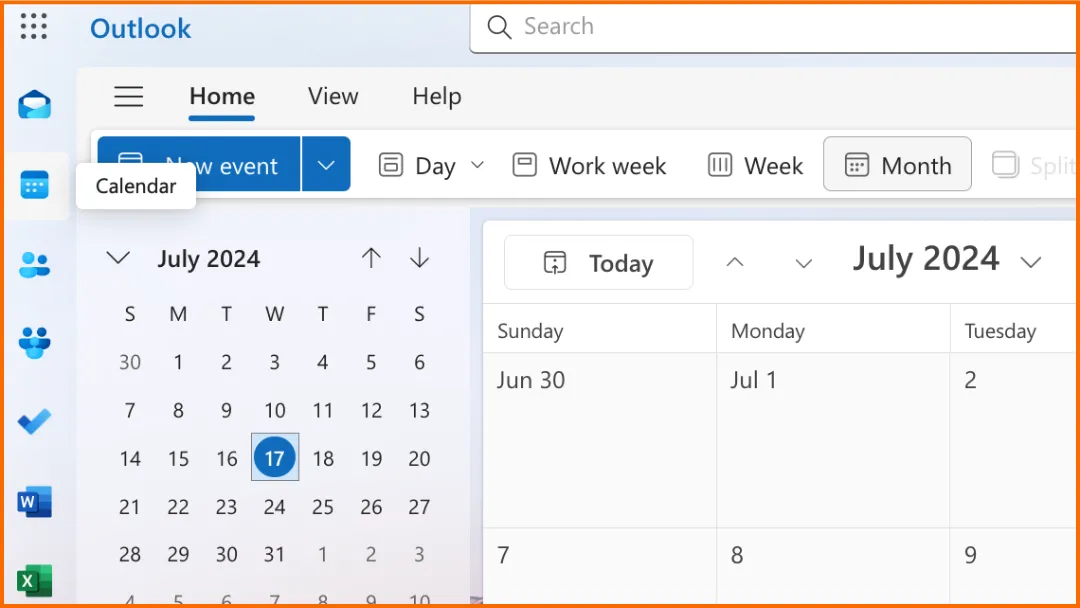
Étape 1 : Lancez Outlook et cliquez sur l’icône Calendrier (en bas à gauche).
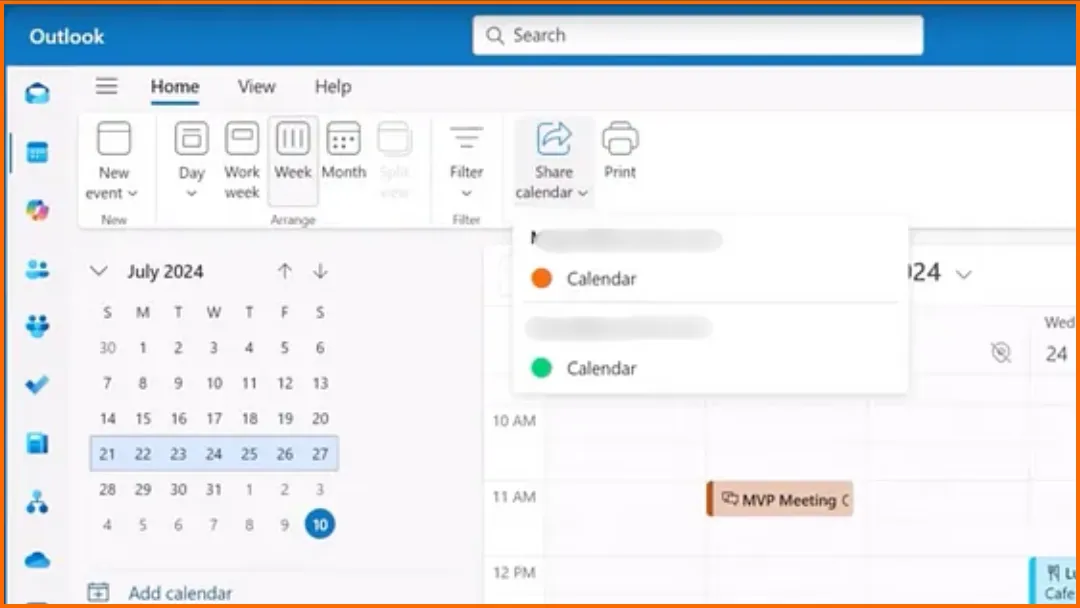
Étape 2 : Dans le menu supérieur, cliquez sur “Partager le calendrier”. Si vous avez plusieurs calendriers, sélectionnez celui que vous souhaitez partager.
Étape 3 : Ajoutez la personne avec qui vous souhaitez partager :
- Saisissez son adresse e-mail ou son nom,
- Sélectionnez le contact correct dans la liste.
Étape 4 : Sélectionnez le niveau d’accès que vous souhaitez accorder :
- Accès en lecture → ils peuvent voir votre calendrier.
- Accès en modification → ils peuvent apporter des modifications (généralement réservé aux utilisateurs internes, sous réserve de la politique de votre organisation).
- Accès délégué → ils peuvent gérer votre calendrier et vos réunions (option avancée).
Choisissez ensuite le niveau de détail qu’ils peuvent voir :
- Peut voir quand je suis occupé → disponibilité uniquement.
- Peut voir les titres et les emplacements → détails limités.
- Peut voir tous les détails → visibilité complète.
Étape 5 : Cliquez sur “Partager” ou “Envoyer”.
La personne recevra une invitation par e-mail.
Une fois acceptée, votre calendrier apparaîtra dans son Outlook.
👉 Vous ne savez pas ce que les autres peuvent réellement voir ? Apprenez à gérer correctement la visibilité du calendrier Outlook.
Utilisation d’Outlook sur le Web
Étape 1 : Accédez à Outlook dans votre navigateur (Outlook.com ou Microsoft 365). Cliquez sur l’icône Calendrier.
Étape 2 : Cliquez sur “Partager”.
En haut, cliquez sur Partager ou Partager le calendrier.
Sélectionnez le calendrier que vous souhaitez partager (si vous en avez plusieurs).
Étape 3 : Saisissez l’e-mail du destinataire.
Tapez l’adresse e-mail ou le nom de la personne.
Sélectionnez-la parmi les suggestions.
Étape 4 : Choisissez le niveau d’autorisation.
Sélectionnez le niveau d’accès que vous souhaitez accorder :
- Accès en lecture → ils peuvent voir votre calendrier.
- Accès en modification → ils peuvent apporter des modifications (généralement réservé aux utilisateurs internes, sous réserve de la politique de votre organisation).
- Accès délégué → ils peuvent gérer votre calendrier et vos réunions (option avancée).
Choisissez ensuite le niveau de détail qu’ils peuvent voir :
- Peut voir quand je suis occupé → disponibilité uniquement.
- Peut voir les titres et les emplacements → détails limités.
- Peut voir tous les détails → visibilité complète.
Étape 5 : Cliquez sur “Partager”.
Le destinataire recevra une invitation par e-mail. Il doit l’accepter pour accéder à votre calendrier.
💡 Vous ne savez pas quel niveau choisir ou où se trouve le paramètre dans votre Outlook ? Notre assistant de visibilité du calendrier Outlook gratuit vous indique les clics exacts par version, ainsi que ce que chaque niveau d’autorisation expose réellement.
👉 Le partage est une chose, garder votre emploi du temps clair en est une autre. Voici comment organiser votre disponibilité dans le calendrier Outlook.
Utilisation d’Outlook mobile (iPhone et Android)
Étape 1 : Ouvrez l’application Outlook.
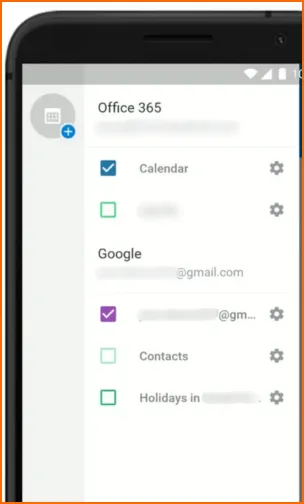
Appuyez sur le menu du calendrier dans le coin supérieur gauche.
Appuyez sur l’icône Paramètres.
Étape 2 : Sélectionnez le calendrier que vous souhaitez partager.
Étape 3 : Appuyez sur “Ajouter des personnes”. Sélectionnez ou saisissez la personne que vous souhaitez ajouter.
Étape 4 : Modifiez son accès.
Appuyez sur le nom de la personne pour gérer son accès.
Choisissez ensuite l’option appropriée affichée dans l’application.
Sous Autorisations, vous pouvez voir :
- Peut voir.
- Peut modifier.
- Délégué.
Sous Partager, vous pouvez voir :
- Seulement quand je suis occupé.
- Seulement les titres et les emplacements.
- Tous les détails.
Étape 5 : Enregistrez vos modifications.
Appuyez sur la coche.
L’application enregistre les paramètres de partage mis à jour.
👉 Si vous jonglez avec plusieurs calendriers, ce guide montre comment synchroniser plusieurs calendriers Outlook sans conflit.
Comment partager votre calendrier Outlook via un lien
“Partager via un lien” signifie publier votre calendrier. Il ne s’agit PAS d’envoyer une invitation à quelqu’un. Cela signifie créer un lien public ou semi-public.
Quand utiliser cette option ?
- Partager votre calendrier avec des personnes extérieures à votre organisation.
- Permettre à d’autres de voir votre disponibilité sans envoyer d’invitations.
- Publier un calendrier publiquement (par exemple, pour des événements ou la prise de rendez-vous).
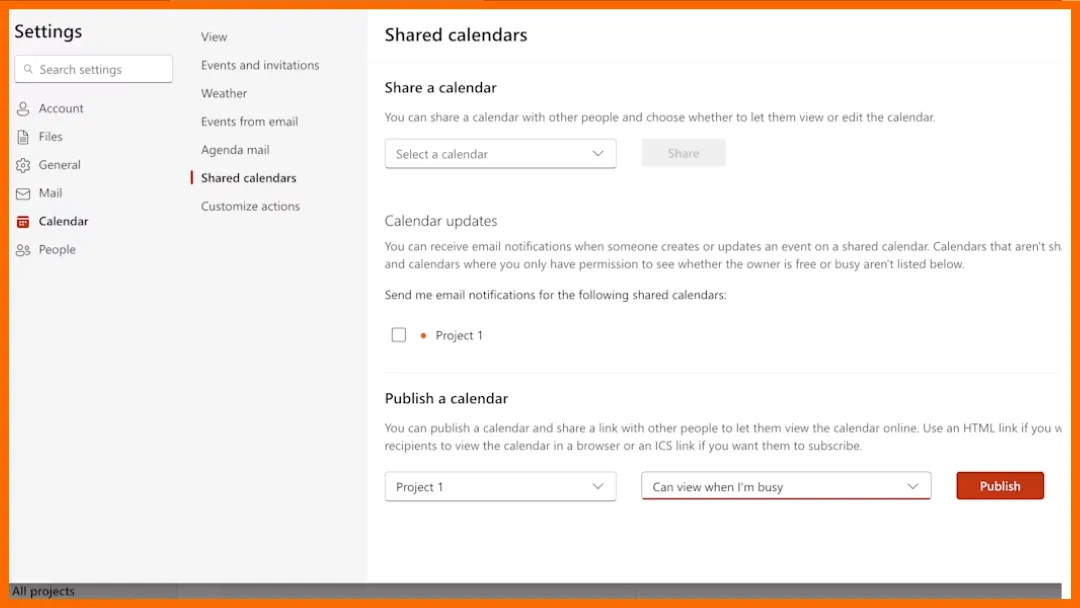
Étape 1 : Ouvrez les paramètres de votre calendrier.
Allez dans Calendrier dans Outlook.
Ouvrez les Paramètres (icône en forme d’engrenage).
Accédez aux Calendriers partagés.
Étape 2 : Sélectionnez le calendrier que vous souhaitez partager et choisissez le niveau de détail à afficher.
Étape 3 : Cliquez sur “Publier”.
Outlook générera deux liens :
- Lien HTML (à consulter dans un navigateur).
- Lien ICS (pour s’abonner au calendrier).
Étape 4 : Copiez et partagez le lien.
Envoyez le lien à qui vous voulez.
Toute personne ayant accès au lien peut consulter votre calendrier.
Étape 5 : Arrêter le partage (facultatif) : retournez dans les paramètres et cliquez sur Annuler la publication pour désactiver l’accès.
Partager votre calendrier Outlook au sein de votre organisation
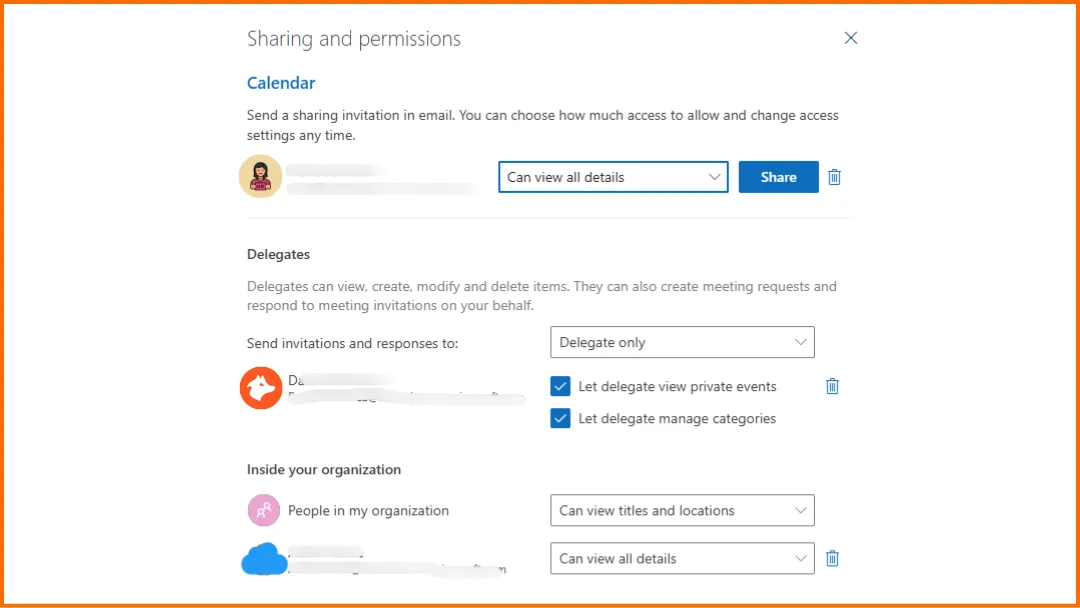
Partager votre calendrier Outlook au sein de votre organisation est le moyen le plus simple et le plus courant de collaborer avec vos collègues. Cela permet à votre équipe de voir votre disponibilité, de planifier des réunions et de se coordonner plus efficacement.
Pour partager votre calendrier avec une personne de votre organisation :
- Ouvrez votre Calendrier dans Outlook.
- Cliquez sur Partager le calendrier.
- Saisissez le nom ou l’adresse e-mail de votre collègue.
- Choisissez son niveau d’autorisation.
- Cliquez sur Partager.
- Une fois l’invitation acceptée, votre calendrier apparaîtra dans son Outlook.
Lors du partage interne, vous pouvez accorder différents niveaux d’accès selon vos besoins :
- Accès en lecture → les collègues peuvent voir votre disponibilité.
- Accès en modification → ils peuvent ajouter ou modifier des événements.
- Accès délégué → ils peuvent gérer votre calendrier et répondre aux réunions en votre nom.
👉 Conseil : n’accordez l’accès en modification ou délégué qu’aux personnes de confiance, comme des assistants ou des membres proches de votre équipe.
Le partage au sein de votre organisation vous offre plus de flexibilité que le partage externe :
- Vous pouvez accorder un accès en modification ou délégué.
- Vos collègues sont plus faciles à trouver via l’annuaire de l’entreprise.
- La synchronisation du calendrier est généralement plus rapide et plus fiable.
👉 Vous travaillez avec plusieurs outils ? Voici comment synchroniser plusieurs calendriers et garder tout aligné.
Partager votre calendrier Outlook en dehors de votre organisation
Le partage de votre calendrier Outlook avec des personnes extérieures à votre organisation (comme des clients, des partenaires ou des freelances) fonctionne un peu différemment du partage interne.
Pour partager votre calendrier avec une personne extérieure à votre organisation :
- Ouvrez votre Calendrier dans Outlook.
- Cliquez sur Partager le calendrier.
- Saisissez l’adresse e-mail de la personne externe.
- Choisissez un niveau d’autorisation en lecture seule.
- Cliquez sur Partager.
- Le destinataire recevra une invitation et pourra consulter votre calendrier une fois qu’il l’aura acceptée.
Lors du partage externe, l’accès est généralement limité aux options de lecture seule :
- Seulement quand je suis occupé → disponibilité uniquement.
- Titres et emplacements → détails de base.
- Tous les détails → visibilité complète.
⚠️ Limitations à connaître :
- Vous ne pouvez généralement pas accorder d’accès en modification ou délégué aux utilisateurs externes.
- Certaines organisations restreignent ou désactivent le partage externe.
- Les utilisateurs externes peuvent avoir besoin d’accepter l’invitation avant de pouvoir voir votre calendrier.
Explication des autorisations du calendrier Outlook
Autorisations de lecture (accès en lecture seule)
Vous pouvez partager votre calendrier sans autoriser de modifications. Choisissez le niveau d’information que les autres peuvent voir :
- Seulement quand je suis occupé → disponibilité uniquement.
- Titres et emplacements → détails de base.
- Tous les détails → visibilité complète.
⚠️ Les utilisateurs externes ne peuvent généralement avoir qu’un accès en lecture seule.
Autorisations de modification
Avec un accès en modification, les autres peuvent :
- Ajouter des événements.
- Modifier votre calendrier.
⚠️ L’accès en modification est généralement limité aux utilisateurs au sein de votre organisation, sous réserve de la politique de votre compte et de votre organisation. Pour une présentation complète du processus d’invitation lié à ces autorisations, consultez comment accorder l’accès à votre calendrier Outlook.
Accès délégué (avancé)
Les délégués peuvent :
- Modifier votre calendrier.
- Planifier des réunions pour vous.
- Répondre aux invitations en votre nom.
⚠️ L’accès délégué :
- N’est disponible que si vous utilisez un compte professionnel ou scolaire dans Microsoft 365 ou avec Exchange Online.
- S’applique uniquement à votre calendrier principal.
Pourquoi vous ne pouvez pas partager votre calendrier Outlook et comment y remédier
Je vois l’erreur “Ce calendrier ne peut pas être partagé”
Si vous recevez ce message, c’est généralement pour l’une des raisons suivantes :
- L’adresse e-mail est invalide.
- L’e-mail appartient à un groupe Microsoft 365 (pas à un utilisateur individuel).
- Le destinataire est un utilisateur externe et votre organisation n’autorise pas le partage externe.
👉 Solution : Vérifiez l’adresse e-mail et assurez-vous que vous partagez avec un compte individuel valide. Si nécessaire, contactez votre administrateur informatique pour confirmer si le partage externe est autorisé.
L’option “Partager” est grisée
Si vous ne pouvez pas cliquer sur le bouton de partage, c’est probablement parce que votre organisation a restreint le partage de calendrier.
👉 Solution : Contactez votre administrateur informatique ou système. Il se peut qu’il ait désactivé le partage de calendrier pour des raisons de sécurité ou de confidentialité.
Le destinataire ne peut pas accepter l’invitation
Si la personne que vous avez invitée ne peut pas accepter la demande de partage, cela peut être dû au type de son compte.
Les utilisateurs sans compte Outlook ou Microsoft 365 (par exemple, les utilisateurs Gmail) peuvent avoir des difficultés à accepter les invitations.
👉 Solution : Demandez-leur de :
- Se connecter avec un compte Outlook.com ou Microsoft 365, ou
- Utiliser un lien de calendrier partagé à la place (voir l’option de partage par lien).
Je ne trouve pas l’accès délégué
Pourquoi cela arrive :
- Cela ne fonctionne qu’avec les comptes professionnels ou scolaires.
- Cela nécessite Microsoft 365 ou Exchange.
👉 Solution : Assurez-vous d’utiliser un compte professionnel. Sinon, vous ne verrez pas les options de délégué.
Conseil d’expert : Allez au-delà du partage : pensez à la synchronisation des calendriers
Vous pouvez également éviter les doubles réservations en synchronisant vos calendriers si vous en utilisez plusieurs. C’est exactement ce que SyncThemCalendars vous permet de faire, quels que soient les calendriers que vous utilisez : Outlook, Google ou Apple.
FAQ : Partage de calendrier Outlook
Comment puis-je partager mon calendrier avec quelqu’un ?
Vous pouvez partager votre calendrier Outlook en envoyant une invitation de partage. Ajoutez simplement l’adresse e-mail de la personne, choisissez ce à quoi elle peut accéder (lecture, modification ou délégué) et envoyez l’invitation. Une fois acceptée, votre calendrier apparaîtra dans son Outlook.
Puis-je partager mon calendrier Outlook avec des utilisateurs n’utilisant pas Outlook ?
Oui, vous pouvez partager votre calendrier Outlook avec des utilisateurs n’utilisant pas Outlook, mais il existe certaines limitations.
Ils peuvent généralement consulter votre calendrier en acceptant une invitation de partage. Cependant, selon les paramètres de votre organisation, les utilisateurs externes peuvent n’avoir qu’un accès en lecture seule et peuvent avoir besoin d’un compte Microsoft (Outlook.com) pour accepter l’invitation.
Si le partage ne fonctionne pas, vous pouvez également publier votre calendrier et envoyer un lien, auquel tout le monde peut accéder sans compte Outlook.
Comment rendre mon calendrier Outlook visible par tout le monde ?
Outlook n’offre pas d’option en un clic pour rendre votre calendrier visible par tout le monde par défaut. Pour le partager largement, vous pouvez soit :
- Partager votre calendrier avec votre organisation (pour une visibilité interne), ou
- Publier votre calendrier et partager un lien pour le rendre accessible à tous.
Lorsque vous publiez votre calendrier, vous pouvez choisir le niveau d’information que les autres peuvent voir, comme la disponibilité uniquement ou les détails complets des événements.
Comment envoyer à quelqu’un un lien vers mon calendrier Outlook ?
Pour envoyer à quelqu’un un lien vers votre calendrier Outlook, vous devez d’abord le publier.
Accédez aux paramètres de votre calendrier, recherchez l’option “Publier le calendrier” et générez un lien de partage. Vous obtiendrez deux types de liens :
- Lien HTML → pour consulter dans un navigateur.
- Lien ICS → pour s’abonner au calendrier.
Copiez le lien et envoyez-le à toute personne avec qui vous souhaitez partager votre calendrier.
☄️ Essayez SyncThemCalendars gratuitement et gardez tous vos calendriers synchronisés. Google, Apple, Microsoft, il les prend tous en charge !
Prêt à synchroniser vos calendriers ?
Synchronisez automatiquement vos calendriers Google, Outlook et Apple iCloud. Configuration en 2 minutes, aucune carte bancaire requise.
Commencer gratuitementContinuer la lecture
Plus dans Tutorials
Exporter le calendrier Outlook vers Google : Guide étape par étape pour 2026
Apprenez comment exporter votre calendrier Outlook vers Google grâce à des étapes claires pour les imports ICS et CSV, la vérification des événements récurrents et des conseils de validation efficaces en 2026.
Comment synchroniser le calendrier Outlook entre différentes plateformes
Apprenez à synchroniser les événements du calendrier Outlook avec Google et Apple iCloud. Maîtrisez la synchronisation bidirectionnelle, les contrôles de confidentialité et la gestion de la disponibilité en temps réel.
Comment synchroniser le calendrier Office 365 avec Apple Calendar
Apprenez à synchroniser le calendrier Office 365 avec Apple Calendar. Comparez les méthodes natives, les outils tiers, les contrôles de confidentialité et les conseils de dépannage.