







Google Calendar Sharing Android: Setup & Privacy Guide
Learn about Google Calendar sharing Android features, including step-by-step setup, privacy controls, and sync fixes for 2026.
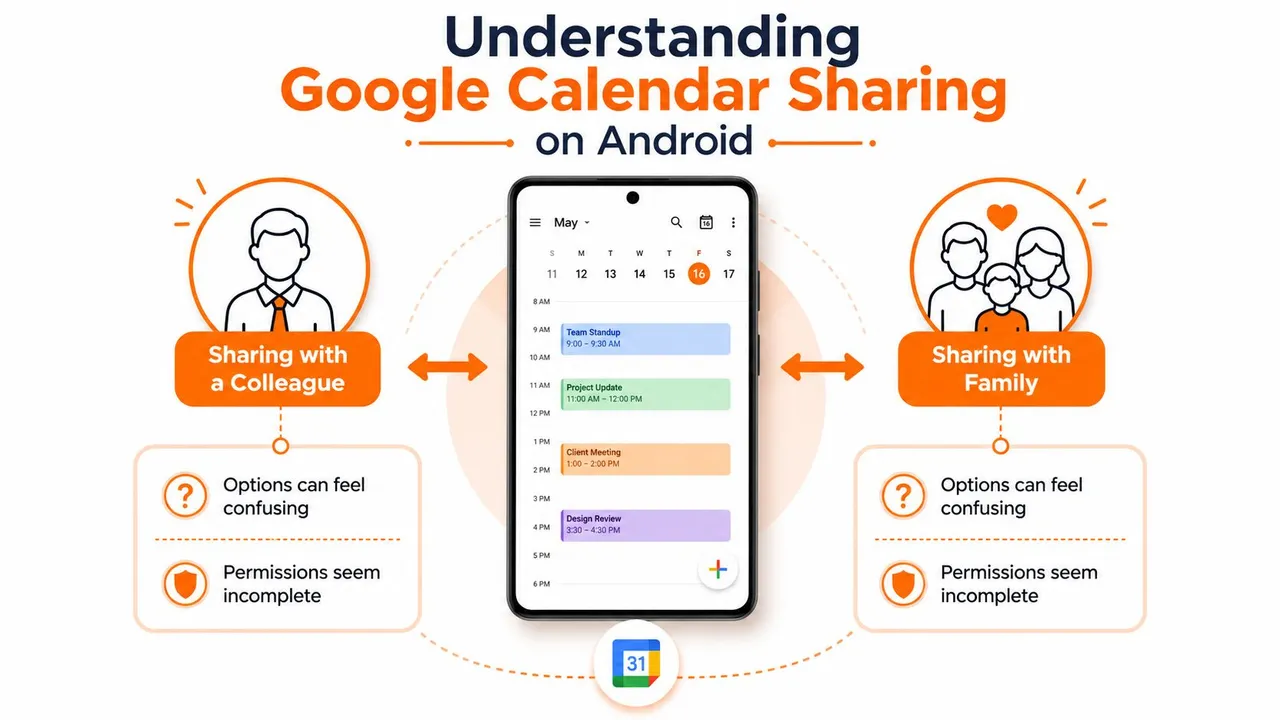
You’re on your Android phone, trying to give a colleague access to your availability or let a family member see when you’re busy. You open Google Calendar, find the event, and discover that sharing one meeting feels straightforward while sharing the calendar itself seems to lead to missing controls, unclear permissions, or a browser window.
That confusion comes from a real division between event invitations, calendar-level sharing, and Android’s local app permissions. Once you understand which layer you’re changing, Google Calendar sharing on Android becomes much easier to manage, and much harder to misconfigure.
Understanding Google Calendar Sharing on Android
Google Calendar doesn’t use one app-wide sharing switch. Sharing is managed per calendar, with separate controls for specific people, an organization or company domain, and public access. Google’s Android documentation also describes controls for sharing Calendar data with other apps, so access can involve both people who use your calendar and apps installed on your phone. You can review Google’s Android Calendar capabilities in the official Google Calendar Android listing.
The first distinction is between an individual event and an entire calendar:
- An event invitation applies to one meeting, appointment, or family activity. You add guests to that event, and they receive an invitation.
- Calendar-level sharing gives someone ongoing access to a calendar’s availability or event information. It can reveal patterns across future events, not just the meeting you’re discussing today.
That difference matters. If a client only needs to attend a consultation, invite them to the event. If a coordinator needs to check your open times repeatedly, a shared calendar with restricted visibility may be more appropriate. Choosing calendar-level sharing for a single interaction can expose far more of your schedule than intended.
What the Android app handles well
The Android app is useful for creating events, adding guests, viewing calendars shared with you, and controlling which calendars are visible or synchronized on your device. It’s also where Android users can manage relevant privacy controls for Calendar data shared with other apps through the device’s permission framework.
Google’s documentation indicates that calendar-level sharing management is primarily handled through calendar settings and browser-based Google Calendar flows. In practice, that means you may not find the complete “add a person and choose an access level” workflow inside the Android app. The phone remains useful for consuming shared information, but the web interface often takes over when you’re configuring ownership and permissions.
Practical rule: Use an event invitation when the other person needs one meeting. Use calendar sharing only when they need continuing visibility.
Google Calendar can also show personal and work calendars in the same Android app when an Android Work Profile is in use, while keeping personal and work data stored separately unless you explicitly share them. That separation is helpful, but managed work devices may impose additional rules on what can be displayed together or accessed by other applications.
Sharing Individual Events and Full Calendars from Your Phone
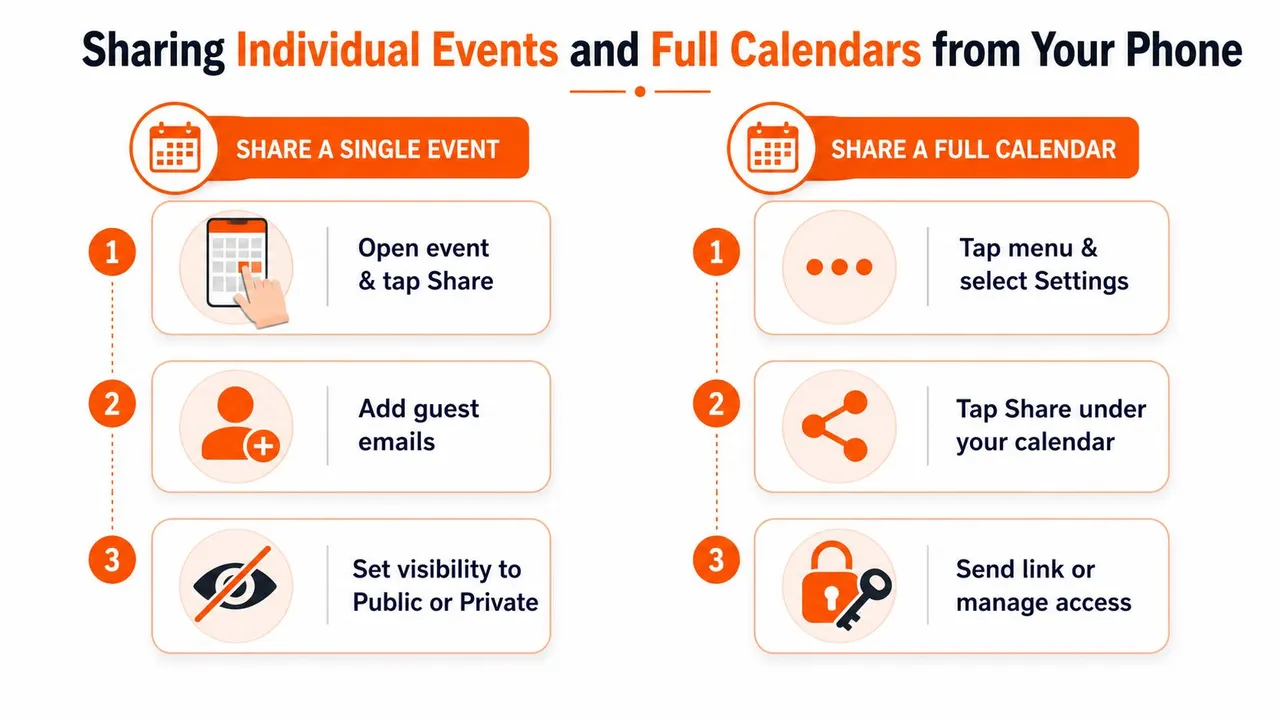
For most Android users, the simplest workflow is deciding whether the recipient needs one event or ongoing calendar access. The first option usually stays inside the app. The second may require the Google Calendar web interface, particularly when you’re the calendar owner and need to assign permissions.
Sharing one event in the Android app
Open Google Calendar and select the event you want to share. Depending on the event type and app version, use the guest or sharing control, add the recipient’s email address, review the event’s visibility settings, and send the invitation.
Before sending, check whether the event contains information you wouldn’t want the guest to see. An event invitation is narrower than calendar sharing, but the recipient may still see the details allowed by the event’s settings. For a private client appointment, keep the event private and include only the information the guest needs to attend.
Use this workflow when:
- You’re inviting someone to a specific meeting.
- You’re coordinating a family appointment or school activity.
- You don’t want the recipient browsing your wider schedule.
- You need a response or attendance status for that event.
Sharing a full calendar
For calendar-level sharing, open Google Calendar in a browser and sign in to the account that owns the calendar. Find the calendar in the calendar list, open its Settings and sharing, add the person or group, choose an access level, and send the invitation.
Google documents four permission choices:
- See only free/busy information, which hides event details while showing availability.
- See all event details, which exposes the calendar’s event information without giving the recipient editing control.
- Make changes to events, which allows the recipient to create, edit, or remove events.
- Make changes and manage sharing, which also gives the recipient the ability to change sharing relationships.
The recipient must accept the emailed invitation before the shared calendar appears in their account. If you’re looking for a visual walkthrough of the broader workflow, use this Google Calendar sharing guide.
After the recipient accepts, return to the Android app and open the sidebar. Confirm that the shared calendar is selected and that its sync and visibility settings are enabled. If it appears in the browser but not on the phone, the problem is usually device visibility or synchronization, not the invitation itself.
Managing Permissions and Protecting Your Privacy
A shared calendar should reveal the minimum information needed for the other person to do their job. Google Calendar’s permission model supports that approach, but the choices have different consequences.
| Permission Level | What They Can See | What They Can Do | Best For |
|---|---|---|---|
| Free/busy only | Availability status without full event details | View when you’re available or busy | External coordinators and clients |
| Full event details | Event information on the shared calendar | View details without changing events | Trusted family members or informed teammates |
| Event changes | Calendar events and their details | Create, edit, and remove events | Close collaborators who actively manage scheduling |
| Changes plus sharing | Calendar content and sharing relationships | Change events and grant access to others | A genuine calendar administrator |
The safest default for an external contact is usually free/busy only. A scheduling assistant may need to know whether you’re available, but not the title, location, description, or participants of every appointment. For a colleague who actively maintains a project calendar, event changes may make sense. Manage-sharing rights deserve much more caution because that person can create downstream access relationships and expand the calendar’s visibility.
The calendar itself remains private unless you share it or make it public. That doesn’t mean every event behaves identically, though. Public calendar access, calendar-level permissions, and individual event visibility can interact in ways that make a quick setup difficult to audit.
Two permission layers on Android
There are two separate authorization questions:
- Who can access the calendar through Google Calendar? This is controlled by calendar sharing permissions.
- Which Android apps can access Calendar data locally? This is controlled by Android’s privacy and app-permission framework.
A person may have no Google Calendar sharing access while another installed app still has permission to read Calendar data on the device. Conversely, a colleague may have legitimate shared-calendar access while an Android Work Profile prevents a particular app or account from displaying that information.
Review local access through Android’s privacy dashboard and app permission settings. Remove access for apps that don’t need calendar data, especially when you’re troubleshooting unexpected visibility or trying to keep personal and work information separated. For a deeper explanation of event visibility and sharing choices, consult this Google Calendar visibility resource.
Least privilege works here: Give people the narrowest permission that still lets them complete the task, then increase access only when the workflow proves it’s necessary.
Troubleshooting Sync and Visibility Issues
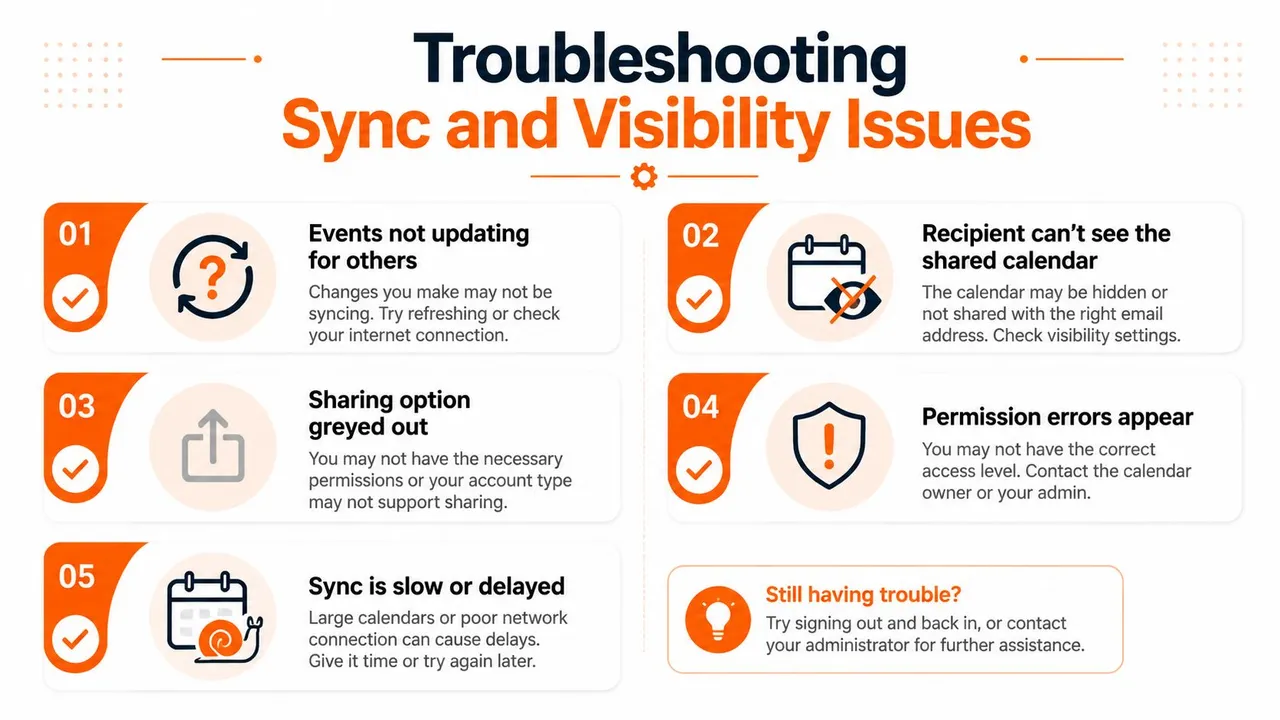
A recipient may accept an invitation and still report that nothing appears on their Android phone. Start by separating the problem into three possibilities: the invitation wasn’t accepted, the calendar isn’t visible on the device, or Android isn’t synchronizing the account correctly.
Use this diagnostic order
- Confirm acceptance. Ask the recipient to find the invitation email and accept it. A shared calendar won’t appear in their account until the invitation is accepted.
- Check the calendar list. In the Android app, open the sidebar and confirm the shared calendar is selected. A calendar can exist in the account while remaining hidden from the current view.
- Review account synchronization. Open Android’s account settings, select the relevant Google account, and verify Calendar synchronization is enabled. Then refresh Google Calendar manually.
- Check the browser view. Sign in to Google Calendar on the web. If the calendar is visible there but absent on the phone, focus on device settings, account selection, and sync rather than changing sharing permissions.
- Inspect battery restrictions. Android battery optimization can delay background updates for some apps. Review Google Calendar’s battery and background-use settings if events remain stale.
- Check the time range. Google’s Android guidance says Calendar sync in the app covers past events up to one year. Older historical events may not appear during routine mobile synchronization, even though the calendar itself remains available online. See the Google Calendar Android support documentation for the documented sharing and sync behavior.
Event invitations and calendar sharing also create different expectations. An invited guest may see one event without having access to the calendar that contains your broader schedule. If the recipient needs ongoing availability, revise the calendar-sharing configuration rather than repeatedly sending individual invitations.
Work Profiles introduce another checkpoint. Personal and work calendars can coexist in the same Android Calendar experience while remaining separated at the storage and policy level. On an organization-managed device, visibility may depend on enterprise mobility management support or restrictions set by the administrator. If a calendar appears on the personal side but not the work side, that may be a policy boundary rather than a sync failure.
Cross-Platform Calendar Sync Solutions
Native Google Calendar sharing works most smoothly when the owner, recipient, and calendar all remain inside compatible Google accounts. It becomes less direct when a freelancer maintains a personal Google Calendar, a client uses Microsoft Outlook, and a partner or household member relies on Apple Calendar.
The underlying issue is ownership. Sharing is generally tied to the calendar owner, and each recipient may need to add or accept the shared calendar in their own ecosystem. A work profile can add another boundary, especially on an organization-managed Android device. You may be able to view several calendars, but that doesn’t automatically create a reliable mirror of availability between accounts.
A practical comparison looks like this:
| Need | Native Google Calendar sharing | Cross-platform synchronization |
|---|---|---|
| Invite someone to one meeting | Strong fit | Usually unnecessary |
| Let a Google user view a calendar | Direct | Usually unnecessary |
| Keep Google, Outlook, and Apple availability aligned | Limited by account and platform boundaries | Designed for ongoing copies |
| Hide sensitive titles or descriptions | Depends on calendar and event settings | Can use field transformation where supported |
| Separate work and personal calendars | Workable with careful account and profile management | Can mirror availability without copying every detail |
A synchronization service can copy events between selected calendars rather than asking every person to work inside one shared calendar. SyncThemCalendars supports synchronization between Google Calendar, Microsoft Outlook or Office 365, and Apple Calendar through configurable one-way, two-way, or multi-way directions. It also supports free/busy mirroring and controls for masking or transforming copied fields such as the title, description, and location.
The service is presented as a web application with an estimated two-minute setup, background operation, unlimited events, and plan limits based on active syncs. Its published plans range from five to thirty-six active syncs, depending on the subscription tier, as described in the publisher’s product information. That approach suits a consultant who needs a client-facing availability mirror, a small business coordinating several account types, or someone separating personal details from work scheduling.
For Android users, the practical benefit is indirect. The Google Calendar app becomes the place where the synchronized calendar is viewed and managed, while the service handles copying between the connected calendar systems. Read the calendar sync guide for Android before connecting accounts, especially if you need one-way mirroring rather than two-way editing.
Building Your Privacy-First Calendar Sharing Strategy
Start with the person’s actual need, not the sharing feature you happen to find first.
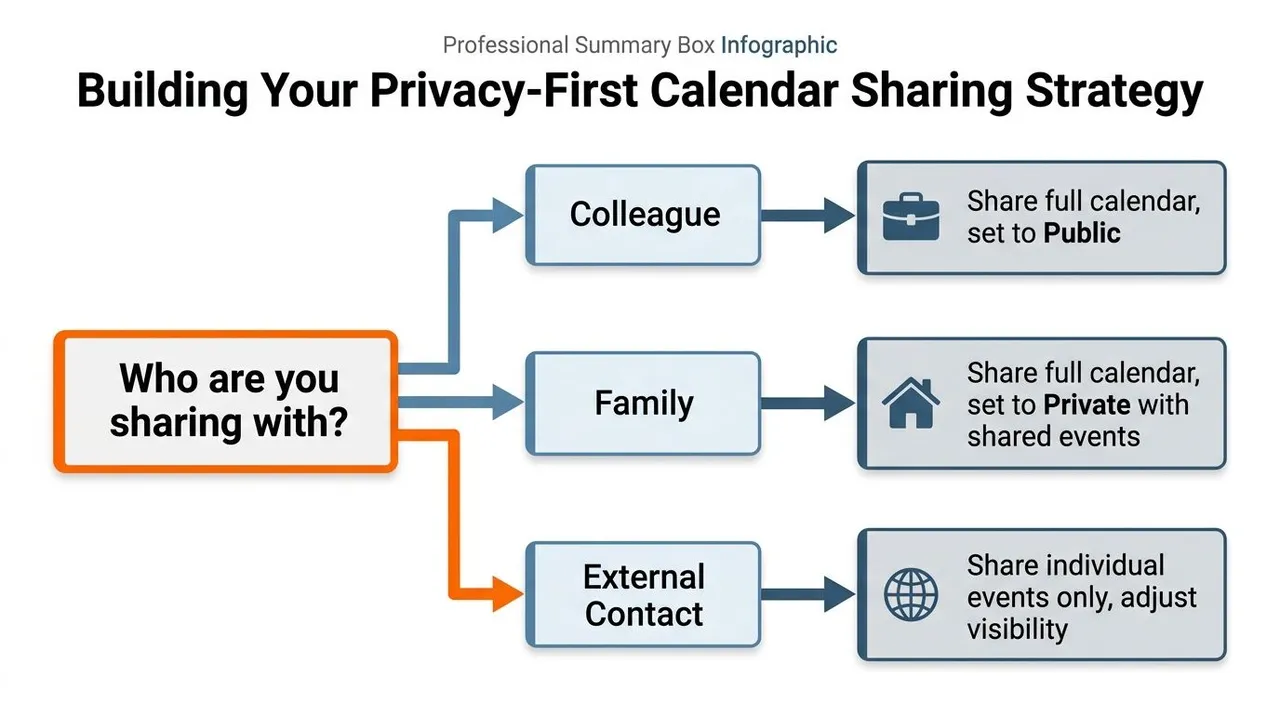
Use this decision framework:
- One meeting only: Send an event invitation. Keep the calendar private and expose only the information needed for that appointment.
- Repeated availability checks: Share the calendar with free/busy access. This gives an external coordinator useful scheduling information without exposing event content.
- A trusted collaborator managing your schedule: Grant event-change access, but avoid manage-sharing rights unless that person administers the calendar.
- Several ecosystems or accounts: Consider synchronized copies, with free/busy mirroring or masked fields when recipients don’t need sensitive details.
- Work and personal calendars on one Android phone: Check both Google sharing permissions and Android’s local app and profile permissions.
Use the Android app for event invitations, viewing shared calendars, and controlling device visibility. Open the web interface when you need to configure calendar-level access, add people, or change permission levels. After sending an invitation, verify that the recipient accepts it, then confirm the calendar is visible and synchronized on their device.
Calendar sharing isn’t a one-time chore. Review shared people, permission levels, connected apps, and work-profile behavior whenever your role, team, or privacy needs change. The setup that works for a family calendar may be inappropriate for a client calendar, even when both use Google Calendar.
SyncThemCalendars synchronizes selected events between Google Calendar, Outlook or Office 365, and Apple Calendar, with one-way, two-way, or multi-way directions and controls for free/busy mirroring and copied event fields. If you need availability aligned across accounts without exposing every personal detail, visit SyncThemCalendars and choose a synchronization setup that matches your calendars.
Ready to sync your calendars?
Keep your Google, Outlook and Apple iCloud calendars in sync automatically. 2-minute setup, no credit card required.
Get started freeKeep reading
More in Guides
Why Is My Calendar Not Syncing? Causes and Fixes
Why is my calendar not syncing? Diagnose Google, Outlook and Apple Calendar sync problems by symptom, then apply the fix that matches your cause.

Synchronize Apple Calendar with Outlook: A 2026 Guide
Step-by-step guide: Synchronize Apple Calendar with Outlook on Windows, iPhone and Mac, with two-way options, privacy trade-offs and fixes.

SyncThemCalendars Quick Setup Walkthrough
Master the SyncThemCalendars quick setup in minutes. Connect Google, Outlook, or iCloud, configure privacy masking, and verify your first sync effortlessly.