







Outlook Calendar Sync: A Practical Guide for 2026
Tired of double bookings? Learn how to set up Outlook calendar sync with Google and Apple. Our guide covers one-way, two-way, and private sync methods.
You open Outlook at work, check Google Calendar on your phone, and glance at Apple Calendar because that’s where family plans land. Everything looks fine until it doesn’t. A client books over a dentist appointment, your team sees you as available when you’re not, and you spend the next half hour moving meetings around instead of doing actual work.
That’s the problem with Outlook calendar sync. It isn’t just about getting events to appear in two places. It’s about protecting your availability, keeping private details private, and stopping your schedule from becoming a daily repair job.
The frustration is widespread. 62.9% of Outlook users say keeping multiple calendars in sync is a critical challenge, and the average employee spends 4.2 hours per week managing fragmented calendars and rescheduling 4.7 meetings weekly because of conflicts, according to Microsoft productivity findings summarized by Reclaim. If you’re freelancing, consulting, selling, or balancing multiple roles, that overhead feels familiar.
Some sync methods are fine for simple visibility. Others are fast enough for real scheduling. Some protect privacy well. Others leak more detail than is apparent. The difference matters.
The All-Too-Common Calendar Chaos
A common pattern looks like this. Your employer lives in Outlook. Your personal life runs through Google Calendar because that’s where booking links, travel holds, and reminders tend to land. Your household might rely on Apple Calendar because it’s built into every device at home.
Nothing is technically broken. But nothing is reliably aligned either.
One missed update is all it takes. A personal appointment blocks time on your phone, but not on your work laptop. A colleague grabs that slot. Then a scheduler sends a Zoom invite into the wrong calendar. By the end of the day, you’re not managing time. You’re cleaning up after your tools.
Practical rule: If you maintain more than one active calendar, manual coordination stops working long before your workload feels “busy.”
Freelancers hit this first because clients often insist on their own systems. Sales professionals run into it because speed matters and availability changes constantly. Consultants see it when one account uses Microsoft 365, another lives in Google Workspace, and personal commitments sit somewhere else entirely.
The most significant burden isn’t just double-booking. It’s the mental load. You start checking three apps before saying yes to anything. You hesitate before sharing availability. You stop trusting what your calendar says.
That’s where Outlook calendar sync becomes less of a convenience and more of an operating requirement. The right setup can mirror only free/busy time, carry full event details where appropriate, or create a true two-way relationship between calendars. The wrong setup gives you stale data, duplicate entries, and privacy problems that don’t show up until you’ve already shared too much.
Comparing Your Outlook Sync Options
Not all sync methods solve the same problem. Some are built for publishing. Some are built for collaboration inside Microsoft’s ecosystem. Some are built for cross-platform scheduling where Outlook, Google, and iCloud all need to stay aligned.
What actually changes between methods
When I evaluate Outlook calendar sync options, I look at four things first:
- Speed: Does an update move quickly enough to prevent a booking conflict?
- Direction: Is it one-way, or can changes flow back both ways?
- Privacy: Can you share only availability, or does the method expose event details?
- Reliability under load: Does it hold up when you manage several shared calendars?
Here’s the practical comparison.
| Method | Sync Speed | Direction | Privacy Control | Best For |
|---|---|---|---|---|
| ICS publishing | Delayed refresh | One-way | Limited | Public or low-stakes visibility |
| Direct Outlook sharing with permissions | Faster inside Microsoft environments, but can degrade with many shared calendars | Mostly native sharing, not cross-platform two-way sync | Better than ICS | Teams working primarily in Outlook and Exchange |
| Third-party sync services | Can be near real time depending on architecture | One-way, two-way, or multi-way | Granular masking and free/busy controls | Professionals managing Outlook plus Google or Apple calendars |
Where native options start to strain
Direct sharing inside Outlook is better than publishing an ICS feed, but it still has boundaries. Microsoft’s own support guidance notes that native Outlook sharing can run into severe performance problems with more than 8 shared calendars, causing delays over 10 minutes. Enabling shared calendar improvements can resolve 92% of these delays by moving processing to the server, as described in Microsoft’s support discussion on shared calendar delay behavior.
That tells you two things. First, native sharing can work well in the right setup. Second, it gets fragile when your calendar environment becomes messy, which is exactly when many professionals need it most.
If your main problem is seeing another Outlook user’s calendar, native sharing may be enough. If your real need is Outlook plus Google with reliable bidirectional updates, native tools usually stop short.
For a broader look at cross-platform setup choices, this guide to Outlook Google Calendar integration is useful because it frames the decision around real workflows rather than only app menus. If you’re focused specifically on Google-side setup patterns, this walkthrough on how to sync Google Calendar is also worth comparing against your Outlook constraints.
Native sharing is strongest when everyone stays inside the same Microsoft environment. The moment you need cross-platform fidelity, the trade-offs change fast.
The decision shortcut
Choose your method based on the job:
- Use ICS publishing if you only need someone else to view a calendar and timing doesn’t need to be exact.
- Use direct Outlook sharing if your organization works mostly inside Exchange and privacy permissions matter more than cross-platform automation.
- Use a dedicated sync service if you need Outlook, Google, or iCloud to stay aligned without manual cleanup.
That last category is where true Outlook calendar sync starts to feel like infrastructure instead of a workaround.
The Native Way One-Way Sync with Delays
If you want the simplest built-in option, Outlook can publish a calendar as an ICS feed. That feed can then be subscribed to in Google Calendar, Apple Calendar, and many other apps. It works, but you need to know what you’re getting.
How to publish an Outlook calendar
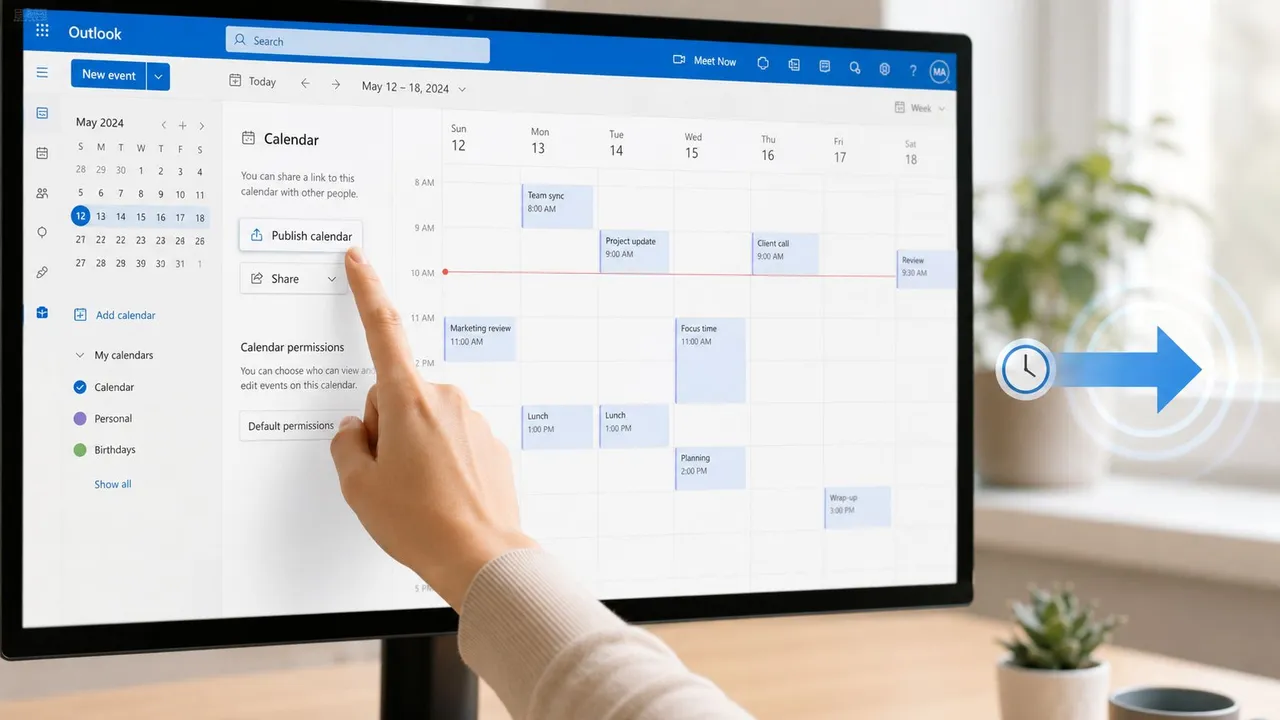
In Outlook on the web, open your calendar settings and look for the publishing or shared calendar options. From there, you can share your Outlook calendar, choose a calendar, decide how much detail to expose, and generate an ICS link.
The exact labels vary by account type, but the workflow is usually:
- Open Settings in Outlook.
- Go to Calendar settings.
- Find the option to publish or share the calendar.
- Select the calendar you want to expose.
- Choose a visibility level.
- Copy the generated ICS link.
In Google Calendar, you add that feed by subscribing from URL. In Apple Calendar, you can add a subscribed calendar using the same link. After that, Outlook events begin appearing in the other app.
Why people outgrow ICS quickly
ICS is useful for visibility. It is not true synchronization.
The biggest limitation is direction. Changes flow out from Outlook to the subscribed calendar. If you create or edit an event in Google Calendar, that change doesn’t travel back into Outlook. You’re looking at a mirror, not a bridge.
The second problem is timing. ICS feeds refresh on a schedule controlled by the subscribing platform. In practice, that means updates can lag well past the moment when you need accurate availability. For low-stakes public calendars, that may be fine. For active client scheduling, it usually isn’t.
If your calendar needs to answer “Am I free right now?” an ICS feed is the wrong tool.
The privacy trade-off most people miss
The other issue is exposure. With native publishing, you’re often choosing between not enough visibility and too much. Depending on the settings, subscribers may see event names, locations, and other details that you never intended to share broadly.
That’s manageable for a public events calendar. It’s a bad fit for personal appointments, recruiting interviews, internal sales calls, or anything confidential.
A practical way to think about ICS:
- Good fit: Public events, low-sensitivity schedules, one-way awareness
- Poor fit: Client work, mixed personal and professional calendars, fast-moving availability
- Worst fit: Any workflow where edits need to sync both ways
When native publishing still makes sense
I still use ICS-style publishing in narrow cases. A school term calendar. A shared household reference calendar. A read-only events feed that nobody edits outside the source system.
But for working professionals, the native method usually solves the smallest part of the problem. It shows appointments elsewhere. It doesn’t keep calendars operationally aligned.
👉 Want these native steps interactive, for any pair of Outlook, Google and Apple calendars? Try our free add one calendar to another tool.
The Automated Way True Two-Way Sync
True Outlook calendar sync means a change in one calendar appears in the other without you babysitting it. If you block an afternoon in Google Calendar, Outlook should stop showing that time as open. If a client meeting lands in Outlook, your personal calendar should reflect that conflict fast enough to matter.
That’s where webhook-based sync changes the experience.
Why webhooks beat polling
Older sync systems often use polling. They check each calendar every so often and ask, “Anything new?” That creates a built-in delay. By contrast, webhook-based systems get notified when something changes and can react much faster.
A benchmark from CalendHub’s write-up on real-time calendar synchronization says webhook-based systems can propagate events between platforms in 15 to 60 seconds, while older polling methods can take 5 to 15 minutes. In scheduling terms, that gap is huge. A lot can go wrong in five minutes when people are booking live.
A practical setup that works
For freelancers and professionals, the cleanest setup is usually:
-
Connect each account you use Add your Outlook account first, then Google Calendar or iCloud if those are part of your workflow.
-
Choose source and destination calendars carefully
Don’t sync everything to everything by default. Start with the calendars that affect your availability most. -
Decide direction before you switch it on
One-way sync is safer if one calendar should stay authoritative. Two-way sync works better when you genuinely create events in multiple places. -
Set privacy rules up front
If your work calendar only needs to know you’re busy, mirror free/busy instead of full event details. -
Test with one real appointment
Add an event in Google Calendar. Confirm it appears correctly in Outlook. Then edit it and check whether the update behaves the way you expect.
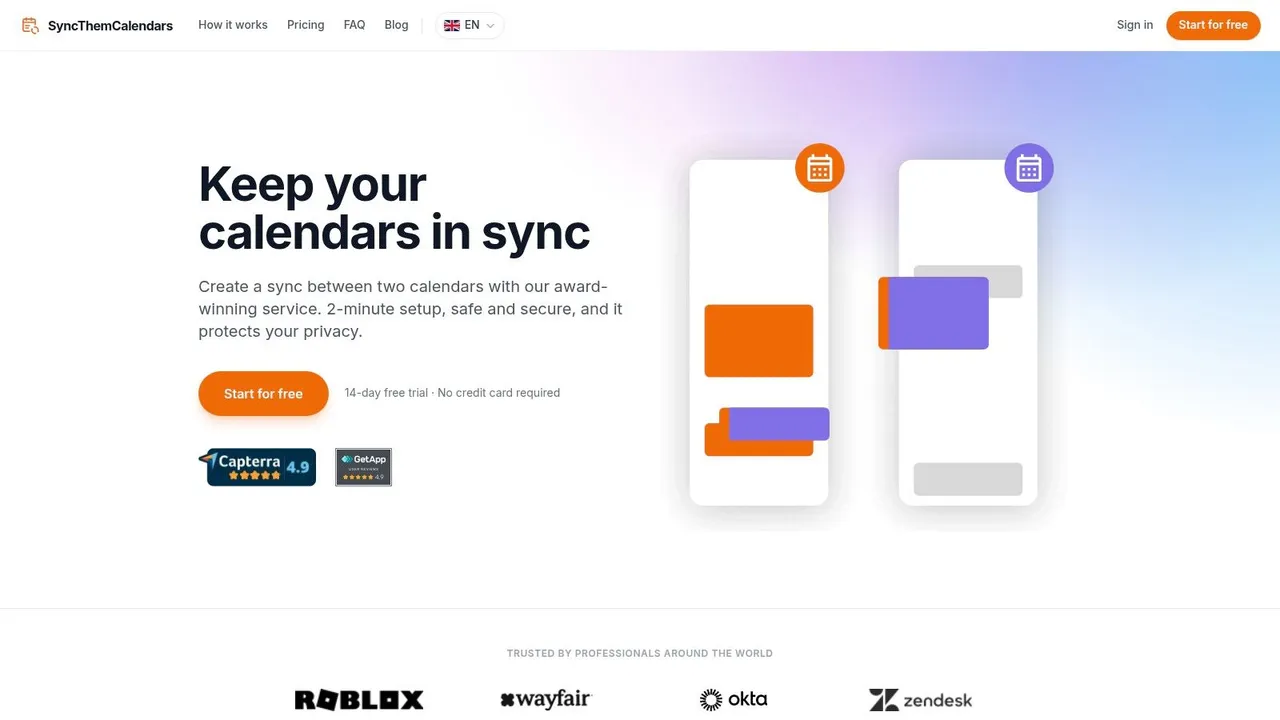
One service built for this kind of workflow is SyncThemCalendars, which supports one-way, two-way, and multi-way synchronization across Outlook, Google Calendar, and Apple Calendar with field-masking controls. That matters if you’re trying to keep multiple systems aligned without turning one calendar into a public logbook.
A setup pattern I recommend often
For many independent professionals, this pattern is practical:
- Personal calendar to work Outlook as Busy only
- Work Outlook to personal calendar with fuller detail if you want one private master view
- Client-specific calendars synced one-way unless you trust both sides to edit responsibly
That avoids a common mistake. People turn on two-way sync everywhere, then create loops, duplicates, or confusing edits because nobody decided which calendar should act as the source for what kind of event.
Shared visibility and editable synchronization are not the same thing. Treat them differently.
A broader comparison of tool categories helps here, especially if you’re sorting through app choices rather than building your own workflow from scratch. This roundup of the five best calendar synchronization apps is a helpful reference point because it compares sync styles rather than pretending all integrations behave the same way.
If you want to see the workflow in motion, this short demo is a good visual reference:
What doesn’t work well
A few setups consistently create headaches:
- Syncing every calendar in both directions at once without naming a source of truth
- Using old ICS feeds for real-time scheduling
- Ignoring recurring event behavior, especially if one platform handles exceptions differently
- Skipping permission checks when shared folders or delegated calendars are involved
The best automated setup is usually the one with the fewest moving parts. Keep it intentional. Sync what affects availability. Mask what should stay private. Leave low-value calendars out of the chain.
Mastering Privacy and Availability
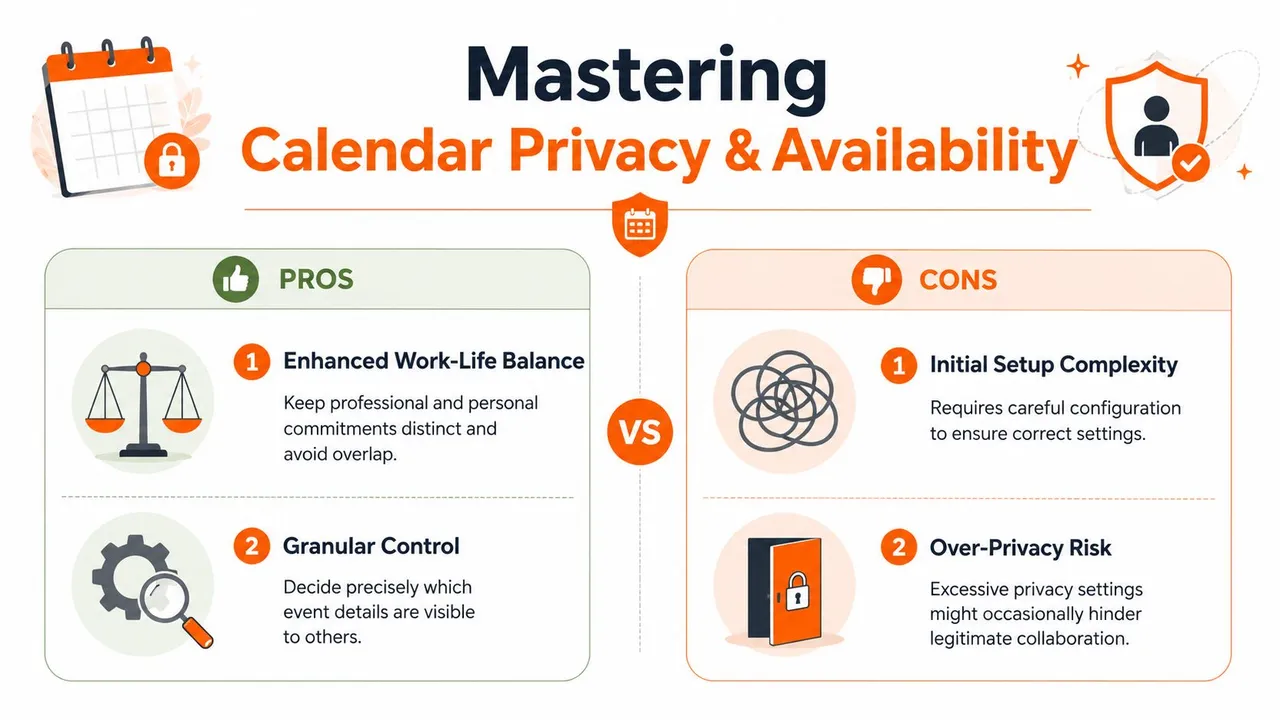
Users often don’t need every event copied in full detail everywhere. They need their calendars to protect time without exposing context. That distinction matters more than any sync speed claim.
A dentist appointment, therapy session, school meeting, or internal interview should often block your work availability without revealing the title, notes, or location. If your Outlook calendar sync method can’t do that, it forces a bad choice between oversharing and double-booking.
Free busy is often the smarter default
For mixed work and personal scheduling, free/busy mirroring is usually the safest baseline. It lets one calendar reserve time on another without copying the sensitive parts.
That means a personal Google Calendar event can appear in Outlook as something simple like “Busy” or “Private Appointment.” Your colleagues see that the slot is taken. They don’t see why.
Privacy controls that actually matter
When I’m helping someone set this up, I focus on three controls:
- Title masking: Replace event names with neutral labels such as Busy, Personal, or Blocked.
- Description stripping: Prevent notes, conferencing details, and internal context from copying across.
- Location handling: Hide addresses unless the destination calendar requires them.
These settings are especially useful for consultants and sales teams who work in shared Outlook environments. A visible title alone can reveal more than users intend.
Good calendar privacy doesn’t hide your availability. It hides the parts of your life that other calendars don’t need to know.
Security matters when automation touches schedule data
Any sync tool that reads and writes calendar events needs scrutiny. Beyond features, look for clear data-handling practices, permission scope discipline, and published security information. If you’re comparing vendors more broadly, this overview of AI coworker security is a useful example of the kind of transparency serious software buyers should expect around access, controls, and platform trust.
If you want a more detailed breakdown of how Outlook visibility settings work in practice, this guide on managing Outlook calendar visibility is worth reviewing before you finalize your sharing rules.
The short version is simple. Availability should travel further than details. This is often configured in reverse.
💡 To share availability without exposing details, our free free/busy link builder walks you through publishing a busy-only Outlook link (and generates one for Google Calendar).
Troubleshooting Your Outlook Calendar Sync
When Outlook calendar sync fails, the obvious fixes often aren’t the actual fixes. Reinstalling Outlook, clearing cache at random, or reconnecting accounts can help in some cases, but there are three problems that repeatedly get missed.
SYNC HOLD usually points outside Outlook
If you see mysterious placeholder entries or stalled updates, look at your connected tools first. Microsoft’s community guidance notes that the SYNC HOLD phenomenon is commonly tied to third-party integrations such as Power Automate, Calendly, Google or iCloud sync tools, and add-ins. Microsoft’s referenced discussion says this issue is linked to 32% of calendar sync failures in mid-sized firms, yet most guides barely mention it, according to Microsoft’s Q&A discussion of SYNC HOLD behavior.
What to do:
- Audit connected schedulers: Check Calendly, automation tools, and any add-ins that write placeholder events.
- Look for duplicate ownership: If two tools try to control the same event lifecycle, one often creates holds that the other can’t interpret cleanly.
- Disable one integration at a time: Don’t change five things at once. Remove variables until the hold stops reappearing.
Time zone drift creates fake conflicts
Another issue that wastes hours is time zone mismatch. Outlook may be set one way, Google another, and a subscribed or shared calendar may interpret a recurring event differently. The result looks like sync failure, but it’s often a configuration mismatch.
Check these first:
- Account time zone settings in Outlook and the other calendar platform
- Device time zone settings on desktop and mobile
- Recurring events with exceptions, especially around travel or daylight saving changes
If an event appears on the wrong day or shifts by an hour, don’t assume the sync engine is broken. Validate time zones before you start deleting caches.
A calendar event in the wrong time zone is still “synced.” It’s just synced incorrectly.
Outlook’s own sync monitor can repair local problems
Some failures come from Outlook itself rather than the connection between services. Microsoft explains that Outlook’s synchronization monitor continuously checks local folders in the .ost file against server folders and can try several repair actions, including simple folder sync, fixing binary tracking information, scanning the .ost for integrity issues, and clearing offline items, as described in Microsoft’s documentation on sync monitor improvements.
That matters because not every sync issue starts in the cloud. Sometimes the local Outlook profile is the weak link.
A practical escalation path looks like this:
- Start simple: Confirm the event exists correctly in the source calendar.
- Check local Outlook behavior: If web Outlook looks right but desktop Outlook doesn’t, suspect the local cache or profile.
- Clear offline items or repair the OST path only when needed: Those are useful actions, but they’re not step one.
- Review shared calendar settings: In heavier Microsoft environments, server-side shared calendar improvements often stabilize behavior better than piling more local data into Outlook.
What to fix first
If you want the fastest path to diagnosis, use this order:
- Third-party conflicts first
- Time zone validation second
- Local Outlook cache and OST health third
- Permissions and sharing model after that
That order saves time because it starts with the hidden causes people miss most often.
If you’re tired of manually defending your availability across Outlook, Google Calendar, and iCloud, SyncThemCalendars is a practical way to set up one-way or two-way syncing with privacy controls that keep personal details out of the wrong calendar. It’s built for the common problem most professionals have: keeping multiple calendars aligned without constant cleanup.
Ready to sync your calendars?
Keep your Google, Outlook and Apple iCloud calendars in sync automatically. 2-minute setup, no credit card required.
Get started freeKeep reading
More in Guides
Why Is My Calendar Not Syncing? Causes and Fixes
Why is my calendar not syncing? Diagnose Google, Outlook and Apple Calendar sync problems by symptom, then apply the fix that matches your cause.

Synchronize Apple Calendar with Outlook: A 2026 Guide
Step-by-step guide: Synchronize Apple Calendar with Outlook on Windows, iPhone and Mac, with two-way options, privacy trade-offs and fixes.

SyncThemCalendars Quick Setup Walkthrough
Master the SyncThemCalendars quick setup in minutes. Connect Google, Outlook, or iCloud, configure privacy masking, and verify your first sync effortlessly.