







Syncing with Google Made Simple Across Calendars
Learn syncing with Google Calendar to Outlook and Apple iCloud. Setup steps, privacy tips and fixes to stop double-bookings fast.
You create an appointment in Google Calendar, check Outlook before accepting a client call, then discover that your iPhone still shows the old availability. The result is familiar: a double-booked afternoon, a missed invitation, or a personal appointment exposed on a calendar meant for colleagues. Syncing with Google solves the visibility problem, but only when you decide what each calendar is allowed to know.
Google Calendar has become a central scheduling layer for work, personal commitments, education, and device coordination. Google released it publicly on April 13, 2006, and later described it as a service that millions rely on every day, while independent datasets estimate 500 million monthly active users and use by roughly 398,368 organizations (Google Calendar background and usage data). That scale makes calendar alignment a reliability issue, not a minor convenience.
The practical fix is to treat calendars as identities with different permissions. Sometimes you need to copy full event details. Often, you only need to mirror that you’re busy. The right setup keeps Google, Outlook, and Apple calendars aligned while controlling direction, ownership, and privacy.
Why Syncing With Google Still Defines Your Schedule
A calendar conflict rarely begins with a dramatic technical failure. It starts when one account becomes the place where an event is created, while another account remains the place where someone checks availability. A consultant adds a Google Meet call to Google Calendar, an office manager books an Outlook slot that still appears open, and the consultant’s iPhone displays both only after the invitation has already been accepted.
Google Calendar’s role in this workflow comes from its reach across personal and professional scheduling. Third-party web measurement found Google Calendar on 720,596 live websites and 1,464,781 websites overall when historical usage is included (Google Calendar ecosystem data). Another dataset reported that 42% of U.S. digital calendar users used Google Calendar in 2019, compared with 34% in 2012 (Google Calendar adoption context). These figures don’t mean every user needs a complex integration. They do show why a Google-based schedule often sits at the center of cross-platform coordination.
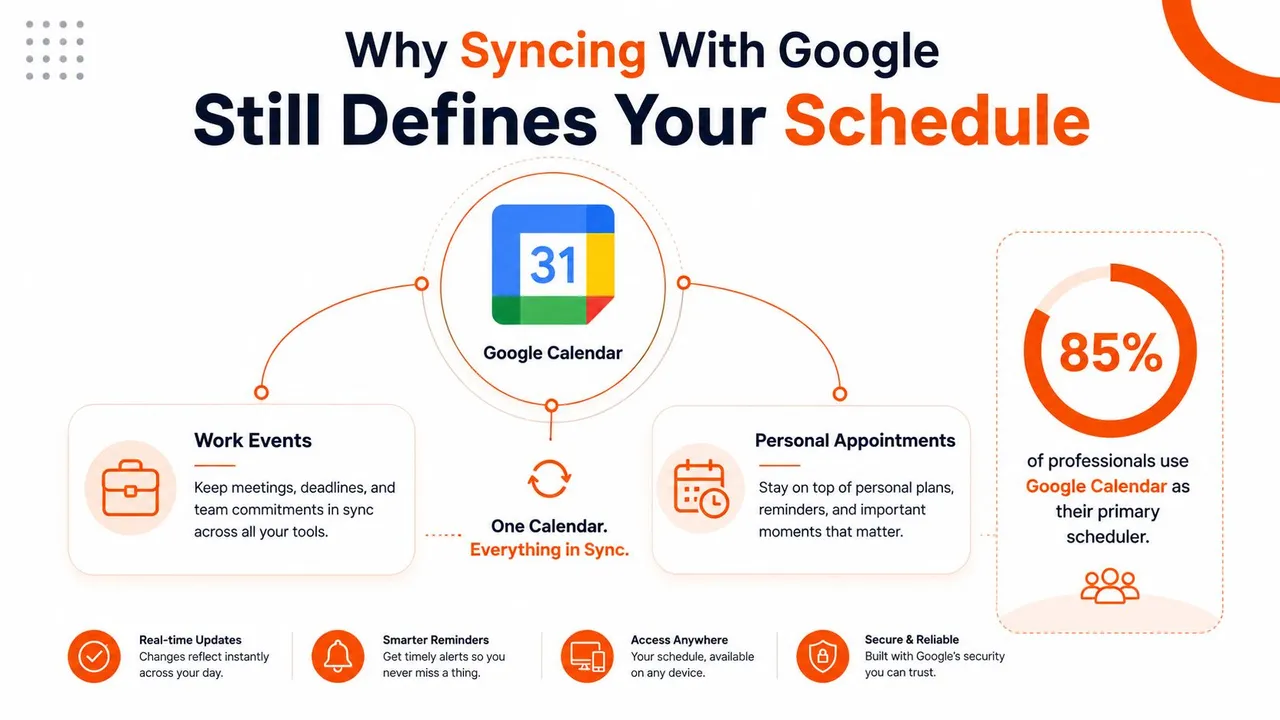
Google Calendar launched in beta in 2006 and exited beta in July 2009, a transition that helped establish it as a mature scheduling platform (Google Calendar history). A separate industry estimate describes more than 1 billion active users worldwide as of 2023, 40 million new events created daily, and 70% of Google Workspace users relying on Calendar for daily scheduling (Google Calendar usage estimates). Those figures come from third-party aggregation, so they should be treated as estimates, but they reinforce the operational reality: a small sync error can affect a busy network of people and services.
Mirroring availability versus copying events
Think of synchronization as a choice between two levels of visibility:
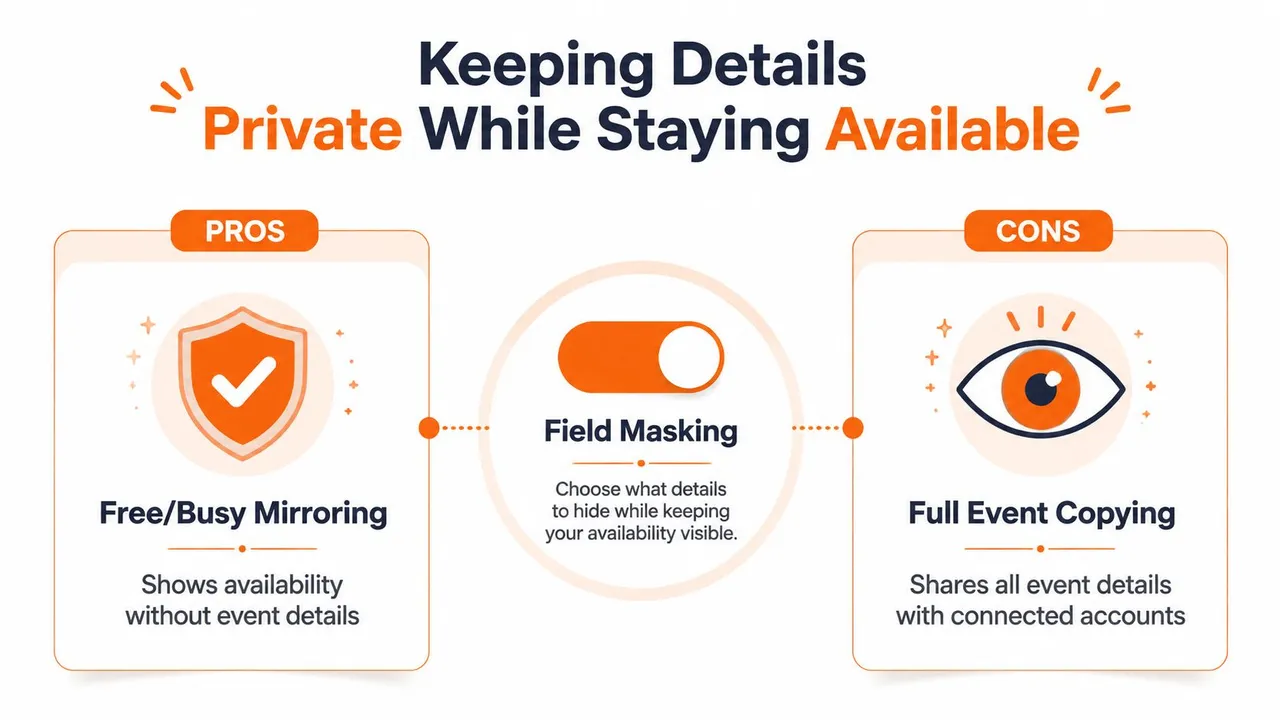
- Availability mirroring creates a generic busy block. Other calendars can avoid booking you, but they don’t receive the event title, description, or location.
- Full event copying transfers the details needed for collaboration, such as meeting names, conferencing information, guests, and notes.
- Selective copying combines the two by transferring an event while masking sensitive fields.
A personal appointment may need to block time on a work calendar without revealing why you’re unavailable. A client meeting may need to appear on a personal calendar with its full location and joining details. The direction and privacy settings should follow that distinction, rather than defaulting to a complete two-way copy.
Choosing Your Sync Direction Before You Connect
The most important decision comes before account authorization. Choose which calendar owns the event, which calendars only display it, and whether changes can travel back. A setup that’s convenient to connect can become difficult to trust if every account is allowed to edit and reproduce the same event.
Compare the available directions
| Sync Direction | Best For | What It Copies | Watch Out For |
|---|---|---|---|
| One-way | A consultant who needs Outlook availability visible in Google | Events or availability from one source to one target | Changes made in the target may not return to the source |
| Two-way | A freelancer working across a client Office 365 account and personal Google Calendar | Changes in either connected calendar | Edits, recurring events, and deletions require clear identity handling |
| Multi-way | An entrepreneur coordinating several work and personal calendars | Events across multiple chosen paths | Feedback loops, duplicate records, and unclear ownership become more likely |
A one-way sync is usually the safest starting point. If Google Calendar is your personal planning hub and a client requires Outlook visibility, send only the information Outlook needs. You retain one master schedule and publish availability outward.
A freelancer may need two-way behavior when a client can move meetings in Office 365 and the freelancer also manages those events from Google. That convenience comes with a control cost. Every connected system becomes part of the event’s lifecycle, so cancellation rules, recurring-series edits, and attendee changes must behave consistently.
Multi-way sync makes sense when separate calendars must all receive updates, but it shouldn’t be the default. If three calendars all write to one another, one change can return as a new change, especially when each provider represents recurring events differently.
Practical rule: Use the smallest sync direction that prevents the scheduling problem. Add another direction only when a real workflow requires it.
Before connecting anything, answer three questions. Which calendar is the master? Do recipients need event details or only busy status? Where should a copied event be edited? Those answers prevent the common mistake of treating every calendar as equally authoritative.
How Syncing With Google to Outlook and Apple Actually Works
A reliable connection begins with account authorization, not manual file imports. In a web sync service such as SyncThemCalendars, you connect the relevant Google, Microsoft Outlook or Office 365, and Apple iCloud accounts, then choose the exact source and target calendars. Selecting an account isn’t enough when one person has separate work, personal, shared, and project calendars.
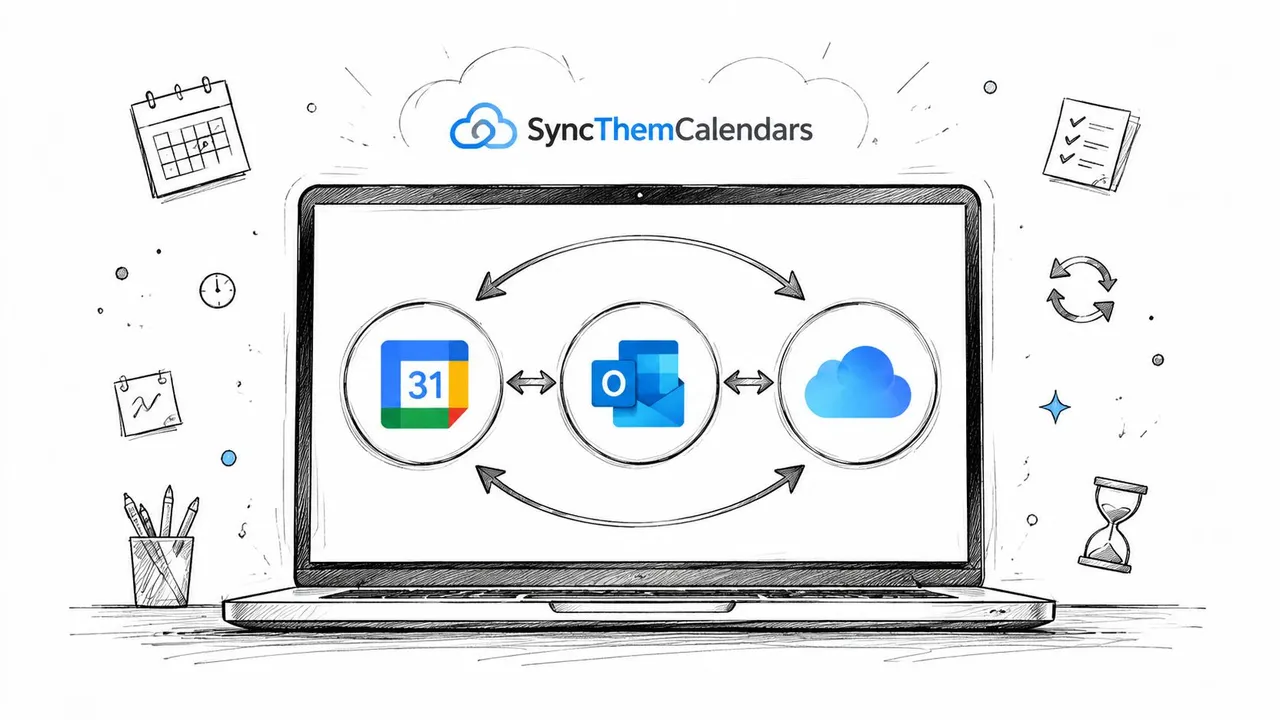
The next choice is direction. For Google to Outlook, select whether Google publishes into an Outlook calendar or whether Outlook events should appear in Google. For Google to iCloud, apply the same logic. Then choose between full details, filtered fields, or free/busy blocks. The reason matters: a source calendar should remain the place where the original event is maintained, while the target should provide the visibility another person or device needs.
What happens after activation
Once the connection is active, the service watches for changes and copies upcoming events in the selected direction. A new appointment created in Google should appear in the selected Outlook or Apple target, while a permitted reverse path can send edits back. The exact destination is the calendar you selected, not necessarily the default view shown first by the receiving app.
SyncThemCalendars describes a setup that takes approximately two minutes, supports unlimited events, and permits unlimited Google, Outlook, and Apple calendars per account, with plan limits applying to active syncs. Its available plans support up to 5 syncs on Basic, 16 on Premium, and 36 on Professional, as stated in the publisher’s plan information. Those limits concern connections, not the number of events copied.
For a deeper Outlook-specific walkthrough, use this guide to Outlook Calendar sync. After activation, create or identify one test event in the source calendar, then locate it in the chosen target. Check its title, time zone, privacy status, and destination before expanding the connection to other calendars.
The video below provides another visual explanation of the connection flow.
Google Calendar API users need a different operational mindset. Google enforces 10,000 requests per minute per project and 600 requests per minute per user per project, using sliding windows rather than daily buckets (Google Calendar API quota guidance). A burst can trigger rate limiting in the next window, so efficient sync systems reduce unnecessary request fan-out and use exponential backoff for 403 and 429 rateLimitExceeded responses.
Keeping Details Private While Staying Available
Calendar privacy is not an optional finishing touch. It’s the difference between telling someone that you’re unavailable and telling them exactly where you’ll be, who you’re meeting, and what the conversation concerns.
Suppose you have a medical appointment on Google Calendar and clients can view your work calendar. A full copy might expose the title and location. A free/busy mirror creates a neutral block such as “Unavailable,” allowing clients to choose another time without receiving personal information.
The same principle works in reverse. A confidential client meeting may need to block time on a shared team calendar, but its title shouldn’t reveal the client name or project. A masked copy can show “Busy” or “Client meeting,” while the original Google event retains its real description and location.
Match visibility to the audience
Use full event copying when the receiving audience needs practical meeting information. Team members may need a conference link, agenda, or room location. Use free/busy mirroring when the receiving audience only needs scheduling availability.
Field masking gives you a middle position. You can transform or hide the title, description, and location, instead of choosing between total secrecy and total disclosure. For example:
- Original event: “Contract negotiation with Northstar, legal review, conference room details.”
- Shared copy: “Client meeting,” with no description or location.
- Personal appointment: “Dentist, clinic address.”
- Work copy: “Busy,” with the time preserved but details removed.
For configuration ideas, see this guide to filtering events when syncing calendars. The service’s publisher information states that events are processed solely to perform synchronization, but you should still review the service’s published privacy terms before authorizing accounts.
Availability is useful information. Event content is a separate permission.
A sound default is to hide descriptions and locations from broad audiences, rename copied titles when the context is sensitive, and reserve full-detail syncing for calendars whose users need those fields. Also check guest information and conferencing links. A masked title doesn’t protect privacy if the copied description still contains the confidential material.
Fixing Common Syncing Pitfalls and Duplicate Events
Most calendar failures fall into three visible symptoms: the event doesn’t appear, an update arrives late, or the same event appears more than once. Each symptom points to a different layer of the setup, so deleting random events first often makes the situation harder to diagnose.
When events don’t appear
Start at the source. Confirm that the new event was written to the Google Calendar you selected, rather than another calendar under the same account. Then inspect the target’s visibility, filters, and calendar list. A hidden target calendar can make a successful copy look like a failed sync.
Background restrictions also matter. Outdated apps or browsers, disabled background sync, battery optimization, weak connectivity, incorrect time zones, and privacy settings can all interrupt refresh behavior (Google Calendar troubleshooting guidance). Allow the sync application to run in the background, test the connection on a stable network, and verify time-zone normalization on both sides.
When updates lag or repeat
A delayed update may reflect a refresh cycle rather than data loss. Check the connection status and sync frequency before editing the same event in several apps. Repeated edits can create competing changes, particularly when two-way or multi-way paths are active.
Duplicates need a more careful diagnosis. The same Google calendar may have been connected through multiple paths, a recurring series may have been recreated, or change detection may have produced a feedback loop. In Outlook, what looks like a duplicate can also be a subscribed copy displayed alongside the original event, as described in Microsoft community guidance on duplicate synced entries.
Stop the loop first: Pause secondary sync paths, identify the master calendar, and make one controlled correction before reactivating connections.
Recurring events deserve special attention. Decide which calendar owns the series, avoid recreating the same series manually in another account, and test an individual occurrence after changing the pattern. If duplicates continue, disconnect the redundant path rather than repeatedly deleting copied events. Otherwise, the next synchronization cycle may recreate them.
For a focused diagnostic sequence, use this Google Calendars not syncing troubleshooting guide. Keep a record of which account owns each calendar and which connection is allowed to write to it. That simple inventory often reveals that two systems are both acting as masters.
Best Practices That Make Sync Set and Forget
A stable system starts with one primary planning view. Entrepreneurs may keep Google as the master and mirror availability to venture-specific calendars. Freelancers may publish client commitments into a personal calendar while keeping private appointments masked. Small teams may share full details internally but expose only free/busy status outside the team.
Use these operating rules:
- Choose minimal direction: Start with one-way syncing unless another workflow requires edits to travel back.
- Protect private fields: Default to free/busy or masked titles, then expose descriptions and locations only to trusted recipients.
- Test one event: Create a controlled appointment, inspect the target, edit it, and verify the expected behavior before adding more connections.
- Keep ownership clear: Maintain a written list of master calendars, target calendars, and permitted edit locations.
- Separate audiences: Don’t send personal details to a client calendar merely because both accounts belong to you.
- Review recurring events: Test series changes and cancellations before relying on a two-way connection for important scheduling.
Google Calendar API integrations should also avoid aggressive retries. The documented quota model favors restrained request patterns and exponential backoff, not repeated immediate attempts (Google Calendar API quota guidance). For ordinary users, the equivalent lesson is simple: don’t keep reconnecting or editing an event while a service is still processing a change.
The durable principle: Calendar syncing is identity management first and event copying second.
SyncThemCalendars offers one-way, two-way, and multi-way synchronization between Google Calendar, Outlook or Office 365, and Apple iCloud, with free/busy mirroring and field masking for privacy-sensitive workflows. Start by defining your master calendar and the details each audience needs, then visit SyncThemCalendars to connect the accounts and test a controlled event.
Ready to sync your calendars?
Keep your Google, Outlook and Apple iCloud calendars in sync automatically. 2-minute setup, no credit card required.
Get started freeKeep reading
More in Guides

Synchronize Apple Calendar with Outlook: A 2026 Guide
Step-by-step guide: Synchronize Apple Calendar with Outlook on Windows, iPhone and Mac, with two-way options, privacy trade-offs and fixes.

SyncThemCalendars Quick Setup Walkthrough
Master the SyncThemCalendars quick setup in minutes. Connect Google, Outlook, or iCloud, configure privacy masking, and verify your first sync effortlessly.

Merging Google Calendars: The Complete Guide for 2026
Merging Google Calendars. Learn the best ways to merge Google Calendars. Compare import methods, sync tools, and automation strategies