







Calendar Sync Gmail: Complete Setup Guide
Learn how to set up and troubleshoot calendar sync Gmail in minutes. Step-by-step instructions to keep your events updated across all devices.
You’re probably here because a meeting landed on your phone, showed up in Gmail, and still never appeared on the calendar you use to plan your week. Or maybe your personal events are visible in one account, hidden in another, and you’re spending too much time checking three tabs before accepting anything new.
That frustration usually isn’t a single “sync broken” problem. It’s a mix of account scope, provider differences, and a bigger decision most setup guides skip, whether you want a literal copy of each event everywhere or just accurate availability without exposing private details.
Why Your Gmail Calendar Won’t Stay in Sync Everywhere
The first trap is assuming Google Calendar behaves like one calendar in every place you sign in. It doesn’t. On Android, Google exposes an account-level Calendar sync toggle, per-calendar sync settings, and a manual Refresh action, which means the system is built around configurable sync rather than one fixed state. Google also documents an API-based sync model for developers, where apps track changes incrementally instead of redownloading the full calendar every time, which is the right mental model for understanding why some updates feel instant while others lag or disappear temporarily.
That architecture matters because Gmail and Calendar are linked, but they’re not the same thing. Google’s Events from Gmail feature can surface travel, reservation, and meeting confirmations in Calendar, so users sometimes mistake inbox parsing for failed calendar sync. In reality, one feature is reading mail for event data, while the other is controlling calendar propagation across devices and accounts.
Practical rule: If an item was created from an email, check whether Events from Gmail made it. If an item was created on one device but not showing on another, check the sync controls first.
The other reason this gets messy is that many individuals don’t manage just one Google account. They juggle Gmail with Outlook, Apple Calendar, a second Google account, or a client’s shared calendar, and then expect every event to behave identically in each place. That expectation breaks fast, because the systems are optimized for different kinds of visibility, not for perfect duplication.
The right way to think about calendar sync Gmail is simple. Native Google sync handles Google-to-Google behavior well. Cross-provider syncing, especially when privacy matters, usually needs a bridge or a one-off export. Manual export still has a place for migrations or static backups, but it’s not the answer when schedules change daily.
Google’s Built-In Sync Controls and How They Actually Work
Google gives you more control than you might realize, but those controls solve different problems. On Android, the Calendar sync toggle at the account level decides whether that account participates in calendar updates at all, per-calendar settings let you include or exclude specific calendars, and Refresh forces the app to pull changes manually. On the web, the same idea shows up through calendar settings rather than a phone switch, which is why one device can look current while another still lags.
Separate sync from inbox parsing
The most misunderstood feature is Events from Gmail. Google makes it available inside Calendar settings so you can show or hide calendar entries derived from Gmail messages, and that’s why flight confirmations, hotel bookings, or restaurant reservations can appear automatically. It’s useful, but it’s not the same thing as syncing an existing calendar to another provider.
If someone says “my Gmail calendar is adding things I didn’t enter,” the feature may be doing its job. The fix isn’t always to hunt for a missing sync cable between services. Sometimes the right move is to decide whether you want Gmail-derived events visible at all, because that setting controls a native Google workflow, not a third-party bridge.
Google’s sync architecture is built for configurable scope. That means the best first step is usually to verify which account is syncing, which specific calendar is included, and whether Gmail-derived events are supposed to appear in the first place.
For teams and households that stay entirely inside Google, this may be enough. For everyone else, these controls are only the foundation. Google’s own support and Workspace guidance make it clear that synced access is part of the ecosystem, but once Outlook or iCloud enters the picture, native controls stop short of the cross-provider behavior you want. The earlier you separate sync control from email-to-event parsing, the less time you’ll waste chasing the wrong setting.
Bridging Gmail Calendar With Outlook and iCloud
Outlook and Apple Calendar can both sit alongside Gmail, but their native paths usually stop at visibility rather than full editing parity. Outlook.com can connect a Google calendar for viewing, which helps if you want to see Gmail-side availability inside Microsoft’s ecosystem, but that doesn’t magically make both sides identical. iCloud and Apple’s calendar tools can subscribe to or display external calendars too, but subscription models are typically read-only, which is fine for awareness and not enough for two-way scheduling.
That read-only limit is where people hit the wall. A consultant may need Google events visible in a work Outlook view, yet still edit the same appointment from either side. A student may want school events in iCloud and personal events in Gmail, but not want duplicate edits or accidental overwrites. Native provider links often solve only one half of that need.
One useful reference point is how iCloud calendar sync behaves in practice, because Apple users often expect the same editing behavior they get from local calendar apps. They usually don’t get it from a simple subscription. The same limitation shows up on the Microsoft side, where a visible calendar isn’t always an editable one.
For volunteer coordinators and organizers trying to keep people aligned across tools, a practical read on the problem is this guide to streamline volunteer event scheduling. The core lesson is the same across church, consulting, and sales workflows, visibility alone doesn’t prevent double-booking if nobody can act on the shared view.
When people need actual two-way behavior, the bridge has to do more than subscribe. It has to move changes both ways, keep the right fields intact, and avoid creating messy duplicates in the process. That’s the point where a dedicated sync layer stops being a convenience and starts being the only realistic option.
Choosing One-Way, Two-Way, or Availability-Only Sync
The first question is not which app to use, it is which direction your schedule should flow. A lot of calendar sync problems start here because people assume “sync” always means full copying in both directions. It does not.
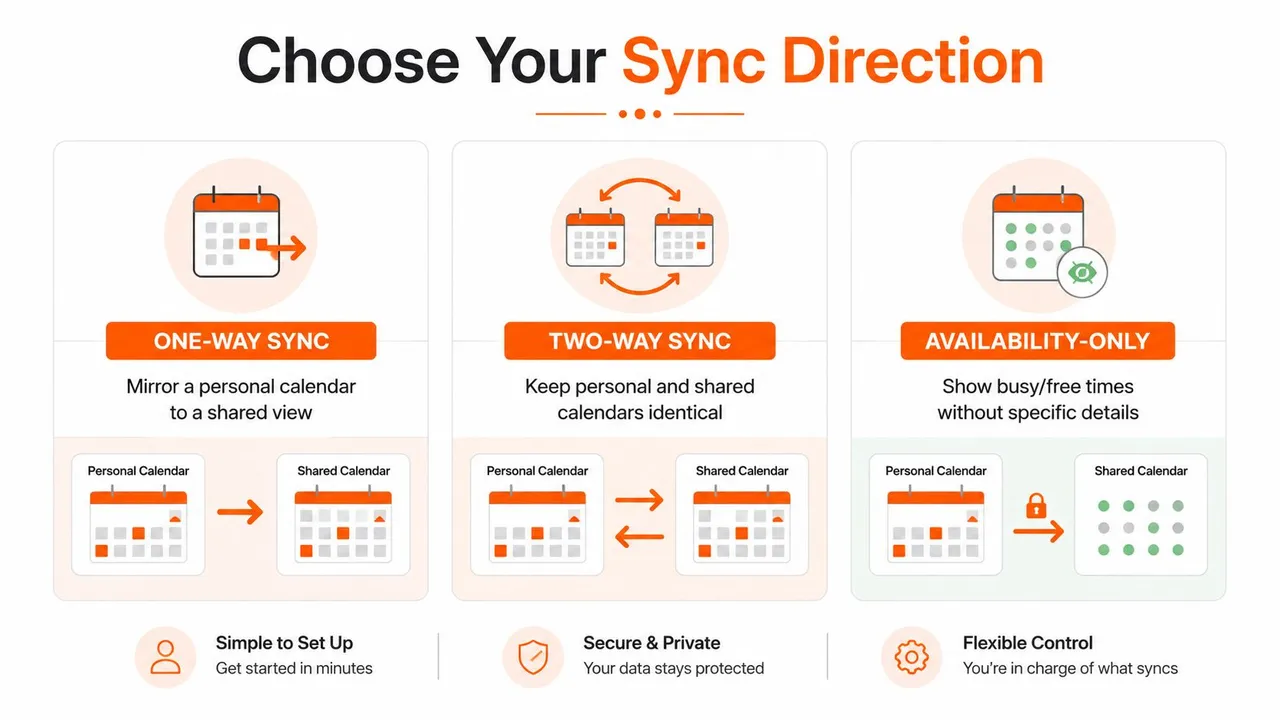
The choice is usually privacy first, connectivity second. If you only want coworkers, clients, or family members to see when you are busy, full event duplication is often unnecessary and sometimes risky. For a closer look at how the tools differ, see our guide to calendar sync apps.
One-way sync fits a clear source of truth
A consultant with a personal Google calendar and a shared work view often wants one-way mirroring. Personal events flow into the shared view so colleagues can avoid conflicts, but work items stay out of the personal schedule. That keeps one calendar authoritative and reduces the chance that private notes, location details, or draft changes end up in the wrong place.
One-way sync also works well when one provider is only a display layer. If a team needs visibility into a master calendar without being able to rewrite it, one-way sync is the safer setup. It is the cleaner choice when edits should happen in one place only.
Two-way sync fits active editing on both sides
A freelancer managing client time in Gmail and Outlook may need both sides to stay identical. In that setup, either calendar can be edited and the change should appear everywhere else. Two-way sync supports that workflow, but it also demands clear rules about which calendar wins if both sides change the same event.
That trade-off matters. Without a firm source-of-truth setup, two-way sync can create duplicates, overwrite details, or keep bouncing edits back and forth. It is the right choice only when both calendars are meant to behave like equal peers.
Availability-only fits the privacy-first use case
A student or manager often does not need event titles copied at all. They need busy blocks to show up so other people can see open time, but they do not need the location, notes, or subject line exposed. Availability-only sync is the better fit for that situation because it solves scheduling without turning every calendar entry into shared detail.
This approach is useful across mixed Google, Outlook, and iCloud setups. A work calendar does not need the title of a medical appointment, and a family calendar does not need a client name just to avoid a conflict. Free/busy mirroring keeps the schedule usable while holding back the parts that should stay private.
Rule of thumb: If the other person only needs to know whether you are free, stop at availability. If they need to edit actual events, use two-way. If only one calendar should stay authoritative, use one-way.
The reason this choice matters is simple. Every extra copy of an event raises the risk of duplicates, conflicting edits, and accidental disclosure. Picking the right direction up front is easier than untangling three calendars later.
Privacy and Field Masking Across Providers
Full duplication is often the wrong goal. Copying a doctor’s appointment title into a shared work calendar, or pushing a client name into a personal view, creates avoidable exposure. A better design is field masking, where the destination side shows something like Busy or Personal instead of the original title, location, or description.
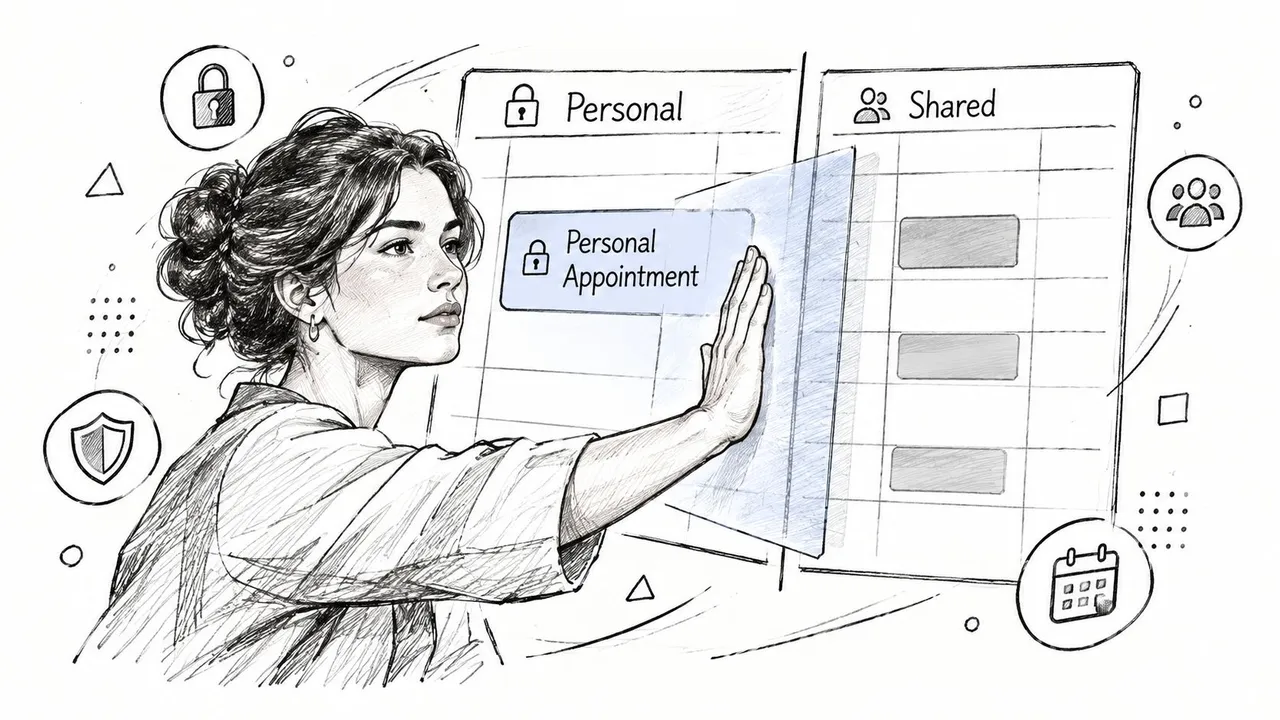
That distinction is the gap in most native Google workflows. Google’s calendar tools are good at syncing and change tracking, but they don’t solve the common mixed-account problem of sharing availability without revealing details across Google, Outlook, and iCloud. In practice, that’s what’s needed.
A work calendar doesn’t need your therapist’s name to avoid a conflict. A client doesn’t need the title of your family dinner to see that you’re unavailable. Free/busy mirroring and field masking are cleaner because they preserve scheduling utility while limiting sensitive data exposure.
This is also where a dedicated sync layer makes more sense than a simple import. Importing copies everything. Masking lets you decide what survives the transfer. For privacy-sensitive users, that difference changes the whole experience from “my calendars are everywhere” to “my availability is accurate, but my details stay private.”
Setting Up SyncThemCalendars in About Two Minutes
A web-based sync service is easier to set up than many expect. You connect the calendars you want to bridge, choose which one is the source, pick the direction, and decide whether to mirror details or mask them. The service then runs in the background and keeps the selected calendars aligned without requiring you to keep a browser tab open.
The product published by SyncThemCalendars connects Google Calendar, Microsoft Outlook/Office 365, and Apple Calendar (iCloud), and it supports one-way, two-way, or multi-way calendar copies. Its plan structure is straightforward, Basic supports up to 5 syncs, Premium supports up to 16, and Professional supports up to 36, with unlimited events and single-user access across plans. It also offers a 14-day free trial without a credit card, which matters if you want to test your exact setup before committing.
Here’s the practical setup flow most users follow:
- Create the account. Start with the calendars you already own instead of trying to redesign your whole workflow.
- Connect the calendars. Add Google, Outlook, or iCloud side by side and confirm each account is visible.
- Pick direction. Choose one-way, two-way, or multi-way based on who should be able to edit what.
- Apply masking if needed. Replace titles, descriptions, or locations when privacy matters more than exact event text.
- Start the sync. Let the service handle ongoing updates rather than manually exporting files every week.
The reason this path is appealing is not speed alone. It’s that the service solves the problem directly, which is controlled cross-provider synchronization with privacy options built in. That’s a different job from Google’s own calendar controls, and it’s why people move to a dedicated layer when native connections stop short.
Fixing the Most Common Sync Errors
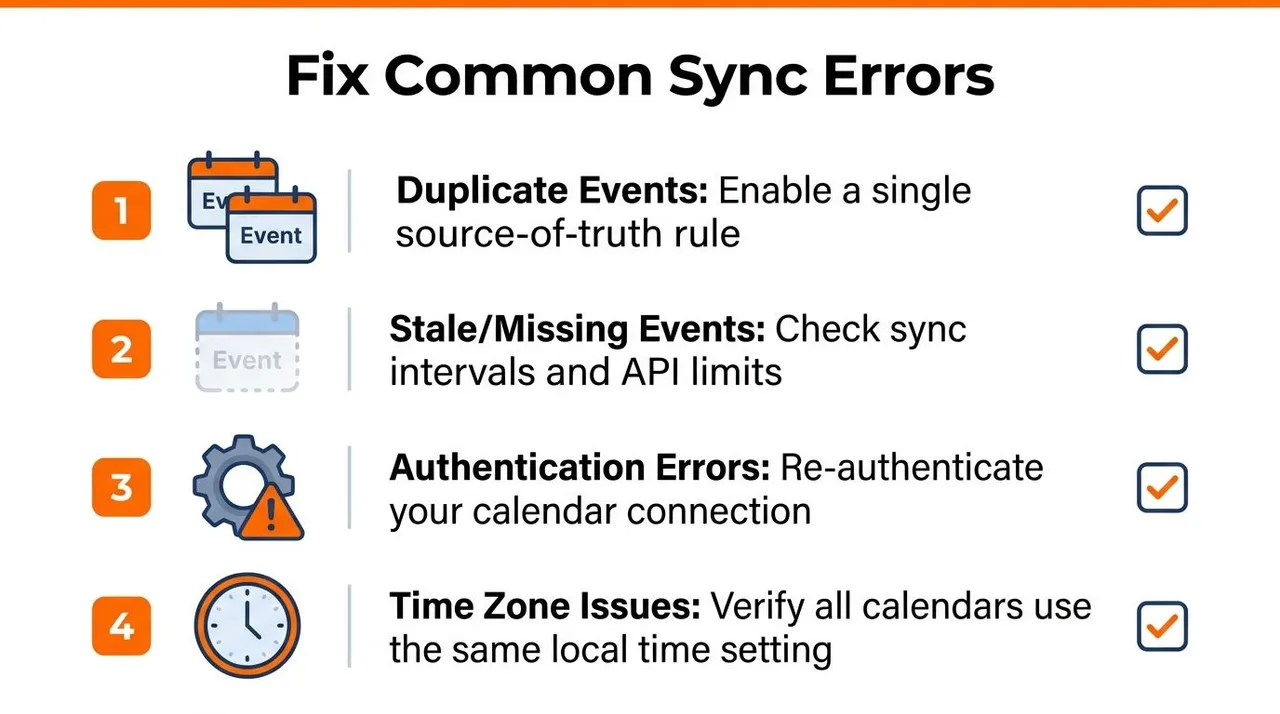
Most sync failures fall into a few predictable buckets, and each one has a different fix. The good news is that the symptoms are usually clear once you know what to look for.
Duplicate events usually mean both sides are pushing
When the same meeting appears twice, the usual cause is two-way sync without a strict source-of-truth rule. The fix is to disable one direction temporarily, identify which calendar should own the event, and then re-enable the flow only where it belongs. Duplicates are a design problem first and a software problem second.
Missing or stale events usually point to a broken refresh path
If an event is on one side but not the other, the sync token may have expired or the connection may have stopped advancing. Google’s incremental sync model depends on saving and reusing the token from each cycle, and implementations may need a full resync when the token becomes invalid. If your data looks stale, force a manual refresh, then resync from a clean state if needed. A technical walkthrough of that failure mode is covered in Google Calendar sync troubleshooting.
Events from Gmail can create noise
If confirmations or reservations are appearing where they shouldn’t, the Events from Gmail setting is probably too broad for your workflow. Turn it off if you want a cleaner calendar and prefer to add those items manually. Leave it on only if inbox-to-calendar automation is useful for your day.
Authentication errors usually follow a password or permission change
A calendar connection can break after a password reset, account security update, or revoked permission. Reauthorize the account instead of trying to patch around it, because the sync client needs fresh access to continue reading changes. This is one of the least glamorous fixes, but it solves a surprising number of “why did everything stop” complaints.
Reauthenticating after an account change is faster than diagnosing a dead connection for an hour.
A few habits prevent most repeat problems. Keep one source of truth per event, mask sensitive fields by default, and check account permissions after credential changes. Those three rules solve more calendar pain than any extra layer of configuration ever will.
If you want a calendar setup that protects privacy instead of copying every detail everywhere, SyncThemCalendars gives you a way to sync Google, Outlook, and iCloud calendars with one-way, two-way, or availability-only behavior. Visit SyncThemCalendars if you want to test controlled calendar sync without exposing more event data than you need.
Ready to sync your calendars?
Keep your Google, Outlook and Apple iCloud calendars in sync automatically. 2-minute setup, no credit card required.
Get started freeKeep reading
More in Guides

SyncThemCalendars Quick Setup Walkthrough
Master the SyncThemCalendars quick setup in minutes. Connect Google, Outlook, or iCloud, configure privacy masking, and verify your first sync effortlessly.

Merging Google Calendars: The Complete Guide for 2026
Merging Google Calendars. Learn the best ways to merge Google Calendars. Compare import methods, sync tools, and automation strategies

Master Your Calendar on Outlook with Sync Solutions
Learn how to use calendar on Outlook effectively, sync with Google and iCloud, avoid double-bookings, and connect SyncThemCalendars for seamless scheduling.