







Google Calendar Privacy Settings Explained and Controlled
Master google calendar privacy settings with this clear guide. Learn what each option shares, how event visibility works, and how to protect your schedule.
You’ve just shared your work calendar with a client, connected a personal account to a company account, or accepted a booking invitation. Then you notice that an event title, location, or attendee list is visible to someone who only needed to know when you’re available. Google Calendar privacy settings can prevent that, but only if you understand how calendar permissions, event visibility, Gmail-derived events, and Workspace administration fit together.
The key idea is simple: calendar privacy has layers. Your account and organization establish broad rules, each calendar has its own sharing permissions, and individual events can override the calendar’s normal visibility. Once you separate those layers, you can audit a calendar quickly instead of guessing which toggle controls what.
Why Google Calendar Privacy Matters More Than You Think
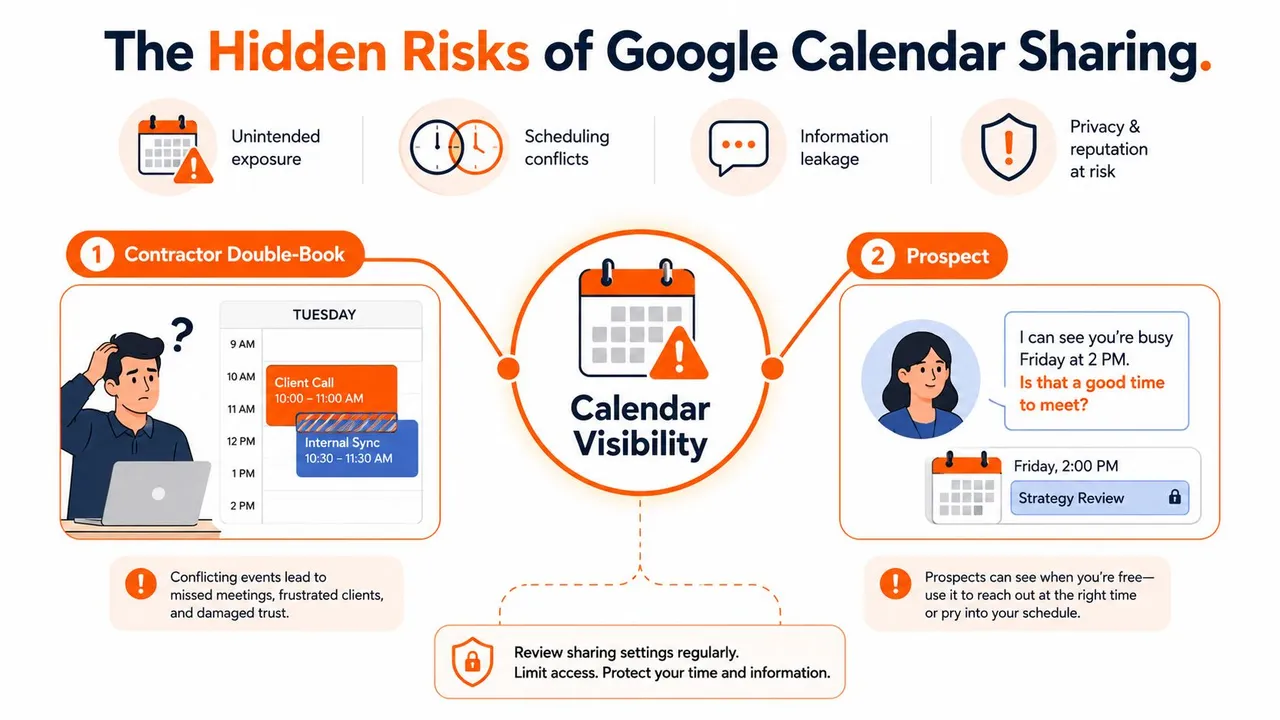
A contractor can double-book a client call because another account saw an incomplete availability picture. A freelancer can discover that a prospect knew the name of a meeting the freelancer assumed was private. These situations usually don’t come from one dramatic breach. They come from ordinary sharing choices that expose more context than the recipient needs.
A calendar can reveal event titles, locations, descriptions, attendees, and recurring timing patterns. Even when those fields are hidden, busy periods can show when someone works, travels, takes calls, or remains unavailable. Google explains that “See only free/busy” hides names and details, but collaborators still see whether time is occupied through the Google Calendar sharing and visibility documentation.
Three privacy layers
Think of your setup as three related controls:
- Account and organization defaults decide what your account is allowed to share and how automatically created events are handled.
- Calendar-level permissions decide whether another person sees availability, full event details, or editing and sharing controls.
- Event-level visibility decides whether a specific item follows the calendar default or becomes private or public.
This matters most when you use several accounts on one device. A personal calendar might contain medical appointments or family plans, while a company account contains client calls and internal meetings. A sync or sharing connection can align availability without needing to disclose the underlying event content, but only if the permission scope is narrow.
Privacy also extends to connected services. Before authorizing an automation or calendar assistant, review how it handles schedule data. A useful comparison point is Halo AI’s privacy practices, especially if you’re evaluating tools that process calendar information or other personal data.
Practical rule: Share the smallest useful signal. If someone only needs to avoid booking over you, free/busy information may be enough.
The Access Tier System That Controls Everything
Google Calendar’s sharing model is easier to manage when you treat each permission as an information budget. The owner can choose among access levels ranging from free/busy only to full management and sharing authority, as described in Google’s Calendar permission guidance.
The broadest audience options include public access, organization-wide access in Workspace, and sharing with specific people. A public calendar can expose event information to anyone who can access it. Organization sharing limits the audience to people in the same Workspace environment, while specific-person sharing lets you name the recipients rather than opening the calendar more broadly.
| Access Tier | Sees Title & Location | Sees Attendees | Sees Full Details |
|---|---|---|---|
| See only free/busy | No | No | No |
| See all event details | Yes, unless an event is private | Generally visible with event details | Yes, unless an event is private |
| Make changes to events | Yes, subject to private-event limits | Depends on event access | Can edit visible events |
| Make changes and manage sharing | Yes, subject to private-event limits | Depends on event access | Can edit and manage sharing |
| Public or organization access | Depends on the event and calendar rules | May be exposed when details are visible | Can be visible to the permitted audience |
Match the tier to the real task
A vendor checking whether you can take a call usually needs free/busy, not the names of your clients. A hiring manager reviewing an external interview calendar may need event details for coordination, but that doesn’t mean the calendar should be public. A recruiter or unknown visitor with a shared link shouldn’t receive a convenient directory of meeting names and attendees.
Free/busy isn’t invisible. It can still reveal meeting density, long unbroken focus blocks, and regular absence windows. That timing information may be sensitive even when every title is hidden.
Workspace environments add another consideration. An administrator can set organization-wide rules for external sharing, so a user may not have the same freedom to share a work calendar that they have on a personal account. The permission chosen at the calendar level still matters, but it operates inside the organization’s policy boundaries.
Finding and Changing Your Privacy Settings on Web and Mobile
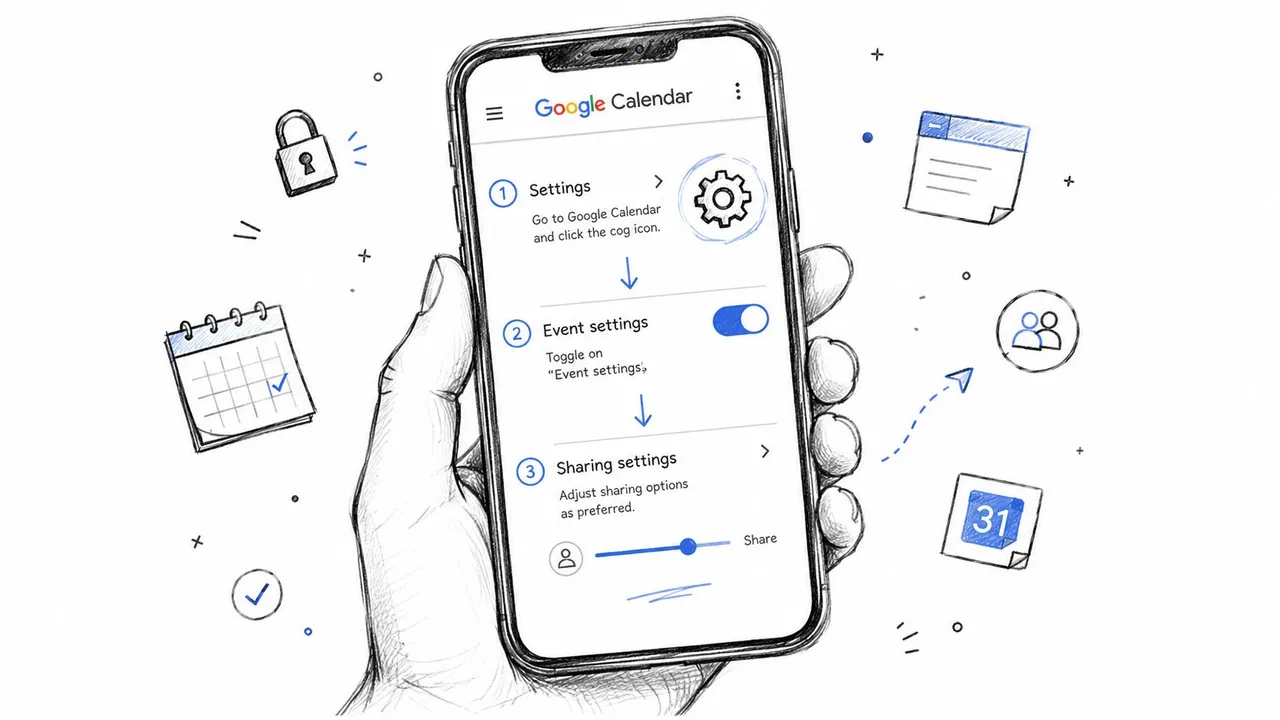
Start on the web when you want a complete audit. Open Google Calendar, select the Settings gear, then review General, Event settings, and Settings for my calendars. The first area controls defaults such as how new events are treated. The individual calendar area controls who can access each calendar and what they can do.
Use the web settings by purpose
Default event visibility belongs under the event settings and the individual calendar’s configuration. A default setting can make ordinary events easier to share, but it can also expose a title or location when you create an event and forget to change it.
Calendar sharing lives under Settings for my calendars, where you select the calendar and inspect Access permissions and Share with specific people or groups. Remove old collaborators, check whether a calendar is public, and confirm whether each person has only the access needed for their role.
Invitation behavior affects what your schedule communicates indirectly. Review invitation settings, including the option to automatically decline invitations to events you’ve declined elsewhere. That choice can prevent stale or contradictory availability from remaining on connected calendars, but it also changes how other people interpret your responses.
Mobile paths aren’t identical
On Android, open the Calendar app, use the menu or three-dot controls, choose Settings, select the relevant calendar, and inspect its sharing options. On iOS, the available controls can differ depending on whether the calendar is a Google calendar, a subscribed calendar, or an account managed through Apple’s Calendar settings. For broader Android privacy navigation, a current 2026 Android settings guide can help you locate app and account controls, but Google Calendar’s own settings remain the authority for calendar permissions.
Run this short audit now:
- List every calendar visible in your account.
- Record who can access each one.
- Identify whether access is free/busy, details, editing, or sharing management.
- Open recent sensitive events and check whether their visibility is Default, Private, or Public.
- Remove people and integrations that no longer need access.
How Calendar Sharing and Event Visibility Interact
Google Calendar separates who can access a calendar from what an individual event reveals. Those controls work together, which is why changing only one of them can produce a surprising result.
At the calendar level, a person might receive See only free/busy, See all event details, or permission to make changes. Free/busy access shows an occupied block. Detail access can show the event’s title, description, location, and related information. Editing access adds the ability to change events, and a higher permission can also allow the person to manage sharing.
Event visibility adds a second decision. Google supports Default, Private, and Public visibility, with private events appearing as busy blocks to people who don’t have the required access. Google’s event visibility documentation describes the hierarchy: private events remain hidden from users without writer-level or higher access, while public events can expose details to people who can access the calendar.
| Calendar Permission | Event Set to Default | Event Set to Private |
|---|---|---|
| See only free/busy | Busy block | Busy block |
| See all event details | Details follow the calendar’s sharing rules | Details are hidden and the event appears busy |
| Make changes | Can edit according to permission and event rules | Private-event restrictions still apply |
| Manage sharing | Can manage the calendar’s sharing settings | Doesn’t automatically reveal private content to lower-access viewers |
A concrete example
Suppose your team calendar contains ordinary internal meetings and one event for a confidential client negotiation. The calendar is shared with colleagues so they can coordinate. If the negotiation remains set to Default, colleagues with detail access may see its title, notes, and location. If you mark it Private, those viewers see that you’re busy without receiving the sensitive content.
That override is useful, but it creates a common trap. A private event can protect one item, yet a calendar-level permission can still reveal the general shape of your day. Conversely, a calendar that looks restricted can expose a particular event if that event is public.
For a field-by-field view of what different visibility choices can reveal, use this Google Calendar visibility guide. Before saving an event, check its visibility deliberately, especially when you’re creating it from a phone or copying a recurring appointment.
The Gmail-Events and Activity Settings Most Guides Miss
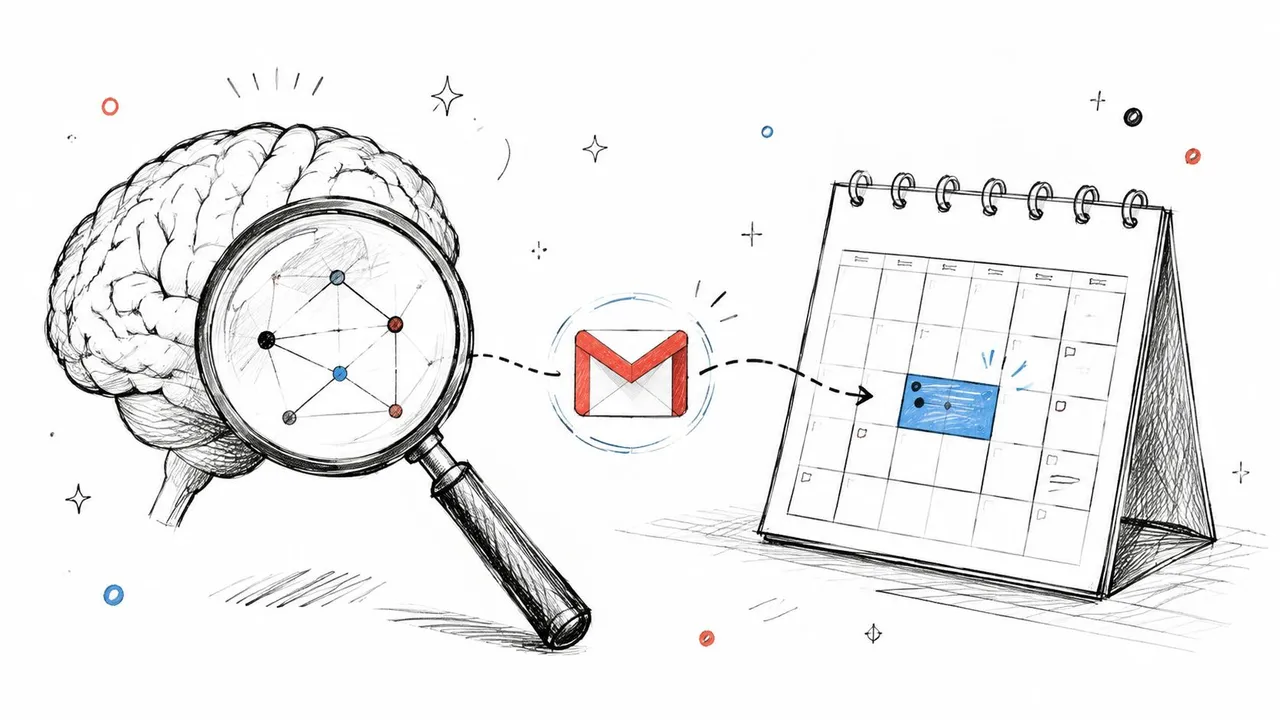
Some calendar entries arrive without you manually creating them. Gmail can identify reservations, flights, and bookings in messages and place related events on your calendar. That convenience creates a separate privacy surface because the event originates in email rather than from your normal calendar workflow.
Google’s current guidance includes a dedicated Privacy of email events setting. In that control, you can choose Calendar default or Private, and apply the choice to new events or existing events, as documented in Google’s Gmail-derived event privacy guidance.
Audit automatically created entries
Open Calendar settings and locate the controls for events created from Gmail. If you turn off future Gmail-derived events, review entries already present rather than assuming they disappear. Open the event, confirm its source and visibility, then delete or privatize it when appropriate.
This distinction matters for multi-account users. A booking email may arrive in a personal inbox while the related schedule is visible through a work calendar, a mobile calendar app, or a synchronization connection. The calendar permission may be correct while the imported event still carries a revealing title or location.
A separate review belongs in My Activity. Google says users can review or manage Google Calendar search history through My Activity. That record is different from the event’s sharing permission, so changing a calendar from public to private doesn’t automatically answer every question about account activity.
Treat activity and event sharing as separate checks
Review activity records associated with Calendar and remove items you no longer want retained. Use the available activity controls to manage deletion preferences, then check the calendar itself on every connected device. If you’re comparing workflows for Gmail-based synchronization, this calendar sync and Gmail guide provides another practical reference.
A privacy toggle that stops future imports doesn’t necessarily clean up historical entries. Inspect both the source setting and the events already created.
Personal Account vs Workspace Admin Controls
The account type determines who owns the final decision. With a personal Google account, you generally manage calendar sharing, event visibility, and Gmail-derived event choices directly. With Google Workspace, your administrator can establish rules that limit or shape what users are allowed to share outside the organization.
Google Workspace exposes organization-wide controls for external calendar sharing. Administrators can determine whether users may share calendars beyond the domain and whether external viewers receive full details or only free/busy availability, as described in the Google Workspace administrator sharing controls.
| Privacy Lever | Personal Account | Workspace Account |
|---|---|---|
| External calendar sharing | Usually controlled by the account owner | May be restricted or governed by an administrator |
| Specific-person access | Managed by the calendar owner | Managed by the owner within organizational policy |
| Free/busy exposure | Chosen by the owner | May be limited by organization settings |
| Gmail-derived event privacy | Managed by the user | May operate alongside organizational controls |
| Organization-wide default | Not applicable in the same way | Can affect users, domains, and resource calendars |
What the boundary means in practice
An administrator controls policy, not necessarily the content of every personal calendar. A Workspace admin can restrict external sharing or define how outside viewers access work calendars, but that doesn’t mean the admin automatically sees the contents of a separate personal calendar.
The important distinction is whether an event lives in a personal calendar, a company-owned Workspace calendar, or a resource calendar managed by the organization. A team lead who shares a work calendar externally may be constrained by admin settings even when the calendar’s local sharing panel appears to offer more choices.
Google’s Calendar API documentation also reflects this permission model. Public events can expose details to users with sufficient calendar access, while private events remain limited to users with the required writer-level access. Integrations should therefore request the narrowest permission they need, particularly when copying schedules between accounts.
Before changing a setting, identify the account owner and the calendar owner. If a control is missing, greyed out, or keeps reverting, an administrator policy may be the reason.
What Free and Busy Still Leaks and How to Reduce It

A free/busy view hides event names and details, but it does not make your calendar invisible. Someone may still see when your day begins, when long gaps occur, how tightly meetings cluster, and when you regularly become unavailable.
A vendor cannot read “pricing negotiation,” yet a packed afternoon can reveal a negotiation-heavy schedule. A recruiter may not see attendee names, but a recurring busy block could suggest interview times. Someone who checks availability repeatedly can learn more from these patterns than from one isolated block, especially when work and personal accounts expose different signals.
Google’s documentation describes free/busy access as showing occupied time while hiding event names and details. Treat it as limited disclosure, not zero disclosure. The time pattern itself can carry context.
Reduce pattern leakage
- Narrow the audience: Share free/busy with the people or systems that schedule with you. A direct permission is safer than public access when direct sharing will work.
- Separate booking from private planning: Use a booking calendar or neutral placeholder events for external scheduling. Keep personal commitments and confidential work details on a restricted calendar.
- Use working-hour boundaries carefully: Working hours can communicate when you accept meetings, while a highly consistent routine may make your availability easier to map.
- Mask copied fields: When synchronizing calendars, copy the busy block without the original title, description, location, or attendee information.
Data minimization provides a practical rule: expose the time signal needed to avoid double-booking, then remove context that adds unnecessary exposure. For examples of availability-only coordination, see this free/busy calendar guide.
The most effective habit is to inspect the recipient’s view rather than relying on your intended setting. Create a test view with the same permission level as an external collaborator, then confirm that it shows only busy blocks. If you synchronize Google Calendar with Outlook or Apple Calendar, SyncThemCalendars can mirror availability and transform copied fields so titles, descriptions, and locations are not passed through unnecessarily.
Privacy Settings That Fit Your Role and Workflow
Privacy defaults rarely suit every calendar in a person’s life. The right setup depends on who needs availability, which events carry sensitive context, and whether an administrator controls the work account.
Entrepreneurs
Keep investor, legal, and personal appointments on restricted calendars. If you publish availability for prospects, expose only the scheduling signal needed to book a conversation, and review whether public sharing is necessary. Mark sensitive events private rather than trusting a broad calendar default.
Freelancers and consultants
Use separate calendars for client work, personal commitments, and booking availability. Share client-facing calendars with free/busy permissions where possible, and keep the personal calendar private. If several clients require different accounts, check every calendar’s specific-person list instead of assuming that one account’s settings protect another.
Team leads
Start with the Workspace administrator policy before changing external access. Review whether working-location information, resource calendars, or domain-wide sharing reveals more than your team needs, then give colleagues the least powerful permission that supports coordination.
Sales professionals
Review invitation and declined-event behavior so old meetings don’t continue broadcasting stale availability. Keep client names, visit locations, and pipeline context out of calendars shared with broad audiences, especially when CRM-created events arrive automatically.
Students
A class timetable may be suitable for wider sharing when it contains only general course times. Study groups, advising appointments, personal commitments, and accommodation-related events should use private visibility or a calendar shared only with the necessary people.
Your next action is straightforward. Open Google Calendar settings, audit Share with specific people and groups for every calendar, and remove anyone who no longer needs access this week.
SyncThemCalendars can synchronize Google Calendar, Microsoft Outlook or Office 365, and Apple Calendar while supporting one-way, two-way, or multi-way event copying. If you need availability aligned across accounts without exposing titles, descriptions, or locations, visit SyncThemCalendars and review its privacy-focused sync options.
Ready to sync your calendars?
Keep your Google, Outlook and Apple iCloud calendars in sync automatically. 2-minute setup, no credit card required.
Get started freeKeep reading
More in Guides

Synchronize Apple Calendar with Outlook: A 2026 Guide
Step-by-step guide: Synchronize Apple Calendar with Outlook on Windows, iPhone and Mac, with two-way options, privacy trade-offs and fixes.

SyncThemCalendars Quick Setup Walkthrough
Master the SyncThemCalendars quick setup in minutes. Connect Google, Outlook, or iCloud, configure privacy masking, and verify your first sync effortlessly.

Merging Google Calendars: The Complete Guide for 2026
Merging Google Calendars. Learn the best ways to merge Google Calendars. Compare import methods, sync tools, and automation strategies