







Merging Google Calendars: The Complete Guide for 2026
Merging Google Calendars. Learn the best ways to merge Google Calendars. Compare import methods, sync tools, and automation strategies

You’ve got three calendars open, two inboxes pinging, and one meeting that just got booked on top of a doctor’s appointment. That’s the core pain behind merging Google Calendars. The problem usually isn’t the calendar app itself, it’s choosing the wrong kind of merge for the way you work.
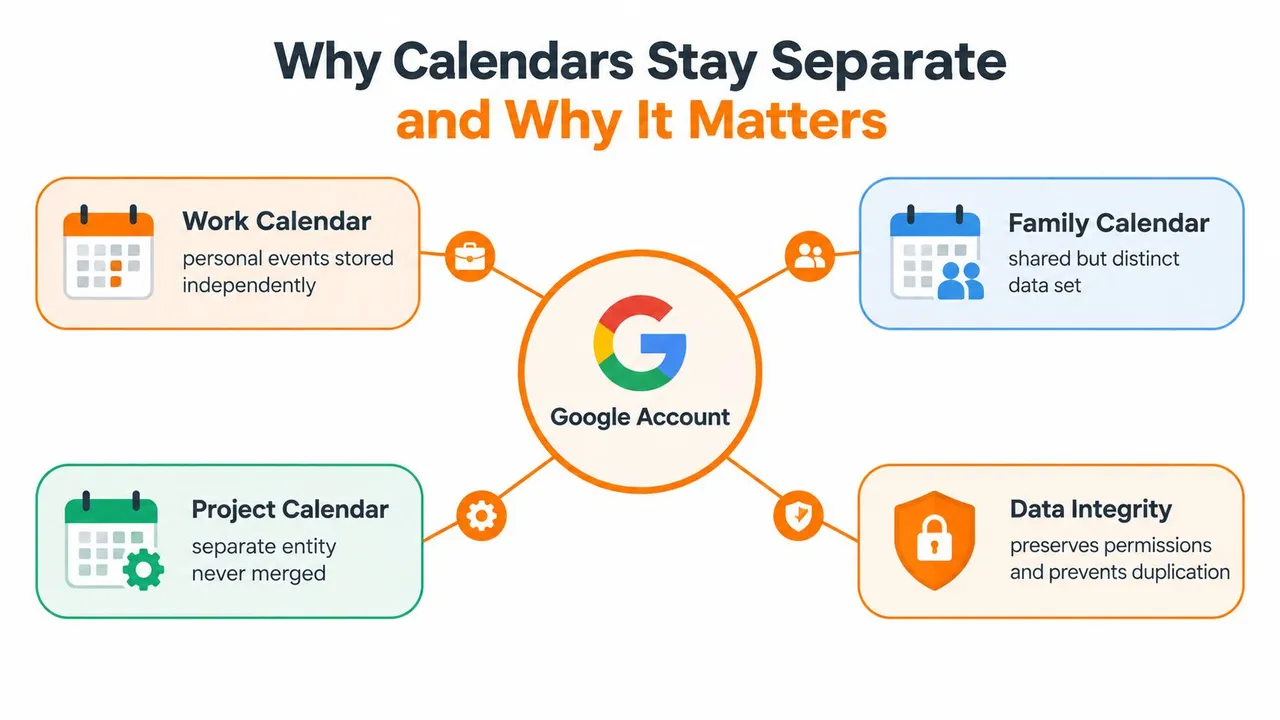
Why Calendars Stay Separate and Why It Matters
A freelancer I worked with once had a client call on one Google account, a personal appointment on another, and a recurring project check-in buried in a third calendar. Everything looked fine until one overlap turned into a missed call and a rescheduled client review. Google keeps multiple calendars inside one account instead of flattening them into a single data set, so ownership, permissions, colors, and event records stay distinct Google Calendar support.
The hidden benefit of staying separate
That separation is often useful. Work, family, and client calendars can sit side by side without forcing every event into the same permission model, which keeps sensitive appointments out of the wrong view. Google also supports checking availability across calendars you own, manage, or subscribe to, so you can spot conflicts without merging the schedules themselves.
Practical rule: if you need visibility, not permanent data movement, keep the calendars separate and change the view instead of the data.
The trouble starts when your workflow crosses accounts or platforms. The Google Calendar app shows calendars from Exchange and iCloud alongside Google Calendar events, which is useful for review, but it does not copy those events into your Google account Google Calendar app listing. That distinction is where many double-bookings begin, especially when one side of the schedule gets edited and the other side does not.
When fragmentation becomes a scheduling risk
Fragmented calendars create three recurring problems. First, availability looks wrong because one schedule does not know about the other. Second, edits happen in the wrong place, so the current version of an event splits from the copy you are watching. Third, privacy gets messy when a copied event exposes details you meant to keep hidden.
If you are coordinating work and personal life, that is annoying. If you are handling client bookings or team scheduling, it costs time and trust.
Three Proven Approaches to Consolidating Your Schedules
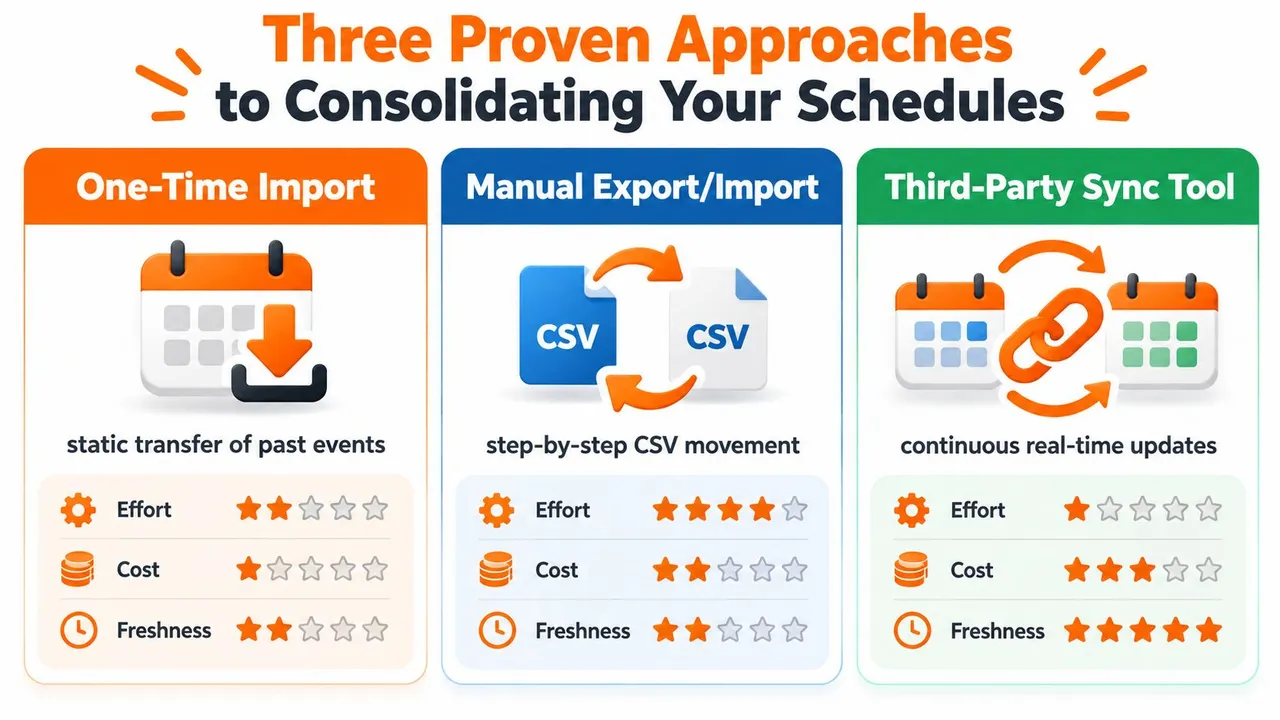
There are three practical ways to handle merging Google Calendars, and each solves a different scheduling problem. One gives you a static snapshot, one gives you a shared view, and one keeps calendars aligned in real time. Pick the wrong method, and you end up with duplicate meetings, outdated availability, or sync loops that are painful to clean up.
One-time import
Use this approach when you are retiring an old calendar or building a permanent archive. Export the source data, import it into the destination calendar, and treat the result as a migration; the source and destination will not stay connected afterwards. Google’s own workflow confirms that imported events are added to the selected calendar Google import and export guide.
Visual overlay
Overlaying calendars is the lightest option. Google’s native setup lets you view multiple calendars together, which is enough for people who only need one screen and do not want to duplicate events. It is read-first, not write-first, so the underlying schedules stay separate.
Continuous synchronization
Live sync fits active calendars that must stay current. That is common for consultants, sales reps, founders, and anyone booking across multiple accounts or services. Instead of a frozen copy, the tool moves event changes between calendars so availability stays current.
| Approach | Best for | Main trade-off |
|---|---|---|
| One-time import | Archival cleanup | No ongoing updates |
| Visual overlay | Simple visibility | No shared event ownership |
| Continuous sync | Active calendars | More setup, more control needed |
If both calendars still matter tomorrow, a static import usually is not enough.
How to Manually Import and Export Google Calendars
Manual import and export works well when you need a clean destination calendar and do not need changes to sync afterward. Google’s documented workflow starts on a computer, because export and import are handled through the desktop interface, not a mobile-only path Google import and export guide. That is the right fit for a legacy account cleanup, a temporary project calendar, or a master schedule built from old records.
The safest export and import sequence
- Open Google Calendar on a computer and go to Settings.
- Choose Import & export.
- Export the source calendar first and keep that file untouched.
- In the destination account, return to Import & export.
- Select the target calendar on purpose, do not accept the default primary calendar without checking it.
- Import the file, then verify recurring events, attendees, reminders, and time zones against the source.
That target-calendar step is where people usually make their first mistake. A careless click can put old meetings into the wrong calendar, and importing the same file twice can create duplicates that are hard to sort out later. The fix is simple, but it requires discipline. Match the destination before you click import.
What to check before you call it done
- Event counts: Compare the source and destination calendars for obvious gaps.
- Date ranges: Test a small window first before loading the full history.
- Recurring series: Make sure repeats still behave normally after import.
- Privacy fields: Review descriptions, locations, guests, conferencing links, and attachments before sharing the merged calendar.
If the merge is part of onboarding and you need to add people to the rebuilt schedule, the walkthrough on invite someone to Google Calendar from Mail Merge for Gmail covers the invite workflow.
For file-format details, this guide to ICS format in Google Calendar is useful when you are comparing export options or fixing imports that do not land cleanly.
Choosing a Third-Party Sync Solution for Real-Time Updates
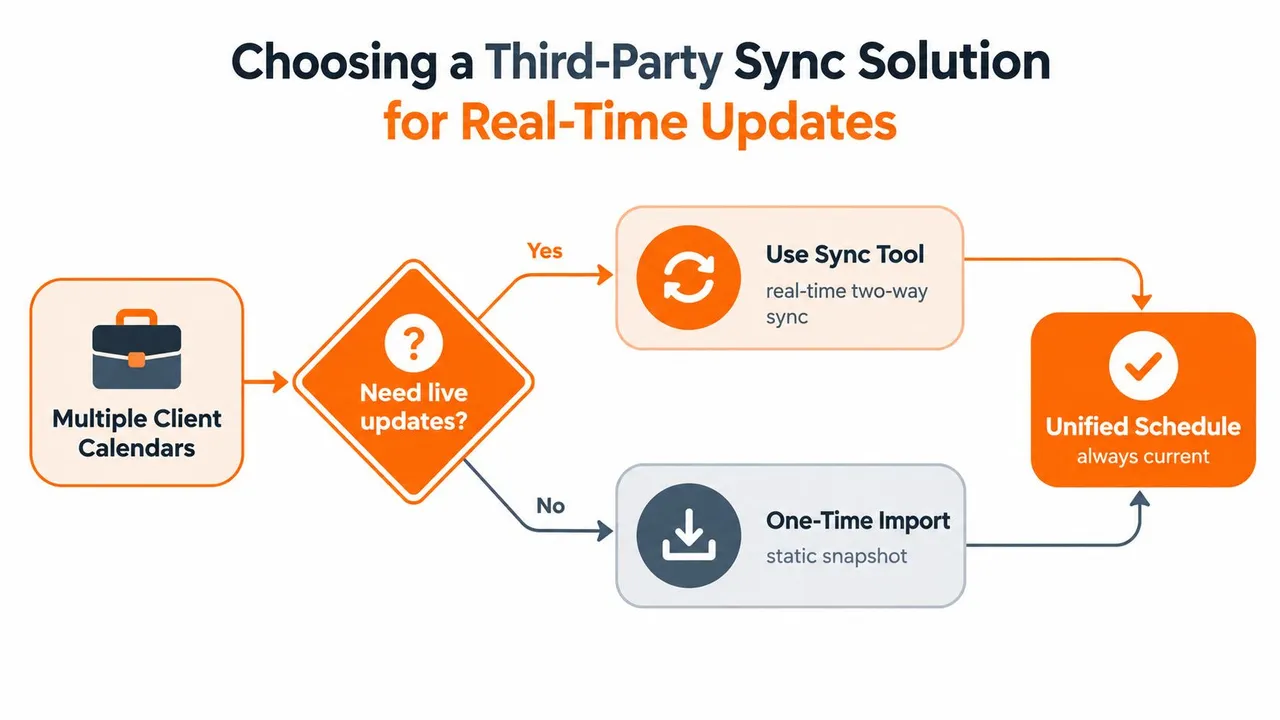
A one-time import clears out old files. It does not keep live availability in sync. Freelancers who split time between client work and personal commitments, or operators who manage multiple project calendars, usually need continuous synchronization, not another static copy. Google Calendar support shows the platform is built around shared calendars and conflict checks, but it does not turn separate accounts into one live, mirrored system.
What to look for in a sync tool
A serious sync tool has to do more than copy titles. It should keep free and busy blocks aligned, preserve privacy where needed, and handle edits without creating loops. In practice, that means choosing direction carefully, deciding whether details stay visible or are masked, and confirming the tool works across the calendar systems your clients use.
The cross-platform issue matters. A native view can show you another calendar, but a sync tool prevents conflicts because the event exists in both accounts and stays updated when either side changes. The Google Calendar app listing is a reminder that visibility inside one app is not the same thing as live mirroring between accounts.
How I evaluate the trade-off
I start with three questions. Will the tool keep availability current without manual re-imports. Can it protect private details on a work calendar. Does it handle multiple ecosystems without turning the user into a part-time administrator.
Decision rule: if a calendar still changes after the merge, use synchronization. If it’s an archive, use import.
One option in this category is SyncThemCalendars, which synchronizes Google Calendar, Microsoft Outlook or Office 365, and Apple Calendar in real time, with one-way, two-way, or multi-way copies of events. That setup fits people who care more about keeping availability aligned than about moving data once and leaving it alone.
If you are comparing tools, the guide on best calendar sync app is a useful companion to this decision. And if scheduling needs to feed a booking workflow, connecting Google Calendar shows how integrations fit into the larger setup.
Handling Recurring Events and Data Conflicts
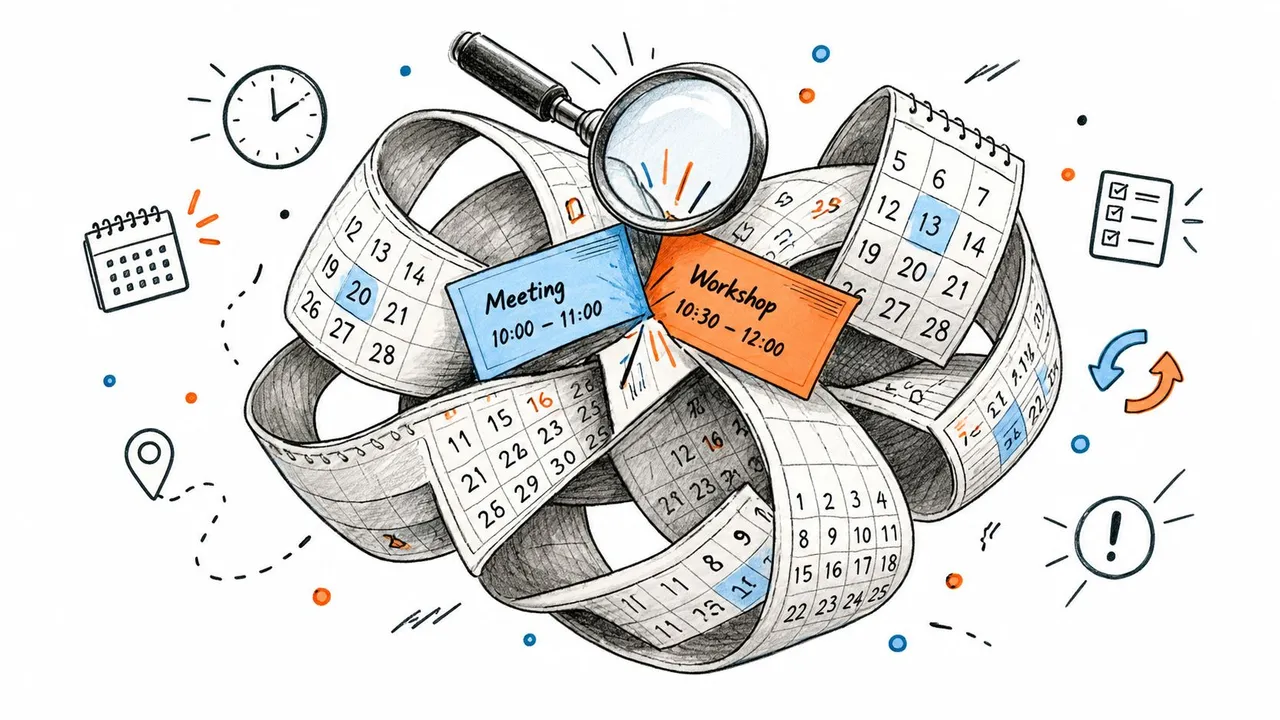
Recurring events are where calendar merges get fragile. A weekly review, monthly billing call, or daily standup can look stable until one occurrence is edited and the series starts behaving differently across calendars. In Google’s recurring-event guidance, a change to one instance is handled as a specific exception, so a sync that flattens the series can overwrite the edit or bring back the old time Google recurring events guide.
Why recurring series break so easily
A recurring event is more than a repeating block on a calendar grid. It carries exceptions, cancellations, attendee responses, and sometimes all-day timing quirks. If a sync process treats every copy as a separate event, the series can split into pieces that are hard to repair later.
Time zones are the other failure point. Recurring expansion depends on one consistent time zone, because daylight-saving shifts can move occurrences if timestamps are not normalized correctly. The result is familiar in client work, a meeting looks right in one view and lands at the wrong local time in another.
What to do when conflicts show up
- Duplicate events: Check whether the same source file was imported more than once.
- Wrong times: Confirm the calendars use the same IANA time zone before importing.
- Broken recurring series: Test edited occurrences in a staging calendar before turning on bidirectional writes.
- Hidden data loss: Review attendees, cancellations, all-day events, and exceptions before trusting the merged schedule.
For a broader troubleshooting angle, the guide on calendar sync issues is useful when a merged setup starts drifting or dropping fields.
When I see recurring events misbehave in client work, the fix is usually not cosmetic. The safer move is to validate the series in a staging calendar first, then push only the clean structure into production.
Best Practices for a Clean and Conflict-Free Merge
A clean merge starts with the workflow, not the software. If the calendar supports active scheduling, keep live sync in mind. If it is only there for history or reference, a one-time import is usually the safer path. Shared calendars still need clear permissions and boundaries, because a unified view can hide important access differences.
The checklist that prevents avoidable mistakes
- Pick the right model first. Use import for archival consolidation, overlay for visibility, and live sync for active calendars.
- Validate the destination. Confirm the target calendar before you import anything.
- Test a narrow date range. Start small, then expand once the results look right.
- Check privacy fields. Inspect titles, guests, locations, conferencing links, and attachments.
- Review recurring events separately. One good test event does not prove the whole series is safe.
- Keep source files. Save the original export so you can audit or rebuild later if needed.
How to keep the merged view healthy
Maintenance matters more than the first pass. With a static import, treat the merged calendar as a record and do not expect updates from the original source. With live sync, watch for drift in permissions, duplicate creation, and field masking so one calendar does not leak into another.
A merged calendar should reduce decisions, not create a new cleanup job every week.
The decision is three-way: preserve separation, copy history once, or maintain a live scheduling layer across accounts. If you need a calendar system that stays in sync across Google, Outlook, and Apple while keeping availability aligned, visit SyncThemCalendars and compare how continuous sync fits your workflow.
Ready to sync your calendars?
Keep your Google, Outlook and Apple iCloud calendars in sync automatically. 2-minute setup, no credit card required.
Get started freeKeep reading
More in Guides

Synchronize Apple Calendar with Outlook: A 2026 Guide
Step-by-step guide: Synchronize Apple Calendar with Outlook on Windows, iPhone and Mac, with two-way options, privacy trade-offs and fixes.

SyncThemCalendars Quick Setup Walkthrough
Master the SyncThemCalendars quick setup in minutes. Connect Google, Outlook, or iCloud, configure privacy masking, and verify your first sync effortlessly.

Master Your Calendar on Outlook with Sync Solutions
Learn how to use calendar on Outlook effectively, sync with Google and iCloud, avoid double-bookings, and connect SyncThemCalendars for seamless scheduling.