







Calendar Sync for Android: Complete Setup Guide
Master calendar sync for Android across Google, Outlook, and iCloud. Step-by-step setup, privacy controls, troubleshooting, and real-time sync solutions.
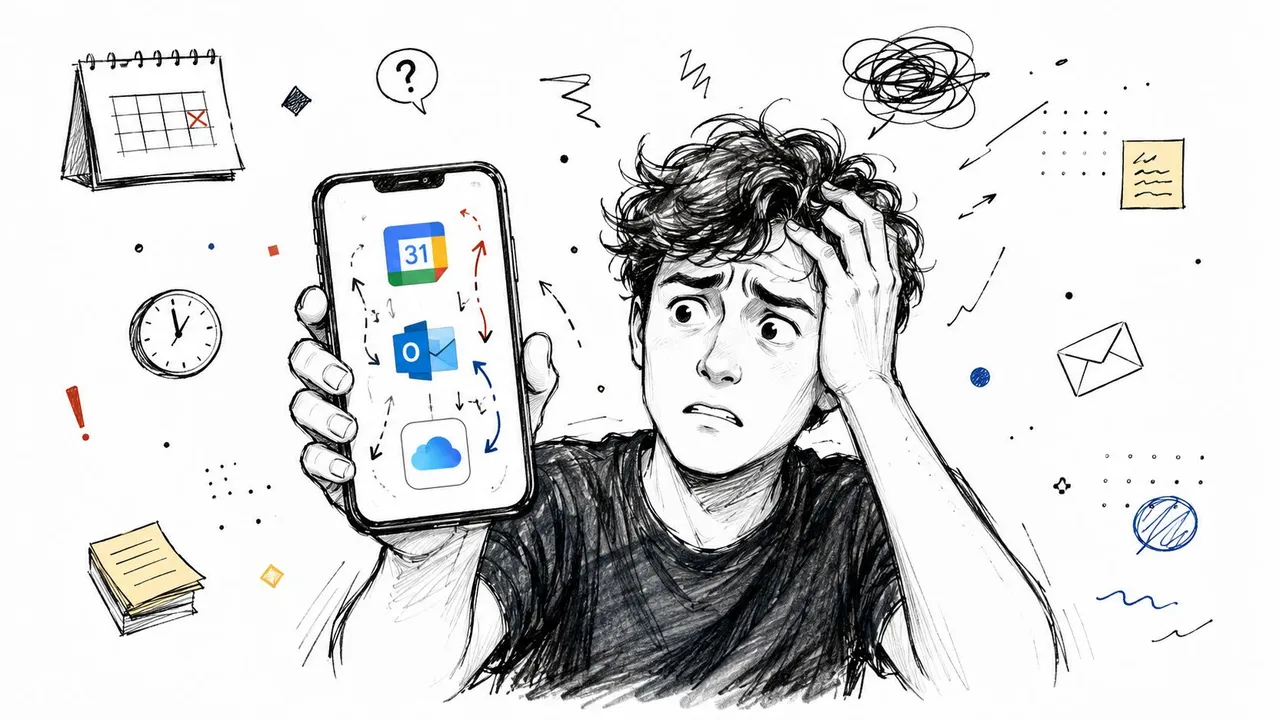
You’ve probably had that moment where your phone says you’re free, your work calendar says you’re booked, and your partner just reminded you about a family event you never saw. That’s the messy reality of calendar sync for Android when your life spans Google, Outlook, and iCloud. Android can keep a Google-based schedule tidy, but the minute your availability is spread across ecosystems, the simple fix stops being simple.
Why Calendar Sync on Android Gets Complicated
A common failure starts with a real-world mismatch. A consultant accepts a client call on Outlook, checks Android before leaving, and sees an open slot because the work calendar never made it onto the phone. By the time the meeting starts, the phone looks innocent and the schedule is already broken.
Android’s native model is built around account-level sync, especially for Google accounts. Google documents that users open Settings, select their Google account, and enable Account sync for Calendar, then use the app’s Refresh action if events still don’t appear. Google also says to verify that the specific calendar is enabled in the app and, if needed, check Calendar storage, device storage, or clear app data. That works well when the whole problem stays inside Google’s ecosystem, because the system is designed to keep one account coherent across devices, not to negotiate competing calendars from unrelated providers. If you are also thinking about how calendar app presentation affects install and recognition on Android, the android icon guide for app founders is a useful reference.
Native sync and true cross-platform sync are not the same thing
Native Android sync answers a narrow question, which is, “Is this Google account current on this device?” It does not automatically solve, “Does this phone reflect my full availability across Google, Outlook, and iCloud without exposing private event details?” That second problem is a synchronization layer problem, not just a phone settings problem.
Practical rule: if your missing appointment lives in another ecosystem, Android settings alone usually won’t fix it.
Adding multiple accounts to one phone does not stop double-bookings. You may see several calendars side by side, but that still leaves you manually interpreting conflicts, privacy boundaries, and availability gaps. For teams and independent professionals, the challenge is keeping busy time aligned while controlling which event details are visible to each audience.
The actual situation is simple. If the issue is a disabled Google account sync, the device settings path is enough. If the issue is mixed-provider scheduling, the solution has to coordinate calendars across systems instead of just displaying them on one screen. That is the gap many guides skip. A setup like SyncThemCalendars can help by keeping availability aligned across providers without exposing every event title, which is the part native Android sync does not handle on its own.
Setting Up Native Android Calendar Sync
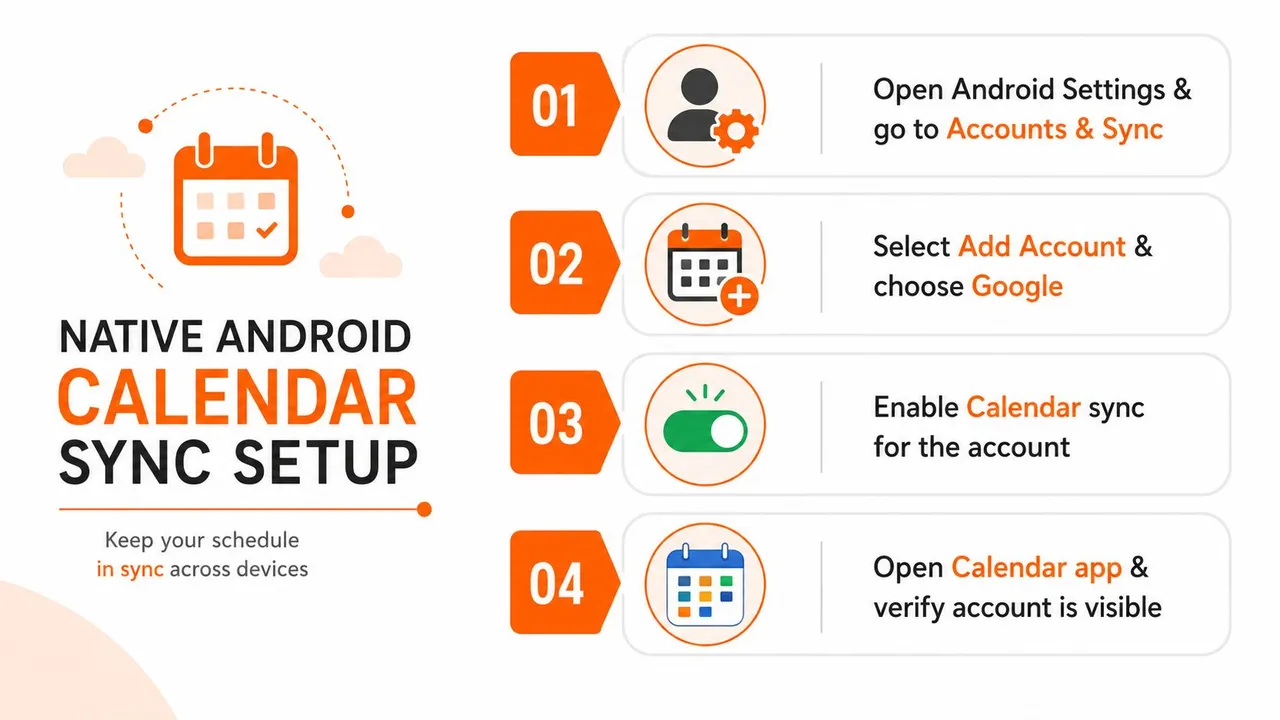
The native setup is still worth getting right, because it solves the Google-side foundation. On most Android devices, the cleanest path is to open Settings, find your Google account, and turn on Calendar under Account sync. Then open the Google Calendar app, go to Settings, and verify the specific calendar is visible there, because a synced account can still hide individual calendars if they’re not selected.
Google’s Android help page makes the layering clear. The device sync setting controls whether the account can update, the app settings control which calendars are shown, and manual refresh exists for cases where automatic background sync lags or stalls. Google also advises checking Calendar storage and device storage, which is a good reminder that sync failures often sit in local device state rather than in the calendar service itself. For a practical walkthrough, see this Android calendar sync setup guide. The official help page for Android Calendar sync is Google’s Android calendar sync guide.
What to do first
- Open Settings on the Android device.
- Select the Google account tied to the calendar you expect to see.
- Turn on Account sync for Calendar.
- Open Google Calendar, then confirm the right calendar is selected in the app’s settings.
- Use Refresh if the calendar still hasn’t populated.
That sequence matters because Android treats calendar data as something synced through the account layer, not a local spreadsheet you manage directly. Google’s developer documentation says apps need READ_CALENDAR to read and WRITE_CALENDAR to insert, update, or delete events, and that calendars are meant to be managed primarily by sync adapters using provider-managed synchronization semantics. In practice, that means the database isn’t a generic bucket for local writes, and strong sync apps follow the system’s expected model rather than fighting it. The developer guidance is documented in Android’s CalendarContract provider reference.
Where native sync stops helping
Native settings are enough when the calendars already live in Google and the goal is just to make Android show them correctly. They’re much less useful when you want one calendar on Android to mirror another calendar in a different ecosystem, or when you want to hide titles, locations, and notes from recipients while still exposing availability. At that point, the device can display the calendars, but it can’t coordinate them into a single reliable scheduling layer.
A useful reference for the Google-only path is this Android and Google Calendar setup guide, especially if you’re trying to separate a simple account-sync issue from a bigger cross-platform problem.
Comparing Sync Approaches for Different Needs
The right approach depends on what you’re trying to fix. If you only need one Google account to appear correctly on one Android phone, native settings are enough. If you manage calendars across Google, Outlook, and iCloud, the best answer is usually a sync layer that copies events between systems instead of asking Android to pretend the ecosystems are already unified.
| Calendar Sync Approaches Comparison | Real-Time Updates | Privacy Controls | Cross-Platform Support | Double-Booking Prevention |
|---|---|---|---|---|
| Native Android account sync | Good for Google-backed accounts | Limited to device and app visibility settings | Weak outside Google-centric use | Partial, because it shows calendars but doesn’t reconcile them |
| Provider-specific apps | Strong inside their own ecosystem | Moderate, depending on the app | Narrow, usually one provider at a time | Better than nothing, but still siloed |
| Dedicated cross-platform sync services | Strong for Google and Microsoft, with provider-dependent timing for iCloud and .ics sources | Stronger, because fields can be masked or transformed | Broad, because calendars can be connected across ecosystems | Strongest, because availability can be mirrored across accounts |
The biggest hidden trade-off is latency. Product documentation for cross-platform tools notes that Google and Microsoft calendars can propagate near real time, while iCloud or .ics sources may update on slower polling intervals, sometimes around 5 to 10 minutes rather than instantly. That doesn’t make the sync broken. It means the provider itself sets the pace, so the workflow you choose needs to match the slowest source in the chain. A practical comparison is this calendar sync app guide, which is useful when you’re deciding whether a native-only setup is realistic for your mix of providers.
Which setup fits which workflow
An entrepreneur with separate personal, brand, and investor calendars usually needs more than display-only sync, because the challenge is keeping busy time aligned across all of them without exposing every subject line. A freelancer often needs the opposite, one calendar can block time in another so clients don’t land on top of private events. Sales professionals and consultants tend to care most about free/busy accuracy, because one stale event can trigger a bad meeting recommendation and a preventable conflict.
A multi-provider setup only works when the sync model matches the way people actually schedule, not the way the phone UI makes calendars look.
This is also where metadata and deduplication matter. Production sync pipelines use change detection, incremental fetch, and event identifiers so the same meeting doesn’t bounce back and forth forever between calendars. If a tool relies on full resyncs all the time, you get more latency, more conflicts, and a much higher chance of duplicate entries or missed updates. That’s the point where a dedicated service beats a manual workaround.
Configuring Cross-Platform Sync with SyncThemCalendars
When Android alone cannot keep Google, Outlook, and iCloud aligned, a dedicated sync layer is usually the cleaner setup. SyncThemCalendars is one option that copies events between connected calendars and supports one-way, two-way, or multi-way directions, which fits teams and individuals who care more about matching availability than building one merged inbox. Because it is web-based, the first setup happens outside the phone, then the sync continues in the background after the calendars are connected. If you want to compare that model with your current workflow, see SyncThemCalendars.
The setup itself is direct. Connect the calendars you want to sync, choose the direction for each relationship, then decide whether you want full event copying or free/busy mirroring. That last choice matters because many professionals do not need every detail duplicated. They need the other calendar to register that time is blocked, while hiding the subject line, location, or notes.
Privacy controls that actually matter
Field masking is the part that makes cross-platform sync workable for real schedules. If your personal calendar contains a doctor appointment, you can mirror the busy time into a work calendar without exposing the appointment name. If you are coordinating with a team, colleagues can see that you are unavailable without seeing the private context behind the block.
That is a better fit than public sharing in sensitive environments. It keeps availability aligned while limiting what gets copied into each system. For many people, that difference separates useful automation from a privacy problem dressed up as convenience.
Why the sync engine matters
The reliability side matters just as much. A production-grade pipeline watches for changes, fetches only deltas, and deduplicates events so two-way sync does not create loops. The calendar data model also needs versioning logic, because concurrent edits need a deterministic tie-breaker. One design reference says each event should carry a sequence number and updated-at timestamp, with the higher sequence winning when edits collide, and that is the kind of rule that keeps replicated calendars sane.
The setup is meant to stay light. SyncThemCalendars describes a two-minute setup flow, a 14-day free trial, and subscription plans that scale by the number of active syncs rather than by the number of events. That helps because calendar volume does not become a blocker just because the schedule gets busy. It also gives you room to test whether the sync model fits personal and work calendars before committing to a wider rollout.
Troubleshooting Calendar Sync Failures
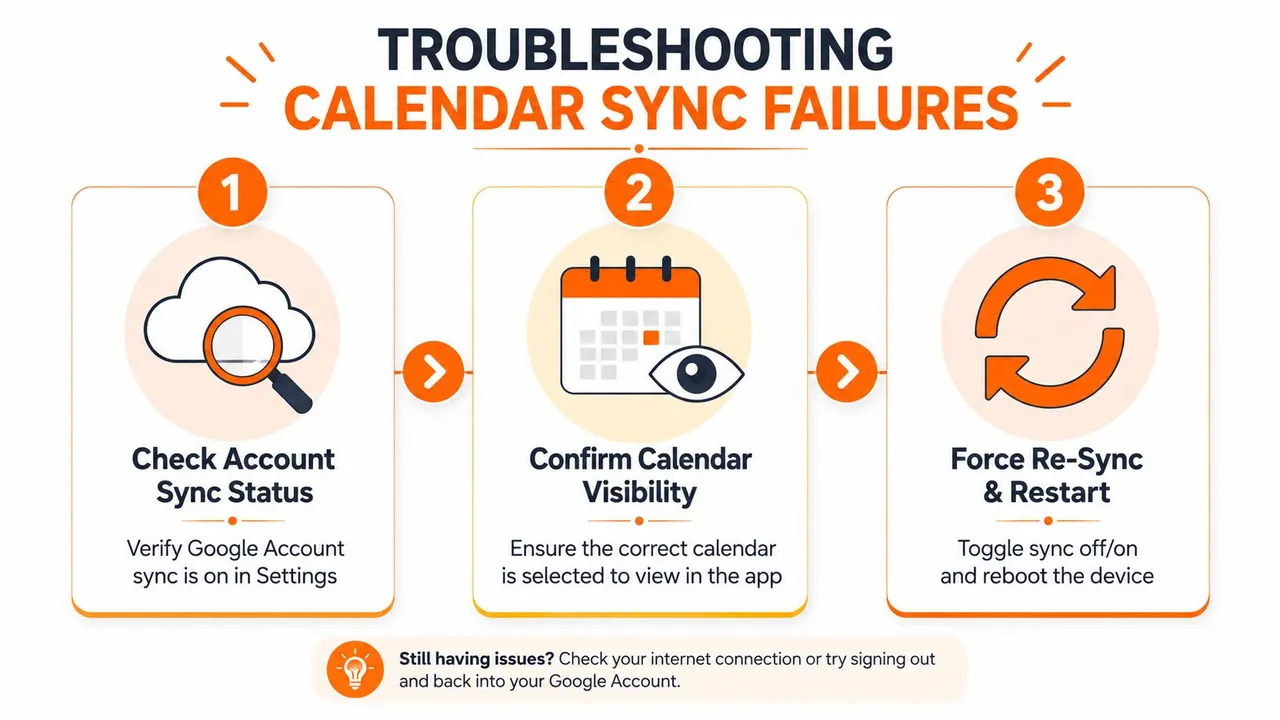
When Android calendar sync fails, the fastest way to waste time is to treat every symptom as the same problem. A missing event can come from a disabled Google account sync, a hidden calendar in the app, full device storage, stale app data, or a cross-platform delay that’s entirely expected on the provider side. Google’s Android help centers the fix on the account layer, the app layer, and local storage, which is the right order to investigate.
Start with the account and app
First, open Android Settings and confirm Account sync is on for the relevant Google account. Then open Google Calendar and check whether the exact calendar is visible in the app settings, because an account can be syncing while a specific calendar remains unchecked. If the event still doesn’t appear, use the app’s Refresh action before moving to deeper troubleshooting.
Next, check Calendar storage, device storage, and app data. Google explicitly recommends those checks, which points to a common reality, the calendar service can be fine while the local device state is the thing blocking updates. Clearing app data is more disruptive than refreshing, so it makes sense to reserve it for cases where visibility and sync settings are correct but the data still won’t rebuild properly. The official Android help page is Google’s Android calendar troubleshooting guide.
If the app looks fine but the calendar still won’t update, the device and account settings are usually the real suspects.
Know what delay looks like versus what failure looks like
Cross-platform setups add another layer. If your source calendar is iCloud or an .ics feed, slower polling can make the sync look stuck when it’s just waiting for the next fetch cycle. If Google or Microsoft calendars are involved and changes still don’t appear, that’s more likely to be a configuration issue, a token persistence problem, or a hidden duplicate-event loop.
The most expensive mistake is doing repeated full resyncs instead of incremental sync. That practice increases latency, burns battery, and makes conflicts harder to resolve because the system keeps reprocessing the same events. A better workflow is to identify whether the failure is local, provider-side, or logic-related, then fix the narrowest layer first.
For a deeper look at the layered failure modes, the provider-specific setup described in the earlier sections is the right mental model. Android isn’t broken when the calendar vanishes. More often, one layer of the stack is correct and another one isn’t.
Best Practices for Reliable Calendar Management
Reliable calendar management starts with one rule, don’t let every calendar do the same job. Use one source of truth for each audience, then decide which calendars should receive mirrored availability and which should stay private. That keeps your schedule readable without forcing every event into a single shared bucket.
The cleanest setups use sources for the calendars you trust to be edited, and targets for the calendars that only need to reflect busy time. That helps with privacy too, because clients, colleagues, and family don’t all need the same level of detail. If you’re managing multiple ventures or client accounts, mirroring availability beats manually copying events every day.
Best practice: keep event detail where it belongs, and sync only the visibility each audience needs.
Maintenance matters as much as setup. Check for duplicates after new calendar connections, verify that account sync stays enabled on Android, and review whether sync directions still match your workflow. When the native Android setup stops being enough, move to a dedicated sync service instead of stacking more manual workarounds on top of a broken process.
The goal isn’t a prettier calendar app. It’s a schedule that stays accurate across devices and platforms without exposing private context or creating avoidable double-bookings.
If your Android calendar only needs Google settings cleaned up, start there. If your real problem is keeping Google, Outlook, and iCloud aligned without leaking event details, SyncThemCalendars gives you a practical way to build that layer once and let it run in the background. Visit it, compare the sync directions and privacy controls, and decide whether your current setup needs a simple fix or a proper cross-platform sync strategy.
Ready to sync your calendars?
Keep your Google, Outlook and Apple iCloud calendars in sync automatically. 2-minute setup, no credit card required.
Get started freeKeep reading
More in Guides

SyncThemCalendars Quick Setup Walkthrough
Master the SyncThemCalendars quick setup in minutes. Connect Google, Outlook, or iCloud, configure privacy masking, and verify your first sync effortlessly.

Merging Google Calendars: The Complete Guide for 2026
Merging Google Calendars. Learn the best ways to merge Google Calendars. Compare import methods, sync tools, and automation strategies

Master Your Calendar on Outlook with Sync Solutions
Learn how to use calendar on Outlook effectively, sync with Google and iCloud, avoid double-bookings, and connect SyncThemCalendars for seamless scheduling.