







How to Share Google Calendar (2026 Guide)
Struggling to share your Google Calendar? Learn the exact steps, fix common issues, and share calendars the right way in minutes.
Sharing a Google Calendar sounds simple… until it doesn’t work: wrong permissions, invisible calendar, iPhone users, or a broken link.
Here’s what you need to know before getting started:
- There are 3 ways to share: with a specific person, via a public link, or with an organization.
- Permissions determine what others can view or edit.
- Users must accept the invitation to access the calendar.
Want to learn more about Google Calendar? We’ve written a dedicated article on the topic.
Let’s go !
Quick Steps
-
Open Google Calendar.
-
Go to “My calendars”.
-
Hover over the calendar you want to share.
-
Click the three dots.
-
Select “Settings and sharing”.
-
Add people or create a public link.
How to Share a Google Calendar on Desktop
Step 1: Access Google Calendar
- Go to Google Calendar.
- Sign in to your account.
Step 2: Find the calendar to share
- In the left-hand column, locate “My calendars”.
- Identify the calendar you want to share.
- Click the three vertical dots to the right of your calendar.
- Click “Settings and sharing”.
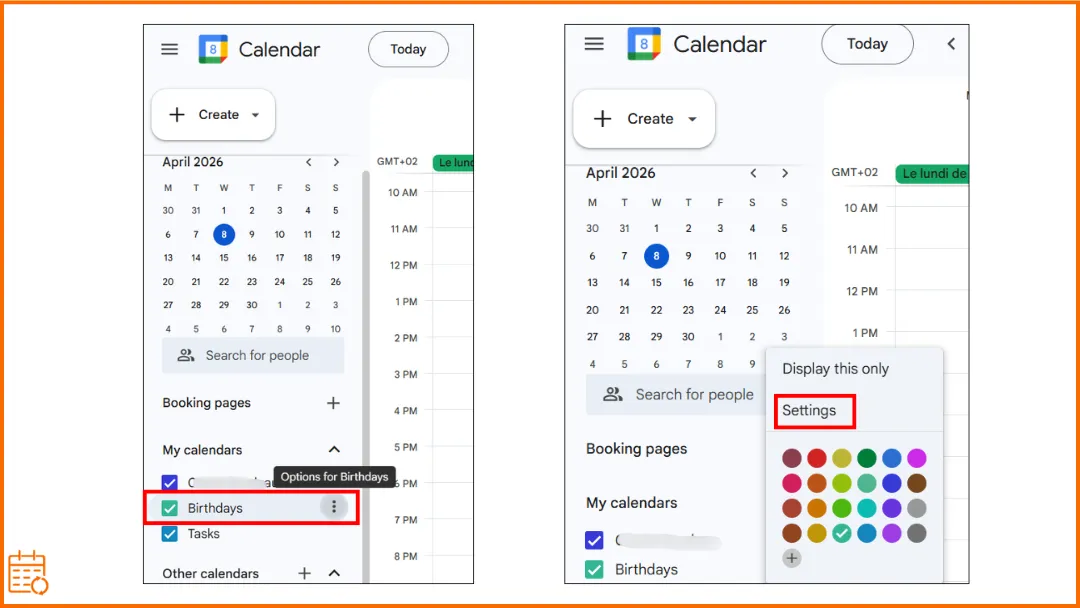
Step 3: Choose how to share your calendar
You can share your calendar in 3 ways:
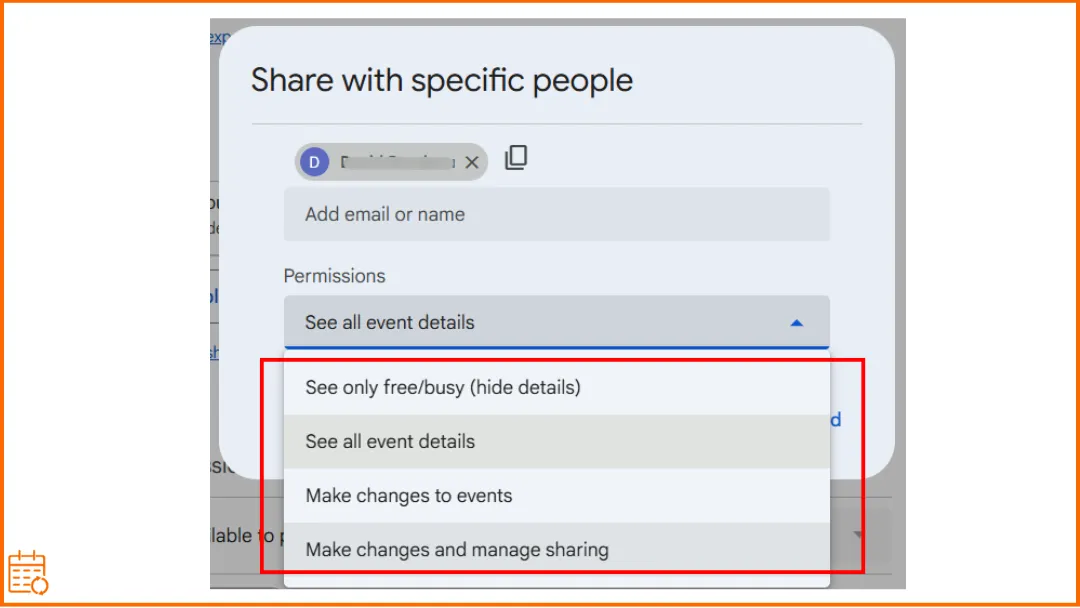
Option 1 : Share with specific people.
👉 Ideal for sharing with colleagues, friends, or family members.
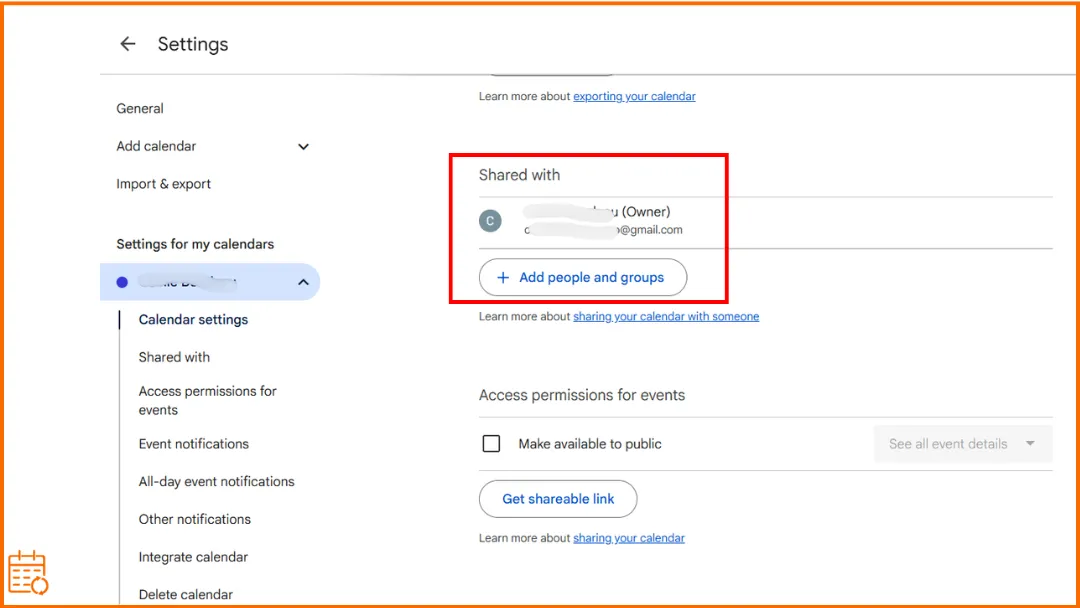
- Go to “Shared with”.
- Click “Add people and groups”.
- Enter email addresses.
- Click “Send”.
- The recipient must accept the invitation to access the calendar.
Option 2 : Make the calendar public
👉 Ideal for sharing a calendar with a wide audience (events, schedules, etc.).
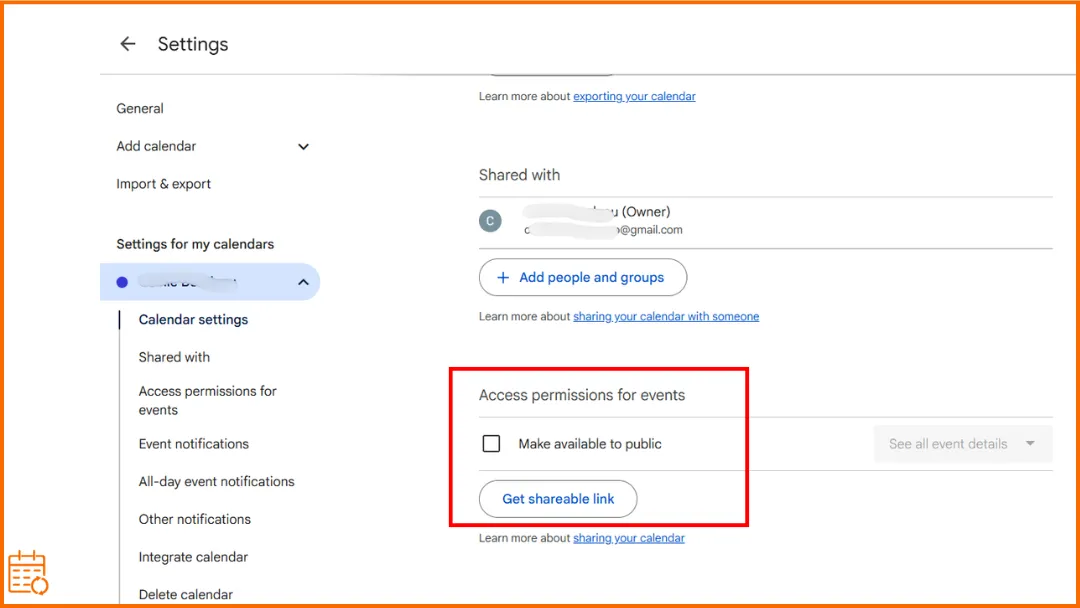
- Go to “Access permissions for events”.
- Check “Make available to public”.
- (Optional) Click “Get shareable link” to distribute it.
⚠️ Anyone with the link will be able to access your calendar based on the selected permissions
Option 3 : Share with your organization
👉 Available only with a work account (Google Workspace).
- In “Access permissions for events”.
- Check “Make available for [your company name]”.
⚠️ Only people in your organization will be able to access it.
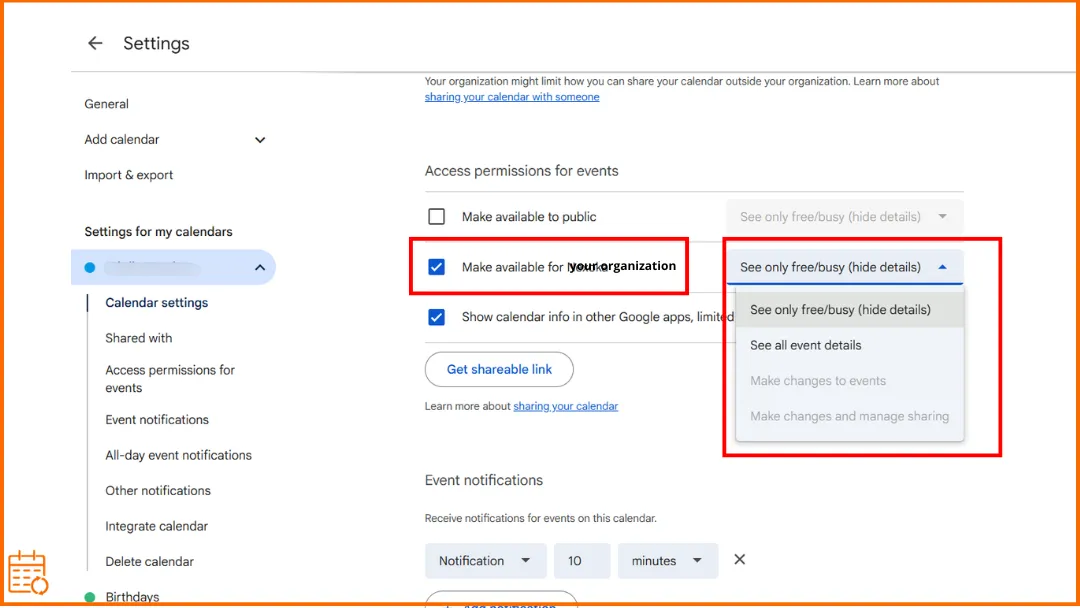
Step 4: Set access permissions
Choose what others can do:
- “See only free/busy (hide details)”: Users can only see your availability, not event details.
- “See all event details”: Users can see event information, except those marked as private.
- “Make changes to events”: Users can add and edit events and view full details.
- “Make changes and manage sharing”: Users have full control : edit events, manage access, delete/restore events, and even delete the calendar.
⚠️ Permissions apply to all three sharing options, but not in the same way. For sharing within your organization, options are more limited:
- “See only free/busy (hide details)”.
- “See all event details”.
Users cannot modify your calendar in these cases.
💡To go further, learn how to manage your Google Calendar visibility and precisely control what others can see. And if what you really need is a shareable busy-only link (a schedule page, embed code, or ICS feed), our free free/busy link builder generates it in seconds.
How to Share a Google Calendar on Mobile (iPhone & Android)
Android
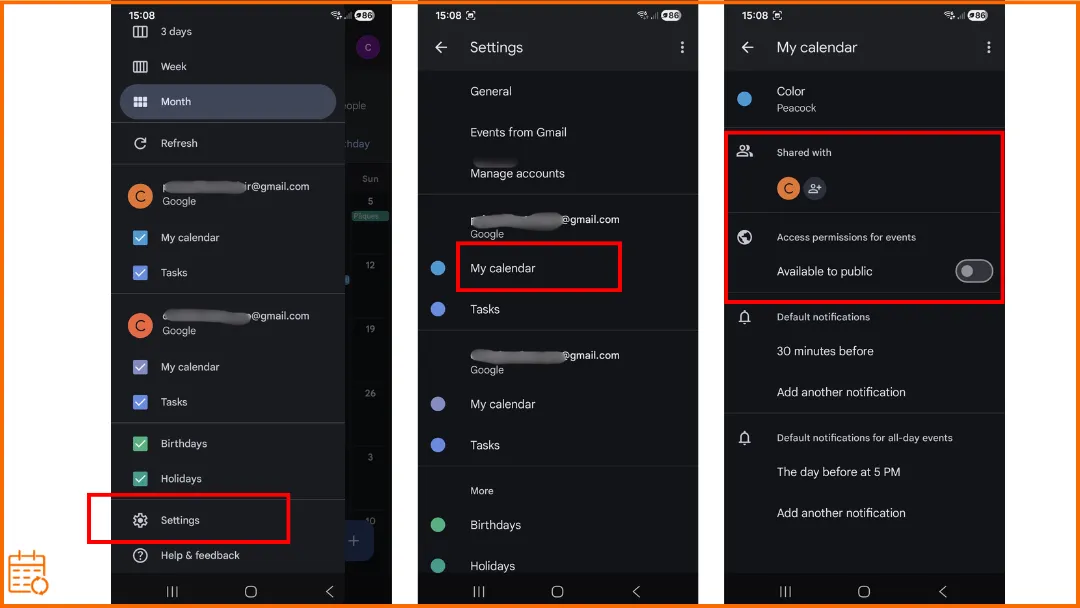
Step 1: On your Android phone or tablet, open the Google Calendar app.
- At the top left, tap the three horizontal lines, then tap “Settings”.
- Select the calendar you want to share.
Step 2: Choose who to share your calendar with.
Under “Shared with,” tap “Add people or groups”.
Step 3: Decide the level of access you want to grant (for permission levels, see the section above).
Step 4: Send the calendar invitation.
- To give others access, tap “Save”.
- The people you shared your calendar with will receive an email. To add your calendar, they must click the link in that email.
For more Android-specific tips (permissions, troubleshooting, family sharing), see our dedicated guide to sharing Google Calendar on Android.
On iPad or iPhone
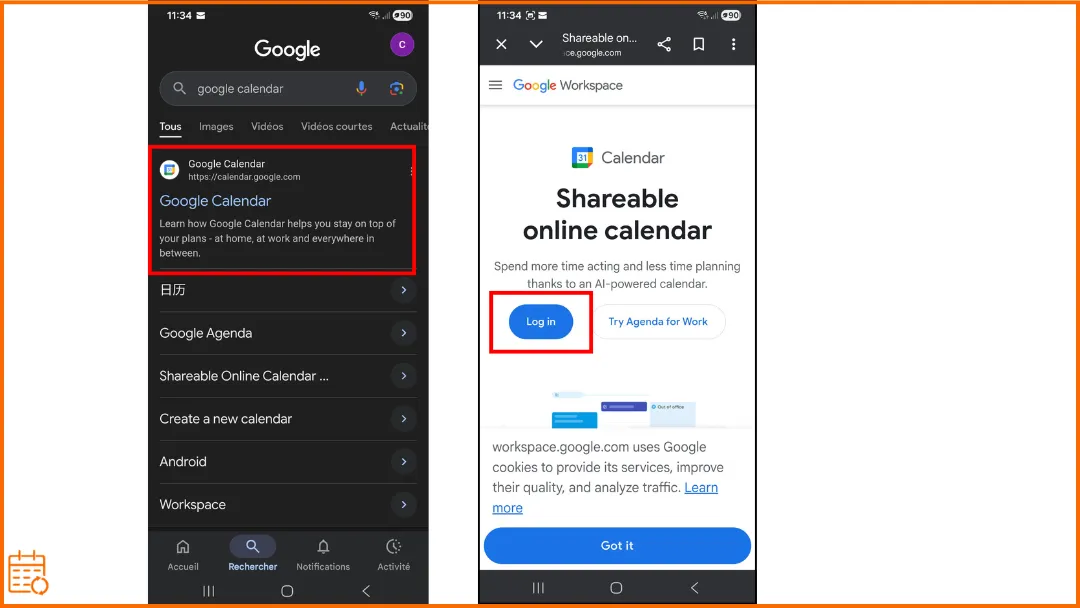
You CANNOT share a Google Calendar from the Google Calendar app on iPhone or iPad. However, you can still share a calendar from your phone by using a web browser instead of the app.
Open a web browser on your device and go to calendar.google.com
⚠️ It’s not always as smooth as on desktop:
- Interface is less optimized for smaller screens.
- Buttons are smaller.
- Navigation can be a bit more complicated.
But functionally, it’s the same.
Source : https://support.google.com/calendar/answer/37082?hl=en&co=GENIE.Platform%3DDesktop&oco=1
💡If you’re using an iPhone, check out our guide to sharing a calendar on iPhone. You can also use Google Calendar with Apple Calendar if you work across both ecosystems.
Make Your Google Calendar Public: What You Need to Know
Making a Google Calendar public allows you to share it with a large audience without sending individual invitations. This option is especially useful for displaying schedules, events, or availability online.
Be careful, making your calendar public means that anyone can:
- Find your calendar in Google search results.
- Sync your calendar with other applications.
- Subscribe to your calendar.
👉 If you’re unsure, it’s better to share with specific people rather than making it public.
Create a Public Link
Once your calendar is public, you can generate a shareable link:
- Go to your calendar’s “Settings and sharing”.
- Under “Access permissions for events,” check “Make available to public”.
- Click “Get shareable link”.
- Copy and send the link to the relevant people.
👉 Anyone with this link will be able to view your calendar based on the selected permissions.
Embed Your Google Calendar on a Website
You can also display your calendar directly on a website:
- In the calendar settings, find the “Integrate calendar” option.
- Copy the HTML (iframe) code provided.
- Paste this code into your website.
👉 This allows your events to be displayed automatically on a web page.
How to Share Google Calendar with Family
Method 1: Share your personal calendar
👉 The quickest solution!
- Add your family members to your main calendar.
- Set their permissions.
This is what we covered earlier in section “Option 1: Share with specific people”.
Method 2: Create a dedicated family calendar
Create a new calendar (e.g., “Family”). Avoid using your personal calendar.
👉 Benefits:
✔ Better organization.
✔ Less confusion.
Method 3: Use the “Google Family Group” feature
This broader system includes (among other things) a shared calendar.
- Create a Google Family Group up to 6 members.
- A family calendar is automatically created.
- Additional services can also be shared.
To go further, learn how to share a calendar with your family and easily organize everyday events.
Common Problems When Sharing a Google Calendar
The calendar doesn’t appear
🔹 On iPhone or iPad
Make sure the calendar is enabled in:
- Settings > Calendar > Accounts.
- Open the Google sync settings page in Safari.
- Enable the missing calendar.
- Turn on “Background App Refresh” (Fetch).
🔹 On Mac or mobile
- Close and reopen the Calendar app.
- Pull down to force a sync.
- If needed, remove and reconnect your Google account.
A user can’t see the calendar
Check their access level (permissions).
Make sure they’ve accepted the invitation.
Unable to share with an external user
Your organization may block external sharing.
Contact your Google Workspace administrator.
The invitation isn’t working
Check the email address.
Ask the recipient to check their spam folder.
The link doesn’t work (“unable to add”)
The recipient must be signed in to a Google account.
Open the link in Chrome with Gmail signed in.
The calendar isn’t updating
Refresh the page or app.
Changes may take a few minutes to appear.
👉If your calendars aren’t syncing properly, consider syncing your Google Calendar to avoid display or update issues.
Public link shows “Not Found”
You may have copied the wrong link (private one)
👉 Use:
- The public HTML link.
- Or the public iCal link.
Private events are visible
Mark events as Private. Use “See only free/busy”.
⚠️ With “See all event details,” some information may still be visible.
Difficulty distinguishing calendars
Assign a different color to each calendar. Each user can customize their display.
👉 Our article on Google calendar colors can help!
Expert Tip: Go Beyond Sharing: Think About Calendar Sync
You can also avoid double bookings by syncing your calendars if you use multiple ones. That’s exactly what SyncThemCalendars allows you to do, no matter which calendars you use: Outlook, Google, or Apple.
FAQ
How do I share my Google Calendar with others?
You can share your Google Calendar by adding someone through the sharing settings.
Open Google Calendar, go to “Settings and sharing,” then add the recipient’s email address and choose their permissions.
👉 For step-by-step instructions, see the dedicated section earlier in this article.
How do I share Google Calendar with iPhone users?
You can share a Google Calendar with an iPhone user the same way as with any user: by adding their email address in the sharing settings. However, there are two cases on iPhone:
🔹 Case 1 — The user uses Google Calendar (recommended): Add their Gmail address in “Settings and sharing.” They will receive an invitation.
🔹 Case 2 — The user uses Apple Calendar: Add their Google (Gmail) address if possible. Otherwise, share a public link (iCal or HTML).
💡 Tip: For a better experience, ask the user to install the Google Calendar app on iPhone.
👉 For detailed steps, see the dedicated section earlier in this article.
Can I share my calendar without Gmail access?
Yes, but with some limitations:
- With a Google account (recommended): even without a Gmail address, it’s possible to use another email (Outlook, Yahoo, etc.) to create a Google account. You can then share the calendar normally.
- Without a Google account, you can share your calendar via a public link.
👉 For full sharing capabilities (editing, managing events), a Google account is required.
How do I add someone to a shared calendar?
To add someone to an already shared calendar, you need to update the access settings.
- Go to “Settings and sharing,” then to the “Share with specific people or groups” section.
- Add the person’s email address and choose their access level.
- You can also modify or remove existing access at any time from this section.
☄️ Try SyncThemCalendars for free and keep all your calendars synchronized. Google, Apple, Microsoft, it supports them all!
Ready to sync your calendars?
Keep your Google, Outlook and Apple iCloud calendars in sync automatically. 2-minute setup, no credit card required.
Get started freeKeep reading
More in Tutorials
How to Synchronize Outlook Calendar Across Platforms
Learn how to synchronize Outlook calendar events with Google and Apple iCloud. Master two-way sync, privacy controls, and real-time availability mapping.
How to Sync Office 365 Calendar with Apple Calendar
Learn how to sync Office 365 calendar with Apple Calendar. Compare native methods, third-party tools, privacy controls, and troubleshooting tips.

Outlook Not Syncing: Step-by-Step Fixes for Calendars
Fix outlook not syncing across Google, iCloud, and Office 365 with this complete troubleshooting guide. Clear steps, platform-specific tips, and expert