







Google Calendar Time Blocking That Actually Sticks
Master google calendar time blocking with a step-by-step guide to planning, styling, and syncing your blocks across Google, Outlook, and Apple calendars.
Monday starts with a plan that looks reasonable. A 10 a.m. focus block sits neatly on Google Calendar, then a project standup lands on top of it. Lunch shrinks to twelve minutes, two meetings consume the window reserved for deep work, and the afternoon becomes a chain of hurried task switches. By Friday, the colored rectangles are still there, but they no longer describe a day anyone can work.
That failure isn’t caused by Google Calendar itself. Time blocking breaks when the calendar treats every account, meeting request, and personal obligation as a separate system. A block that looks protected in Google Calendar can remain available in Outlook, invisible in iCloud, or too vague for anyone, including you, to respect.
A durable Google Calendar time blocking system starts with a weekly audit, reserves realistic capacity, uses recurring blocks with clear rules, separates private and shared visibility, and reviews what happened. For people working across Google, Outlook, and iCloud, it also needs an availability layer that keeps protected windows aligned instead of merely preventing obvious double-bookings.
The Day Your Blocks Stop Working
The usual setup is quick. Open Google Calendar, choose an empty slot, create an event called “Focus,” select a color, and repeat until the week looks organized. That approach works only while the calendar remains under your control. Once a manager adds a recurring meeting, a client books through another account, a shared inbox demands attention, and a family event lives in iCloud, the rectangles become suggestions rather than boundaries.
The first problem is usually calendar fragmentation. A day can contain several apparently open gaps, but those gaps may be too short or too scattered to support meaningful work. Recent analysis describes operational thresholds such as 90-minute contiguous focus blocks and notes that fragmented calendars can leave under 20% of working hours in usable chunks (meeting fragmentation analysis). The issue isn’t that the calendar has no free time. It’s that the free time has lost continuity.
Practical rule: A focus block isn’t protected until every calendar that controls your availability recognizes it.
The second problem is overfitting. Practical planning guidance recommends blocking only 60–70% of available hours, leaving 30–40% as white space for interruptions, overruns, and urgent requests (weekly planning and time blocking guidance). A schedule packed from morning to evening has no recovery mechanism. One delayed meeting pushes every later block, and the owner eventually abandons the plan.
The system that survives looks less attractive but works better. Audit the previous week, classify work into 3–5 categories, reserve fixed commitments first, create recurring blocks with precise labels, and add buffers between commitments. Use secondary calendars when privacy matters, templates when setup becomes repetitive, and a weekly review that checks Google against Outlook and iCloud. The objective isn’t a perfect calendar. It’s a calendar that remains credible after real work happens.
Auditing Your Week Before You Block It
Don’t start by filling empty spaces. Start by finding out where the week went.
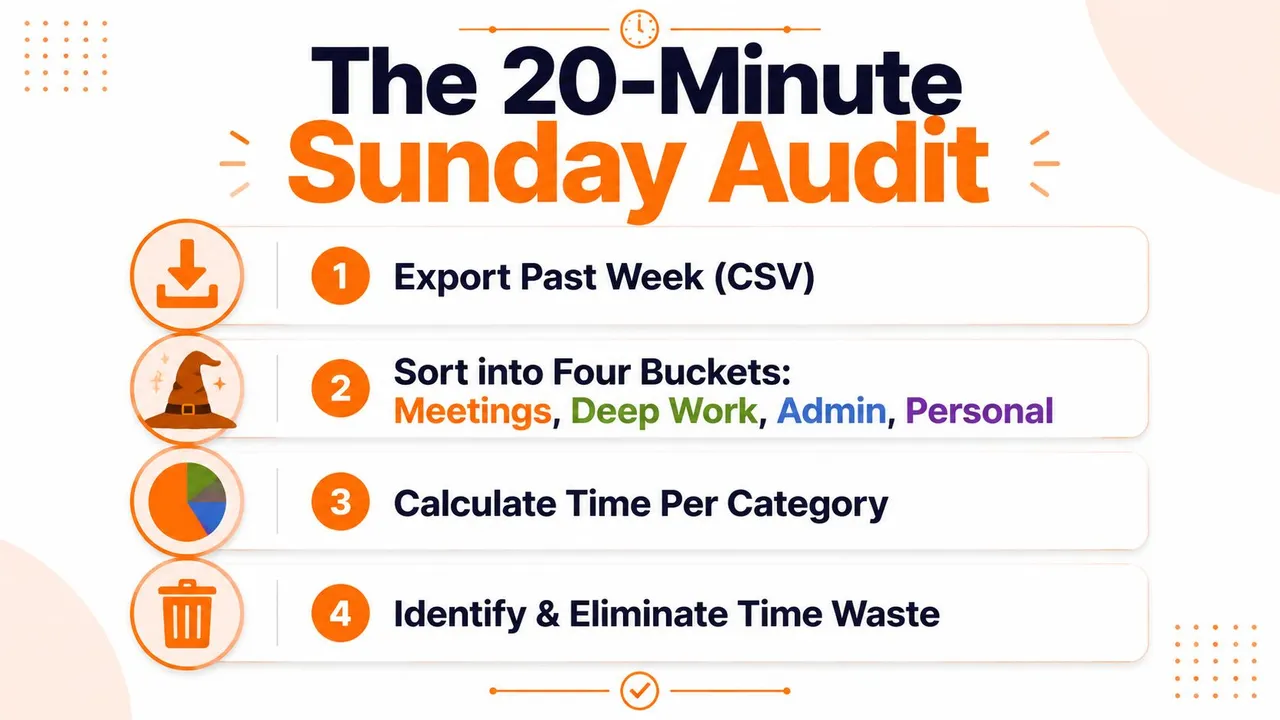
A practical Sunday audit can fit into a short reset session. Export the past week’s Google Calendar events as a CSV if your workflow supports it, then sort each entry into four useful buckets:
- Meetings, including internal calls, client sessions, and recurring standups.
- Communication, including email and Slack work that interrupts planned tasks.
- Reactive admin, such as approvals, scheduling, filing, and urgent requests.
- Deep work, meaning uninterrupted effort on a meaningful deliverable.
The categories matter because “work” is too broad to diagnose. A calendar full of meetings creates a different problem from a calendar full of short communication bursts, even if both consume similar attention.
Set targets before choosing slots
Use the audit to set boundaries, not to criticize yourself. You might decide that meetings need a firm ceiling and that uninterrupted focus deserves a protected share of the week. The exact targets depend on your role. A support lead, founder, and designer shouldn’t use the same allocation.
Then inspect where those targets fail. Look for recurring meetings that cut through your strongest focus period, communication windows scattered throughout the day, and admin that has no defined stopping point. Mark events with category tags in their titles, such as MEET, roadmap review, COMM, inbox, ADMIN, approvals, and DEEP, proposal draft. Future audits become faster because search and sorting can identify the category without opening every event.
Use this fill order:
- Protect essentials first: sleep, exercise, medical appointments, and family commitments.
- Reserve deep work next: place the most valuable deliverables in contiguous windows.
- Add meetings after that: keep shared commitments visible and bounded.
- Place reactive admin last: group it into deliberate windows rather than allowing it to leak everywhere.
- Define overflow: decide which block moves when an urgent request arrives.
For a broader framework you can compare with your own process, this time management guide for professionals offers additional planning ideas. Keep your own audit simple enough to repeat. You can also use these calendar organization tips when cleaning up naming, calendars, and visibility.
Building Recurring Blocks in Google Calendar
A recurring block should communicate three things at a glance: what kind of work it contains, what outcome it supports, and when it repeats. “Focus time” is too vague. DEEP, product roadmap tells you where to begin and gives future audits a searchable label.
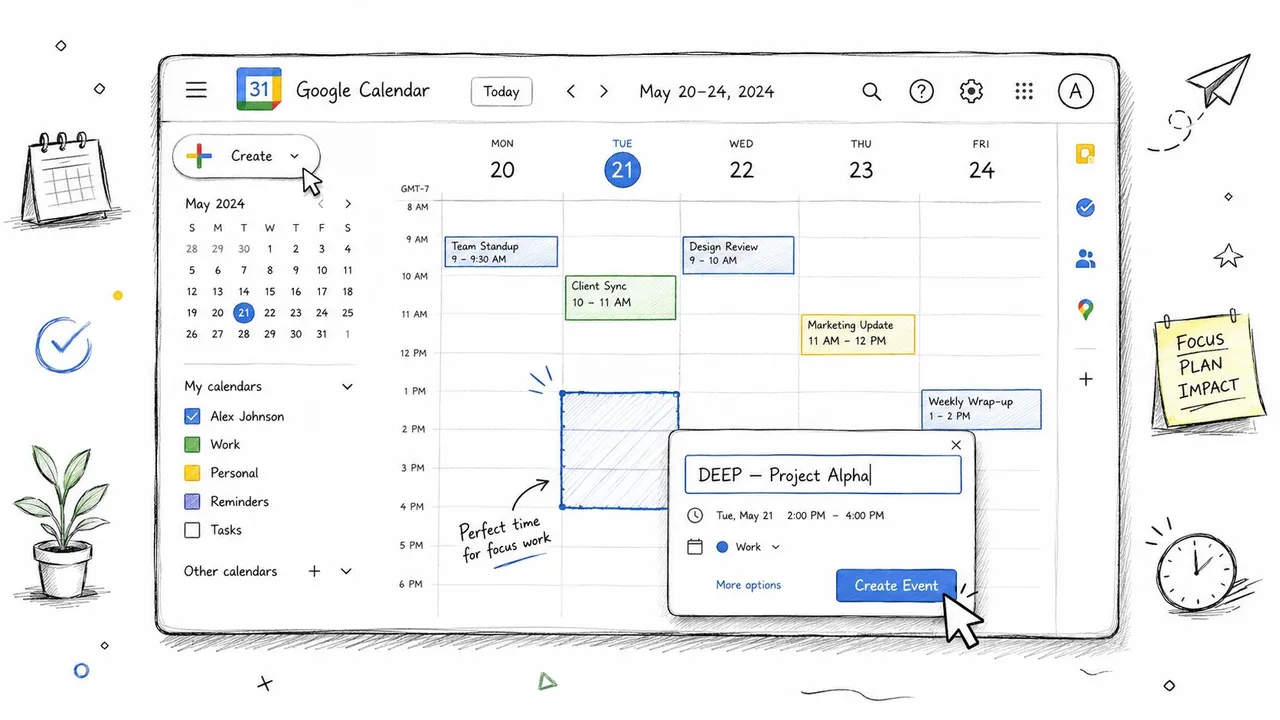
On desktop, open Google Calendar and select a slot identified during the audit. Create an event, set the start and end time, and remove guests unless another person needs an invitation. A focus block isn’t a meeting, so adding attendees can create unnecessary updates and make the event behave like a shared appointment.
Choose a color reserved only for focus work. High contrast helps you scan the week, but color alone won’t defend the slot. Add a short description that states the intent, such as “Draft roadmap narrative and list open decisions.” Keep the description brief enough that it remains useful on mobile.
Configure recurrence and visibility
Open the recurrence menu and select a weekly pattern with a fixed end date when you’re testing a new routine. Custom recurrence handles weekday-only or biweekly patterns. Known meeting days may require exceptions, but edit the individual occurrence rather than weakening the whole series.
Set visibility according to who needs to know. If colleagues only need accurate availability, show the event as busy without exposing the title or description. If the block belongs on a private calendar, keep its details restricted and share only the availability layer. The choice between visible busy, private detail, and free status matters because a block marked free can still invite scheduling pressure.
Use notifications that support execution rather than create noise. A reminder 10 minutes before gives you time to close the previous context, while another 2 minutes before creates a firm start cue. Those notification values are part of the proposed workflow here, not a universal rule. Adjust them if your role requires a different transition pattern.
This RRULE generator can help when recurring patterns become more complicated than the standard Calendar menu.
You can also review the setup visually before copying it across a week:
Task Blocking and Focus Time Controls
Colored events remain useful, but Google Calendar now offers native controls that solve different problems. Google announced in late 2025 that users could block time for a task directly in Calendar, with visibility and do-not-disturb settings available in the task workflow (Google Workspace update on blocking time for tasks). That changes the decision from “Which color should I use?” to “What kind of protection does this work need?”
Use a colored block when the slot is a flexible working container. It might hold research, planning, writing, or several related tasks. The event gives you a visible boundary, but it won’t necessarily decline meetings or change your status.
Use Focus Time when interruption resistance matters more than flexibility. The native event type can help hide details, adjust availability behavior, and apply do-not-disturb settings. It’s appropriate for a protected writing session or analysis period where accepting a meeting would defeat the purpose.
Tasks on Calendar fit a third situation. Choose them when one deliverable matters more than a general category, such as preparing a board memo due later that day. The task remains connected to the task list and can continue reminding you until completion.
| Feature | Colored Blocks | Focus Time | Tasks on Calendar |
|---|---|---|---|
| Primary purpose | Hold a working container | Defend attention from meetings and alerts | Schedule a specific deliverable |
| Best for | Flexible deep work or batching | Work that needs stronger interruption controls | A task with a clear completion outcome |
| Visibility | Controlled through event settings | Includes visibility controls | Configured with task details |
| Meeting behavior | Depends on availability settings | Designed for stronger protection | Depends on selected settings |
| Relationship to task list | Separate event | Separate event type | Connected to Calendar tasks |
The tradeoff is important. Recent guidance sometimes recommends marking focus blocks as free so schedulers can still see open availability, but that can undermine the block if meetings continue landing there. The right setting depends on whether the time is negotiable.
For a consistent visual system across event types, use these calendar color-coding practices, but don’t mistake a color legend for an enforcement policy.
Secondary Calendars and Privacy Controls
A single primary calendar often forces an uncomfortable choice. You can mark a focus block busy and hide legitimate availability, or mark it free and allow other people to schedule over it. Secondary calendars let you separate what you need to protect from what other people need to see.
A workable structure uses three layers:
- Personal calendar: private focus blocks, exercise, family commitments, and other events that affect your availability.
- Work calendar: shared meetings, team commitments, and events colleagues need to manage.
- Availability calendar: a simplified layer that communicates open and occupied periods without revealing sensitive context.
The names can differ, but the principle stays the same. Put the detailed event where it belongs, then expose only the minimum information another person needs.
Configure sharing deliberately
For each calendar, review three controls: free/busy access, event detail visibility, and sharing permissions. Team members may need to know that you’re unavailable without seeing “DEEP, pricing strategy.” Clients may need appointment slots without seeing internal meetings. Family members may need personal commitments visible, but not work descriptions.
Keep focus details private when they contain project names, client information, or unfinished thinking. A generic busy status protects the slot while limiting disclosure. On the availability calendar, use neutral labels such as “Unavailable” or show only the busy state, depending on the scheduling workflow.
The most common mistake is duplicating full event details across every calendar. That creates privacy risk and increases maintenance. Instead, decide which calendar is the source of truth for each event type. Personal focus blocks should originate in the private layer, shared meetings in the work layer, and appointment windows in the client-facing layer.
This separation also clarifies conflict resolution. If a work meeting conflicts with a private focus block, you can see that the problem is an availability collision, not a missing event. The next step is then to change the rule, visibility, or sync direction instead of manually rebuilding the same block in several places.
Templates and Automation for Faster Setup
Manual creation feels manageable on Monday and becomes a nuisance by Wednesday. When every new block requires a title, color, recurrence rule, description, and reminder, the system depends on motivation. Reduce the number of decisions.
Build a small template set around recurring work patterns:
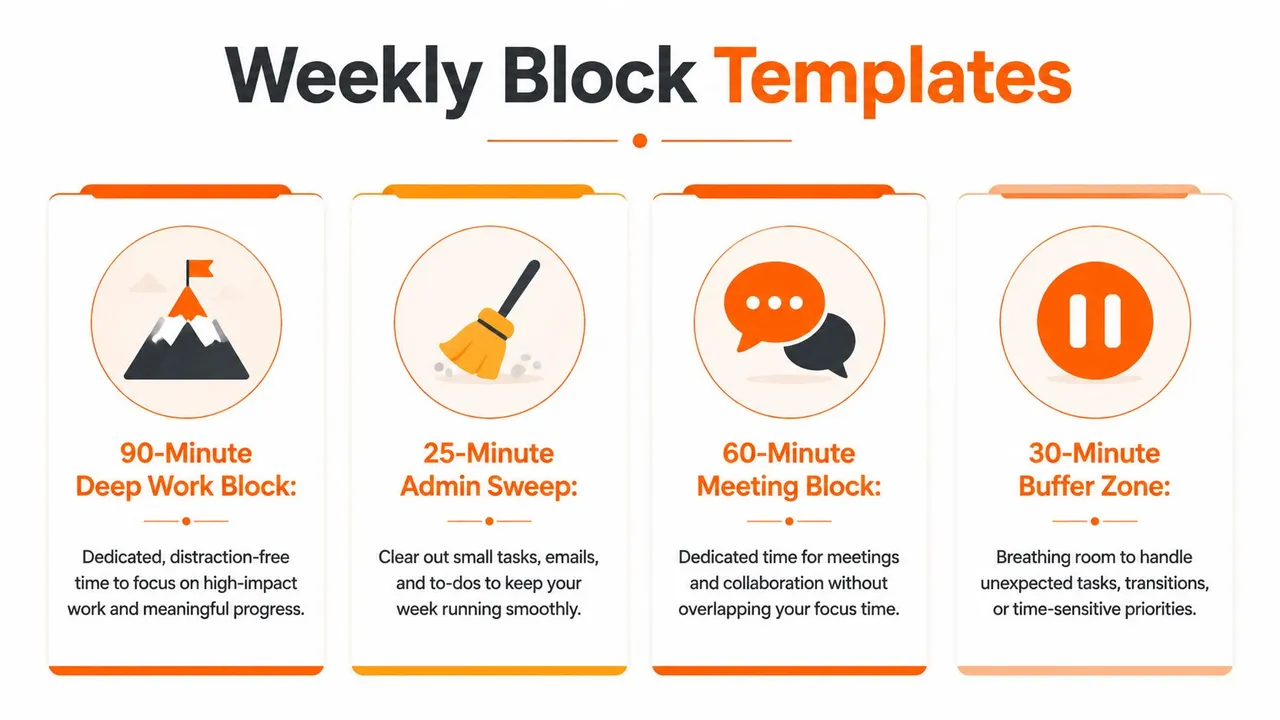
- Deep work template: A clearly labeled event with a focus color, private details, and start reminders.
- Admin sweep template: A short, repeatable container for inbox, approvals, and low-focus tasks.
- Meeting preparation template: A block tied to a meeting series or project, with a description that lists the expected output.
- Buffer template: An unassigned window that absorbs overruns instead of pretending the day has no friction.
Duplicate a template rather than recreating it. For recurring work, create the series once and change only the day, title, or project reference. Keep default notifications attached to the template so execution doesn’t depend on remembering setup details.
Google Calendar’s quick-create dialog is useful for simple events. Type a precise title, date, and time in one pass, then refine visibility or reminders only when necessary. Keyboard shortcuts can speed navigation for people who already work comfortably in Calendar, but shortcuts shouldn’t become another system to memorize.
Automation helps when tasks regularly remain unscheduled. An Apps Script or calendar application can place unassigned tasks into suitable leftover windows, but automation needs boundaries. It shouldn’t consume buffers, personal commitments, or protected focus time just because those spaces look open. Set rules for eligible calendars, task categories, and allowable hours before allowing automatic placement.
The best automation is quiet. It reduces repetitive entry while leaving the weekly review responsible for judgment.
Weekly Reviews and Cross-Calendar Sync
Blocks often fail after meetings expand, priorities change, or another calendar adds an invisible conflict. Use the Sunday review to inspect those failures and rebuild the coming week before it starts. Open Google Calendar beside Outlook and Apple Calendar, then read them as one operating schedule rather than separate views. A recurring 15–30 minute reset session gives you time to reallocate unfinished work and restore protected windows.
Review the week in four passes:
- Check adherence: Mark which categories held and which repeatedly slipped.
- Resize inaccurate blocks: If a block regularly runs longer or finishes early, update the future series instead of preserving a bad estimate.
- Find repeat intrusions: Flag meetings that consume protected windows, then decide whether to move, decline, or redesign them.
- Rebuild the next week: Fit recurring work around known commitments while preserving contiguous focus time.
A review matters only when it changes the schedule. Record a short note with completed blocks, missed blocks, and the main interruption source. Across several reviews, this record can show whether the constraint is meeting volume, weak estimates, communication drift, or fragmented calendars.
A missed block is information. Repeating the same block without changing its conditions is the actual failure.
Sync availability, not unnecessary detail
Cross-calendar alignment requires a defined source and target for each ecosystem. SyncThemCalendars supports one-way, two-way, and multi-way event copies between Google Calendar, Microsoft Outlook or Office 365, and Apple Calendar through iCloud. Its free/busy settings can mirror protected periods without exposing titles, descriptions, or locations, while field controls can mask copied details.
A controlled setup can make Google the source for primary focus blocks, mirror availability to Outlook as free or busy according to scheduling needs, and copy a read-only view to iCloud. Color mapping helps preserve meaning across platforms. Conflict alerts can warn you when a new Outlook event overlaps a protected Google window instead of allowing the conflict to pass unnoticed. A two-minute sync interval is part of the specified SyncThemCalendars workflow, though the suitable configuration depends on how quickly calendars change and how much control you need over conflicts.
The operating principle also appears in this guide to reclaim your calendar as a founder. People managing multiple work identities need one review habit that checks commitments and availability together. Syncing after the fact cannot repair vague blocks, hidden conflicts, or missing buffers in the source calendars.
SyncThemCalendars can mirror events across Google Calendar, Outlook, and iCloud with configurable directions, free/busy visibility, and privacy controls. Visit SyncThemCalendars to connect the calendars that govern your availability and keep protected work windows visible across ecosystems.
Ready to sync your calendars?
Keep your Google, Outlook and Apple iCloud calendars in sync automatically. 2-minute setup, no credit card required.
Get started freeKeep reading
More in Guides

SyncThemCalendars Quick Setup Walkthrough
Master the SyncThemCalendars quick setup in minutes. Connect Google, Outlook, or iCloud, configure privacy masking, and verify your first sync effortlessly.

Merging Google Calendars: The Complete Guide for 2026
Merging Google Calendars. Learn the best ways to merge Google Calendars. Compare import methods, sync tools, and automation strategies

Master Your Calendar on Outlook with Sync Solutions
Learn how to use calendar on Outlook effectively, sync with Google and iCloud, avoid double-bookings, and connect SyncThemCalendars for seamless scheduling.