







Outlook iCloud Calendar Sync: The Complete Setup Guide
Master your Outlook iCloud calendar sync with this complete guide. Learn native setup steps, third-party solutions, privacy controls, and troubleshooting fixes.
You add a personal appointment to Apple Calendar, then discover that Outlook still shows you as available. A client books the same time, a team meeting lands on top of it, and you’re left trying to explain why two calendars that should cooperate don’t. The problem usually isn’t a missing checkbox. It’s the specific Outlook client, operating system, and sync method you’re using.
Outlook iCloud calendar sync is supported across the Microsoft and Apple ecosystems, but support isn’t uniform. Classic Outlook for Windows, New Outlook for Windows, Outlook for Mac, and Outlook on the web each handle iCloud calendars differently. Once you identify that boundary, you can choose between native synchronization, a read-only subscription, or a dedicated service that keeps calendars aligned in the background.
Understanding the Reality of Outlook and iCloud Calendar Sync
Microsoft and Apple have treated Outlook and iCloud calendar interoperability as a supported cross-platform capability for years. Microsoft’s documentation covers iCloud calendar synchronization across classic Outlook and newer Outlook experiences, while Apple’s iCloud for Windows calendar and contacts guidance tells users to enable automatic synchronization with Microsoft Outlook.
That history matters because it explains why many users expect a simple account connection. The integration has evolved from a Windows add-in and local sync service toward more account-based access in newer Outlook applications. Microsoft has also announced easier access to iCloud Mail, Calendar, and Contacts in new Outlook for Windows, Outlook for Mac, and Outlook for iOS and Android through a newer authentication experience, as described in its Outlook announcement about iCloud access.
Why a supported feature can still fail
Consider a consultant who uses an iPhone for personal appointments, classic Outlook on a Windows laptop for client work, and Outlook on the web when traveling. The same iCloud calendar may appear correctly in one place, fail to update in another, or display only as a read-only calendar. A routine Office or iOS update can also disable or damage the Outlook add-in that connects the systems.
The native ecosystem is therefore mature but configuration-dependent. On Windows, iCloud for Windows must be installed and signed in, and the Calendars and Contacts option must be enabled. On other clients, the supported workflow may involve adding an iCloud calendar through Outlook on the web rather than editing it directly inside Outlook.
Practical rule: Identify your Outlook edition before changing passwords, reinstalling apps, or recreating calendars. “Outlook” isn’t one technical product for this purpose.
A useful way to separate the symptoms from the cause is to review how calendar synchronization works across services. If events are missing everywhere, the Apple account or source calendar may be the issue. If events appear in iCloud but not in Outlook, the Outlook client, add-in, subscription, or permissions are more likely responsible.
Native Outlook iCloud calendar sync can work well when the client combination is supported. It won’t provide the same behavior across every desktop, web, and mobile application, though. The first decision is whether your setup supports two-way editing, or only a view of your availability.
Evaluating Native Syncing Methods and Their Limitations
The central limitation is platform fragmentation. Classic Outlook for Windows can use iCloud for Windows and the iCloud Outlook Add-in for calendar synchronization. New Outlook for Windows does not support the Apple iCloud add-in used by classic Outlook, while Outlook for Mac doesn’t support direct iCloud calendar CalDAV synchronization according to the Microsoft community guidance documented for this issue.
That creates a practical split. Users who need native two-way editing generally have to use classic Outlook on Windows with the iCloud integration configured. Users on Outlook for Mac or Outlook on the web may need to subscribe to a calendar instead. A subscription can show changes from iCloud, but it isn’t the same as a two-way connection.
Native compatibility by Outlook client
| Outlook Client | Sync Direction | Required Method |
|---|---|---|
| Classic Outlook for Windows | Two-way calendar synchronization when correctly configured | iCloud for Windows with Calendars and Contacts enabled, plus the iCloud Outlook Add-in |
| New Outlook for Windows | Not compatible with the classic iCloud Outlook add-in for the same two-way workflow | Use the supported account-based iCloud access where available, or pivot to a web subscription or external synchronizer |
| Outlook for Mac | No direct iCloud CalDAV synchronization | Subscribe to an iCloud calendar through Outlook on the web for a read-only view |
| Outlook on the web | One-way, read-only view through a public iCloud calendar subscription | Share the iCloud calendar publicly, copy its URL, and add it as an internet calendar |
The web subscription route has an important privacy and editing trade-off. Apple’s support path requires you to make the iCloud calendar public, copy its URL, and add it to Outlook on the web. That can provide visibility, but it isn’t private and it doesn’t allow bidirectional editing.
Choosing the native route
Classic Outlook for Windows is the clearest native option when you need calendar changes to move between Outlook and iCloud. It still depends on local components, though, so Office updates, iCloud updates, disabled add-ins, or expired authentication can interrupt the connection.
New Outlook is a different decision. Its newer account-based access may reduce add-in dependence for supported iCloud data, but it doesn’t restore compatibility with the classic iCloud add-in. If your workflow depends on editing an iCloud calendar from classic Outlook, switching clients without checking support can make the problem worse.
A calendar subscription solves visibility. It doesn’t solve two-way coordination.
For a single personal calendar, native tools may be sufficient. For several work, personal, and client calendars, the limitations become operational rather than cosmetic. You need a method that preserves direction, permissions, privacy, and error visibility instead of hoping every Outlook client interprets iCloud the same way.
Overcoming Platform Fragmentation with Third-Party Tools
When native support stops at a client boundary, a web-based synchronizer can separate calendar coordination from the application installed on a particular device. Instead of relying on an Outlook plug-in to bridge Windows and iCloud, the service connects to the calendar accounts and copies events according to rules you define.
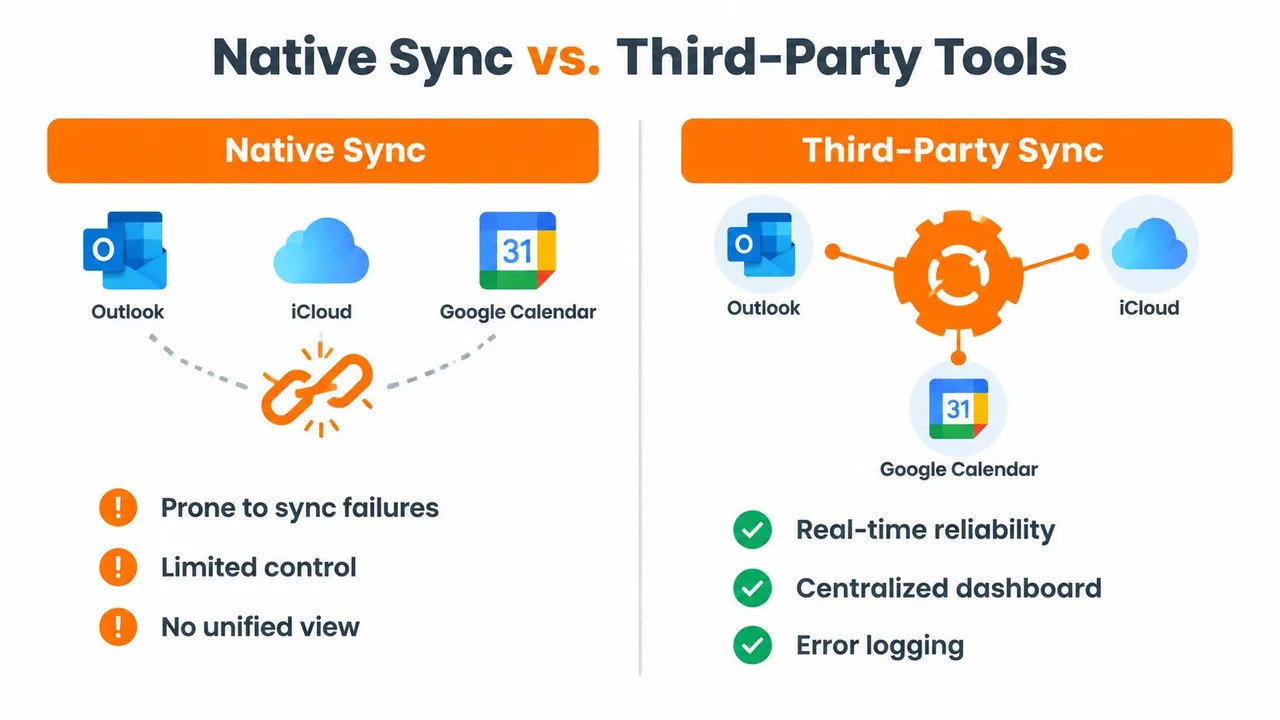
The distinction is important for professionals who work across client-mandated systems. A freelancer might have one Microsoft 365 calendar, a personal iCloud calendar, and a Google Calendar used by a client. Native Outlook support won’t necessarily provide a unified, two-way workflow across all three. A dedicated service can operate above those client differences and copy events between selected calendars.
Native workarounds versus dedicated synchronization
Native methods have clear advantages. They come from the platform vendors, don’t require another scheduling layer, and can be appropriate when your Outlook edition matches the supported iCloud workflow. They also keep the setup relatively close to the applications you already use.
Their weaknesses are equally clear:
- Client dependence: A supported configuration in classic Outlook for Windows may not translate to New Outlook or Outlook for Mac.
- Add-in fragility: A disabled or corrupted iCloud Outlook Add-in can stop synchronization after an Office or Apple update.
- Read-only compromises: Outlook on the web subscriptions can expose availability without allowing edits to flow back.
- Limited transformation: Native subscriptions generally don’t provide granular rules for renaming or masking copied event fields.
- Scattered diagnosis: Errors can involve iCloud for Windows, Outlook, the add-in, account authentication, or calendar permissions.
A service such as SyncThemCalendars provides one-way, two-way, or multi-way event copies between Google Calendar, Microsoft Outlook or Office 365, and Apple Calendar through a web application. Its plan structure uses active sync limits, with Basic supporting up to five syncs, Premium up to sixteen, and Professional up to thirty-six, while all plans include unlimited events and single-user access, as stated in the publisher’s product information.
When the extra layer makes sense
Third-party synchronization is most defensible when you can’t control the client software. If a client requires Outlook, your personal life runs through iCloud, and your team uses Google Calendar, the service can maintain availability without forcing everyone onto the same application.
It also helps when the objective is not to expose full event content. Free/busy mirroring can communicate that a time is occupied while privacy controls can transform copied titles, descriptions, or locations. You still need to review permissions and account access carefully, but the workflow gives you controls that a public calendar subscription lacks.
The trade-off is that you’re trusting another service with calendar processing and adding a subscription cost. Read its privacy, cancellation, and data-handling policies before connecting business accounts. For a simple Windows setup, native synchronization may be enough. For fragmented, multi-account scheduling, a background synchronizer is often the more predictable architecture.
Step-by-Step Setup for Reliable Two-Way Sync
A reliable setup begins with account access, not with Outlook settings. Decide which calendar is authoritative for each type of event, confirm that you can sign in to every account, and determine whether your goal is full two-way editing or availability mirroring.
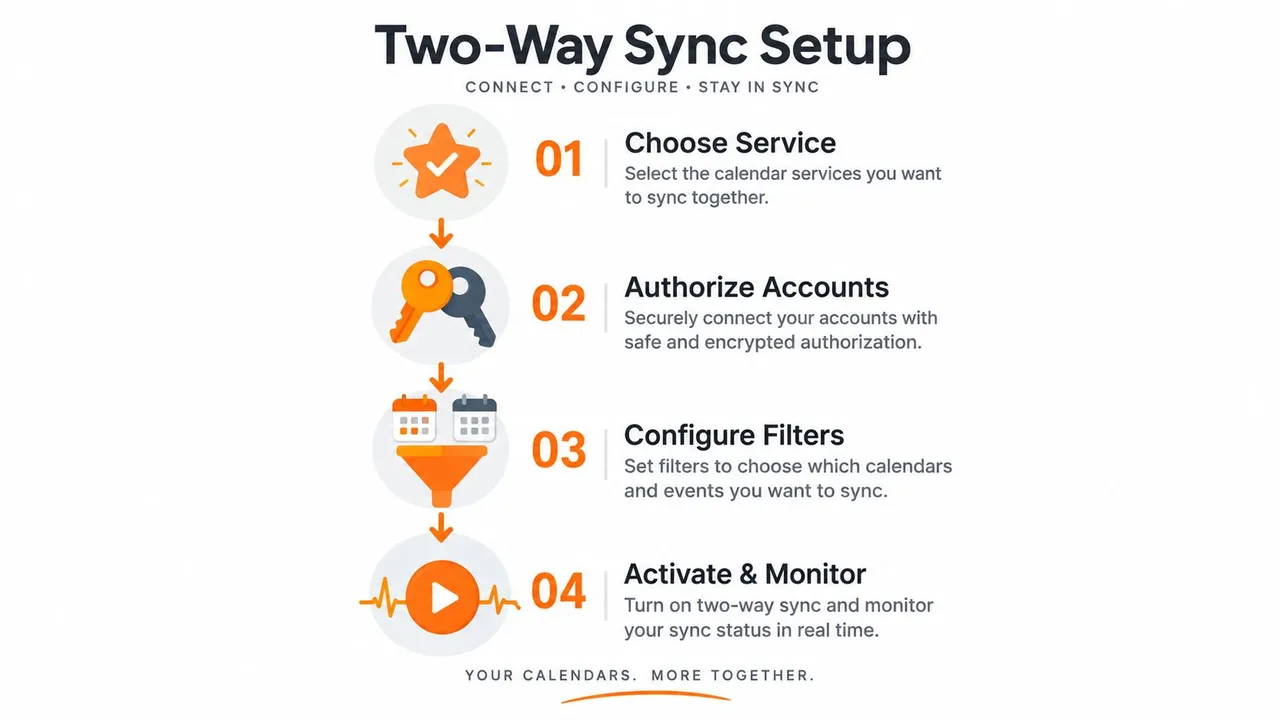
1. Select the synchronization service
Choose a service that supports the providers you use. For Outlook and iCloud, check that it supports Microsoft Outlook or Office 365 calendars and Apple iCloud calendars, not merely ICS imports or read-only subscriptions.
If you’re evaluating a web-based option, this guide to syncing iCloud Calendar with Outlook can help you map the accounts and direction before you authorize access. Avoid creating separate pairings for the same events unless the service clearly explains how it prevents duplicates and loops.
2. Authorize each account
Connect the Microsoft account and Apple Account through the service’s authorization flow. Use the current authentication method offered by each provider, and don’t share your primary password with a service that doesn’t need it.
Older native workflows may still refer to an Apple app-specific password. Newer Outlook access can use Apple Account authentication through the updated account-based flow, but the exact experience depends on the Outlook version and rollout status. Keep account recovery methods available because a changed password, revoked permission, or expired token can pause synchronization.
3. Define source, target, and direction
Choose the specific source and target calendars rather than syncing every calendar by default. For a personal-to-work availability workflow, you might copy iCloud events into an Outlook work calendar as busy blocks. For genuine two-way editing, enable changes in both directions only when the service supports stable event identifiers and duplicate handling.
Configure filters before activation. Exclude calendars that shouldn’t leave the original account, such as private family calendars or shared calendars unrelated to work. If the service offers free/busy mirroring, use it when recipients need availability rather than event details.
4. Activate, test, and monitor
Create a clearly labeled test event in one source calendar, then check the target calendar for the expected copy. Edit the test event, move it, and delete it if your configuration is supposed to be bidirectional. Confirm that the changes don’t create duplicate entries or loop back as new events.
Then review the service’s activity or error log. A set-and-forget workflow still needs an initial audit, especially when multiple accounts have different permissions. Once the test passes, activate the background sync and keep notifications enabled for authorization failures.
A short walkthrough can help visualize the configuration flow:
Use the simplest direction that solves the scheduling problem. Two-way sync is useful when you edit from both ecosystems, but one-way copying or free/busy mirroring is safer when one calendar should remain the source of truth.
Privacy Controls and Data Transformation
Calendar synchronization creates a privacy question that technical setup guides often overlook: what must another person know to schedule time with you? Usually, they need to know that you’re unavailable, not the title of your medical appointment, the name of a confidential client, or the location of a private meeting.
A practical configuration separates availability from content. Your personal iCloud event can block time on a Microsoft work calendar while the copied event uses a neutral title such as “Busy” and omits the description and location. That gives colleagues accurate scheduling information without turning your work calendar into a mirror of your private life.
Transform copied events before they leave the source
Look for controls that let you rename or hide fields during synchronization. Useful transformations include:
- Titles: Replace sensitive names with a neutral availability label.
- Descriptions: Remove notes, conference links, agendas, and private context.
- Locations: Omit home addresses, client offices, or travel details.
- Visibility: Copy only the busy state when full event details aren’t necessary.
- Calendar selection: Exclude personal or shared calendars that shouldn’t be synchronized.
These controls also work in the opposite direction. If a client calendar flows into your personal iCloud account, you may want the copied event to retain enough context for you to recognize it while concealing internal notes from anyone who can view your personal calendar.
Separate calendars by purpose
Use separate source calendars for personal commitments, internal work, and client engagements. This makes permissions easier to audit and reduces the chance that an overly broad rule copies an unrelated event.
Privacy principle: Synchronize the minimum information needed to prevent a conflict.
Public iCloud subscriptions require extra caution because the calendar must be shared publicly for Outlook on the web to read it. That approach may be acceptable for non-sensitive availability, but it isn’t a suitable default for confidential schedules. A private, authorized synchronization workflow with field transformation gives you more control, though it still requires reviewing the provider and service permissions.
Treat privacy as part of the sync design, not a setting to revisit after a leak. Decide who needs availability, who needs event context, and which account should own the original record. Then configure the copies so the target calendar serves that purpose without reproducing unnecessary personal or business information.
Troubleshooting Common Sync Failures
Sync failures usually become easier to diagnose once you identify where the event disappears. Check the source calendar first, then the connection or authorization layer, and finally the target Outlook client. Don’t begin by deleting events, because a delayed or duplicated connection can make recovery harder.
Repairing native Windows synchronization
Apple’s support process recommends a structured reset for iCloud calendar synchronization on Windows:
- Verify versions: Confirm that iCloud for Windows, Windows, and Office meet the relevant support requirements.
- Confirm the account: Check that the same Apple Account is being used consistently.
- Toggle services: Turn Calendars and Contacts off, apply the change, then turn them on again.
- Reauthenticate iCloud: Sign out of iCloud for Windows and sign back in.
- Re-enable synchronization: Open iCloud for Windows and enable Calendars and Contacts again.
- Check the add-in: In classic Outlook, confirm that the iCloud Outlook Add-in is present and enabled.
- Repair Office: If the add-in remains broken after reauthentication, use the Office repair process.
Microsoft and Apple both identify add-in and authentication problems as practical causes of failed synchronization. A routine Office or iOS update can disable or corrupt the add-in, while a token or permission change can leave the account connected but unable to exchange updates. Apple’s official iCloud calendar troubleshooting sequence is the right starting point for native Windows repairs.
Checking subscriptions and external services
If you’re using Outlook on the web, verify that the iCloud calendar is still publicly shared and that the internet-calendar subscription URL hasn’t changed. Remember that this method is read-only and isn’t an appropriate test for two-way editing.
For a third-party synchronizer, open the connection settings and reauthorize any account marked expired or disconnected. Check filters, calendar permissions, direction rules, and the activity log before rebuilding the connection. A missing event may be excluded by a filter rather than lost.
The client distinction remains the fastest diagnostic shortcut. If classic Outlook works but New Outlook doesn’t, the issue may be an unsupported add-in boundary rather than corruption. If Outlook for Mac shows only a subscribed calendar, that behavior may reflect the platform’s supported model rather than a failed two-way connection. For a focused repair checklist, use this guide to fix an iCloud calendar that isn’t syncing with Outlook.
SyncThemCalendars connects Google Calendar, Microsoft Outlook or Office 365, and Apple iCloud calendars with configurable one-way, two-way, or multi-way event copies, plus free/busy mirroring and privacy transformations. Visit SyncThemCalendars to review the available plans and start the 14-day trial without a credit card.
Ready to sync your calendars?
Keep your Google, Outlook and Apple iCloud calendars in sync automatically. 2-minute setup, no credit card required.
Get started freeKeep reading
More in Guides

SyncThemCalendars Quick Setup Walkthrough
Master the SyncThemCalendars quick setup in minutes. Connect Google, Outlook, or iCloud, configure privacy masking, and verify your first sync effortlessly.

Merging Google Calendars: The Complete Guide for 2026
Merging Google Calendars. Learn the best ways to merge Google Calendars. Compare import methods, sync tools, and automation strategies

Master Your Calendar on Outlook with Sync Solutions
Learn how to use calendar on Outlook effectively, sync with Google and iCloud, avoid double-bookings, and connect SyncThemCalendars for seamless scheduling.