







iCloud Calendar Not Syncing with Outlook: How to Fix It
iCloud Calendar not syncing with Outlook? Learn the real causes and step-by-step fixes for Windows, Mac, and Outlook web in this practical 2026 guide.

Monday morning, a client call added on your iPhone is missing from Outlook. You open both calendars, refresh them, and find something worse: a meeting edited on your Mac still appears at its old time in Outlook, or the same event appears twice. There’s no useful error message, just a quiet loss of trust in the calendar you use to plan your day.
When iCloud Calendar isn’t syncing with Outlook, the failure usually comes from the specific combination of Apple Account, operating system, Outlook client, and connection method. A fix that works with classic Outlook on Windows may be irrelevant to Outlook for Mac or Outlook on the web. The right approach is diagnostic. Identify the client and platform first, then test the supported sync path before reinstalling everything.
When iCloud and Outlook Quietly Stop Talking to Each Other
The most frustrating failures are the silent ones. Outlook opens normally, the iCloud calendar may still appear in the navigation pane, and older appointments remain visible. New events stop arriving. In other cases, changes travel in one direction but not the other, leaving two calendars that look similar until an important appointment changes.
Apple’s own iCloud Calendar troubleshooting guidance treats this as a multi-step interoperability issue. The recommended checks include internet connectivity, Windows updates, correct date and time settings, iCloud system status, the iCloud Outlook add-in, and sign-out and sign-in resets. Apple also maintains separate support paths for calendars that can’t be added and calendars that won’t sync, which is a useful distinction when diagnosing the failure.
Start with the client, not the symptom
Before changing credentials, answer three questions:
- Are you using classic Outlook on Windows, new Outlook on Windows, Outlook for Mac, or Outlook on the web?
- Is iCloud connected through iCloud for Windows, a calendar subscription, or an external connector?
- Is the missing event present at iCloud.com, or did it never reach iCloud?
That last check separates an iCloud problem from an Outlook display problem. If the appointment isn’t present in iCloud, Outlook can’t retrieve it through an iCloud connection. If it is present in iCloud but absent from Outlook, investigate the bridge, add-in, subscription, or client support.
Practical rule: Don’t repeat a Windows add-in fix on a Mac client. The platforms use different integration paths, and some combinations don’t provide direct two-way synchronization at all.
A useful symptom guide is available in this calendar sync issues troubleshooting resource, but the core principle remains the same: establish where the event exists, then inspect the connection responsible for moving it.
The Four Real Reasons iCloud and Outlook Drift Out of Sync
Most reports of iCloud Calendar not syncing with Outlook fall into four groups. They can produce similar symptoms, so changing settings at random often creates more confusion than it removes.
Account and authentication drift
An Apple Account password change can invalidate the credentials stored in a desktop integration. Two-factor authentication can also interrupt a sign-in flow that expects an older authentication method. On Windows, iCloud for Windows or the Outlook add-in may look installed while the account is effectively signed out.
Check the account state in iCloud for Windows first. If the application asks you to sign in again, complete that process before troubleshooting Outlook itself. For third-party calendar access, Apple’s account security model may also require an app-specific password rather than the regular Apple Account password.
iCloud settings that no longer expose the calendar
A calendar can disappear from Outlook when Calendars and Contacts is disabled in iCloud for Windows, or when the selected iCloud calendar is no longer enabled in the integration. The same problem can occur if the event was saved to a local or different account calendar instead of iCloud.
Verify the event at iCloud.com and confirm that the relevant calendar is selected on the Apple device. This matters especially when a user sees an event on an iPhone but can’t find it in the iCloud account that Outlook is connected to.
Subscriptions and shared calendars behave differently
An iCalendar subscription is generally a viewing feed, not the same thing as a fully synchronized primary calendar. A shared or delegated calendar can also have different editing and update behavior from the calendar owned by the account. If Outlook shows events but changes made in Outlook never return to iCloud, you may be looking at a one-way subscription rather than a two-way account connection.
The connector or client doesn’t support the required path
Microsoft and Apple document Windows syncing as dependent on iCloud for Windows and its Outlook integration, rather than as a native Outlook feature. Microsoft’s iCloud calendar instructions for Outlook also show that the Mac route differs from the Windows route. This is why an add-in repair can work on classic Outlook for Windows while the same expectation fails in Outlook for Mac or Outlook on the web.
| Symptom in Outlook | Most Likely Root Cause | Where to Check First |
|---|---|---|
| The iCloud calendar is missing entirely | iCloud integration is disabled or unauthenticated | iCloud for Windows or Outlook account settings |
| Old events appear but new events don’t | Connector token, add-in, or subscription refresh problem | Account status and connection type |
| Outlook events don’t appear in iCloud | Read-only subscription or unsupported client path | Calendar properties and client platform |
| Duplicate events appear | More than one calendar path is displaying the same data | Outlook calendar list and connected accounts |
Fixing iCloud Calendar Sync on Windows and Outlook Desktop
For Windows, the supported path depends on iCloud for Windows connecting to classic Outlook desktop. Microsoft’s documented setup requires users to install iCloud for Windows, sign in with their Apple Account, select Contacts and Calendars, and then open Outlook so synchronization can begin. Apple provides a similar Windows troubleshooting path for iCloud and Outlook, including repairing Office or Outlook and removing and re-adding the account when necessary.
Start by checking that iCloud for Windows is installed and that it’s signed in with the same Apple Account used on the iPhone or Mac. In the iCloud application, enable the Contacts and Calendars integration, apply the change, and close and reopen Outlook. If the calendar still doesn’t appear, sign out of iCloud for Windows, restart the computer, and sign back in before rebuilding the Outlook profile.
Verify the classic Outlook integration
Open classic Outlook and inspect File, Options, Add-ins. Look for the iCloud Outlook add-in and confirm that it’s enabled. If Outlook has disabled it, re-enable it and restart Outlook. An add-in that’s listed but inactive can explain why the iCloud calendar remains visible but stops receiving updates.
Update iCloud for Windows through the Microsoft Store and install available Windows updates. Apple’s support guidance specifically directs Windows users to update Windows and then sign out and back in when iCloud calendars won’t sync.

Know when new Outlook is the problem
The legacy iCloud Outlook add-in isn’t the same as a native integration in new Outlook for Windows. If you’ve switched from classic Outlook to new Outlook, the add-in path may no longer be available, so reinstalling iCloud won’t create support that the client doesn’t provide. Switch to classic Outlook when direct iCloud desktop integration is required, then test the calendar there.
If classic Outlook still fails, use the iCloud for Windows settings to turn Calendars off, apply the change, turn it back on, and apply again. As a final reset, remove the iCloud account from the integration, sign out, restart Windows, and add the account again. A CalDAV or iCalendar subscription can serve as a fallback for viewing events, but it won’t necessarily provide the two-way behavior users expect from a primary calendar.
For a broader setup walkthrough, use this guide to sync an Outlook calendar with iCloud.
Fixing iCloud Calendar Sync on Mac and Outlook on the Web
The Mac path is different because iCloud for Windows isn’t involved. First confirm that iCloud Calendar is enabled in macOS System Settings under the Apple Account’s iCloud settings. Then open Outlook for Mac and inspect Outlook, Settings, Accounts. The iCloud account must be available inside Outlook, not merely signed in at the operating-system level.
If the account is listed but the calendar is stale, toggle the calendar connection off and back on within Outlook’s account settings. Menu names can vary between Outlook for Mac builds, so focus on the account node and the calendar folders beneath it. If the calendar is present only in Apple Calendar, Outlook may not have an active supported connection to it.

Use a subscription when viewing is enough
Outlook for Mac and Outlook on the web don’t offer the same direct iCloud integration as classic Outlook on Windows. Microsoft documents a Mac-specific route in which an iCloud calendar can be subscribed to in Outlook on the web and then surfaced in Outlook for Mac. This is useful when the requirement is visibility, but a subscription can be read-only or refresh on a schedule controlled by the provider.
That distinction matters for scheduling. If you edit an event in Outlook and expect the change to update iCloud, a subscription probably isn’t sufficient. It supplies a calendar view, not necessarily a full two-way account bridge.
Outlook on the web has a separate limitation
Outlook on the web doesn’t inherit every desktop integration. If an iCloud calendar isn’t available through the web client, adding the account to macOS or installing iCloud for Windows won’t automatically make it a native web calendar. Use a supported desktop path for direct access, subscribe when read-only visibility is acceptable, or use a two-way connector when both calendars must stay aligned.
Which Outlook Client and OS Actually Support iCloud Sync
The client and operating system determine the answer more than the word “Outlook” does. Microsoft’s documentation separates the Mac and Windows procedures, while Apple’s Windows guide describes Outlook synchronization through an iCloud add-in. That means a troubleshooting decision should begin with the product variant, not with another generic reinstall.
| Outlook Client | Operating System | Native iCloud Support | Typical Failure Point |
|---|---|---|---|
| Classic Outlook desktop | Windows | Supported through iCloud for Windows and its integration | Disabled add-in, stale sign-in, Windows or Outlook update |
| New Outlook | Windows | Limited compared with the classic add-in path | Legacy iCloud integration unavailable or unsupported |
| Outlook for Mac | macOS | Limited and dependent on the available account or subscription route | Direct CalDAV expectations, account authentication, build-specific behavior |
| Outlook on the web | Any supported browser | No equivalent native desktop iCloud bridge | Requires subscription, desktop access, or an external connector |
| Outlook mobile | iOS or Android | Limited for full calendar parity | Account and calendar visibility do not equal two-way synchronization |
The practical verdict is straightforward. Classic Outlook on Windows with iCloud for Windows is the environment to test when you need the traditional desktop integration. If that exact combination isn’t in use, don’t assume the Windows add-in steps will transfer.
The community discussion around Outlook and iCloud calendar compatibility reflects the same decision point: users need to distinguish classic Outlook, new Outlook, Mac, and web workflows before choosing a remedy. A subscription may solve visibility, but it doesn’t automatically solve two-way editing or reliable calendar parity.
When Native Sync Reaches Its Limits and a Connector Makes Sense
Repeated repairs can reveal a compatibility limit rather than a damaged installation. If you’ve already reauthenticated iCloud, re-enabled Calendars, repaired Outlook, and tested the supported desktop client, another reinstall may only reset the same fragile bridge. Apple’s own troubleshooting list demonstrates how many independent layers can affect the connection, from system status and Windows updates to add-in registration and account resets.
A cross-platform connector becomes reasonable when the requirement is broader than “show this calendar in Outlook.” You may need an iCloud event to block time in an Outlook calendar, an Outlook change to reach Apple Calendar, or several calendars to maintain consistent availability without exposing private descriptions and locations. Those requirements exceed what a read-only subscription can provide.

Compare the operating burden
Native sync keeps the setup close to the operating system, but it ties success to a particular app combination and authentication bridge. A connector adds another service, so you’ll need to review its privacy controls, supported accounts, sync directions, and handling of duplicate events. That trade-off can be worthwhile when calendar availability must remain consistent across Apple and Microsoft environments.
SyncThemCalendars is one option that supports one-way, two-way, and multi-way event synchronization among iCloud, Outlook, and Google calendars, with controls for copied event details and free/busy visibility. Its browser-based setup is designed for background synchronization, so the calendar relationship isn’t dependent on one Outlook add-in remaining healthy.
Use native integration when classic Outlook on Windows meets your needs and remains stable. Choose a connector when your users work across Mac, Windows, Outlook on the web, or multiple accounts and the cost of recurring manual repair is higher than the effort of maintaining one managed connection. You should also test how the service handles authentication refreshes, deletions, edits, privacy fields, and duplicate prevention before relying on it for important scheduling.
For teams comparing approaches, this overview of real-time calendar synchronization provides a useful starting point.
Keeping iCloud and Outlook in Sync From Now On
Use this decision tree to avoid mismatched fixes:
- Windows with classic Outlook: Update iCloud for Windows, confirm Calendars is enabled, verify the Outlook add-in, and reauthenticate if needed.
- Windows with new Outlook: Switch to classic Outlook for the legacy iCloud integration, or use a supported subscription or connector.
- Mac with Outlook for Mac: Confirm the account inside Outlook, then use the supported subscription route when direct two-way access isn’t available.
- Outlook on the web: Treat it as a separate client. Use a subscription for visibility or a connector for ongoing cross-platform synchronization.
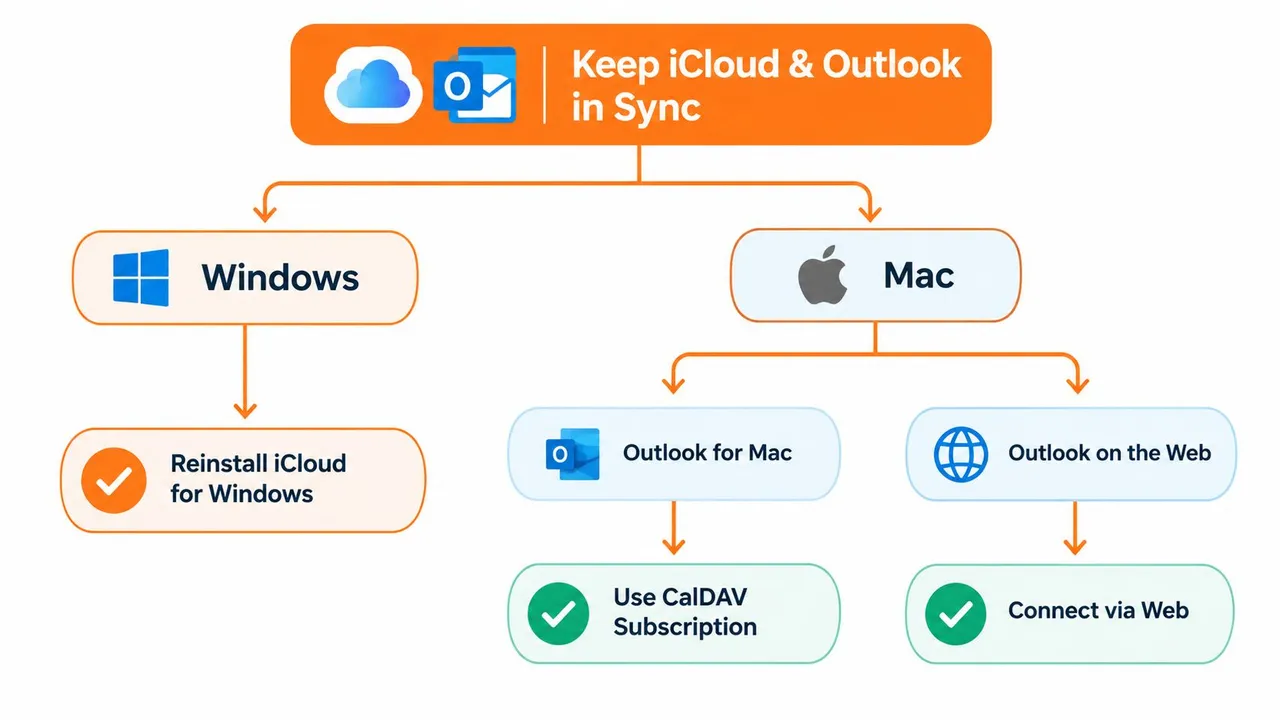
Five habits prevent many silent failures:
- Keep iCloud for Windows current: Updates help the Windows integration stay aligned with the operating system and Outlook.
- Recheck credentials after Apple Account changes: Generate fresh app-specific credentials when the account authentication state changes.
- Avoid switching Outlook profiles casually: Moving between new and classic Outlook can change which integration path is available.
- Leave the default iCloud calendar name unchanged: Renaming system-linked folders can make troubleshooting and recognition harder.
- Run a monthly test event: Create a temporary event on each side, confirm its arrival, then remove it.
If the connection breaks after every Windows, macOS, or Outlook update, stop treating each incident as an isolated glitch. That recurring pattern signals that native sync no longer matches your client mix. A dedicated cross-platform service can keep the calendars aligned while you reserve native tools for the combinations they support.
If you need iCloud and Outlook events to stay aligned across Windows, Mac, or Outlook on the web, SyncThemCalendars offers configurable one-way, two-way, and multi-way synchronization with privacy controls for copied event details. Connect the calendars, choose the sync direction, and use the service when the native Outlook bridge can’t reliably support your setup.
Ready to sync your calendars?
Keep your Google, Outlook and Apple iCloud calendars in sync automatically. 2-minute setup, no credit card required.
Get started freeKeep reading
More in Tutorials

Export Outlook Calendar to Google: A 2026 Step-by-Step Guide
Learn how to export Outlook calendar to Google with clear steps for ICS and CSV imports, recurring-event checks, and verification tips that work in 2026.

How to Synchronize Outlook Calendar Across Platforms
Learn how to synchronize Outlook calendar events with Google and Apple iCloud. Master two-way sync, privacy controls, and real-time availability mapping.
How to Sync Office 365 Calendar with Apple Calendar
Learn how to sync Office 365 calendar with Apple Calendar. Compare native methods, third-party tools, privacy controls, and troubleshooting tips.