







Sync Calendar MacBook and iPhone: A Guide for 2026
Sync calendar macbook and iphone - Easily sync your calendar between MacBook and iPhone using iCloud, Google, or Outlook. Get step-by-step setup
You’re probably here because your calendar looks correct on your MacBook, but your iPhone is missing meetings, showing the wrong account, or exposing details you didn’t intend to share. That’s a common real-world problem. Apple’s native setup is excellent when everything lives inside iCloud, but the moment you add Google Workspace, Microsoft 365, or a client-owned calendar, the clean story gets messy.
I’ve seen the same pattern over and over. People assume calendar sync is one thing. It isn’t. There’s native iCloud sync, account-level syncing through Apple’s Internet Accounts, subscribed read-only calendars, and cross-platform mirroring where you only want free/busy status copied. If you want to sync calendar MacBook and iPhone reliably, you need to know which model you’re using.
Understanding Key Concepts
Calendar sync on Apple devices works best when you separate three ideas: where the event is stored, how changes move, and what data gets exposed. Most failures come from mixing those up.
An event created in Apple Calendar on a MacBook doesn’t automatically mean it belongs to iCloud. It might be saved to iCloud, Google, Outlook, Exchange, or a local account. Your iPhone can only show what that account is configured to deliver.
What native Apple sync does well
Apple’s iCloud Calendar has been the backbone of Mac and iPhone calendar syncing since its launch in October 2012, and by 2015 Apple reported over 800 million devices using iCloud services. Apple’s infrastructure reporting also states Calendar operates with 99.9% uptime and that 95% of sync conflicts are auto-resolved within 10 seconds via merge logic, which is why native iCloud usually feels invisible when it’s working (Apple iCloud Calendar background).
That matters because iCloud is built for real-time event propagation inside Apple’s ecosystem. In plain terms, if both devices are signed into the same Apple ID and iCloud Calendar is enabled correctly, changes should move fast and with very little maintenance.
Practical rule: If all your events live in iCloud and all your devices use the same Apple ID, stay native. It’s the lowest-friction setup.
For a broader primer on the mechanics behind all this, MarTech Do has a useful explanation of understanding data synchronization that maps well to calendars, contacts, and other cross-device data.
Where Google and Outlook change the picture
Google and Outlook don’t behave exactly like iCloud inside Apple Calendar. They appear in the same app, but they’re governed by their own account permissions, refresh behavior, and sharing rules. That’s where users get tripped up.
A few examples:
- Two-way editing: If you add Google or Outlook as an account on both devices, edits can move both ways, but only for events saved to that specific account calendar.
- One-way subscriptions: If you subscribe to a calendar feed, you may see events but not edit them.
- Free/busy privacy: Apple’s native views don’t always give you fine-grained control over what details should be visible when different ecosystems meet.
If you want a more technical explanation of sync models, the SyncThemCalendars article on calendar synchronization concepts is worth reading because it distinguishes between source calendars, target calendars, and directional sync in a way Apple’s own interface doesn’t.
The privacy surface people forget
Most tutorials focus on whether events appear. Professionals usually care just as much about what appears. A personal lunch, a client location, or a project title may be fine on one account and inappropriate on another. Native Apple sync is strong at moving data. It’s less strong when you need to transform or mask fields across mixed calendar environments.
That’s the dividing line. Use iCloud when you want integrated Apple-to-Apple sync. Use more deliberate cross-platform methods when you need one-way mirroring, selective detail sharing, or cleaner privacy boundaries.
Initial Setup with iCloud
The cleanest setup is still iCloud to iCloud. If your goal is solely to sync calendar MacBook and iPhone, start here before doing anything more advanced.
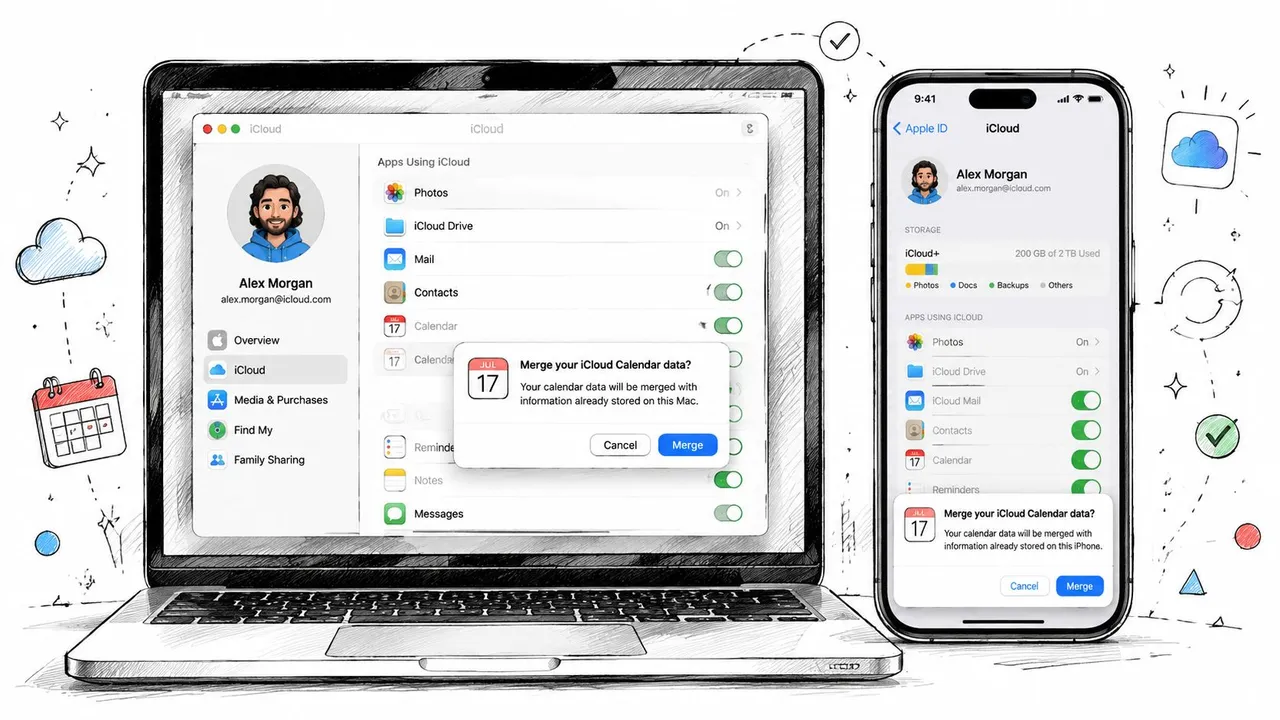
Check the Apple ID first
On your MacBook, open System Settings and click your Apple Account at the top. On iPhone, open Settings and tap your name. Make sure both devices use the same Apple ID.
Then enable Calendar sync:
- On MacBook: Go to your Apple Account, open iCloud, then make sure Calendar is enabled. On newer macOS versions, look for Save to iCloud under the Apps Using iCloud area.
- On iPhone: Open Settings, tap your Apple Account, open iCloud, then turn on Calendars.
If either device was previously storing calendar data locally, Apple may ask whether you want to merge. Choose Merge.
The merge prompt is not optional
This is one of the settings people skip because it looks routine. It isn’t. Failing to confirm the Merge prompt, or leaving iPhone set to a limited sync window like 1 Month Back, causes a 90%+ incidence of one-way sync where Mac events don’t appear on iPhone according to the referenced walkthrough on this issue (Merge and timeframe sync behavior).
That means a setup can look correct on the surface while still being broken underneath.
If the Mac sends events but the iPhone doesn’t reflect them, the first thing I check is whether the user accepted Merge on both devices and whether iPhone is set to sync all events.
Set iPhone to all events
On newer iPhones, open Settings, then go into the Calendar-related sync options and make sure the sync timeframe is set to All Events. If you choose a shorter historical window, older entries won’t populate even though sync itself is technically working.
That’s especially important after migrations from an older phone, because inherited settings can unintentionally limit what appears.
After you finish the setup, test it with a simple live check:
- Create a test event on the MacBook for ten minutes from now.
- Wait a moment and open Calendar on iPhone.
- Then create a second test event on iPhone and confirm it appears on the MacBook.
For readers who prefer a visual walkthrough, this video covers the basic Apple-side setup:
What success looks like
A correct native setup has a few clear signs:
- Same account everywhere: MacBook and iPhone both show the same Apple ID.
- Calendar enabled: iCloud Calendar is active on both devices.
- Merged data: You chose Merge instead of keeping isolated local data.
- Full history visible: iPhone isn’t restricted to a short sync window.
If those four pieces are in place, native Apple syncing is usually the fastest and least troublesome option.
Adding Google and Outlook Accounts
The next layer is account aggregation. This is for people who use Apple Calendar as the interface, but store some events in Google Calendar, Microsoft 365, or Exchange.
The key point is simple: adding an account to Apple Calendar doesn’t merge calendars into one system. It tells Apple Calendar to display and work with multiple backends side by side.
Add accounts on MacBook
On macOS, go to System Settings > Internet Accounts. Click Add Account, then choose Google or Microsoft Exchange depending on what you use. Sign in, complete any verification step, and make sure Calendars is enabled for that account.
You can also add some accounts from inside the Calendar app, but I prefer Internet Accounts because it makes it easier to see all connected services in one place.
After that, open Apple Calendar on the Mac and look at the left sidebar. Your new account calendars should appear under their own heading.
Add the same accounts on iPhone
On iPhone, go to Settings, then the Calendar account area, choose Add Account, and sign in with the same Google or Microsoft account. Turn on Calendars for that account before saving.
If the account offers multiple services, you don’t need to enable Mail, Contacts, or Notes unless you want them. For a cleaner setup, many people keep only Calendars enabled.
A practical detail many guides skip: when you create a new event in Apple Calendar, check which calendar it’s being saved to. If you create it under iCloud, it won’t magically write back into your Google or Outlook calendar. The account attached to the event controls where it lives.
Read-only traps and visibility issues
Mixed setups introduce confusion. Some calendars are fully editable. Others are shared in a way that lets you view events but not create or change them from Apple Calendar. If users tell me “it syncs, but I can’t add anything,” the problem usually isn’t sync. It’s permissions on the source calendar.
Use this quick check:
- Can you open the event and edit details? If not, the calendar may be read-only.
- Can you create a new event directly on that calendar? If not, check account permissions in Google Workspace or Microsoft 365.
- Is the calendar visible but empty on one device? Make sure that specific sub-calendar is enabled in Apple Calendar’s calendar list.
If you coordinate sports schedules, school feeds, or external ICS calendars, Vanta Sports has a practical guide to managing sports team schedules that shows why imported schedules often behave differently from editable calendars.
For Google users who want Apple Calendar to behave properly across devices, the SyncThemCalendars guide on connecting Google Calendar to Apple Calendar is a solid reference for the account-linking side.
Apple Calendar is one interface, not one database. If you work across iCloud, Google, and Outlook, always check which account owns each event.
Using SyncThemCalendars for Cross-Platform Sync
Native account setup works well when you’re comfortable with each account appearing separately in Apple Calendar. It works less well when you need one-way copying, two-way alignment, multi-way syncing, or privacy masking between calendars that shouldn’t expose full event details.
That’s where a dedicated sync layer makes more sense.
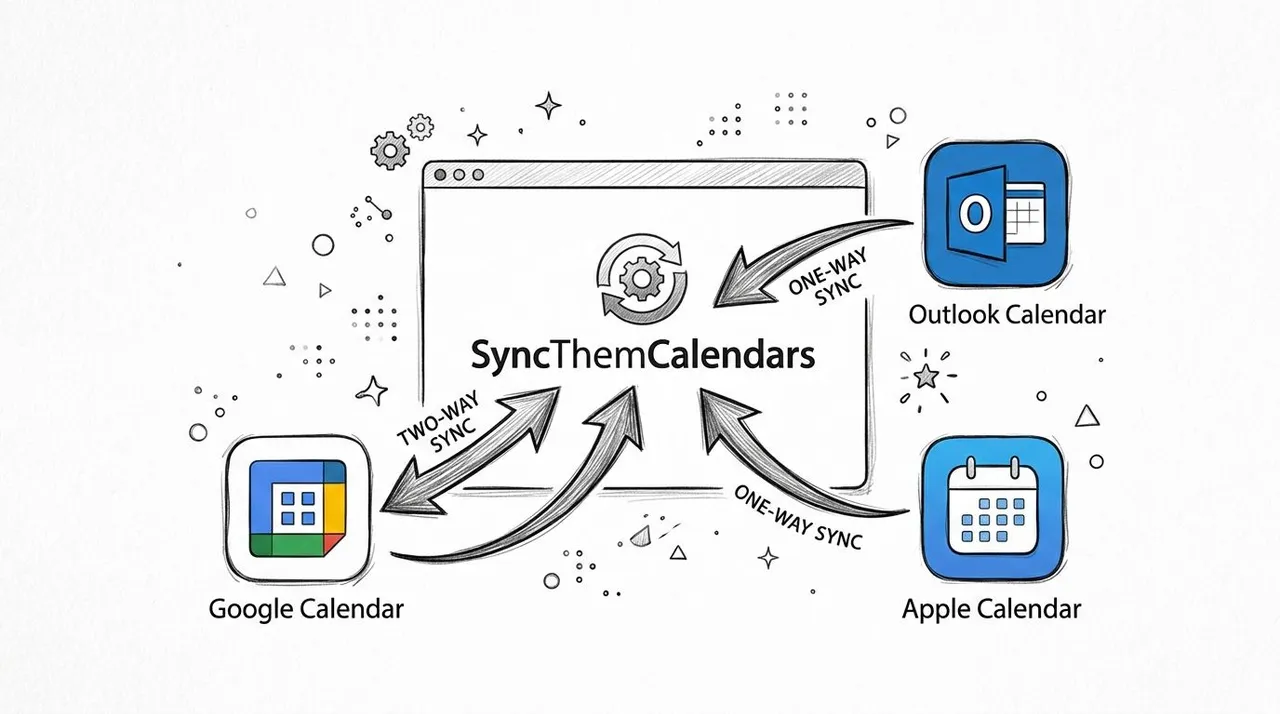
One-way, two-way, and multi-way in practice
A one-way sync copies events from Calendar A into Calendar B. That’s useful when you want your iCloud calendar to block off time based on a client-facing Google calendar, but you don’t want personal appointments flowing back the other way.
A two-way sync keeps two calendars aligned in both directions. This fits consultants and sales teams who create meetings in multiple systems depending on the day.
A multi-way sync is for people juggling several calendars at once. Think personal iCloud, employer Outlook, and a booking calendar in Google. The goal isn’t to merge everything into one messy bucket. The goal is to keep availability accurate across all of them.
A practical setup flow
With SyncThemCalendars, the workflow is straightforward:
- Connect your calendar accounts, such as Google, Outlook, and iCloud.
- Pick a source calendar and a target calendar.
- Choose the sync direction. One-way, two-way, or part of a multi-way arrangement.
- Set privacy behavior for copied events.
- Save the sync and test with a new event.
That’s the part many professionals need. Not just copying events, but controlling what gets copied.
Privacy controls that actually matter
The most useful feature in mixed environments isn’t speed. It’s field control.
For example, let’s say you have:
- a client booking calendar in Google,
- a personal iCloud calendar on your iPhone,
- and a work Outlook calendar on your MacBook.
You may want all three to reflect your availability, but not the same level of detail. In a client-facing environment, “Busy” is often enough. You may want to hide the title, blank out the location, or rename events as generic blocked time.
That’s hard to do cleanly with native Apple settings alone.
Field masking beats manual discipline. If privacy matters, don’t rely on remembering which title is safe to type.
A good real-world pattern is this:
| Use case | Best sync style | Detail level |
|---|---|---|
| Personal calendar blocking work time | One-way | Free/busy only |
| Client booking and work calendar alignment | Two-way | Partial details |
| Multiple business units or side projects | Multi-way | Varies by target |
The setup I recommend most often
For freelancers and consultants, I usually recommend one-way mirroring from client-facing calendars into personal iCloud with titles hidden. That gives you a clean iPhone view, prevents double-booking, and avoids exposing project names when your personal device is visible to family members or shared displays.
For internal work plus personal scheduling, two-way can work, but only if both sides are meant to hold operational meeting details. If one side is personal, keep it lighter and more private.
The strongest cross-platform setups don’t try to make every calendar identical. They make each calendar useful for its audience.
Troubleshooting and Privacy Tips
When calendar syncing fails, the immediate inclination is to “toggle iCloud off and on.” That fix does work often, but it’s not the whole story. Some failures come from version mismatches, some from account conflicts, and some from stale local sync processes.
The fixes that usually work
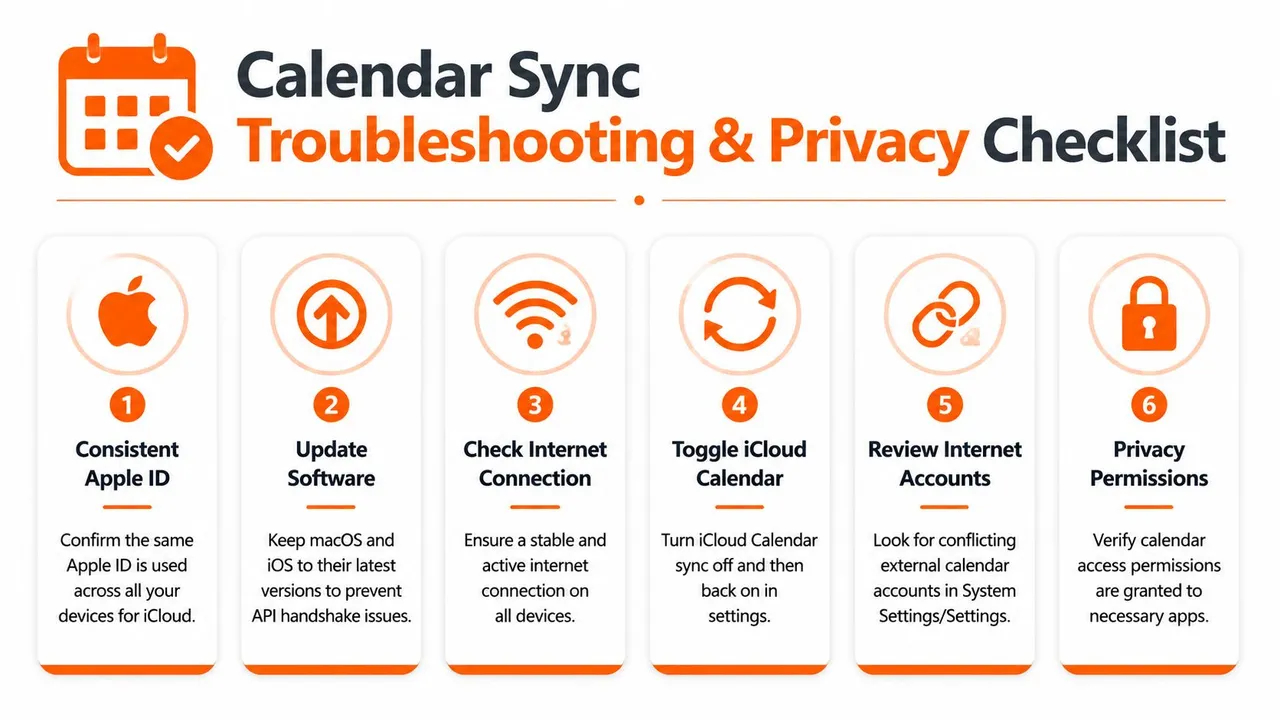
Apple support guidance on this issue notes that 70% of persistent sync failures resolve by toggling iCloud Calendar off and back on, which forces a cache refresh and reestablishes the WebSocket connection to Apple’s servers (Apple calendar sync reset behavior).
That’s the first reset worth trying. If it doesn’t help, use a more targeted checklist:
- Software alignment: Keep macOS and iPhone up to date. Version mismatch can create handshake problems between devices.
- Account review: In System Settings on Mac, check Internet Accounts. If Google or Outlook Calendar is enabled while iCloud is disabled, Apple Calendar may be showing the wrong backend.
- Refresh behavior: On iPhone, make sure account refresh isn’t effectively manual. Delayed push behavior can look like a sync failure when it’s just late delivery.
- Directional failure: If Mac-to-iPhone fails but iPhone-to-Mac works, inspect account ownership of the event and revisit the earlier Merge issue before deleting accounts.
- Daemon trouble on Mac: In stubborn cases involving Exchange or plugins, the issue may be with a local sync process rather than iCloud itself. Generic toggle advice won’t always fix that.
Don’t treat every missing event as an iCloud outage. In mixed-account setups, the event is often syncing correctly to the wrong calendar.
Privacy habits worth keeping
Hybrid environments create a second problem after sync. Oversharing.
A few habits prevent that:
- Use separate calendars by purpose: Personal, work, and client calendars shouldn’t all hold full-detail events if they serve different audiences.
- Mirror availability, not content: Free/busy-only copies are safer than full event duplication when client names or locations are sensitive.
- Mask fields when crossing systems: Titles and locations are the first fields I’d hide when syncing into broader visibility calendars.
The best setups protect both timing and context. People need to know when you’re unavailable. They usually don’t need to know why.
Recommended Settings by User Type
Different users need different sync behavior. The right setup depends less on device type and more on how many calendars you manage, whether you need write-back, and how careful you need to be with event details.
Recommended sync settings by user type
| User Type | Sync Direction | Plan Recommendation |
|---|---|---|
| Entrepreneurs | Multi-way between iCloud, Google, and Outlook, with selective detail sharing | Professional |
| Freelancers and consultants | One-way from client calendars into personal iCloud, or limited two-way where editing is required | Basic or Premium |
| Small teams | Two-way for shared operational calendars, with privacy controls for personal blocks | Premium |
| Students and academics | One-way or simple two-way between school and personal calendars | Basic |
Which setup fits best
Entrepreneurs often need the broadest configuration because they work across business units, assistants, booking links, and personal devices. Multi-way sync keeps the whole picture aligned, but privacy rules matter more here than in any other group.
Freelancers usually benefit from the opposite. Keep the personal iPhone calendar clean, copy only availability from client systems when possible, and avoid sending personal details back into client-owned calendars.
Small teams tend to need balanced visibility. They often want enough information to coordinate, but not enough to expose private appointments.
Students and academics usually don’t need advanced routing. A straightforward school-to-personal setup is enough unless they also manage lab, club, or work calendars.
If you need more than Apple’s built-in syncing can offer, especially for one-way, two-way, or privacy-controlled cross-platform flows, SyncThemCalendars is worth trying. It connects iCloud, Google, and Outlook calendars, supports free/busy mirroring, and gives you tighter control over what event details get copied where.
Ready to sync your calendars?
Keep your Google, Outlook and Apple iCloud calendars in sync automatically. 2-minute setup, no credit card required.
Get started freeKeep reading
More in Guides

Merging Google Calendars: The Complete Guide for 2026
Merging Google Calendars. Learn the best ways to merge Google Calendars. Compare import methods, sync tools, and automation strategies

Master Your Calendar on Outlook with Sync Solutions
Learn how to use calendar on Outlook effectively, sync with Google and iCloud, avoid double-bookings, and connect SyncThemCalendars for seamless scheduling.
Does Apple Calendar Sync with Google Calendar? Real Answers
Does Apple Calendar sync with Google Calendar? Learn the limits of native integration, common workarounds, privacy risks, and the best setup for your workflow.