


Calendar on iPhone Not Syncing with Exchange: How to Fix It
Calendar on iPhone not syncing with Exchange? Check the Calendars switch, account type, sync window and server limits, then fix it step by step.
You’re walking into a meeting and you open the Calendar app on your iPhone to check the room. The 9:30 with the client isn’t there. It was there on Monday. You open Outlook on the web on your laptop and it’s sitting at the top of the week, confirmed, with the invite thread attached.
Nothing has been deleted. What has failed is one link in a chain: the account type on the phone, the Calendars switch inside it, the calendar you’re looking at, the ActiveSync connection between device and mailbox, or the visibility window the phone uses to decide how much history to keep. Finding the broken link takes a handful of checks, and almost none of them involve reinstalling anything.
The stakes are ordinary and constant. In 2024, 70% of adults surveyed said they relied on digital calendars most to manage their lives, according to ECAL survey data summarized by Exploding Topics. When one device goes quiet, the useful response is to locate the break before touching a setting.
The order I’d work through is simple: name the symptom, run one test that isolates which direction of sync is failing, then repair only that. Most calendar on iPhone not syncing with Exchange problems are settled by the second step. The rest need the phone left alone while someone with server access looks at the mailbox.
Find Which Sync Failure You Are Dealing With
Most cases split cleanly in two: the phone never had the events, or it had them and stopped updating. The table below sorts the patterns you’re most likely to meet into the check that resolves them fastest.
| What you see | Most likely cause | First check |
|---|---|---|
| No Exchange events at all | Calendars switch off or wrong account type | Settings > Apps > Mail > Mail Accounts: confirm Exchange and Calendars on |
| Only older events missing | Mobile view covers about two weeks | Search for the event in Outlook on the web before changing anything |
| Events in Outlook on the web, not on iPhone | Damaged device relationship or wrong calendar selected | Check the Exchange calendar is selected in the Calendar app |
| iPhone events never reach Outlook | Event saved to iCloud, not Exchange | Check which calendar is the default for new events |
| Calendar reloads or stays stale | Server errors or timeouts | Confirm a stable connection, then review sync window settings |
| Works on the web, fails only on iPhone | ActiveSync version or server policy | Ask IT for the ActiveSync version and device access rules |
Why mail arrives and the calendar doesn’t
Mail and calendar are separate services riding on the same account, and an account added as IMAP or POP gives you a working inbox with no calendar service behind it at all. That single mismatch accounts for a large share of complaints that get mislabelled as server faults. A mailbox can authenticate perfectly, deliver mail all day, and still carry zero calendar data.
Two rows in the table deserve a note. Older events going missing is usually not a fault: the phone keeps a rolling window of history and shows upcoming events normally, so a meeting from eighteen months ago can be absent from the iPhone while sitting safely in the mailbox. And the last row is the one people miss, because a single device failing while the web works points away from the phone and toward protocol or policy.
Run the test before the repair. Two minutes of evidence saves you an afternoon of toggling.
The two-way test in the next stage is what tells you which half of the path broke. If you want the wider map of causes first, this explanation of why a calendar stops syncing covers the account-level failures that sit outside Exchange entirely.
How to Run a Two-Way Test on Your iPhone
The fastest way to stop guessing is to move one event in each direction and watch what happens. Exchange calendar sync on an iPhone runs over Microsoft Exchange ActiveSync, the mobile protocol that carries mail, calendars, contacts and tasks, and that is designed to keep working offline and synchronize once connectivity returns. Apple’s guide to adding an Exchange account on iPhone is blunt about the setup: the account must be added as Microsoft Exchange, not a generic mail profile, and Calendars has to be switched on during configuration. Microsoft’s troubleshooting guidance says the same thing from the other side, telling users to verify the Calendars switch inside the Exchange account settings.
Here’s the sequence, in order.
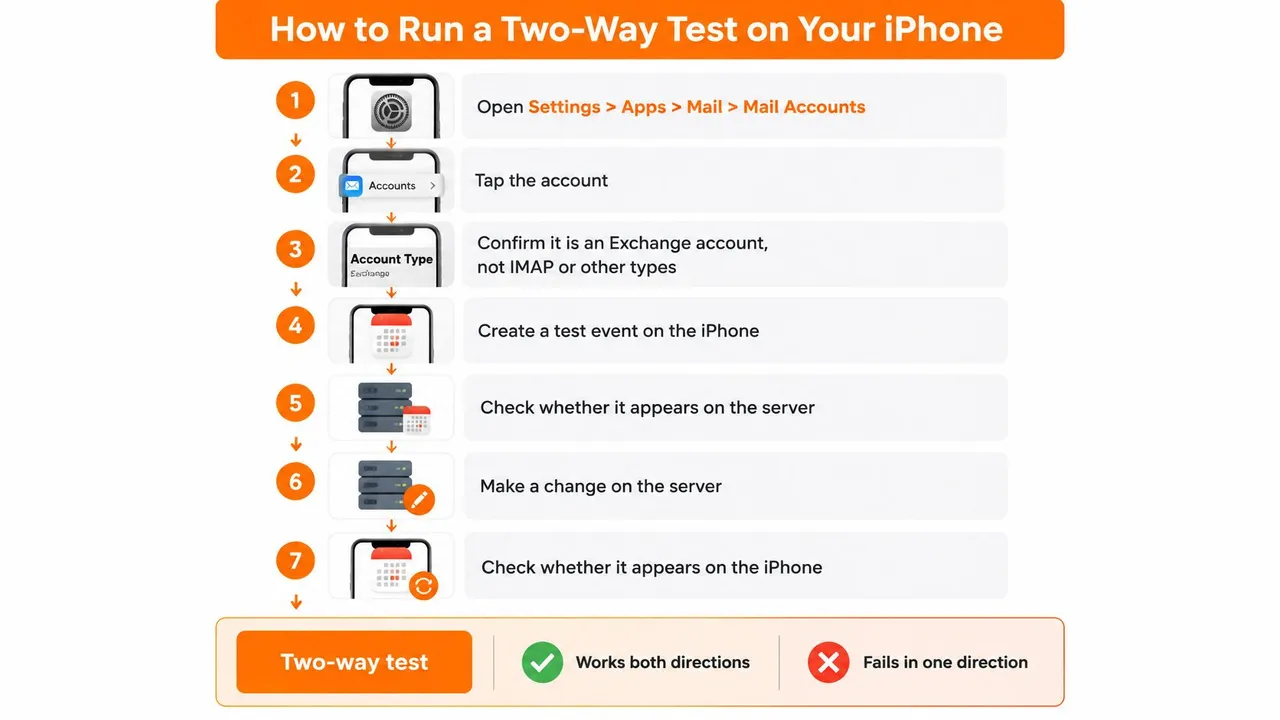
- Open Settings > Apps > Mail > Mail Accounts and tap the account. Confirm the type reads Exchange. An IMAP or POP account delivers mail happily and never syncs a calendar, which is why a working inbox proves nothing about your events.
- Check that Calendars is switched on in the same screen. This is the toggle that silences calendar sync without touching mail, and it’s the most common reason an Exchange calendar is empty on a phone that receives email fine.
- Open the Calendar app, tap Calendars, and confirm the Exchange calendar is ticked. When iCloud, Google and Exchange are all signed in, a hidden work calendar looks exactly like a broken one. This is the step people skip most often, and it costs nothing to check.
- Create an event on the iPhone with a unique name, such as Sync test 14:05. Save it to the Exchange calendar rather than the default. Unique wording proves the event travelled instead of matching something that already existed.
- Open Outlook on the web and look for it. If it’s there, the phone can write to the mailbox and authentication is working.
- Create a second uniquely named event in Outlook on the web, then check the iPhone. This tests the return path, the half that fails when the device relationship is stale on the server.
- Note the device time zone and whether the affected events are recurring. Both distort the result. A time zone mismatch can land an event on the wrong day, and a long-running recurring series can look absent while its individual exceptions still arrive.
How to read the results
Both directions pass. The account and the path are healthy, so the problem is intermittent or sits in the network between phone and Exchange. Look for a time pattern instead of a settings fault.
One direction fails. The target calendar, delegate access or shared-calendar status is the likely cause. A calendar you can read but not write to, or a delegate mailbox where permissions have lapsed, produces exactly this shape.
Both directions fail. The account configuration or the ActiveSync relationship needs rebuilding, which is the next job.
What healthy looks like: both test events visible on both sides within a short time, and not one local event deleted. If the iPhone also runs Outlook for iOS, open it and check the same two test events. When Outlook for iOS shows them and the native Calendar app doesn’t, the mailbox is fine and the fault sits in the iPhone Calendar path.
How to Rebuild the Exchange Account Safely
Rebuilding is right in a narrow set of cases: both directions of the test failed, the account type and Calendars switch are already correct, and a restart changed nothing. It isn’t a first reflex, and it isn’t free. You pay for it with any events that exist only on the phone, and with the evidence of how the fault behaved before you wiped it.
The checks that come before the delete
- Capture a known-good event first. Create or open one event in Outlook on the web so you have a server copy to compare against afterwards.
- Don’t delete local events until you’ve confirmed they exist on the server. An event stored only on the phone leaves with the account.
- Record the time zone and any recurring series. These are the details that make a post-rebuild comparison meaningful rather than approximate.
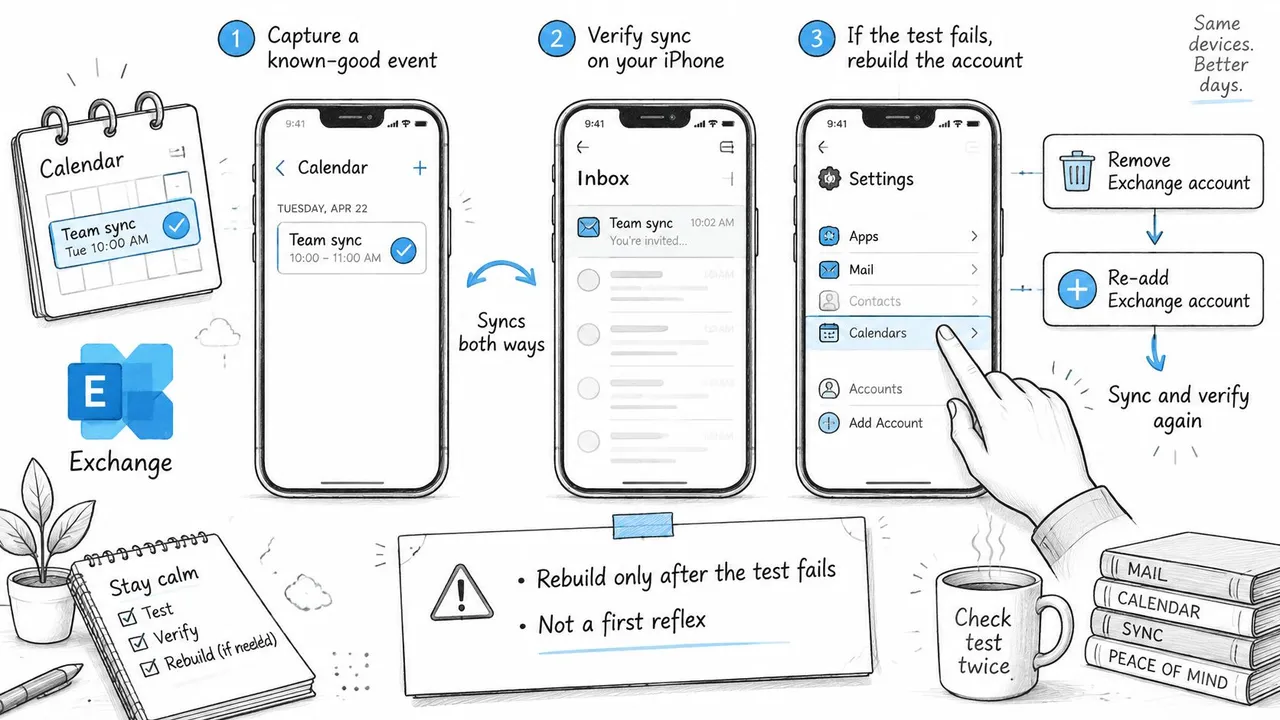
With that noted, the rebuild itself is short.
- Delete the account. In Settings > Apps > Mail > Mail Accounts, select the Exchange account and remove it.
- Restart the iPhone. This clears the cached ActiveSync state instead of leaving half a session behind.
- Add the account again and choose Microsoft Exchange. For a Microsoft 365 or on-premises Exchange mailbox, pick Exchange rather than Outlook.com, which is a different service and won’t carry your work calendar.
- Sign in and confirm Calendars is enabled during setup. A rebuild that skips this switch reproduces the original failure exactly, which is why so many people report that “deleting and re-adding didn’t work”.
- Open Calendar and tick the Exchange calendar.
- Repeat the two-way test with two fresh, uniquely named events.
Two warnings worth taking seriously. Repeated toggling of the Calendars switch can keep a stale relationship alive while convincing you something changed. And if the rebuild seems to work for an hour then fails again, the problem was never the account on the phone.
The rebuild is a device-side fix. If the server’s record of your phone is broken, a fresh account on the same device can still fail.
That’s where the server half comes in. Microsoft’s guidance on syncing calendar and contacts with phones and tablets covers the administrator procedure: remove the device relationship in Exchange, restart the device, then create the relationship again. It’s also where the account-type rule is stated plainly, so a mailbox added as a generic mail profile gets corrected rather than patched.
A freelancer I’d picture here is typical: a Microsoft 365 mailbox re-added as a generic mail profile after a password change. Mail flows within seconds, the calendar stays empty for a week, and the eventual fix is choosing Exchange at setup. If your rebuild lands you back at a phone that shows mail but no work events, compare it against the iPhone calendar and Outlook sync behaviour before you start again.
What you should see after a correct rebuild: the calendar downloads on its own, both test events appear on both sides, and mail keeps arriving throughout. If the calendar stays empty, stop rebuilding and move to the network and server checks.
Network, Sync Window and Heartbeat Settings
A calendar that reloads, empties and refills, or shows last week’s version of an event you already moved, is usually describing a failed request rather than a broken phone. Apple’s administrator guidance on ActiveSync timeouts documents the mechanism: a run of HTTP 500 responses during calendar synchronization can make iOS reload Exchange email, calendar or contact data, and after the failure iOS may ask Exchange to resend all calendar data on the next connection. The failure lives in the network path or the Exchange infrastructure, not in the Calendar app.
| Setting | Documented value | Who changes it |
|---|---|---|
| Exchange heartbeat interval (HBI) | 59 minutes | Exchange administrator |
| Firewall window for ActiveSync connections | Open for at least 30 minutes | Network administrator |
| Mail Days to Sync | Shorter than the default; pick the number of days you actually review | iPhone user |
| Sync Calendar Events timeframe | Shorter than the default; pick the shortest window that covers your active meetings | iPhone user |
What you can change on the phone
Reducing the volume of data each request has to carry is the one lever you control, and it’s a good one. Lower Mail Days to Sync and the Sync Calendar Events timeframe in the account settings, keep the phone on a stable connection, and retry. The protocol is built to resynchronize when connectivity comes back, so a dropped Wi-Fi signal during a large sync doesn’t mean the events are gone. It means the transfer stopped halfway.
Apple’s guidance also suggests reviewing how often the device fetches or receives pushed data. If your account is set to fetch on a long interval, changes will feel slow even when nothing is wrong.
What only an administrator can change
The heartbeat interval and the firewall idle window are server and network values, and they’re where a recurring symptom often leads. The documented benchmarks are an HBI of 59 minutes and firewalls that stay open for at least 30 minutes. Treat them as thresholds to test against, not proof of cause: the administrator still needs the exact error from the ActiveSync logs at the moment of failure.
A pattern I’d look for: updates arrive reliably on home Wi-Fi and stall during the working day. That’s the shape of a firewall idle timeout cutting a long-lived connection, and it explains gaps that no amount of account rebuilding will close.
Benchmarks test a hypothesis. Logs confirm it.
After shortening the sync window, give it a few minutes and check whether the calendar fills in. If it does, the failure was volume or timeout. If nothing changes, the problem is upstream of the phone.
Why Old and Recurring Events Seem to Vanish
Picture a consultant opening last year’s kickoff meeting on a laptop to check what was agreed, then reaching for the phone and finding nothing for that month. The laptop has it, the web client has it, the phone doesn’t. That is a visibility question before it is a data question, and it has three distinct answers.
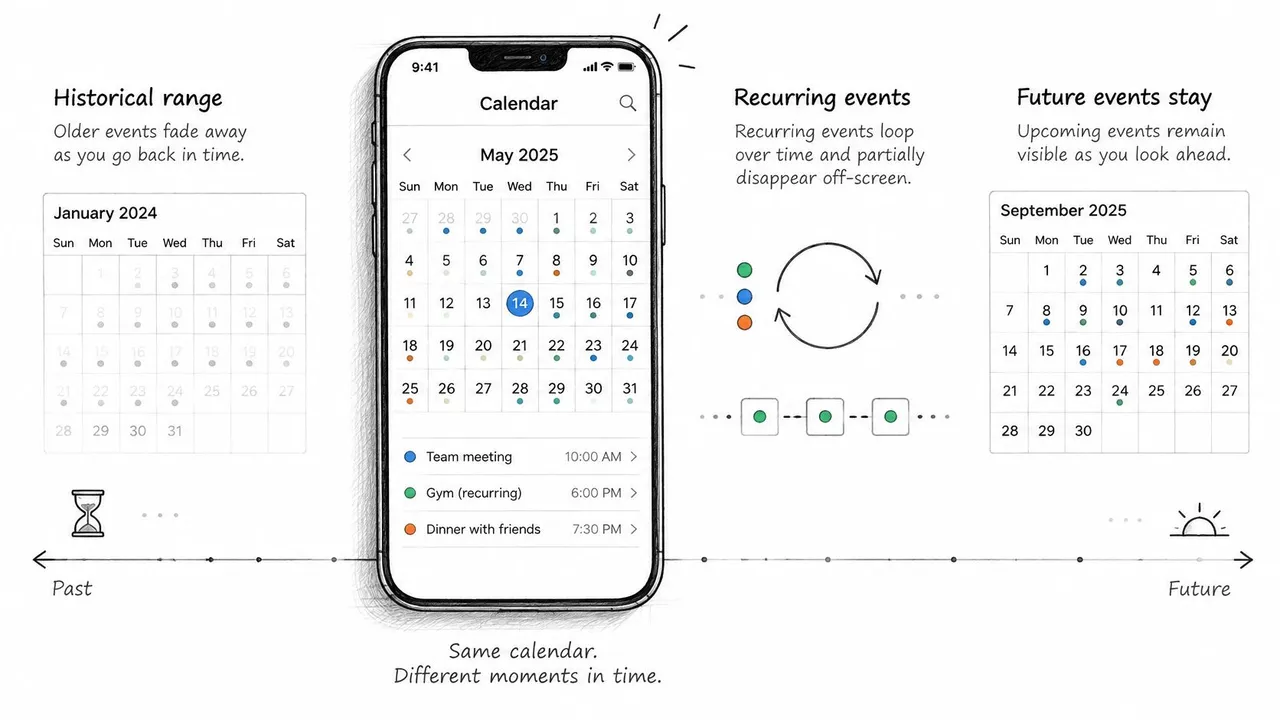
Three versions of missing
Missing only from the historical range. Microsoft’s guidance notes that mobile Exchange views may show only the previous two weeks while continuing to display future events, so older appointments can be absent from the phone even though they’re still in the mailbox. Nothing needs repairing. Search for the event in the web client and move on.
Present online, missing on the device. This is the damaged relationship case. If events exist in Outlook on the web but not on the iPhone, removing the device’s old ActiveSync relationship on the server and re-adding the account can restore them. The same guidance is documented in Microsoft’s notes on missing mobile calendar items.
Absent from every client. Now it’s a real data or mailbox problem, possibly permissions or a deleted item, and it belongs with IT rather than with the phone.
| Where the event appears | Diagnosis | Next step |
|---|---|---|
| Outlook on the web only, older than about two weeks | Mobile visibility window | Leave it in place and confirm in the web client |
| Outlook on the web, missing on iPhone, recent events | Damaged ActiveSync relationship | Follow the rebuild steps above |
| Missing from every client | Real data or mailbox problem | Escalate to IT |
If an event exists in Outlook on the web, it is not lost.
Recurring series deserve their own caution. A long-running weekly meeting carries exceptions, moved instances and sometimes a modified end date, and a full account reset can change how the series renders on the phone. Verify the series in a desktop or web client before any destructive step, and note the time zone first. If what you want to check is which calendar is allowed to show what, this walkthrough of Outlook calendar visibility settings is the place to start.
Where a second calendar is the actual problem, copying events between accounts is a separate layer from Exchange delivery. We do that with a web service that creates genuine events in the destination calendar, no software installation needed, and after setup it keeps the calendars synchronised automatically with any sync editable or paused at any time. It can’t repair a blocked Exchange connection, and it isn’t meant to.
Decide When to Stop Toggling and Call IT
The decision point is evidence, not patience. Once the two-way test and the sync window checks are done, the results tell you who should act next.
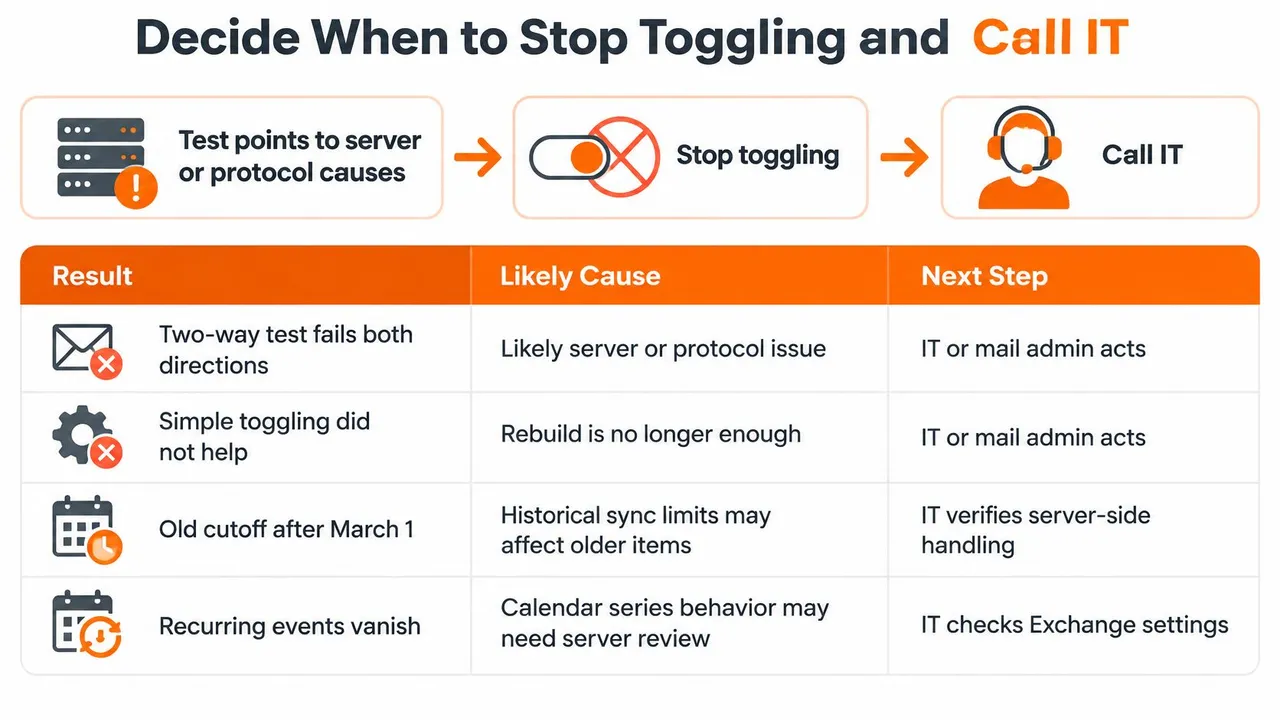
| Test result | What it means | Who acts |
|---|---|---|
| Outlook on the web works, iPhone calendar fails, ActiveSync below 16.1 | Blocked by the March 1, 2026 cutoff | IT or Exchange administrator |
| Outlook on the web and Outlook for iOS both fail | Server-side or mailbox problem | IT or Exchange administrator |
| Only the iPhone fails, rebuild did not help | Device relationship still stale on the server | IT, to reset the ActiveSync relationship |
| Only the iPhone fails, web works, ActiveSync current | Device or account configuration | You, by repeating the two-way test and the rebuild |
The cutoff that looks like a broken phone
Microsoft states that, starting March 1, 2026, devices using ActiveSync versions below 16.1 will no longer connect to its services, as set out in its guidance on syncing calendar and contacts with phones and tablets. For organizations running older on-premises Exchange, managed iPhones or legacy mobile-device policies, a calendar that stops suddenly can reflect a server-side protocol requirement rather than anything corrupted on the device.
Three checks separate the two. Test the same mailbox in Outlook on the web, ask IT which Exchange version and ActiveSync policy are in use, and see whether Outlook for iOS fails too. If web access works while the native iPhone calendar doesn’t, administrators should inspect ActiveSync support, device access rules and authentication logs before anyone rebuilds the account a fourth time.
What to send IT in one message
Give them the facts that end the loop instead of starting it.
- Device details: iPhone model, iOS version, and the exact time the fault last appeared.
- Account details: the Exchange account type as shown on the phone, plus the ActiveSync version or mobile device policy in force.
- Test results: what Outlook on the web showed, what Outlook for iOS showed, and which direction of the two-way test failed.
- Server evidence: any HTTP 500 entries with their timestamps, and the date the problem started.
If your organization leans on one person to absorb this kind of troubleshooting, the pattern of small recurring outages is itself a signal worth reading, and these signs your business needs professional IT support help you judge when a mailbox problem has outgrown the ad hoc fix.
The last action is the simplest one. Run the two-way test once more after whatever change you made. If both events appear on both sides, you’re finished. If they don’t, stop toggling and hand the evidence to the person who can read the server logs.
If the gap you’re closing is between two calendars rather than inside one mailbox, SyncThemCalendars copies events between Google Calendar, Outlook and Apple iCloud so both sides show the same schedule, with one-way or two-way sync running in the background. Setup takes about two minutes, no software installation is needed, and every connection can be edited or paused whenever you want. Visit SyncThemCalendars to connect your first pair of calendars and test the copy in both directions.
Ready to sync your calendars?
Keep your Google, Outlook and Apple iCloud calendars in sync automatically. 2-minute setup, no credit card required.
Get started freeKeep reading
More in Tutorials
How to Sync Google and Apple Calendar: Step-by-Step Setup
Sync Google and Apple Calendar with native accounts or a managed tool. Compare one-way and two-way options, follow the steps, and fix common problems.
How to Add Gmail Calendar to Outlook Without Duplicates
See how to add Gmail Calendar to Outlook by subscribing for a live view or using two-way sync, then avoid privacy leaks and duplicate events.
Export Outlook Calendar to Google: A 2026 Step-by-Step Guide
Learn how to export Outlook calendar to Google with clear steps for ICS and CSV imports, recurring-event checks, and verification tips that work in 2026.