


Google iCloud Calendar Sync: Step-by-Step Guide
Google iCloud calendar sync explained: one-way and two-way setup steps, common fixes, privacy masking, and when to use continuous background sync.
Your phone shows the 9am client call. Your Mac, opened an hour later, still shows it at 10am, because the change you made on the iPad never reached Google. Nothing is broken and nothing is missing from your account. You’ve hit the seam between two calendar systems that treat each other as a view rather than a copy.
Most guides call that a sync. It isn’t. Google iCloud calendar sync comes in three shapes that look nearly identical on screen and behave nothing alike underneath: a display connection, a read-only feed, and a real two-way copy. Pick the wrong one and you lose an hour to a meeting that moved, or publish a private appointment to a link anyone can open.
Choose the Right Google and iCloud Sync Method
A consultant moves her Tuesday client call an hour later on her iPad, in what she believes is the same calendar she sees on her iPhone. Two days on, the phone still shows the original time. Both devices are working correctly: one is displaying Google events through an Apple account connection, the other is showing an iCloud calendar that was subscribed into Google as a public feed, and a feed refuses edits.
Apple supports adding both Google and iCloud accounts to Calendar so both sets of events appear in one interface, which is useful and is not a sync. As this comparison of Google Calendar and Apple Calendar puts it, Google Calendar can’t natively host and fully edit an iCloud calendar, so the usual reverse workaround is a public iCloud feed that is one-way and read-only. That same comparison flags feeds refreshing on a delay of up to 24 hours, roughly one year of Google Calendar history reaching Apple Calendar, imperfect colour mapping and reminder differences.
Google and iCloud linking methods compared
| Method | Edits and copies | Update speed | Hides details | Best for |
|---|---|---|---|---|
| Native Google account in Apple Calendar | Displays Google events, no new Google calendars | Refresh interval you set | No | Viewing Google events on Apple devices |
| Public iCloud feed subscribed in Google Calendar | Read-only, one-way | Up to 24 hours | No, anyone with the link can see it | Passive, public-style viewing |
| Dedicated two-way sync service | Creates real events, one-way or two-way | Google and Outlook near real time; iCloud checked every few minutes | Yes, field masking and busy-only copies | Editable copies and blocking availability across accounts |
Row one is closer to two-way work than is often realised: an event edited in Apple Calendar while it’s saved to a Google calendar does update Google. What it can’t do is the opposite direction. Your iCloud calendars stay invisible to Google until you publish a feed, which is why the answer to whether Apple Calendar syncs with Google Calendar depends entirely on which of these three you set up.
Rule of thumb: native account connection when one provider is your source of truth, a feed when you only need to look, and a sync layer when you need an editable copy in the other system or a copy that hides details.
Test it in two minutes rather than trusting a tutorial. Create one event in each calendar, wait one refresh cycle on the Apple side and a few minutes on the iCloud side, then check where each event landed and whether you can edit it from the other side.
How to Add Google Calendar to Apple Calendar
The native setup is short, and Google documents that it works on Mac, iPhone and iPad in its guide to using Calendar with Apple devices. Some Google-specific functions, such as creating new Google calendars, are unavailable inside Apple Calendar.
- Open Calendar’s account settings. On iPhone or iPad that’s Settings > Apps > Calendar > Calendar Accounts. On a Mac, use System Settings > Internet Accounts.
- Add a Google account and sign in. Use the account that owns the calendars you want. Signing into a personal alias that only holds delegated access is the usual reason half your meetings go missing.
- Turn on Calendars for that account. Leave Mail and Contacts off unless you want them. This is the toggle that makes events appear in the app at all.
- Set the refresh interval. A shorter interval means fresher events and faster battery drain. On a Mac the dropdown runs from every minute to every hour; on iPhone the fetch schedule sits under your mail fetch settings.
- Confirm a Google event is listed. Open Calendar, tap Calendars, and check that the specific Google sub-calendars are ticked. Secondary calendars often stay hidden until you enable them in Google’s own per-account sync settings.
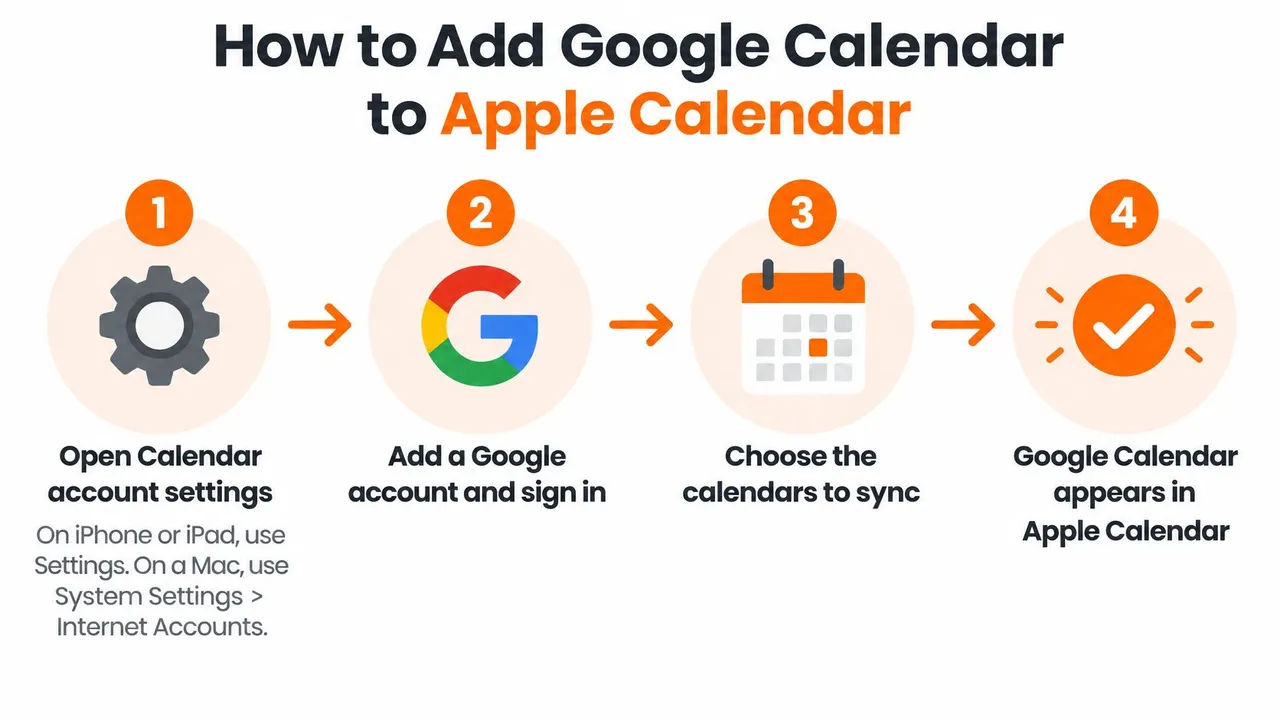
Now the limits. Google events show up, Apple Calendar can’t create new Google calendars, and nothing copies your Apple events back to Google automatically. A student who wants her school Google calendar on the same iPhone as her personal iCloud events gets exactly that: one screen, two sources, and a refresh interval short enough that an exam date change shows up before she stops looking.
Setup checklist: the account is listed, the Calendars toggle is on, the sub-calendars are ticked, and a test event appears within one refresh cycle.
The reverse direction is read-only by design. On iCloud.com, open Calendar, click the share icon next to the calendar and turn on Public Calendar, then copy the webcal link. In Google Calendar, open Other calendars, choose From URL, paste the link with https in place of webcal, and add it. Updates land on Google’s timetable, so expect anything up to 24 hours and no editing. Anyone with that link can read the calendar, so switch Public Calendar off the moment you no longer need it.
Hide Private Details With Field Masking
Encryption is not the same thing as privacy here. Apple states that calendar data is encrypted in transit and on its servers, but its iCloud data security overview confirms that iCloud Calendars are not end-to-end encrypted even with Advanced Data Protection turned on, because calendar interoperability requires CalDAV access. Encrypted therefore means protected in transit, not hidden from the platform at the other end or safe to publish through a shareable feed.
Three levels of exposure
- Read-only visibility: the other side sees everything, titles, notes, locations, guest lists. It just can’t type into it. This is the weakest control and the one most tutorials teach.
- Free/busy mirroring: the other calendar learns only that a block is taken. No title, no location, no attendee names, nothing that identifies who you’re with or where.
- Field transformation: the copy carries your structure but not your content, with titles replaced by a single word such as Busy and descriptions or locations stripped before the event is written.
The trade-off is real and worth naming. A masked copy stops double bookings but withholds the details a colleague needs to book travel around you, so masked copies suit personal events bleeding into work hours, not joint planning. Say you keep therapy on Thursday at 4pm in your personal iCloud calendar. A busy-only copy blocks that hour in your Google work calendar without a single person learning what it is.
Deciding which Google calendars to mirror matters as much as choosing the method, because one over-shared calendar undoes every other precaution.
Privacy checklist: revoke public iCal links you no longer use, review which accounts are still connected, list the fields each copy exposes, and delete sync access you’ve stopped needing. Our own policy is narrow by design: calendar contents are only accessed to copy events between the calendars you choose to sync, and we don’t store calendar events at all, since that data stays on Google’s servers.
How to Set Up Two-Way Sync Between Google and iCloud
A freelancer keeps personal events on her iPhone and client work in Google Workspace, and she wants clients to see her availability without reading the words therapy, dentist or school pickup. That’s a two-way job with masking, and it takes a handful of decisions rather than a technical background.
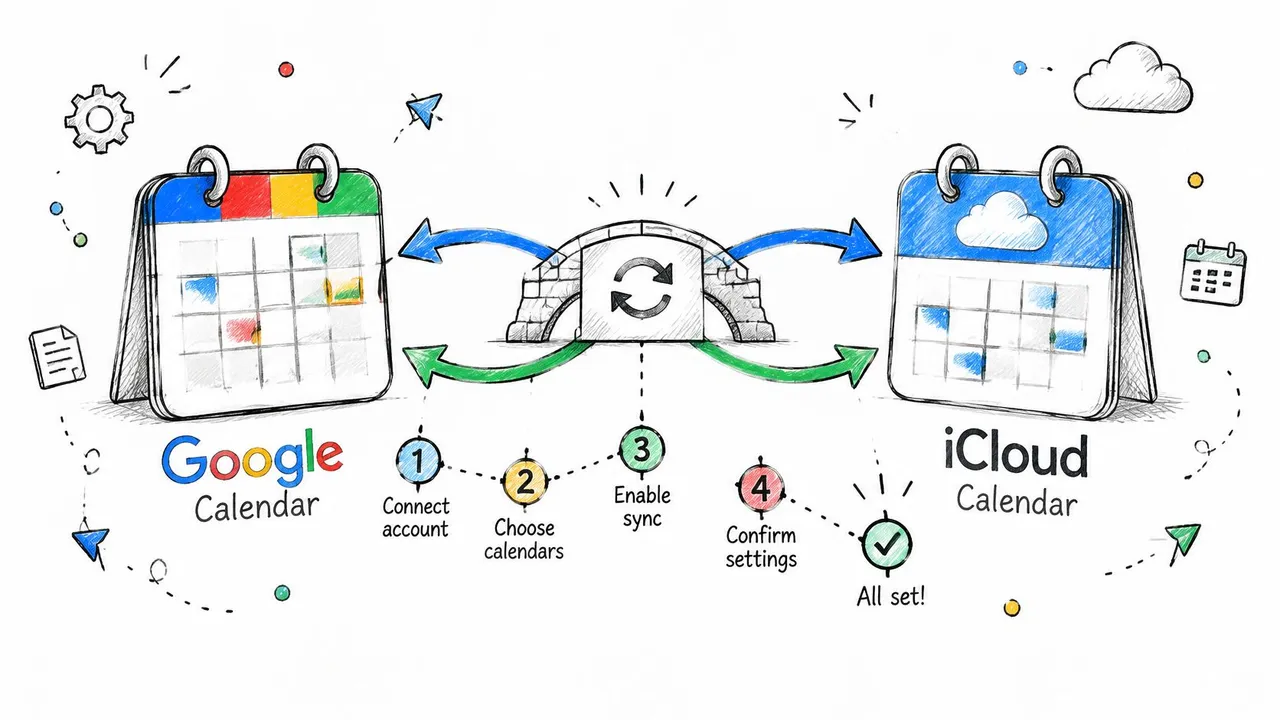
- Create an account and connect Google. Authorise the Google account that holds the calendars you’re copying from or to.
- Connect iCloud. Sign in with your Apple ID when prompted, and approve the two-factor request on an Apple device.
- Pick a source and a target. One calendar feeds the other. Connecting the wrong pair, such as a shared team calendar instead of your personal one, is the most common setup mistake.
- Choose the direction. One-way if you only want copies flowing into the other account, two-way if both sides should stay current.
- Decide what the copies reveal. Full details, busy time only, or renamed titles. This is the privacy decision, and it’s easier to make per sync than per event.
- Save and let the first run finish. Configuration takes about two minutes, then the service copies the upcoming events.
A sync writes real events into the target calendar, which you control. That’s the difference from Google’s sharing and subscribing options, which only let you view: no copy, no editing, no way to hide a title behind a Busy block. Events copied into an iCloud calendar appear on every device signed into that Apple ID, so an event that lands on your phone also lands on your iPad and Mac.
Run the round trip before you rely on it. Create a test event in Google, check iCloud after a few minutes, edit it in iCloud and confirm the change reaches Google, then delete it and watch it disappear on both sides. Deletions propagate in two-way sync, which is exactly why the first tests should be events you don’t mind losing.
If your calendars also drive travel and event logistics, the Approved Experiences Traveler guide to managing multiple calendars is a sensible companion for deciding which calendar should own a booking and which should only mirror it.
Here’s the same flow in video, if you’d rather watch the connections being made than read the steps.
Common Sync Problems and How to Fix Them
The complaint that arrives most often is timing: an event changes in one calendar and the other side still shows the old version several minutes later. That’s usually working as designed rather than broken, and the table below covers the usual suspects before you start deleting accounts.
Sync symptoms, likely causes and fixes
| Symptom | Likely cause | Fix |
|---|---|---|
| Google events missing on iPhone | Calendar not toggled on or refresh interval too long | Turn the calendar on, shorten the refresh interval, wait one cycle |
| iCloud change not showing in Google | iCloud is checked every few minutes, not pushed | Wait a few minutes, then confirm the sync direction |
| Duplicate events appear | Two syncs or accounts cover the same calendar | Keep one sync per calendar pair and delete the extra copies |
| Event shifted an hour after a daylight-saving change | Time zone differs between source and target | Match time zone settings and retest on a daylight-saving date |
| Edit to one recurring occurrence ignored | Exceptions handled differently across providers | Edit the single occurrence in the source calendar, then recheck |
| Reminders missing on the other side | Alerts are not copied the same way | Set reminders on the calendar where you want alerts to fire |
| Events gone after an outage | A failed read was mistaken for a deletion | Check the source for the event before restoring anything |
When a change still hasn’t arrived after a full refresh cycle, work through the settings checks in this guide to Google Calendar not syncing with Apple Calendar before you remove the account.
Why the other side lags
Google’s own CalDAV documentation for Calendar is blunt about the constraints: the interface carries API-equivalent quota limits, doesn’t implement every WebDAV or CalDAV method, doesn’t support VTODO or VJOURNAL objects, and lacks free-busy lookup. CalDAV also has no native cross-provider push, so “real-time” behaviour is bounded by how often iCloud gets checked and by provider throttling. Apple doesn’t push calendar changes at all, which is why iCloud is polled rather than notified.
Deletion rule: a failed read is not a deletion. Confirm the event still exists in the source before you recreate or restore anything.
Outages are where careful syncs earn their keep. A network failure that returns nothing looks identical to a calendar that was emptied, so the correct behaviour is to delay deletion until a successful read confirms the event really vanished.
Time zones deserve their own test, because mismatches aren’t an edge case: in 2025, 30% of meetings spanned multiple time zones, according to Microsoft’s Work Trend Index as reported by Arcade.dev. Retest with a recurring event that has an exception and a date in a daylight-saving week. Those two cases expose most mismatches between Google’s model and iCalendar semantics, including all-day events, organizer changes and declined invitations.
Decide Whether Continuous Background Sync Is Worth It
For a single calendar pair where one provider is clearly in charge, native integration is enough and costs nothing. Continuous background sync earns its place when you need editable, always-current copies in both directions across Google, Outlook and iCloud. That describes students balancing school and personal calendars, freelancers blocking client availability, and teams that need colleagues to see open slots without reading private titles.
The honest limit: iCloud is checked every few minutes rather than pushed, so expect minutes, not seconds. Google and Outlook notify us as soon as a change happens, so those copies update within moments. Nobody is getting instant iCloud delivery from any tool, because the mechanism doesn’t exist on Apple’s side.
- List every calendar that has to link. Work, personal, a shared team calendar, a client calendar you only read. Include the ones you currently check manually.
- Count the syncs, not the events. Basic covers up to 5 syncs, Premium up to 16 and Professional up to 36, and every plan syncs unlimited events across unlimited calendars, so the number of syncs is the only thing that changes. Basic costs $3.99 per month, or $47.88 billed yearly.
- Start the 14-day free trial, which needs no credit card, and connect the pair that hurts most.
- Run the round-trip tests from the setup section and keep only the configuration that delivers, then add the remaining pairs one at a time.
Start with one calendar pair this week. Adding six at once makes it impossible to tell which one is producing the duplicate.
The test costs you ten minutes and a couple of throwaway events. If both copies update, can be edited from either side, and the details shown are the details you chose, you’ve got a real two-way sync rather than a window into someone else’s calendar.
SyncThemCalendars copies events between Google Calendar, Microsoft Outlook and Apple iCloud on a schedule you control, one-way or two-way, with the option to mirror busy time only or mask titles so a private appointment blocks the hour without naming itself. You can connect both accounts and watch a test event cross in minutes instead of waiting on a feed that refreshes whenever Google feels like it. Start the 14-day free trial at SyncThemCalendars, link your first calendar pair, and add the rest once you’ve seen the copies land where you expect.
Ready to sync your calendars?
Keep your Google, Outlook and Apple iCloud calendars in sync automatically. 2-minute setup, no credit card required.
Get started freeKeep reading
More in Tutorials
Calendar on iPhone Not Syncing with Exchange: How to Fix It
Calendar on iPhone not syncing with Exchange? Check the Calendars switch, account type, sync window and server limits, then fix it step by step.
How to Sync Google and Apple Calendar: Step-by-Step Setup
Sync Google and Apple Calendar with native accounts or a managed tool. Compare one-way and two-way options, follow the steps, and fix common problems.
How to Add Gmail Calendar to Outlook Without Duplicates
See how to add Gmail Calendar to Outlook by subscribing for a live view or using two-way sync, then avoid privacy leaks and duplicate events.