







iPhone Calendar Sync Outlook: A Complete Setup Guide
iPhone Calendar Sync Outlook. Sync your iPhone Calendar with Outlook using our step-by-step guide. Covers Office 365, Exchange, and the Outlook app
You’ve added your Outlook account to the iPhone, watched the calendar appear, and assumed the problem was solved. Then, weeks later, a meeting disappears, a recurring appointment shows up twice, or a new event lands in iCloud instead of Outlook. That’s the part most setup guides miss.
Reliable iPhone calendar sync with Outlook depends on using the correct account type, choosing one calendar as the default for new events, and knowing how to recover when authentication or sync settings drift. The native Apple connection is usually the right starting point, while Exchange ActiveSync, the Outlook app, iCloud subscriptions, and third-party bridges each fit different working arrangements.
Syncing iPhone Calendar with Outlook.com or Microsoft 365
A calendar can look synchronized today and still fail weeks later. Events may land in the wrong account, recurring meetings may duplicate, or an iOS update may require sign-in again. For personal Outlook.com accounts and Microsoft 365 mailboxes, adding the account directly to iOS gives the most reliable starting point because calendar data remains connected to the account rather than imported as a static file.
Add the account through iPhone settings
Use this path:
- Open Settings.
- Go to Calendar, then Accounts.
- Tap Add Account.
- Choose Microsoft Exchange for a work or Microsoft 365 account. For a personal Outlook.com address, iOS may show an Outlook.com option.
- Enter your full email address.
- Add a description such as “Work Outlook”.
- Continue through Microsoft’s sign-in page and approve any multifactor authentication request.
- When iOS asks which services to use, turn on Calendars.
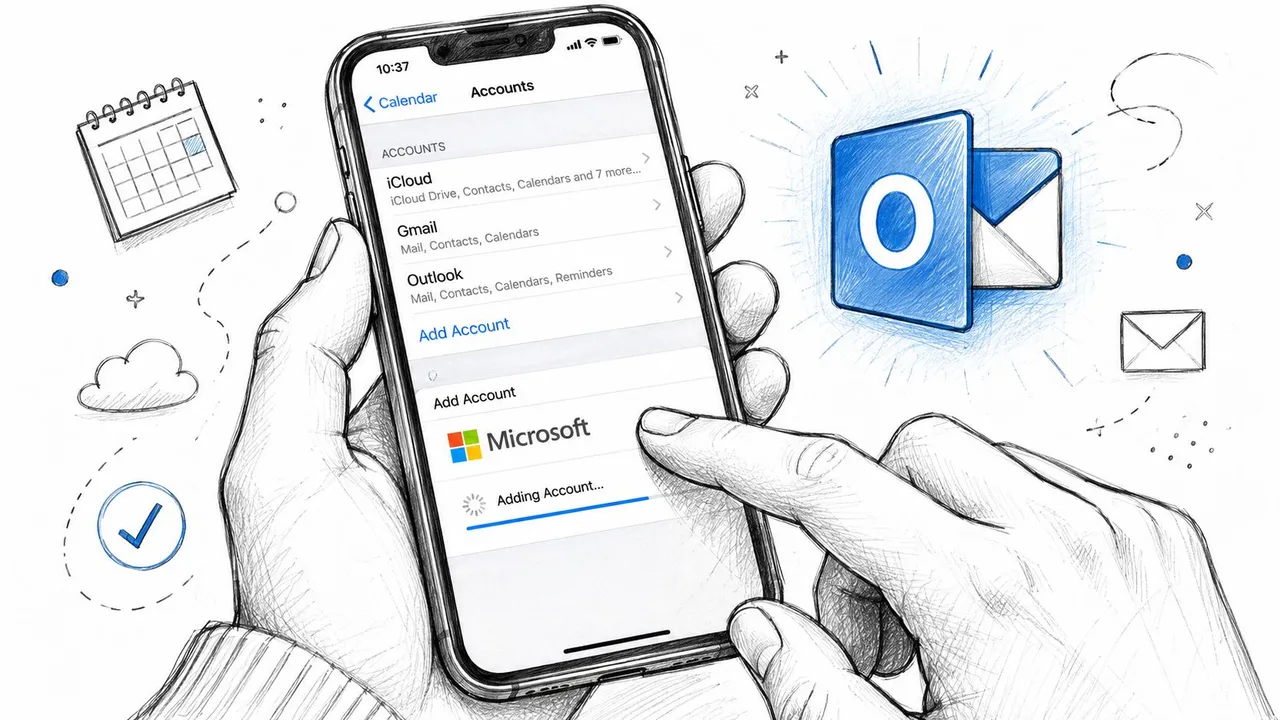
Use Microsoft’s sign-in page when iOS provides it. Microsoft 365 accounts often require modern authentication and multifactor verification, so a basic password prompt can fail even with the correct password. Do not substitute an IMAP setup. IMAP handles email, not the account-based calendar connection required here.
Practical rule: If mail works but the calendar is empty, check the account type before changing calendar data.
An incomplete address can create a mail-only account or point iOS to the wrong organization. Remove that incorrect account, then add the complete corporate address again. After setup, review Microsoft account settings and related tips for Microsoft 365 apps to keep connected services organized.
Confirm the calendar is enabled
Return to Settings > Calendar > Accounts, select the Microsoft account, and confirm that Calendars is on. Open the iPhone Calendar app, tap Calendars, and select the Outlook calendar. Also check the default calendar under Settings > Calendar > Default Calendar, so new events do not automatically save to iCloud.
Allow the first sync to finish before judging the result. A large calendar history or conservative push settings can delay the initial display. If events stop updating later, recheck the account’s calendar switch and sign-in status before deleting appointments. For a closer look at the account connection and ongoing Microsoft Outlook calendar synchronization, use a method that matches your account type rather than repeatedly re-adding the same account.
Setting Up Exchange ActiveSync for Corporate Calendars
A corporate calendar may work in Outlook on the web while remaining empty in the iPhone Calendar app. That usually points to an account, policy, or discovery issue rather than a missing appointment. Exchange ActiveSync is the native connection used for Microsoft Exchange calendar features on supported Apple devices, but managed environments can add authentication and device requirements.
What to enter on a managed account
Open Settings > Calendar > Accounts > Add Account > Microsoft Exchange. Enter the address used for your organization’s Microsoft sign-in. In many businesses, this is the user principal name, or UPN, and may differ from the address colleagues use for email.
After you enter the email address and account description, iOS may request the server. Microsoft 365 usually supplies the Exchange service automatically. An on-premises deployment may require the company’s own Exchange address. Do not guess this value. Ask IT for the approved endpoint if automatic discovery fails.
Leave Domain blank unless the administrator provides a value. The username may need to be the complete corporate sign-in address. A mismatch can authenticate one service while leaving native calendar synchronization unavailable.
Why managed devices behave differently
An iPhone enrolled in MDM may receive an Exchange configuration profile automatically. The profile can supply the server, account identifier, certificate settings, and authentication requirements. On a company-managed device, deleting that profile or adding a second manual account can create duplicate calendar sources and make later support more difficult.
Check these failure points before recreating the account:
- Conditional access: A policy may block a personal or noncompliant device, even when Outlook on the web accepts the same sign-in.
- Autodiscover problems: Incorrect discovery settings can stop iOS from locating the correct Exchange service.
- Disabled calendar service: Mail can synchronize while the Calendars option remains off in the account settings.
- Stale configuration: Re-saving the Mail, Contacts, and Calendars selections can prompt iOS to rebuild the local connection.
Microsoft’s current instructions direct users to add the account from iPhone settings rather than import calendar files. Follow the Microsoft Outlook and iPhone calendar connection guide when the organization uses Microsoft-hosted services.
For verification, ask IT whether the device appears as an approved ActiveSync partnership, where that check applies. A calendar that works only through Outlook’s cloud or REST-based app experience is not the same as native iOS calendar synchronization. If the connection later produces missing or duplicated events, record which calendar source created each event before changing the account. That history helps IT identify whether the issue comes from Exchange, the MDM profile, or a second calendar account.
Using the Outlook Mobile App as an Alternative
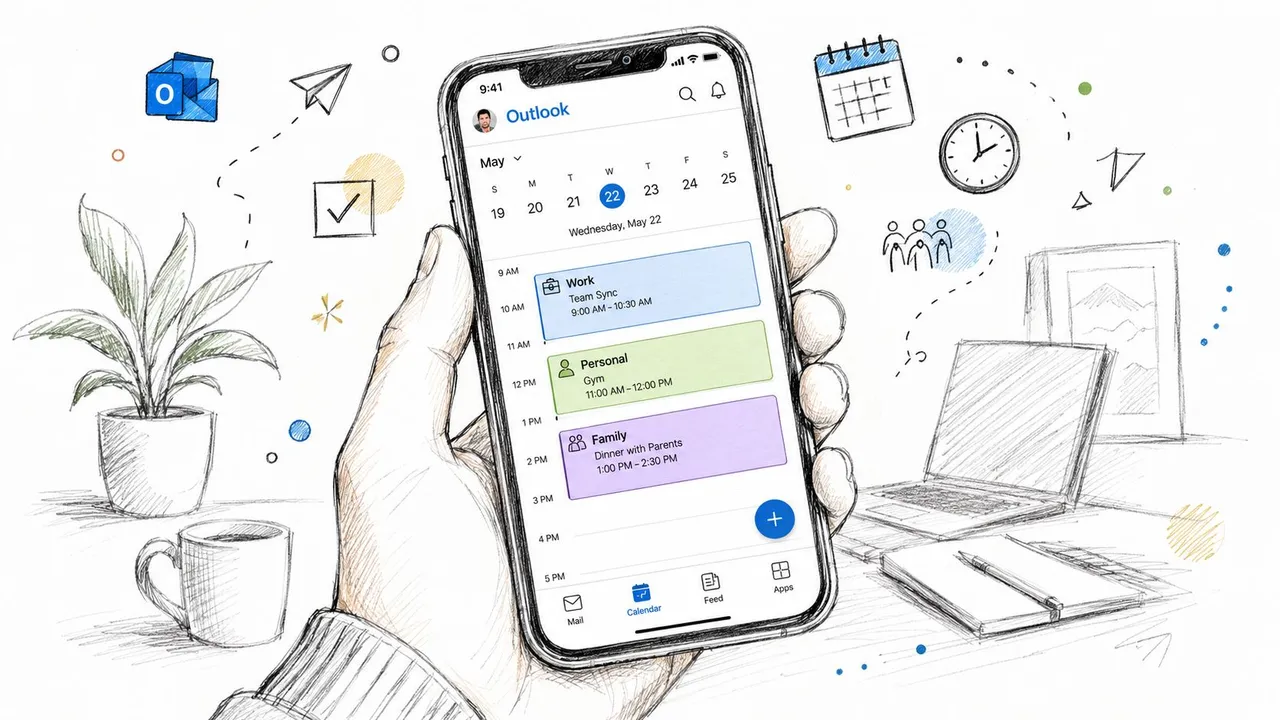
The Outlook app is often the better choice when the native iPhone Calendar becomes crowded with personal, work, shared, and delegated calendars. It keeps Microsoft calendars inside Outlook’s own interface and gives you meeting controls that Apple Calendar doesn’t reproduce in the same way.
Add accounts inside Outlook
Download Microsoft Outlook from the App Store, sign in with the main Microsoft or corporate account, and let the app complete its organization’s authentication requirements. To add another account, open Outlook settings, choose Add Account, and complete the second sign-in.
The app maintains its own calendar view by default. That separation can be useful when a company wants work events contained within an approved application, or when you don’t want every shared calendar appearing in the native iPhone Calendar.
Decide whether Outlook should write to Apple Calendar
Outlook can offer a Sync with iOS Calendar setting for supported accounts. Enable it when you need Outlook events in the system Calendar app, the Calendar widget, or Siri-aware scheduling. Keep it disabled when the Outlook app is your deliberate work calendar and a second copy in Apple Calendar would cause confusion.
Duplicates usually appear when the same account is connected natively and also exported from Outlook into iOS. Before enabling the toggle, check whether the Microsoft account already exists under iPhone calendar accounts. If it does, choose one route as the active connection rather than layering both.
Outlook mobile is stronger for meeting responses, RSVP tracking, shared calendars, and Microsoft-centric workflows. Native iOS sync is more convenient for people who want one system calendar, Apple widgets, and Siri suggestions. The right choice depends on whether you prioritize Microsoft collaboration features or system-wide Apple access.
Syncing iCloud Calendar to Outlook on Windows
If iCloud is your primary calendar store, Outlook on Windows doesn’t automatically gain a full two-way connection to Apple’s calendar system. A subscription bridge can mirror the iCloud calendar into an Outlook view, but it changes the relationship from active synchronization to a mostly read-only feed.
Use an iCloud calendar web link
On iCloud.com, open the calendar settings for the calendar you want to share and enable its public sharing option. Copy the generated webcal link, then add it through Outlook’s calendar subscription workflow. Depending on whether you’re using Outlook on the web or the desktop client, the menu may be labeled Add calendar, Subscribe from web, or Internet calendar.
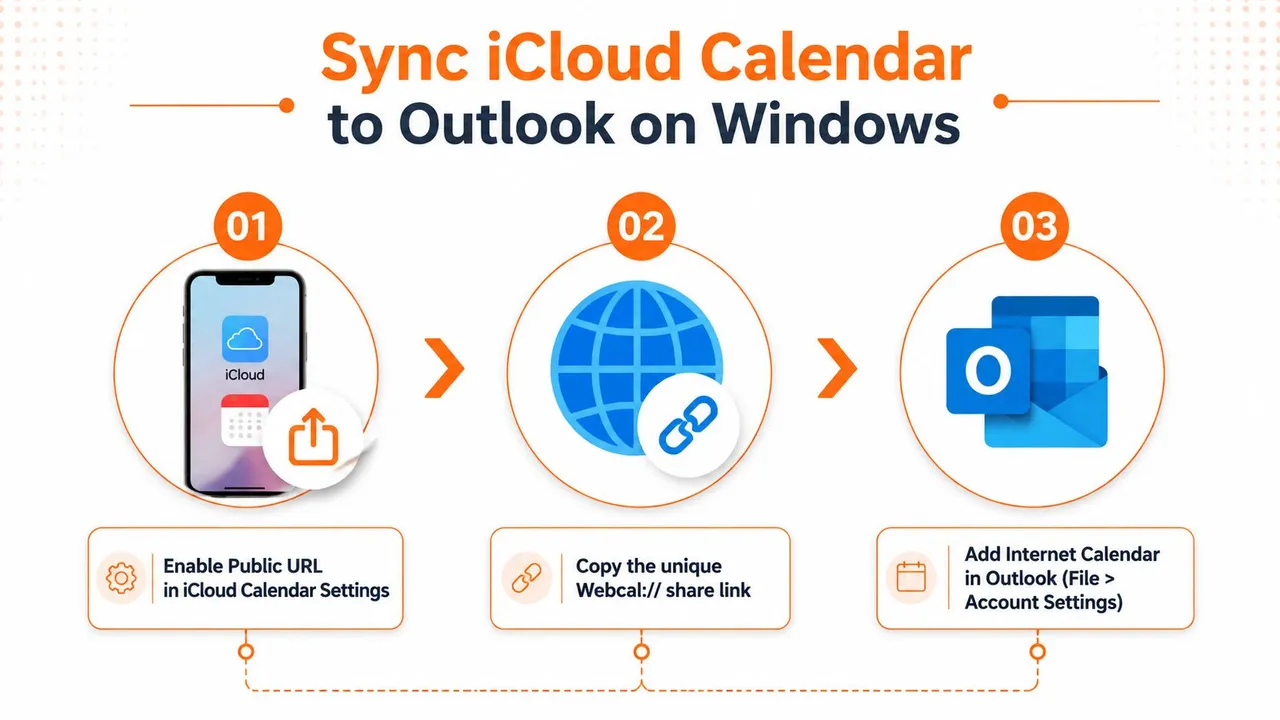
The result is an Outlook subscription that can display events originating in iCloud. It isn’t the same as adding an Exchange account. Changes made on the iPhone can flow to the subscribed view, but edits made in Outlook generally won’t write back to the iPhone’s iCloud calendar.
Important limitation: A public calendar URL is a viewing bridge, not a private two-way editing connection.
This method suits someone who edits events mainly on an iPhone and needs to view availability in Outlook on Windows. It isn’t appropriate when Outlook users must edit the shared calendar or when event privacy matters, because publishing a calendar can expose more information than intended.
Watch for broken subscriptions after account changes or changes to Apple’s sharing URL format. A calendar can remain listed in Outlook while failing to refresh, so verify it by creating a harmless test event in iCloud and checking whether the Outlook view updates.
If you also need contacts or reminders on Windows, the iCloud for Windows application may be necessary. A calendar subscription alone doesn’t provide those services or create a complete Apple-to-Outlook account connection. For a deeper comparison of Apple calendar routes, see this guide to calendar sync with iCloud.
Third-Party Sync Services for Multi-Account Setups
Built-in account connections work well when one Microsoft account is the source of truth. They become less suitable when a user must coordinate iCloud, Google Calendar, Outlook, and shared calendars while preserving separate ownership and privacy rules.
Services such as SyncGene, CalendarBridge, and Readdle’s CalDav Synchronizer approach that problem differently. Compare their supported direction, refresh behavior, duplicate handling, and credential model before connecting a work account. Many third-party products rely on polling rather than the native push behavior available to a directly connected Exchange account, so updates may not be immediate.
| Service | Sync Direction | Polling Interval | Cloud Credential Storage |
|---|---|---|---|
| SyncGene | Depends on selected account and configuration | Service-dependent polling | Review the provider’s current policy |
| CalendarBridge | Supports configured calendar bridges | Service-dependent polling | Review the provider’s current policy |
| Readdle’s CalDav Synchronizer | Configured through supported CalDAV and Outlook connections | Depends on local configuration | Credentials can be kept in the local setup |
The privacy question matters more than the feature list. A hosted bridge may need OAuth authorization for several calendars, which means the provider can hold tokens or access permissions for those accounts. Read the retention, revocation, and deletion policies before adding a calendar containing confidential client, health, legal, or internal meeting details.
A self-hosted CalDAV bridge on a home server or NAS gives more control, but it adds maintenance, availability, security, and backup responsibilities. It’s a reasonable route for technically capable users who don’t want credentials processed by a hosted service, but it isn’t automatically simpler or safer.
For practical planning across several sources, this resource on how to sync multiple calendars effectively is useful. The central recommendation is straightforward: try native account sync first, use a subscription only for read-only visibility, and consider a bridge only when the built-in choices don’t meet the workflow. A broader comparison of tools is available in this guide to the best calendar sync app.
Fixing Common Sync Errors and Duplicate Events
A successful first connection doesn’t prove long-term reliability. Most support problems appear after an iOS update, a password or policy change, or a user adding a second route to the same calendar.
Find where the connection breaks
Start with the missing event, not the account settings. Open Outlook on the web and check whether the event exists there.
- Missing on the web: Check the organizer, permissions, calendar selection, and server-side account status.
- Visible on the web but absent on iPhone: Inspect the iPhone account, calendar toggle, selected calendar list, and local connection.
- Visible twice on iPhone: Look for the same Outlook calendar connected through both Exchange and an Outlook app export or subscription.
- New events in the wrong place: Check the iPhone’s default calendar before creating another test appointment.
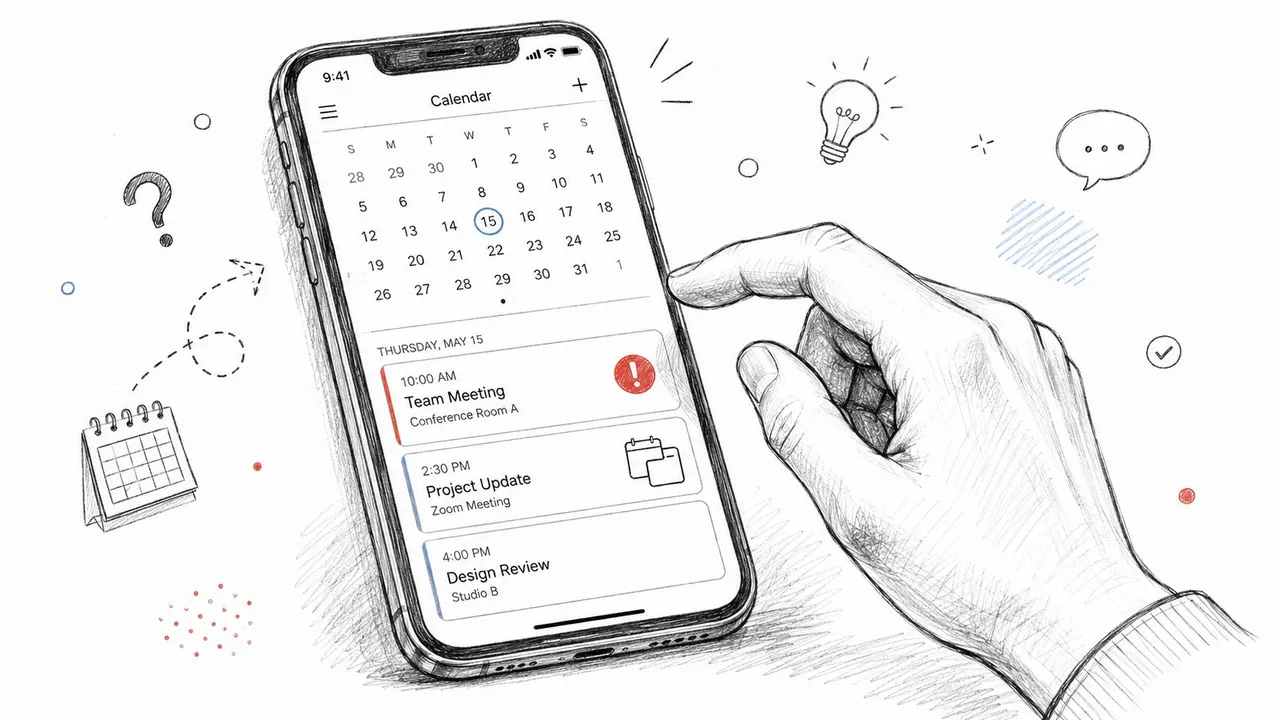
Apply the least destructive fix first
If an iOS update leaves events stuck, open Settings > Calendar > Accounts, select the Outlook account, turn Calendars off, wait briefly, and turn it back on. This can rebuild the local subscription without deleting the account.
Duplicates require a cleaner approach. Remove the old or incorrectly configured account entirely before adding the replacement. Disabling one copy while leaving overlapping account data in place often leaves duplicate calendars visible and makes it difficult to tell which source owns an event.
When Outlook shows an event but iPhone doesn’t, the Calendar switch may have been disabled while Mail remained active. Re-save the account’s service selections, then reopen Calendar and confirm the relevant calendar is checked under the account list.
Recurring meeting edits deserve special caution. Exchange ActiveSync can have limitations around complex recurring-series changes, especially when the organizer changes the series structure. If a modification refuses to propagate, the organizer may need to send a fresh invitation rather than relying on a damaged update.
iOS updates can also change which calendar receives newly created events. Open Settings > Calendar > Default Calendar and select Outlook if that’s the intended source. Microsoft support discussions continue to address account toggles, default calendars, reset operations, and account re-adds, which reflects how often the failure is caused by local configuration rather than a missing calendar feature. (Microsoft Q&A troubleshooting for iPhone calendar sync)
Choosing the Right Setup and Verifying It Works
The best method depends on where events are created and whether edits must travel in both directions.
| User Profile | Recommended Method | Setup Time | Reliability |
|---|---|---|---|
| Personal Outlook.com user | Native Outlook account in iPhone Settings | Short | Strong when Calendars stays enabled |
| Microsoft 365 employee | Microsoft Exchange account or Outlook app | Short to moderate | Depends partly on organizational policy |
| MDM-managed corporate user | IT-deployed Exchange profile | Minimal user setup | Strong when enrollment and policy are healthy |
| iCloud-first Windows user | iCloud bridge or read-only Outlook subscription | Moderate | Suitable for viewing, not full two-way editing |
| User with multiple providers | Carefully selected third-party bridge | Moderate | Depends on polling, permissions, and provider design |
Native Outlook.com or Microsoft 365 sync is the sensible default for most users. Corporate employees should follow their IT team’s approved Exchange or Outlook app route, while iCloud-first households should accept that a web subscription is mainly a viewing solution. People managing several independent calendars may need a bridge, but they should evaluate privacy before convenience.
Verify the connection in both directions. Create a test event on the iPhone, confirm it appears in Outlook on the web or desktop, edit the event from Outlook, and check the iPhone again. Don’t check only the title. Review the start time, time zone, reminder, recurrence, location, and any category or color behavior that matters to your workflow.
The setting most often overlooked is Settings > Calendar > Accounts > Outlook > Calendars. Confirm the switch is green, then check that the calendar is selected in the Calendar app and that Outlook is the default destination for new events if that’s your intended source of truth.
SyncThemCalendars connects Google Calendar, Microsoft Outlook or Office 365, and Apple Calendar with configurable one-way, two-way, or multi-way event copying. If your iPhone workflow spans Outlook and iCloud and native account sync isn’t enough, visit SyncThemCalendars to review the available calendar connection options.
Ready to sync your calendars?
Keep your Google, Outlook and Apple iCloud calendars in sync automatically. 2-minute setup, no credit card required.
Get started freeKeep reading
More in Guides

Synchronize Apple Calendar with Outlook: A 2026 Guide
Step-by-step guide: Synchronize Apple Calendar with Outlook on Windows, iPhone and Mac, with two-way options, privacy trade-offs and fixes.

SyncThemCalendars Quick Setup Walkthrough
Master the SyncThemCalendars quick setup in minutes. Connect Google, Outlook, or iCloud, configure privacy masking, and verify your first sync effortlessly.

Merging Google Calendars: The Complete Guide for 2026
Merging Google Calendars. Learn the best ways to merge Google Calendars. Compare import methods, sync tools, and automation strategies