


How to Sync Google and Apple Calendar: Step-by-Step Setup
Sync Google and Apple Calendar with native accounts or a managed tool. Compare one-way and two-way options, follow the steps, and fix common problems.
A client invites you to a Tuesday call in Google Calendar, your dentist sits in iCloud, and neither calendar warns you they’ve clashed until it’s too late. That’s the usual reason people try to sync Google and Apple Calendar, and it’s also where the confusion starts. Seeing both calendars in one app isn’t the same as keeping availability, edits and cancellations consistent across two separate accounts. Choose the wrong method and you’ll still double-book, just more confidently.
Choose the Right Sync Method Before You Start
Say you’re freelancing. Client meetings land in a work Google account you don’t control, while school pickups, medical appointments and family plans live in Apple Calendar. You check one, miss the other, and accept work over a personal commitment. Merging everything into one account sounds tidy, but it can expose personal titles to colleagues and make a work-managed account the owner of your private schedule.
These two systems were never built as one database. The Wikipedia history of Google Calendar notes that Google Calendar entered beta on April 13, 2006, and reached general release in July 2009, while Apple launched iCloud later, on October 12, 2011. One grew around a Google account, the other around Apple devices and iCloud. That separation still shapes identities, permissions, reminders and free and busy states today.
Three Routes With Different Consequences
Sync methods compared by editing, direction and privacy
| Method | Edit from either side | Direction | Privacy control | Best for |
|---|---|---|---|---|
| iCal subscription in Apple Calendar | No, view only | One-way, Google to Apple | Secret address grants full read access | Viewing a shared personal calendar |
| Native Google account in Apple Calendar | Yes | Two-way | Full event details on the device | One personal Google account on your own devices |
| SyncThemCalendars copied events | Yes, changes copied in near real time | One-way, two-way or multi-way | Field masking hides title, description or location | Work and personal separation, accurate shared availability |
Native sync also has functional gaps. Apple Calendar doesn’t support Google Calendar email notifications, creating new Google calendars, or Room Scheduler. For a single personal account on your own phone, those gaps may not matter. For a work-managed account, they often do, because you can’t fix everything from Apple Calendar and you may not want full personal detail copied into an employer’s system.
Decide Before You Tap Add Account
Ask three questions first.
- Which calendar stays authoritative: If Google is the source clients book against, personal events may only need to block time there, not move there permanently.
- What must propagate both ways: Creates matter, but so do edits, moves and deletions. A view that updates but can’t be edited won’t meet that test.
- What may other people see: Availability is usually safe to share. Titles, locations, attendees and notes often aren’t.
This is the same discipline professionals apply when they separate scheduling from sensitive case detail, which is why it’s worth find the right case management app thinking through what belongs in a shared system and what stays private. If one personal Google account on your own devices is enough, use the native setup next. If work and personal accounts must mirror availability without revealing content, skip to the managed setup.
Practical rule: Visibility is not synchronization. If you can’t edit, move and delete from the place you actually work, you don’t have a two-way sync.
How to Connect Google and Apple Calendar on iPhone and Mac
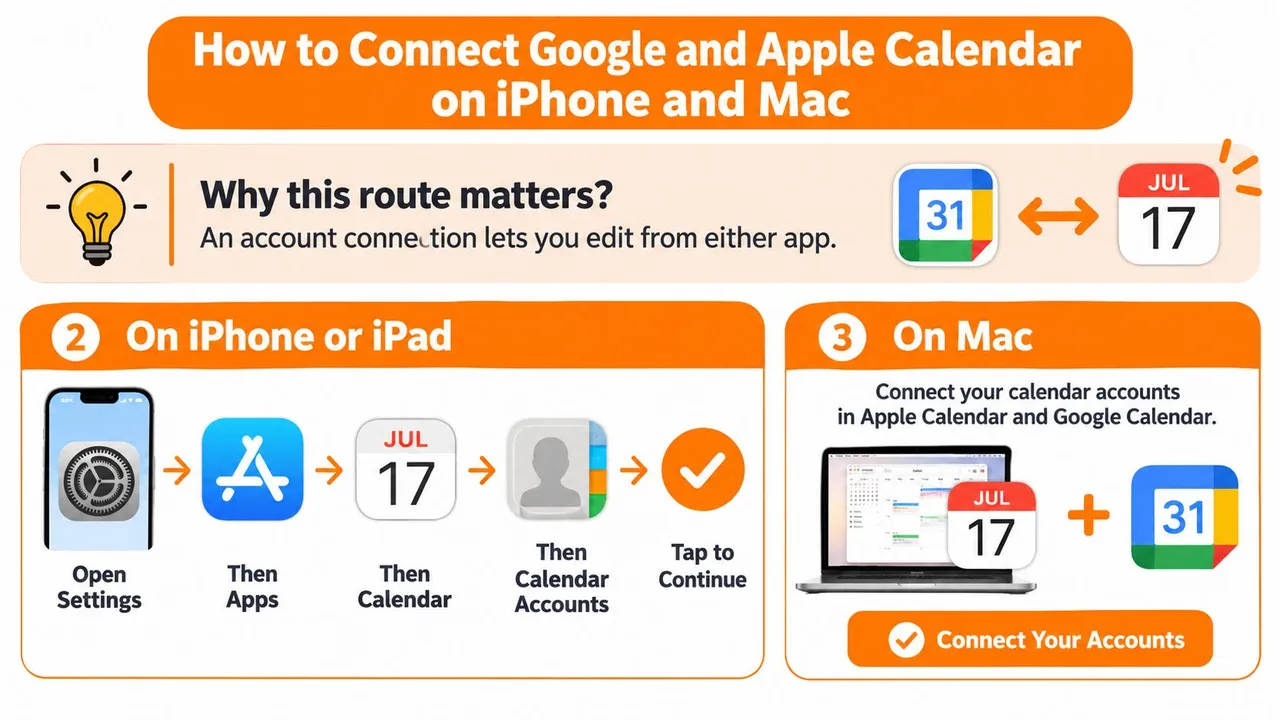
For a supported two-way setup, add Google as an account, not as an iCal link. An account connection gives Apple Calendar an editing path back to Google. A subscription only displays a feed, so you’ll see events you can’t change where you’re looking at them. That distinction explains most failed first attempts.
The visual below maps the account route on both Apple platforms.
Connect on iPhone and iPad
- Open Settings, then Apps, then Calendar, then Calendar Accounts. Tap Add Account and choose Google, because this creates the signed-in connection rather than a read-only subscription.
- Sign in and enable Calendars. Complete any verification Google requests, then check the Calendars toggle is on. A calendar switched off at account level won’t appear in Apple Calendar, even if sign-in succeeded.
- Open Apple Calendar and tap Calendars. Confirm the Google calendars you want are selected for display. Hiding a calendar here doesn’t break the connection, but it does make a working sync look broken.
- Set your default calendar deliberately. In Settings, then Apps, then Calendar, then Default Calendar, pick the Google calendar if most new events should reach Google. Otherwise new iPhone events may save to iCloud and never sync.
Connect on Mac
- Open Calendar, then Settings or Preferences, then Accounts. Add Google and authenticate, because macOS needs the same account-level permission as iOS, not a pasted feed.
- Enable Calendars for that account. Leave Mail or Contacts off if you only want calendar data, since extra services add noise without improving calendar sync.
- Choose a refresh interval. A shorter interval checks Google more often and reduces the delay before edits appear. A manual or long interval can make a correct setup feel unreliable.
- Check the sidebar selection. Tick the Google calendars you want visible, then create a new event and confirm its calendar field names a Google calendar before you save it.
Google’s own guidance draws the line clearly. The Google Calendar support page on syncing with Apple Calendar states that the account-based connection allows events to be added or edited from either Google Calendar or the other application, whereas an iCal subscription is principally a read-only method. Treat that as your acceptance test, not just setup trivia.
Confirm It Works in Both Directions
Create one test event in Google Calendar and wait until it appears in Apple Calendar. Then edit its title or time from Apple Calendar and verify the reverse update in Google. If either leg fails, don’t re-add the account yet. First check that the event was created on the Google-associated calendar, not an iCloud, local or other account, and that the calendar is enabled in account settings.
Watch the walkthrough below if the settings paths are new to you, then repeat the same two-direction test on your own devices.
Don’t treat a subscribed “Secret address in iCal format” as a substitute. It can display events, but it gives you no editing path back. A working native setup means edits in either app appear in the other within the refresh window, the default calendar matches your intention, and you haven’t created duplicate Google calendars along the way. If those conditions aren’t true, you have a viewing arrangement, not synchronization you can rely on for bookings.
Set Up Managed Two-Way Sync for Work and Personal Calendars
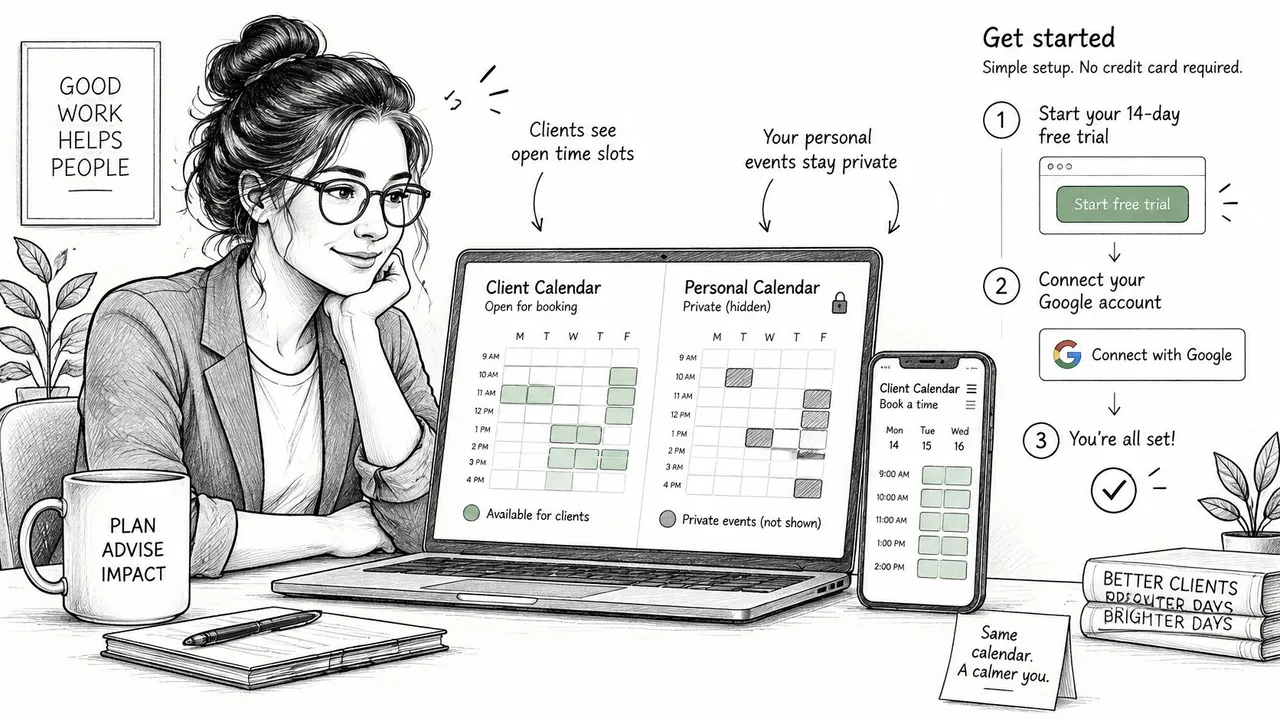
Use a managed copy when the problem isn’t seeing calendars together on your phone. It’s showing clients, employers or colleagues accurate availability in an account they can access, without moving your personal life into that account. A consultant, for example, may need a client’s Google calendar to block personal time while revealing nothing more than Busy.
The setup below follows the managed model described in the two-way calendar sync feature overview, where events are copied between chosen source and target calendars in a direction you control.
Build the Managed Connection
- Start the 14-day free trial, which needs no credit card. Use the trial to test your real calendars and edge cases, not to admire a dashboard with sample data.
- Connect the Google account first. Authenticate the account that clients or colleagues book against, because that’s usually the calendar whose availability must be correct.
- Connect the Apple iCloud calendar. Add the personal or device-based calendar next, then connect any Outlook or Office 365 calendar you also use if it affects the same availability.
- Choose direction for each pair. Pick one-way when one calendar is the source of truth, two-way when edits must flow both ways, and multi-way when three or more accounts must stay aligned.
- Set field masking before the first live copy. Replace copied titles with a neutral label such as Busy, and hide descriptions and locations where the other side only needs to know you’re unavailable.
- Use free and busy mirroring where detail adds no value. If a scheduler only needs open slots, mirror the block, not the appointment behind it.
The masking example matters in practice. A dentist appointment at 9 a.m. in your personal Apple calendar can appear in a work Google calendar as Busy, 9 to 10 a.m. A client booking system sees the conflict and won’t offer 9:30. Your client doesn’t see the dentist’s name, address or reminder notes.
Choose Direction Like an Owner
I would start one-way from personal to work if your only goal is preventing double-bookings. It’s the easiest model to reason about because personal events create work blocks, but work edits can’t accidentally rewrite personal plans. Move to two-way only when you actively edit the same events from both accounts and you’ve decided which side wins when they disagree.
Multi-way deserves extra caution. It suits people juggling client-mandated accounts, similar to how teams using Medical Virtual Assistants still need one clear owner for appointment changes even when support is distributed. More connected calendars means more chances for a copied event to be edited in the wrong place, so keep each pair’s direction written down until the behavior is familiar.
Don’t copy detail by default. Copy the minimum a scheduler needs to avoid booking over you.
For sizing, count active syncs rather than calendars, because one account can carry several calendars. The Basic plan covers up to five active syncs, and you should check current Premium and Professional limits on the plan page before buying. The vendor states that all plans include unlimited events and single-user access. If you stop a managed copy later, the native apps and original events stay where they were. You’re removing the mirroring layer, not rebuilding your calendars from scratch.
Fix Missing, Late and Duplicate Events
The common complaint sounds simple: “I created it in Apple Calendar and it never reached Google.” Most causes sit at account level, not inside the event. The event went to the wrong calendar, the account isn’t refreshing when you expect, or you connected a feed that was never able to send edits back.
Sync symptoms, likely causes and fixes
| Symptom | Likely cause | Fix |
|---|---|---|
| Event made in Apple is missing in Google | Event saved to an iCloud or local calendar | Move it to the Google-linked calendar and recheck |
| Google calendar not showing on iPhone | Calendar toggle switched off in account settings | Enable the calendar under Calendar Accounts |
| Updates arrive hours late | Fetch schedule instead of push | Shorten the fetch or refresh interval, or use a managed sync |
| Duplicate calendars after re-adding | Google account added twice | Remove the extra account and keep one connection |
| Edits in Apple do not return to Google | iCal subscription used instead of account | Remove the subscription and add the Google account |
| Recurring events shift time | Time-zone or recurrence mismatch | Edit the series from the source calendar and retest |
Fixes That Take One Change
A missing Apple event is usually fixed in minutes. Open the event, check its calendar field, and move it to the Google-linked calendar if it sits in iCloud or a local calendar. The same applies when a whole Google calendar seems absent on iPhone. Enable it under Calendar Accounts, then confirm it’s selected in the Calendars list.
Duplicates after repeated setup follow a similar pattern. If you added the same Google account twice, remove the extra account and keep one connection. Resist adding a third copy to fix the second. Each duplicate makes it harder to tell which calendar new events are using.
Problems That Need Observation
Late updates are different. On iPhone, accounts without push support rely on a Fetch schedule, and the Automatic setting downloads new data when the device is charging and connected to Wi-Fi. You may need a few days of normal use to see whether shortening the interval solved the lag or only looked good during one test.
The Google CalDAV developer guide documents that CalDAV access must use HTTPS and OAuth 2.0, shares quota limits with the Google Calendar API, and doesn’t support VTODO or VJOURNAL objects. That won’t affect ordinary meetings, but task-like or journal items built on unsupported object types won’t make the trip. Google also notes the implementation works correctly for many clients, including Apple Calendar, so don’t blame CalDAV before you’ve checked toggles, account choice and fetch timing.
Recurring events that shift after a series edit also need watchful testing. Edit the series from the source calendar, then check more than the next occurrence, including one after a time-zone or daylight boundary. If you’re working through persistent failures, the checklist for Google Calendar not syncing with Apple Calendar covers the same account and visibility traps in a focused troubleshooting format.
If you build your own connection rather than using the native account route, request only calendar scopes and store refresh tokens securely. A broader permission grant won’t make sync faster. It just increases the damage if credentials leak.
Protect Private Details When Sharing Availability
People often share a calendar to answer one narrow question: “When are you free?” Then they hand over far more than availability. Titles, locations, attendee names and notes can travel with a shared calendar, including details you’d never read aloud to the people receiving access.
A personal event name can reveal a medical issue, a job interview, a school, a lawyer or a home address. Once someone has copied or screenshotted that detail, tightening the setting later doesn’t pull it back. Treat sharing as publication until you’ve checked the receiving view yourself.
Run These Checks Before Anyone Else Sees It
- Confirm calendar ownership: Know which account owns each calendar, so a work-managed Google account doesn’t become the holder of personal events you can’t fully control.
- Exclude personal Apple calendars by default: Keep them out of shared copies unless you specifically intend those events to be seen by the other side.
- Share free and busy instead of the full calendar: Give schedulers open slots, not the content of the appointments closing the other slots.
- Never post a secret iCal address: That address grants full calendar access to anyone holding it. If it’s exposed in a document, chat or email thread, reset it.
- Confirm masking on every visible copy: Check each copy colleagues or clients can open, not just the first sync you created months ago.
Consider a student sharing an academic calendar with a supervisor. Classes and lab sessions can show normally because the supervisor needs that context. Personal appointments copied into the same view should appear only as Busy, so the supervisor sees availability without learning the subject of every private commitment. The same split works for a freelancer whose client needs booking accuracy, not family detail.
Permission names vary by provider, which is why it’s worth reviewing how calendar sharing permissions translate into what another person can open, copy or edit. Labels such as “view” can hide important differences between seeing busy blocks and reading full event content.
Check it as an outsider: Open the shared view from a second, unrelated account and confirm no sensitive details appear.
Repeat that outsider check after any change to account ownership, sharing settings or masking. A safe setup can become exposed when you add a new calendar, include a new sync pair, or replace a masked copy with a direct share for convenience. The check takes minutes. Recovering from oversharing takes apologies.
Test Your Sync Before Relying on It
Run this test in one sitting, before client bookings depend on it. Use the same matrix for a native account connection and a managed copy, because both can pass a simple create test while failing on moves, deletions or recurrences. Keep notes as you go. Memory is a poor sync log.
Run the Basic Matrix
- Create one event in Google Calendar. Give it an unmistakable test title, then confirm it appears in Apple within your refresh window.
- Edit that event from Apple Calendar. Change the title or time, then verify the revised version returns to Google without creating a second event.
- Create one event in Apple Calendar. Save it explicitly to the intended Google-linked or source calendar, then wait for it to arrive on the other side.
- Move it to a different day. Check that the original slot clears. A move that copies instead of relocating will eventually cause a false busy block.
- Cancel or delete it. Confirm the other side removes it too. Deletions are easy to forget during setup and painful to discover when a cancelled meeting still blocks bookings.
That sequence covers create, update, move, cancel and delete in both directions. If one leg fails, stop and use the symptom table rather than piling on new test events. Five messy tests teach you less than one clean failure you can reproduce.
Test the Cases That Usually Break
Repeat the matrix for a recurring event, an all-day event, an event in another time zone, an event with a reminder, and one with an attendee response. These aren’t interchangeable. A setup can copy a one-off meeting perfectly, then shift a weekly series, drop a reminder, or place an all-day event on the wrong date after travel.
For managed copies, inspect the shared side while you’re testing. Masked fields should show only the neutral label you selected, with no original title, description or location hiding underneath. Open the copied event fully, not just the week view. Privacy failures often sit one tap deeper than the calendar grid.
- Record the event type: Note whether the failure involves a single event, a series, an all-day item or an invitation.
- Record the direction: Write down where it started and where it failed to arrive, update or disappear.
- Record the time: Note when you made the change and when you checked, so fetch delay isn’t confused with total failure.
A recurring-event failure is the most common reason a setup has to be rebuilt, so fix that first. Edit the series from the source calendar, retest a near occurrence and a later one, then decide whether the direction or source of truth needs to change. Don’t declare success because today’s instance looks right.
Your next action is simple. If you’re using SyncThemCalendars, start the 14-day free trial, connect the accounts and run this matrix today. If you’re staying native, run it on the Google account connection before you trust it with real bookings. A sync you haven’t tested for deletion and recurrence isn’t finished, however reassuring the first test event looks.
If separate Google, Apple and Outlook accounts keep producing conflicting availability, SyncThemCalendars can copy events one-way, two-way or multi-way while masking titles, descriptions and locations you don’t want shared. Connect your calendars, choose what each side may see, and run the test matrix on the free trial before you rely on it for client bookings.
Ready to sync your calendars?
Keep your Google, Outlook and Apple iCloud calendars in sync automatically. 2-minute setup, no credit card required.
Get started freeKeep reading
More in Tutorials
How to Add Gmail Calendar to Outlook Without Duplicates
See how to add Gmail Calendar to Outlook by subscribing for a live view or using two-way sync, then avoid privacy leaks and duplicate events.
Export Outlook Calendar to Google: A 2026 Step-by-Step Guide
Learn how to export Outlook calendar to Google with clear steps for ICS and CSV imports, recurring-event checks, and verification tips that work in 2026.
How to Synchronize Outlook Calendar Across Platforms
Learn how to synchronize Outlook calendar events with Google and Apple iCloud. Master two-way sync, privacy controls, and real-time availability mapping.