







Outlook Google Sync Download: How to Set It Up in 2026
Outlook Google Sync Download guide: compare iCal subscriptions and two-way sync, set up step by step, and fix common errors.
Your work life runs in Microsoft Outlook, your personal appointments sit in Google Calendar, and a client just invited you to a recurring review on a third account. By Tuesday afternoon, someone moves a call by thirty minutes and you’re double-booked because neither calendar told the other. It’s common to hit search for an Outlook Google sync download, expecting a quick desktop installer that bridges both worlds in five clicks.
Split calendars aren’t an edge case. In a 2025 survey from Reclaim.ai’s Microsoft Outlook productivity report, 63.9% of Microsoft Outlook Calendar users also used Google Calendar. Schedules rarely sit still either: in 2024, professionals surveyed in the Reclaim.ai Smart Meetings Report averaged 17.1 meetings per week, with 4.2 meetings rescheduled weekly.
That pace is why searching for a single download leads to frustration. A one-time file export, an iCal subscription, an enterprise Workspace connector, and a true two-way cloud sync are completely different products. Each handles updates differently, and each carries distinct privacy and permission trade-offs that matter just as much as the setup steps.
Compare the Ways to Sync Outlook and Google Calendar
A file export preserves dates; it does not keep them alive. The practical choice is between a snapshot you can archive, a read-only feed you can view, an enterprise connector managed by IT, and a sync service that writes real copies with privacy controls.
| Method | Direction | What copies | Update speed | Best for |
|---|---|---|---|---|
| Import an .ics file | One-way, one-time | Snapshot of events at export | None after import | Single archive or one-off check |
| Subscribe with secret iCal address | Google to Outlook, read-only | Events as a read-only view | Follows the client polling schedule (often hours) | Personal visibility without edits |
| Google Workspace Sync for Outlook | Regular sync of Workspace data | Email, calendar events, contacts, notes and tasks | Managed sync for organization accounts | Organization-managed Workspace accounts |
| Web sync service (SyncThemCalendars) | One-way, two-way or multi-way | Event copies with optional field masking | Near real time for Google and Outlook; iCloud checked every few minutes | Mixed accounts and client calendars |
Microsoft keeps import and subscribe separate in Outlook: Microsoft’s Outlook documentation on viewing a Google Calendar describes an .ics import as a static copy, while the secret iCal address produces a subscribed calendar that Outlook refreshes from the publisher feed. Both are viewing routes. Neither creates editable Outlook events, and neither can hide private fields behind a simple Busy block.
Matching the Route to Your Daily Setup
Choosing the right path comes down to who owns the accounts and whether you edit from both sides. Say an events team runs room bookings in Microsoft 365 while a freelance coordinator tracks holds in Google. If the agenda also has to appear on a hallway display, treat that as a display task: Live Tourney’s screen mirroring over HDMI guide covers the monitor side, while the calendar problem is whether a booking change reaches every account before the screen goes stale.
- Personal Gmail plus work Outlook (view only): Subscribe with the secret iCal URL so family appointments appear alongside work meetings without installing software. Treat that URL like a credential, because it is the feed Outlook reads.
- Company-managed Google Workspace with an Outlook desktop requirement: Ask your IT administrator about Google Workspace Sync for Microsoft Outlook (GWSMO) rather than piecing together calendar links, since it touches mail, contacts, notes and tasks as well as events.
- Consultants, freelancers, and multi-account calendars: Use browser-based Google and Outlook sync software when meetings move frequently and colleagues need accurate busy blocks on both sides without seeing titles, locations or descriptions.
- One-off historical archive: Export and import an
.icsfile only when you want fixed dates that never need to update again, and store the file carefully because it carries the event details with it.
Decision rule: If edits, cancellations, reminders, or attendee responses have to travel back to the original calendar, an iCal subscription won’t work. Skip straight to a two-way sync.
How to Subscribe Outlook to Google Calendar
If you only need to view Google events inside Outlook without paying for a tool, subscribing via iCal is the cleanest native route. According to Microsoft’s guide to importing or subscribing to a calendar in Outlook on the web, online iCalendar feeds receive automatic updates based on the publisher’s feed refresh and Outlook’s polling schedule, rather than operating as an instant two-way link.
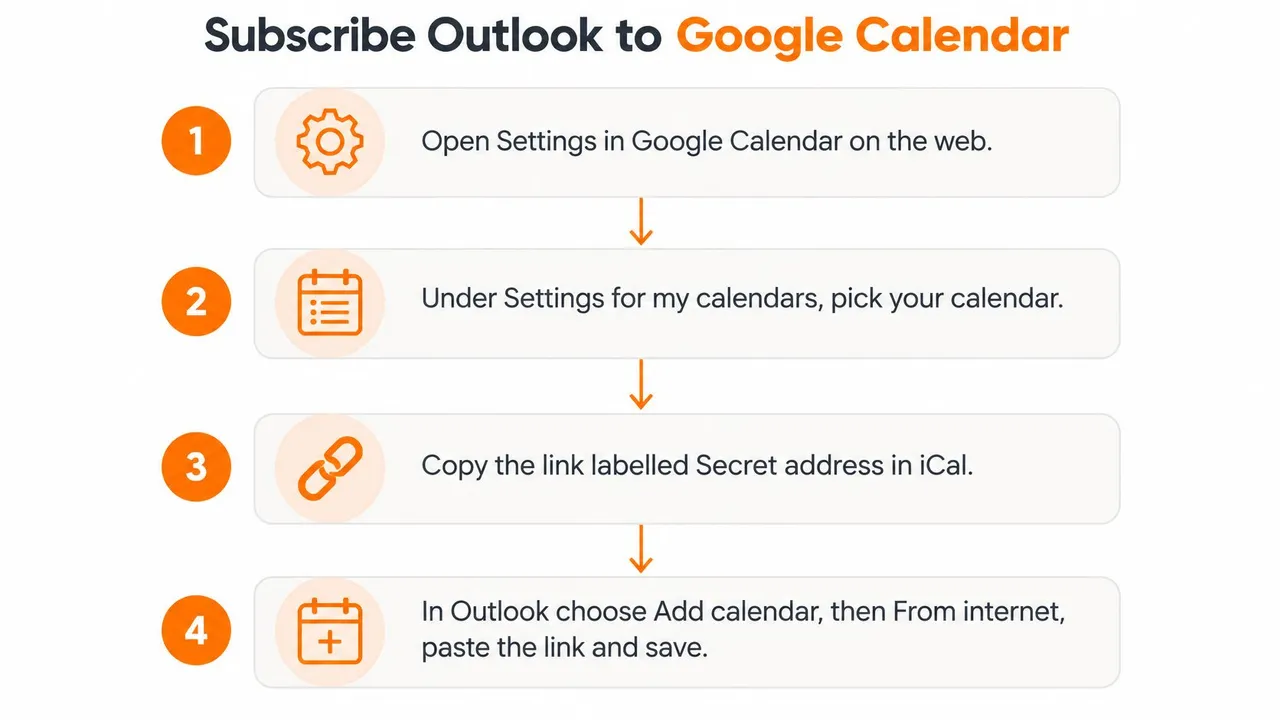
- Open Google Calendar in a desktop browser, click the gear icon for Settings, select your specific calendar under Settings for my calendars, and copy the link labeled Secret address in iCal format because that private URL is the exact feed Outlook needs to read your schedule.
- Open Outlook on the web, select Add calendar in the left pane, click Subscribe from web, paste the secret link, give the calendar a distinct name, and pick a bright color so you never mistake read-only Google entries for editable Outlook meetings. If you work in the desktop app instead, Outlook for Windows puts Add calendar and Subscribe from web inside the calendar pane, while Outlook for Mac places the same option under File, Open, and Subscription.
- Check the left calendar list to verify the new calendar appears and displays your existing appointments, confirming that Outlook accepted the feed without a formatting error.
- Create one uniquely named test event in Google Calendar, wait for it to show up in Outlook, and then edit its start time and title separately so you can measure how long each field takes to propagate.
- Add a recurring meeting, cancel a single occurrence of that series, and create one event in another time zone because calendar compatibility bugs almost always hide in recurrence rules, cancellations, private flags, and daylight-saving shifts rather than simple one-off events.
A subscribed calendar is strictly read-only. You can view every entry inside Outlook, yet moving or deleting it there won’t touch Google Calendar, and anyone holding that secret URL can view the full event details without signing in.
When You Actually Want a One-Time ICS File Download
Sometimes an Outlook Google sync download really does mean grabbing a local file, such as archiving a completed project calendar or transferring fixed school term dates. In Google Calendar under Settings for my calendars, click Export calendar to download a .zip archive containing your .ics file. Inside desktop Outlook, go to File, choose Open & Export, select Import/Export, and load that .ics file as a static snapshot.
If Outlook rejects the file or drops appointments, export a fresh copy directly from Google Calendar, since malformed or incompatible .ics formatting is the usual culprit. You can read a deeper breakdown of importing and subscribing to ICS calendars in Outlook if you’re troubleshooting stubborn export files. Pick a live subscription whenever future edits must keep arriving, and choose the .ics download only when a frozen record is the entire goal.
Privacy Settings and Permissions to Check First
Most sync guides jump straight into clicking “Allow” on a consent screen and assume the easiest setup is the safest one. In practice, your permission scope and field masking decide what coworkers, clients, and outside apps can read, not the sync connection itself.
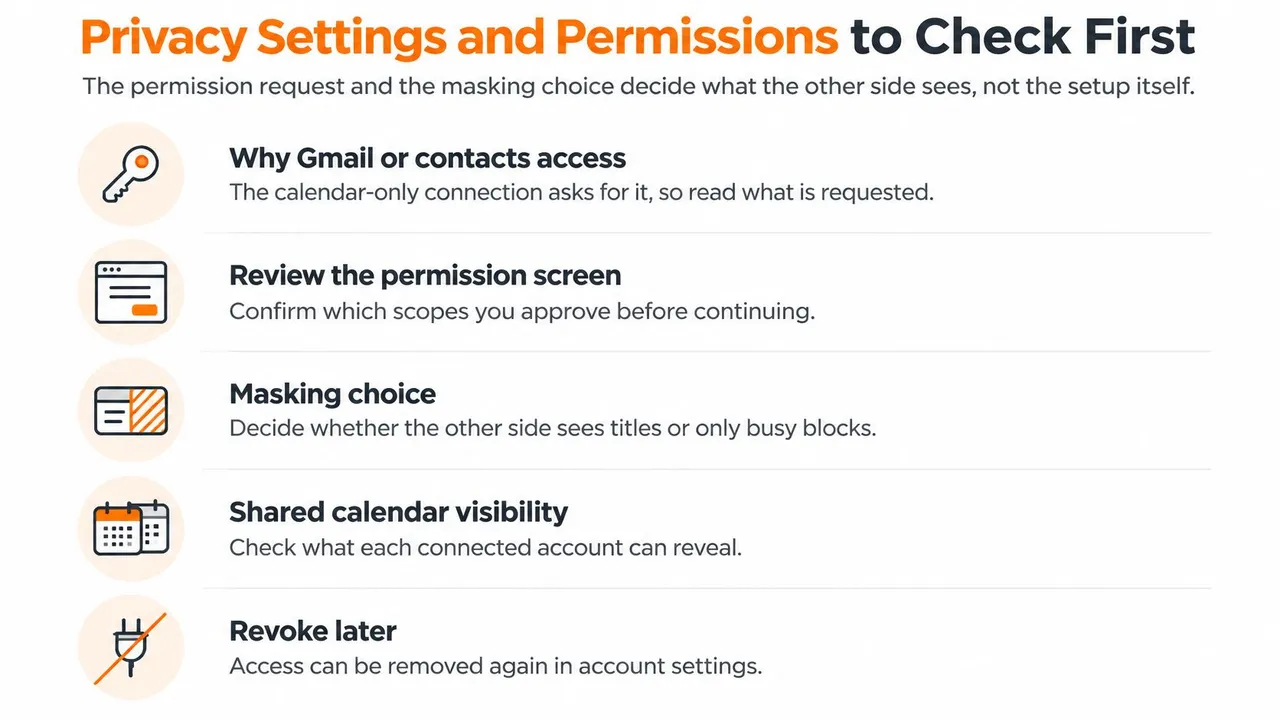
People are often surprised when a calendar integration asks for broader access to Google services like Gmail or Drive. A recent Microsoft Q&A community thread on integrating Google Calendar with Microsoft 365 notes that some Google-to-Microsoft 365 connections fail unless wider Google permissions are approved, while an IETF draft on standardized groupware OAuth scopes specifically separates calendar read permissions from broader mail and contact scopes. Read every line on the OAuth consent screen before clicking accept, pick least-privilege read-only access whenever a tool supports it, and remember you can revoke third-party access later inside your Google or Microsoft account security page.
| Masking option | What the other calendar shows | Use it when |
|---|---|---|
| Full copy | Title, location and description | Colleagues on the same project |
| Busy block | Blocked time labeled busy, no details | Client-facing or shared work calendars |
| Free/busy only | Availability without event content | Scheduling across accounts you do not own |
Secret Links and Organization Approval Policies
Native subscriptions carry their own exposure risk. Because Google’s secret iCal URL skips account authentication, anyone who gets that link can read event titles, locations, and descriptions straight from the feed. Treat that URL like a password, never paste it into a shared document or team chat, and click Reset inside Google Calendar’s settings immediately if it leaks.
Company policy adds a second checkpoint. If your Outlook account belongs to Microsoft 365 or your Google Calendar sits inside Google Workspace, an administrator can disable external calendar publishing or block unapproved OAuth apps completely. That’s a security control for regulated work and client confidentiality, not a software glitch, and reviewing your calendar sharing permissions early saves wasted troubleshooting later.
I would never mirror raw personal appointments or confidential client titles onto a corporate Outlook calendar. Use busy blocks for client-facing and shared work calendars, and reserve full copies strictly for schedules your own immediate team already has permission to view.
How to Set Up a Two-Way Sync With Account Links
When read-only views aren’t enough and edits have to flow in both directions, a browser-based sync service replaces desktop downloads altogether. Because the connection runs in the cloud through account authorization, you avoid installing unsigned executables or fighting Windows Defender SmartScreen warnings on a locked-down company laptop.
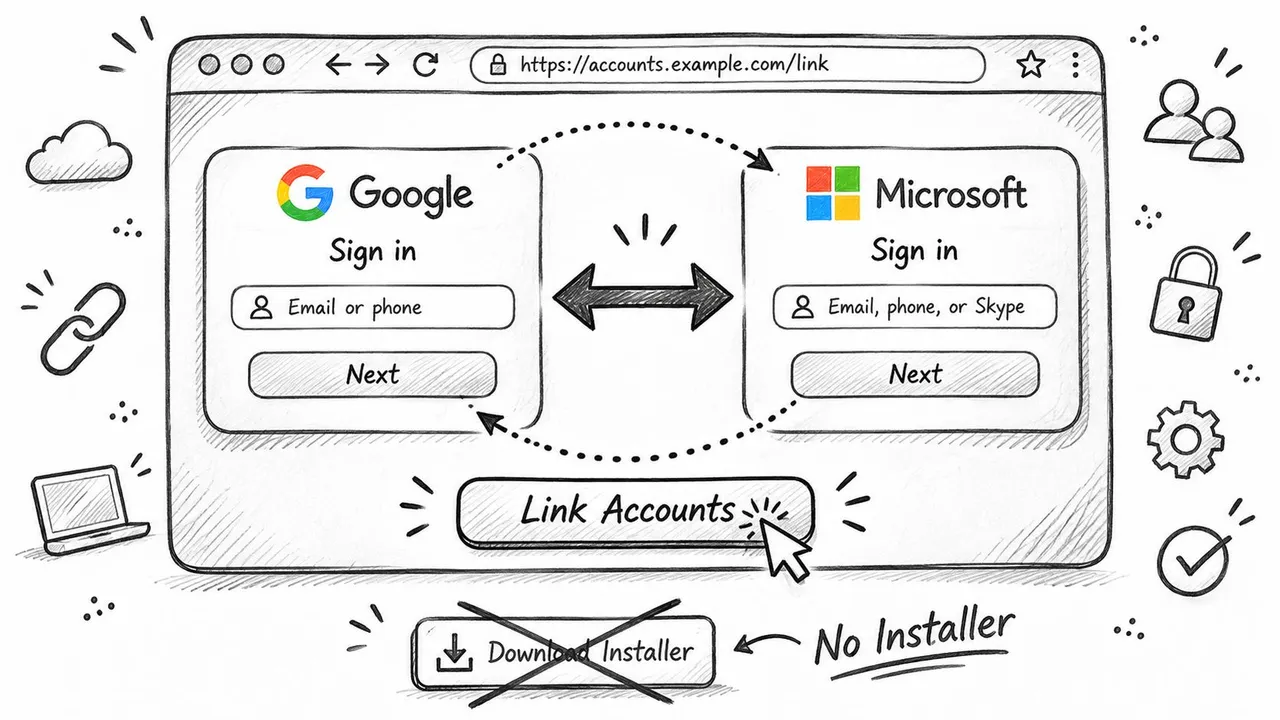
- Sign in with both your Google account and your Microsoft account inside your web browser, approving only the calendar permissions needed so nothing has to be downloaded onto your machine.
- Select your source calendar and target calendar from the account dropdowns, pausing to double-check that you picked the right sub-calendar rather than a secondary holiday or team calendar.
- Choose your sync direction: pick one-way if copies should travel only from A to B, or two-way if creating or moving a meeting in either Outlook or Google needs to update both sides automatically.
- Configure your visibility rule before the first sync runs by choosing full copy, busy block, or free/busy only so sensitive titles, meeting links, and locations aren’t copied into a shared calendar by default.
- Run the initial sync, then create one test event in Outlook and edit it inside Google Calendar to confirm that new events land within minutes and changes return to the source calendar cleanly.
How Google Workspace Accounts Handle Sync Differently
Personal Gmail and consumer Outlook accounts usually link in the browser without outside help. Organization-managed domains work differently, because a Workspace or Microsoft 365 administrator may require app approval before an OAuth token can connect.
For companies running Google Workspace alongside desktop Outlook, Google maintains a dedicated enterprise tool called Google Workspace Sync for Microsoft Outlook (GWSMO). Per Google Workspace’s official GWSMO documentation, GWSMO regularly synchronizes Google Account data with Microsoft Outlook across email, calendar events, contacts, notes, and tasks, letting employees manage their entire Workspace profile inside Outlook rather than viewing a standalone calendar feed. If your company already relies on Outlook as its primary desktop client for a Workspace domain, open an IT ticket to ask whether GWSMO is enabled before linking third-party apps.
To see how a browser-based account link handles real-time calendar pairing in practice, watch this quick walkthrough before configuring your own calendars.
You’ll know a two-way setup is healthy when a newly booked meeting shows up in the target calendar within a few minutes and a rescheduled time on the target side moves the original invite automatically.
Fix Missing Events, Duplicates and Connection Errors
When a synced calendar looks empty or behaves strangely, resist the urge to delete everything and start over. Most failures leave a clear symptom that points directly to the misconfigured setting.
| Symptom | Likely cause | Fix |
|---|---|---|
| Google events missing in Outlook | One-time import used instead of a subscription | Remove the import and subscribe with the secret iCal address |
| New events appear hours late | Subscription refresh interval | Measure the delay with a test event and check the last update time |
| Edits in Outlook never reach Google | One-way or read-only setup | Switch to two-way sync or edit only in the source calendar |
| Duplicate events after syncing | Two syncs writing to the same calendar | Keep one sync per calendar pair and delete the extra copies |
| Connection asks for more permissions | Required calendar scope not granted | Reauthorize and approve calendar access, then check with an admin if blocked |
| Connection blocked by the organization | Admin approval policy | Ask the Google or Microsoft administrator to approve the app |
The most common failure is a calendar that imported yesterday’s schedule and then went completely silent. That almost always means a local .ics file was uploaded instead of subscribing to a live feed. Deleting the imported calendar entries and adding the secret iCal URL fixes it in minutes.
Fast Self-Fixes Versus IT Tickets
Splitting quick self-service fixes from administrator blocks keeps you from wasting an afternoon retrying settings you don’t control.
- Lagging subscriptions (fix yourself): External iCal feeds refresh on the receiving app’s polling schedule, so a delay of several hours is normal. Confirm whether the feed is merely slow or broken by checking a test event’s arrival time before rebuilding the link.
- Duplicate meetings (fix yourself): Duplicates appear when two sync rules target the same destination calendar, such as running both an iCal subscription and a two-way sync tool simultaneously, or layering two separate one-way rules carelessly. Disable the extra connection so only one sync writes to each calendar pair, then clear the duplicate copies.
- Missing write-back or OAuth errors (fix yourself): If edits never travel back, confirm you aren’t editing a read-only copy. If a sync prompts repeatedly for authorization, disconnect and reconnect the account while granting the required calendar scope.
- Blocked apps or missing publish options (IT ticket): When a consent screen says admin approval is required, or Outlook’s calendar publishing menu is greyed out, an organizational policy is active. Send your Google Workspace or Microsoft 365 administrator the app name and the exact calendar scope requested so they can whitelist it.
If a calendar still won’t budge after those checks, run a three-point audit: re-export and validate the
.icsfile, check the subscription’s last refresh timestamp, and verify that external sharing hasn’t been turned off at the calendar level.
Start the Sync and Know What It Costs
If edits have to travel both ways, or if client-facing Outlook schedules need clean busy blocks instead of exposed personal event titles, a read-only iCal subscription won’t do the job. A dedicated two-way cloud sync handles both requirements without touching your desktop apps.
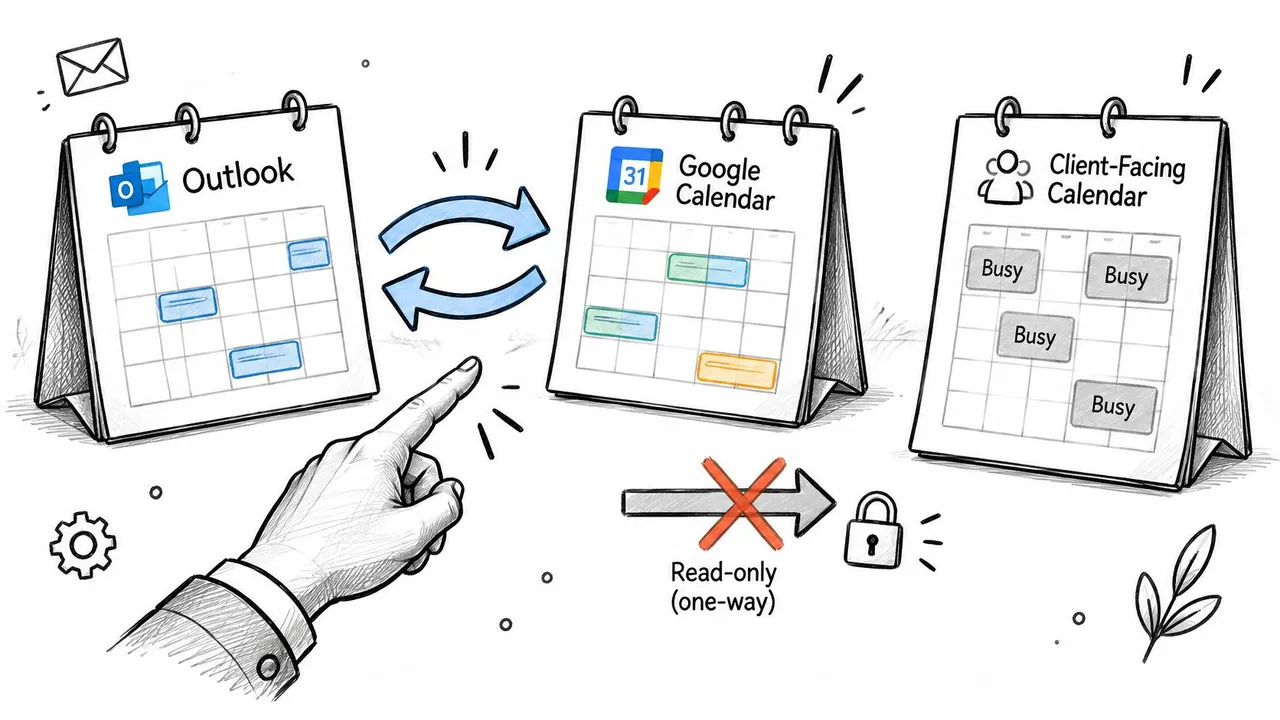
Setting up SyncThemCalendars takes 2 minutes and needs no software installation on your work laptop. Follow four steps in your browser:
- Create your account in the browser and connect the Google and Microsoft accounts you want paired.
- Add your first sync by selecting the source calendar, target calendar, sync direction (one-way, two-way, or multi-way), and your preferred field masking option.
- Wait for the first run to finish, then open one test event inside both Google Calendar and Outlook to verify the formatting and privacy level.
- Check the sync status screen to confirm active updates before relying on the calendar for a live client meeting.
Because Google and Outlook send instant change notifications to SyncThemCalendars, event copies update within moments of a reschedule rather than waiting hours for a feed poll. SyncThemCalendars also doesn’t store your calendar events or Google Drive files, keeping that data on the provider’s servers.
Trial Terms and Straightforward Pricing
You can test the full workflow with a 14-day free trial that requires no credit card. Once the 14-day trial ends, a paid subscription is needed to keep syncs running. The Basic plan costs $3.99 per month, or $47.88 billed yearly, and covers 5 calendar syncs, unlimited events, unlimited calendars of all types, support for Google, Outlook, and Apple iCloud, and 1 user.
Connect the calendar pair you depend on every week during the trial rather than an empty sandbox calendar. Fourteen days of live reschedules, recurring calls, and client bookings will show you immediately whether automatic two-way mirroring pays for itself in saved double-bookings.
SyncThemCalendars keeps Google Calendar, Microsoft Outlook, and Apple iCloud aligned in real time from your browser, with one-way, two-way, or multi-way syncs and custom busy-block privacy controls. If you’re ready to stop juggling static exports and delayed iCal feeds, start your 14-day free trial at SyncThemCalendars and test it on your active calendars today.
Ready to sync your calendars?
Keep your Google, Outlook and Apple iCloud calendars in sync automatically. 2-minute setup, no credit card required.
Get started freeKeep reading
More in Tutorials
Google iCloud Calendar Sync: Step-by-Step Guide
Google iCloud calendar sync explained: one-way and two-way setup steps, common fixes, privacy masking, and when to use continuous background sync.
Calendar on iPhone Not Syncing with Exchange: How to Fix It
Calendar on iPhone not syncing with Exchange? Check the Calendars switch, account type, sync window and server limits, then fix it step by step.
How to Sync Google and Apple Calendar: Step-by-Step Setup
Sync Google and Apple Calendar with native accounts or a managed tool. Compare one-way and two-way options, follow the steps, and fix common problems.